Optimize your Windows 10 or 11 performance with our expert PC Health Advisor tips. Boost speed and efficiency, with easy fixes and updated 2025 methods.
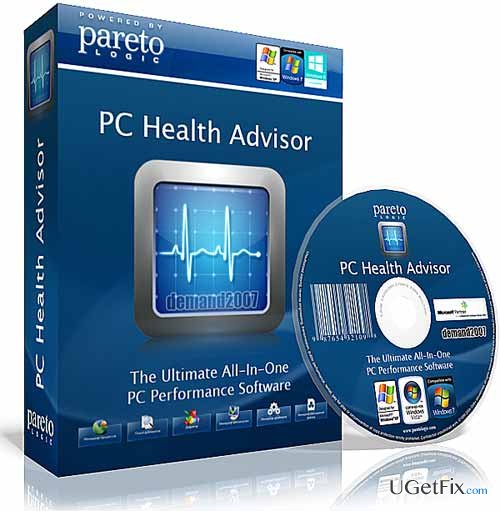
PC Health Advisor is an all-in-one PC optimization tool that has been created by a well-known company ParetoLogic Inc. According to its developers, this tool is capable of detecting active malware, cleaning Windows registry, defragmenting the disk, updating drivers, finding programs to open file extensions and cleaning out cashed information. PC Health Advisor is one of the few PC optimization tools that offer tools for cleaning, optimizing, maintaining and protecting in one pack. Moreover, it is set to check for aforementioned errors and automatically notify when you should run a full system check. Although it has a schedule for a must perform system scans, users can delay them or put forward if a notification about recommended scan emerges.
The utmost interface is developed in a user-friendly manner allowing people to perform a full system check and fix computer with PC Health Advisor by eliminating malware, fixing registry, defragmenting disk, updating drives, eliminating extensions, cash and other errors. Nevertheless, the user can also choose and perform only one task at that moment, for instance, check and fix registry errors. PC Health Advisor is considered to be one of the best PC optimization tools in the market these days and already received a great number of positive reviews. Those who want to try this tool, developers offer to install a trial version that is valid for one month, whereas six-month subscription license for one computer costs $24.97 and $124.85 for 5 computers.
So, why should I select PC Health Advisor?
There are lots of factors that can influence computer's performance. Of course, computer's age is one of the main reason of slowdowns. Nevertheless, it usually appears that incorrect PC's maintenance cause more damage that it's age. PC Health Advisor is recommended by many experts due to a comprehensive combination of high-quality tools for optimizing, cleaning, maintaining, and protecting a computer in one place. Moreover, it's interface is minimal and user-friendly, which means that the user does not need specific knowledge and lots of efforts to install and launch PC Health Advisor. This powerful PC optimization tool will not only optimize PC's speed and performance, but will also automatically update drivers, protect the computer from malware, clean Internet privacy files, and do a bunch of other operations to make a computer run as a new and protect it from further errors. Besides, it's a lightweight and speedy application that does not burden computer's system, except can slightly diminish it's performance during a full system check. To sum up, PC Health Advisor helps to keep computers fast and secure using only one software.
Bottom line
PC Health Advisor provides solutions such as malware detection, registry cleaning, disk defragmentation, driver updates, and cache clearing. If these fixes do not resolve the issues, consider seeking professional technical support.
Frequently asked questions
The PC Health Advisor is a tool designed to help users optimize their system performance by providing recommendations for configuration and tweaks. It analyzes your PC's health and suggests adjustments to improve speed and efficiency.
You can access the PC Health Advisor by searching for 'PC Health' in the Start menu and opening the app. This will allow you to view health recommendations and performance tips tailored to your system.
The PC Health Advisor suggests optimizations such as disabling unnecessary startup programs, cleaning up temporary files, and adjusting system settings for better performance. Implementing these recommendations can enhance your overall user experience on Windows 10 or Windows 11.
Julie Splinters is a software and privacy expert who has spent years helping users remove unwanted programs, clean adware-infected browsers, and reclaim their privacy settings. Her speciality is the grey area between legitimate software and potentially unwanted programs — the bundles, toolbars, and browser extensions that users never intentionally installed. Julie's uninstall guides are thorough and sequential, covering manual removal, registry cleanup, and post-removal browser restoration. She also writes about privacy tools and software installation best practices that help users avoid these problems in the first place.





Report an issue
What's wrong with this guide? We review every report and update or remove content.
Report received — thank you. We'll review and fix it.
You need a free account to submit a report.
Be the first to comment