How to recover
Downgrade
from Windows
Easily downgrade from Windows 11 to Windows 10 without losing files or settings. Follow our expert-tested guide for a smooth transition. Fixed in minutes!

What leads to How to downgrade from Windows 11 to Windows 10?
- System not running correctly
- Crucial features not working as expected
- Operating system being buggy
- Fingerprint reader not working
- Clock and date missing
- File Explorer lagging
Repairs Windows system files, removes malware, and restores a clean OS state — without reinstalling.
Hello. I wanted to know how I can go back to Windows 10. I upgraded to Windows 11 but it did not meet my expectations. What steps should I have to take to downgrade to Windows 10?
Microsoft released the newest version of Windows on October 5th, 2021. Many people were excited to try out the new operating system. However, a lot of users are looking for ways to revert back to Windows 10. For some people, the system was not running correctly, or some crucial features were not working as expected.
We previously wrote about Windows 11 issues, like Fingerprint reader not working, clock and date missing, and File Explorer lagging. Many users were not happy about the operating system being buggy and decided to downgrade to Windows 10. So this guide will help you change Windows 11 back to Windows 10.
You should note that Windows 10 will be supported by Microsoft until 14 October, 2025.[ref en-1] Another important thing we should mention is that there are requirements you have to meet to be able to downgrade to Windows 10:
-
You can only downgrade to Windows 10 within the 10 days of your upgrade
-
Previous Windows version files, typically Windows.old folder, and other required files should be present on your system
If the above requirements are not met, you cannot go back to Windows 10 with the method we provide in this guide. In that case, you will need to perform a clean install. Before proceeding, you should backup files you created after upgrading to Windows 11 because they may disappear during the downgrade process. The programs you installed and settings you configured after Windows 11 upgrade, will need to be reinstalled and reconfigured as well.
If you want to go back to Windows 10 because of problems with the operating system, you should first try using a repair tool, like [d1]. It can fix most system errors, BSODs,[ref en-2] corrupted files, and registry[ref en-3] issues. Otherwise, make sure to follow the steps below carefully.
Downgrade from Windows 11 to Windows 10
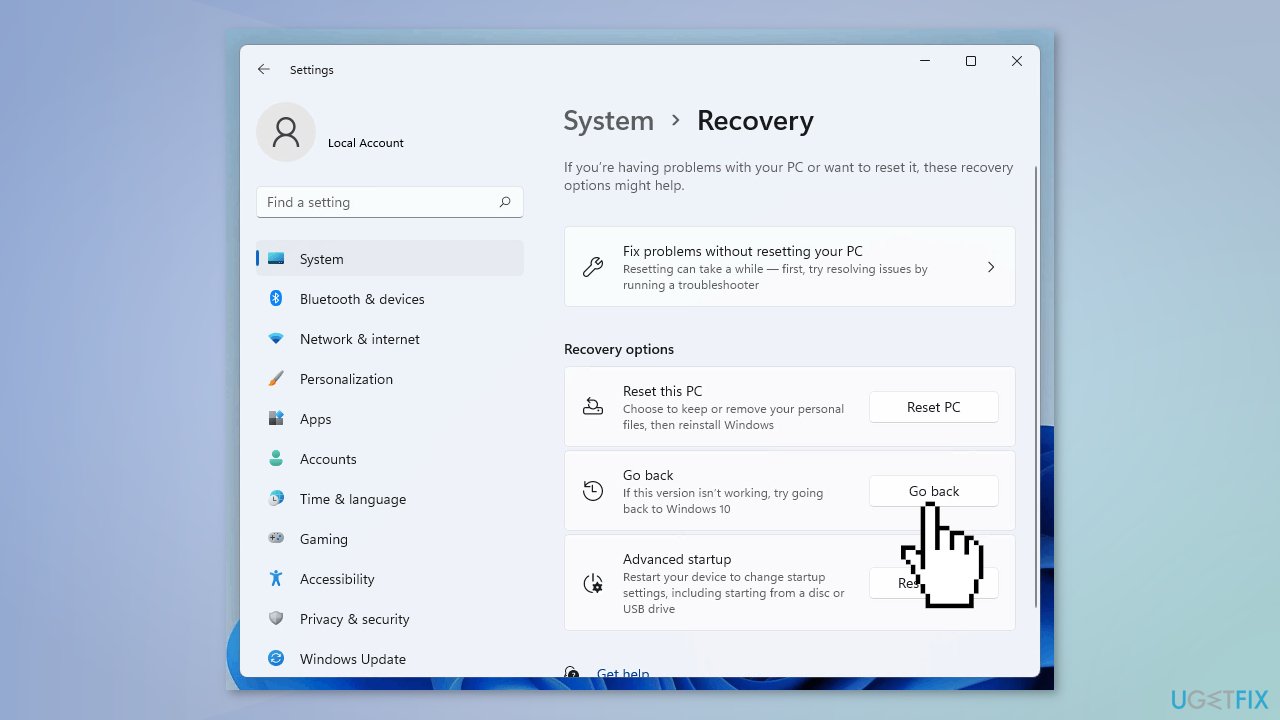
- Open the Settings app on your Windows 11, go to System
- Open Recovery and under Recovery options, click Go back
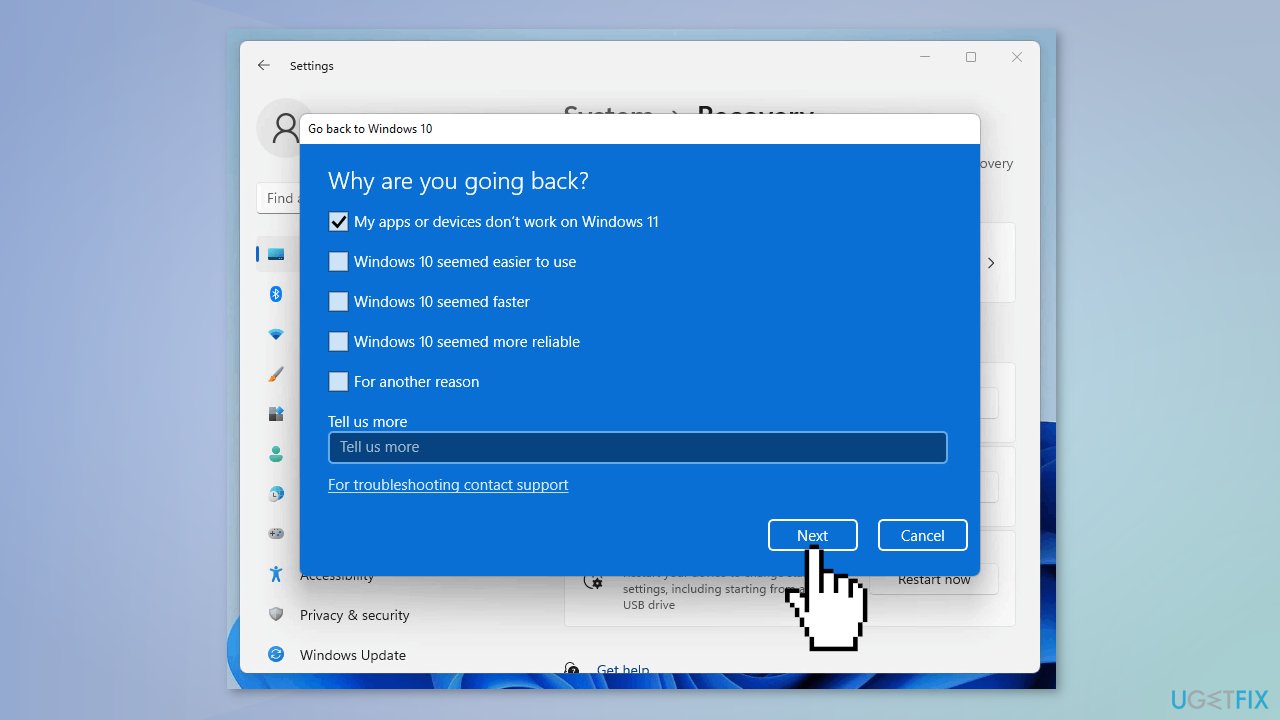
- Under Why are you going back, select a reason and click Next
- In the next screen, select Check for updates
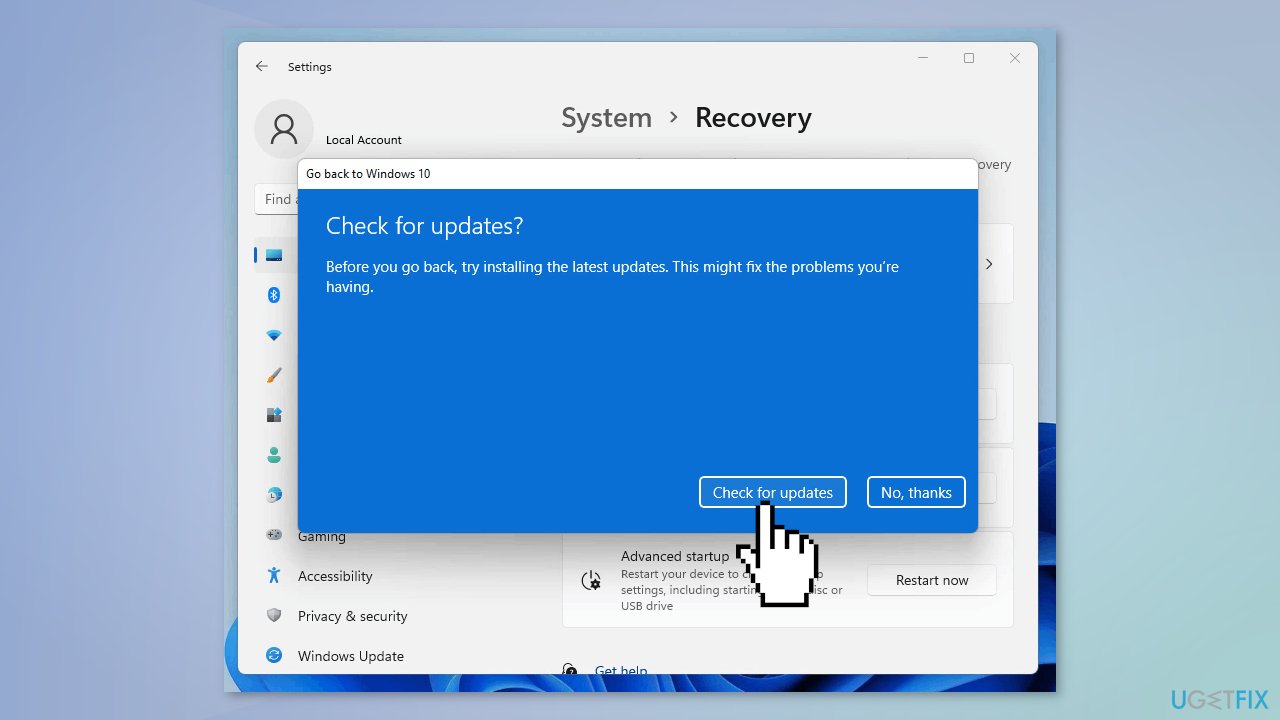
- If that does not work, click No thanks
- Under What you need to know, make sure you go through this information thoroughly
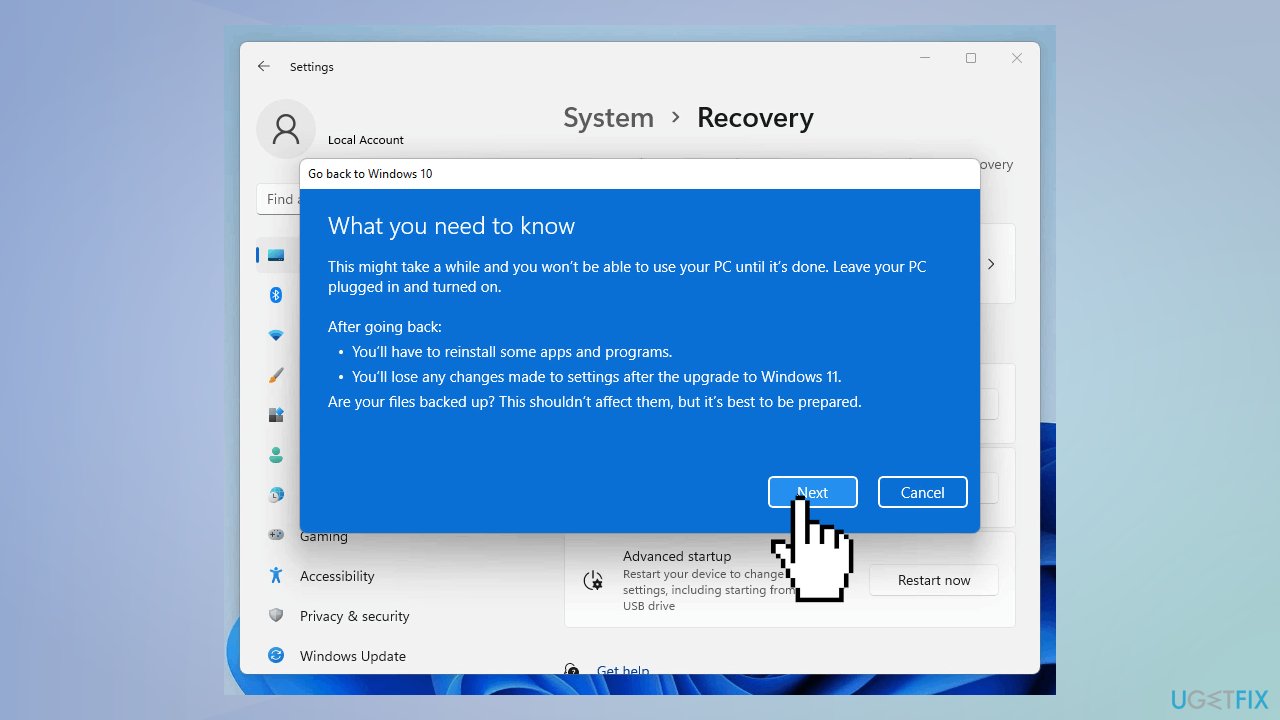
- When you are ready, click Next
- Make sure you remember Windows 10 password so that you do not get locked out
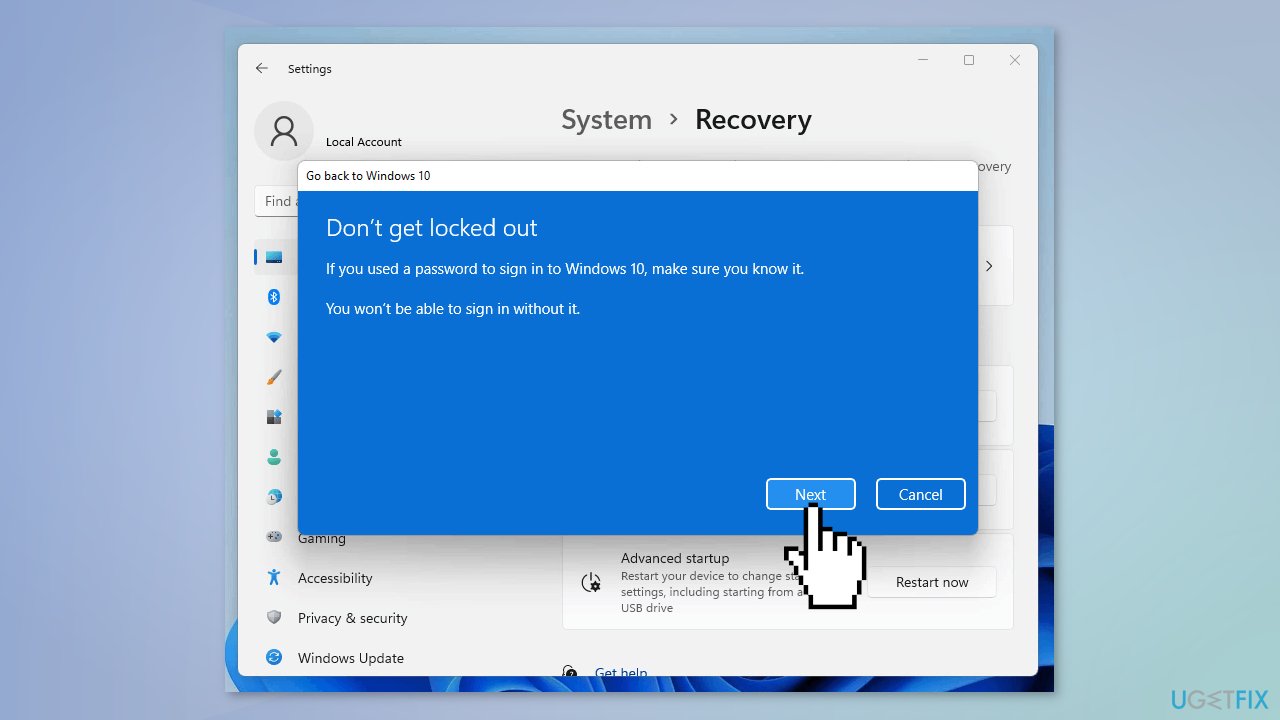
- Click Next to proceed
- Finally, click on Go back to Windows 10
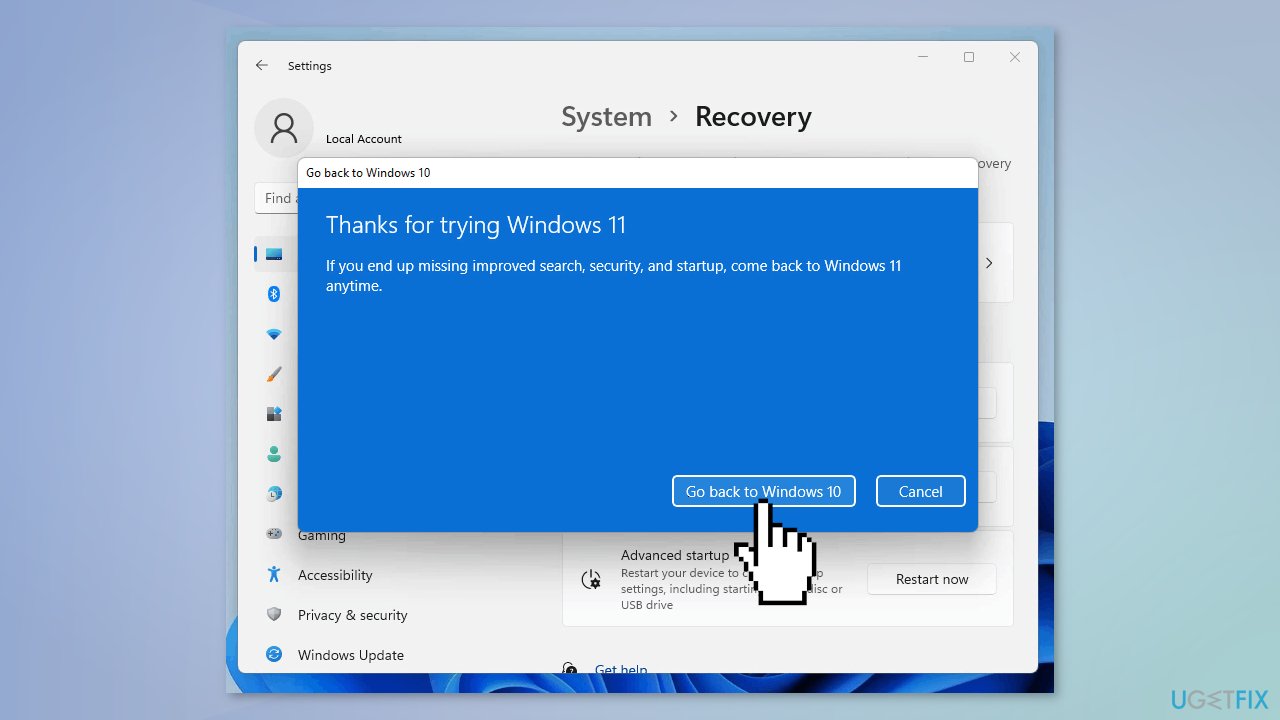
- Your system will now restart
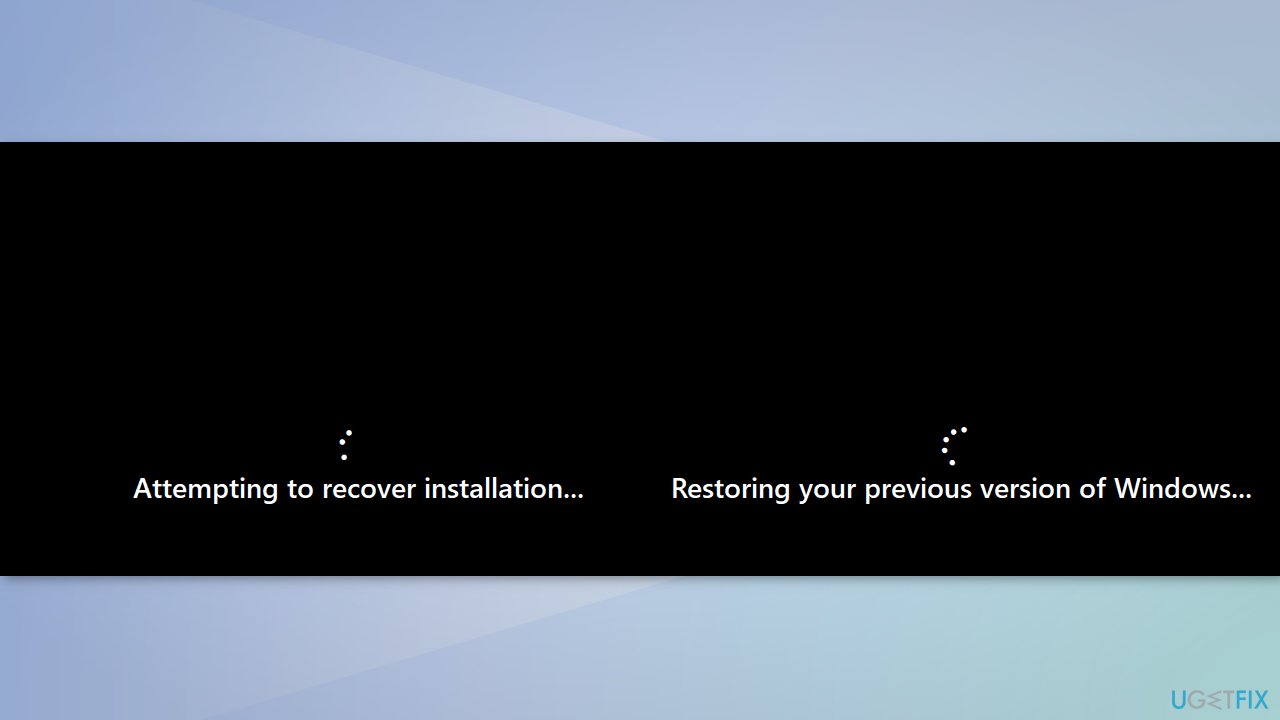
- After a restart, you will see Attempting to recover installation screen
- In a few moments, you will see Restoring your previous version of Windows
- Now your system will restart and you will see Windows 10 boot screen
- In the next few moments, you should be able to login to your Windows 10 PC
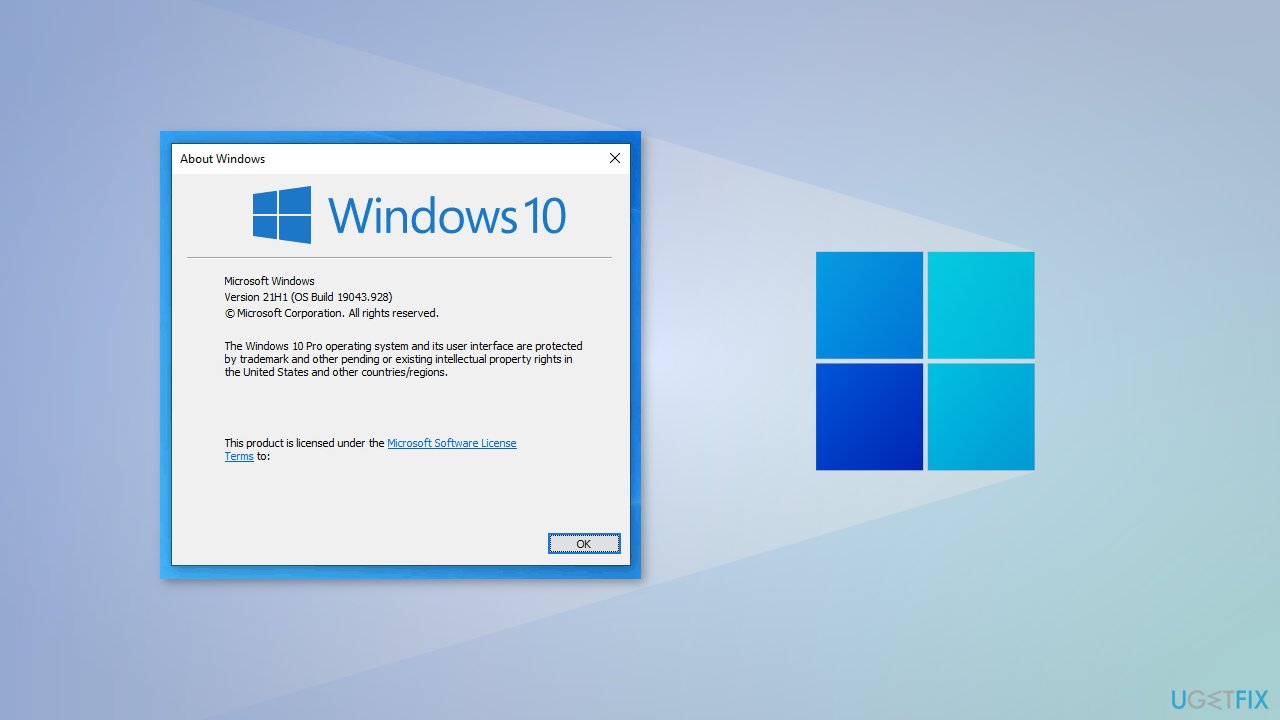
- After login, you can check your Windows 10 version by running a winver command in the Command Prompt
Bottom line
To downgrade from Windows 11 to Windows 10, ensure you meet the requirements, such as downgrading within 10 days of the upgrade and having the necessary files. Backup your files and be prepared to reinstall programs and settings. If issues persist, consider using a repair tool to fix system errors before attempting the downgrade.
Frequently asked questions
Before downgrading, back up your important files to an external drive or cloud storage to prevent any data loss during the process.
If you downgrade within 10 days of upgrading, your settings can typically be restored; otherwise, you may need to manually reconfigure them.
If you lose files during the downgrade, consider using file recovery software or check the Recycle Bin for any accidentally deleted items.




Report an issue
What's wrong with this guide? We review every report and update or remove content.
Report received — thank you. We'll review and fix it.
You need a free account to submit a report.
Be the first to comment