How to remove
Apps from My Libraries
from Windows
Easily remove unwanted apps from My Libraries in the Windows Store on Windows 10 and 11. Expert-tested methods ensure a hassle-free experience, zero tra…

How does How to remove apps from My Libraries in Windows Store end up on your PC?
- Microsoft Store does not include an Uninstall/Remove function for apps in My Library.
- Users may have apps that are outdated or no longer needed, taking up space.
- The inability to remove apps has been a long-standing issue since at least 2016.
- Users may experience confusion regarding the operation principles of the Store.
- Errors such as 0x8004E103, 0x80131500, and 0x80246008 may affect app management.
Repairs Windows system files, removes malware, and restores a clean OS state — without reinstalling.
Hello, I have noticed plenty of apps I no longer use in "My Library" of Microsoft Store. I was looking for a way to remove them, but there is no obvious Uninstall/Remove button there. Why is this the case? Is there a way to get rid of these apps?
Windows Store, otherwise known as Microsoft Store, is a built-in app that can be found on any Windows operating system. Initially, users had to purchase software online or download freeware from third-party websites, which increased the risk of possible infections. With the release of the Windows Store, users were able to install apps easily by using it, which removed the risk of malware infections almost completely.
That being said, the component is not without its shortcomings, as users reported errors such as 0x8004E103, 0x80131500, and 0x80246008 when using the app. Likewise, some people were questioning the operation principles of the Store, and one of the most asked questions over the years was, "Why can't I remove apps from My Library in Microsoft Store?"
Indeed, it seems like it should be an obvious solution - you install the app through the store, and if you want to get rid of it, you hit the "Uninstall" button. The problem is that Microsoft Store does not have such a function included, and users are baffled to this day as to why this is the case. This question has been asked since at least 2016,[ref en-1] and people are still not sure why Microsoft didn't include such a simple function.
Many complained that they have apps from a long time ago (in some cases, a decade old) that they no longer need or use, and they are simply taking up space while being installed on the system. While there is no way to remove apps from My Libraries in Windows Store, there are plenty of ways around it.
Before proceeding with the solutions below, please take your time to scan your system with reputable [d1] repair software, which can check your system file integrity and remove any malware[ref en-2] or inconsistencies that may come with file corruption. It can also help people fix malware damage and remediate the computer, stopping it from BSOD[ref en-3] crashes, various errors, and other common Windows issues.
Solution 1. Use Apps and Features
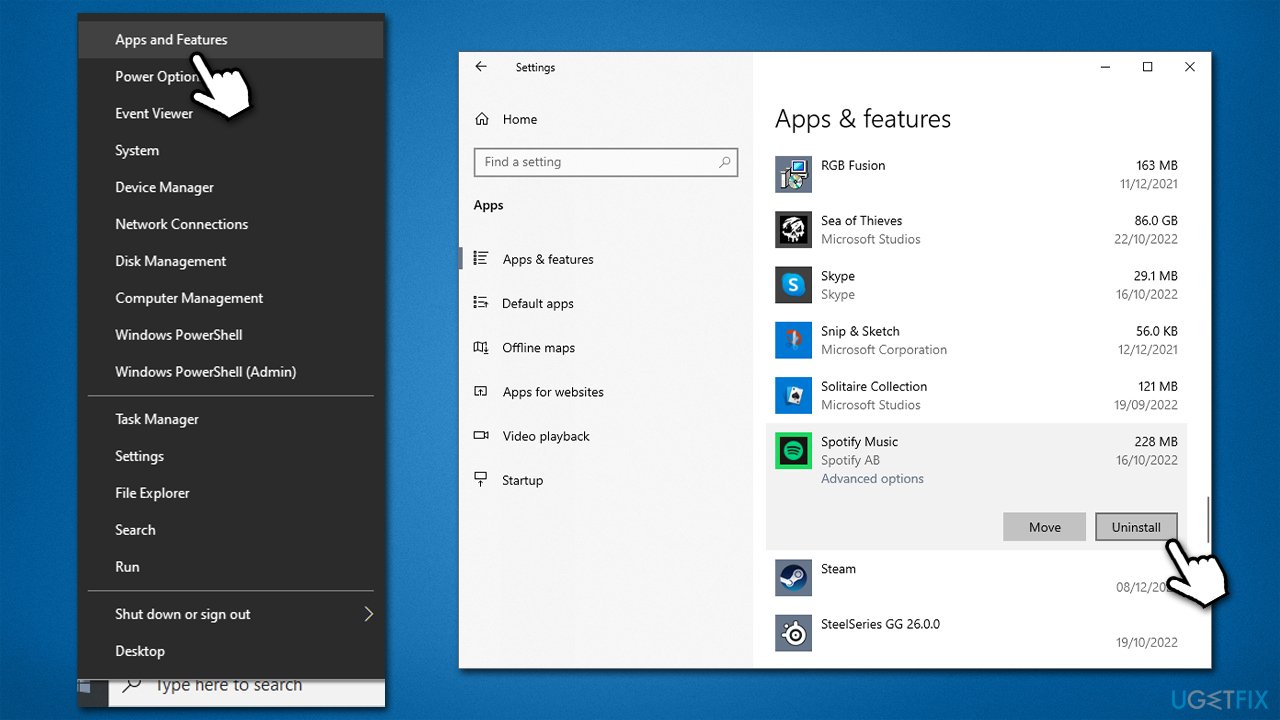
Uninstalling Microsoft Store apps is easy, all you have to do is go an alternative route and look for the uninstall feature outside of the store. The easiest way to go about this is by using Apps and Features.
- Right-click on Start and pick Apps and Features
- Here, you will find the list of all installed apps
- Scroll down to the app you want to get rid of, for example, Spotify
- Click Uninstall > Uninstall
- Follow on-screen instructions to remove the app fully.
Solution 2. Uninstall via the Search function
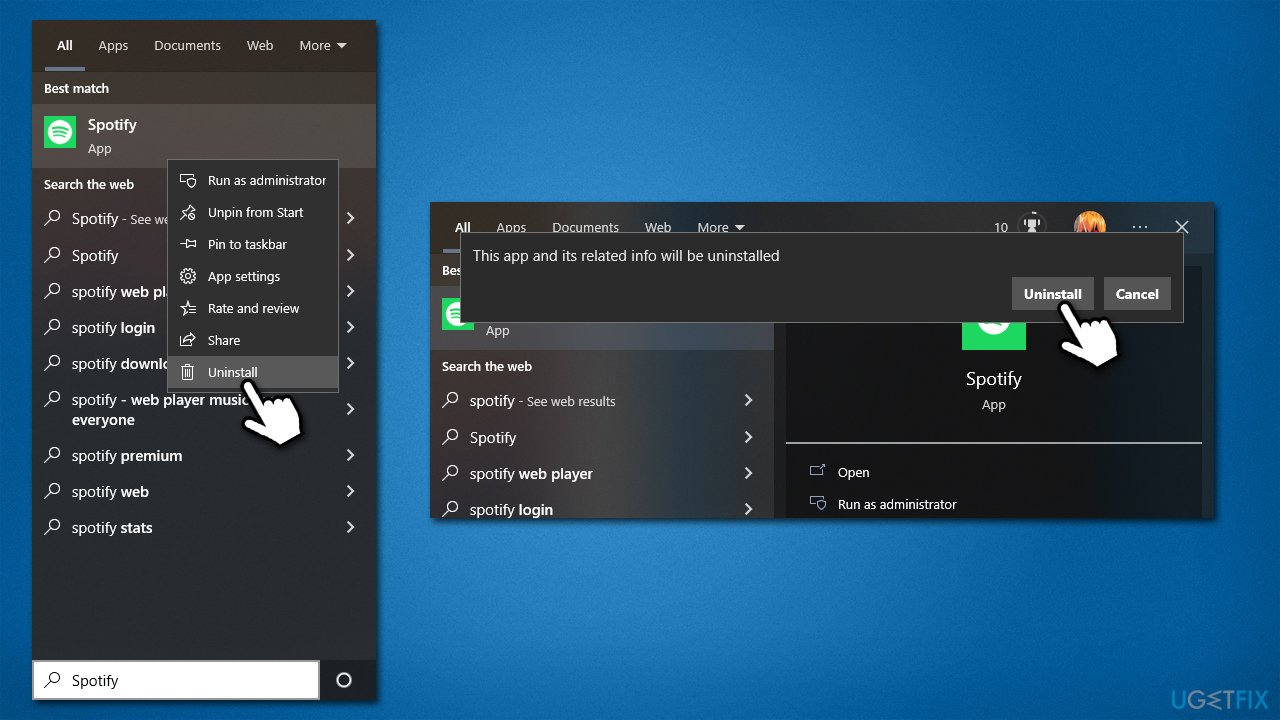
An alternative and quicker way to uninstall apps is using the Windows search function.
- In the Windows search bar, type in the name of the app you want to remove, e.g., Spotify
- Right-click on the app and select Uninstall, and then confirm with Uninstall
- Proceed with on-screen instructions to remove the unwanted app.
Solution 3. Use the "Show installed products only" option
If you are annoyed that the apps you don't use show up in My Library on Microsoft Store, you can use the "Show installed products only" option to hide them.
- Open Microsoft Store
- Go to My Library
- On the right side of the window, you should see Sort and filter drop-down menu
- Select the Show installed products only option
- You won't see apps that aren't installed.

Solution 4. Use PowerShell
There are some pre-installed apps that you might not be able to uninstall via a normal user interface, for example, Gaming Services or People. In this case, you can use elevated PowerShell to remove apps you don't want/need, although please be aware that removing built-in apps may compromise your user experience, so proceed with caution.
- Right-click on Start and pick PowerShell (Admin) or type PowerShell in Windows search, right-click and select Run as administrator
- When the User Account Control window shows up, click Yes
- The next command can be used for (almost) every app to remove it, exceptions being MS Edge and a few others
- Copy and paste the following command, pressing Enter after and replacing the name of the app you want to remove:
Get-AppxPackage *people* | Remove-AppxPackage
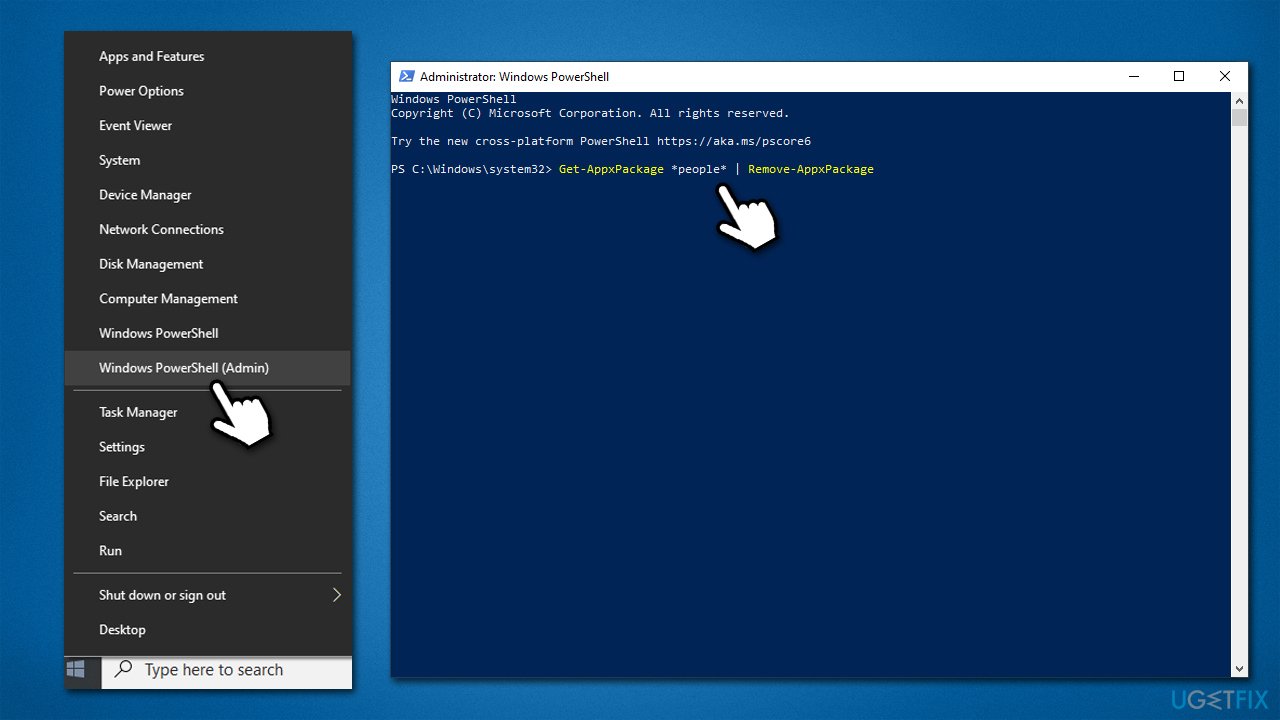
If you would like to reinstate all built-in apps, please use the following command:
Get-AppxPackage -AllUsers| Foreach {Add-AppxPackage -DisableDevelopmentMode -Register "$($_.InstallLocation)\AppXManifest.xml"}
Bottom line
While there is no direct way to remove apps from My Library in the Microsoft Store, users can explore alternative methods to manage their app list. It is recommended to scan the system with reputable repair software to check for file integrity. If none of these solutions work, consider reaching out to Microsoft support for further assistance.
Frequently asked questions
To remove apps, open the Windows Store, go to My Libraries, find the app you want to remove, click on the three dots, and select 'Remove from My Library.'
No, you cannot hide apps, but you can remove them by following the same steps as in Windows 10 to ensure they don’t appear in your library list.
If you don't see the option, make sure your Windows Store app is updated to the latest version on Windows 10 or Windows 11.




Report an issue
What's wrong with this guide? We review every report and update or remove content.
Report received — thank you. We'll review and fix it.
You need a free account to submit a report.
Be the first to comment