How to remove
Uninstall PCguardian Registry Cleaner
from Windows
Easily uninstall PCguardian Registry Cleaner from Windows 10 or 11 with our expert-tested guide. Remove unwanted programs quickly and safely!

How does How to Uninstall PCguardian Registry Cleaner end up on your PC?
- Installed unintentionally as an attachment to free programs
- Selected Quick or Basic installation option during setup
- Prompts to purchase a licensed version when attempting to uninstall
- Static scanning log file that does not improve performance
- Associated with Tech-Support-Scam alerts
Repairs Windows system files, removes malware, and restores a clean OS state — without reinstalling.
Installed PCguardian Registry Cleaner somehow. I didn’t do that intentionally, so not its “free” scanner is really pissing me off. If I want to uninstall it using an in-built uninstaller, I get a prompt to purchase a licensed version or if the prompt does not show, the removal fails. How to remove it?
Just like Magic PC Cleaner, MyPCProtector, RegistryFix, or Pcobserver, PCguardian Registry Cleaner is a rogue optimization utility, which has been developed by doubtful third-parties to prompt people purchase the licensed/full version of a useless optimization tool. Although it’s not malicious, security experts classify it as a potentially unwanted program (PUP) and recommend people to be more careful when installing freewares.
PCguardian Registry Cleaner is not distributed directly. It is disseminated as an attachment of free programs like download managers, PDF creators, games, and so on. For example, if a PC’s owner opts for installing a free utility and selects Quick or Basic installation option, the full installation setup, which normally should notify about PCguardian Registry Cleaner attachment, will not be shown. Consequently, the rogue cleaner and other attachments will be installed by default.
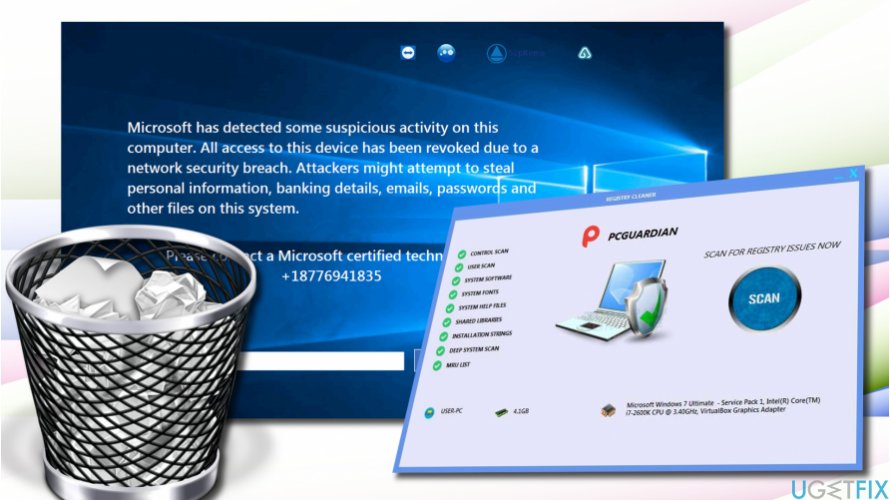
The PCguardian Registry Cleaner rogue is not capable of optimizing the system. It has been found that its scanning log file is static, which means that it reiterate on all computers. Although some of the “problematic” files may differ, removing them will not improve the PC’s performance. Contrary, the non-specialized optimization utility can damage the system by deleting some of the core system files.
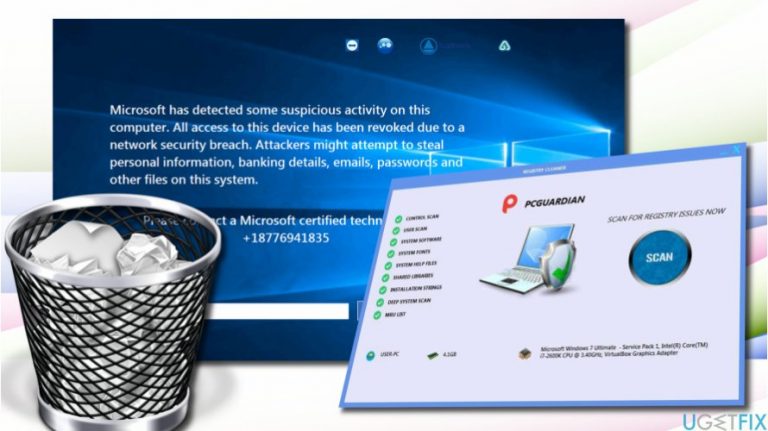
On top of that, PCguardian Registry Cleaner is associated with Tech-Support-Scam. Once installed, it activates a WMPNetworksSvcx.exe process, which connects to the Internet and download an executable file for displaying a Tech-Support-Scam alert. The scam alert says:
Microsoft has detected some suspicious activity on this computer. All access to this device has been revoked due to a network security breach. Attackers might attempt to steal personal information, banking details, email, passwords, and other files on this system.
Please contact a Microsoft certified technician on +18776941835
People have to be aware of the “Microsoft has detected some suspicious activity on this computer” scam, which is caused by PCguardian Registry Cleaner and DO NOT fall victims of it. The purpose of the scam is to make people call for scammers who will put all effort to get access to people’s computers or prompt them to subscribe useless services. To fix “Microsoft has detected some suspicious activity on this computer” scam and uninstall PCguardian Registry Cleaner completely, you should perform the following steps carefully:
- Boot your system into Safe Mode.
- Disable all suspicious processes, including WMPNetworksSvcx.exe and PCguardian Registry Cleaner related processes. For this purpose, open Task Manager (Ctrl + Alt + Del) and disable them. If, however, you cannot disable them, you can use a third-party tool, for example, Rkill to help you.
- After that, Right-click on Windows key and select Control Panel.
- Open Programs & Features and look for the PCguardian Registry Cleaner.
- Click it and select Uninstall.
- Follow the on-screen instructions and the click Remove on the confirmation pop-up.
- Close the window that you are currently seeing. Then press Windows key + R.
- Type regedit and press Enter.
- Click Edit at the top of the Registry Editor window and select Find.
- Type PCguardian Registry Cleaner and wait while the search results are being prepared. Alternatively, you can run a software removal tool, such as [rev id="Perfect Uninstaller"].
The steps above will help you to uninstall PCguardian Registry Cleaner, but not to fix the “Microsoft has detected some suspicious activity on this computer” tech-support-scam. To disable the scam pop-up, you will have to reset your web browser and then reboot the system.
Bottom line
To uninstall PCguardian Registry Cleaner, users should try using the in-built uninstaller, though it may prompt for a purchase. If that fails, consider using a reputable anti-malware tool to remove it. If none of these methods work, seek professional technical support.
Frequently asked questions
To uninstall PCguardian Registry Cleaner from Windows 10, go to Settings, then Apps, find PCguardian Registry Cleaner in the list, click on it, and select Uninstall.
Yes, in Windows 11, you can uninstall PCguardian Registry Cleaner by right-clicking the Start button, selecting Apps and Features, locating the program, and clicking Uninstall.
If PCguardian Registry Cleaner is not listed, you can try using the Control Panel's Programs and Features option to locate and uninstall it from Windows.




Report an issue
What's wrong with this guide? We review every report and update or remove content.
Report received — thank you. We'll review and fix it.
You need a free account to submit a report.
Be the first to comment