How to fix
“Device Setup Manager Metadata staging failed” Event ID 131 error
on Windows
Resolve the "Device Setup Manager Metadata staging failed" error in Windows 10/11 easily. Enjoy a smooth setup experience with expert-tested solutions.

![[Fix] “Device Setup Manager Metadata staging failed” Event ID 131 error in Windows](https://ugetfix.com/wp-content/uploads/articles/askit/fix-device-setup-manager-metadata-staging-failed-event-id-131-error-in-windows_en-768x432.jpg)
What causes [Fix] “Device Setup Manager Metadata staging failed” Event ID 131 error in Windows?
- Outdated registry entries
- Issues processing device metadata
- System changes such as Windows updates
- Disabling metadata staging
- Modifying specific registry settings
Repairs Windows system files, removes malware, and restores a clean OS state — without reinstalling.
Hello. Why am I getting the Device Setup Manager Metadata staging failed Event ID 131 error in Windows? I see it repeatedly in the Event Viewer, and I'm not sure if it's affecting my system, but some devices seem slow to connect or aren't showing the correct icons. How do I fix this without causing more problems?
The "Device Setup Manager Metadata staging failed" Event ID 131 error in Windows often appears in the Event Viewer when the system encounters issues processing device metadata. This error can be caused by outdated registry entries, which may prevent Windows from correctly retrieving or processing device information. Some users have reported that modifying specific registry settings or disabling metadata staging has resolved the issue.
While the "Device Setup Manager Metadata staging failed" error doesn't always lead to immediate system malfunctions, some users have experienced symptoms such as delays in device recognition, issues with device icons not displaying correctly, or problems with device-specific functionalities. For instance, one user noted receiving the Event ID 131 error when connecting an external USB device, which led to concerns about the device's performance.
It is noteworthy that those affected by the issue usually started experienced after some type of system change, such as Windows updates, although this is not always the case. Likewise, users noticed additional (possibly related) errors - Event ID 20, Event ID 200, Event ID 201, and others, in the Event Viewer.
To fix the "Device Setup Manager Metadata staging failed" error, users have found success by updating Windows to the latest version, repairing system files, or modifying registry settings related to device metadata. It's important to exercise caution when editing the registry, as incorrect changes can lead to further system issues.
If you're not comfortable making these changes manually, using a tool like [d1] repair can help automate the process and ensure that your system's registry entries are up to date, potentially resolving the Event ID 131 error.

Fix 1. Disable metadata staging
- Right-click on Start and select Settings.
- Go to System and select About.
- Go to the Hardware tab and click on Device Installation Settings.
- In the new pop-up window, select No (your device might not work as expended) and click Save Changes.
- Restart your PC.

Fix 2. Modify Registry Editor
As previously mentioned, you should be cautious with modifying Windows Registry, so make sure you should back it up before.
- Type Regedit in Windows search and press Enter.
- When User Account Control shows up, click Yes.
- Click File > Export, select All under Export range, and save it as a backup.
- Navigate to the following location:
HKEY_LOCAL_MACHINE\SOFTWARE\Microsoft\Windows\CurrentVersion\WINEVT\Channels\Microsoft-Windows-DeviceSetupManager/Admin - Double-click on Enabled key on the right side.
- Set the Value data to 0 and click OK.
- Next, navigate to the following location:
HKEY_LOCAL_MACHINE\SOFTWARE\Microsoft\Windows\CurrentVersion\Device Metadata - Double-click on PreventDeviceMetadataFromNetwork key on the right side.
- Set the Value data to 1 and click OK.
- Restart your system.

Fix 3. Update Windows
Microsoft constantly ships updates that tend to fix previous' updates issues and fix bugs. Thus, make sure that your system is fully updated.
- Type Updates in Windows search and hit Enter.
- In the Windows update window, click Check for updates (or Install all/Restart now if pending).
- Wait for all the updates to be downloaded and installed.
- Restart your computer to implement the changes.

Fix 4. Uninstall the most recent update
If your issues started after updating Windows, you can uninstall the update that caused it.
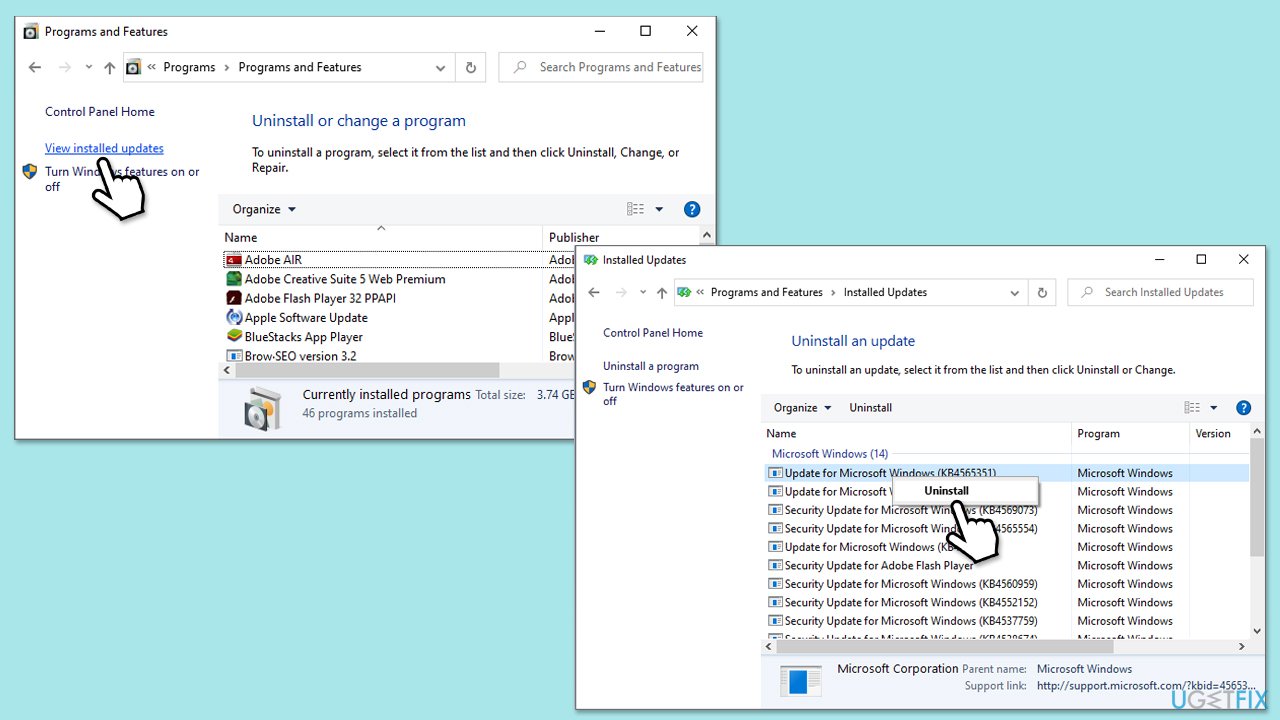
- Type Control Panel in Windows search and press Enter.
- Select Programs > Uninstall a program.
- Click on View installed updates on the left side of the window.
- Sort all the updates by date.
- Right-click on the most recent update and select Uninstall.
- Proceed with on-screen instructions.
- Then, type Updates in Windows search and press Enter.
- Click Pause the updates for 7 days (in Windows 11, you can pick a different time period).
Fix 5. Reset Windows update components
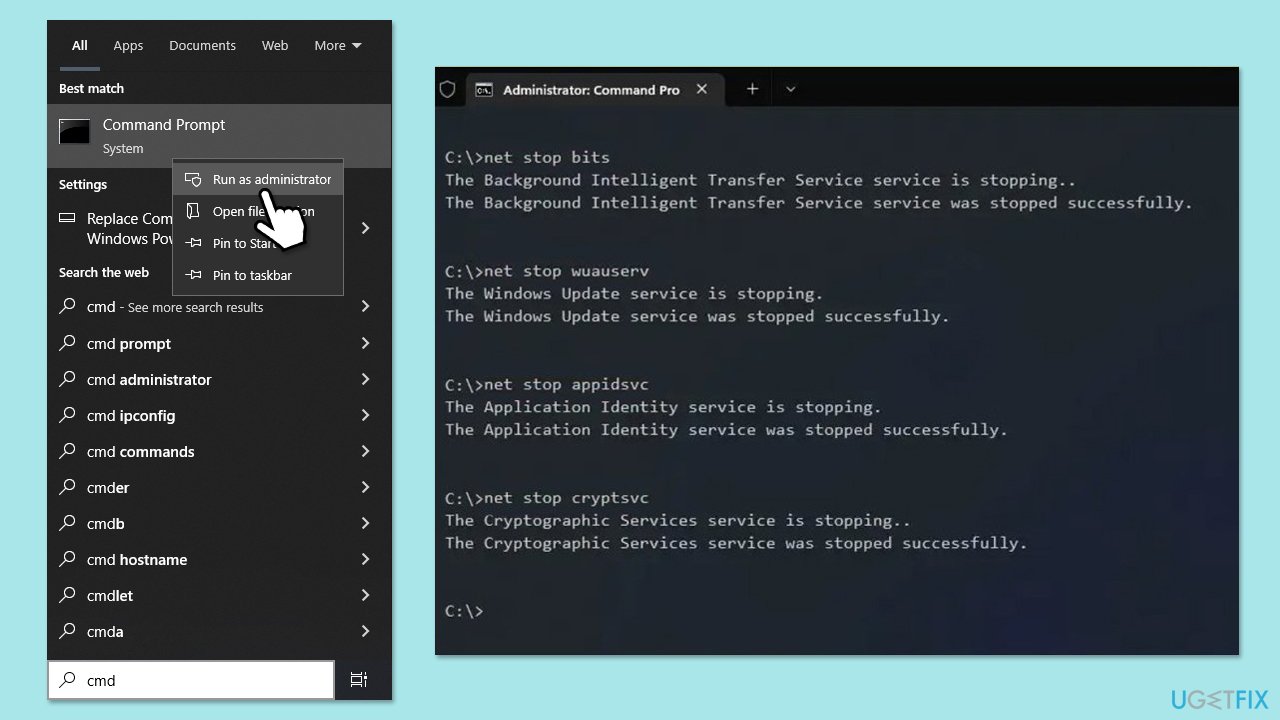
- Type cmd in Windows search.
- Right-click on Command Prompt and pick Run as administrator.
- User Account Control (UAC) will ask whether you want to allow changes - click Yes.
- Paste in each of these commands, pressing Enter every time:
net stop bits
net stop wuauserv
net stop appidsvc
net stop cryptsvc
Del “%ALLUSERSPROFILE%\Application Data\Microsoft\Network\Downloader\*.*”
rmdir %systemroot%\SoftwareDistribution /S /Q
rmdir %systemroot%\system32\catroot2 /S /Q
regsvr32.exe /s atl.dll
regsvr32.exe /s urlmon.dll
regsvr32.exe /s mshtml.dll
netsh winsock reset
netsh winsock reset proxy
net start bits
net start wuauserv
net start appidsvc
net start cryptsvc - Reboot your computer.
Fix 6. Run SFC and DISM
Corrupted system files might cause numerous issues - you can fix them by using SFC and DISM tools.
- Open Command Prompt as administrator.
- Then, copy and paste the following command, pressing Enter after:
sfc /scannow - Wait till the scan is finished. If Windows finds system file integrity violations, it will attempt to fix them. After this, use the set of the following commands, pressing Enter each time:
DISM /Online /Cleanup-Image /CheckHealth
DISM /Online /Cleanup-Image /ScanHealth
DISM /Online /Cleanup-Image /RestoreHealth - (Note: if you get an error executing this last command, add /Source:C:\RepairSource\Windows /LimitAccess to it and try again).
- Close down the Command Prompt and restart your device.

Related topics:
Bottom line
To fix the 'Device Setup Manager Metadata staging failed' error, users can update Windows to the latest version, repair system files, or modify registry settings related to device metadata. If these solutions do not resolve the issue, consider using a repair tool to automate the process and ensure registry entries are correct.
Frequently asked questions
This error typically occurs due to corrupted device drivers or issues with the Windows Update service in Windows 10. Ensuring that your drivers are updated and running the Windows Update troubleshooter can help resolve the issue.
To fix the Event ID 131 error in Windows 11, try uninstalling and reinstalling the problematic device drivers or running the System File Checker tool to repair any corrupted system files.
To prevent this error in Windows, regularly update your device drivers and keep your system updated with the latest Windows updates. Additionally, maintaining a clean installation of Windows can help minimize such errors.




Report an issue
What's wrong with this guide? We review every report and update or remove content.
Report received — thank you. We'll review and fix it.
You need a free account to submit a report.
Be the first to comment