How to fix
Failed with 0x57 retrieving AppModel Runtime status for package Windows – how to fix
on Windows
Resolve the 0x57 error in Windows 10 and Windows 11 effortlessly with our expert-tested guide, ensuring smooth AppModel Runtime functionality. Fixed in …

What causes Failed with 0x57 retrieving AppModel Runtime status for package Windows – how to fix?
- Corrupted drivers
- Incorrectly installed drivers
- Outdated drivers
- Corrupted system files
- Issues related to latest Windows updates
Repairs Windows system files, removes malware, and restores a clean OS state — without reinstalling.
Hi, my PC has been recently crashing, so I checked the Event Viewer and saw multiple errors under the name "Failed with 0x57 retrieving AppModel Runtime status for package Windows." The problem is really annoying as my computer freezes, and then I have to restart constantly. Any solutions for this?
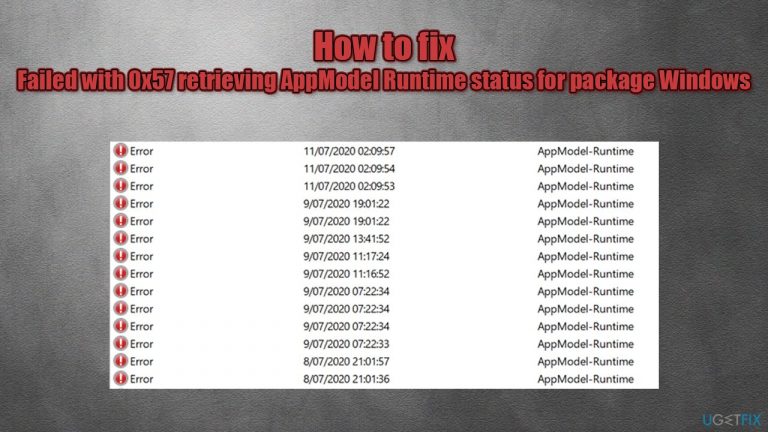
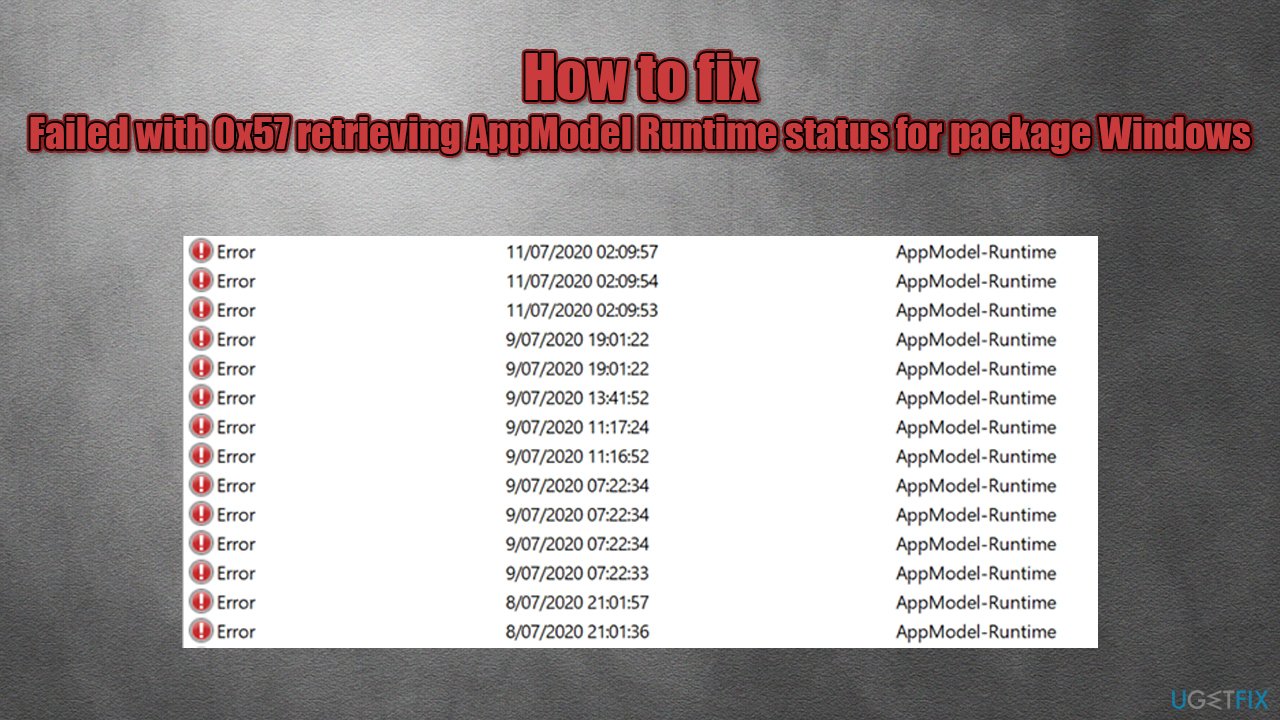
Some Windows 10 errors might be indivisible and occur in the background. While some do not result in any major malfunctions, others may result in a system crash or a BSOD. "Failed with 0x57 retrieving AppModel Runtime status for package Windows" is one of the errors that could be seen under the Event ID 65 (although ID 69 can also occur) within the Event Viewer.
Event Viewer is an awesome built-in tool that allows users to view a log of system messages - system warnings, informational messages, as well as error reports. It allows people to troubleshoot problems and see some hints on what type of error or a crash is prevalent.
Users claimed that the error occurs only when playing certain video games (such as Call of Duty[ref en-1] or The Division 2) or alt-tabbing our of those games, although others said that the problem is more widespread and can happen at any time. In some cases, users get a BSOD such as DPC WATCHDOG VIOLATION.
Initially, users speculated that the "Failed with 0x57 retrieving AppModel Runtime status for package Windows" error is related to Nvidia graphics drivers.[ref en-3] The main cause of the problem seemed to be GPU (Graphics Processing Unit)[ref en-2] crashing. However, many users claimed that the error is prevalent among AMD users as well, so those with graphics cards such as RX 5700 were also experienced the same problem.
Besides this, people said that their problems started as soon as they upgraded their Windows 10 to the newest version, 2004. Without a doubt, the error could be related to corrupted, incorrectly installed, outdated drivers, corrupted system files, or other problems. However, the issues seem to revolve around the latest Windows updates.
Errors related to GPU crashes are relatively uncommon, although not unusual - they can be extremely frustrating to deal with. As usual, there is no universal solution for everybody, so you will find several methods below that would help you fix the "Failed with 0x57 retrieving AppModel Runtime status for package Windows" error once and for all.
Before we begin, we would like to recommend performing a full system scan with [d1] - it can help you fix a variety of underlying Windows issues automatically, as it can download and replace corrupted system files in just a few mintues.
Solution 1. Run SFC and DISM
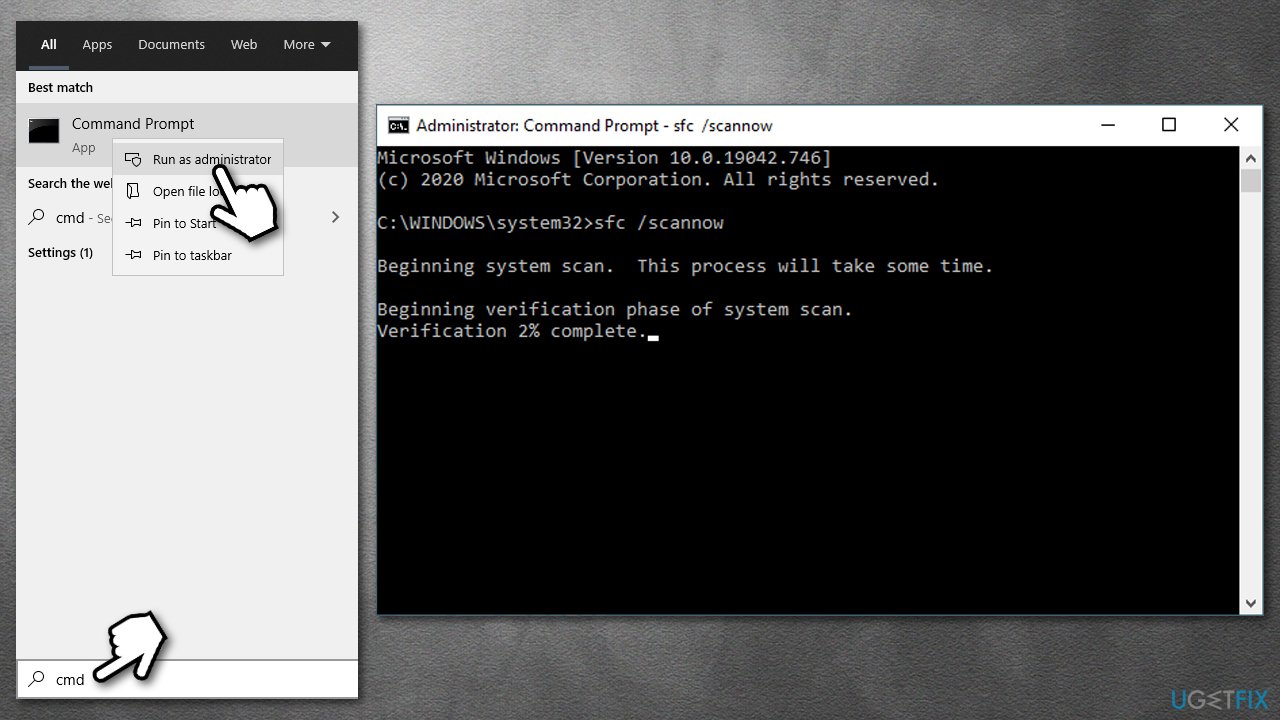
First of all, you should check whether your system files are not corrupt and the Windows image is not damaged. For that, you need to open Command Prompt:
- Type in cmd in Windows search
- Right-click on Command Prompt result and pick Run as administrator
- Once Command Prompt opens, type in the following command and press Enter:
sfc /scannow
- Wait till Windows finishes the scan and reports found issues.
How to fix failed with 0x57 retrieving appmodel runtime status for package windows run sfc scan
If this scan did not find any integrity violations, we recommend trying DISM:
- Open Command Prompt as admin once again
- Type in the following line, pressing Enter after each:
dism /online /cleanup-image /scanhealth
dism /online /cleanup-image /checkhealth
dism /online /cleanup-image /restorehealth
Solution 2. Uninstall latest Windows updates
If you have installed Windows updates recently and they started causing the Failed with 0x57 retrieving AppModel Runtime status for package error, you should uninstall it as follows:
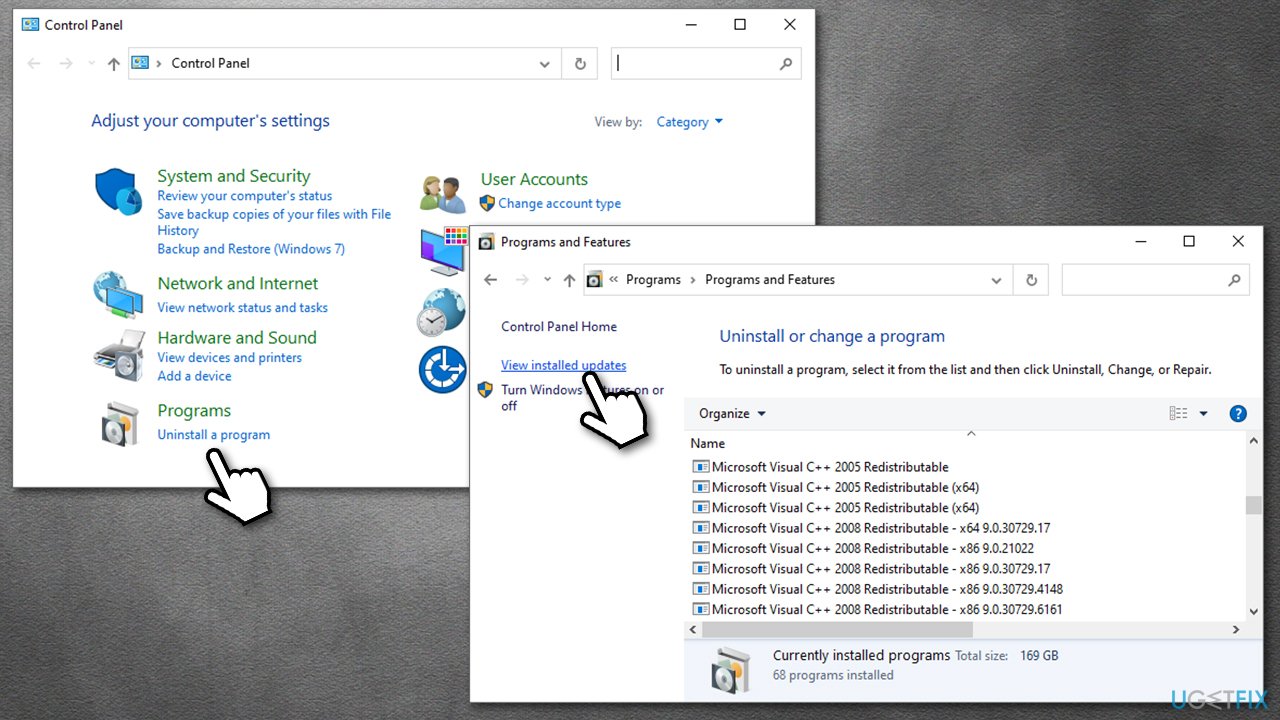
- Type in Control Panel in Windows search and press Enter
- Go to Programs > Uninstall a program
- On the left, click View installed updates
How to fix failed with 0x57 retrieving appmodel runtime status for package windows view installed updates - Sort all the updates by the date (Installed On)
- Under Microsoft Windows category, uninstall (right-click > Uninstall) all the latest updates installed at the same date
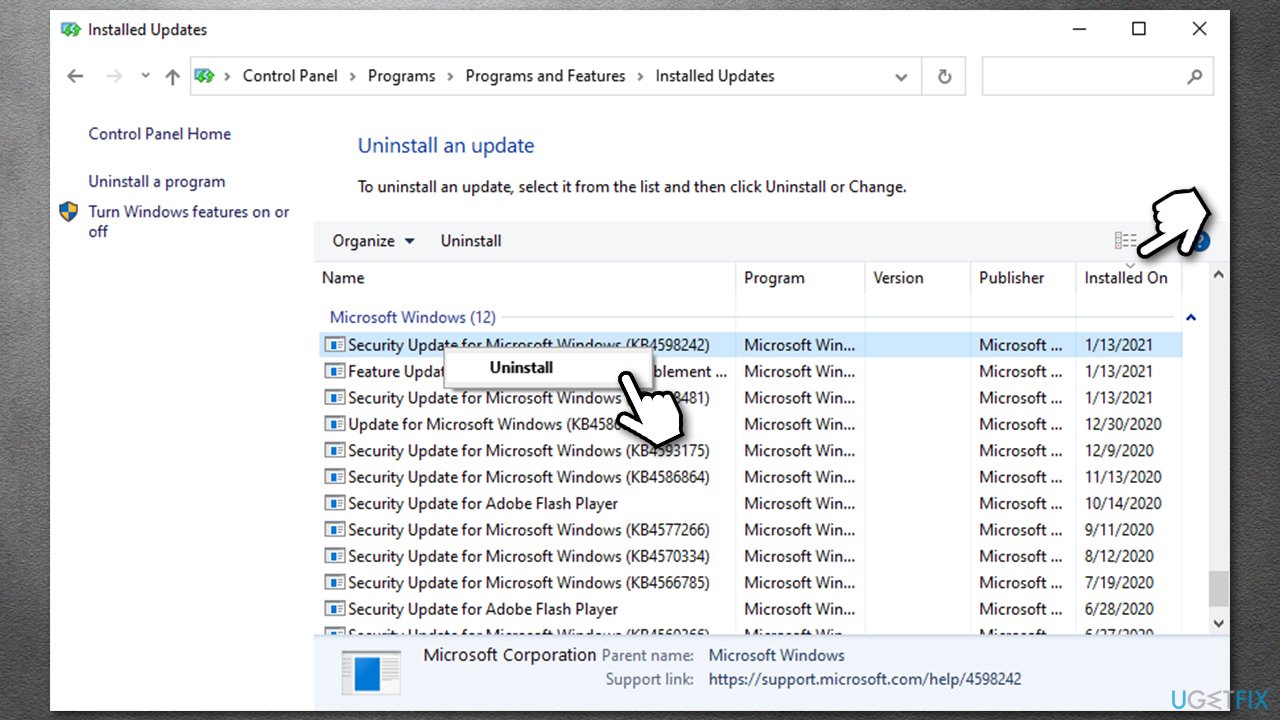
How to fix failed with 0x57 retrieving appmodel runtime status for package windows uninstall latest windows updates - Reboot your PC and see if this helps.
Solution 3. Update Windows and its apps
If uninstalling latest updates did not help, you should try updating to the latest version. However, you should also enable the update to Windows apps - here's how:
- Right-click on Start button and pick Settings
- Go to Update & Security
- On the right side, find and pick Advanced Options
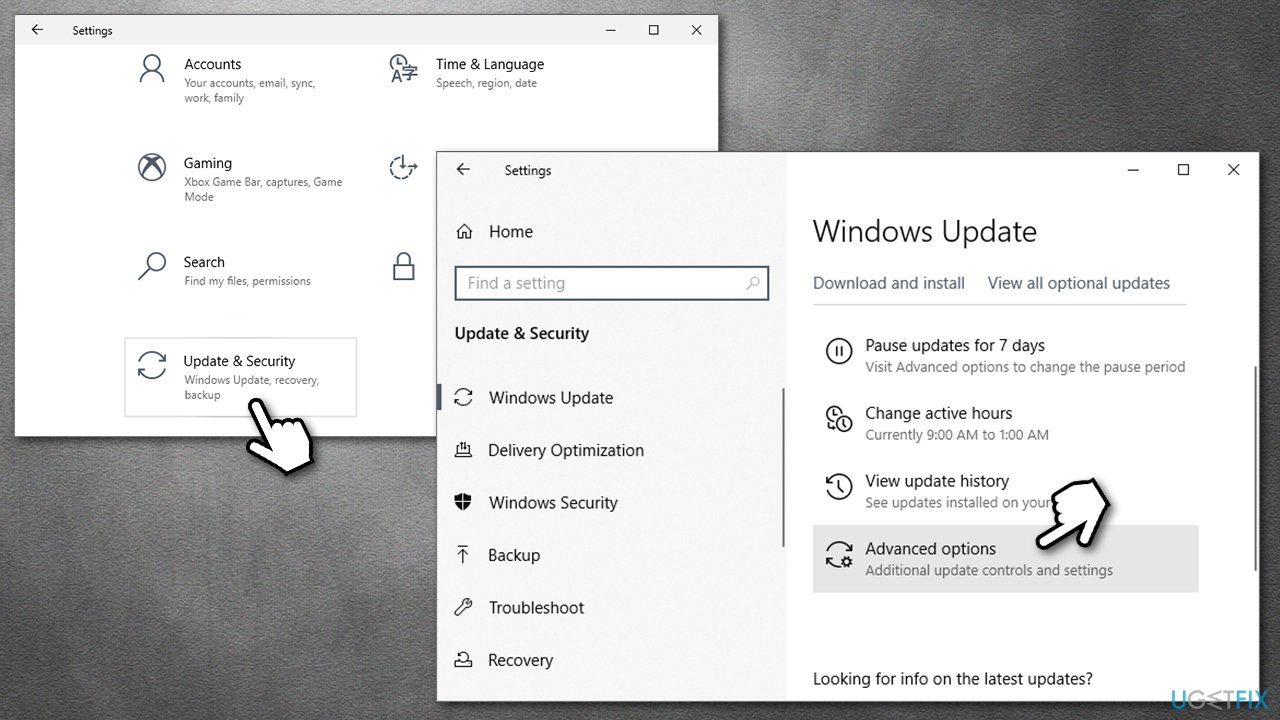
How to fix failed with 0x57 retrieving appmodel runtime status for package windows go to advanced options - Under Update options, make sure that Receive updates for other Microsoft products when you update Windows option is set to On
- Now go back a step and install all the available updates by either clicking Check for updates or Install updates
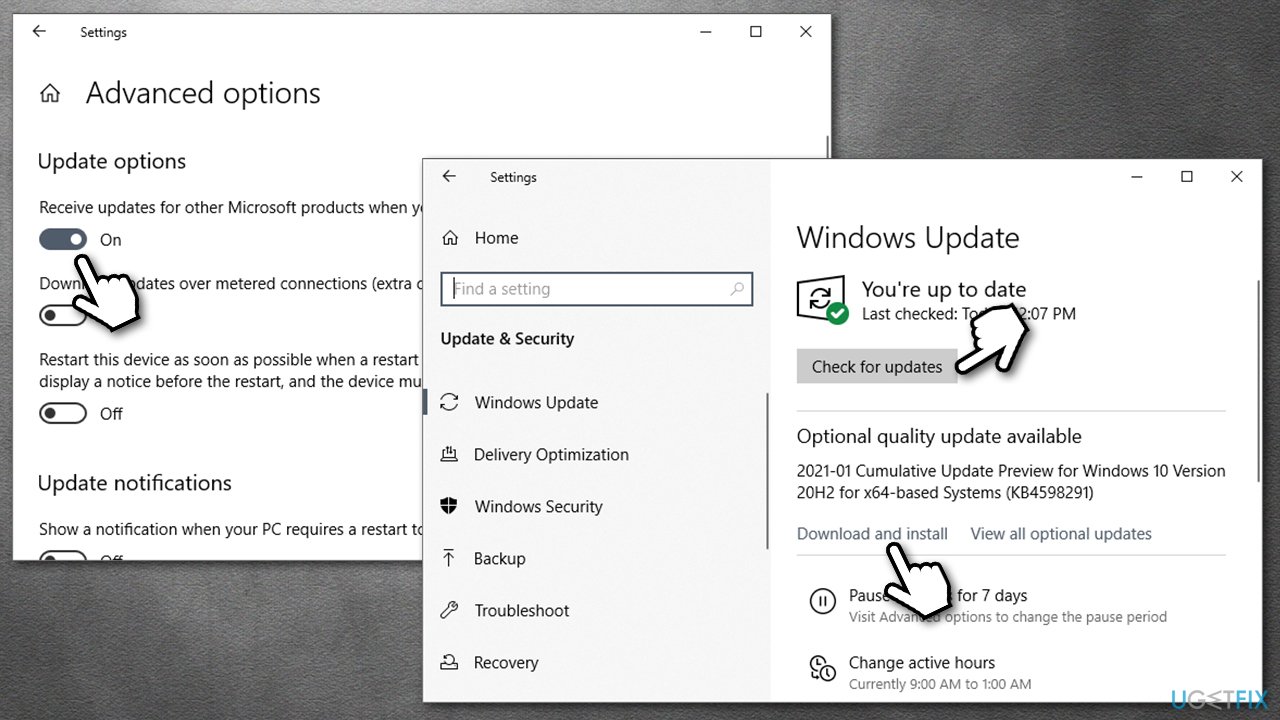
How to fix failed with 0x57 retrieving appmodel runtime status for package windows install latest updates - Wait till Windows installs everything and reboot your device.
If this step did not help your problem, you should now reinstall your drivers, so proceed to the next solution.
Solution 4. Reinstall drivers
Once your system is fully updated, reinstall your drivers fully.
- Right-click on Start button and pick Device Manager
- Once it opens, expand Display adapters (although it is also recommended reinstalling Network adapter drivers also)
- Right-click on your GPU and select Uninstall Device
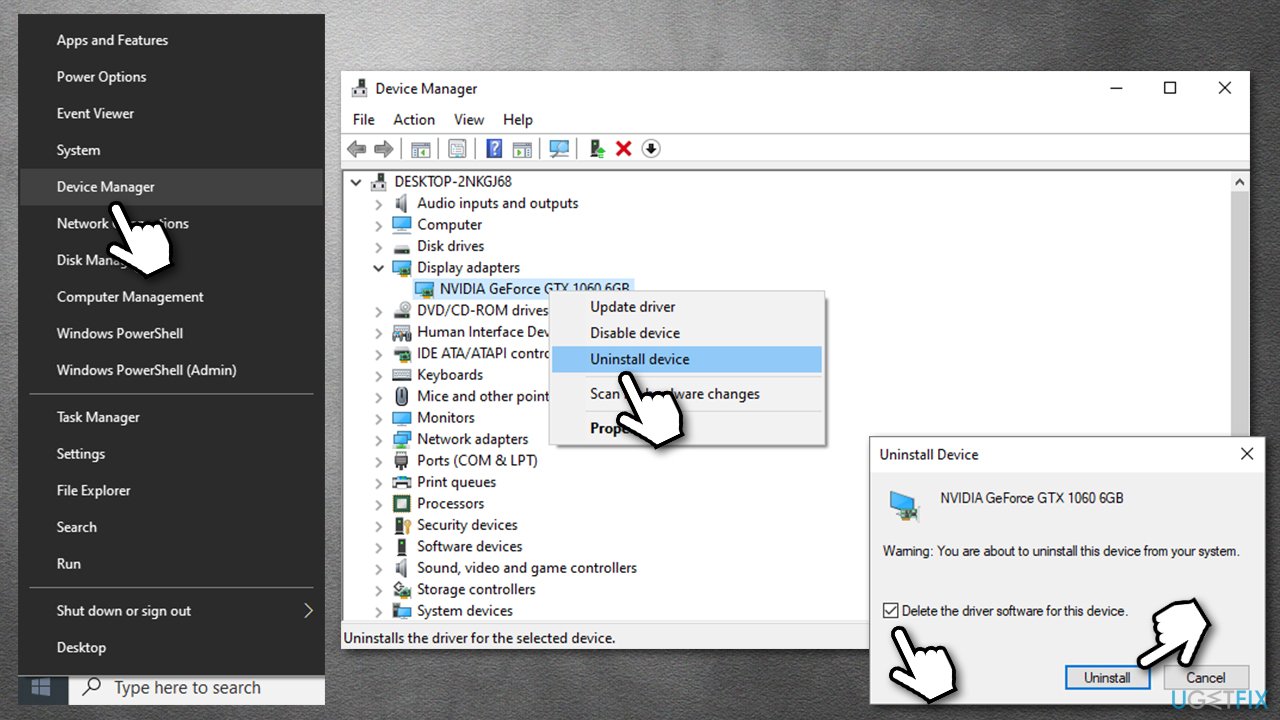
How to fix failed with 0x57 retrieving appmodel runtime status for package windows uninstall drivers - In the new window, make sure you tick Delete the driver software for this device
- Press Uninstall and reboot your PC.
(Note: you might want to check our How to uninstall Nvidia drivers article)
Now that you have uninstalled relevant drivers, it is time to install the correct ones. When it comes to GPU drivers, it is not recommended to do that through the Device Manager, as it often fails to find the newest drivers available. Therefore, you should either visit your GPU manufacturer website, find drivers manually there or employ a driver updater such as [rev id="DriverFix"]. With the latter, you will not have to worry about driver problems again, as it can backup your drivers and ensure that the most recent ones are downloaded automatically on demand. Automated driver updating software can also avoid driver conflicts that might sometimes occur when being downloaded manually.
Solution 5. Modify Windows registry
Warning: before you modify Windows registry, we highly advise you back it up first, as incorrect actions might damage some functions of your Windows OS.
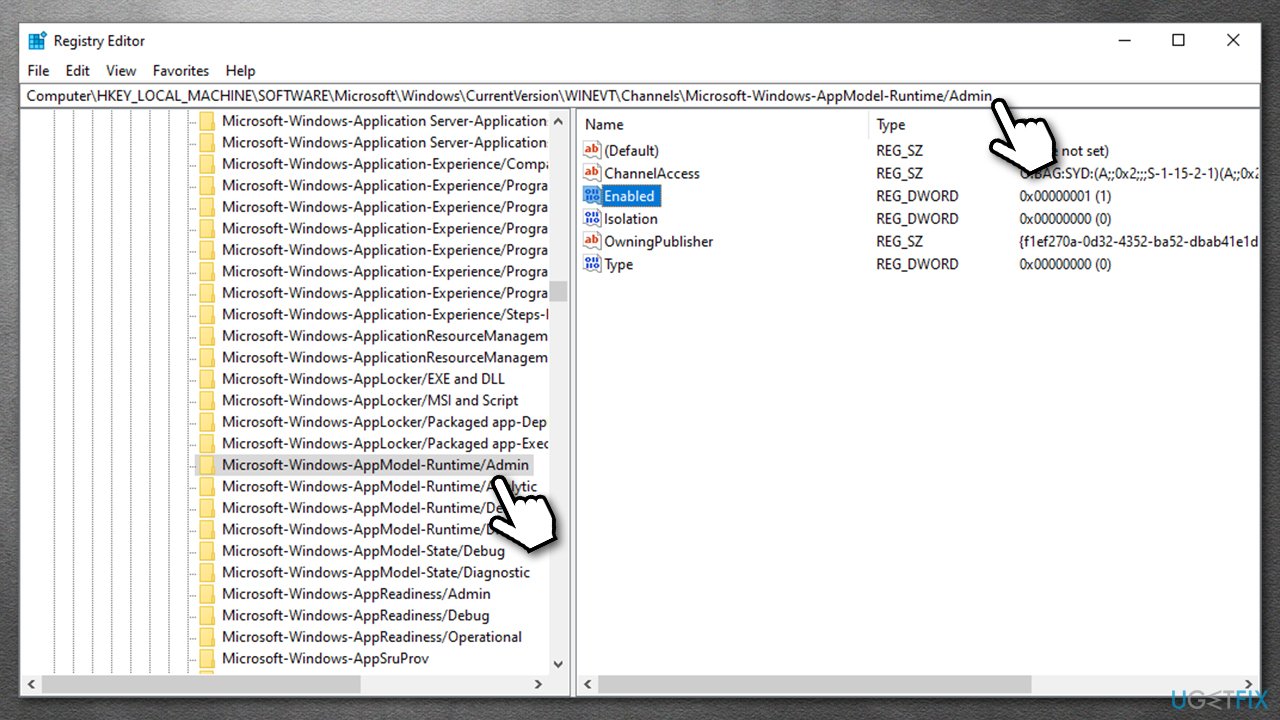
- Type in regedit in Windows search and press Enter
- Navigate to the following location within the registry:
HKEY_LOCAL_MACHINE\\SOFTWARE\\Microsoft\\Windows\\CurrentVersion\\WINEVT\\Channels\\Microsoft-Windows-AppModel-Runtime/Admin
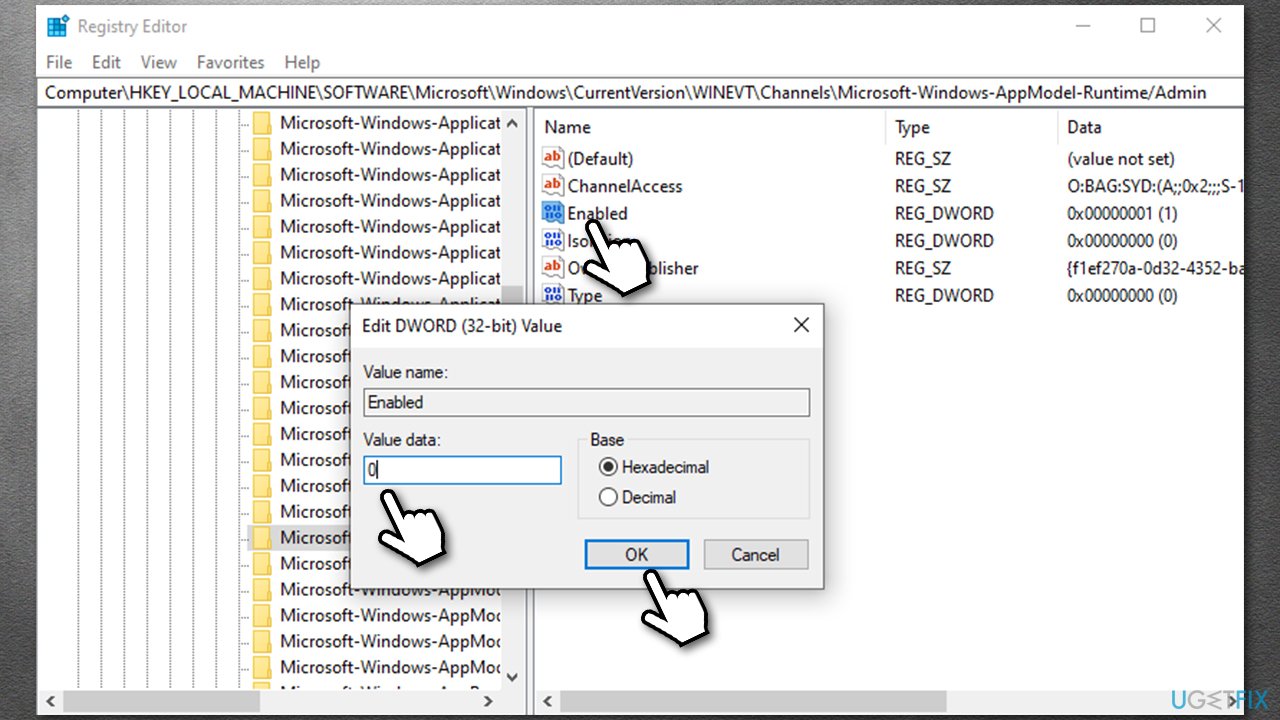
- On the right side, double-click Enabled
How to fix failed with 0x57 retrieving appmodel runtime status for package windows modify registry - In the Value data section, change 1 to 0 and press OK.
How to fix failed with 0x57 retrieving appmodel runtime status for package windows modify registry2
Solution 6. Use System Restore
System Restore is a simple process that returns your PC state back in time without making you lose any personal files accumulated during that period. However, you might have to reinstall some of the applications you have installed during that time.
- Press Win + R on your keyboard
- Type in rstrui.exe and press Enter or click OK
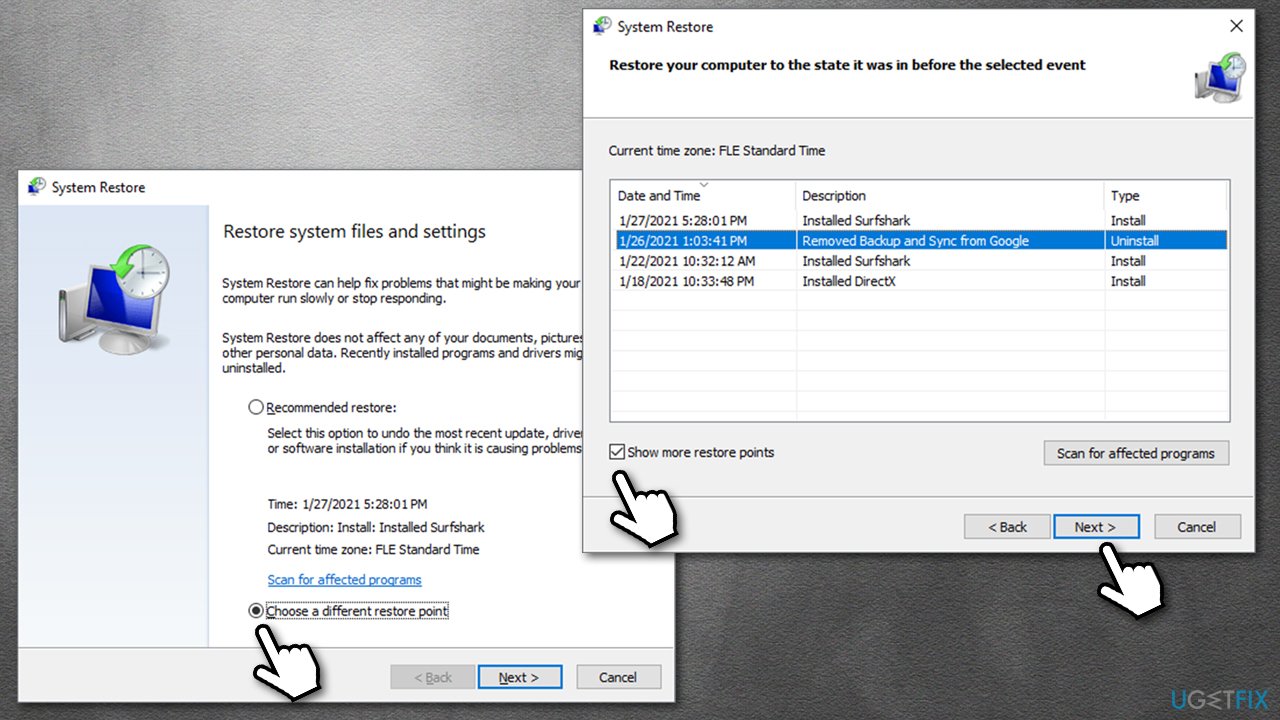
- Select Choose a different restore point and click Next
- Tick the Show more restore points option at the bottom
- Pick an appropriate restore point
- Click Next and then Finish
How to fix failed with 0x57 retrieving appmodel runtime status for package windows use system restore - Windows will restart automatically.
Bottom line
To fix the error, users can try updating or reinstalling their graphics drivers, checking for corrupted system files, or rolling back to a previous version of Windows. If these solutions do not resolve the issue, further troubleshooting may be necessary.
Frequently asked questions
The error code 0x57 typically indicates that there are issues with the AppModel Runtime or the installed application package on Windows 10 or Windows 11.
You can try resetting the Windows Store cache by running 'wsreset.exe' in the Run dialog, and then check if the error persists.
Yes, running the System File Checker tool by executing 'sfc /scannow' in an elevated Command Prompt can help repair corrupted system files that may be causing the issue.




Report an issue
What's wrong with this guide? We review every report and update or remove content.
Report received — thank you. We'll review and fix it.
You need a free account to submit a report.
Be the first to comment