How to fix
Error Code 0xc000000d
on Windows
Resolve Error Code 0xc000000d on Windows 10 and 11 effortlessly. Get expert-tested solutions and fix your system issues in minutes. Zero traces left!

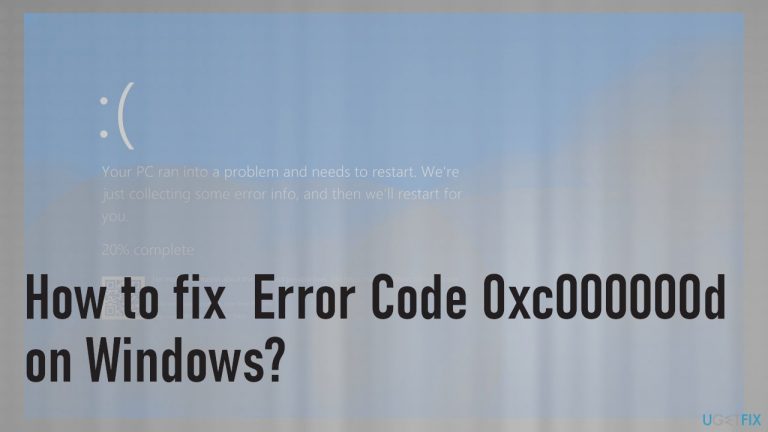
What causes How to fix Error Code 0xc000000d on Windows?
- Missing system files
- Corrupted system files
- Messy boot configurations
- Missing information in Boot Configuration Data
- Corrupted Windows registry
Repairs Windows system files, removes malware, and restores a clean OS state — without reinstalling.
I have an issue with the blue screen error. The window displays Error Code 0xc000000d for me. I guess data is missing and information is not correct. I know nothing about it. Can you offer a solution for me?
Error Code 0xc000000d with the Blue Screen Error is only one of many Windows errors that display this crucial window on the screen. Such problems occur and keep the machine from successfully booting, so the Windows crash. The error code and the full message delivered to the screen indicate the cause of the problem.
According to some research and user[ref en-1] complaints, it seems that missing or corrupted system files trigger error Code 0xc000000d. Boot Configuration Data[ref en-2] is one of them. If you are unable to boot the machine, you might need to recover valuable data stored on the device. You can retrieve your files and troubleshoot the error code with the methods below.
Error Code 0xc000000d is the indication of messy boot configurations, so the solution for the issue could be recovery disk creation since it enables the PC to revert back to default settings. Additional fixes are listed below, but it highly depends on the state of your device and if it can boot or fails completely trying to launch Windows.
System errors like this are serious, but we have covered a few already, and, in most cases, there are ways to fix these issues with some setting changes or even system features. You can find BSOD Error 0x00000139 KERNEL_SECURITY_CHECK_ FAILURE; APC_INDEX_MISMATCH BSOD; UNEXPECTED_STORE_EXCEPTION BSOD, and many others on the site. Some of the methods can be the same when trying to fix Error Code 0xc000000d on Windows.
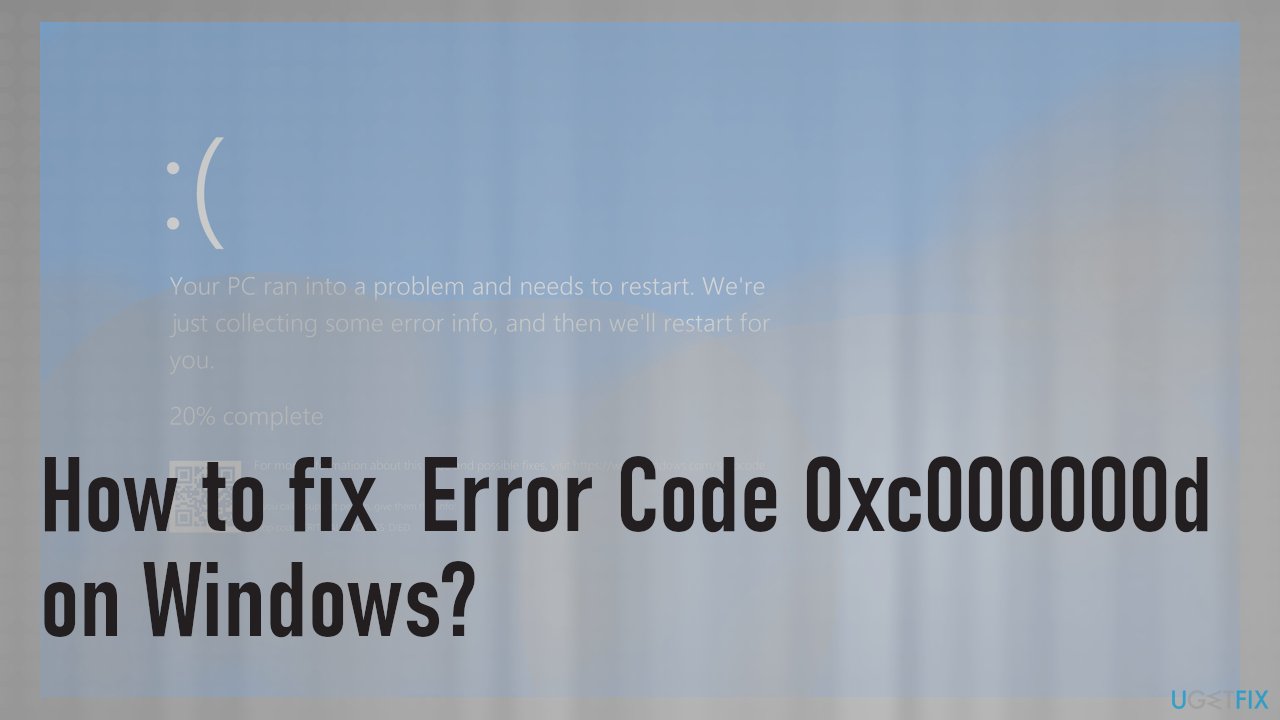
Error Code 0xc000000d full message:
Recovery
Your PC/Device needs to be repaired
The Boot Configuration Data file is missing some required informationError code: 0xc000000d
Generally, when an issue like Error Code 0xc000000d is related to any system files and corruption of the pieces in the Windows registry or different parts of the machine, you can fix them with [d1] and similar tools designed for system repair and performance improvements. However, the issue is booting the machine. If the error keeps the machine unbootable, you need to recover the system in different ways. This is why we have a few solutions for the issue.
Create a recovery drive
- Plug the USB drive into a computer that is not affected.
- Go to Start.
- Type Create a Recovery drive and hit Enter.
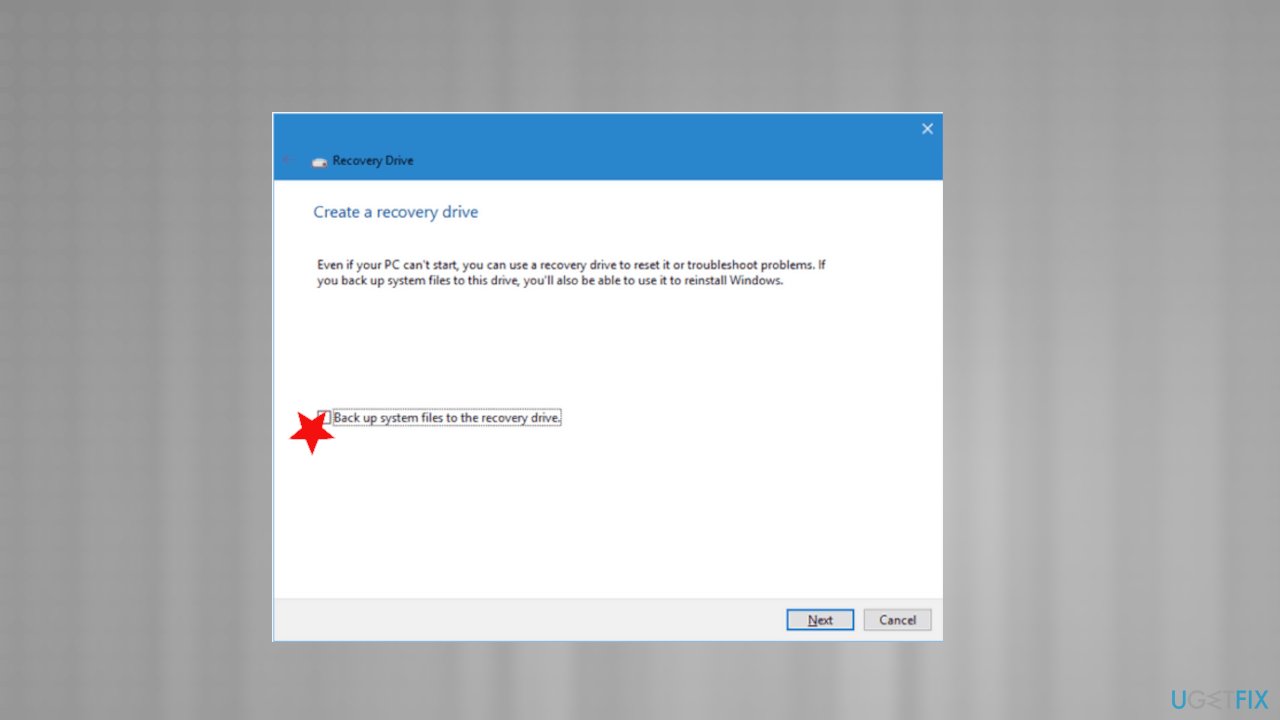
Windows error 0xc00000d fix recovery drive - Make sure to check the Back up system files option.
- Follow the wizard with steps.
Update problematic driver to fix Error Code 0xc000000d
- Right-click the Start menu and choose Run.
- Type devmgmt.msc and hit OK.
- Locate a particular driver if you know what is causing issues.
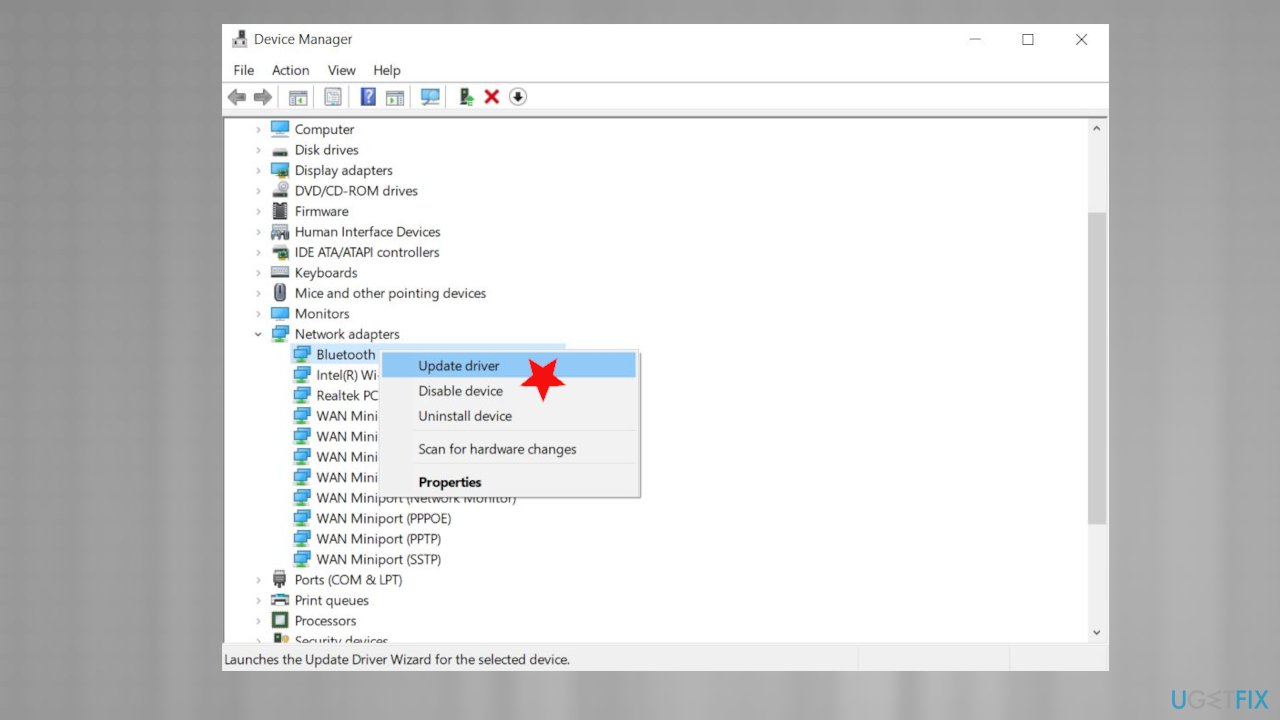
Windows error 0xc00000d fix update driver - Right-click the driver and choose the Update driver option.
- Pick Search automatically for updated driver software.
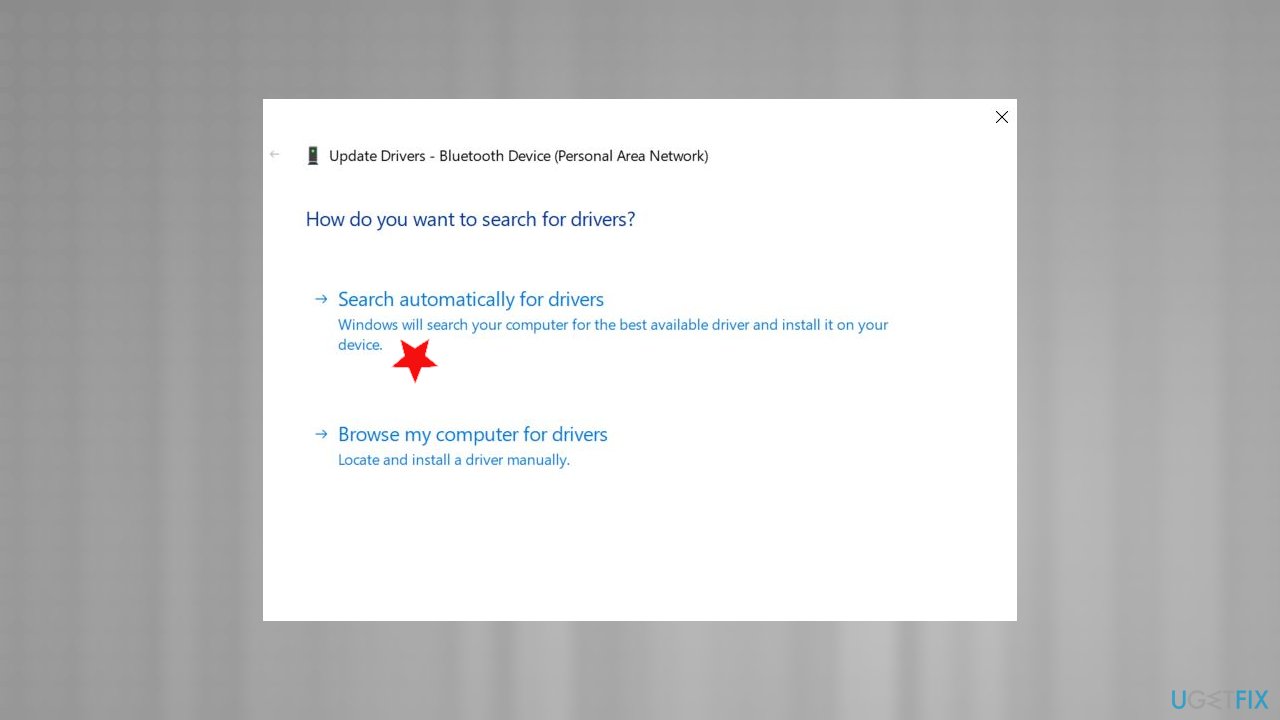
Windows error 0xc00000d fix update driver searching - Reboot the PC.
You can also do the same driver update automatically with a tool like [rev id="DriverFix"].
Run system file checker
- Open by finding it in the search Command Prompt.
- Do not forget to right-click and select Run as administrator
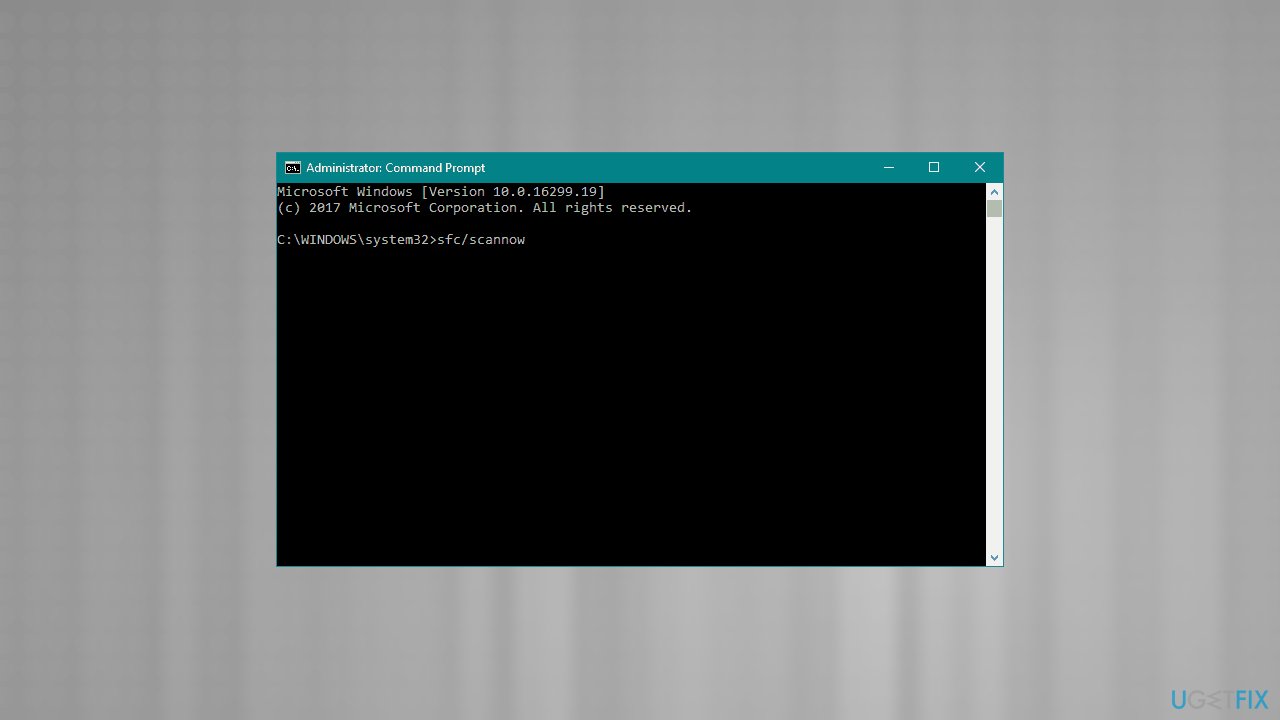
Windows error 0xc00000d fix sfc - As the new window opens, type in sfc /scannow and hit Enter
- Wait till Windows completes the scan.
- Issues should get fixed automatically.
Scan the system for possible malware infections to fix error code 0xc000000d on Windows
Malware of various types can find its way on the machine and affect various processes from programs, updates, or even create serious system damage. Malicious software can perform many tasks and comes in categories like Trojans, worms, viruses, ransomware,[ref en-3] rootkits, backdoors, and many others. You can experience Error Code 0xc000000d and additional issues due to the threat on the machine.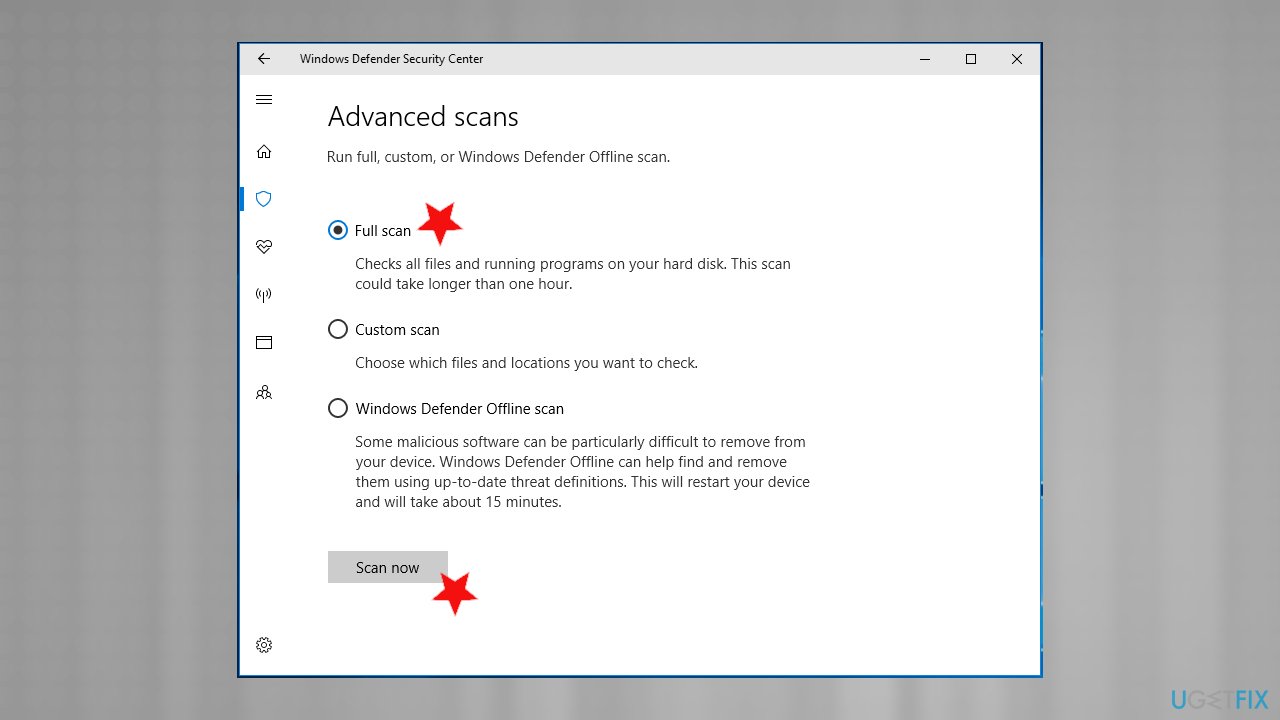
Since there are various problems that can be caused by a computer parasite on the system you can run the anti-malware tool or rely on Windows Defender options and check if that is the case. Of course, you should employ security software that is trustworthy and perform a full system scan. You can find Windows Security settings and run a full scan without downloading any additional apps via Settings.
Reset Windows
- Go to Settings.
- Click on Update & Security.
- Click Recovery from the Window.
- Reset the PC and click Get Started.
- Choose to Keep my files or Remove everything.
- You will get some warnings about your files, so click Next to confirm.
- Click reset and then Continue.
Repair Windows installation to fix error code 0xc000000d on Windows
- Insert the drive with Windows 10.
- Boot the PC.
- Don't choose the install option.
- Select Repair your computer.
- Go to Troubleshoot.
- Select Advanced options and click Startup Repair.
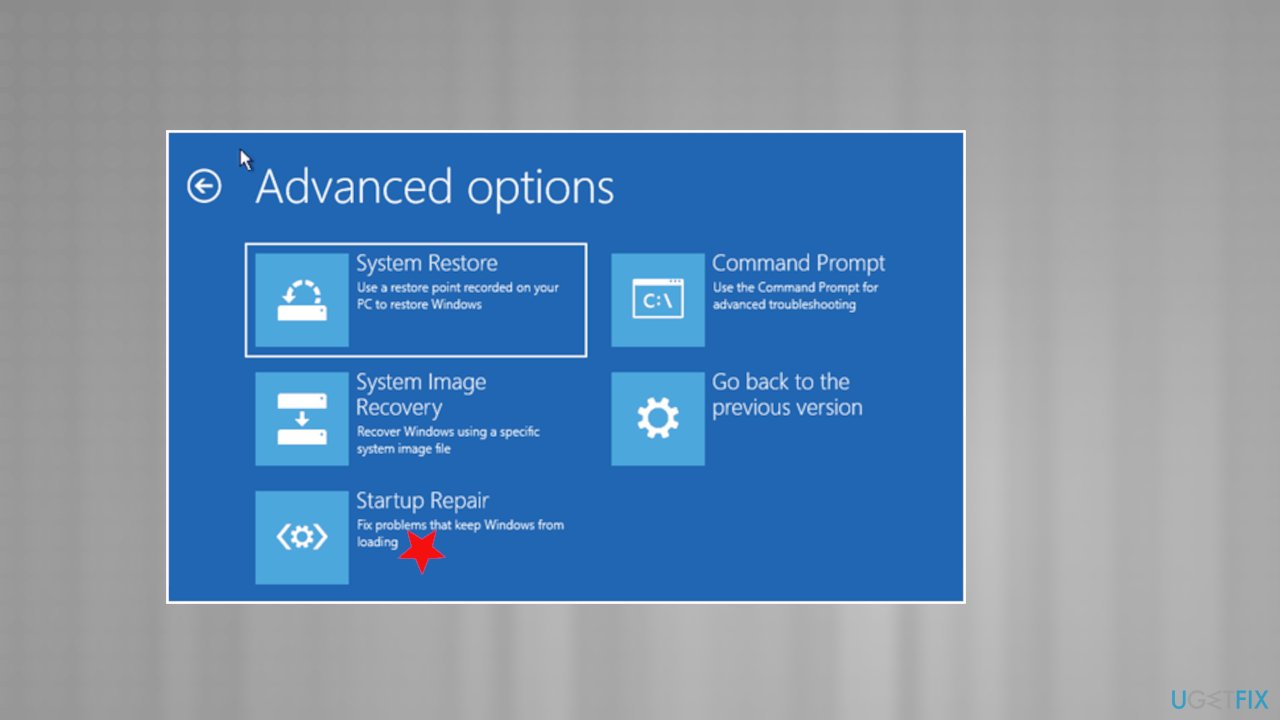
Windows error 0xc00000d fix startup repair
Bottom line
To fix Error Code 0xc000000d, you can create a recovery disk to revert your PC to default settings. Additionally, using system repair tools may help address the corruption issues. If none of these solutions work, consider recovering your data and seeking professional assistance.
Frequently asked questions
Error Code 0xc000000d typically indicates that the Boot Configuration Data (BCD) is corrupted or missing. This can prevent your system from booting properly.
You can repair the BCD by booting from a Windows installation media and selecting 'Repair your computer', then navigating to 'Troubleshoot' > 'Advanced options' > 'Command Prompt' and running the command 'bootrec /rebuildbcd'.
Yes, you can often resolve Error Code 0xc000000d by using the Automatic Repair feature or performing a system restore from the recovery environment, which does not require a full reinstallation.




Report an issue
What's wrong with this guide? We review every report and update or remove content.
Report received — thank you. We'll review and fix it.
You need a free account to submit a report.
Be the first to comment