How to fix
SYSTEM_THREAD_EXCEPTION_NOT_HANDLED (wdiwifi.sys)
on Windows
Resolve the SYSTEM_THREAD_EXCEPTION_NOT_HANDLED (wdiwifi.sys) error on Windows 10 or 11 easily with our expert-tested solutions. Fixed in minutes!


What causes How to fix SYSTEM_THREAD_EXCEPTION_NOT_HANDLED (wdiwifi.sys)?
- Hardware problems
- Outdated firmware
- Corrupt drivers
- Missing wdiwifi.sys file
- Wdiwifi.sys file cannot be loaded
- Wdiwifi.sys file is damaged
Repairs Windows system files, removes malware, and restores a clean OS state — without reinstalling.
I recently received the SYSTEM_THREAD_EXCEPTION_NOT_HANDLED error. It also states about the issue with wdiwifi.sys file in particular. I run windows 10 and the problem is with that Blue Screen of death, so I cannot use the machine at all. Can you help me?
SYSTEM THREAD EXCEPTION NOT HANDLED is one of the more common Blue Screen of Death[ref en-1] errors. The particular WdiWifi.sys file creates various issues as any other sys file. These issues involve BSOD errors and can be caused by hardware problems, outdated firmware, corrupt drivers, other associated files.
You may encounter the particular SYSTEM_THREAD_EXCEPTION_NOT_HANDLED (wdiwifi.sys) error and start panic, but this file can cause other error messages and issues when it is missing, cannot be loaded, gets corrupted, or keeps the particular process from starting. Users get frustrated since the error freezes normal processes.[ref en-2]
This is one of many critical Windows errors, so it is important to resolve the issue, so the affected machine can work properly again. It may seem impossible to fix SYSTEM_THREAD_EXCEPTION_NOT_HANDLED (wdiwifi.sys) error when the computer becomes unresponsive, but you need to rely on the methods listed below since there are a few fixes that help resolve this issue.
SYSTEM_THREAD_EXCEPTION_NOT_HANDLED errors are common and there are many files that can trigger such error window that we have already covered on our site like:
- SYSTEM_THREAD_EXCEPTION_NOT_HANDLED (CMUSBDAC.SYS),
- SYSTEM_THREAD_EXCEPTION_NOT_HANDLED (atikmdag.sys),
- SYSTEM_THREAD_EXCEPTION_NOT_HANDLED (bthhfenum.sys),
- SYSTEM_THREAD_EXCEPTION_NOT_HANDLED (netio.sys).
This particular SYSTEM THREAD EXCEPTION NOT HANDLED error is related to the WidiWiFi.sys file that is the WDI driver framework file that is created by Microsoft for the Windows OS package. When the file is corrupted by, possibly malware[ref en-3] or damaged otherwise, it can trigger issues with needed processes.
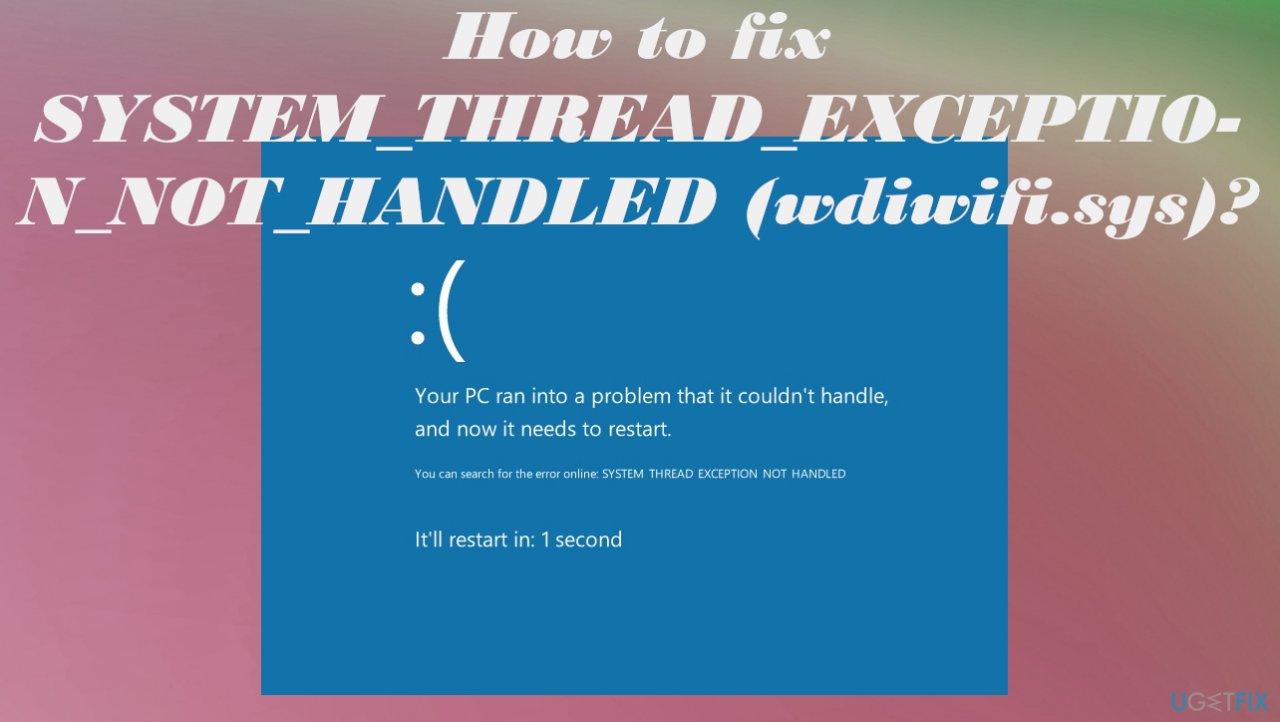
It is the reason for various issues with system processes, OS updates, and BSOD errors, crashes, and freezes. Any other issues with your machine can be triggered by data corruption, so if you notice speed or performance problems in addition to SYSTEM THREAD EXCEPTION NOT HANDLED error, you can try to run a tool like [d1]. Such applications can help with altered or corrupted system files, so you may save time for the system improvements with manual solutions below.
#1 Restore your PC to the latest restore point
- Click the Windows Start button.
- Type System Restore in the search and hit Enter.
- Click System Restore.
- Follow steps in the system restore wizard and choose a relevant restore point.
- Restore your computer.
#2 Reinstall wi-fi driver to fix SYSTEM_THREAD_EXCEPTION_NOT_HANDLED (wdiwifi.sys)
- Press Win and X keys.
- Choose Device manager.
- Expand Network adapters.
- Right-click the driver and choose Uninstall devices.
- Check the box for Delete the driver software for this device.
- Restart the PC and install a Wi-fi driver from the official manufacturers' site.
#3 Update hardware drivers
- Press the Win and R keys to open the Run window.
- Enter devmgmt.msc.
- Hit Enter and open Device Manager.
- You can download and instal firmware, chipsets, BIOS drivers via official sources.
- Double-click Display adapters and right-click the display adapter.
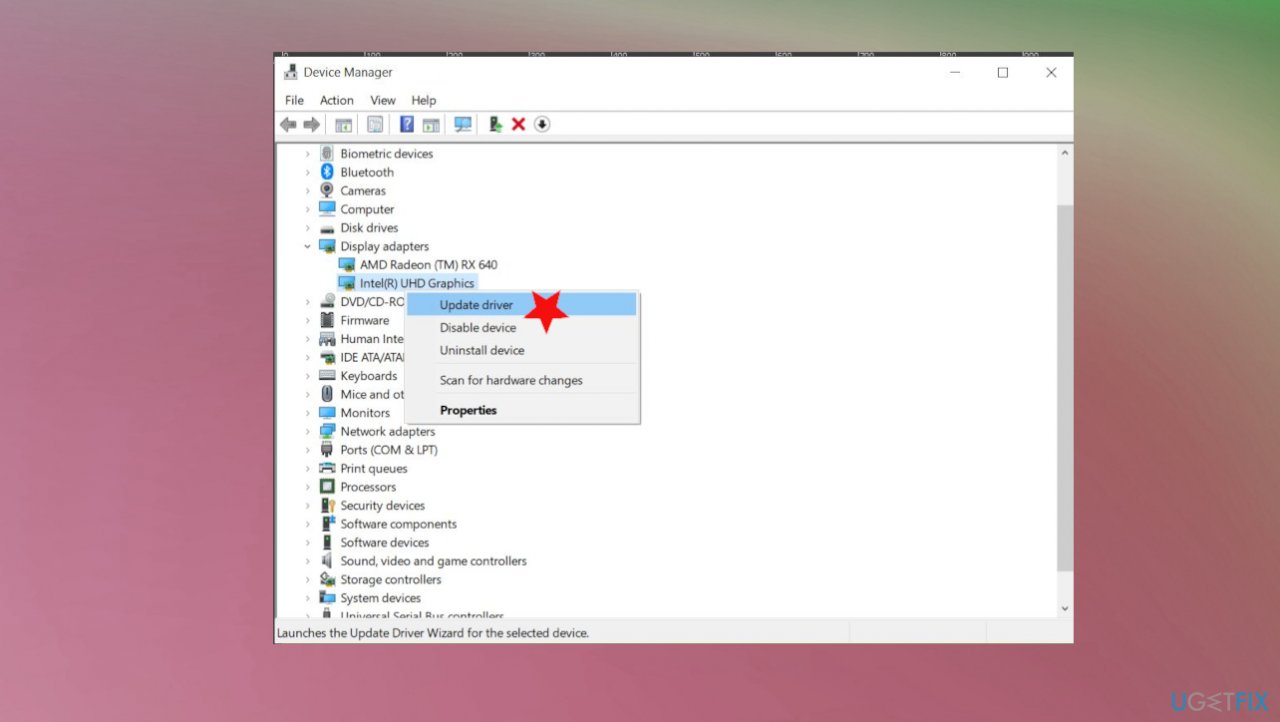
How to fix system thread exception not handled driver update - Choose to Update driver.
- Select browse my computer for driver software or choose to search automatically for drivers.
#4 Update windows to fix SYSTEM THREAD EXCEPTION NOT HANDLED (wdiwifi.sys)
- Click Windows Start.
- Type Update and press Enter.
- Click Check for updates.
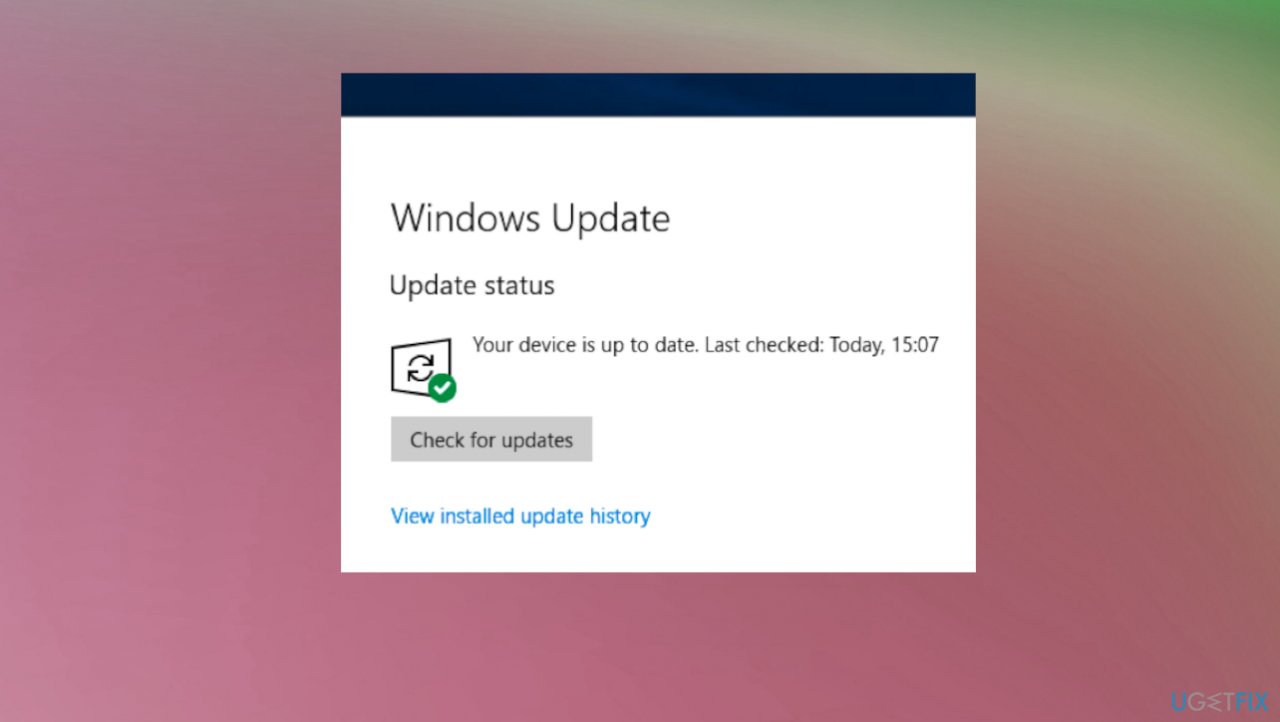
How to fix system thread exception not handled os update - If those are available, click Install Updates.
- After the update, restart your PC.
#5 Check for disk damage
- Type cmd in the Windows Search
- Open Command Prompt with Administrative powers.
- Once the black dialogue box appears, type in the chkdsk /f command and press Enter.
- Follow any commands that you are provided with.
#6 Roll back drivers
- Go to Device Manager.
- Expand Network adapters.
- Right-click on the network adapter.
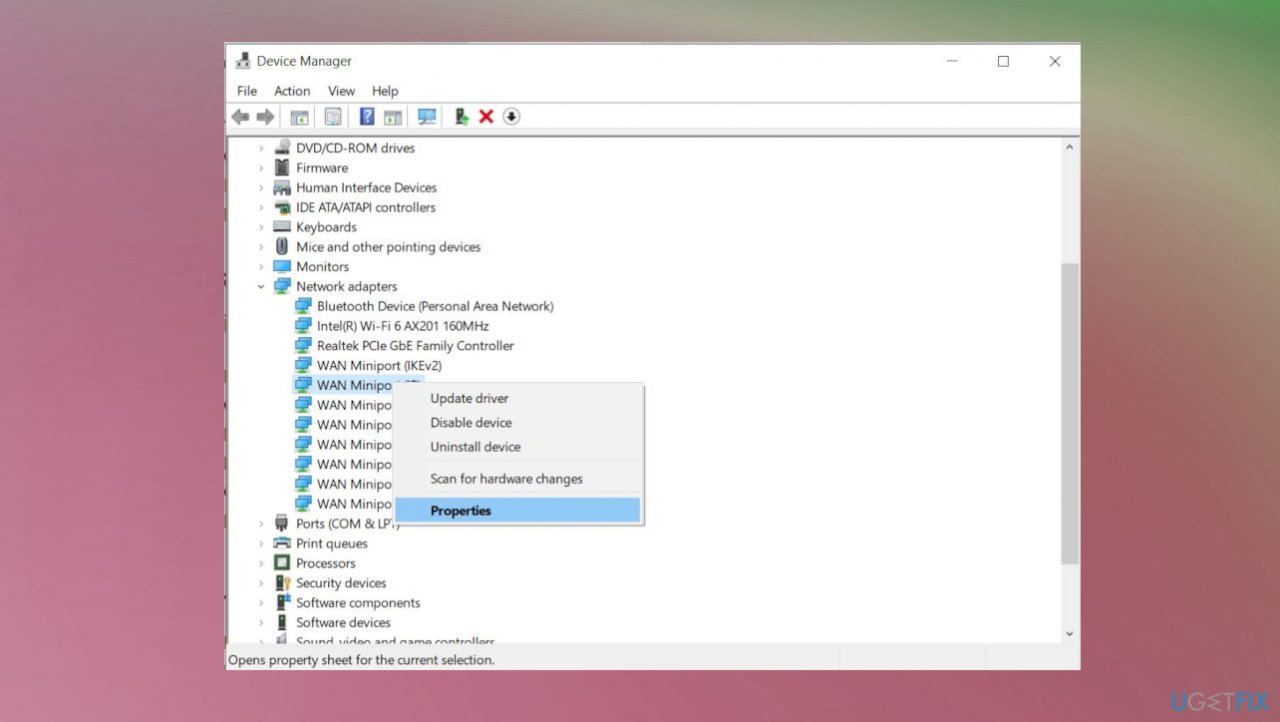
How to fix system thread exception not handled device manager - Then select Properties.
- Select Driver.
- Next, click on Roll Back Driver.
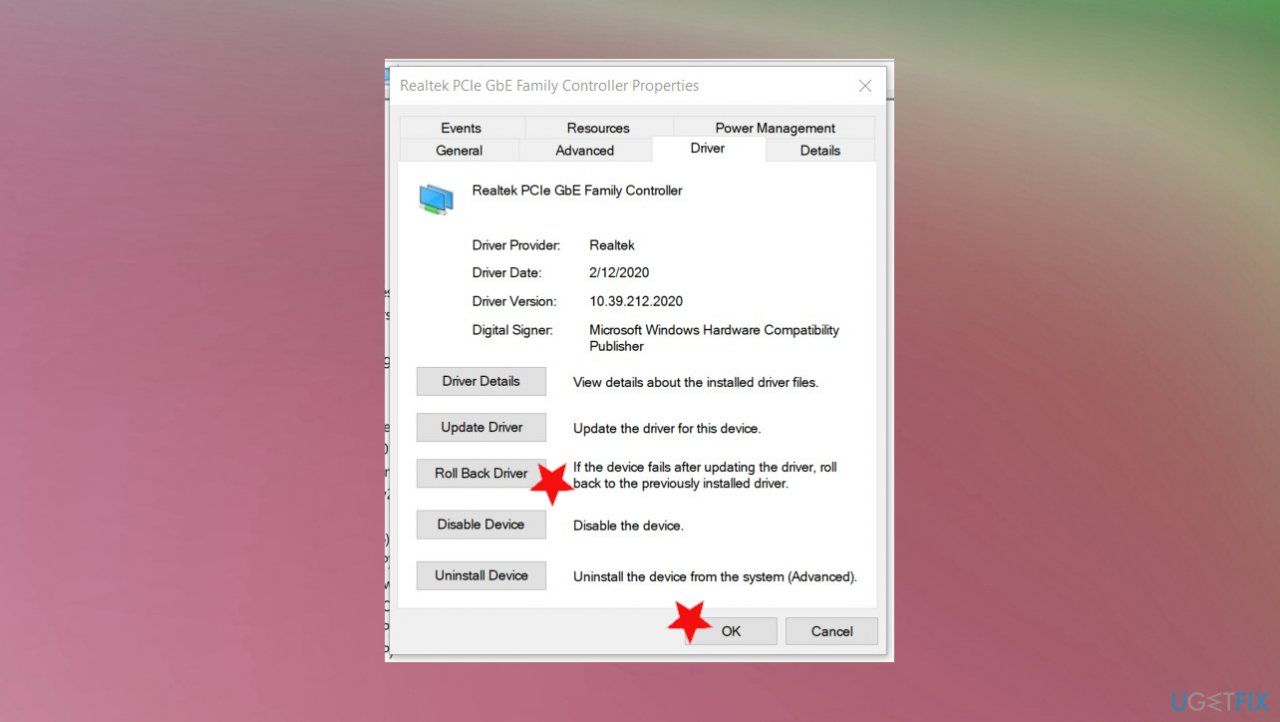
How to fix system thread exception not handled roll ack driver - Pick a reason for rolling back and click OK.
Bottom line
To resolve the SYSTEM_THREAD_EXCEPTION_NOT_HANDLED (wdiwifi.sys) error, you can try updating drivers, checking for hardware issues, or running system repair tools. If these methods do not work, consider seeking professional assistance or further troubleshooting steps.
Frequently asked questions
This error occurs when the Windows operating system encounters a problem with a driver, specifically the wdiwifi.sys file, which can lead to system crashes or blue screens. It often indicates issues with Wi-Fi drivers or related network components.
You can update the wdiwifi.sys driver by going to Device Manager, finding the network adapter, right-clicking it, and selecting 'Update driver.' Ensure your Windows is also up to date, as updates can include necessary driver fixes.
If the error continues, try uninstalling the Wi-Fi driver from Device Manager and then reinstalling it, or perform a system restore to revert your system to a previous state before the issue occurred.




Report an issue
What's wrong with this guide? We review every report and update or remove content.
Report received — thank you. We'll review and fix it.
You need a free account to submit a report.
Be the first to comment