How to fix
Minecraft error “Multiplayer is disabled. Please check your Microsoft Account settings”
on Windows
Resolve the "Multiplayer is disabled" error in Minecraft on Windows 10 and 11 with simple solutions. Expert-tested fixes you can trust!

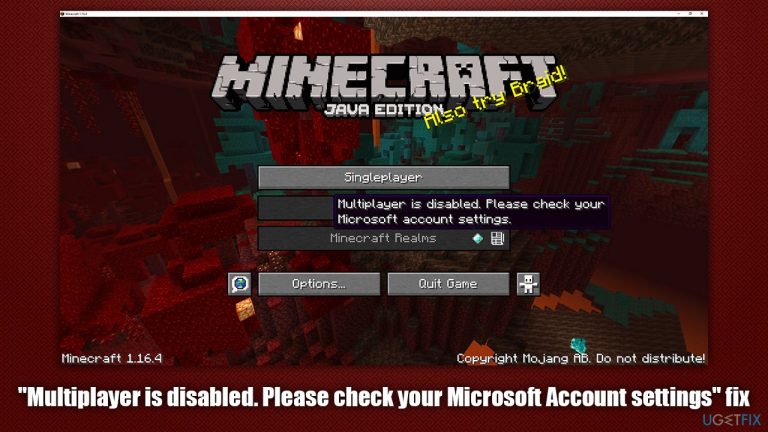
What causes How to fix Minecraft error “Multiplayer is disabled. Please check your Microsoft Account settings”?
- Multiplayer button disabled due to account settings
- Java version of Minecraft requires specific permissions
- Xbox account settings default causing issues
- No changes made to Windows or in-game settings
Repairs Windows system files, removes malware, and restores a clean OS state — without reinstalling.
Hi, I recently bought Minecraft and had a lot of fun when playing single-player. The problems started when I tried to switch to multiplayer - the button was simply disabled. When hovering the mouse, the error said, "Multiplayer is disabled. Please check your Microsoft Account settings." I have not changed any settings on Windows or in-game. How can I fix this?
Minecraft is one of the most popular sandbox games out there, racking up as many as 126 million players worldwide.[ref en-1] With such popularity, issues with the game are bound to happen, as players are running different configurations or versions of the game.
Recently, users started to complain about the "Multiplayer is disabled. Please check your Microsoft Account settings" error when trying to join a multiplayer game. Instead of allowing players to join, the game instead shows a disabled "Multiplayer" button. While game can and is fun when laying alone, a multiplayer can enhance experience and offer new gameplay opportunities.
Therefore, it is not surprising that many want to fix Minecraft "Multiplayer is disabled. Please check your Microsoft Account settings" error as soon as possible. Unfortunately, there is not much to go on, as "Microsoft account" as nothing to do with this problem.
Apparently, most of the people who encountered the error had purchased a Java[ref en-3] version of Minecraft. Which means that, it requires a specific permission to be run in multiplayer mode. As already mentioned, this has nothing to do with Microsoft account, but rather an Xbox account issue, as it is set to the latter by default.
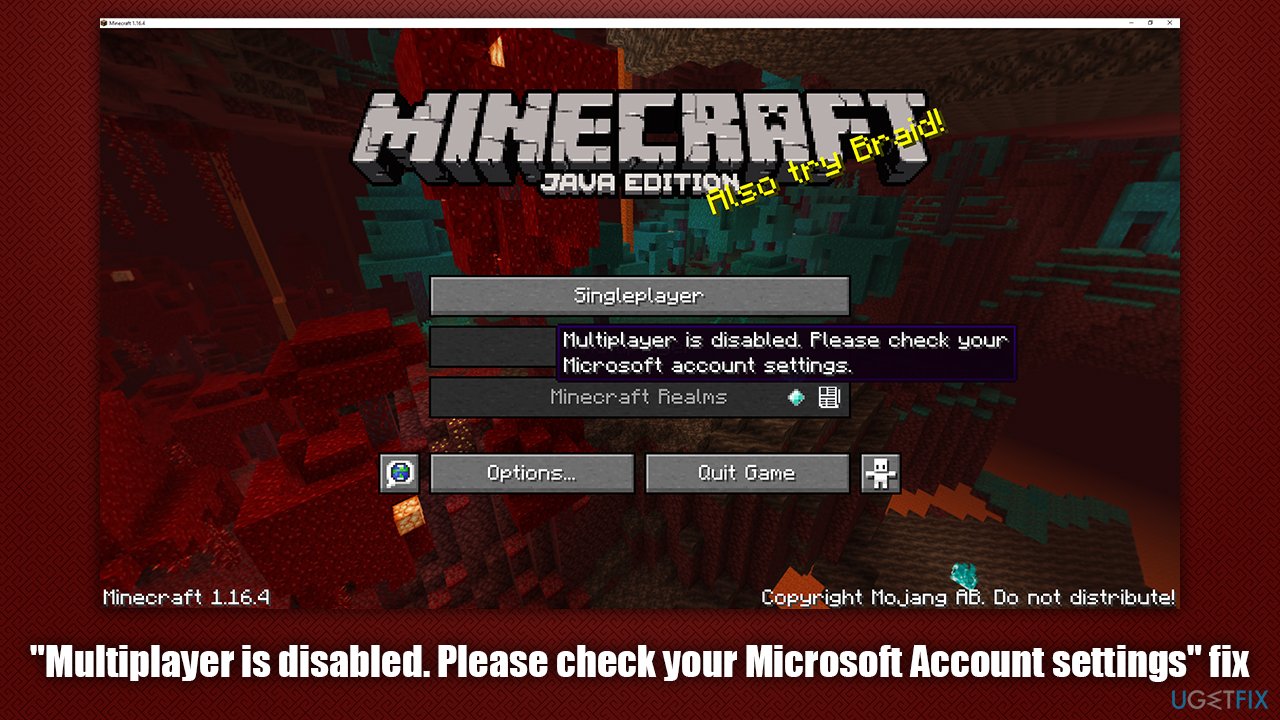
Previously, we have talked about several other Minecraft errors, such as An existing connection was forcibly closed by the remote host, io.netty.channel.ConnectTimeoutException connection timed, crashes, and much more. Each of these issues is game-specific. In order to fix "Multiplayer is disabled. Please check your Microsoft Account settings" error, you will have to perform a bit of troubleshooting.
Keep in mind that, if you are frequently experiencing connection issues, BSODs, crashes, lag or random errors, you should check your computer with a maintenance utility such as [d1]. It can find underlying Windows 10 issues and fix them automatically. Besides, the app can also take care of system file damage done by malware infections.
Step 1. Ensure the Minecraft Launcher is using the correct Microsoft account
- Launch the Minecraft Launcher
- Take a look at the top-left corner of the window - ensure that it is the correct account being represented
- If not, log out of the current account, and log back in with correct credentials.
Step 2. Login to the correct Microsoft account via the browser
- Open your web browser and go to the https://account.microsoft.com
- In here, make sure you are using the correct account, once again
- If it is not a correct account, click on the account picture on the top-right corner of the screen, and select Sign with a different account.
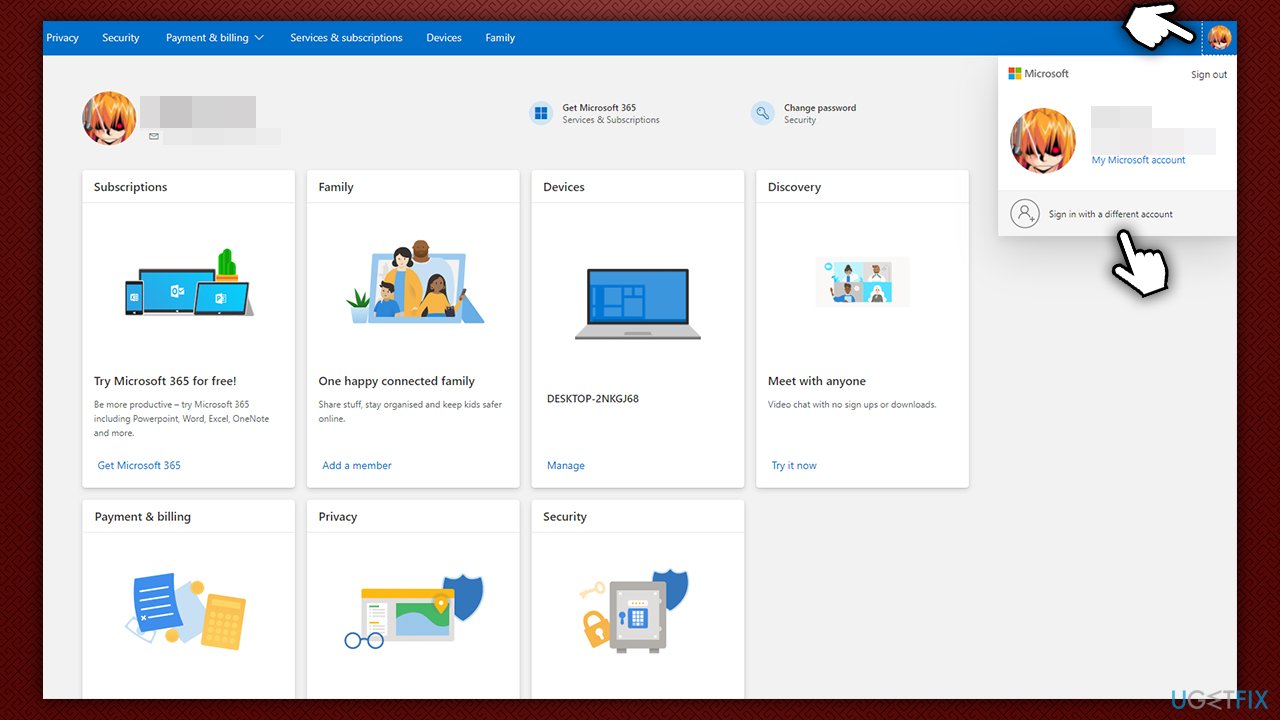
How to fix minecraft error multiplayer is disabled please check your microsoft account settings login with correct account
Step 3. Change settings via Xbox account
- Within the browser, go to the https://account.xbox.com/Settings
- Here you will have to sight in with the same credentials you used for your Microsoft account and the account you are using within Minecraft launcher
- If you have not previously had Xbox account, this is it now
- On the left side, pick Privacy & online safety
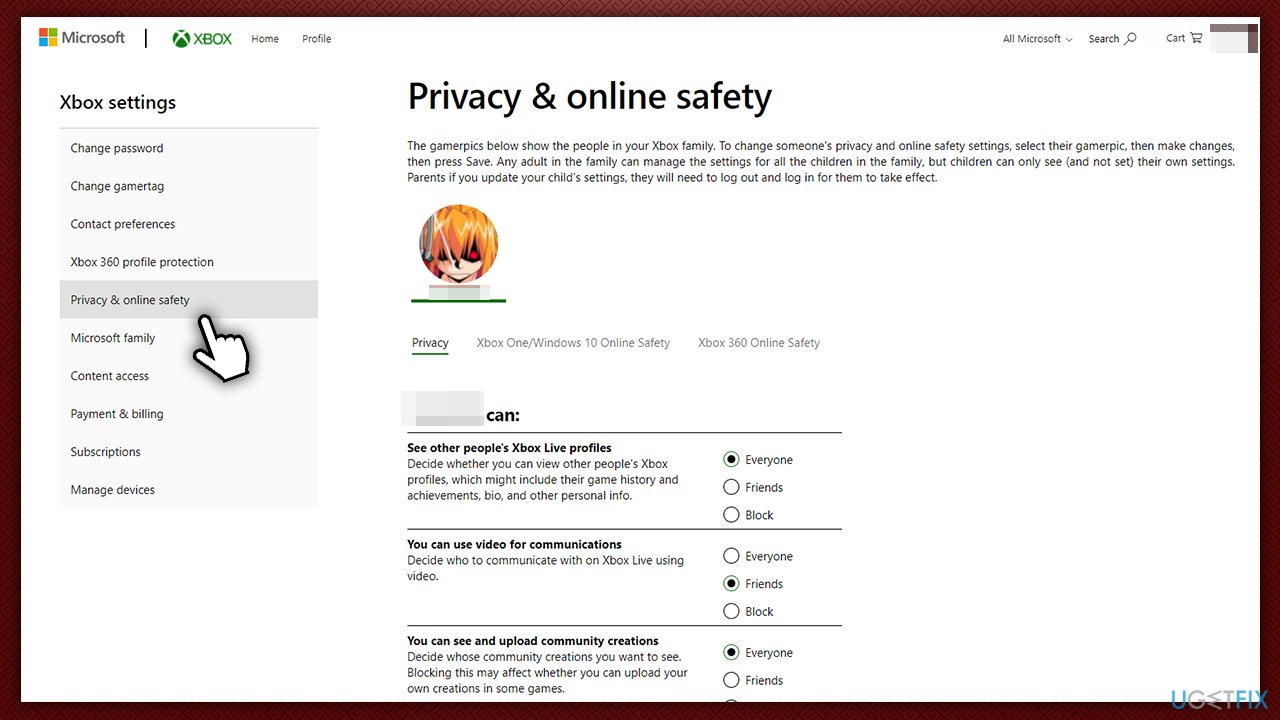
How to fix minecraft error multiplayer is disabled please check your microsoft account settings go to xbox account select privacy settings - Select Xbox One/Windows 10 Online Safety section
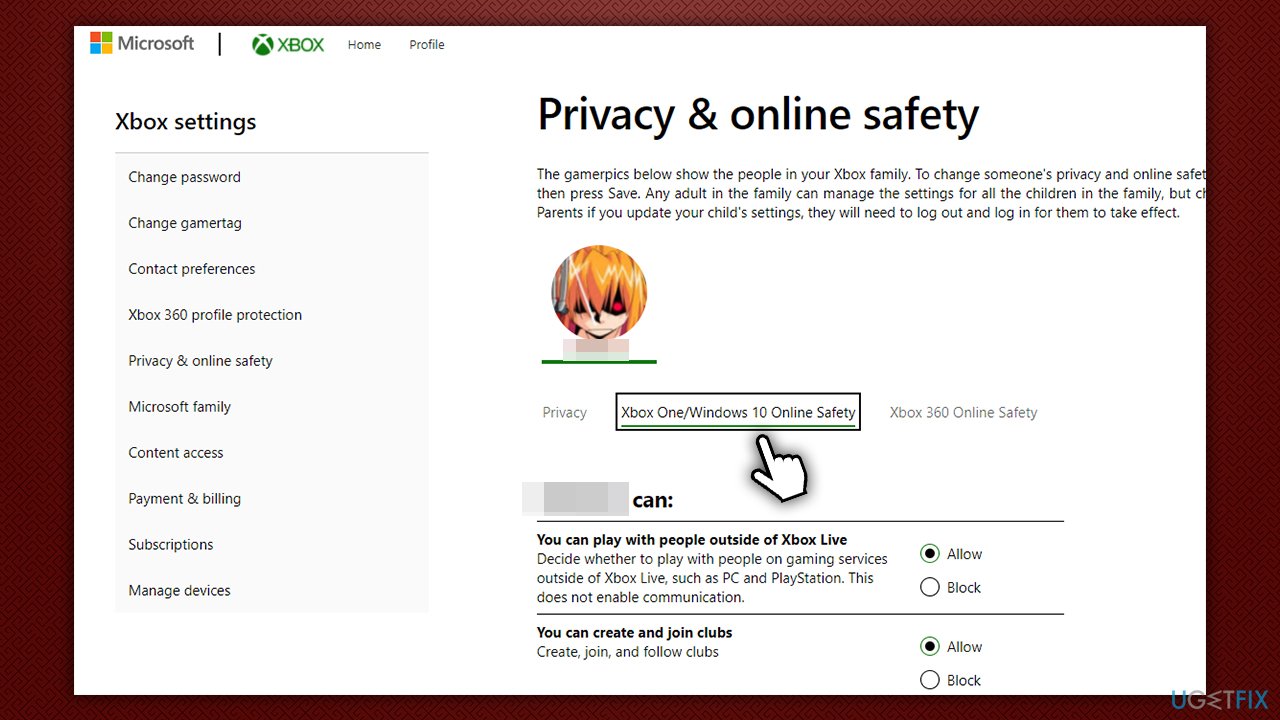
How to fix minecraft error multiplayer is disabled please check your microsoft account settings go to xbox account go to xbox one windows 10 online safety - Scroll down until you find You can join multiplayer games
- Make sure this option is set to Allow and then click Submit.
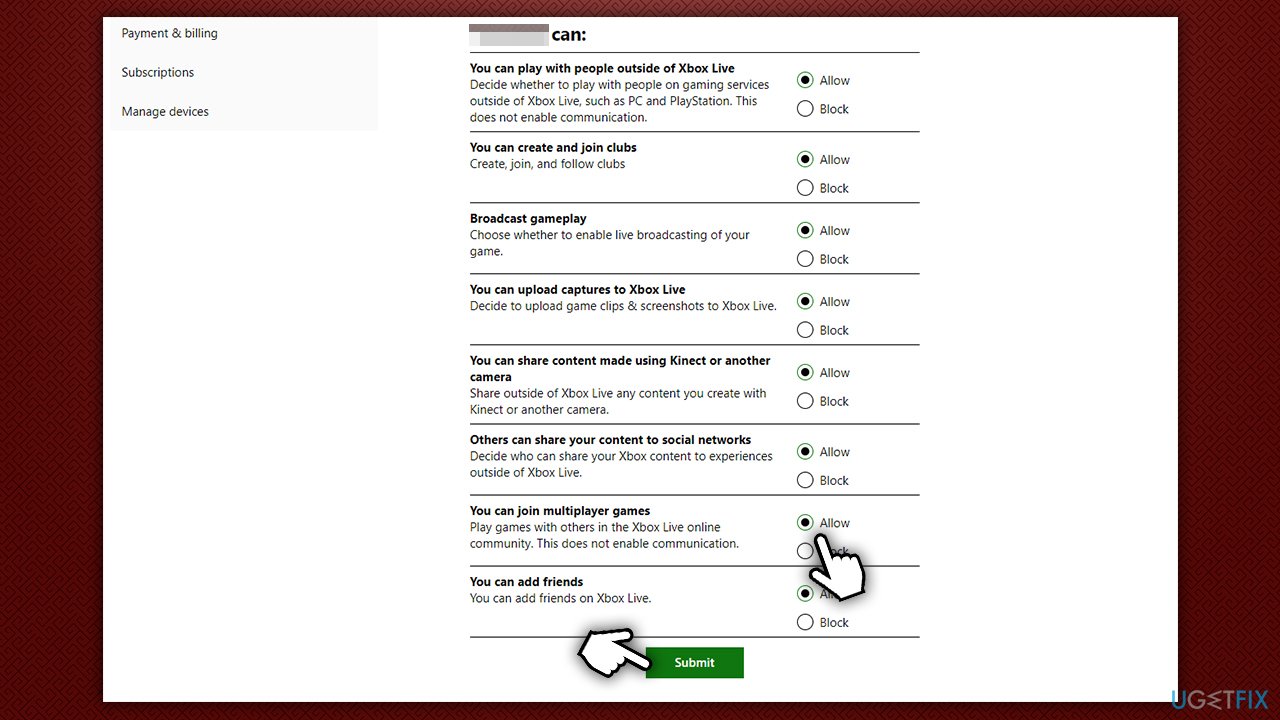
How to fix minecraft error multiplayer is disabled please check your microsoft account settings go to xbox account join multiplayer games
Step 4. Instructions for the child account
If you are a parent, it is a good idea to create a child account with particular restrictions on it. However, in order to allow your kid to play a multiplayer game on Minecraft, you should proceed with the following:
- Log out of your Xbox and Microsoft accounts
- Create both accounts (Microsoft/Xbox) for your child, if he/she has not got one yet
- Once done, log back in to your main account
- Go to https://account.microsoft.com/family
If you have not added your child's account to your family group yet, here's how (otherwise skip this step):
- Select Create a family group
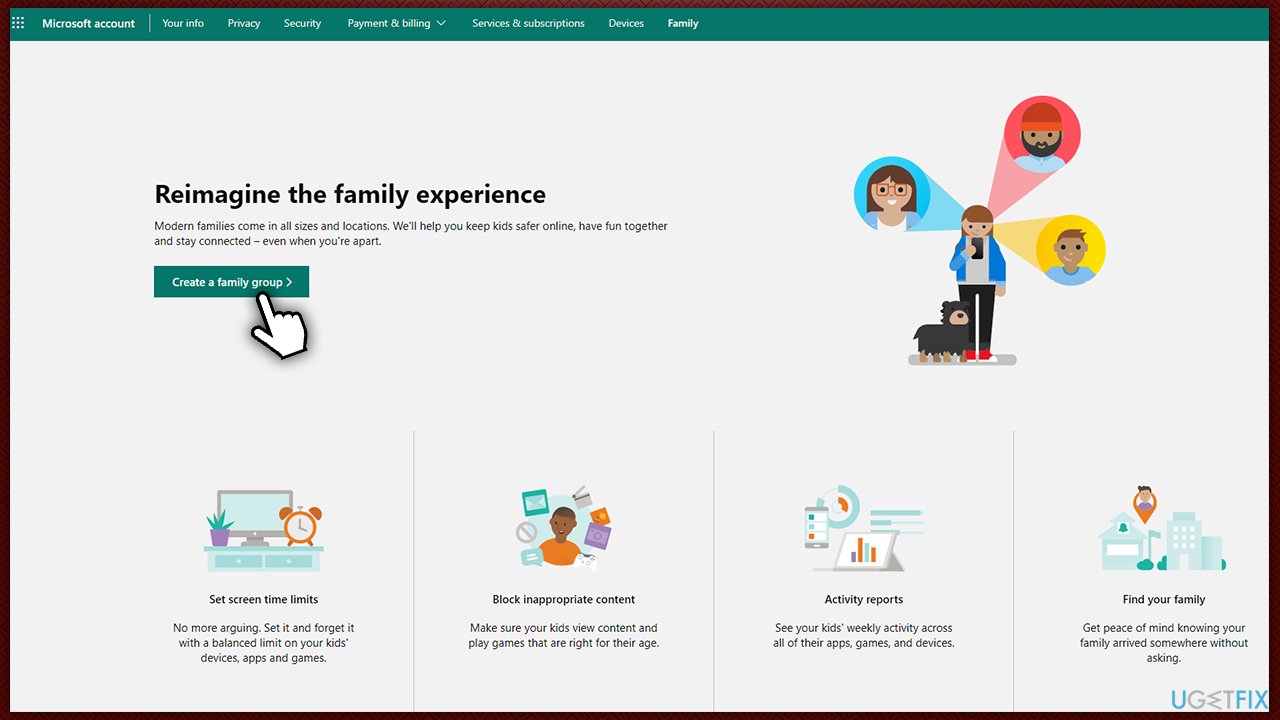
How to fix minecraft error multiplayer is disabled please check your microsoft account settings go to xbox account create family group - Enter your kids email address (or a phone number) and click Next
- Select Member and click Next
- Enter captcha[ref en-2] and click Invite
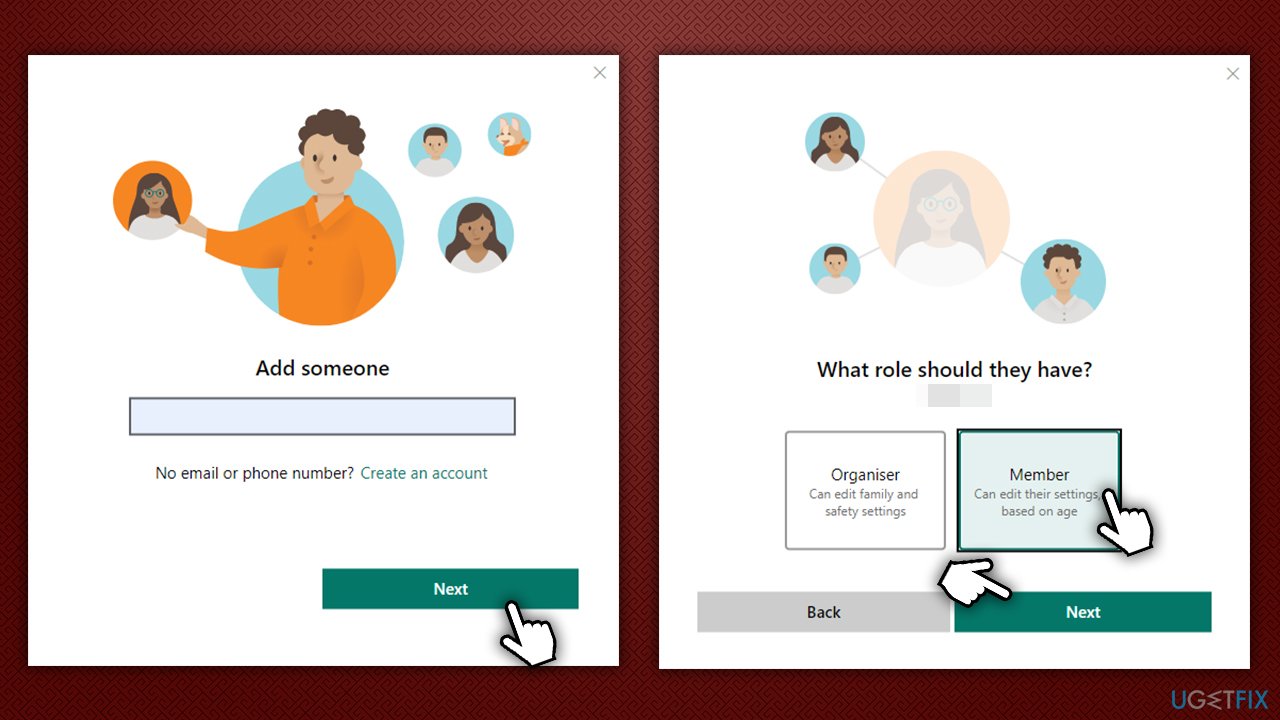
How to fix minecraft error multiplayer is disabled please check your microsoft account settings go to xbox account add child account - Login to your child's email and accept the invite.
Next, allow the child account to join multiplayer games:
- Log back into your Microsoft account and go back to https://account.microsoft.com/family
- Under your child's account, select More options > Xbox online settings
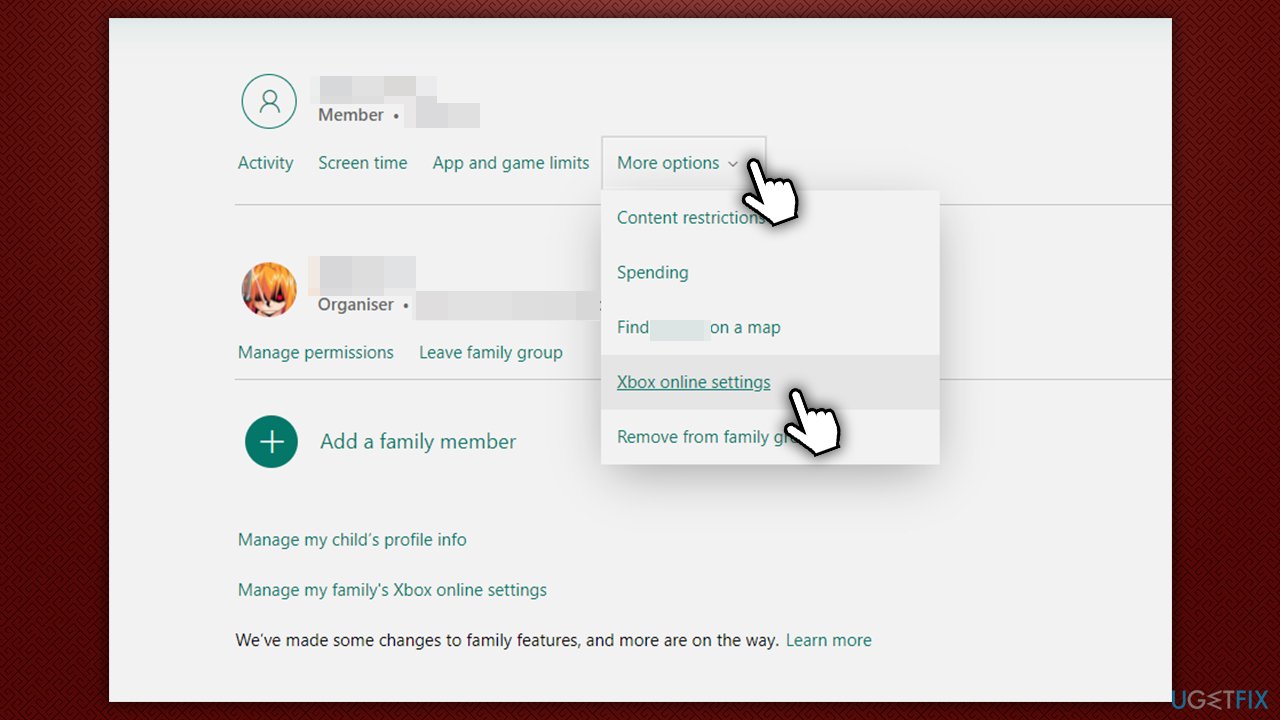
How to fix minecraft error multiplayer is disabled please check your microsoft account settings go to xbox online settings en - Go to Privacy & Online Protection section
- At the top, select your child's account
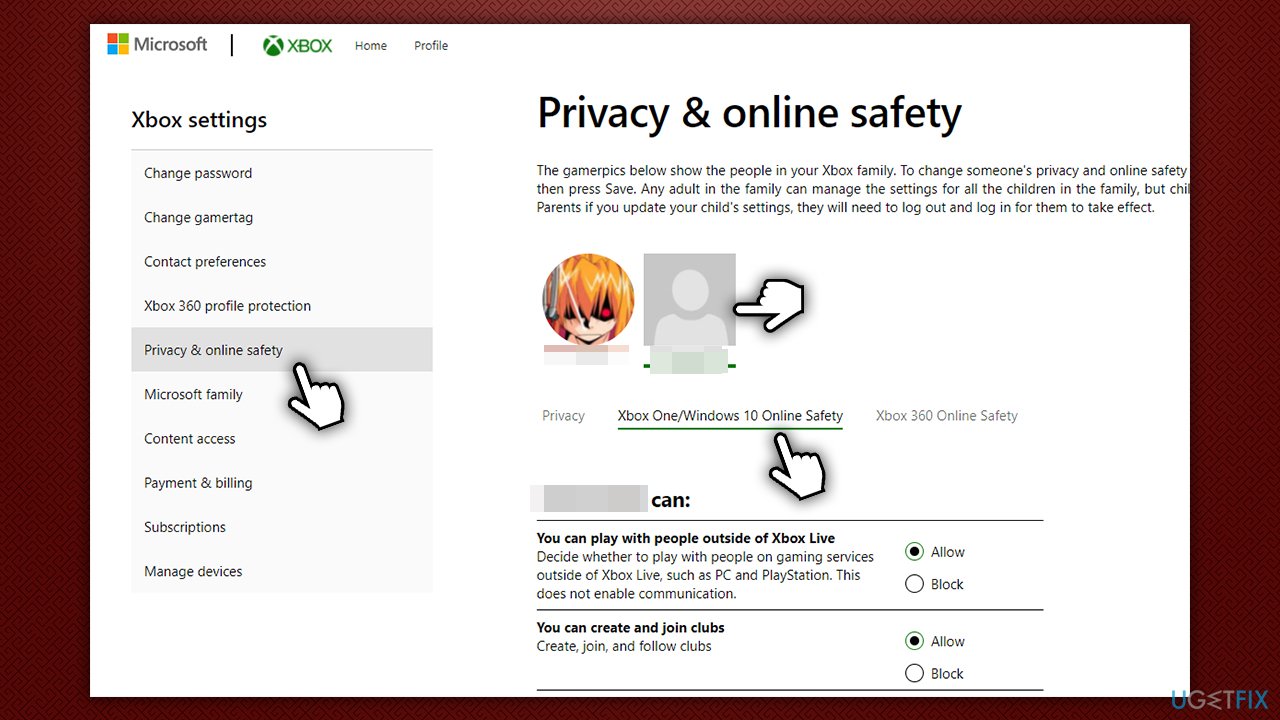
How to fix minecraft error multiplayer is disabled please check your microsoft account settings allow child account to join miltiplayer - Go to Xbox One/Windows 10 Online Safety section
- Under You can join multiplayer games, select Allow and press Submit.
Bottom line
To fix the 'Multiplayer is disabled' error, check your Xbox account settings and ensure you have the necessary permissions for multiplayer mode. If the issue persists, consider troubleshooting your connection or using a maintenance utility to identify underlying Windows issues.
Frequently asked questions
First, ensure that your Microsoft Account settings allow for multiplayer gaming by checking the privacy settings on the official Microsoft website. If the settings are correct and the issue persists, try restarting Minecraft or your Windows 10 device.
To enable multiplayer on Windows 11, navigate to your Microsoft Account settings and verify that the 'You can play with people outside of Xbox Live' option is enabled. Additionally, ensure that your Xbox Live subscription is active.
Yes, ensure that your Windows Defender Firewall or any third-party antivirus is not blocking Minecraft's access to the internet. Also, check your network settings to confirm that the proper ports for Minecraft are open.




Report an issue
What's wrong with this guide? We review every report and update or remove content.
Report received — thank you. We'll review and fix it.
You need a free account to submit a report.
Be the first to comment