How to fix
SYSTEM LICENSE VIOLATION BSOD
on Windows
Resolve the SYSTEM LICENSE VIOLATION BSOD in Windows 10 effortlessly with our expert-tested solutions. Fix it in minutes for a smoother experience.

What causes How to fix SYSTEM LICENSE VIOLATION BSOD in Windows 10?
- Corrupted registry
- Incompatible drivers
- Issues after installing new software
- Problems during Windows startup
- Errors during operation or shutdown
Repairs Windows system files, removes malware, and restores a clean OS state — without reinstalling.
Hello. I received SYSTEM LICENSE VIOLATION, and now I can't boot into Windows; the error shows up again instead of at some point. I am not sure what to do next. Is my PC broken? Please help.
SYSTEM LICENSE VIOLATION is one of the hundreds of Blue Screen of Death[ref en-1] errors that greatly impact users' ability to operate their Windows 10 machines. Initially, many BSOD errors are just temporary (meaning that the system encountered a critical/stop error and needs to restart), and users recover as soon as the system reboots.
However, some Blue Screen errors can be more persistent or even prevent users from accessing Windows altogether. SYSTEM LICENSE VIOLATION is one of such errors and needs to be addressed as soon as possible.
Some users reported that they received this error seemingly out of nowhere - during Windows startup, operation, or shutdown. Others claimed that the crash occurred right after installing some programs, updating drivers,[ref en-2] or performing actions using built-in features, such as System Restore.
Whatever causes the Blue Screen, users are baffled. They don't know what to do next, as their PCs enter endless cycles or reboot after receiving the SYSTEM LICENSE VIOLATION error over and over again. This can be a difficult situation, as finding fixes in such a computer state is impossible. Luckily, Windows has modes that would allow users to boot despite the critical errors that the operating system might be facing.
SYSTEM_LICENSE_VIOLATION has a bug check value of 0x9A and signals that the software license agreement has been violated, possibly due to a misplaced or corrupted registry.[ref en-3] This explains why users get the error after installing new software on their machines - incompatible drivers, for example, could cause such a problem.
To fix SYSTEM LICENSE VIOLATION error in Windows 10, you will have to access Safe Mode and perform several troubleshooting steps until one of the solutions works for you. Refer to the steps below for more details.
Access Safe Mode to fix SYSTEM LICENSE VIOLATION error
Many users who reported this issue claimed that they were unable to access their Windows as normal. Accessing Safe Mode could bypass this problem. For that, perform the following steps:
- Restart your computer
- Once Windows starts booting, press Power button, interrupting the loading process - do this two more times
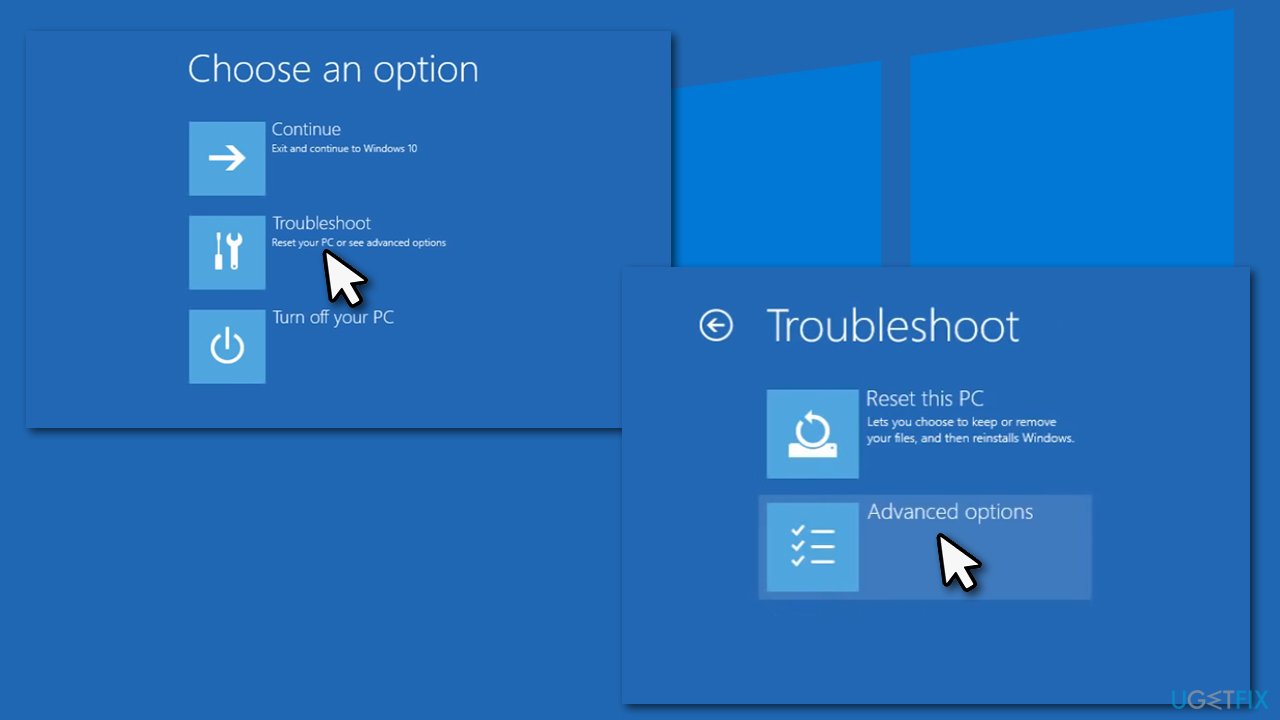
- After that, Windows will automatically enter Advanced Startup mode
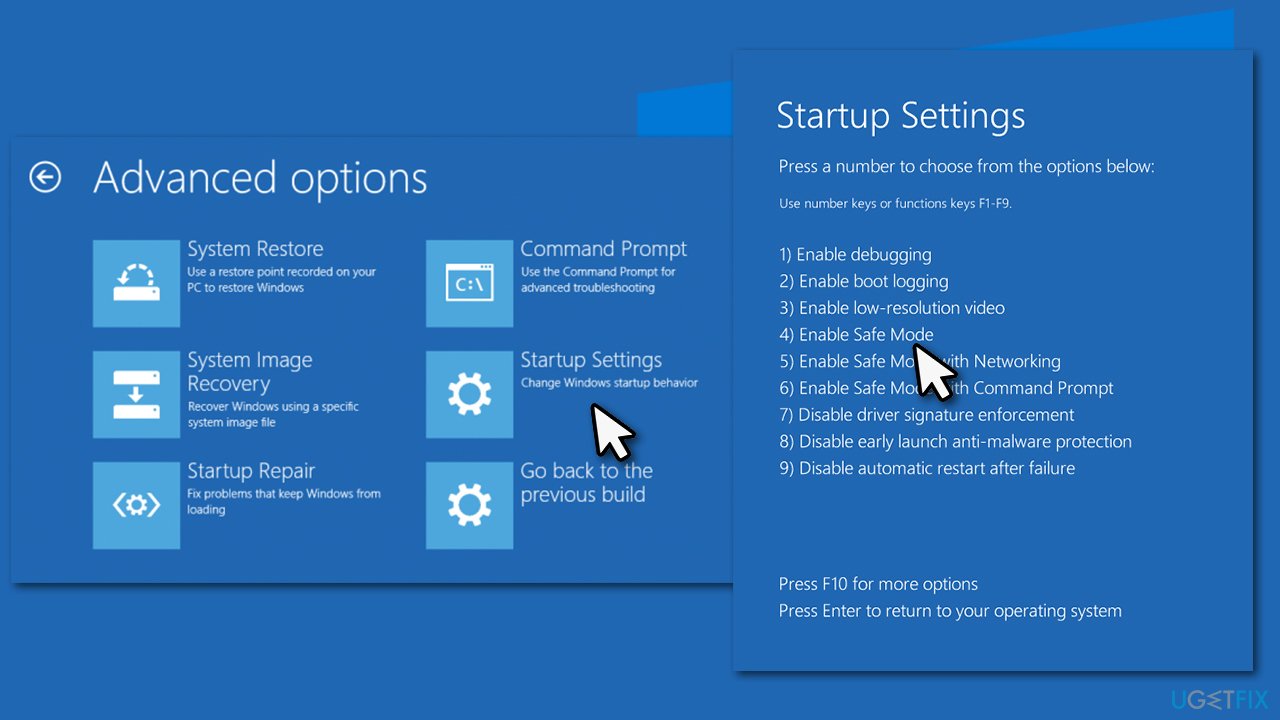
- Select Troubleshoot > Advanced options > Startup Settings and Restart
How to fix system license violation bsod in windows 10 boot in safe mode - After a reboot, pick either 4/F4 for Safe Mode or 5/F5 for Safe Mode with Networking.
How to fix system license violation bsod in windows 10 boot in safe mode2
Method 1. Use automatic repair tool
BSOD errors can be particularly complex as they could occur due to different reasons. Combining this with the insufficient technical knowledge of most regular users, solving them can be particularly challenging. Besides, some users simply don't want to meddle with system files, and rightfully so, as incorrect handling of, e.g., registry database might cause significant damage to Windows system.
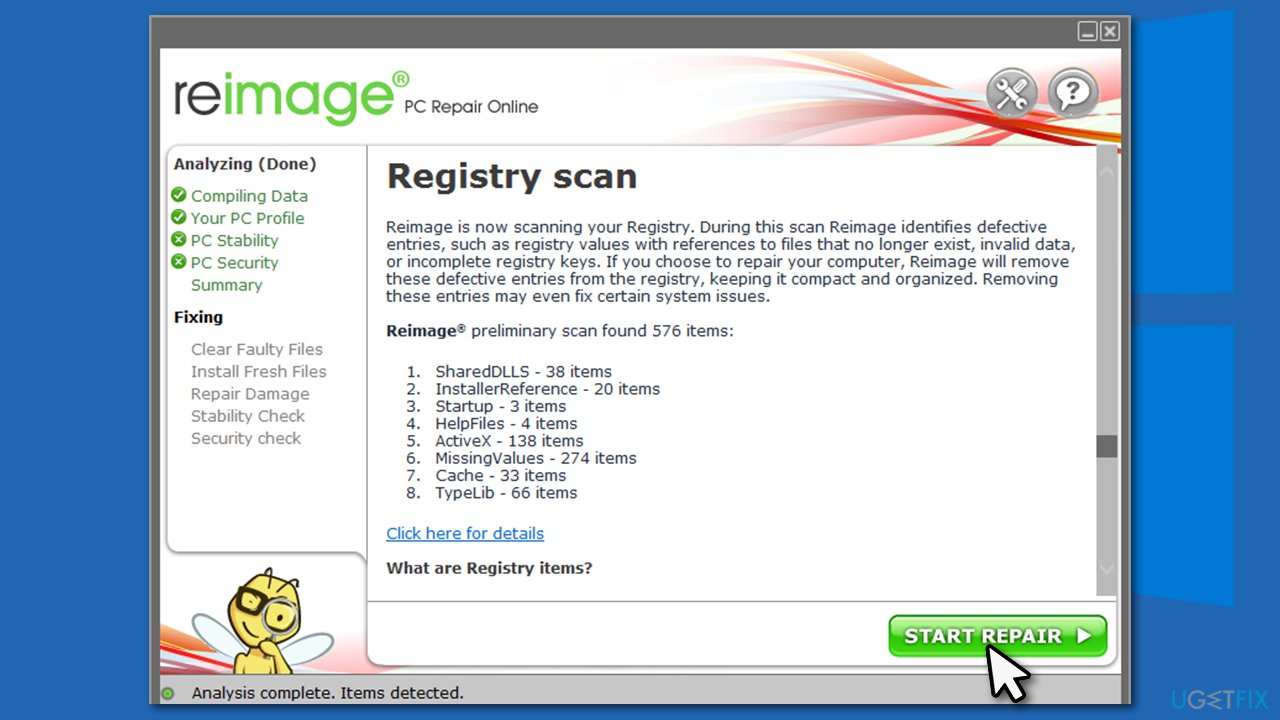
Therefore, we highly advise you to try using [d1] in order to fix SYSTEM_LICENSE_VIOLATION and other Blue Screen errors that you might encounter. Since one of the main reasons why it occurs is misplaced registries, this tool could most likely resolve the problem for your automatically.
Method 2. Run System File Checker
- Type cmd in Windows search
- Right-click on Command Prompt and select Run as administrator
- In the new window, type sfc /scannow and press Enter
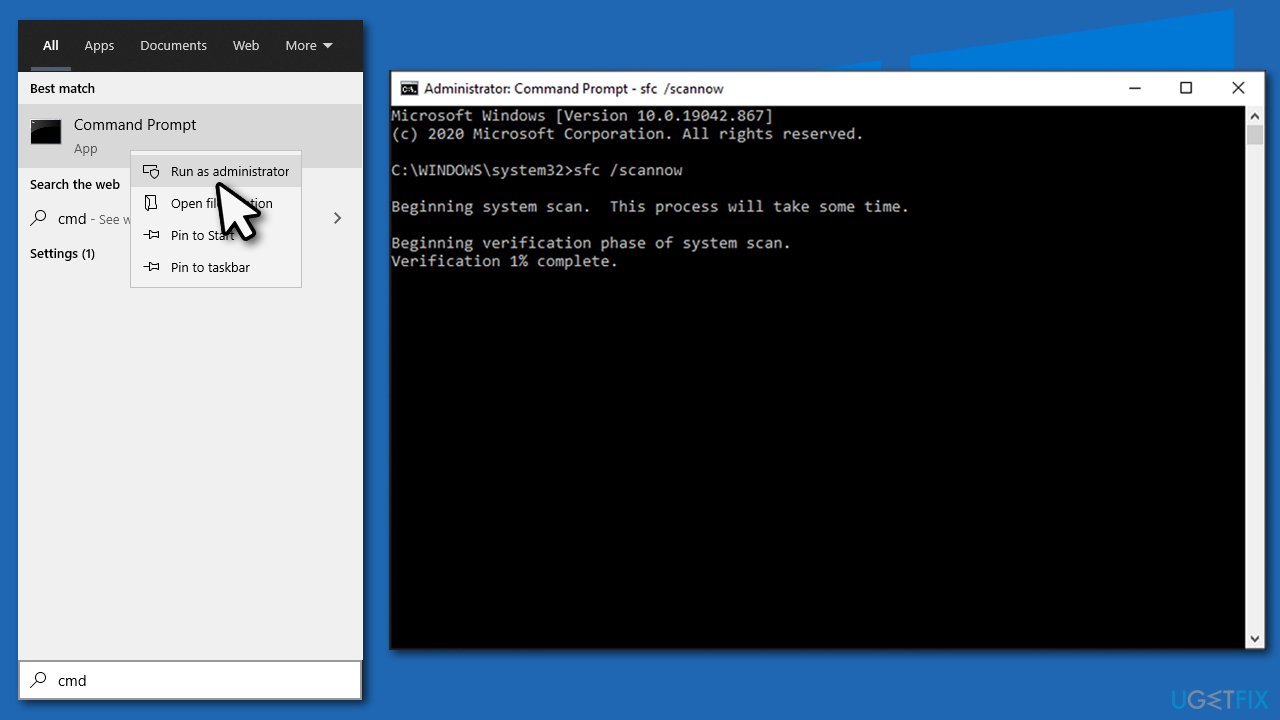
How to fix system license violation bsod in windows 10 run sfc - Wait till Windows completes the scan and then reboot your computer.
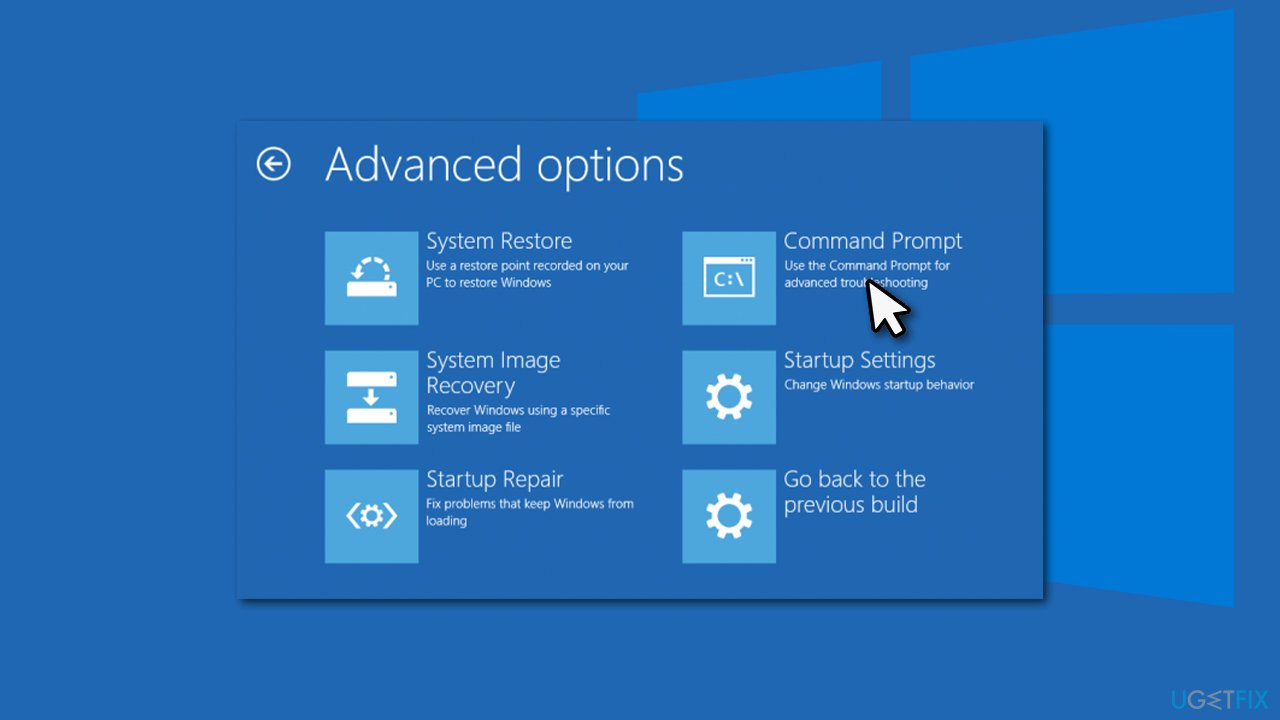
If you were unable to access Safe Mode, you can use Command Prompt after selecting Troubleshoot > Advanced options > Command Prompt in the Advanced Startup mode.
Method 3. Check your disk for errors
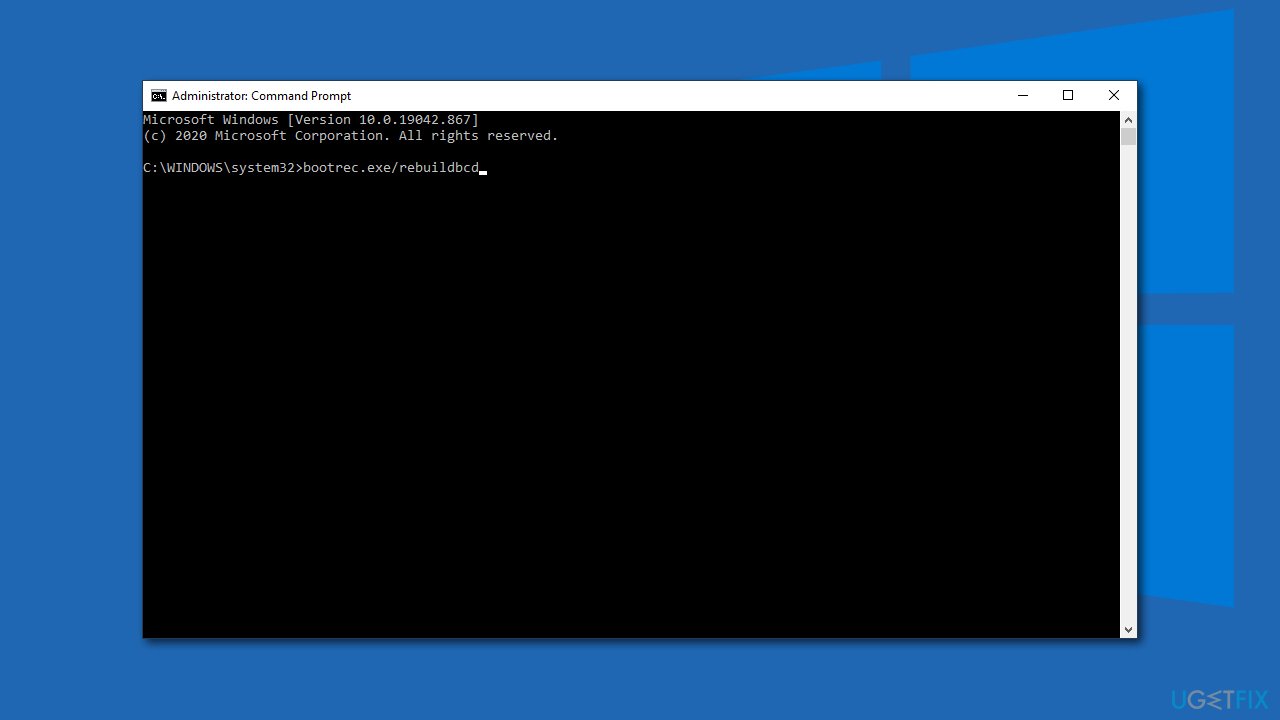
- Open Command Prompt and run the following commands, pressing Enter after each:
bootrec.exe/rebuildbcd
bootrec.exe/fixmbr
bootrec.exe/fixboot
chkdsk C: /f /r - Restart the PC once finished.
How to fix system license violation bsod in windows 10 check disk for errors
Method 4. Uninstall problematic driver
If your problem started after you installed a driver on your system, you should uninstall it. Here's how:
- Right-click on Start and pick Device Manager
- Expand the section you want to uninstall driver from, e.g., Other devices
- Here, right-click on the device and select Uninstall device
- Select Delete the driver software for this device and click Uninstall
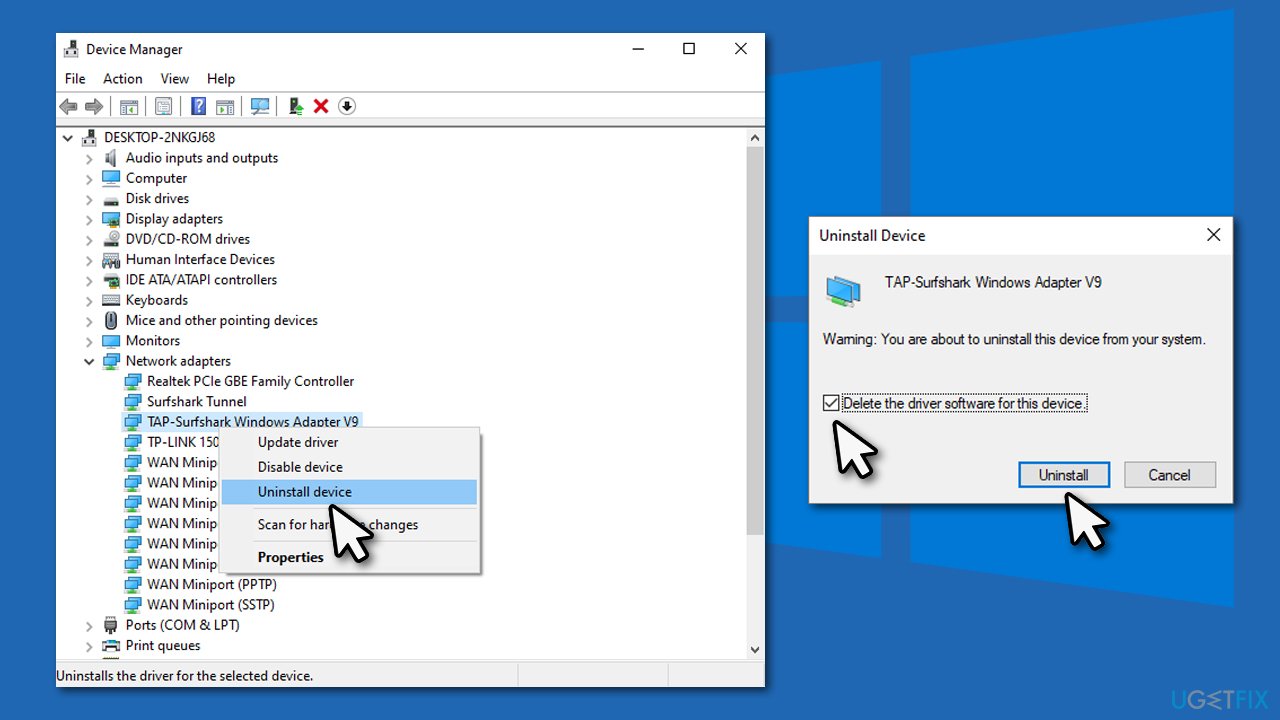
How to fix system license violation bsod in windows 10 uninstall problematic driver - Restart your PC.
We highly recommend you use an automatic driver updater [rev id="DriverFix"] in order to prevent installing incorrect or corrupted drivers in the future. In fact, drivers could be the leading cause for BSODs such as DRIVER VERIFIER DMA VIOLATION, BAD POOL CALLER, or PDC WATCHDOG TIMEOUT.
Method 5. Use Windows Media Creation Tool
For this method, you will have to create bootable media from a working computer.
- Download Windows 10 installation media from the official Microsoft website
- Launch the installer, agree to Terms and select Next
- Pick Create installation media (USB flash drive, DVD or ISO file) for another PC > Next
- Pick USB flash drive (make sure you have USB connected to the PC)
- Now follow on-screen instructions, and once the option to pick partition style shows up, select UEFI
- Proceed with on-screen instructions to finish the process
- Now connect the USB to the PC that you are having trouble with
- Boot into BIOS (typically by pressing F2, F8, F12, Del, or another key several times) and go to Boot menu
- Here, select the Boot priority option and set it to USB
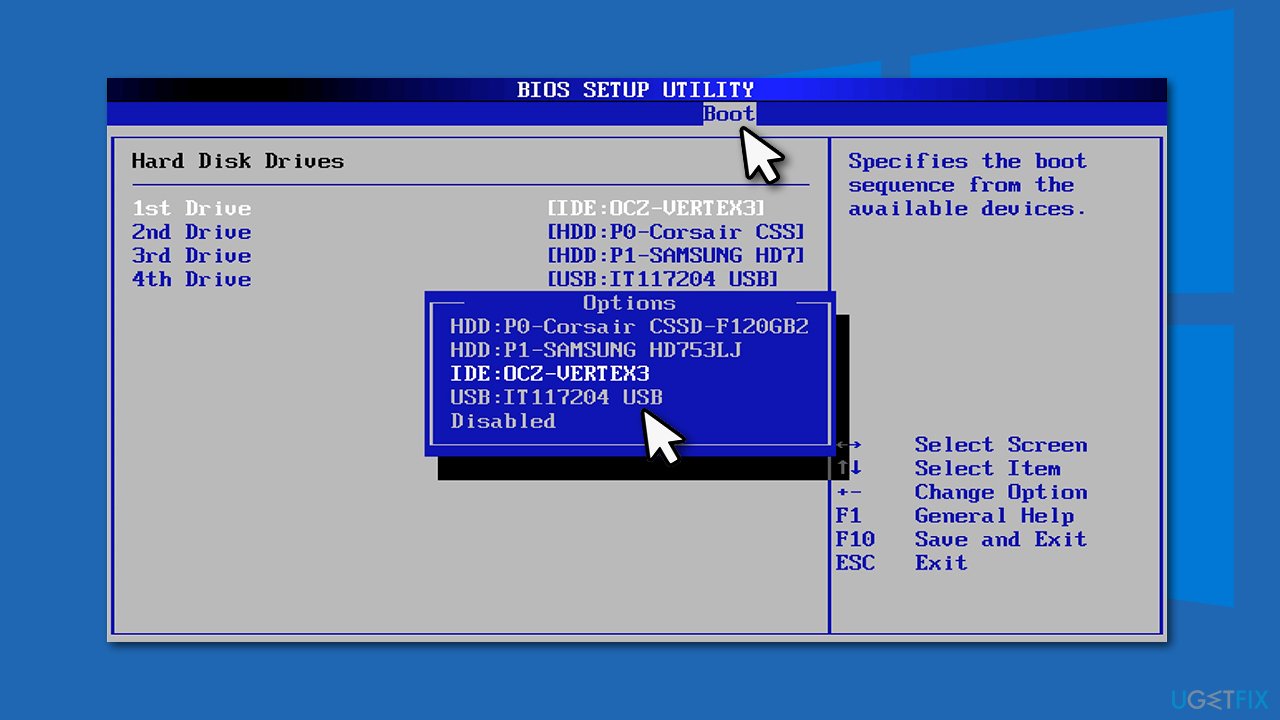
How to fix system license violation bsod in windows 10 change boot priority - Restart the PC
- Click Repair your computer at the bottom-left corner and then select Advanced options
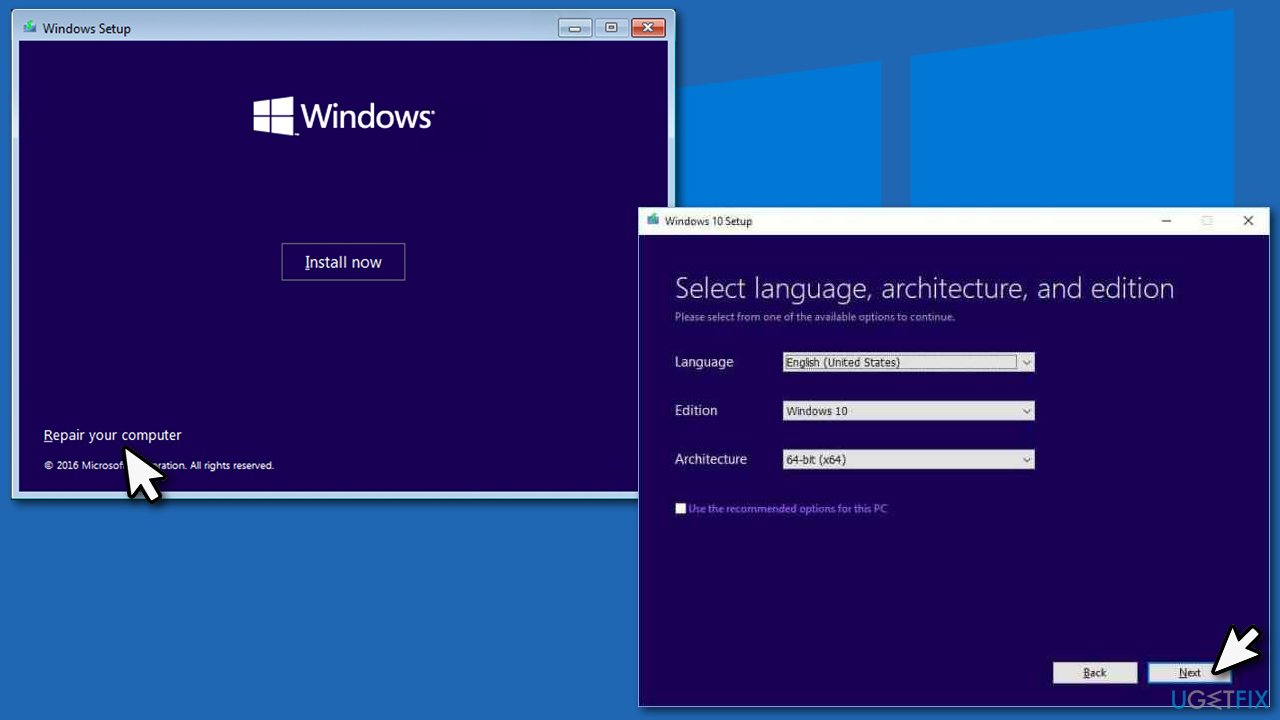
How to fix system license violation bsod in windows 10 use media creation tool - Here, pick Troubleshooting > Automatic repair.
Bottom line
To fix the SYSTEM LICENSE VIOLATION error in Windows 10, users should access Safe Mode and perform troubleshooting steps. This may involve uninstalling problematic software or drivers. If none of the solutions work, further assistance may be needed.
Frequently asked questions
This error typically occurs due to issues with Windows activation, corrupted system files, or incompatible software. Ensuring that your Windows 10 is properly activated and running the latest updates can help prevent this error.
You can try running the System File Checker tool by executing 'sfc /scannow' in Command Prompt with administrative privileges, which can repair corrupt system files causing the BSOD. Additionally, checking for and uninstalling any recent software changes may also help.
Yes, the troubleshooting steps for Windows 10, such as running the DISM tool and checking your activation status, are also applicable in Windows 11. Ensure your system is fully updated to minimize compatibility issues.




Report an issue
What's wrong with this guide? We review every report and update or remove content.
Report received — thank you. We'll review and fix it.
You need a free account to submit a report.
Be the first to comment