How to fix
Driver error code 45
on Windows
Resolve driver error code 45 in Windows 10 or Windows 11 quickly and effectively. Follow our expert-tested guidance for a hassle-free fix!


What causes How to fix driver error code 45 in Windows?
- Malware infection
- Outdated drivers
- Corrupt drivers
- Registry issues
- Hardware disconnection
Repairs Windows system files, removes malware, and restores a clean OS state — without reinstalling.
Hello. For some reason, my network adapter is not recognized on my laptop, which causes all sorts of problems for me - I can't use the internet! When I open driver properties, it says, "Currently, this hardware device is not connected to the computer (Code 45)." Are any solutions available for this, please?
Error code 45 is an error that can be seen in Device Manager. It claims that the hardware is not connected to the computer, hence the driver can not be enabled. Consequently, the functionality of that device is simply missing, leading to all sorts of problems. For example, if the network adapter is not being recognized by the computer, users would not be able to use Wi-Fi, Bluetooth,[ref en-3] and other devices.
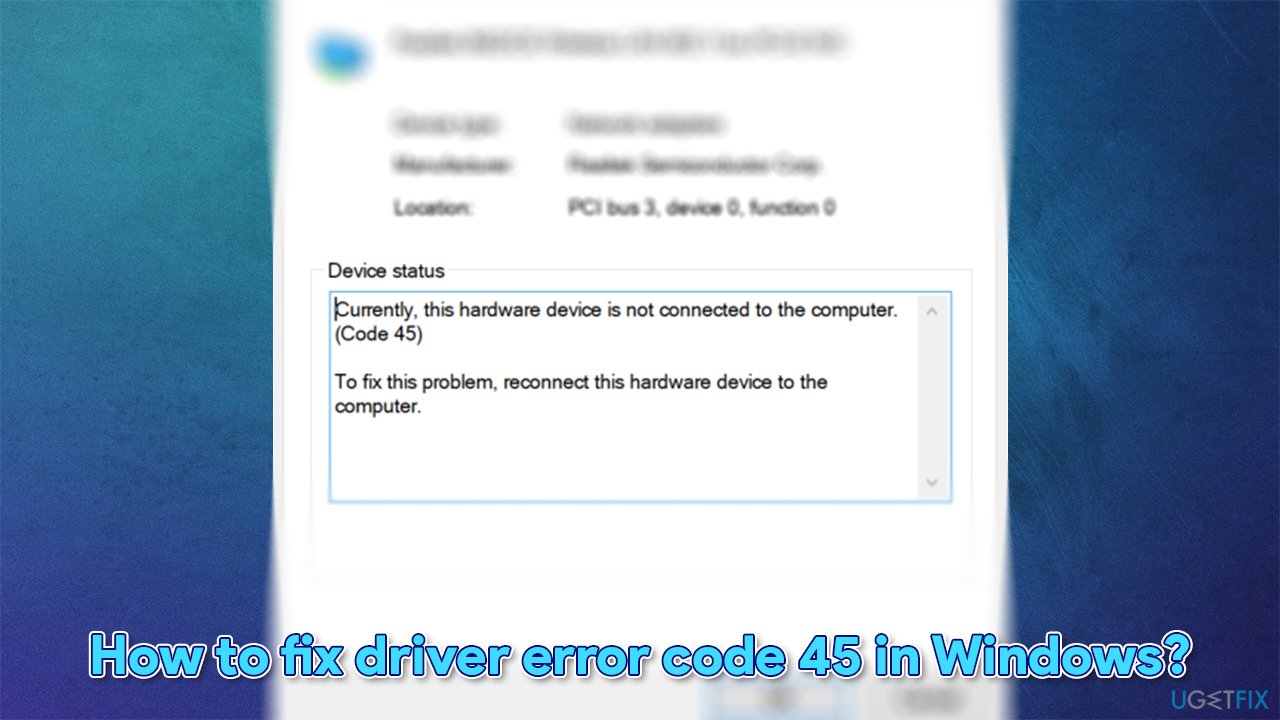
In this article, we will try to help you fix Error code 45 in Device Manager once and for all. Here is the full message that users can see within the Device Manager's driver Properties:
Currently, this hardware device is not connected to the computer. (Code 45)
To fix this problem, reconnect this hardware device to the computer.
While initially, it may seem like the reason for the error is clear - the particular device being disconnected from the PC - in the majority of cases, they are indeed connected physically, as users reported. Therefore, trying to reconnect hardware rarely helps users fix error code 45.
Instead, the error occurs when Windows cannot recognize the device in question, which, on its own, can be caused by many different reasons. For example, malware infection, outdated/corrupt drivers, registry issues, and much more. Therefore, there is no universal way to fix this issue for everybody.
Since there could be many reasons for the problem to arise in the first place, we highly recommend you try using PC maintenance, diagnostic, and repair software [d1]. Running a scan with this app could help you get rid of various problems which are connected to Windows system file corruption, registry[ref en-2] errors, missing DLLs, etc. Besides, it can also remove already installed malware on the system.
Check out similar errors you might receive in Device Manager:
- Network adapter error code 10
- Device Manager error code 41
- Realtek Audio Device not detected or not working.
Fix 1. Update the problematic driver
You can update your drivers via the Device Manager:
- Right-click on Start and pick Device Manager
- Expand the section your want to be updated, e.g., Network adapters
- Right-click on the device and select Update driver
- Pick Search automatically for drivers
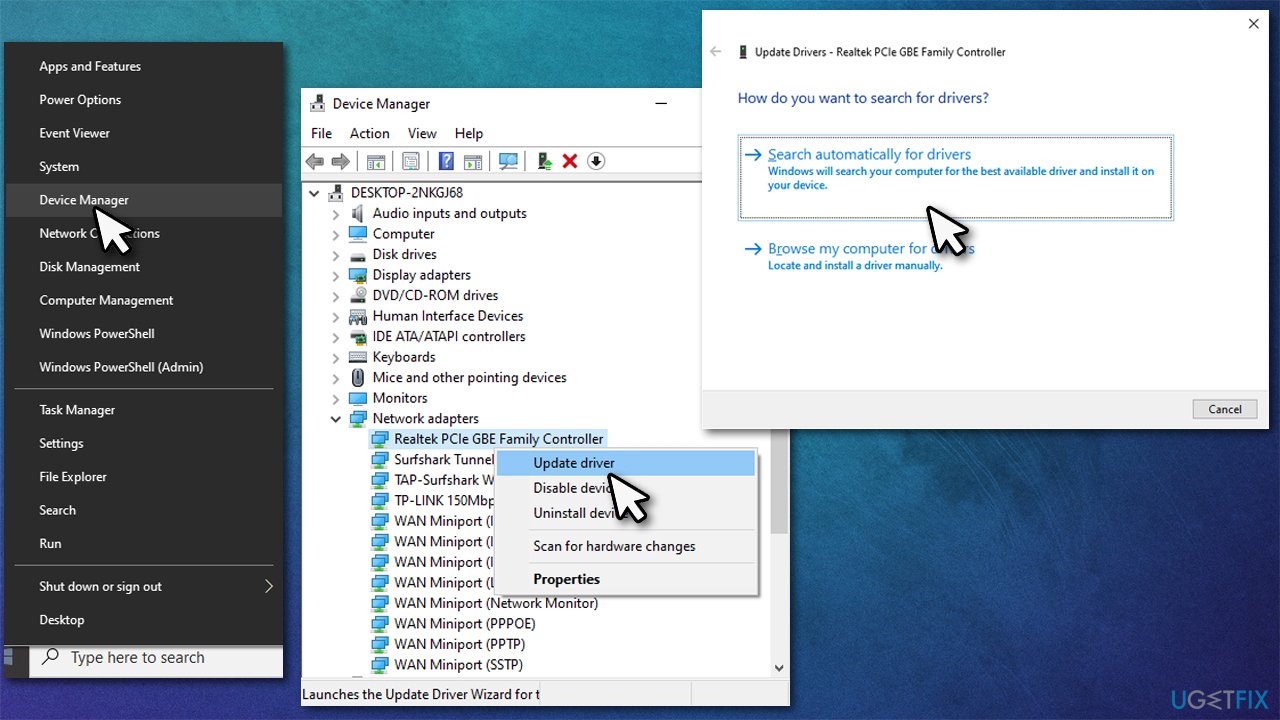
How to fix driver error code 45 in windows update drivers - Wait till the installation is finished and restart your PC.
However, Device Manager might fail to detect the latest available drivers for all your installed hardware. Therefore, you should either visit your device manufacturer's website or use an automatic driver updater such as [rev id="DriverFix"]. Not only can you do this process faster but also ensure driver integrity to avoid incompatibility issues.
Fix 2. Reinstall the problematic driver
In some cases, drivers might get corrupted, causing the device to malfunction. Drivers are essential parts of any Windows operating system, so you should always ensure that they are compatible and not broken. In such a case, updating the driver might not be possible, so reinstalling it is recommended instead:
- Open Device Manager again
- Right-click on the problematic driver
- Select Uninstall Device
- Tick the Delete the driver software for this device
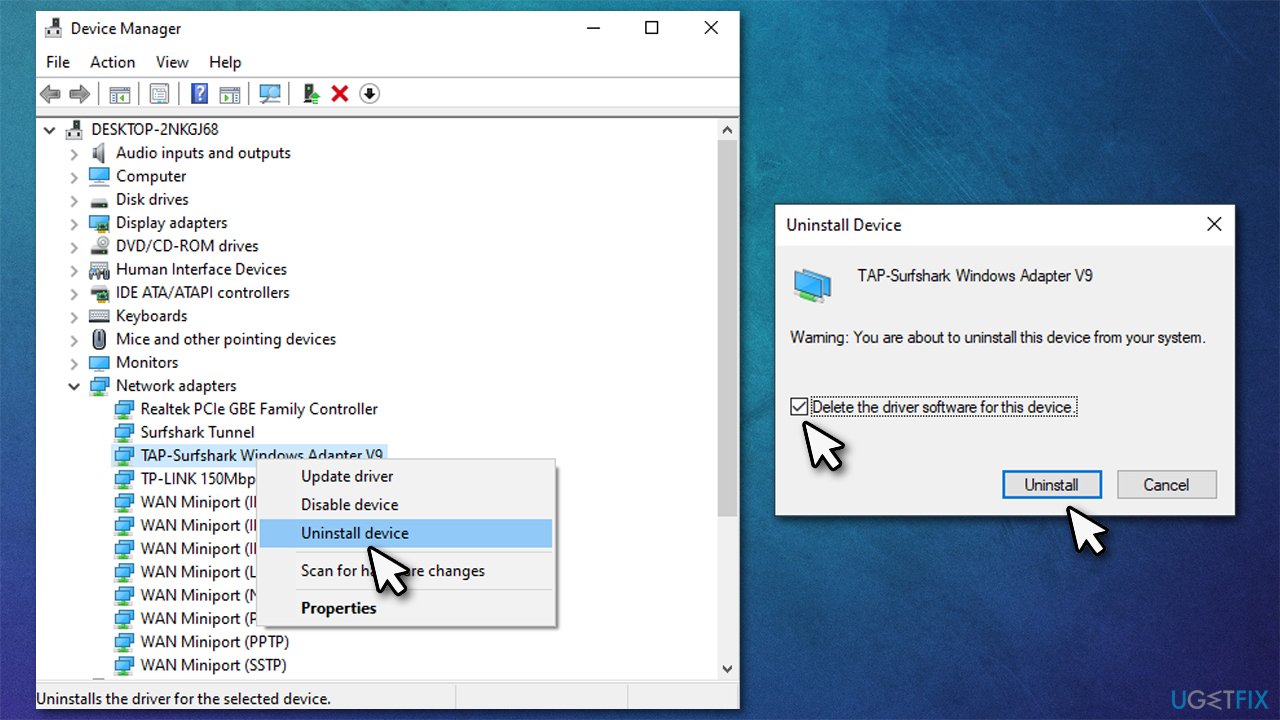
How to fix driver error code 45 in windows reinstall drivers - Restart your computer.
Fix 3. Install the latest Windows updates
- Type Updates in Windows search and press Enter
- On the right side of the window, click Check for updates
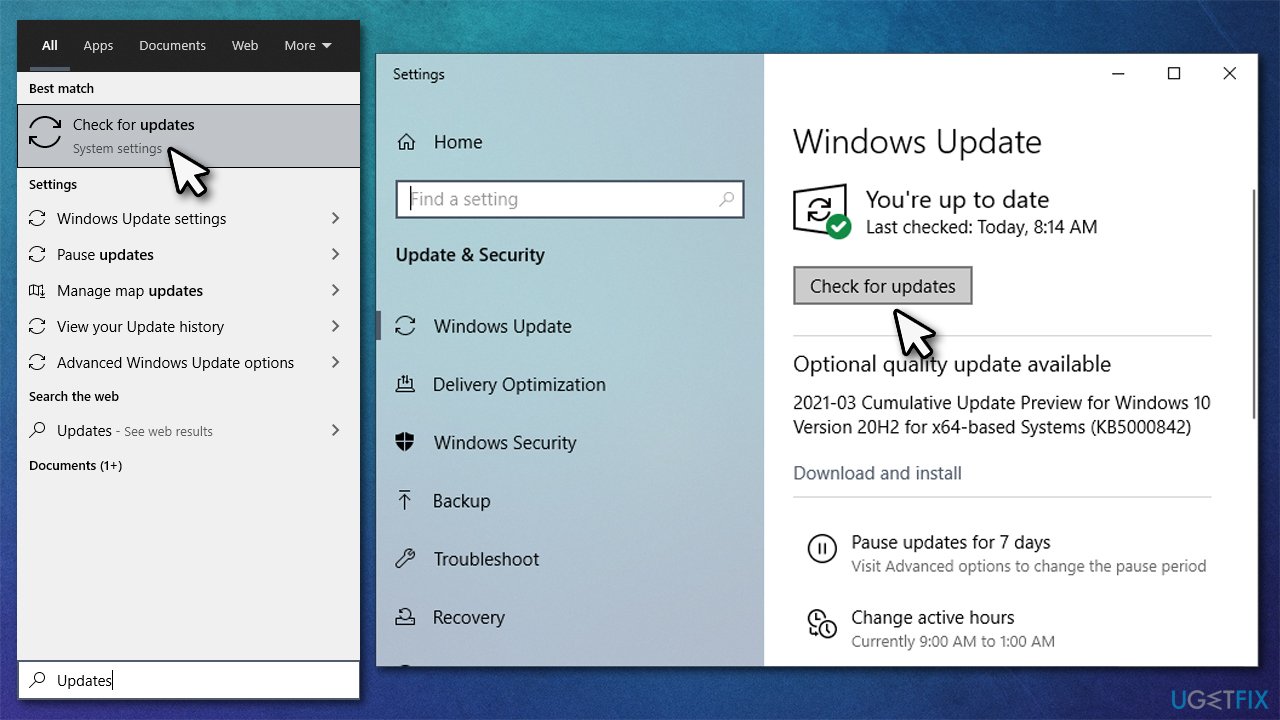
How to fix driver error code 45 in windows install all updates - Wait till Windows downloads and installs all the updates
- Don't forget to install all the optional updates as well
- Restart your computer and see if the problem is resolved.
Fix 4. Run SFC and DISM
- Type cmd in Windows search
- Right-click on Command Prompt and select Run as administrator
- Here, paste the following command:
sfc /scannow
- Press Enter and wait for the scan to finish
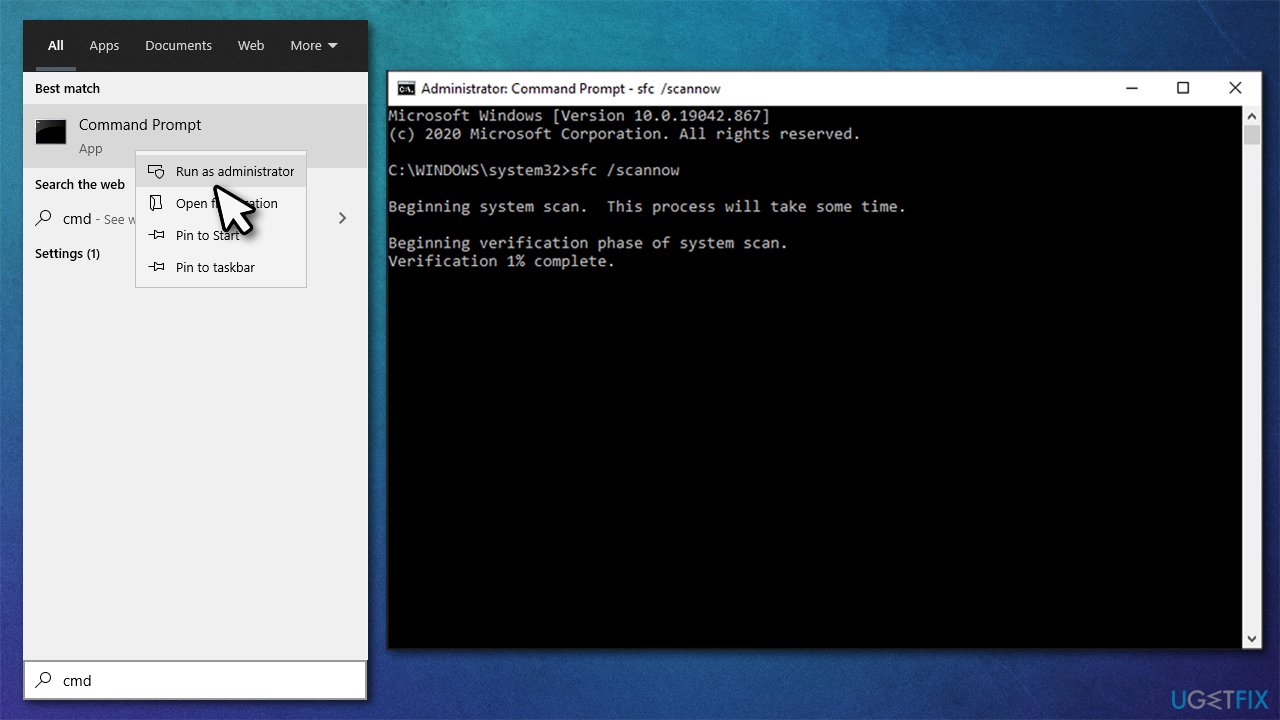
How to fix driver error code 45 in windows run sfc scan - Once done, paste the following commands (don't forget to press Enter after each):
DISM /Online /Cleanup-Image /CheckHealth
DISM /Online /Cleanup-Image /ScanHealth
DISM /Online /Cleanup-Image /RestoreHealth - Once done, restart your PC.
Fix 5. Run hardware troubleshooter
- Type Control Panel in Windows search and press Enter
- Under View by, pick Small icons and select Troubleshooting
- Go to Hardware and Sound
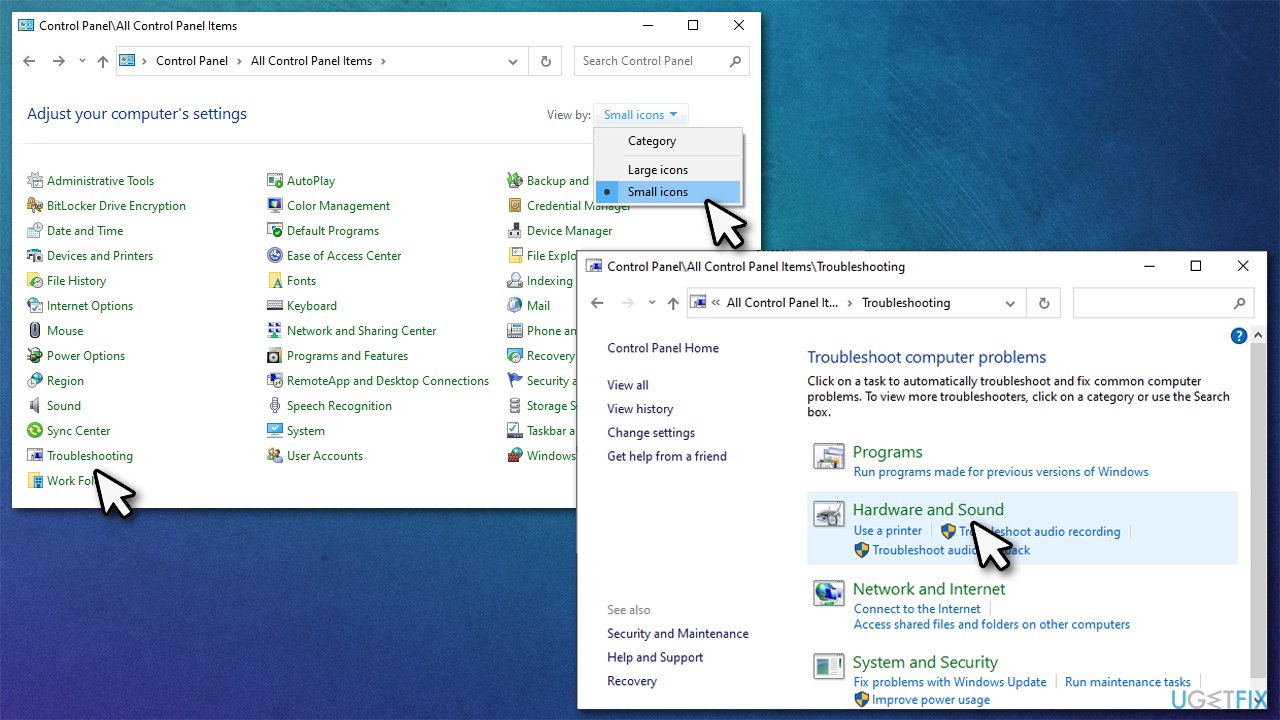
How to fix driver error code 45 in windows run hardware troubleshooter - Here, pick the troubleshooter of the device that is malfunctioning, e.g., Network Adapter
- Click Next and let the troubleshooter run.
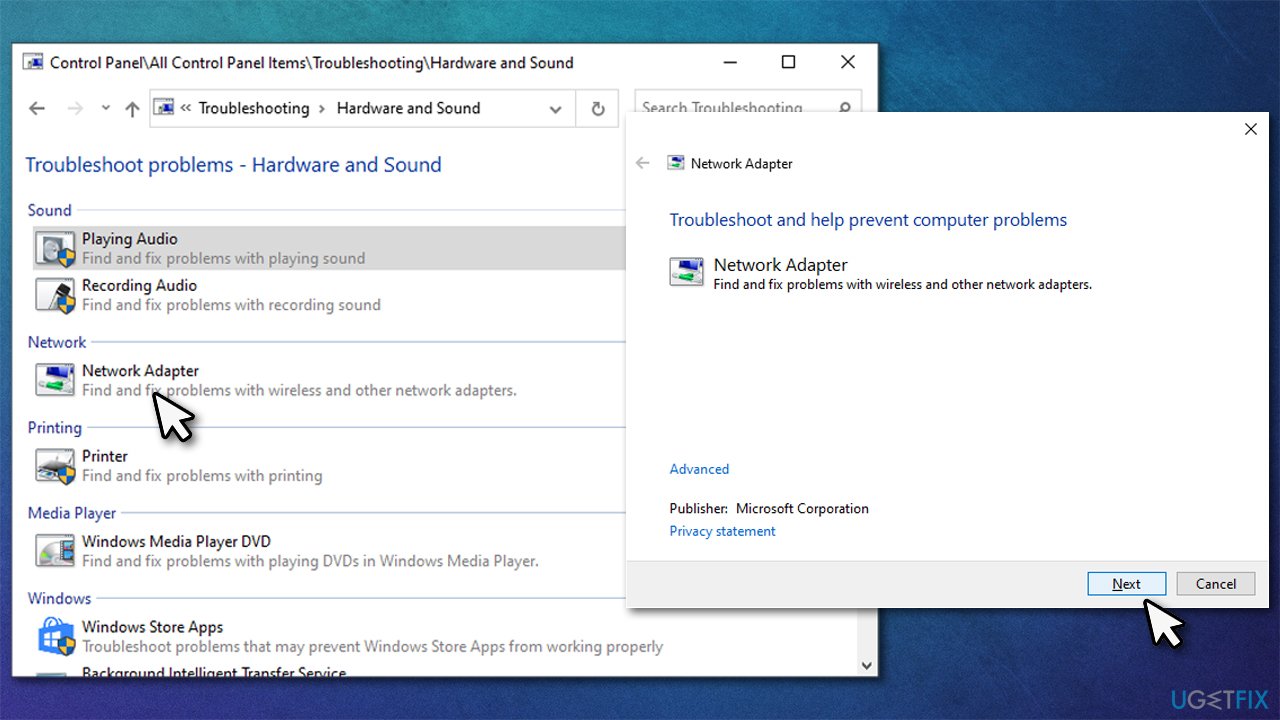
How to fix driver error code 45 in windows run hardware troubleshooter2
Fix 6. Check physical connections
Some devices, such as mice or keyboards, are peripherals that are connected to the computer using various connectors -such as USB or HDMI.[ref en-1] If the malfunctioning device has such connections, you could check them visually for damages. You should also disconnect such a device and connect it back.
However, this is not always possible as some devices are simply integrated into the motherboard. A network adapter, for example, is typically integrated, although some users who use a network card can indeed try this method.
Bottom line
To fix Error code 45, try reconnecting the hardware device, using PC maintenance and diagnostic software, and ensuring your drivers are up to date. If these solutions do not resolve the issue, further investigation into hardware connections may be necessary.
Frequently asked questions
Driver error code 45 indicates that the hardware device is not connected to the computer, which can occur if the device is unplugged or if there is a driver issue.
To fix driver error code 45 in Windows 10, ensure that the device is properly connected, then update or reinstall the device drivers through Device Manager.
Yes, in Windows 11, you can run the Hardware and Devices troubleshooter to automatically detect and fix issues related to driver error code 45.




Report an issue
What's wrong with this guide? We review every report and update or remove content.
Report received — thank you. We'll review and fix it.
You need a free account to submit a report.
Be the first to comment