How to fix
HYPERVISOR ERROR BSOD
on Windows
Resolve the HYPERVISOR ERROR BSOD in Windows 10 quickly and easily with our expert-tested solutions and clear, detailed instructions. Fixed in minutes!

What causes How to fix HYPERVISOR ERROR BSOD in Windows 10?
- Outdated system drivers
- Corrupted system files
- Outdated operating systems
- User actions triggering the error
- Underlying Windows processes
Repairs Windows system files, removes malware, and restores a clean OS state — without reinstalling.
Hi, today I started getting repeated HYPERVISOR ERROR Blue Screen of Death crashes. It mainly happens when I play games, although it also happened a few times when the PC was basically idle. I am using Windows 10.
HYPERVISOR ERROR Blue Screen of Death can occur suddenly and make Windows reboot immediately, interrupting all the work. Without a doubt, such interruption can cause significant inconvenience to people In most cases, the system can recover from the error after the restart, and computer work can continue without any problems.
Blue Screen errors, while annoying and sometimes damaging, play a vital role within the Windows environment. Essentially, this occurrence stops the system from being critically damaged, which results in an immediate PC restart. As mentioned already, a reboot is usually enough to recover from a stop error.
However, the problem starts when users start experiencing the same BSOD several times. In most cases, there is a user action that triggers it, although it can also be related to underlying Windows processes running in the background. Users who are looking for ways how to fix HYPERVISOR ERROR are typically those that experience the issue several times.
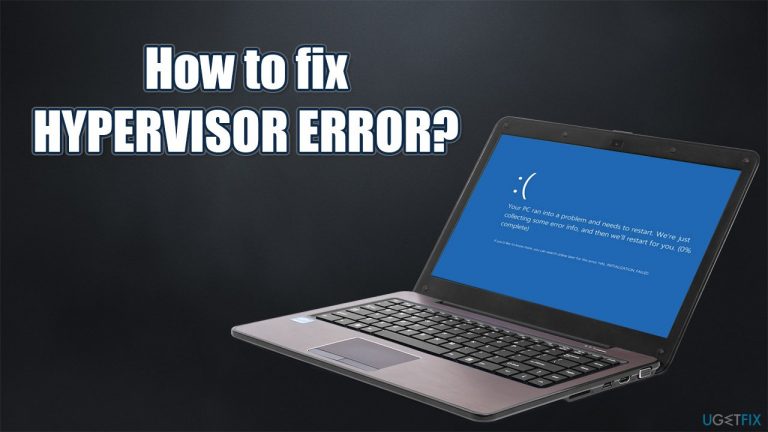
Unfortunately, all Windows provides is a standard BSOD message along with an error code - there is not enough information on what caused the issue or how to fix it. The message reads:
Your PC ran into a problem and needs to restart. We're just collecting some error info, and then we'll restart for you.
Stop code: HYPERVISOR ERROR
While the error can occur at any time, users reported that most commonly, it happens when performing graphic-intensive tasks such as gaming. This makes a lot of sense as Hypervisor is a component within a processor that handles virtualization technologies.
The reason for HYPERVISOR ERROR BSOD can be many, including outdated/corrupt system drivers, corrupted system files, outdated operating systems, and much more. Below you will find all the information needed in order to stop the Blue Screen from appearing on your system once and for all.
Method 1. Use an automatic repair tool
Blue Screen errors might be relatively harmless. In some cases, BSODs can indicate a serious malfunctions, e.g., hardware failure or a presence of a rootkit[ref en-3] or another malware. In any case, if you notice Blue Screen errors such as APC_INDEX_MISMATCH or BAD_POOL_HEADER more and more often, you should never ignore them, as it could just make matters much worse than they are.
Finding the culprit of the error, however, might be rather difficult, considering that every Windows machine has a different configuration, and same BSOD might indicate something completely different. In many cases, troubleshooting takes a long time, and those less tech savvy individuals struggle to perform fixes themselves.
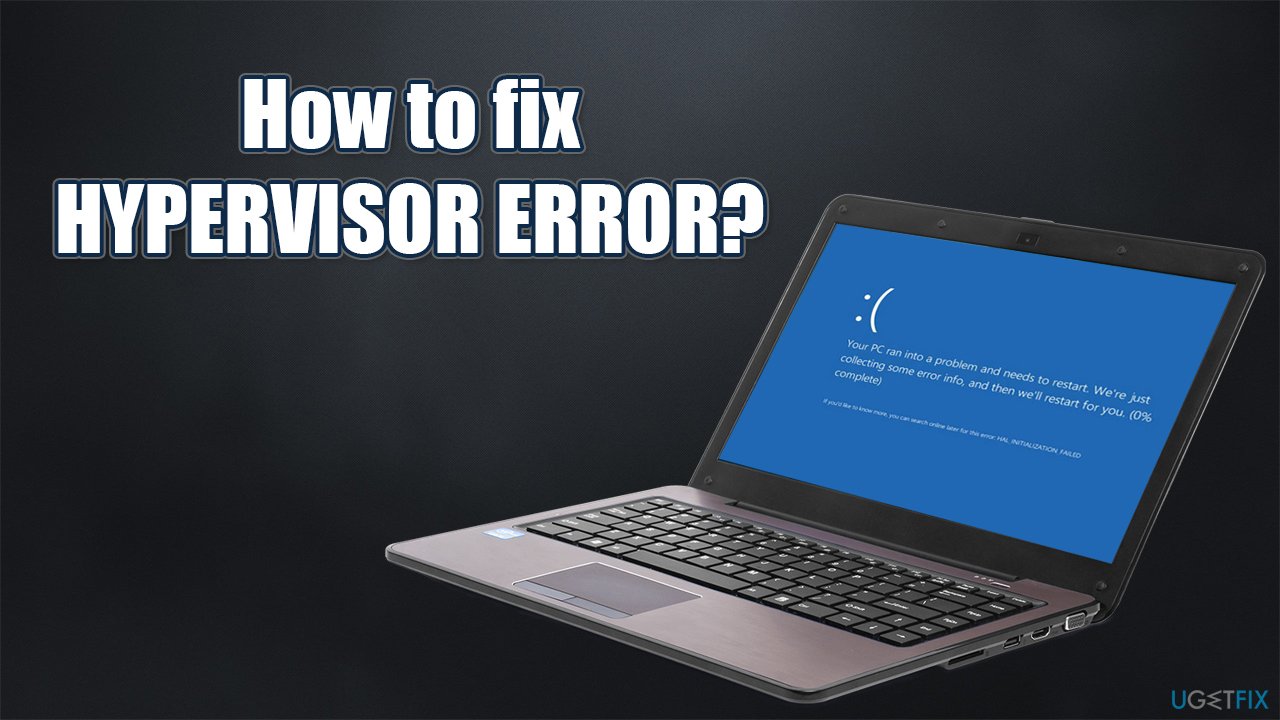
If you want to save time, we highly recommend you try using [d1] instead of performing troubleshooting yourself. The app can quickly diagnose the underlying Windows problems and quickly fix BSODs, missing DLLs, registry[ref en-1] errors, and much more. Besides, it can remove junk, clean browsers, remove malware and fix virus-caused damage.
Method 2. Update Windows to the latest version
Windows updates often include bug fixes, security patches, and various other improvements. There is simply no point in keeping your OS outdated, so make sure all the updates are applied accordingly:
- Type Updates in Windows search and press Enter
- Click Check for Updates on the right
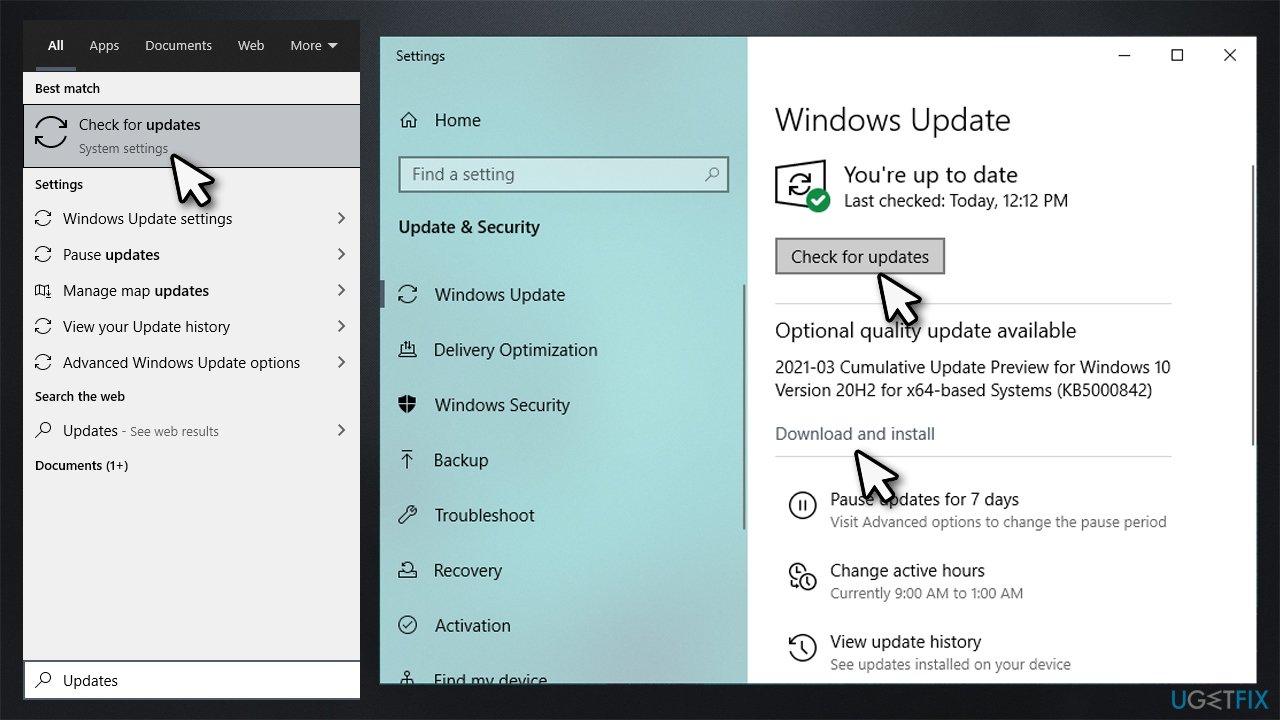
- Wait till Windows downloads all the necessary files
- Install all available updates and restart your computer.
Method 3. Check your disk for errors
- Type cmd in Windows search
- Right-click on Command Prompt search result and select Run as administrator
- Copy and paste the following command, pressing Enter after:
chkdsk C: /f /r /x
- If the check disk does not start but instead shows and error, type in Y and hit Enter
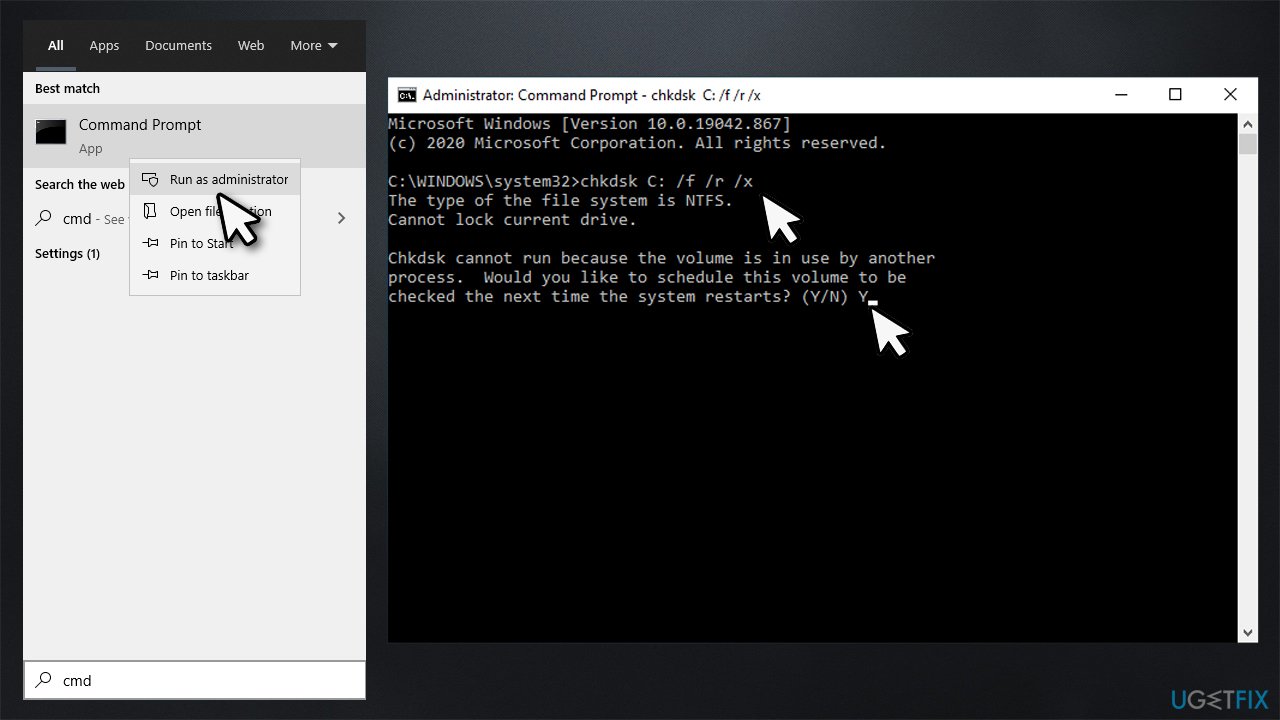
- Restart your PC to begin the scan.
Method 4. Run SFC and DISM
- Open Command Prompt as administrator as explained above
- Type the following command and press Enter:
sfc /scannow
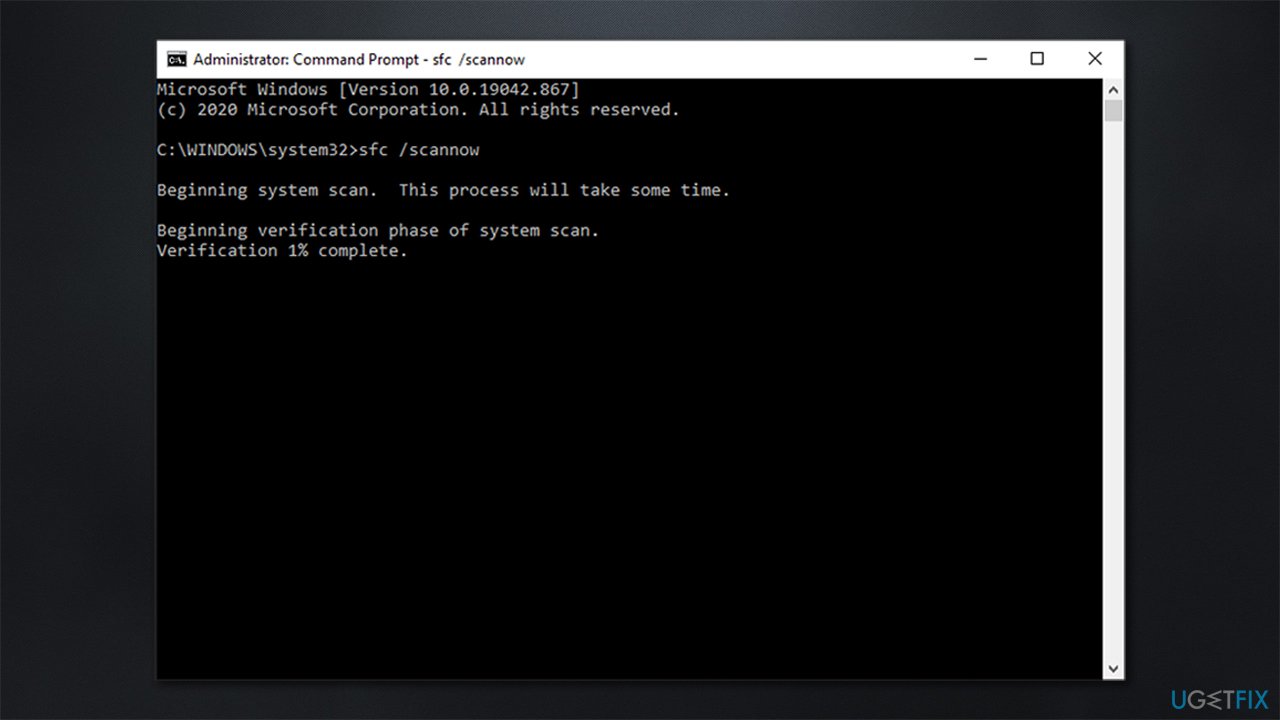
How to fix hypervisor error bsod in windows 10 run sfc - Wait till scan finishes and restart your PC
- If SFC delivers an error, you should run DISM - paste the following commands and press Enter every time:
dism /online /cleanup-image /scanhealth
dism /online /cleanup-image /checkhealth
dism /online /cleanup-image /restorehealth
Method 5. Turn off Virtual Machine and Hypervisor
If for some reason Virtual Machine Platform or Hypervisor Platform are turned on while you are not using them, disable them:
- Type Control Panel in Windows search bar and press Enter
- Pick Programs > Uninstall a program
- Select Turn Windows features on or off on the left
- Scroll down and remove ticks from Virtual Machine Platform and Hypervisor Platform
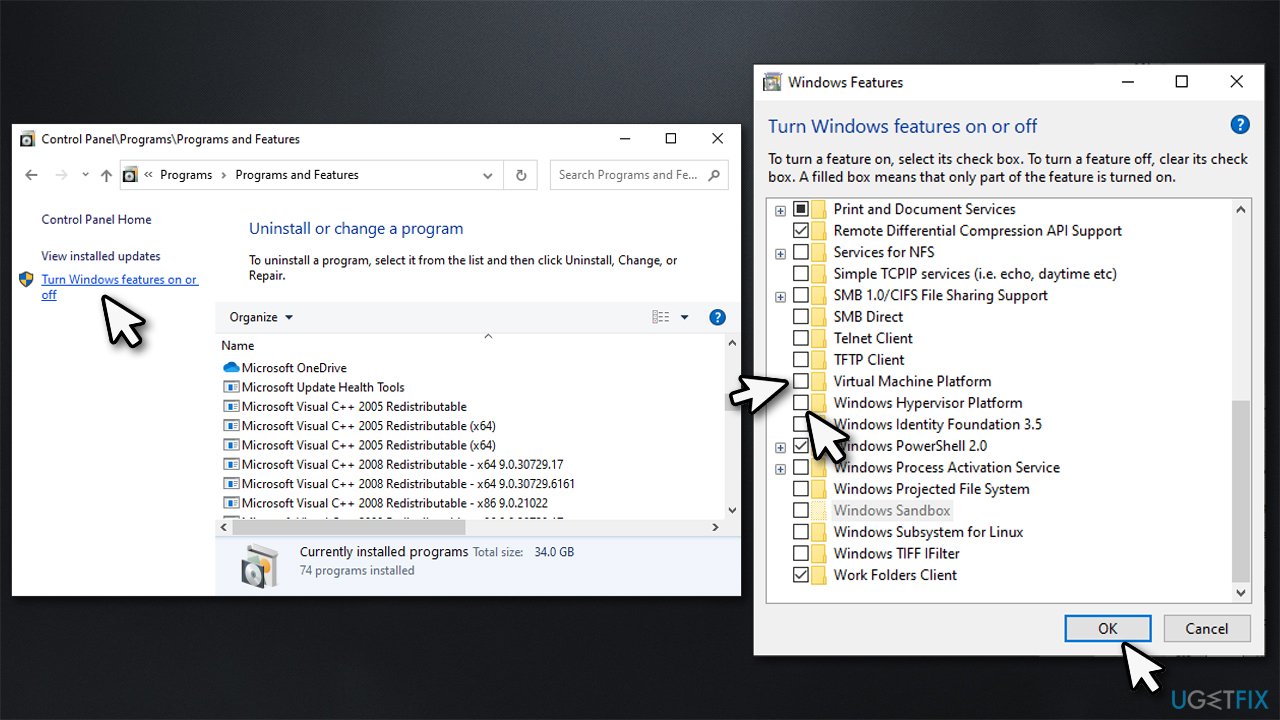
- Click OK and reboot.
Method 6. Update your BIOS
Warning: do not perform this step if you are not sure what you are doing. Messing this process up might negatively affect your device.[ref en-2]
- Type System Information in search bad and press Enter
- Check the BIOS Version/Date and BaseBoard Product sections
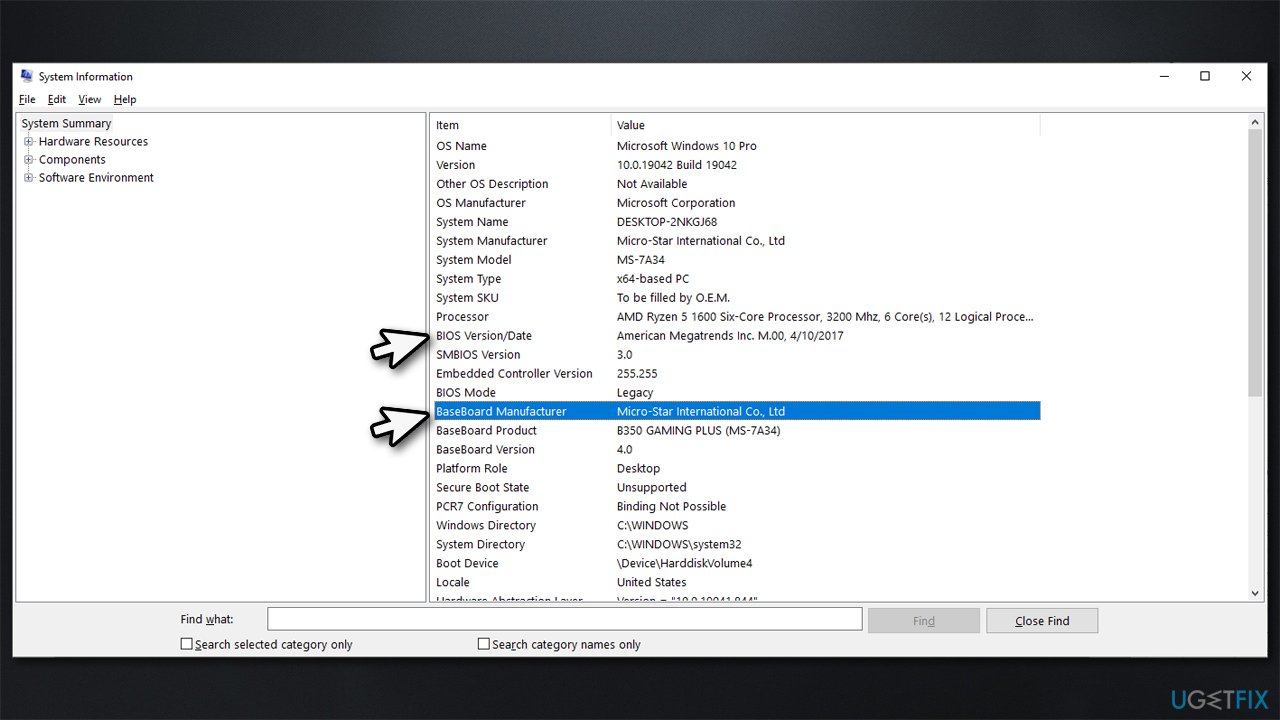
- Open your web browser and navigate to its manufacturer's website
- Go to Download section and look for relevant BIOS update download file
- Proceed with on-screen guide and restart your device.
Method 7. Update all drivers
- Right-click on Start and pick Device Manager
- Expand the section you want to update, for example, Display adapters
- Right-click on the device and select Update driver
- Select Search automatically for drivers
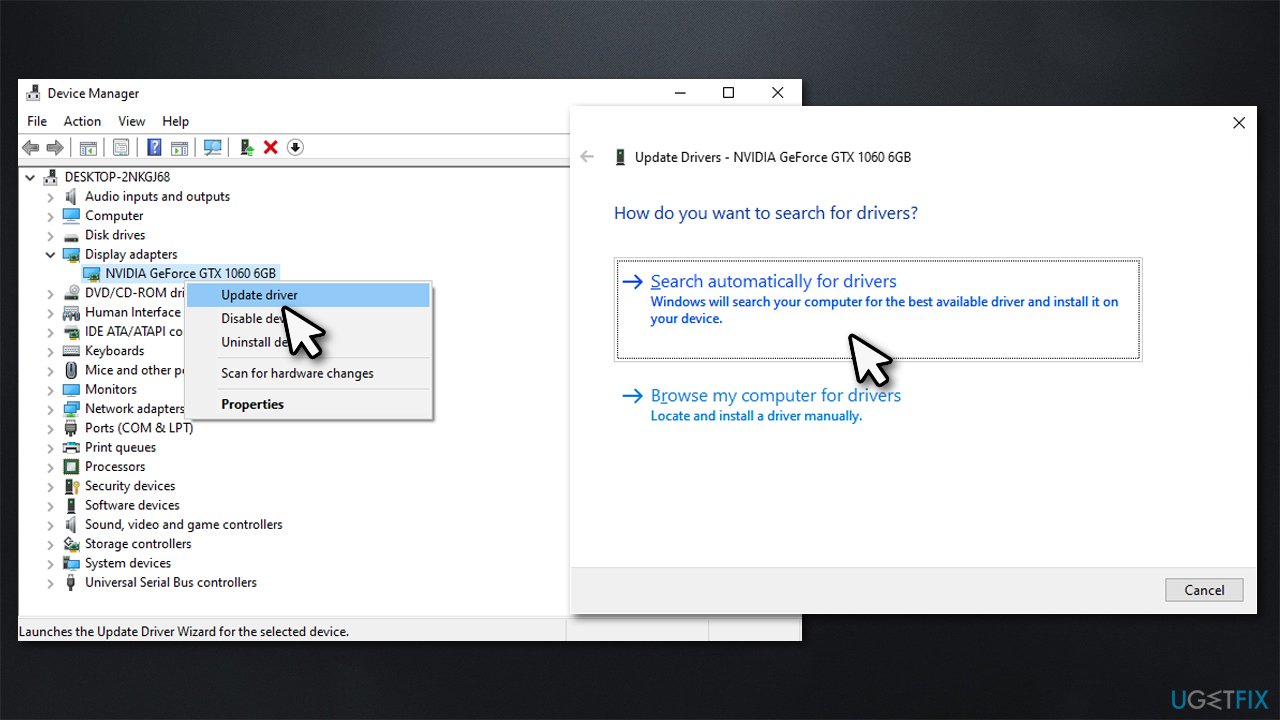
- Now perform the same for every other device on your PC
- Restart Windows.
It might take you a while to update all drivers on your machine, and it also does not help that the Device Manager might not find all the relevant updates. Therefore, either visit the manufacturer's website and download drivers from there or employ [rev id="DriverFix"] for a quick solution - all drivers can be updated within just a few minutes.
Bottom line
To fix the HYPERVISOR ERROR BSOD, you can use an automatic repair tool, update your drivers, and ensure your operating system is up to date. If these methods do not resolve the issue, further investigation into system settings or hardware may be necessary.
Frequently asked questions
The HYPERVISOR ERROR BSOD in Windows 10 is typically caused by issues with virtualization settings, outdated drivers, or conflicts with third-party software.
To disable Hyper-V, go to Control Panel > Programs > Turn Windows features on or off, and uncheck Hyper-V, then restart your computer.
Yes, ensure that your system drivers, especially for virtualization and chipset, are updated to the latest versions to resolve the HYPERVISOR ERROR in Windows 11.




Report an issue
What's wrong with this guide? We review every report and update or remove content.
Report received — thank you. We'll review and fix it.
You need a free account to submit a report.
Be the first to comment