How to fix
LiveKernelEvent 117 error
on Windows
Resolve the LiveKernelEvent 117 error on Windows 10 and 11 with our expert-tested solutions. Get your system running smoothly in minutes!


What causes How to fix LiveKernelEvent 117 error in Windows?
- Fault drivers
- Registry errors
- Corrupted system files
- Nvidia video driver issues
- Hardware malfunctions
Repairs Windows system files, removes malware, and restores a clean OS state — without reinstalling.
Hello. I have recently been having weird crashes of my Windows 10 - it freezes and then I usually have to force-restart by using Reset button. I checked the Event Viewer and the crashes seem to be related to LiveKernelEvent 117. In description it is mentioned that it is hardware error but my PC is relatively new - barely six months old. Please help.
Windows Event Viewer is one of the best tools to find out information about errors, application or system crashes, and similar events that do not provide the message to explain what happened. It is particularly useful when trying to troubleshoot all sorts of problems that could occur due to various reasons.
LiveKernelEvent 117 is an error code that can be seen via the Event Viewer logs after a system crash on Windows systems. Alternatively, users can see it via the Control Panel. The crash occurs when the OS stops working correctly, forcing it to crash. According to many users' reports, they do not usually receive an abrupt crash but rather one that happens gradually.
In most cases, the desktop freezes, although the mouse and keyboard can still be used. At this point, users try to reboot their systems, but, understandably, only a Reset button works at this point. For some other users, Windows continue to operate for some time before the crash occurs.
Along with the LiveKernelEvent error code 117, users might also be provided with the file that is related to the crash. In many cases, the problem lay within the nvlddmkm.sys Nvidia video driver.[ref en-3] According to the information provided in the message, Windows usually manages to recover after the driver stops working.
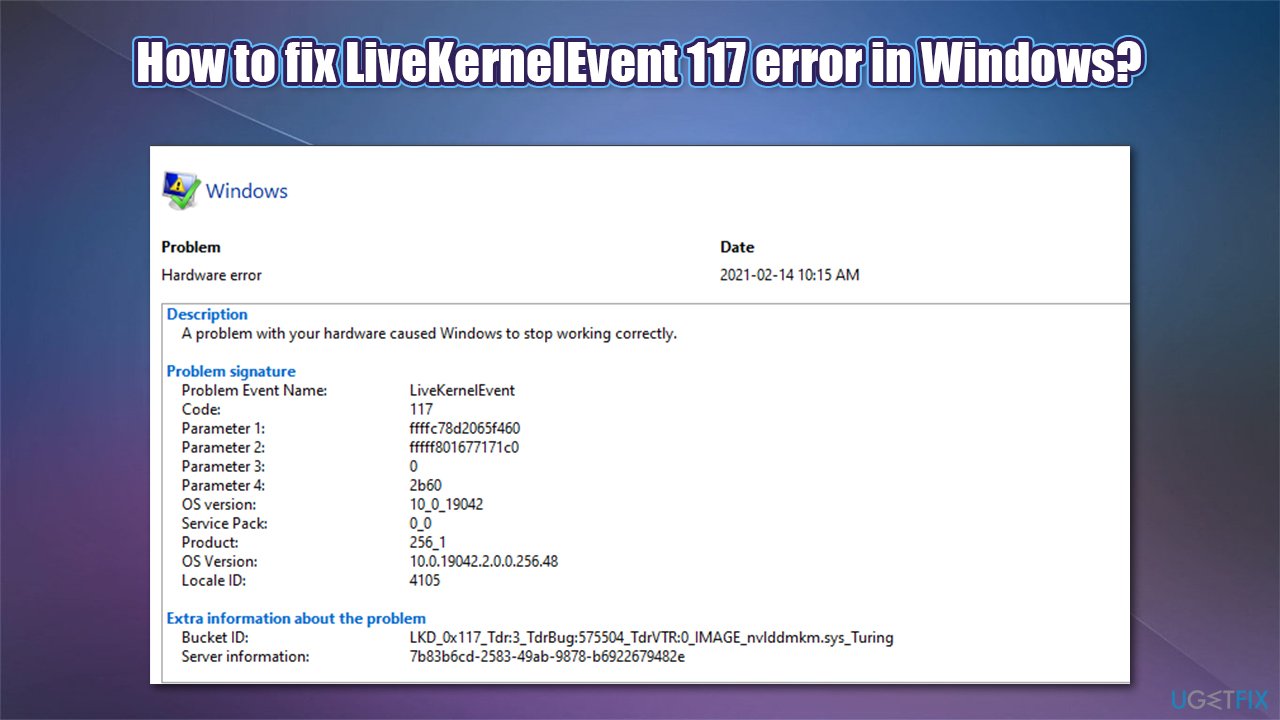
There are several reasons why the crash could occur, e.g., fault drivers, registry errors, or corrupted system files. Therefore, in order to fix LiveKernelEvent 117 error, you will have to try several different solutions before one works for you.
Fix 1. Run a PC repair tool
Windows is an intricate operating system with thousands of different settings and parameters that all need to work well in order to provide a good user experience. In some cases, files, features, settings, or other components might malfunction due to one reason or another, resulting in system instability, application crashes, random computer restarts, and other issues.
While some errors or crashes provide an error code, it is not always the case, hence troubleshooting can be relatively difficult to those who are less proficient with the operating system operation. Even power users might sometimes struggle with finding the fix for a certain problem.
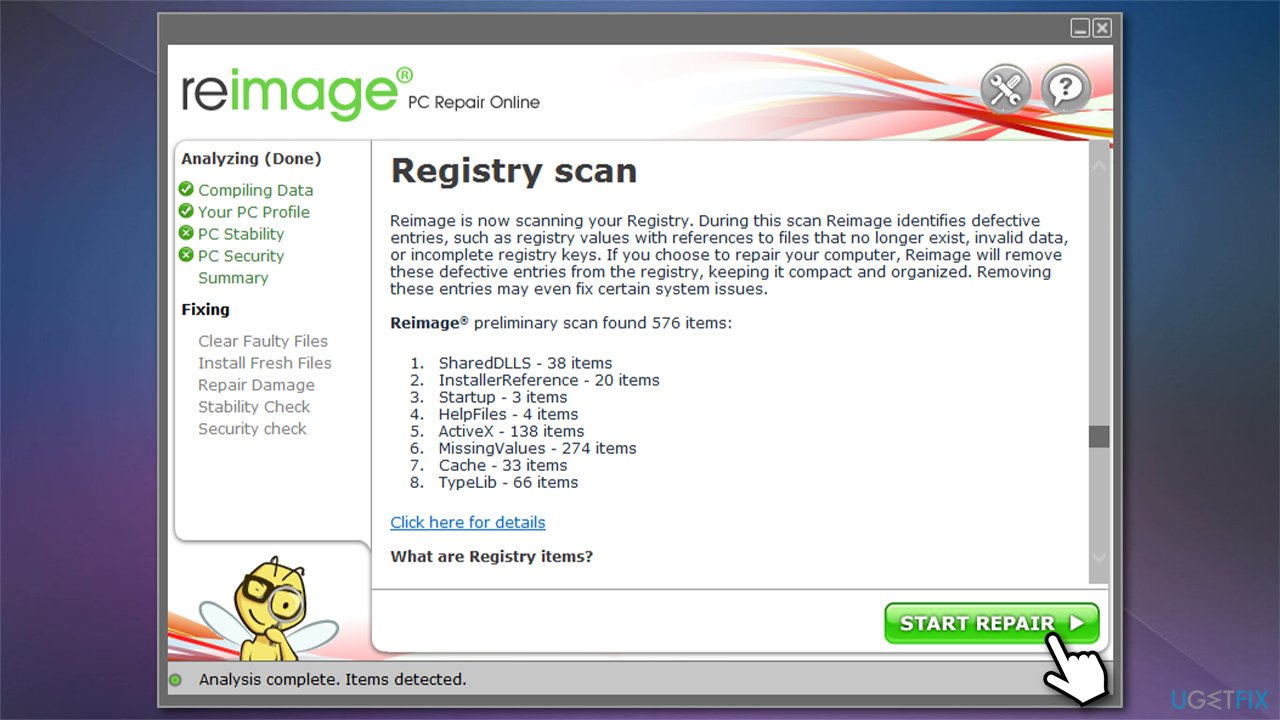
If you want a quick and effortless fix for Windows Blue screen errors, missing DLLs, registry[ref en-2] errors, and other common issues, you should try running a scan with a PC repair software [d1].
Fix 2. Roll back Nvidia drivers
- Right-click on Start and pick Device Manager
- Expand Display adapters section
- Right-click on your graphics card and select Properties
- Go to Driver tab
- Select Roll Back Driver, select the reason and click Yes
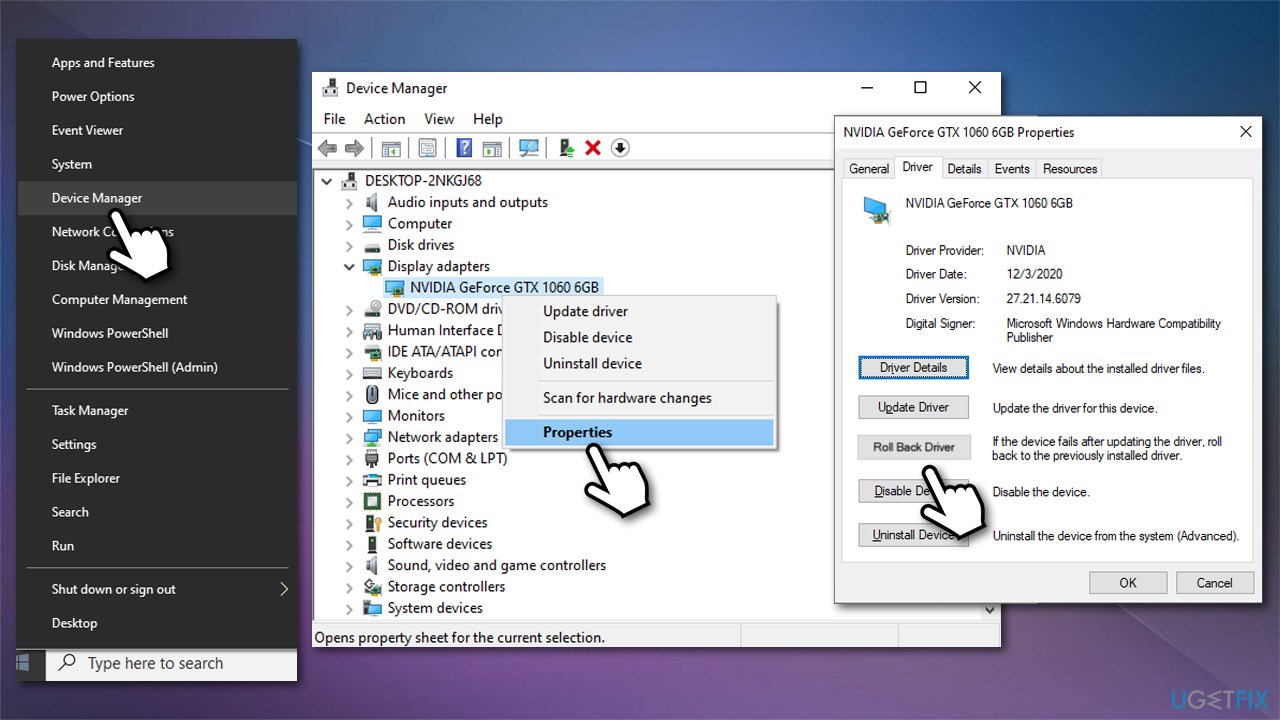
How to fix livekernelevent 117 error in windows roll back driver - Restart your PC.
Fix 3. Reinstall drivers
If rolling back the driver did not work, you should do a clean install of your Nvidia drivers. Here's a quick solution:
- Right-click on Start and pick Apps and Features
- Scroll down to find your current Nvidia graphics driver
- Pick Uninstall and then confirm with Uninstall
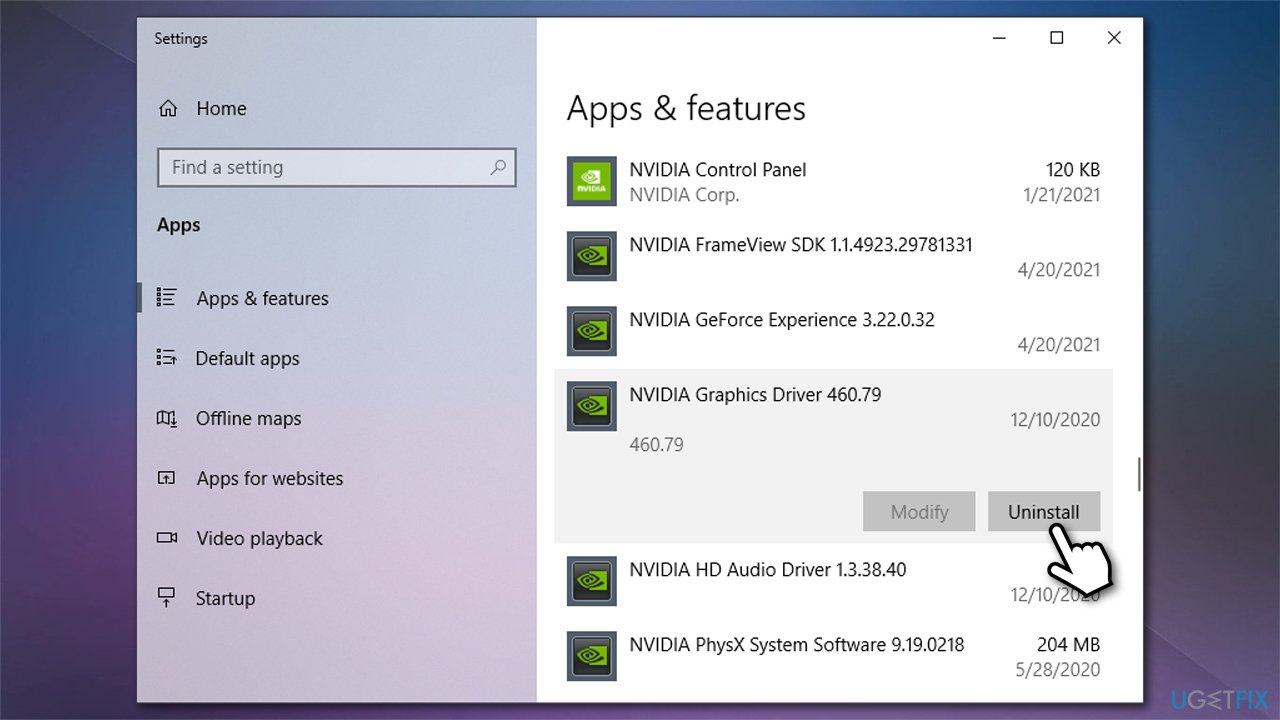
How to fix livekernelevent 117 error in windows reinstall nvidia driver - Follow on-screen instructions and then reboot your PC
- Now, head to the Nvidia website and download the latest driver from there or employ an automatic updater such as [rev id="DriverFix"] which can be used to quickly update and backup all your drivers without hassle.
Fix 4. Check system files for corruption
Running SFC scan is a good idea to check whether Windows files are not damaged in some ways.
- Type cmd in Windows search
- Right-click on Command Prompt and select Run as administrator
- Paste the following command and press Enter:
sfc /scannow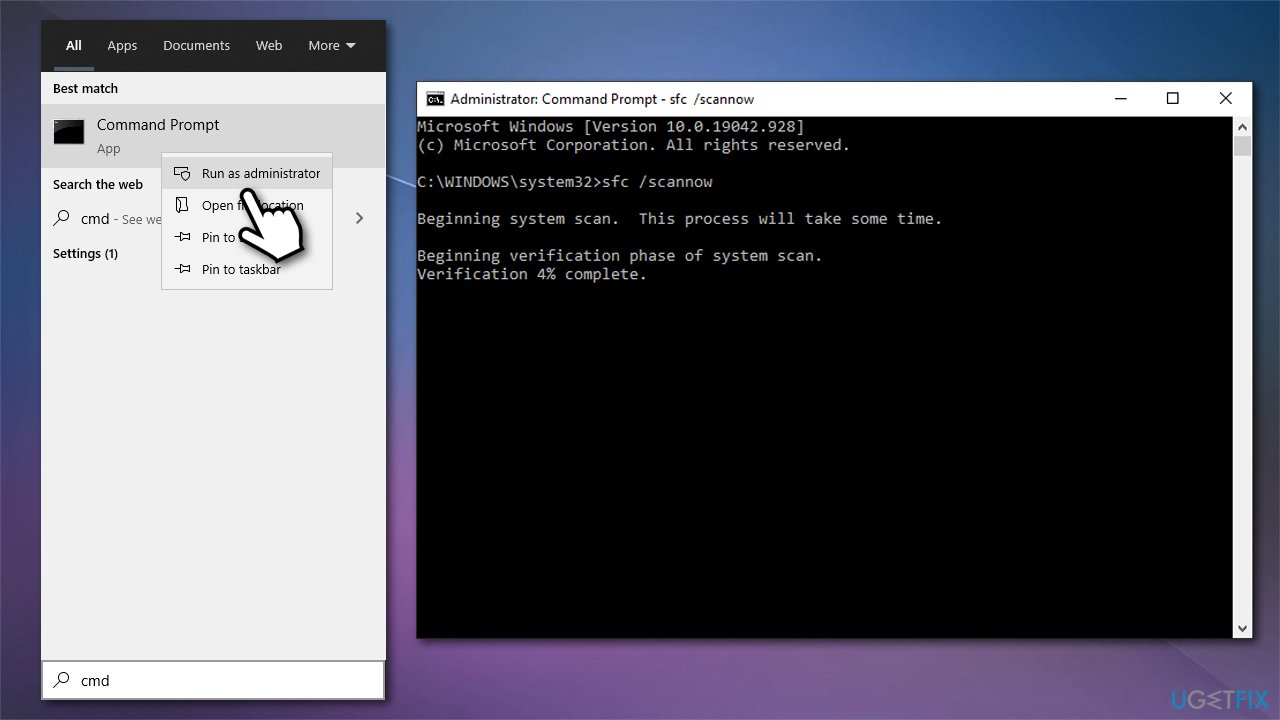
How to fix livekernelevent 117 error in windows run sfc scan - Wait for the results and reboot your computer if something was found.
Fix 5. Run Windows Memory Diagnostics
RAM[ref en-1] issues could cause the LiveKernelEvent error code 117. You can check your RAM by running a scan with the Windows Memory Diagnostics Tool:
- Type Memory in Windows search and hit Enter
- Select Restart now and check for problems (recommended)
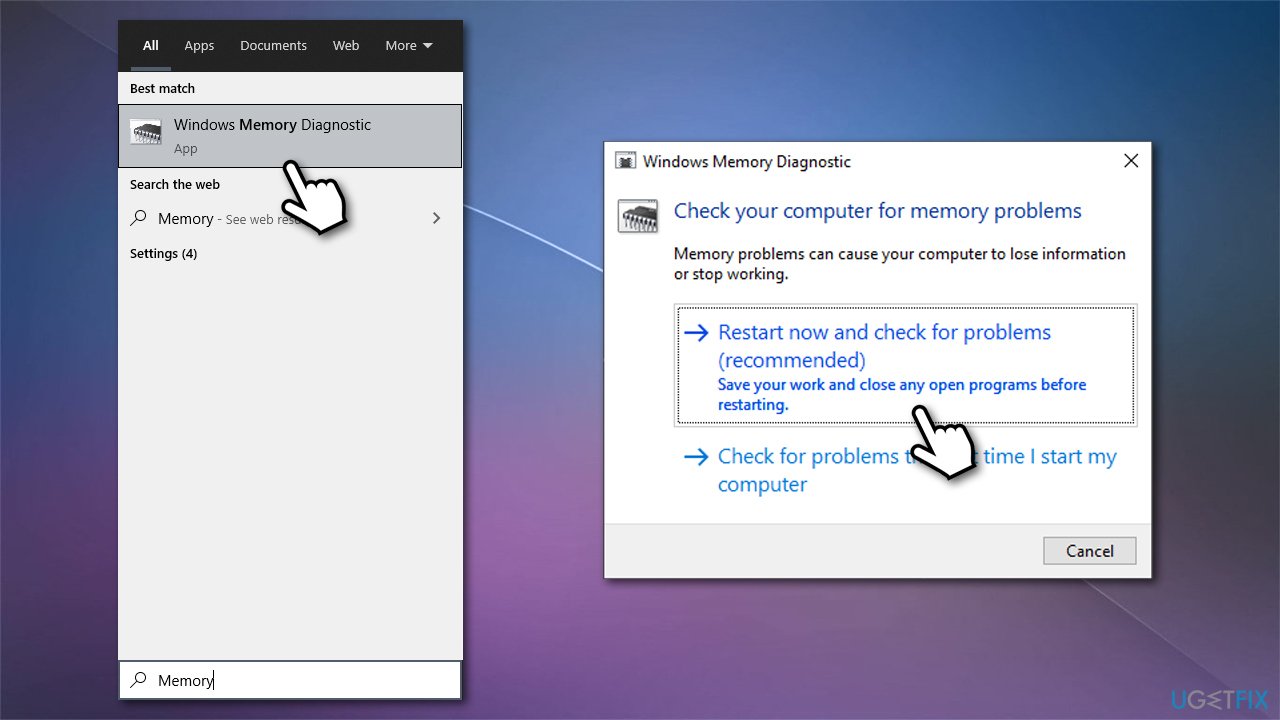
How to fix livekernelevent 117 error in windows run windows media diagnostics - Your PC will be restart and test begin
- The results will be reported right after that.
Fix 6. Check your GPU for failure
Constant crashes might indicate they your graphics card is either dying or is faulty. There is no reliable built-in tool that could diagnose and report GPU failure within the Windows environment, however, so a third-party application would be required for this step.
Many IT specialists rely on free Furmark software for stress-checking your GPU. Download the software from its official website and run a test. If your PC starts crashing or the GPU runs above 80C/176F, your graphics card is likely faulty.
Bottom line
To fix the LiveKernelEvent 117 error, you can try running a PC repair tool, updating drivers, and checking for system file corruption. If these solutions do not resolve the issue, further troubleshooting may be necessary.
Frequently asked questions
The LiveKernelEvent 117 error is typically caused by graphics driver issues, hardware malfunctions, or overheating of the GPU in Windows 10 or Windows 11.
To update your graphics driver, go to Device Manager, expand Display adapters, right-click your GPU, and select 'Update driver'. You can also download the latest drivers directly from the manufacturer's website.
Yes, you can use monitoring software like HWMonitor or MSI Afterburner to check your GPU temperatures and ensure it is not overheating in Windows 10 or Windows 11.




Report an issue
What's wrong with this guide? We review every report and update or remove content.
Report received — thank you. We'll review and fix it.
You need a free account to submit a report.
Be the first to comment