How to fix
No sound, PC audio problems after Windows update
on Windows
Resolve PC audio issues after a Windows update easily. Get your sound back quickly with expert-tested solutions and clear screenshots.


What causes How to fix no sound, PC audio problems after Windows update?
- Driver incompatibility with device settings
- Broken hardware
- Installation of third-party software
- Change of output device during update
Repairs Windows system files, removes malware, and restores a clean OS state — without reinstalling.
Hi. Yesterday I decided to update Windows to 21H1, and after that lost all audio. I used the sound test in the audio settings and, while the level meters do pulse, nothing is coming out of my headphones or speakers (I tried them both). Are there any suggestions on what to do in my situation? This is driving me crazy... Please help.
Windows updates are shipped by Microsoft on Patch Tuesdays of every month - they consist of stability, security, and feature updates. Every once in a while, a major Windows version is released, and it includes quite significant changes and improvements, so many are keen on installing it as quickly as possible.
With the release of 21H1,[ref en-2] many users rushed to install the newest OS iteration on their devices. However, just as it is common for every patch released by Microsoft, users ran into a wide array of problems. One of such issues is no sound on PC after Windows update.
In the previous version, one of the major issues users had to face was printing problems that caused major disruptions for not only regular users but also businesses. The printing either did not work at all or resulted in a large portion of the document or an image missing. That was later patched, and everything returned back to normal.
This time, it seems like users are facing a problem with sound after updating Windows. There are several ways you could go about this because there could be many different reasons for this to occur. For example, if the update included a driver[ref en-3] that is not well compatible with particular device settings, it might result in no audio issue.
In other cases, the culprit for missing audio could lie in broken hardware or the installation of some third-party software. Also, it could be that Windows simply switched to a different output device during the update process without informing you about the change.
Below you will find methods that should help you fix PC audio problems after the Windows update. Try them one at a time and see which one works for you. Before you start, we would like to offer you an automatic repair tool [d1] - it can repair damaged Windows components and replace them with brand new ones, consequently fixing BSODs,[ref en-1] missing DLL errors, or even sound issues automatically.
Solution 1. Run Windows audio troubleshooter
When running into a problem on your PC, you should always try running a troubleshooter of the malfunctioning device.
- Type Troubleshoot in Windows search and press Enter
- Click Additional Troubleshooters on the right side
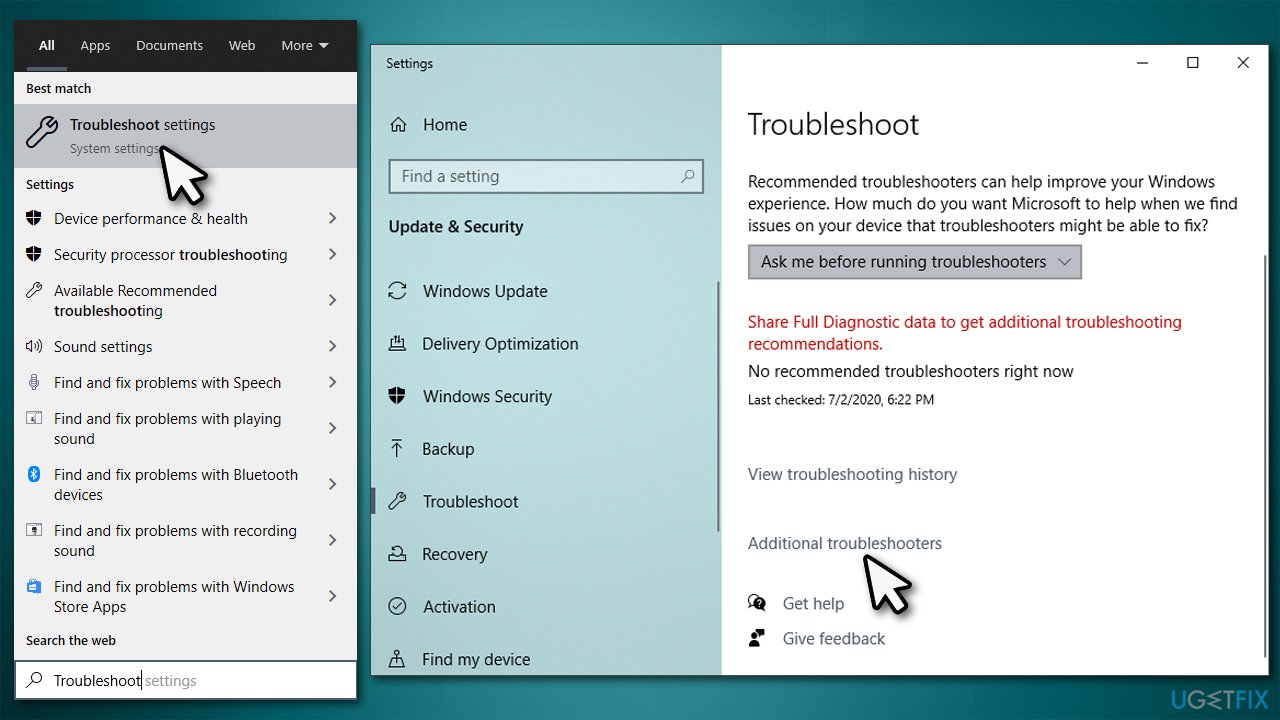
How to fix no sound pc audio problems after windows update use troubleshooter - Select Playing audio and click Run the troubleshooter
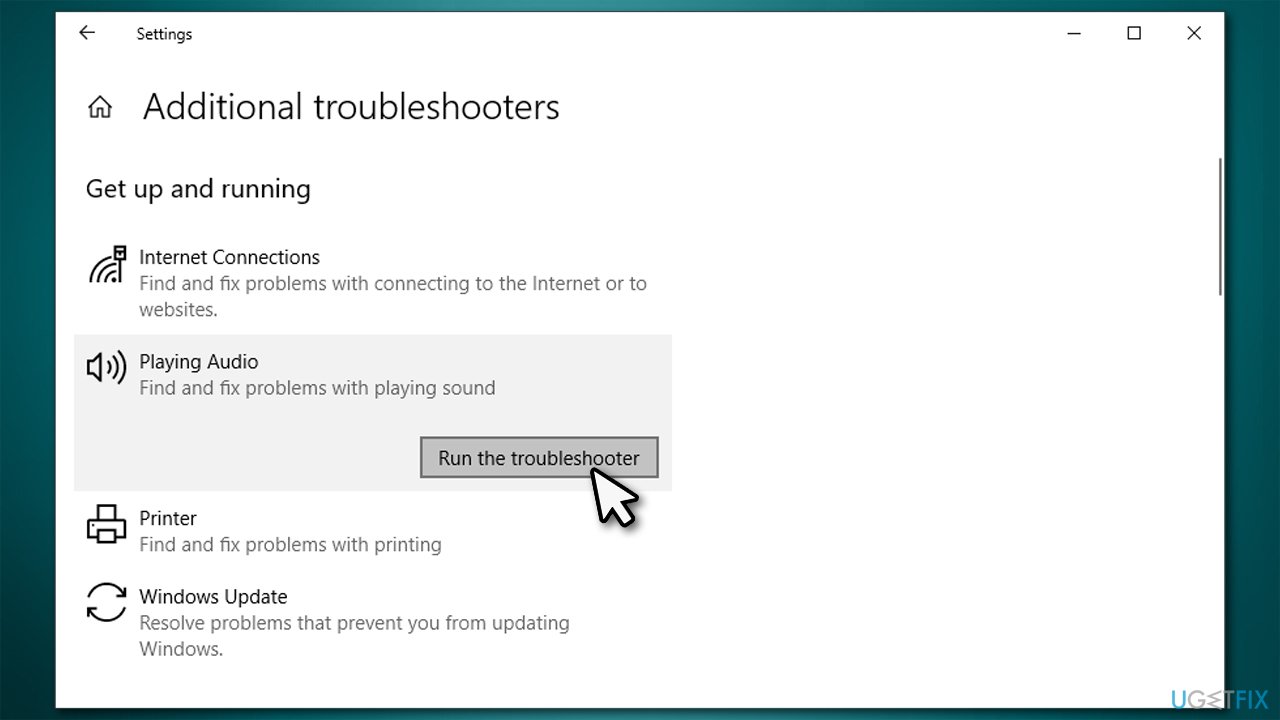
How to fix no sound pc audio problems after windows update use troubleshooter2 - Wait until the results are displayed and then reboot your system.
Solution 2. Check the Sound settings
In some cases, you might simply have your sound muted. Check it as follows:
- Right-click on the speaker icon within your taskbar and select Open Volume Mixer
- Here, you will see speaker icons at the bottom
- Make sure that the sound is not muted.
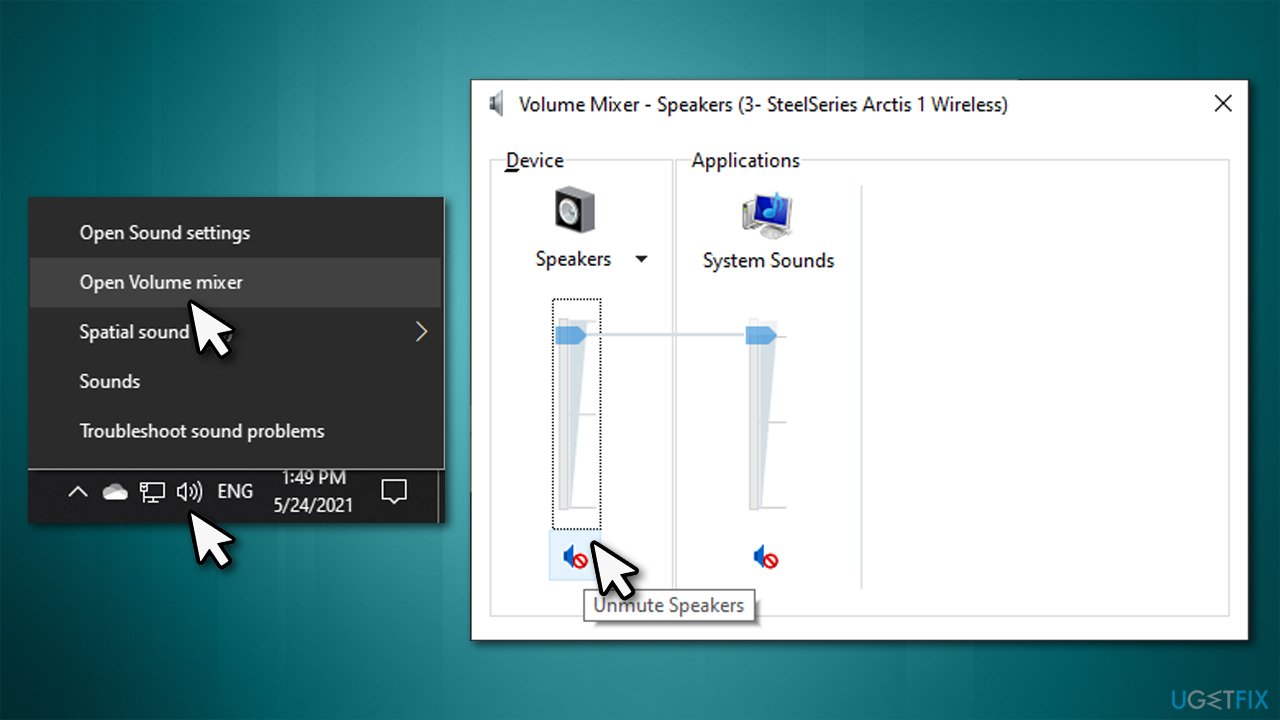
How to fix no sound pc audio problems after windows update check volume mixer
Note: Click on the Speaker icon once and check whether a correct output device is being used
Finally, you should ensure that a correct output device is set as default:
- Right-click on Speaker icon and select Sounds
- Go to Playback tab
- Here, right-click on your main device (it is likely to be called Speakers) and select Set as Default device
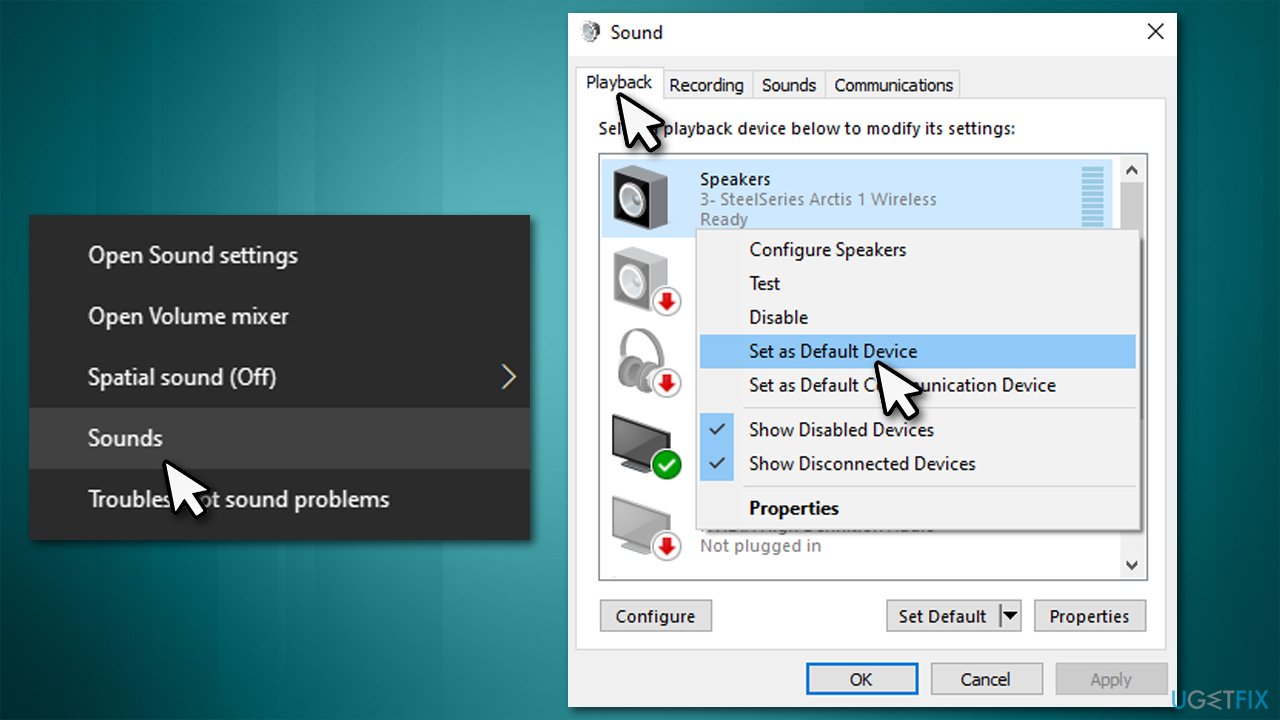
How to fix no sound pc audio problems after windows update set as default device - Once done, right-click on your speakers once again and select Properties
- Make sure that Use this device (enabled) option is selected from the drop-down menu and click OK.
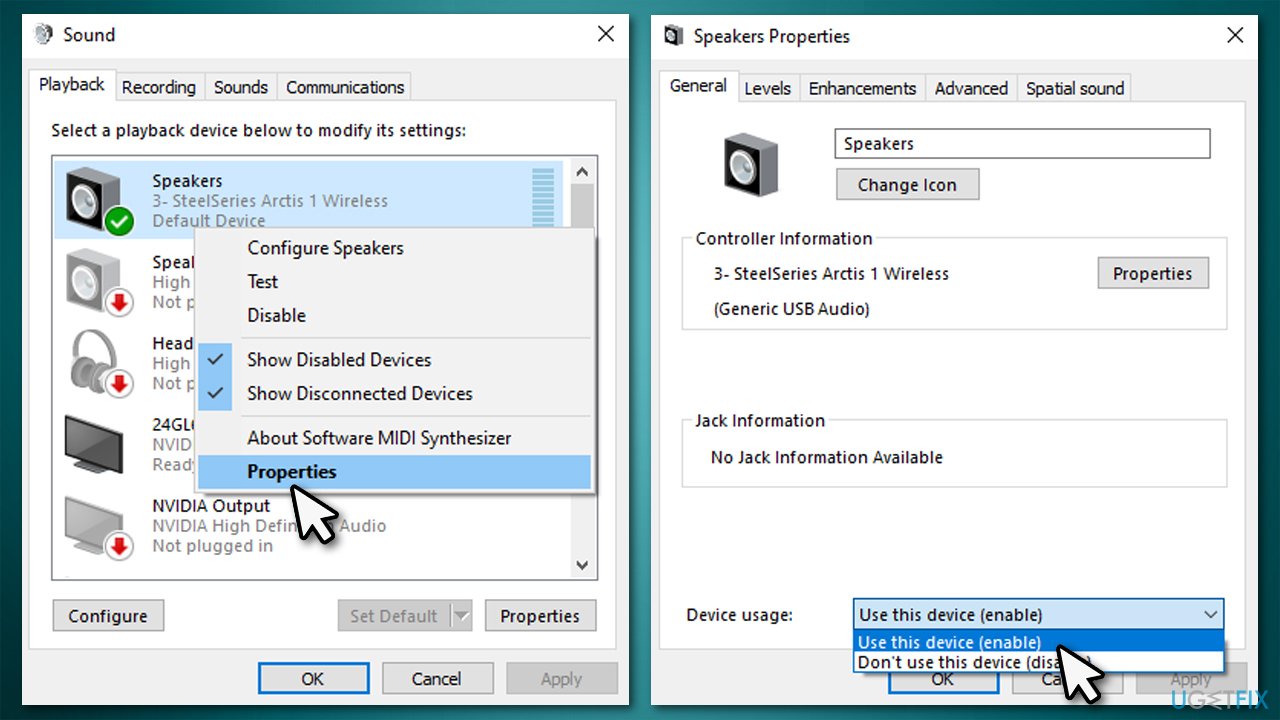
How to fix no sound pc audio problems after windows update enable device
Solution 3. Reinstall sound drivers
- Right-click on the Start button and select Device Manager
- Expand Audio inputs and outputs
- Right-click on your sound device and select Uninstall device
- Confirm with Uninstall
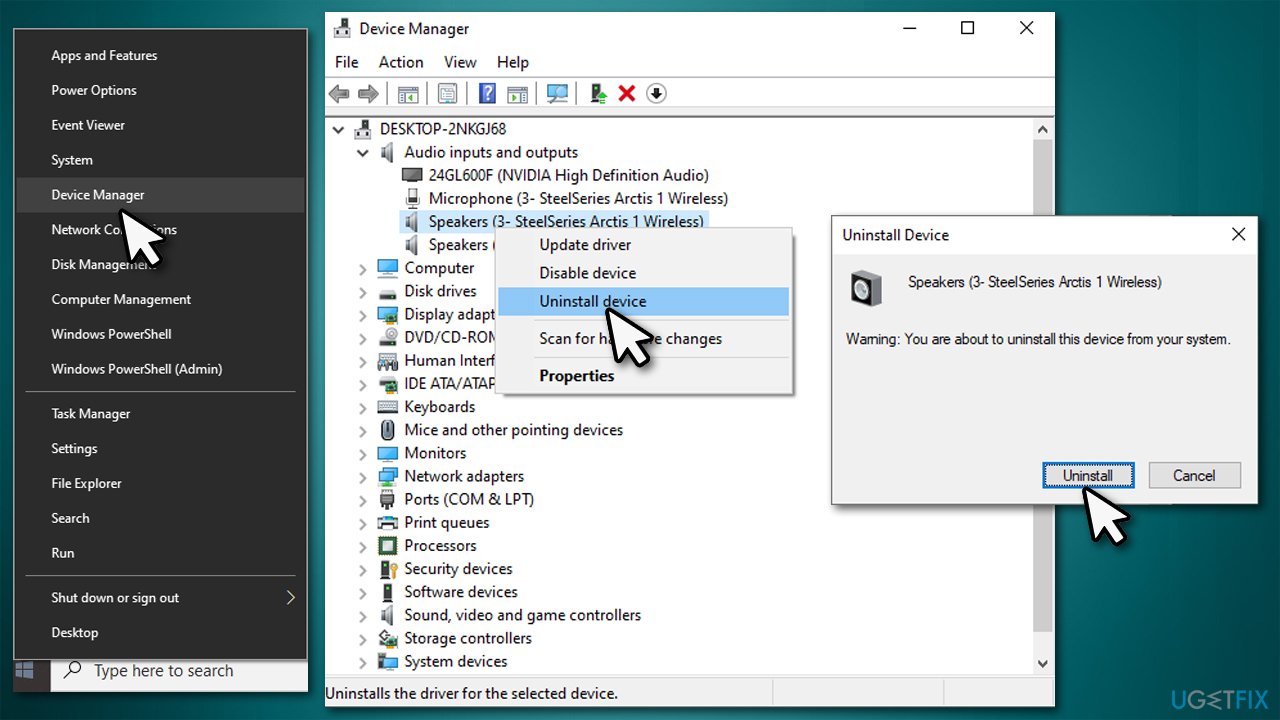
How to fix no sound pc audio problems after windows uninstall device - Next, expand Sound, Video and game controllers section
- Right-click on the malfunctioning output device and select Uninstall device
- Reboot the system.
Windows should install generic drivers after the reboot, although it might not always happen. You should either visit your audio device manufacturer website to download drivers from there or employ an automatic driver updater such as [rev id="DriverFix"].
Solution 4. Uninstall Windows updates
If your sound settings are correct and the driver reinstall did not work, you can revert back to the previous Windows version. Here's how:
- Type in Control Panel in Windows search and press Enter
- Go to Programs > Uninstall a program
- Select View installed updates
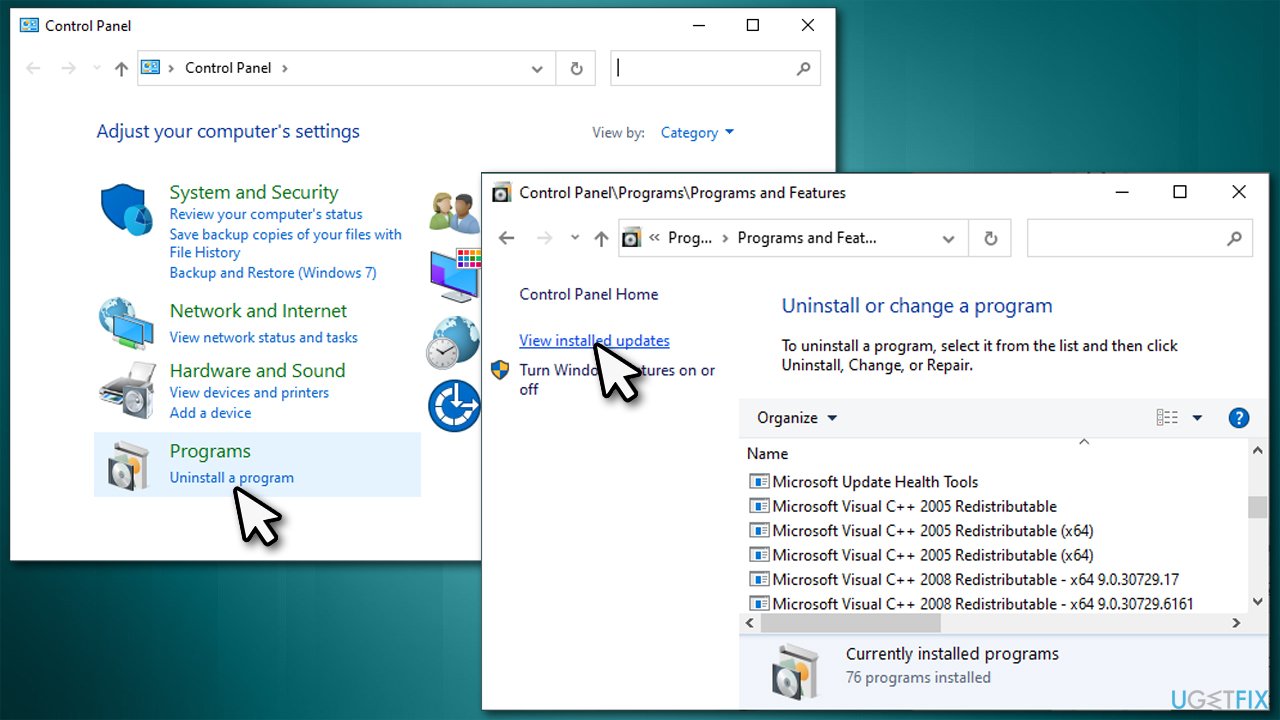
How to fix no sound pc audio problems after windows view installed updates - Click on Installed On to sort all the updates by date
- Scroll down until you see Microsoft Windows section
- Right-click on the most recent update and select Uninstall
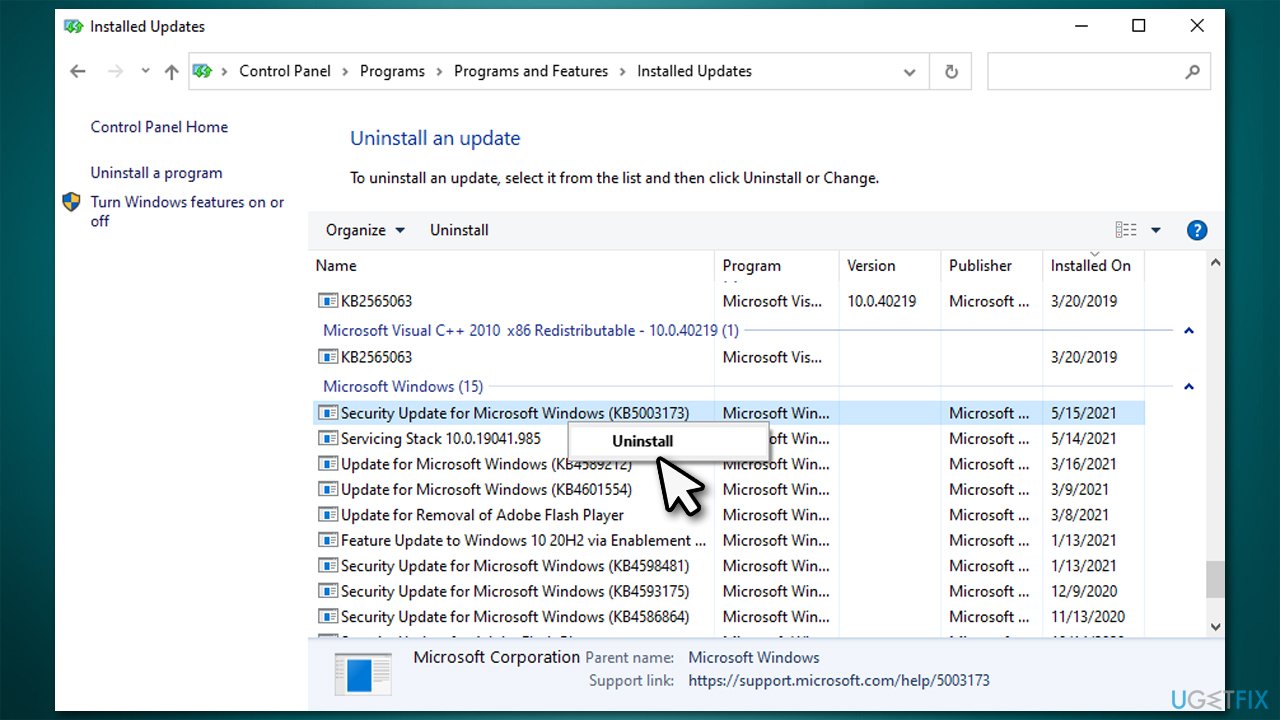
How to fix no sound pc audio problems after windows uninstall latest update - Proceed with on-screen instructions and restart your PC.
Solution 5. Use System Restore
You can try System Restore to fix sound problems. If the restore point reaches far enough, you will be able to return to a time before the issue existed.
- Type in Create a restore point in Windows search and press Enter
- Click on System Restore and select Next
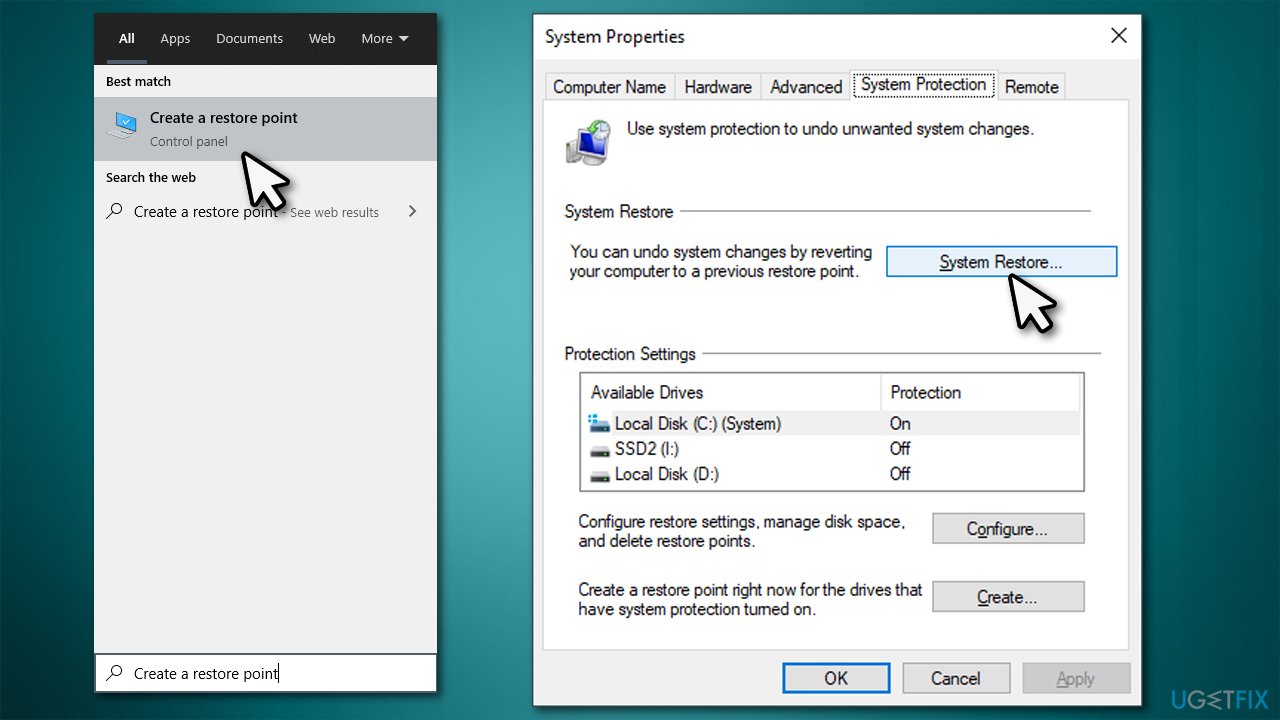
How to fix no sound pc audio problems after windows update open system restore - Mark the Show more restore points checkbox
- Select the appropriate restore point and click Next
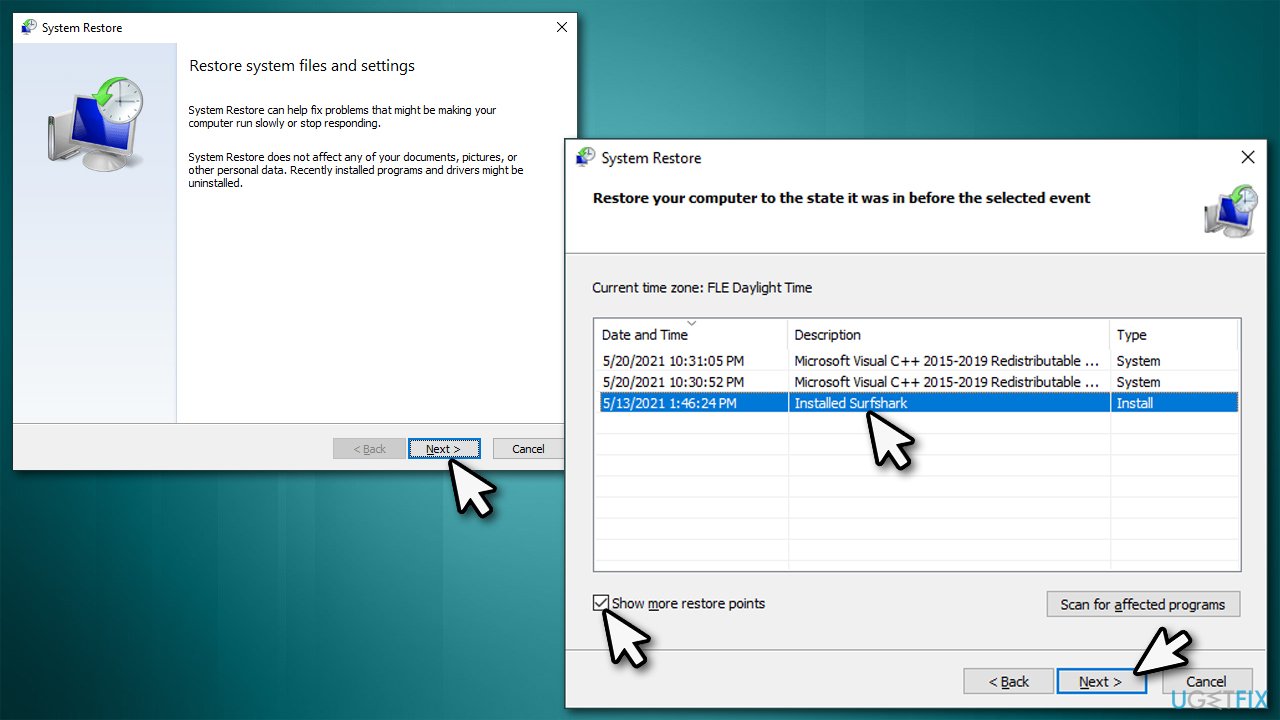
How to fix no sound pc audio problems after windows update select a restore point - Proceed with on-screen instructions and restart your PC.
Solution 6. Repair Windows installation
If none of the above helped you, you should perform a Repair install of Windows.
- Make sure all the external devices (such as printers or scanners) are disconnected, third-party antivirus is uninstalled and you are signed in with Administrator account
- Visit the official Microsoft website that provides the download link for the Windows installation media files
- Under Create Windows 10 installation media, click Download tool now
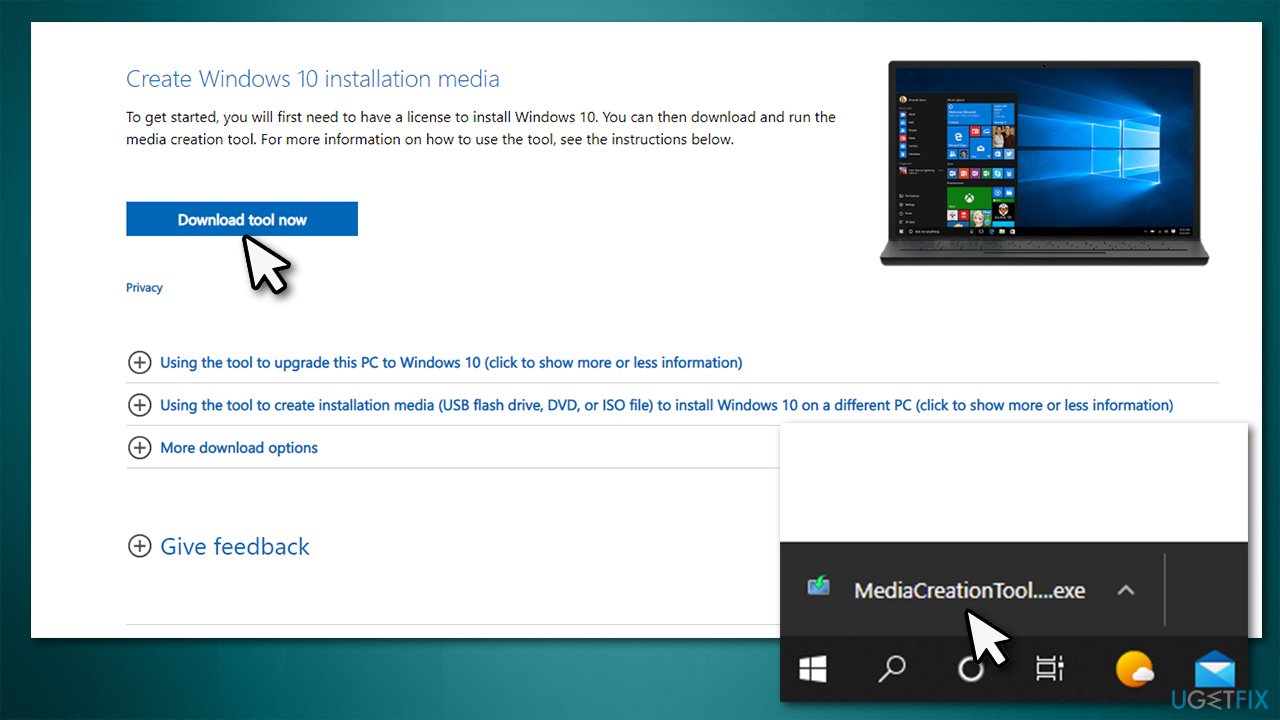
How to fix no sound pc audio problems after windows update download media creation tool - Once downloaded, double-click the installer from your download location or simply click it once via the browser you used to download it
- When User Account Control shows up, click Yes
- Accept the license terms
- Select Upgrade your PC now and click Next
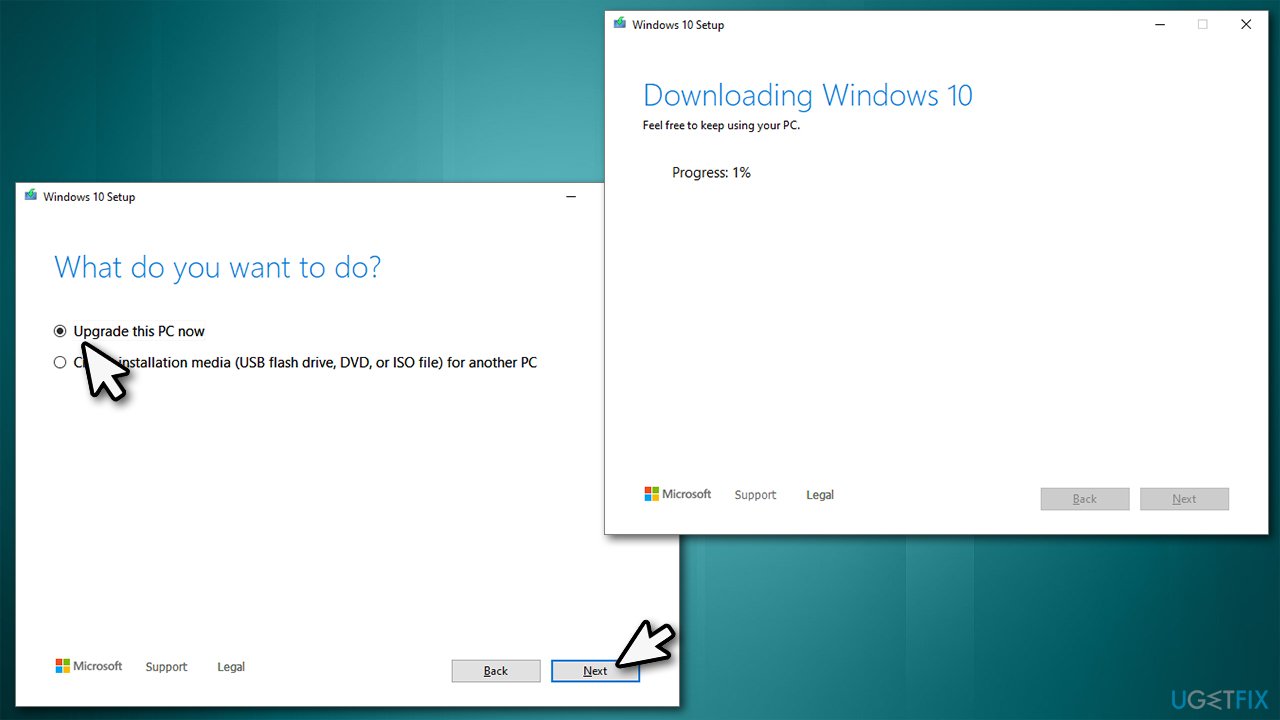
How to fix no sound pc audio problems after windows update download installation files - Wait till all the necessary files are downloaded
- Select the Keep files and apps option when asked and click Install
- After the installation is complete, select preferences that are appropriate for you and select Accept.
Bottom line
To fix the no sound issue after a Windows update, you can try checking your audio settings, updating or rolling back drivers, and ensuring that the correct output device is selected. If none of these methods work, further troubleshooting may be necessary.
Frequently asked questions
Start by checking your audio output settings in the Sound menu to ensure the correct device is selected. You can access this by right-clicking the sound icon in the taskbar and selecting 'Playback devices.'
You can use the built-in audio troubleshooter by going to Settings > System > Sound and clicking on 'Troubleshoot' under the Output section. This will help identify and fix common audio issues.
Yes, Windows updates can sometimes lead to driver issues; check for updated audio drivers in Device Manager or consider rolling back to a previous driver version if necessary.




Report an issue
What's wrong with this guide? We review every report and update or remove content.
Report received — thank you. We'll review and fix it.
You need a free account to submit a report.
Be the first to comment