
How to fix printer not working after Windows 10 update?

Prefer to fix it yourself? The manual steps follow.
On this page
The latest Windows update (March) completely ruined my Kyocera printer. Whenever I try printing something, it leaves some spaces on the paper blank. This happened after I installed KB5000802, as shown in the update history. Is there anything I can do to fix this? I require printing as a part of my job, so I can't do that properly...
Cumulative updates, Patch Tuesday updates, and other Windows updates are aimed at improving OS performance, stability, and security. However, sometimes Microsoft fails to release flawless updates and leaves some bugs. As a consequence, some problems get fixed, but at the same time, new ones arise.
Based on recent reports of users and Windows 10 admins, such a scenario happened with March 2021 Patch Tuesday updates. The latest cumulative updates, namely KB5000802, completely ruined printing on Windows for users, as some said constantly getting the APC_INDEX_MISMATCH BSOD error (win32kfull.sys, win32kbase.sys or ntoskrnl.exe), making printing impossible. Other possibly buggy updates with the same problem include KB5000808, KB5000809, and KB5000822.
In the meantime, others claimed that, while they can print, the results are far from ideal. Multiple user reports on Microsoft forums claimed that parts of the picture being printed are simply missing, and instead, a blank space is visible. There are several printers that are affected by this issue, including:
- Kyocera
- Zebra
- Canon
- Ricoh, etc.
Microsoft swiftly responded and acknowledged that March 2021 Patch Tuesday KB5000802 update has ruined printing for many. It was also reported that they are working on an update. While the update that was supposed to fix printing issues and BSODs was released a few days later, it was not installed automatically, so users have to do it manually.
Below you will find a full solution for printing issues after Windows updates. You need to uninstall the latest patch and then pause all the updates for the next 7 days. However, it is important to note that such problems might also arise due to different reasons (Blue Screen errors in particular), e.g., corrupted system files.
This is not the first time Windows updates causes a similar printing issue. In summer of 2020, KB4560960 and KB4557957 caused an issue with the printers connected to Windows 10 versions (1903 to 1909 and 2004).
Although users discussed that the culprit may be the type of printer, a closer analysis shows up that Canon, Panasonic, Brother, Ricon, Toshiba, HP, and other models were affected. In most cases, the printer keeps working and does the scan as usual. However, when the user sets the task to print something, the print job hangs and then disappears, no data is received to the printer.
Upon real havoc that emerged in the official support forum, Microsoft published a support note where the bug has been confirmed and the company has taken all responsibility for this issue. It has also been clarified that the USB-connected printers may stop working after Windows 10 update due to the missing USB printer port.
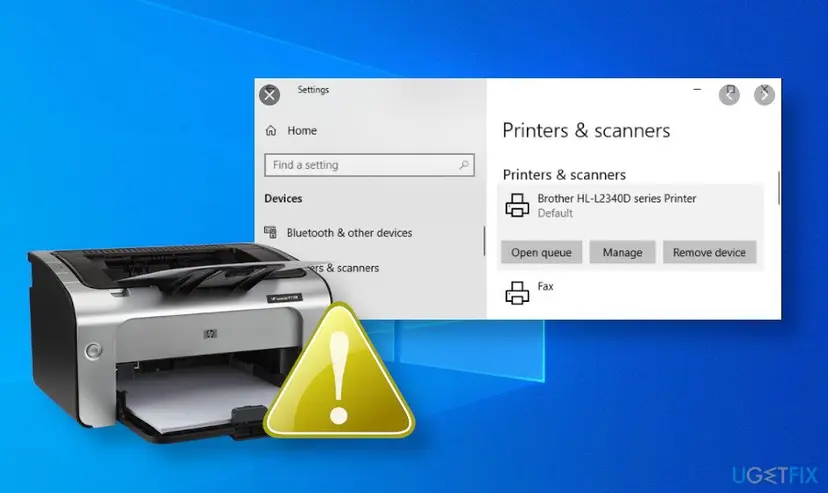
As explained by Microsoft, the printer won't work if it has been disconnected or turned off while Windows 10 version 1903 and later are off. To prevent this from happening, it's advisable to turn on the OS first and then connect/disconnect the printer so that the print jobs won't be lost.
If you connect a USB printer to Windows 10 version 1903 or later, then shut down Windows and disconnect or shut off the printer, when you start Windows again the USB printer port will not be available in the list of printer ports. Windows will not be able to complete any task that requires that port.
Thus, if you've been using the printer and it suddenly stopped working, you should check if the latest cumulative update or Patch Tuesday update hasn't been installed. If that's the case, the first thing that you should try to fix printer not working is to try a particular connection sequence, i.e. connected a powered-on USB printer just before starting Windows OS. If that did not help, the following fixes might work.
Uninstall and temporarily postpone the latest updates
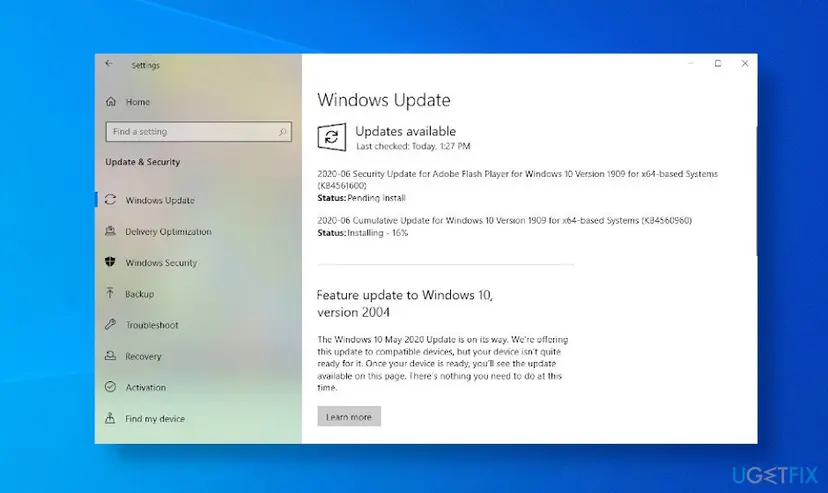
Although Microsoft did not specify which updates might have stopped the printer from working, the reports of the affected users point to the KB4560960 and KB4557957 updates. Thus, if you cannot use your printer anymore, we suggest you roll out these updates (at least temporarily). If you are dealing with the problem in March 20201, you should look for KB5000802, KB5000808, KB5000809, or KB5000822 updates.
IMPORTANT: Please note that by removing the latest Patch Tuesday update you remove a patch for 129 vulnerabilities. Thus, the system may is less secured. However, security experts soothe that none of the 129 vulnerabilities have been exploited.
- Click Windows key + I to open Settings.
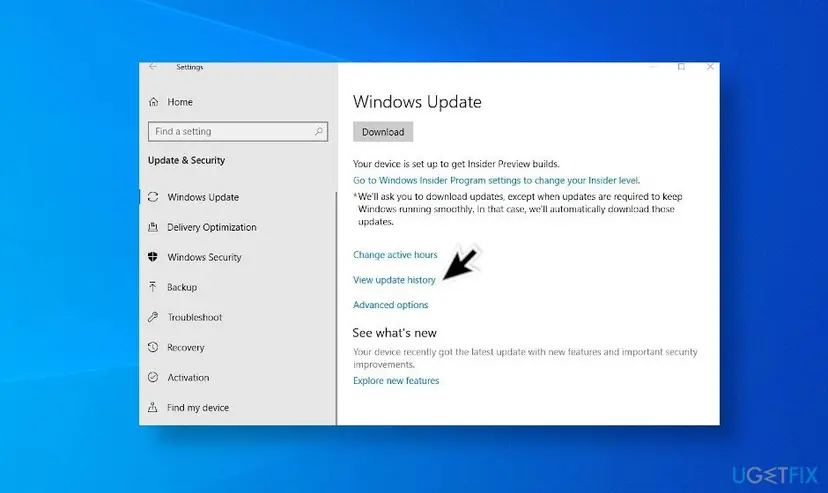
- Select Update & Security and open Advanced Options.
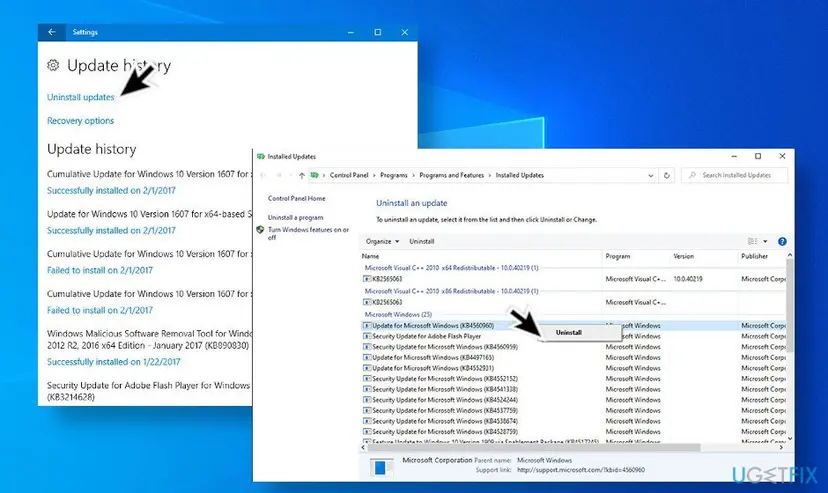
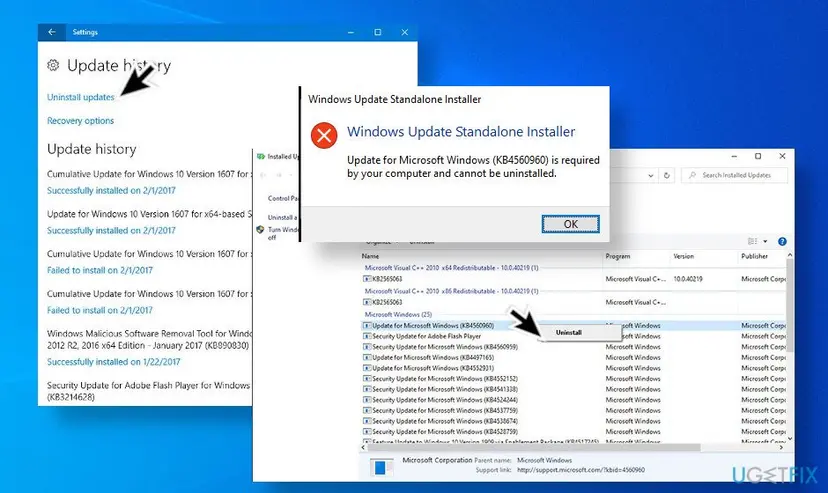
- Select View your update history and click Uninstall Updates.
- The system will open the list of updates in the Control Panel applet. Look for the KB4560960 and KB4557957 updates. If these updates haven't been installed, then remove the latest one.
- Select the update that you want to remove and select Uninstall.
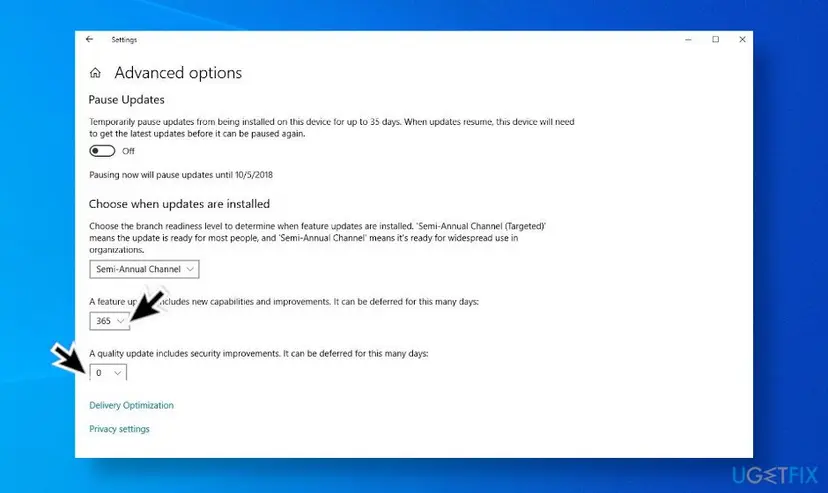
Postpone Windows 10 updates until Microsoft announces that the printer bug has been successfully fixed. Microsoft allows users to postpone quality updates up to a year (365 days) and security updates up to a month (30 days).
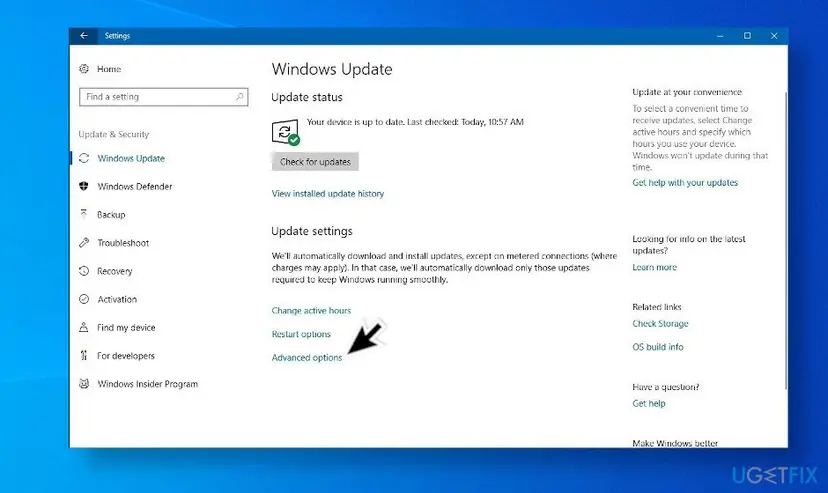
- Open Settings and navigate to Update & Security.
- Select Windows Update and click on the Advanced options link.
- Under the Choose when updates are installed area, you will see two drop-down menus.
- Choose for how long you want to defer the security and/or quality updates.
Perform a System Restore to the point before the update has been installed
If you cannot uninstall the updates and there's no other way to fix printer not working after updates, then we recommend restoring the system to the point before the update has been installed. For that, you should:
- Press Windows key and type System Restore Point to the search bar.
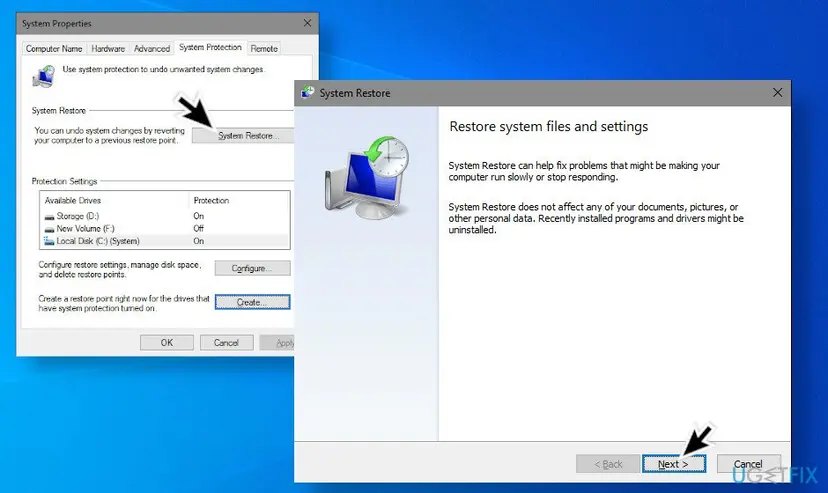
- When the System Properties window opens, navigate to the System Protection tab.
- Now click the System Restore button.
- Now the System Restore wizard should emerge. Click the Next button to go on.
- Now you should see all available restore points. Luckily, the Windows system by default creates a weekly restore point, so if you haven't created one manually, select the last System Restore Point. If you cannot find the preferred point, click the Show more restore points.
- When you select the preferred restore point, click the Scan for affected programs button. The system changes will automatically be detected. At the top of the window, you'll see the software and drivers that have been modified and might have triggered printer bugs.
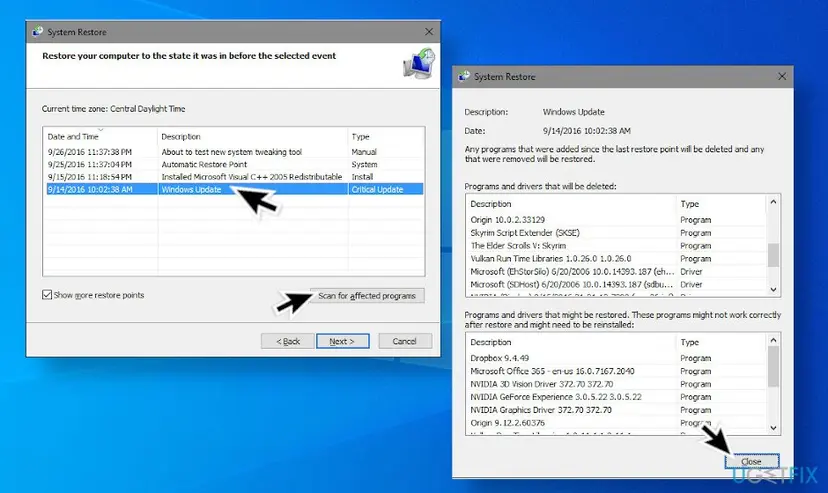
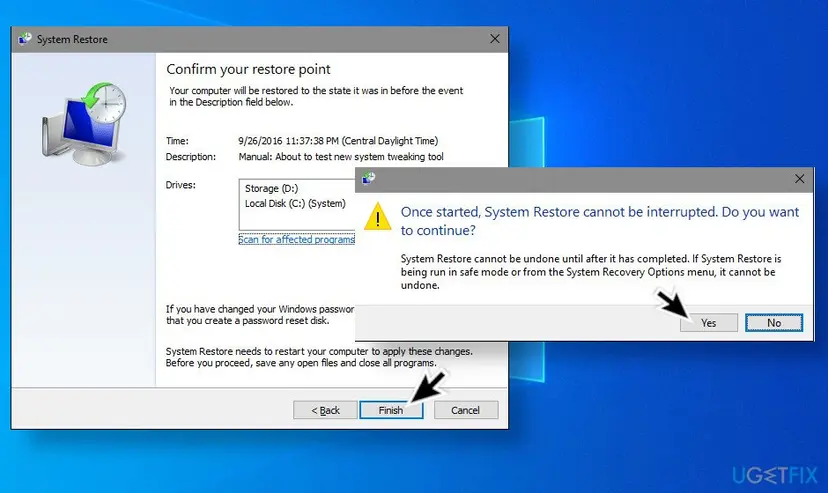
- The bottom list indicates software and drivers that can be restored to the previous state. If the restore point is suitable for you, click Next and Finish buttons. The system should automatically reboot to ever all the recovery.
Update printer drivers
If, however, neither of the mentioned updates have been installed, but your printer won't work, you can try the automatic troubleshooter and other fixes recommended by Microsoft. If, however, that did not help, one of the solutions would be to look for the latest driver updates. For that, you should:
- Press Windows key and type Device Manager into the search bar.
- Click on the Device Manager option. Locate the printer device that is malfunctioning (usually, a problematic driver is marked with a yellow exclamation mark).
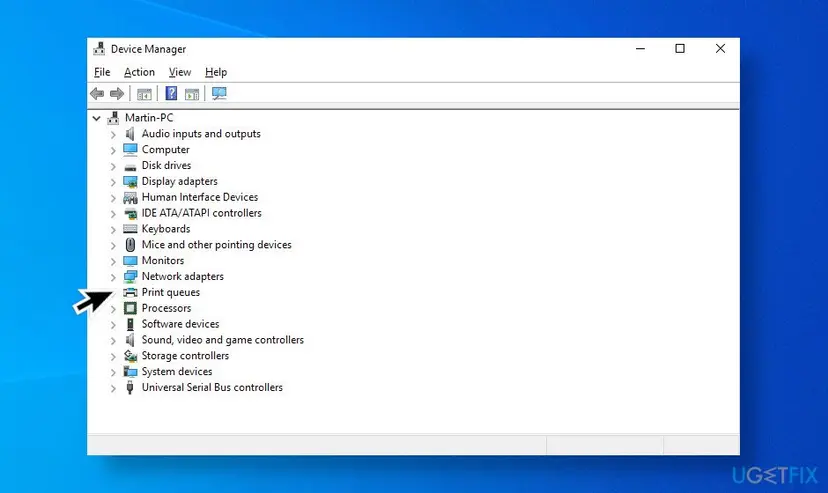
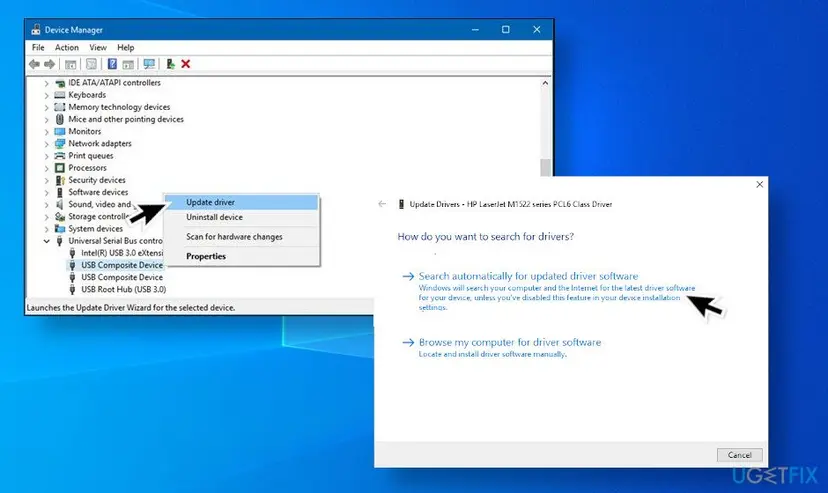
- Right-click on the device name and select Update Driver Software.
- Select the Search automatically for updated driver software option. The system should automatically search for available drivers, though make sure that the Internet connection is OK.
- Finally, restart Windows to finish up with the installation.
Did this fix work?
One click, no account. It tells the next reader which guides are worth their time.
Questions and experiences: fix printer not working after Windows 10 update
Still broken, or found a fix we did not cover? Ask here: members and our editors answer. Reading is open; writing needs a free account.
…