
How to fix the BthA2DP.sys blue screen (BSOD) in Windows 11 and 10

Prefer to fix it yourself? The manual steps follow.
- 8methods
- 10 to 40 minutes
- Intermediate
Applies to Windows 11 and Windows 10 PCs and laptops with Bluetooth, including new ones
8 methods in this guide
Hi, I just recently got a new PC, and it has crashed several times already, which I did not expect to happen. The BSOD is showing BthA2DP.sys as the reason. I don't have many programs installed, and I don't remember doing anything out of the ordinary for this to happen. Any tips would be appreciated.
BthA2DP.sys is a Windows driver file tied to Bluetooth audio. When a blue screen names it, the Bluetooth driver was running when Windows stopped. Start by updating the Bluetooth driver from your PC maker, then reinstall or roll it back.
BthA2DP.sys is a Windows driver file for Bluetooth audio, not a virus. A blue screen that names it means the Bluetooth driver was running when Windows stopped. Update the Bluetooth driver from your PC maker and Windows Update first (Fix 1). If the crashes continue, remove and re-pair your Bluetooth devices (Fix 2), then reinstall the adapter driver (Fix 3).
| Error | A blue stop screen with What failed: BthA2DP.sys. The stop code most often shown is DRIVER_IRQL_NOT_LESS_OR_EQUAL; users also report SYSTEM_THREAD_EXCEPTION_NOT_HANDLED. |
|---|---|
| Where it appears | At startup or shutdown, when an app starts, when a Bluetooth headset or speaker connects, after waking from sleep or hibernation, or at no clear moment. |
| Main cause | A damaged, outdated or mismatched Bluetooth driver, then damaged Windows system files, then software that hooks into the same drivers. |
| Fastest fix | Install the newest Bluetooth driver from your PC maker, or from Windows Update, and restart (Fix 1). |
| Also written as | BthA2DP, BthA2DP sys, BthA2DP.sys failed, BthA2DP.sys corrupted, BthA2DP not verified, BthA2DP driver. |
| Who makes it | It is part of the Windows Bluetooth driver set and sits in C:\Windows\System32\drivers\BthA2DP.sys. The Bluetooth radio driver beside it comes from your PC or chip maker. |
| What the stop code means | Microsoft says DRIVER_IRQL_NOT_LESS_OR_EQUAL (0xD1) means a kernel-mode driver touched pageable memory while the processor was at too high an interrupt level. |
| Where the cause is logged | C:\Windows\Minidump (one .dmp file per crash) and Event Viewer, Windows Logs > System, source BugCheck, event ID 1001. |
| Time to fix | 10 minutes for a driver update. A full reinstall and system file repair take up to 40 minutes. |
Facts checked on 16 October 2026. Steps written for Windows 11 (25H2 and 26H2) and Windows 10 22H2.
What BthA2DP.sys is and why a blue screen names it
BthA2DP.sys is a driver file that Windows keeps in C:\Windows\System32\drivers\BthA2DP.sys. The name reads as Bluetooth plus A2DP, the Bluetooth profile for streaming stereo sound to headphones and speakers. A reply from Microsoft support on the Microsoft Q&A site describes it as a system file driver related to Bluetooth functions.
The What failed line names the driver that was running when Windows stopped. It does not prove the file is broken. Microsoft explains that bug check 0xD1, DRIVER_IRQL_NOT_LESS_OR_EQUAL, means a kernel-mode driver tried to use pageable memory, or an invalid address, while the processor was at too high an interrupt level. Microsoft adds that in most cases the memory being used is the problem, not the level itself.
| What you see | What it means |
|---|---|
| What failed: BthA2DP.sys on the blue screen | The Bluetooth audio driver was the code running at the moment of the crash |
| DRIVER_IRQL_NOT_LESS_OR_EQUAL with BthA2DP.sys | A driver used memory it should not at that moment: a mismatched, outdated or damaged driver, or a driver conflict |
| SYSTEM_THREAD_EXCEPTION_NOT_HANDLED with BthA2DP.sys | Users report this code with the same driver, often when a Bluetooth headset connects; the same fixes apply |
| BthA2DP.sys corrupted or BthA2DP.sys failed | Search wording for the same crash; the file is rarely the damaged part, the driver set around it more often is |
| BthA2DP not verified | Not a Windows message. Crash analysis tools print lines such as Unable to verify timestamp for a driver; it is a tool warning, not proof of a bad file |
Why BthA2DP.sys crashes: the causes, most common first
Microsoft says an unexpected restart might be caused by a hardware device, its driver, or software, and that an outdated or incompatible driver is one of the most common causes of Bluetooth problems. A new PC fits this: it ships with the maker's drivers, and Windows Update may later offer a different Bluetooth driver for the same chip.
| How often | Cause | Sign | Fix |
|---|---|---|---|
| Most often | An outdated, mismatched or half-updated Bluetooth driver | The crashes began after a Windows update, a driver update or on a new PC | Fix 1 and Fix 3 |
| Often | A Bluetooth headset or speaker that triggers a faulty connection | The crash comes when a certain device connects or after waking from sleep | Fix 2 |
| Often | A driver update that Windows installed on its own | The PC ran fine until a recent update | Fix 4 |
| Sometimes | A damaged Bluetooth setting or radio problem | Other Bluetooth problems too, such as dropouts or a missing adapter | Fix 5 |
| Less often | Damaged Windows system files | SFC or DISM reports errors, other programs crash too | Fix 6 |
| Less often | A program that loads its own drivers or hooks | Crashes began after installing a security tool or a peripheral utility | Fix 7 |
| Rarely | A damaged Windows setup | Nothing above helps and the crashes began on a known day | Fix 8 |
It is a Windows driver file, and a hand-copied copy from a DLL or driver site is a risk of its own. The fault lies in the driver version, a connected device or the files around it. Use the fixes below instead.
Check what the crash really says
Write down the stop code, which Bluetooth device was connected, and when the crash comes before you change anything. It picks your first fix in the table above the methods.
- Press Win + R, type
eventvwr.mscand press Enter. - Open Windows Logs > System and select Filter Current Log on the right.
- Type
1001in the event ID box and select OK. Open the newest BugCheck event: it holds the stop code and the path of the dump file. - Open
C:\Windows\Minidumpin File Explorer. Windows writes one small dump file there per crash; keep the newest ones in case you need to send them to your PC maker. - Right-click Start, select Device Manager, expand Bluetooth, open your Bluetooth adapter and note Driver Version and Driver Date on the Driver tab.
If the first BugCheck event matches the day a Windows update or a driver arrived, start with Fix 4. On a new PC with no recent change, start with Fix 1. If the crash comes when one headset connects, start with Fix 2.
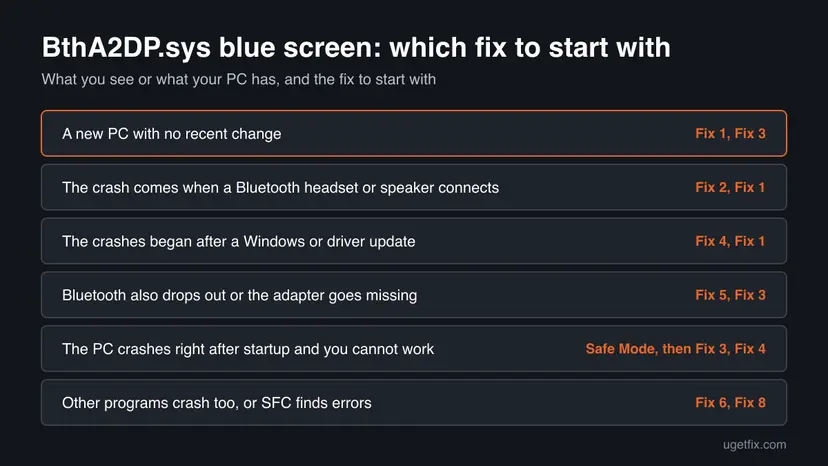
How to fix the BthA2DP.sys blue screen
Fixes 1 to 5 treat the Bluetooth driver and the devices around it, which is where this crash starts for most readers. Fixes 6 to 8 are the general Windows checks for when the driver is not the cause. Restart the PC after each fix and use it as you did when it crashed. If the PC crashes too soon to work in Windows, use Safe Mode first.
| What you see or what your PC has | Start with | Then |
|---|---|---|
| A new PC with no recent change | Fix 1 | Fix 3 |
| The crash comes when a Bluetooth headset or speaker connects | Fix 2 | Fix 1 |
| The crashes began after a Windows or driver update | Fix 4 | Fix 1 |
| Bluetooth also drops out or the adapter goes missing | Fix 5 | Fix 3 |
| The PC crashes right after startup and you cannot work | Safe Mode, then Fix 3 | Fix 4 |
| Other programs crash too, or SFC finds errors | Fix 6 | Fix 8 |
Fix 1. Update the Bluetooth driver from your PC maker and Windows Update
10 minutesLow riskEvery reader, and above all a new PC whose Bluetooth driver has never been updated.
Microsoft names an outdated or incompatible driver as one of the most common causes of Bluetooth problems. A driver built for an earlier Windows version can crash on a newer one, and the PC maker's driver is the one tested for your exact hardware.
- Open Device Manager, expand Bluetooth and note the adapter name, which may include the word radio.
- Open your PC maker's support page, enter the model name, and download the newest Bluetooth driver for your Windows version. Run it.
- Open Settings > Windows Update, select Check for updates, then Advanced options > Optional updates and install any Bluetooth driver listed.
- Restart the PC when the installer asks.
- Open Device Manager. Right-click Start and select Device Manager.

Device Manager lists devices by category; a yellow warning sign marks a device with a problem. Screenshot: Windows 11 26H2. - Open the device's Driver tab. Expand the category (for example Display adapters), right-click the device, select Properties and open the Driver tab. Driver Date and Driver Version show what is installed now.
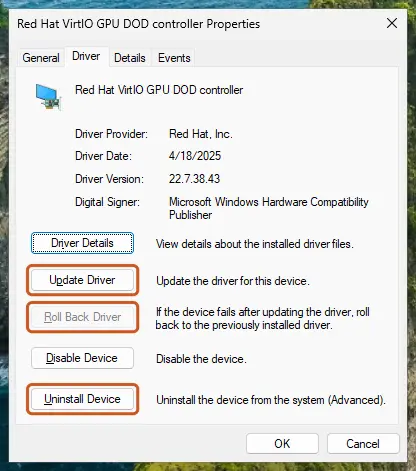
The Driver tab holds all three actions: update, roll back, uninstall. Screenshot: Windows 11 26H2. - Update the driver. Select Update Driver and let Windows search automatically. To use a driver you downloaded from the device maker, select Browse my computer for drivers instead and point to the unpacked folder.
- Or roll back the driver. If the problem started after a driver update, select Roll Back Driver, choose a reason and select Yes. The button is greyed out when Windows has no earlier driver to return to.
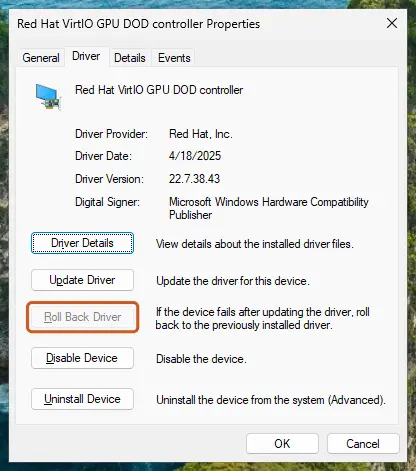
Roll Back Driver is greyed out here because there is no earlier driver. Screenshot: Windows 11 26H2. - Or reinstall the driver. Select Uninstall Device. Tick Attempt to remove the driver for this device only if you want Windows to delete the driver package too, then select Uninstall.
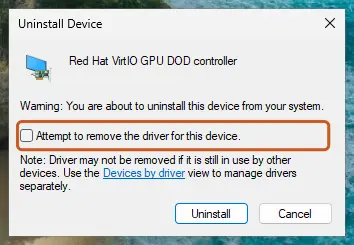
Tick the checkbox only to delete the driver package as well. Screenshot: Windows 11 26H2. - Restart. Restart the PC. Windows detects the device again and installs a driver for it.
- Check optional driver updates. Open Settings > Windows Update > Advanced options > Optional updates. If driver updates are listed, tick the ones you need and select Download & install.
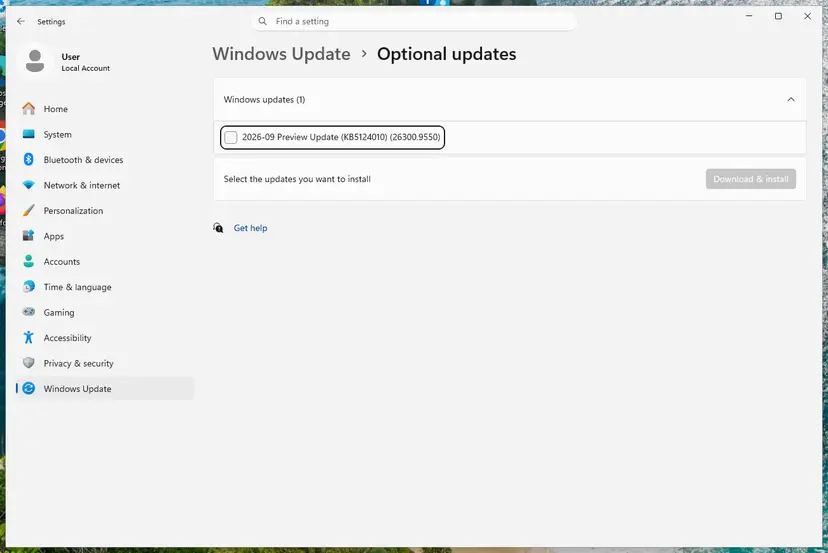
Optional updates on our test PC; driver updates appear here when Windows Update has any for your hardware. Screenshot: Windows 11 26H2.
These steps were written for Windows 11 24H2 and later. The full page with the other versions and what each result means: Update, roll back or reinstall a driver
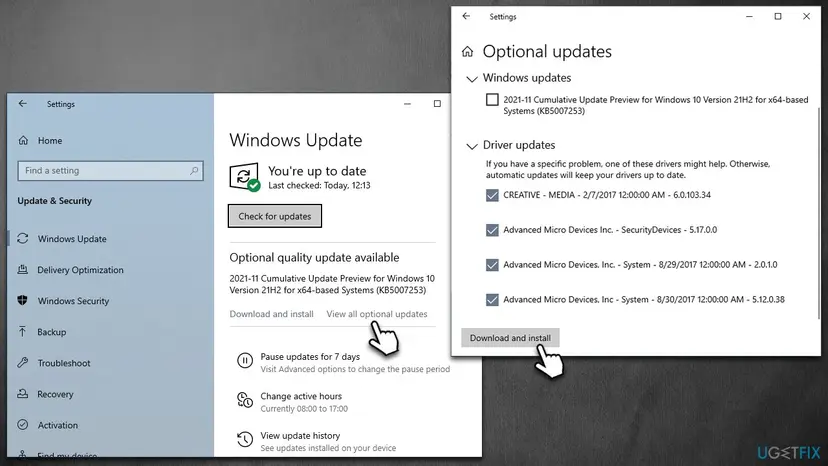
It worked if: The installer finishes without errors, Device Manager shows the Bluetooth adapter with no warning mark, and no new file appears in C:\Windows\Minidump after a day of use.
If not: If the PC still crashes, go to Fix 2 and test with the Bluetooth devices removed.
Fix 2. Remove your Bluetooth devices and pair them again
10 minutesNo riskThe crash comes when a headset, speaker or keyboard connects, or after the PC wakes from sleep.
The crash is tied to Bluetooth audio, so one device that connects in a faulty way can trigger it. Removing the device and pairing it again clears the stored pairing data and shows whether a single device is the trigger.
- Switch off every Bluetooth device you do not need, and unplug any Bluetooth dongle you added yourself.
- Open Settings > Bluetooth & devices > Devices.
- Select More options next to the device that was connected at the crash, then Remove device > Yes.
- Use the PC for a day without that device. If it does not crash, pair the device again under Add device.
- If the crash returns only with that device, update the device's own firmware if its maker offers it, or use another device.
On Microsoft Q&A one reader reports that the crash came when earphones switched themselves to the PC during a restart. If your headset can connect to two devices at once, switch that feature off for a test.
It worked if: The PC runs through a normal day without the crash while the suspect device is removed.
If not: If it crashes with nothing paired, the driver is the cause, so go to Fix 3.
Fix 3. Uninstall the Bluetooth adapter and let Windows reinstall it
15 minutesLow riskFix 1 did not help, or the driver looks damaged or is missing from Device Manager.
The installed driver may be beyond repair. Microsoft lists uninstalling the Bluetooth adapter in Device Manager and letting Windows reinstall it as a step for Bluetooth problems, and a fresh install replaces every file of the driver set.
- Right-click Start and select Device Manager.
- Expand Bluetooth, right-click the Bluetooth adapter, and select Uninstall device.
- If a box named Attempt to remove the driver for this device (older Windows builds: Delete the driver software for this device) appears, tick it, then select Uninstall.
- Select Start > Power > Shut down, wait a few seconds, and turn the PC on again. Windows tries to reinstall the driver.
- If it does not, open Device Manager and select Action > Scan for hardware changes. Then install the maker's driver from Fix 1.
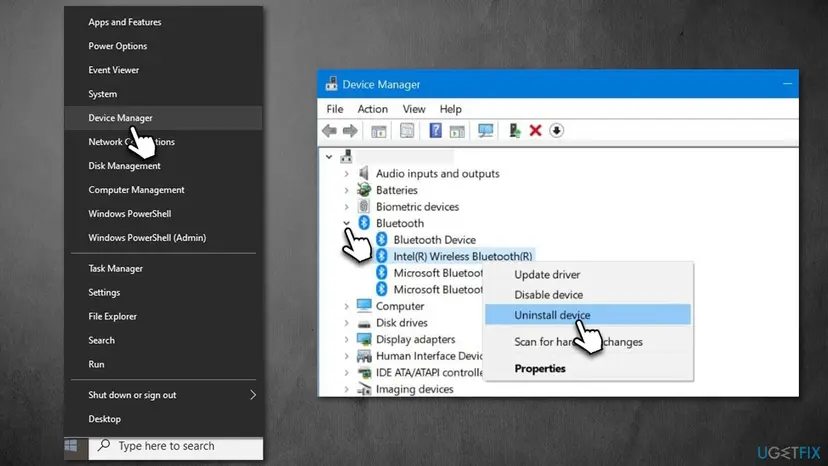
If the PC crashes too soon after startup to do these steps, restart into Safe Mode first, where the Bluetooth driver does not load the normal way: Start Windows or a Mac in Safe Mode
It worked if: Bluetooth appears again in Device Manager with a fresh driver, and the PC runs without a new crash dump.
If not: If Windows installed the same driver and the crashes came back, go to Fix 4 and use the earlier one.
Fix 4. Roll back the Bluetooth driver and pause automatic driver updates
10 minutesLow riskThe crashes started right after a driver was installed by Windows Update.
If a new driver is what changed, going back to the one that worked removes the change. A reply on Microsoft Q&A for this driver suggests rolling back the Bluetooth driver and preventing automatic driver updates while you test.
- Open Device Manager, expand Bluetooth, and open the Bluetooth adapter by double-clicking it.
- On the Driver tab, select Roll Back Driver if it is available, pick a reason, and select Yes.
- If the button is grey, there is no earlier driver. Install the previous version from your PC maker's support page instead.
- Restart the PC and test it for a day.
- To stop Windows from replacing the driver while you test, search for Change device installation settings in the Start menu and choose the option that stops automatic driver downloads.
With automatic driver downloads off, Windows will not fix other drivers either. Turn the setting back on once the crashes have stopped for a few days or the maker has released a newer Bluetooth driver.
It worked if: Driver Date on the Driver tab shows the earlier version, and the crash does not return.
If not: If Roll Back Driver was grey and the crash remains, go to Fix 5.
Fix 5. Run the Bluetooth troubleshooter and check the Bluetooth settings
10 minutesNo riskBluetooth also drops out, the adapter vanishes for a moment, or devices fail to connect before the crash.
Microsoft's own Bluetooth article puts the troubleshooter first. It checks the Bluetooth service and the adapter, and the same article lists turning Bluetooth off and on and removing and re-adding the device as basic checks.
- On Windows 11 open Settings > System > Troubleshoot > Other troubleshooters. Next to Bluetooth select Run.
- On Windows 10 open Settings > Update & Security > Troubleshoot > Additional troubleshooters and run Bluetooth.
- Follow the prompts and accept any fix it offers.
- Open Settings > Bluetooth & devices, turn Bluetooth off, wait a few seconds, and turn it on again.
- Make sure Airplane mode is off and the Bluetooth device is charged and in range.
It worked if: The troubleshooter reports the problem found and fixed, or reports none, and Bluetooth connects without a crash.
If not: If nothing changes, the Windows files themselves may be damaged, so go to Fix 6.
Fix 6. Repair damaged system files with SFC and DISM
30 minutesNo riskOther programs crash too, or the Bluetooth driver reinstalls but the crash returns.
The old guide and the search wording point to damaged files. SFC checks protected Windows files and DISM repairs the component store they are restored from, so a damaged Windows copy of the driver set can be replaced.
- Open an elevated command window. Right-click Start and select Terminal (Admin), or type cmd in the search box, right-click Command Prompt and select Run as administrator. Select Yes when Windows asks for permission.

Search for cmd and choose Run as administrator. Screenshot: Windows 11 26H2. - Run DISM first. Type the command below and press Enter. DISM downloads clean copies of damaged components from Windows Update, so it can take several minutes. Wait until it says The operation completed successfully.
DISM.exe /Online /Cleanup-Image /RestoreHealth
DISM /RestoreHealth running. Screenshot: Windows 11 26H2. - Run System File Checker. In the same window, type the command below and press Enter. Do not close the window until the verification reaches 100%.
sfc /scannow
sfc /scannow at 100%. Screenshot: Windows 11 26H2. - Read the result and restart. Compare the last message with the table below this guide, then restart the PC so that repaired files are loaded.

The result line tells you what SFC did. Screenshot: Windows 11 26H2.
These steps were written for Windows 11 24H2 and 25H2. The full page with the other versions and what each result means: Run DISM and SFC to repair Windows system files
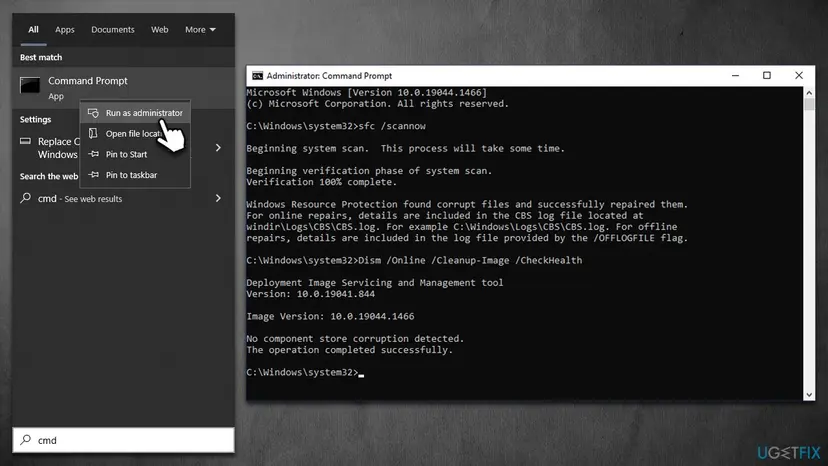
It worked if: SFC ends with a message that it found no integrity violations or that it repaired files, and DISM finishes at 100 percent.
If not: If SFC or DISM cannot repair files, go to Fix 8.
Fix 7. Remove software that hooks into the Bluetooth and system drivers
15 minutesLow riskThe crashes began after installing a security tool, a peripheral utility or a Bluetooth manager.
A security tool works at the kernel level and can clash with drivers; some users who had this crash report that removing a third-party antivirus ended it. A reader on Microsoft Q&A links the crash to a keyboard utility update, so list what changed.
- Open Settings > Apps > Installed apps (Windows 10: Apps & features) and sort by Install date.
- Look for a third-party antivirus or firewall, a Bluetooth manager, or a peripheral utility installed just before the first crash.
- Uninstall one program, restart, and use the PC for a day. Do not remove several at once.
- Windows Security takes over protection while no other antivirus is installed. Reinstall the tool afterwards from its maker if you need it.
- Uninstall from the Start menu. Select Start > All apps and find the app. Right-click it (or press and hold) and select Uninstall.
- Or uninstall in Settings. Select Start > Settings > Apps > Installed apps. Find the app, select More (the three dots) > Uninstall, and confirm.
- Or uninstall from Control Panel. Some programs can only be removed here. Type Control Panel in the search box on the taskbar and open it, then select Programs > Programs and Features. Right-click the program and select Uninstall or Uninstall/Change, then follow the program's own uninstaller.
- Restart if the uninstaller asks. Some programs finish removing their files only after a restart.
These steps were written for Windows 11 24H2 and 25H2. The full page with the other versions and what each result means: Uninstall a program or app in Windows
It worked if: The PC runs without a crash after the program is removed, and the crash returns when you install it again.
If not: If it crashes with the program gone, reinstall it and go to Fix 8.
Fix 8. Restore Windows to a point before the crashes began
30 minutesLow riskNothing above helped, and the PC ran fine on an earlier day.
Microsoft lists restoring Windows from a restore point among the basic steps for repeated stop code errors. It returns drivers and system files to how they were on that day, without touching your documents.
- Open System Restore. Press Windows+R, type the command below and press Enter. You can also open Control Panel > Recovery > Open System Restore. If a first page opens, select Next.
rstrui.exe - Choose a restore point. Select a restore point from a time before the problem started. The Description often names the event, such as a driver or app install. If the one you need is missing, select Show more restore points (shown only when there are more).
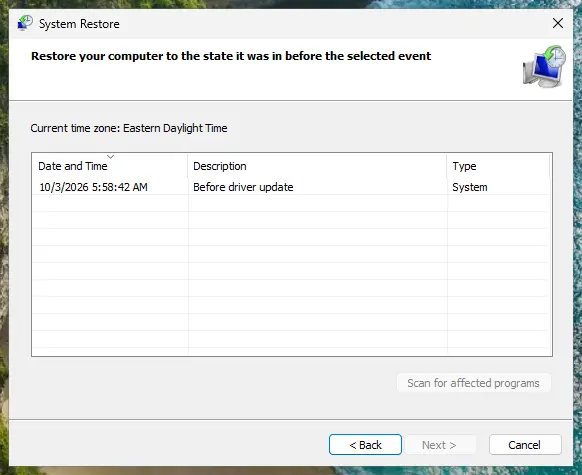
Pick a restore point from before the problem started. Screenshot: Windows 11 26H2. - See what will change. Select Scan for affected programs. The upper list shows programs and drivers that will be removed; the lower list shows those that might come back and may need to be reinstalled. Select Close.
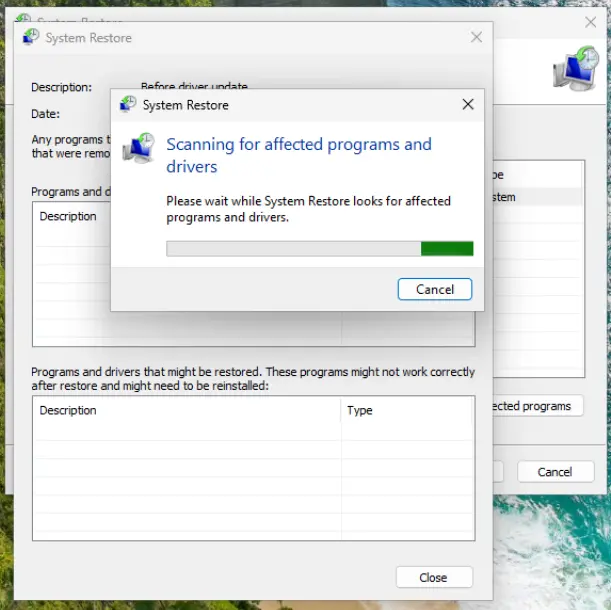
The scan lists programs and drivers the restore removes or brings back. Screenshot: Windows 11 26H2. - Start the restore. Select Next, check the summary and select Finish. Windows restarts and applies the restore point. Do not turn the PC off.
- Check the result. After sign-in Windows reports whether the restore succeeded. Check whether the problem is gone.
These steps were written for Windows 11 and Windows 10 (the steps are the same). The full page with the other versions and what each result means: Undo recent changes with System Restore
Programs and drivers installed after the restore point are removed, so install the Bluetooth driver from your PC maker again afterwards. Your files stay.
It worked if: Windows restarts from the restore point, and the PC runs without the BthA2DP.sys crash for several days.
If not: If no restore point exists or the crash remains, see the Still crashing section for what to collect.
Still crashing: what to collect and where to send it
When a clean driver and repaired files do not stop the crash, the Bluetooth chip on the board or card may be at fault, or the PC maker has a known issue for your model. Windows 10 22H2 left support on 14 October 2025, so on that system the maker's driver is the main fix left.
- The newest
.dmpfiles fromC:\Windows\Minidump, zipped. - The exact stop code and the line What failed, from the BugCheck event or a photo of the screen.
- The model name of the PC or laptop and the name and driver version of the Bluetooth adapter from Device Manager.
- Which Bluetooth devices you use, and when the crash happens.
- Which of the fixes above you tried.
| Where to report | When |
|---|---|
| Your PC or laptop maker | A new PC or laptop that crashes on the maker's own driver: it is under warranty and the maker knows the hardware |
| The maker of the Bluetooth adapter | An add-on Bluetooth card or USB dongle you installed yourself |
| The shop that sold the PC | A new PC that crashes in every test, for a repair or a swap |
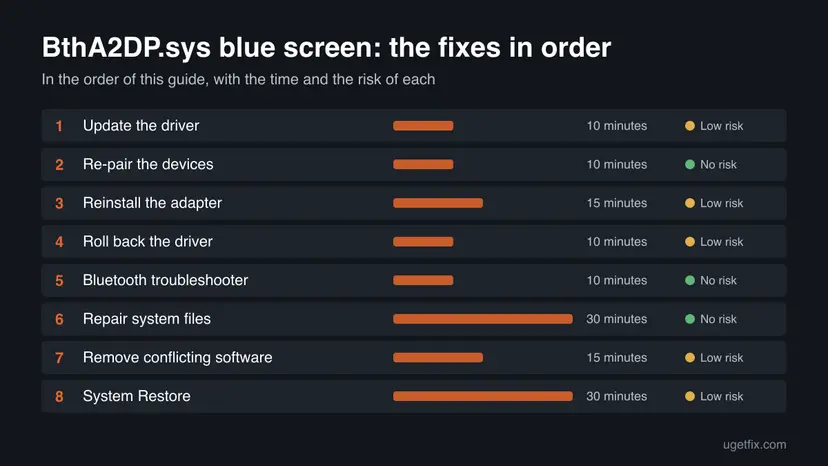
How to keep the BthA2DP.sys crash from coming back
- Take Bluetooth drivers from your PC maker or from Windows Update.
- Note the driver version that works, and keep its installer.
- Install Windows updates and restart the PC when asked.
- Change one thing at a time, so you know what caused a crash.
- Delete, rename or replace BthA2DP.sys by hand.
- Download driver files from DLL or driver download sites.
- Leave automatic driver downloads off for good.
- Install several security tools side by side.
Check for updates after any large Windows feature update, because a driver designed for an earlier Windows version can cause trouble on a newer one. Keep the Bluetooth driver from your PC maker current, and read the maker's release notes before you install a new version.
Frequently asked questions
What is BthA2DP.sys?
BthA2DP.sys is a driver file that Windows keeps in the drivers folder under System32. The name stands for Bluetooth and A2DP, the Bluetooth profile for streaming stereo audio. A Microsoft support reply on the Microsoft Q&A site describes it as a system file driver related to Bluetooth functions. It is a normal Windows file and not malware, which is why it shows up on so many PCs.
What does What failed: BthA2DP.sys mean?
It means the Bluetooth audio driver was the code running at the moment Windows stopped. It does not prove that the file is damaged. Most often the driver set around it is outdated, mismatched or in conflict with a connected device. Updating the Bluetooth driver in Fix 1 and reinstalling the adapter in Fix 3 help most readers.
Is BthA2DP.sys a virus?
The genuine file is part of Windows and lives in C:\Windows\System32\drivers. A blue screen that names it points to a driver problem, not to malware. If you see a file with this name in another folder, run a full scan with Windows Security. Do not download a replacement file from a site that offers drivers or system files.
What does DRIVER_IRQL_NOT_LESS_OR_EQUAL mean with BthA2DP.sys?
Microsoft explains that a kernel-mode driver tried to use pageable memory, or an invalid address, while the processor was at too high an interrupt level. In most cases the problem is the memory being used, not the level. With BthA2DP.sys this usually points to a mismatched or damaged Bluetooth driver, so start with Fix 1 and Fix 3.
Why does my new PC crash with BthA2DP.sys?
A new PC ships with drivers chosen by its maker, and Windows Update may later offer a different Bluetooth driver for the same chip. Microsoft says an outdated or incompatible driver is one of the most common causes of Bluetooth problems. Install the newest Bluetooth driver from the maker's support page (Fix 1). If the new PC keeps crashing, it is under warranty, so report it.
Why does the crash come when my headphones connect?
The driver handles the connection to Bluetooth audio devices, so a device that connects in a faulty way can trigger a fault in it. On Microsoft Q&A a reader reports the crash when earphones with a multipoint feature switched to the PC during a restart. Remove the device and pair it again (Fix 2), and test with the multipoint feature off.
What does BthA2DP not verified mean?
It is not a message from Windows. Crash analysis tools print lines such as Unable to verify timestamp for a driver when they cannot match a file with its symbols. A reply on Microsoft Q&A shows such a line for a different Bluetooth driver. The warning alone does not show a bad file, so treat it as a pointer to the Bluetooth driver set.
Can I delete BthA2DP.sys to stop the blue screen?
No. It is a Windows driver file, and removing or replacing it by hand does not remove the cause. A file copied from a download site is a risk of its own. Update, reinstall or roll back the Bluetooth driver instead (Fixes 1, 3 and 4), and repair Windows files with SFC and DISM (Fix 6) if that does not help.
The PC crashes right after I log in. How do I fix it?
Start the PC in Safe Mode, where the Bluetooth driver does not load the normal way. Microsoft lists Safe Mode as a basic step for repeated stop code errors. There, uninstall the Bluetooth adapter (Fix 3) or roll back the driver (Fix 4), then restart normally. One user on Microsoft Q&A reports that this was the only way to reach the desktop.
Is it safe to use Bluetooth after this crash?
Yes, once the driver is current and the crash has stopped. Bluetooth itself is not at fault. If a certain headset or speaker brings the crash back, keep it off the PC and check its maker for a firmware update. A wired headset or a USB audio adapter works as a fallback while you wait for a driver fix.
Sources
- Microsoft Learn: Bug Check 0xD1 DRIVER_IRQL_NOT_LESS_OR_EQUAL (learn.microsoft.com)
- Microsoft Support: Fix Bluetooth problems in Windows (support.microsoft.com)
- Microsoft Support: Troubleshooting Windows unexpected restarts and stop code errors (support.microsoft.com)
Did this fix work?
One click, no account. It tells the next reader which guides are worth their time.
Questions and experiences: fix the BthA2DP.sys blue screen (BSOD) in Windows 11 and 10
Still broken, or found a fix we did not cover? Ask here: members and our editors answer. Reading is open; writing needs a free account.
…