
How to fix "0x8096002A: No error description available" in Windows?

Prefer to fix it yourself? The manual steps follow.
- 7methods
- 5 to 30 minutes
- Intermediate
Applies to Windows 11 (25H2, 26H2) and Windows 10 22H2, extracting ZIP and RAR archives with File Explorer
7 methods in this guide
How do I fix the "0x8096002A: No error description available" error? I was trying to extract a ZIP file and received it.
"Error 0x8096002A: No error description available" appears when File Explorer cannot extract an archive and has no text for the reason. Microsoft has not published a meaning for this code, so the fixes below are the ones users report and the ones that follow from Windows' documented file rules. Start by extracting the same file with a different archive tool.
The message only says that Windows has no text for the code, so the cause is not named. Users report that extracting the same archive with 7-Zip works (Fix 1). If it still fails, move the archive to a short path such as C:\Temp and extract there (Fix 2), then test the archive for damage with 7-Zip (Fix 3).
| Error | Error 0x8096002A: No error description available. Shown by File Explorer when an extraction does not complete, with the line "An unexpected error is preventing the archive from being extracted." |
|---|---|
| Where it appears | When you select Extract all on a ZIP or RAR file, or drag files out of an archive opened in File Explorer, in Windows 11 and Windows 10. |
| Main cause | Not stated by Microsoft. Users report it with large or game archives; the likely suspects are a long extraction path, a damaged archive or a blocked folder. |
| Fastest fix | Extract the archive with 7-Zip instead of File Explorer (Fix 1), then try a short folder path such as C:\Temp (Fix 2). |
| Also written as | "Error 0x8096002a", "erro 0x8096002a", "error ox8096002a", "no description available", "no error description available", "error no description available". |
| Affects | Windows 11 (25H2, 26H2) and Windows 10 22H2. Windows 10 has had no security updates since 14 October 2025. |
| Vendor status | No Microsoft page explains this code. Users on Microsoft Q&A describe it as an unresolved problem in the built-in extraction. |
| Time to fix | 5 to 30 minutes; Fixes 5 to 7 add a scan or an update and a restart. |
Facts checked on 16 October 2026. Steps written for Steps read against Microsoft Learn (maximum path length, Microsoft Q&A user reports) and the 7-Zip site for Windows 11 and Windows 10.
What "0x8096002A: No error description available" means
The dialog reads "The Extraction Operation was not Completed", then "An unexpected error is preventing the archive from being extracted." and ends with "Error 0x8096002A: No error description available". The last line is the important one: Windows found a failure code but has no message text stored for it, so it prints a placeholder.
Code 0x8096002A is not in the Microsoft code lists we check, so this guide does not claim a meaning for it. What is known comes from users. Reports on Microsoft Q&A describe the error when extracting game archives and ZIP and RAR files with the built-in extractor, and the answers that readers marked helpful say the archive opens with a third-party tool.
- Other spellings people search: "error 0x8096002a", "erro 0x8096002a", "error ox8096002a" (letter O instead of zero), "no description available", "error no description available".
- Same message, other code: the words "No error description available" appear with many codes. Check that yours ends in 8096002A before you use this guide.
- Not this error: a password prompt, "The archive is corrupt" or "Windows cannot open the folder" have their own cause. A password prompt means the archive is encrypted and needs its password.
- What it is not: it is not a sign of a virus by itself, and not a sign that Windows is broken. Users report that other programs extract the same file.
Why File Explorer cannot extract the archive
Because Microsoft names no cause, the table separates what is documented from what users report. Start at the top and stop when a fix works.
| Possible cause | Basis | Typical sign | Fix |
|---|---|---|---|
| The built-in extractor fails on this archive but other tools read it | Users report on Microsoft Q&A | Another program extracts the same file without a message | Fix 1 |
| The target path is too long: the archive holds deep folders and long names | Microsoft documents a 260 character path limit for many Windows functions | Game or project archives with deep folder trees; the archive sits in a long folder name | Fix 2 |
| The archive is damaged or incomplete | Common for any archive | A download that stopped or a copy from a failing drive | Fix 3 |
| The folder blocks writing, or the archive is in a synced or network location | Common file rules | Other files also cannot be saved in that folder | Fix 4 |
| Damaged system files or missing updates | Not confirmed for this code | Other Windows features also act oddly | Fixes 5 and 6 |
| Malware or a security tool interrupting the extraction | Not confirmed for this code | Files vanish or appear and disappear during extraction | Fix 7 |
Users who solved this error mostly did it by extracting with a different program. That costs five minutes and changes nothing in Windows, so do it before any repair, update or scan.
How to fix "0x8096002A: No error description available"
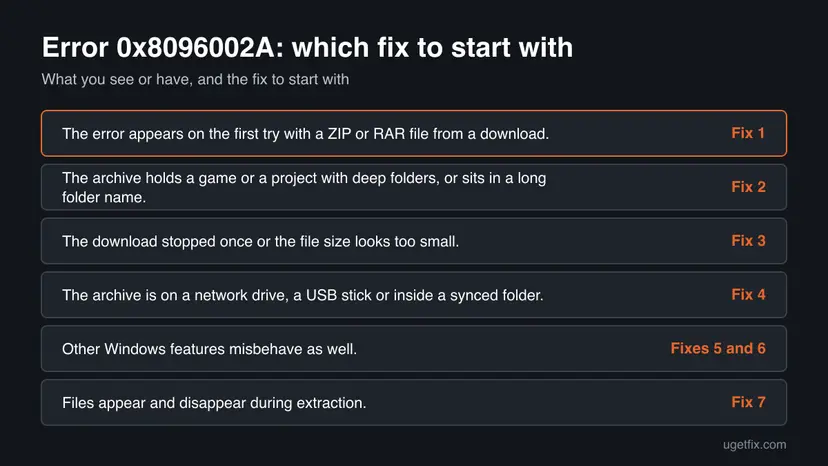
Fixes 1 to 3 deal with the archive and the extraction path and solve most reported cases. Fix 4 checks the folder. Fixes 5 and 6 repair and update Windows, and Fix 7 scans for malware. Work through them in order and test the extraction after each one.
| What you see or have | Start with |
|---|---|
| The error appears on the first try with a ZIP or RAR file from a download. | Fix 1 |
| The archive holds a game or a project with deep folders, or sits in a long folder name. | Fix 2 |
| The download stopped once or the file size looks too small. | Fix 3 |
| The archive is on a network drive, a USB stick or inside a synced folder. | Fix 4 |
| Other Windows features misbehave as well. | Fixes 5 and 6 |
| Files appear and disappear during extraction. | Fix 7 |
Fix 1. Extract the archive with 7-Zip
10 minutesLow riskEveryone first, because users on Microsoft Q&A report this as the working answer.
The error comes from the built-in extractor in File Explorer, not from the archive itself. 7-Zip reads ZIP, RAR, 7z, TAR and many other formats with its own code, so it does not depend on the built-in extractor. Download it from the maker's own site, 7-zip.org.
- Open 7-zip.org in your browser and download the installer that matches your PC (64-bit x64 for most Windows PCs, ARM64 for Arm devices). Run it and finish the setup.
- Right-click the archive and select Show more options on Windows 11. Open the 7-Zip menu.
- Select Extract to "folder name\". 7-Zip creates a new folder next to the archive and fills it.
- If the folder is long or deep, open 7-Zip > Extract files... instead, enter a short target such as
C:\Temp\outand select OK. - Open the new folder and check that the number of files looks right.
The 7-Zip site is the source of the installer. Do not use a download link from a search ad or a file site: those pages often wrap the installer with extra programs.
It worked if: The files appear in the folder and open normally, without the 0x8096002A message.
If not: If 7-Zip also stops with an error, the archive is the problem: go to Fix 3.
Fix 2. Extract to a short path
5 minutesNo riskThe archive holds deep folders or long file names, or it sits in a folder with a long name.
Microsoft documents that many Windows file functions are limited to 260 characters for a full path, and that the shell and the file system do not always follow the same rules. A short target such as C:\Temp leaves the most room for the folders inside the archive.
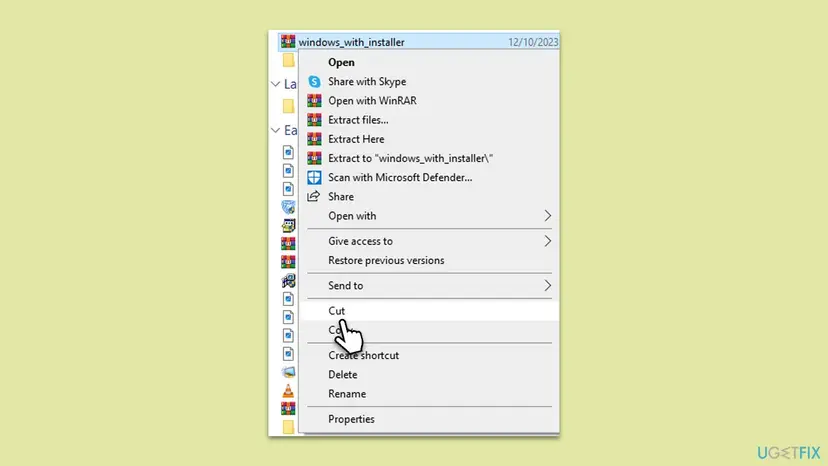
- Open File Explorer and go to the drive root, for example Local Disk (C:). Select New > Folder and name it
Tempif it does not exist. - Copy the archive into that folder and give it a short name, for example
a.zip. - Right-click the archive and select Extract All.... In the target box, type
C:\Temp\outand select Extract. - If the extraction works, move the finished folder to where you want it, or keep using it from there.
It worked if: The extraction finishes and all folders from the archive appear under the short path.
If not: If the same message appears even at C:\Temp, the path is not the cause: test the archive in Fix 3.
Fix 3. Test the archive and download it again
10 minutesNo riskThe download stopped once, the file is smaller than the site says, or the archive came from a failing drive or a long copy.
An archive that is cut short or damaged cannot be extracted completely, and a tool that tests the archive can tell you in a few seconds whether the data is intact. This separates a bad file from a bad extractor.
- Install 7-Zip as in Fix 1. Right-click the archive, open the 7-Zip menu and select Test archive.
- Read the result window. No errors means the data is intact; any listed error means the file is damaged or incomplete.
- If the test shows errors, download the file again from the same site and test the new copy before you extract it.
- If the archive came in parts (a first file plus numbered files), check that every part is in the same folder and has the right size.
- If the file sits on a USB stick or an external drive, copy it to the internal drive first and test it there.
It worked if: The test reports no errors, and the extraction works from the tested copy.
If not: If the test reports no errors but File Explorer still fails, keep using 7-Zip for this file and move on to Fix 4.
Fix 4. Check the folder permissions and the location
10 minutesLow riskThe archive is in a protected folder, on a network or synced location, or other files cannot be saved there either.
Extraction writes many files, so a folder that blocks writing or a location that syncs and locks files can stop it part way. Extracting to a normal folder in your user profile removes that variable.
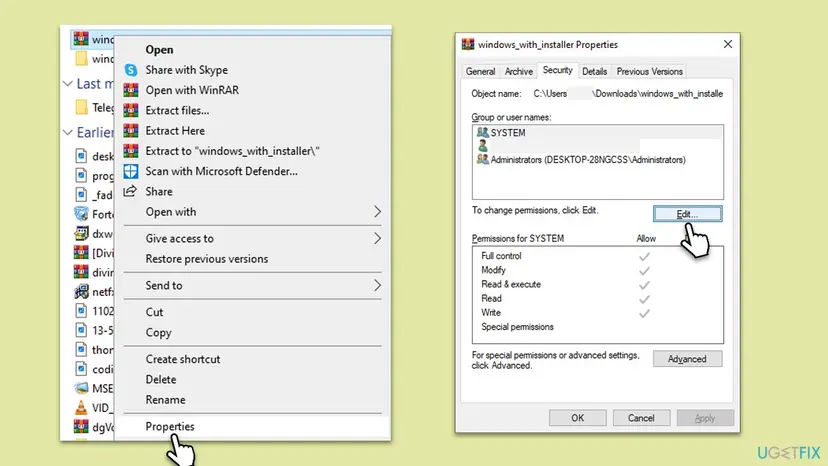
- Right-click the archive and select Properties. Open the Security tab and select Edit.
- Select your user name and check that Full control or at least Modify and Write are allowed. If you cannot change the boxes, you are not allowed to change this folder; extract elsewhere.
- Do not change permissions on system folders. Instead, move the archive to Downloads or Documents in your profile and extract there.
- If the archive is on a network share or a cloud folder, copy it to a local folder first so that nothing locks the files during extraction.
- On Windows 11 and Windows 10, if the archive shows a security note in Properties, select Unblock and OK, then extract again.
It worked if: Your account has write permission, or the extraction works from a normal folder in your profile.
If not: If extraction fails in your own Documents folder too, go on to repair Windows in Fix 5.
Fix 5. Repair system files with DISM and SFC
20 minutesNo riskFixes 1 to 4 did not help and other Windows features also behave oddly.
DISM repairs the Windows component store and System File Checker then replaces damaged system files from it. Damaged files can break built-in features such as File Explorer's extraction, although Microsoft does not link this code to them.
Run these in an elevated Terminal (Admin) or Command Prompt (Admin), one at a time, and restart afterwards. Step by step with screenshots: Run DISM and SFC to repair Windows system files.
Dism /Online /Cleanup-Image /RestoreHealth
sfc /scannow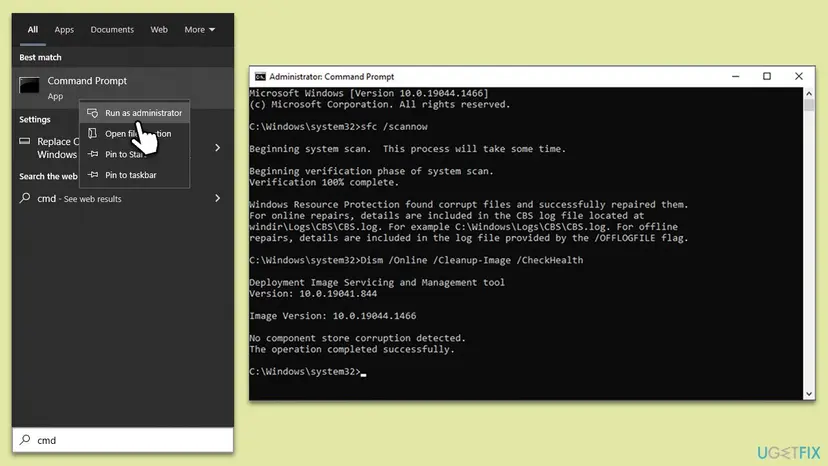
It worked if: Both tools finish, SFC reports that it found no problem or repaired what it found, and the extraction works after a restart.
If not: If DISM reports an error it cannot fix, note the message and continue with updates in Fix 6.
Fix 6. Install Windows updates
20 minutes plus a restartNo riskYour PC has not updated for a long time, or updates are waiting for a restart.
Updates replace outdated system components, including the ones File Explorer uses, and the newest builds are the ones Microsoft supports. Windows 10 22H2 left support on 14 October 2025 and no longer gets security fixes.
- Open Settings > Windows Update and select Check for updates (on Windows 10: Settings > Update & Security > Windows Update).
- Wait until Windows downloads and installs everything. If Restart now appears, save your work and restart.
- If optional updates are listed under Advanced options > Optional updates, install the ones for Windows and your drivers.
- After the restart, run Check for updates once more until it says you are up to date, then try the extraction again.
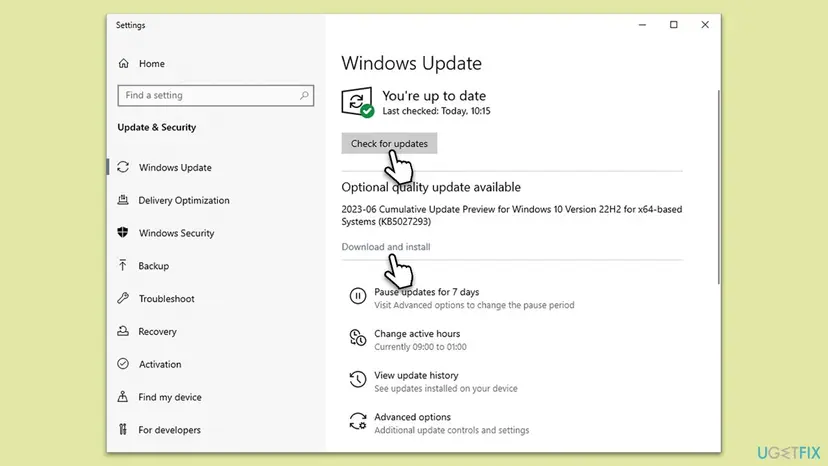
It worked if: Windows reports that you are up to date and the extraction works after the restart.
If not: If updates fail to install, use the Windows Update troubleshooter, or scan for malware in Fix 7.
Fix 7. Scan for malware
30 minutesNo riskFiles appear and disappear while extracting, or the PC behaves oddly after you ran software from an unknown source.
Malware can interfere with file operations, and a security tool can also block files it flags during extraction. A scan shows whether anything is flagged, and the offline scan checks before Windows starts.
- Open Windows Security > Virus & threat protection and select Quick scan. Read the result.
- If nothing is found and the problem stays, select Scan options > Microsoft Defender Offline scan > Scan now. The PC restarts and scans before Windows loads.
- Open Protection history and check whether a file from your archive was quarantined. Restore it only if you are sure that it is safe.
- Step by step with screenshots: How to scan for malware with Microsoft Defender. Pausing protection is never a fix: Turn off Microsoft Defender protection for a moment is for one short test at most.
It worked if: The scan finds nothing, or removes what it finds, and the extraction works afterwards.
If not: If the scan finds nothing and everything above failed, keep extracting with 7-Zip and use the checks in the next section.
Still broken: what to check and where to report it
If every fix failed, the extraction problem is probably tied to one archive or one tool, not to your PC. You can narrow it down in a few minutes and get the files out another way.
- Only one archive fails: it is probably damaged or built in a way the built-in extractor cannot read. Ask the sender or the site for a new copy and test it as in Fix 3.
- Every archive fails in File Explorer but works in 7-Zip: keep using 7-Zip. Users on Microsoft Q&A report this pattern as the practical answer.
- Every archive fails in every program: check the free space on the target drive with Free up disk space and delete temporary files and run Check a disk for errors (chkdsk) on the drive.
- A game installer shows the error: extract the archive manually into a short folder, then start the installer from the extracted folder.
- Report it: send the time, the Windows build from Settings > System > About, and the archive type through the Feedback Hub (press Win + F).

How to avoid archive extraction errors
- Extract archives into short folders near the root of a drive.
- Keep a current copy of 7-Zip from its maker's site for archives that File Explorer cannot read.
- Test a large download before you extract it.
- Keep Windows updated and keep free space on the target drive.
- Do not extract straight from inside the archive window; extract the whole archive first.
- Do not extract into a synced or network folder.
- Do not turn off security software to get an archive to open.
- Do not download archive tools from ad links or file sites.
Windows 10 left support on 14 October 2025. These steps still work on Windows 10 22H2, but it no longer gets security updates, so a move to Windows 11 is the safer long-term choice.
Frequently asked questions
What does error 0x8096002A mean in Windows?
Microsoft has not published a meaning for 0x8096002A, and the code is not in the Microsoft code lists we check. The message "No error description available" says only that Windows has no text stored for the code. Users report it when File Explorer fails to extract a ZIP or RAR archive, so treat it as a failed extraction with an unnamed cause. Start with Fix 1 and extract the archive with 7-Zip.
What does "No error description available" mean?
It is a placeholder. Windows received a failure code, looked for a message text for it and found none, so it printed this line instead. The words appear with many different codes, so they do not tell you what went wrong. The code that follows "Error" is the part to search for, and in this guide it is 0x8096002A, tied to extracting an archive.
Why does extraction fail with "no error description available"?
Microsoft does not say. Reports on Microsoft Q&A show it when the built-in extractor handles game archives, ZIP and RAR files, and the helpful answers say another program works. Windows also documents a 260 character path limit for many file functions, so a long path is a reasonable suspect. A damaged archive is the other common reason, which is why Fix 3 tests it.
Is the 0x8096002A error a virus?
Nothing in the reports says it is. The message is shown by File Explorer when it cannot finish an extraction, and users say that other programs extract the same file. Malware can interfere with file operations, so Fix 7 scans for it, but treat it as the last step, not the first. Never turn off security software to get past the message.
Will 7-Zip really fix the error?
For most readers it does. Users on Microsoft Q&A name 7-Zip, Bandizip and WinRAR as the way around it, and 7-Zip is free software that reads ZIP, RAR and many other formats. It is not a repair of Windows, so File Explorer may still show the message for other archives. If 7-Zip fails too, the archive is the problem, and you should test it and download it again.
Does enabling long paths in Windows fix it?
Microsoft says the long path setting removes the 260 character limit only for apps that declare support for it, and that a restart may be needed for all apps to pick it up. Microsoft does not say that the extractor in File Explorer is one of them, so this guide does not recommend a registry change for this error. A short folder path gives the same room without any change.
Why does it happen with game archives?
Game archives often hold thousands of files in deep folder trees, which makes long paths likely, and they are large, which makes incomplete downloads likely. Users on Microsoft Q&A report the error when a game needs to extract its files first. Extract the archive yourself into a short folder, test it with 7-Zip and start the installer from the extracted folder.
Can I fix it without installing anything?
Yes, partly. Move the archive to a short path such as C:\Temp, extract it there, check the folder permissions and run Windows Update. Those steps use only what Windows has. Users report that the error often remains, and the answer they give most is to use a different extraction program, so plan to install 7-Zip if the built-in steps fail.
Is it fixed in a Windows update?
Microsoft has not announced a fix for this code. One user on Microsoft Q&A wrote that it was a known problem with no solution published at the time of the post, and that is a user report, not a Microsoft statement. Keep Windows updated anyway, because it costs nothing and updates replace components the extractor uses.
What if the archive needs a password?
A password prompt is a different case. If the archive is encrypted, File Explorer or 7-Zip asks for the password before extraction starts, and a wrong password gives a different message, not 0x8096002A. If you were never given a password, ask the sender. Do not look for password tools from unknown sites; they often carry malware.
Sources
- Microsoft Learn: Maximum Path Length Limitation (260 character limit, long path opt-in) (learn.microsoft.com)
- 7-Zip: file archiver, supported formats and downloads (7-zip.org)
- Microsoft Q&A: no error description found 0x8096002A windows 11 (user reports) (learn.microsoft.com)
Did this fix work?
One click, no account. It tells the next reader which guides are worth their time.
Questions and experiences: fix "0x8096002A: No error description available" in Windows
Still broken, or found a fix we did not cover? Ask here: members and our editors answer. Reading is open; writing needs a free account.
…