How to fix
“You don’t have permission to open the application” error
on Windows
Resolve the "You don't have permission to open the application" error on Windows 10 and 11 effortlessly, with expert-tested solutions for a smooth exper…

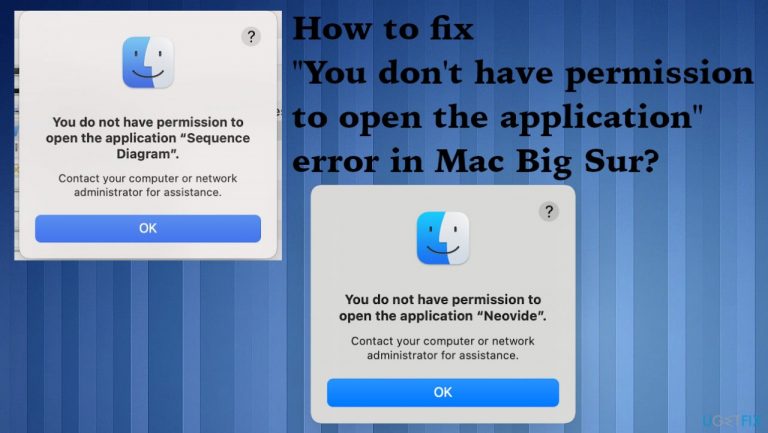
What causes How to fix “You don’t have permission to open the application” error in Mac Big Sur?
- Application corruption
- Compatibility issues
- Need for updates
- Particular software problems
- Corrupted files
Repairs Windows system files, removes malware, and restores a clean OS state — without reinstalling.
Hey, I get this pop-up error that states that I do not have permission to open the application when I try to open the Adobe Zii. It is the issue with Mac OS Big sure 11.1 here. I have no idea what happened because I haven't changed anything, and the user is the admin that I try to do so with. Help!
"You don't have permission to open the application" error appears on macOS devices pretty commonly, based on reports online[ref en-1] from users who struggle with the issue. Various applications trigger the problem, so the program you try to open is not the particular one that is a reason for the error. However, application corruption, compatibility issues, and the need for updates can be the trigger.
Various forums get filled with complaints about this issue, so communities search for a solution that is not that easy, unfortunately. The issue is possibly related to the particular OS version, but the problem occurs on machines with various Big Sur versions. The issue should be resolved with the latest update, according to Apple reports.
This means that your OS update and upgrading to the latest versions can possibly fix the "You don't have permission to open the application" error in Mac Big Sur. That is common for other Big Sur errors that are caused by ugs in the upgrade.[ref en-2] We already talked about Handoff not working, camera not working, Mac crashing, and other issues.
Sometimes the problem is caused by particular software, but that is not common, and these solutions can be related to particular drivers, corrupted files, or bugs on the machine. System optimization or security software like [d1] can help you solve some issues related to malware[ref en-3], or even corrupted, affected, damaged pieces of the system files, different data.
This can be the quick way to solve the "You don't have permission to open the application" issue in Mac Big Sur without performing any serious changes on the computer. However, we also have other options for this problem that you should follow if the quick update and corruption check is not helping.
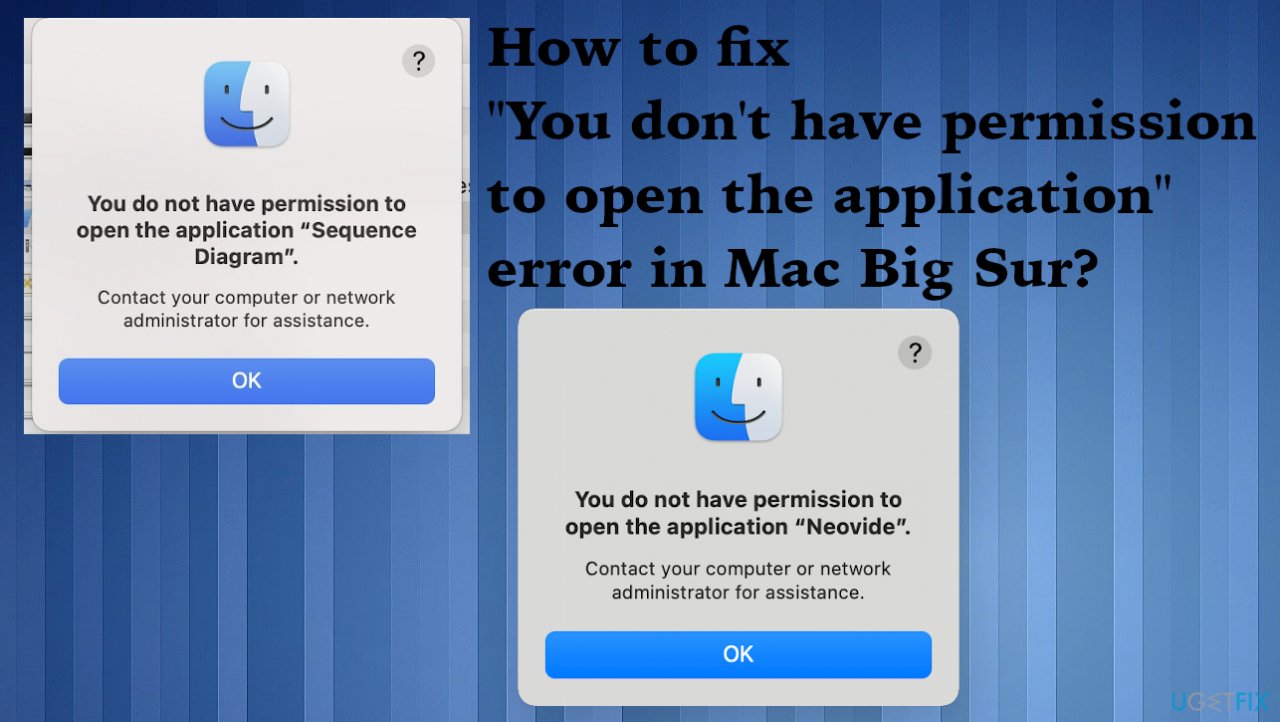
1. Update the operating system to the latest version
- Hit the System Preferences gears in the dock.
- When the settings open up, choose Software Update.
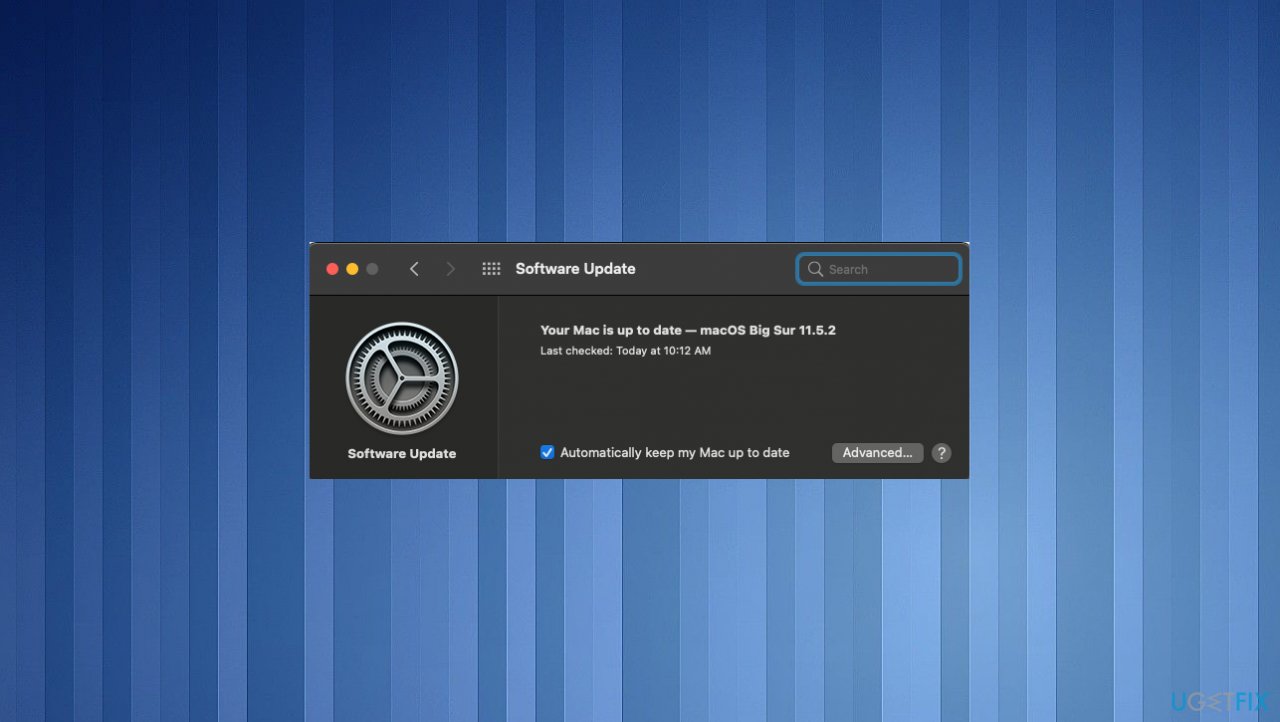
Mac big sur permission error os update - The window should trigger the check for the latest version automatically.
- If there are any available updates, install them.
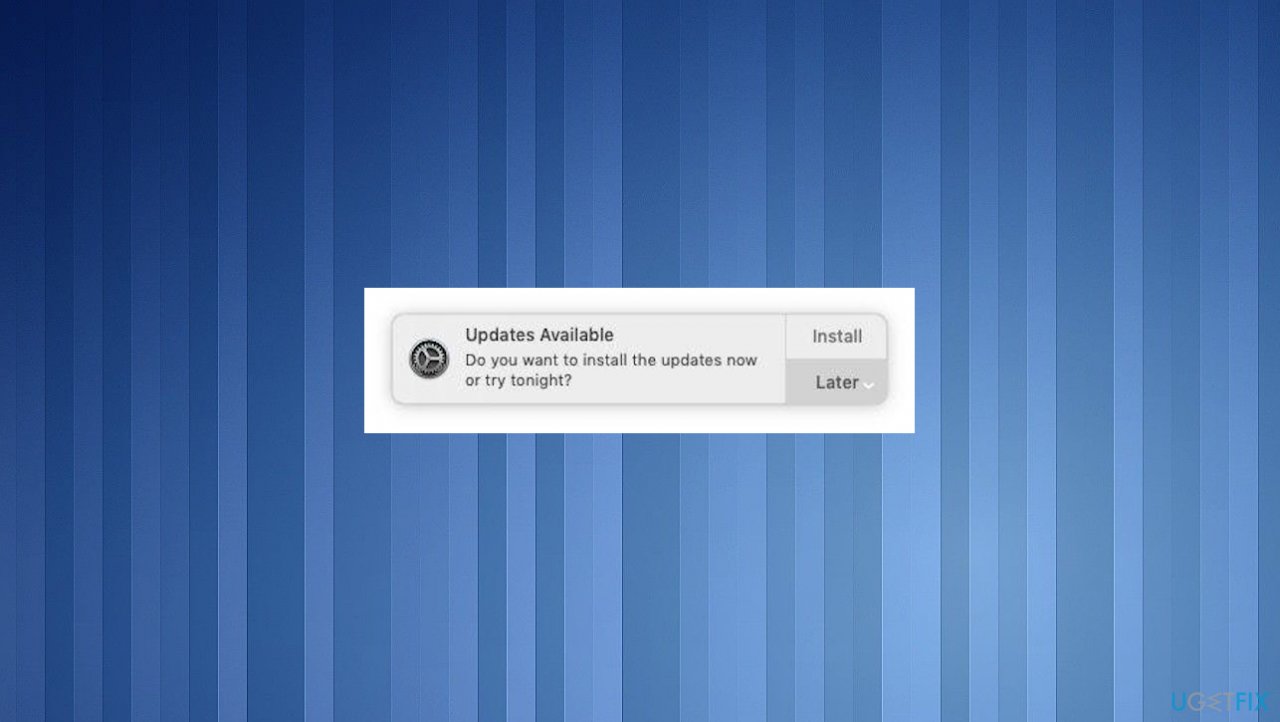
Mac big sur permission error update offer - If you choose to keep the OS updated, you may get those suggestional notifications about upgrades. You need to allow the update to install when they are provided so the machine runs smoothly.
2. Try the temporary fix
Apple should provide a better fix for this issue. Hence this is the temporary fix.
- Close any open programs.
- Select Go at the top.
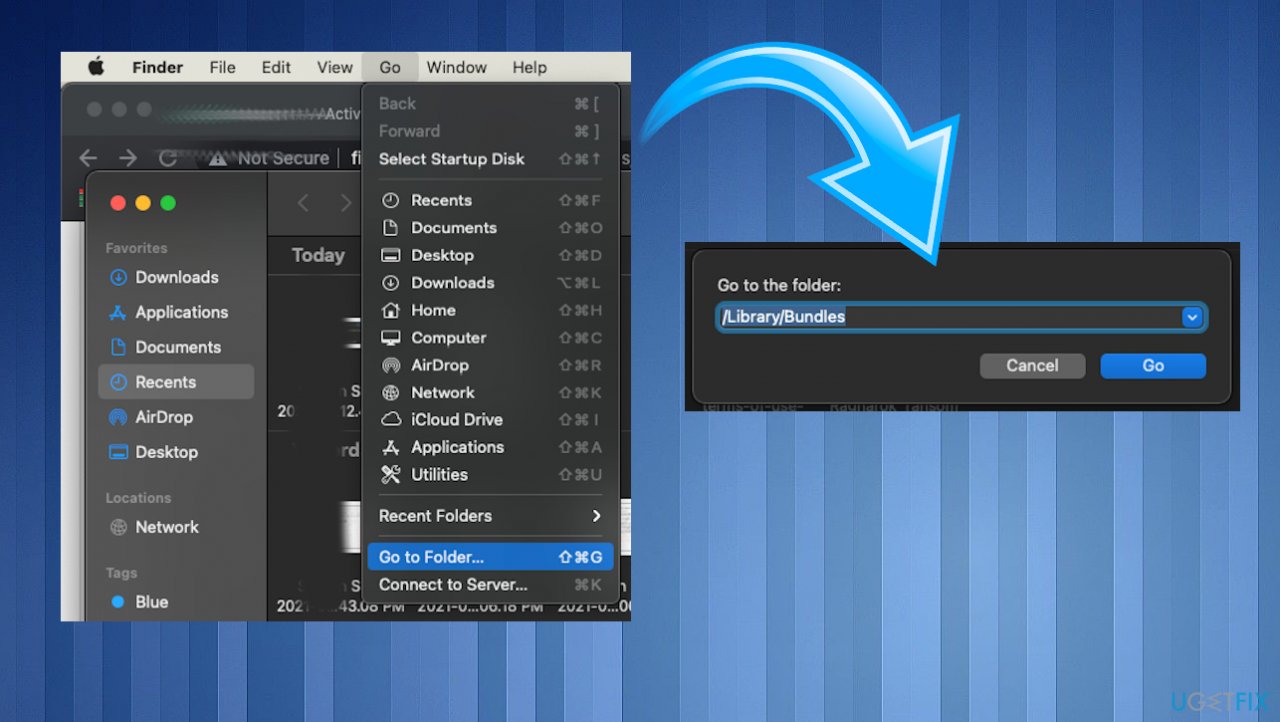
Mac big sur permission error go to - Hit Go To Folder from the menu in the Finder.
- Type /Library/Image Capture/Devices and then press Enter.
- Then double-click the app mentioned in the error message.
- Close the window and open the app.
- Repeat these steps with apps that trigger the error.
3. Try to solve the issue with Terminal commands
- Open the terminal from your dock or apps.
- Type the following commands:
sudo chmod -R 755 /path/to/app
sudo xattr -dr com.apple.quarantine /path/to/app
$ chmod 777 nameoftheapp.app
4. Disable the Gatekeeper
- Open Terminal.
- Run the: sudo spctl --master-disable
5. Verify the Sharing and Permissions
- Go to System Preferences.
- Hit Sharing.
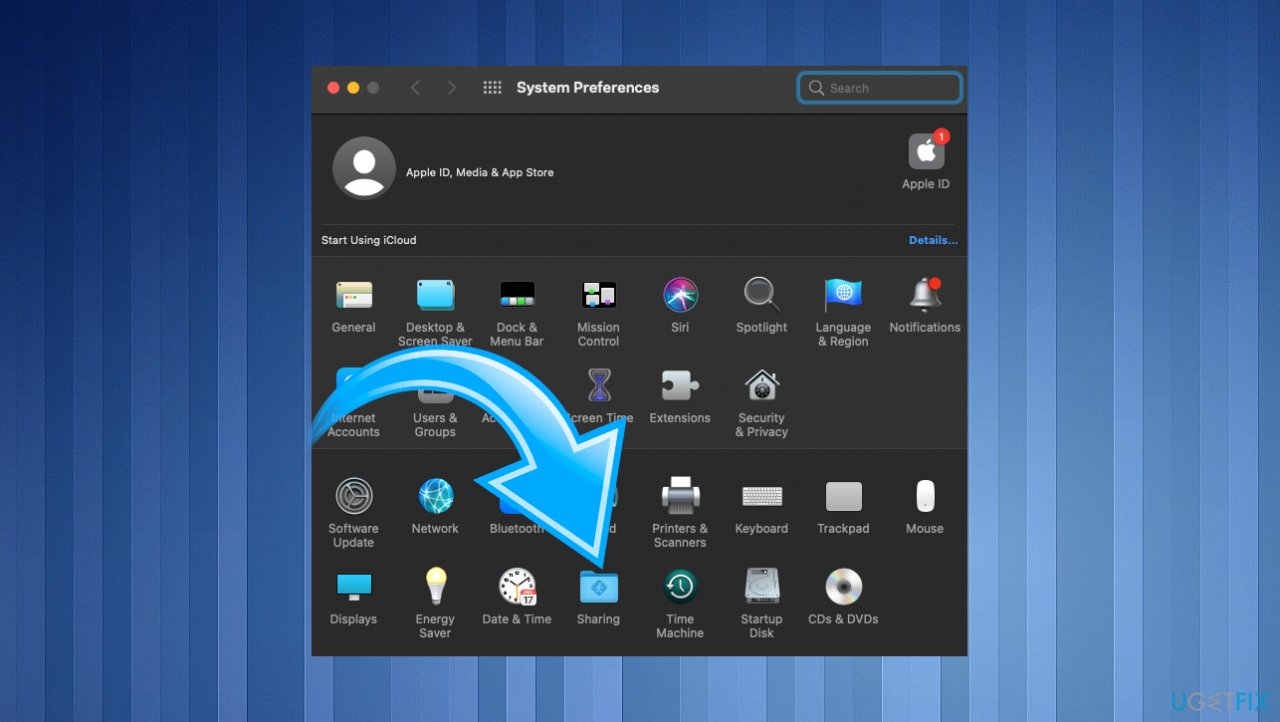
Mac big sur permission error sharing - Choose File Sharing.
- Then expand Shared Folders.
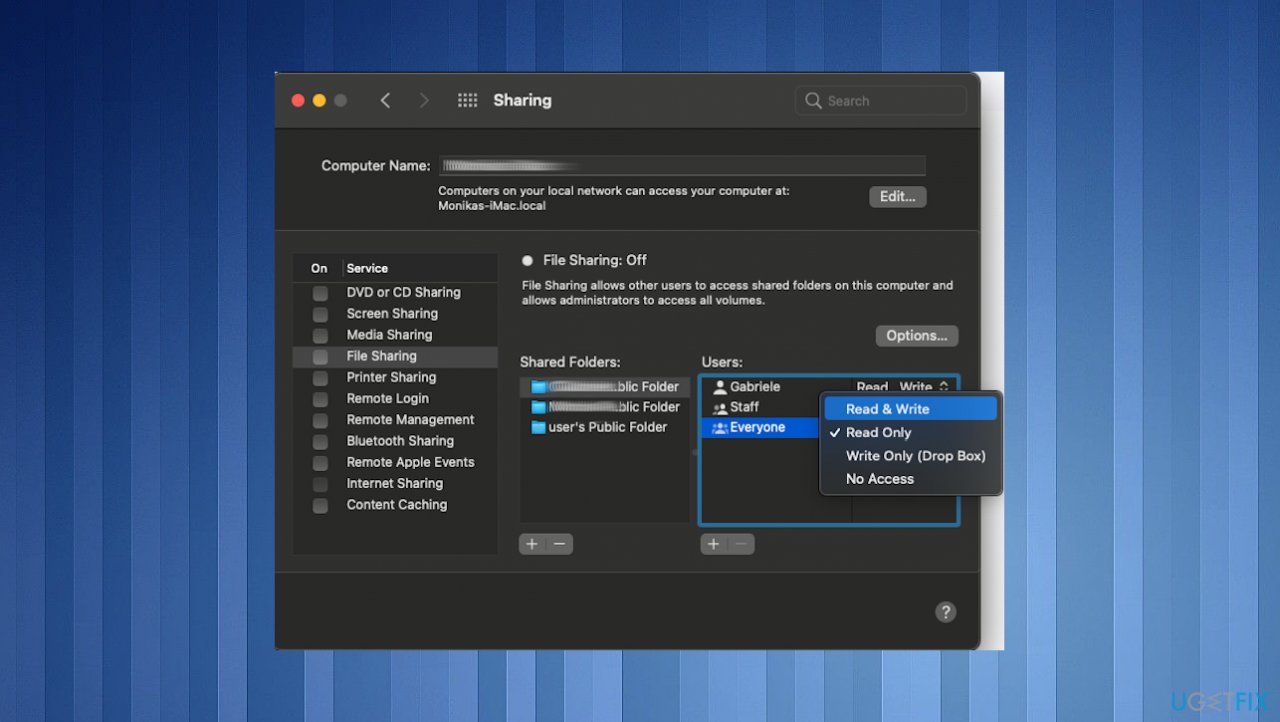
Mac big sur permission error red write - Select Users and chose Everyone: change from Read-only to Read & Write.
Bottom line
To fix the "You don't have permission to open the application" error in Mac Big Sur, ensure your OS is updated to the latest version and check for application corruption. If these steps do not resolve the issue, consider system optimization or security software to address potential malware or damaged system files.
Frequently asked questions
You can try running the application as an administrator by right-clicking the app and selecting 'Run as administrator'. Additionally, check the file permissions in the Properties menu under the Security tab.
Ensure that your user account has administrative privileges and try disabling any antivirus software temporarily during the installation process.
Yes, you can adjust User Account Control settings by searching for 'UAC' in the Start menu and setting it to the lowest level, but be cautious as this may expose your system to security risks.




Report an issue
What's wrong with this guide? We review every report and update or remove content.
Report received — thank you. We'll review and fix it.
You need a free account to submit a report.
Be the first to comment