How to fix
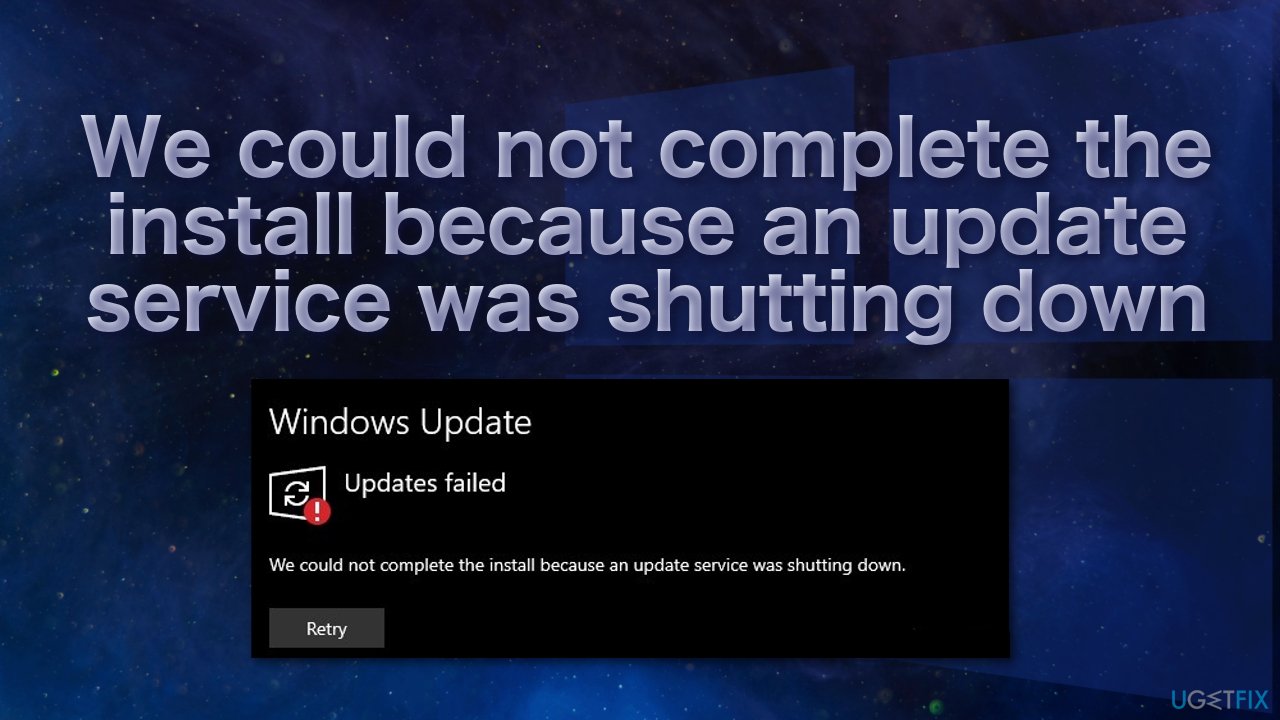
We could not complete the install because an update service was shutting down
on Windows
Resolve the "We could not complete the install" error on Windows 10/11 effortlessly. Quick fixes and expert-tested solutions await you!

![[Fix] We could not complete the install because an update service was shutting down](https://ugetfix.com/wp-content/uploads/articles/askit/we-could-not-complete-the-install-because-an-update-service-was-shutting-down_en-768x432.jpg)
What causes [Fix] We could not complete the install because an update service was shutting down?
- Windows update service crashed
- Windows update service was disabled
- Damaged system files
- Virus infection
- Automatic update feature failure
Repairs Windows system files, removes malware, and restores a clean OS state — without reinstalling.
Hello, I have attempted to update my Windows multiple times, and I get an error saying, "We could not complete the installation because an update service was shutting down." What should I do?
The Windows operating system is widely used by home users and businesses; they rely on receiving updates to keep their devices running smoothly and securely. A disrupted update process can cause serious issues to both regular users and those working at the corporations because patches,[ref en-1] service packs, feature updates, software updates are required for Windows OS to run well.
Windows 10 introduced an automatic Update feature, which is responsible for downloading and installing all Windows updates regardless of their type. Unfortunately, the automatic update service sometimes fails to perform. This can leave the system outdated for a long time, and users might start noticing negative effects.
Installing the available updates is a must to keep the system stable, secure, and efficient, so when automatic updating fails, and users go and try to do it manually and it still does not work, this can be quite frustrating.
"We could not complete the install because an update service was shutting down” error prevents people from receiving the application and/or security updates that are crucial in terms of safety and execution. There are various reasons why this could be happening, but the main one is Windows update service crashed or was disabled.
One possibility is that some of your system files are damaged. If you have a virus infection, it likely messed up your Windows update service. These kinds of issues are hard to identify, so we recommend using a powerful repair tool [d1] if you want to avoid going through all the possible fixes. This software can find the underlying problems on a PC, replace the damaged system components within just a few minutes, and fix BSODs,[ref en-2] registry issues,[ref en-3] and errors. Besides, the app can be used as a maintenance utility for freeing up space, increasing performance.
If you have come across the "Updates failed" error, you need to fix it as soon as possible. Make sure to follow the guides step-by-step carefully:
Solution 1. Run Windows Update Troubleshooter
- Select Start and go to Settings
- Choose Update & Security
- Click Troubleshoot and Additional troubleshooter
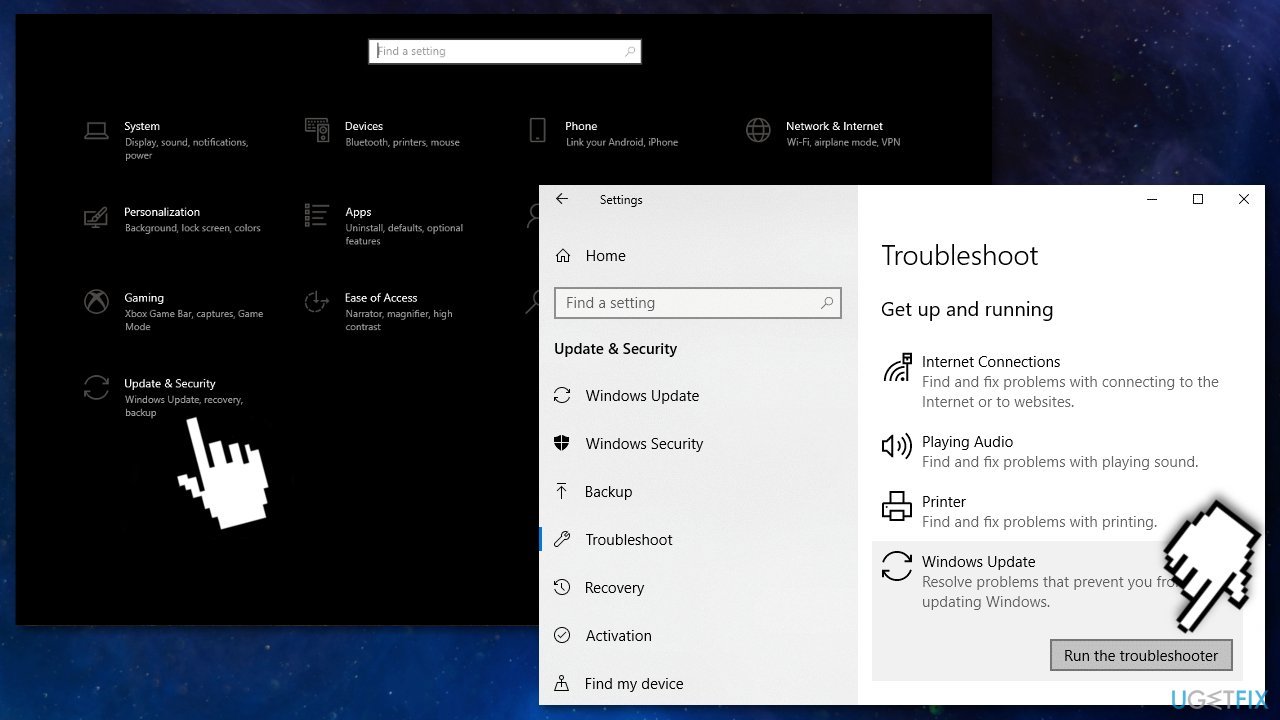
- Select Windows Update and Run the troubleshooter
- Restart
Solution 2. Restart Windows Update Service
Restarting Windows Update Service will undo any configurations done by the user or application:
- Press Windows + R to open the Run dialog
- Type services.msc and click OK
- In the Services window, scroll down to find Windows Update Service
- Right-click, select Properties, change its Startup type to Automatic, and change its Service status to Running
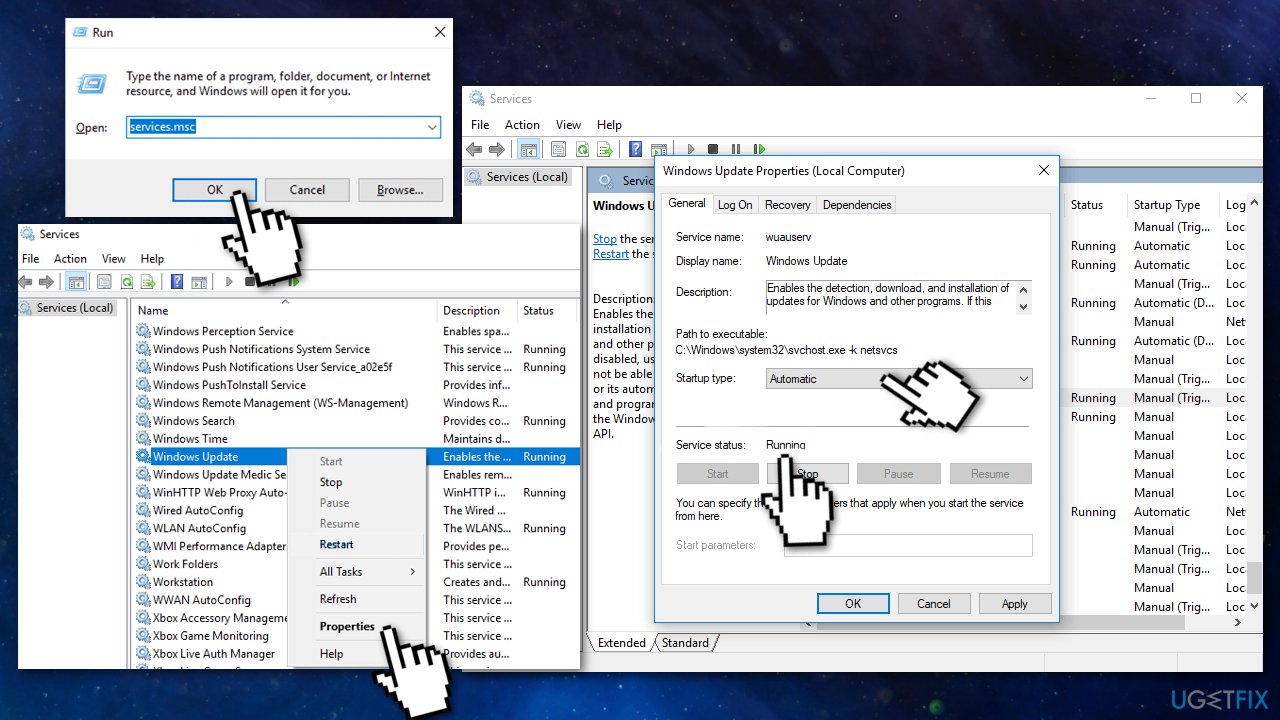
- Click Apply and OK
- Restart
Solution 3. Uninstall Third-Party Antivirus Software
Sometimes third-party antivirus software may block the Windows update installation, so try uninstalling it:
- Click Start, search for Control Panel
- Choose Uninstall a program under the Programs
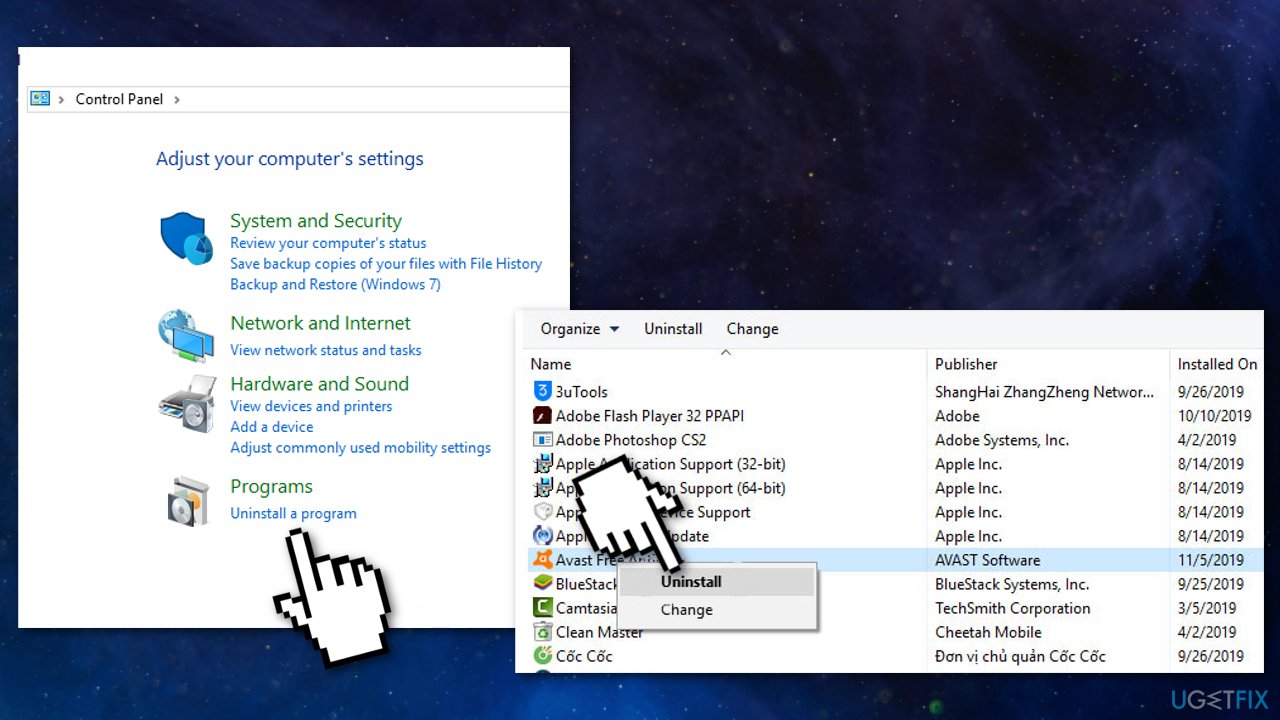
- Find the third-party antivirus software and select Uninstall
- Restart
Solution 4. Fix Corrupted Windows Update Database
- Type Command Prompt in the search box
- Choose Run as administrator
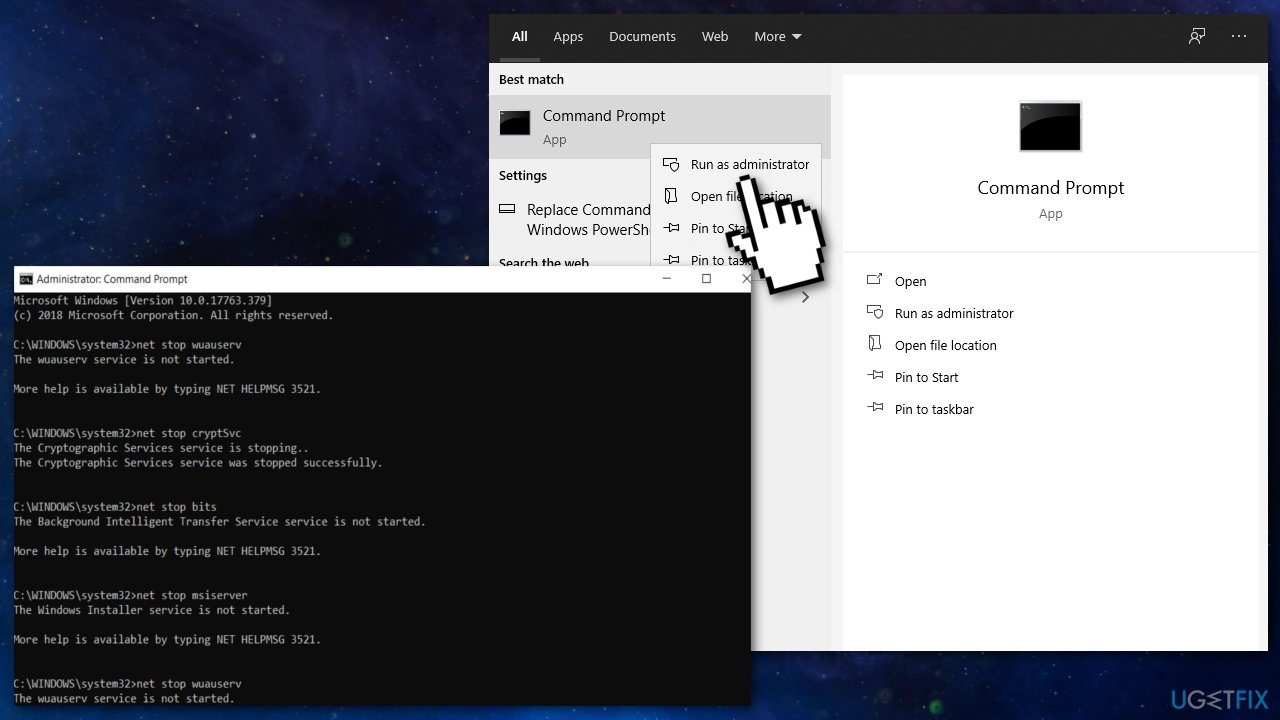
- In the Command Line window, type the following commands and hit Enter after each:
net stop wuauserv
net stop cryptSvc
net stop bits
net stop msiserver
Ren C:\\\\Windows\\\\SoftwareDistribution SoftwareDistribution.old
Ren C:\\\\Windows\\\\System32\\\\catroot2 Catroot2.old
net start wuauservnet start cryptSvc
net start bits
net start msiserver - Wait for the process to be finished and Restart
Solution 5. Repair corrupted system files
Use Command Prompt commands to repair system file corruption:
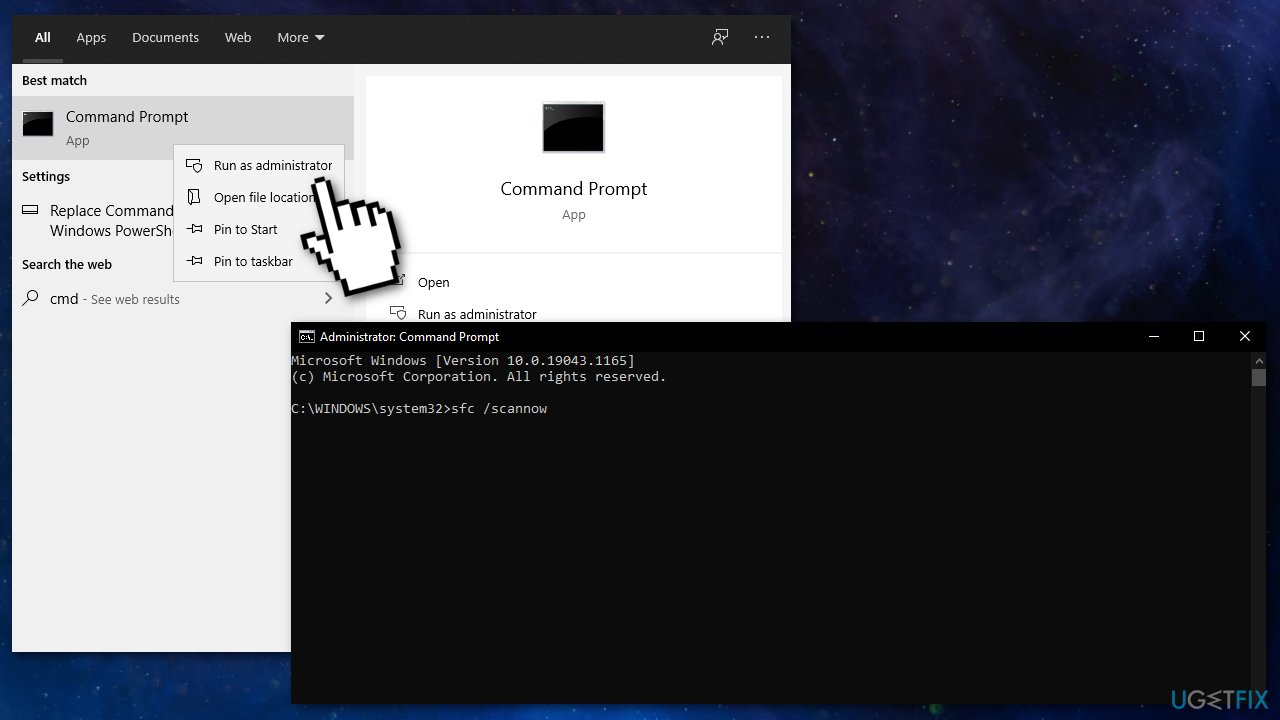
- Open Command Prompt as administrator
- Use the following command and press Enter:
sfc /scannow
- Reboot your system
- If SFC returned an error, then use the following command lines, pressing Enter after each:
DISM /Online /Cleanup-Image /CheckHealth
DISM /Online /Cleanup-Image /ScanHealth
DISM /Online /Cleanup-Image /RestoreHealth
Solution 6. Update via ISO File
Back up your important data to an external drive before proceeding:
- Download Windows Media Creation Tool
- Follow the wizard to continue
- On the What do you want to do page, choose Create an installation media(USB flash drive, DVD, or ISO file) for another PC
- Choose the Language, Windows Edition, and Architecture
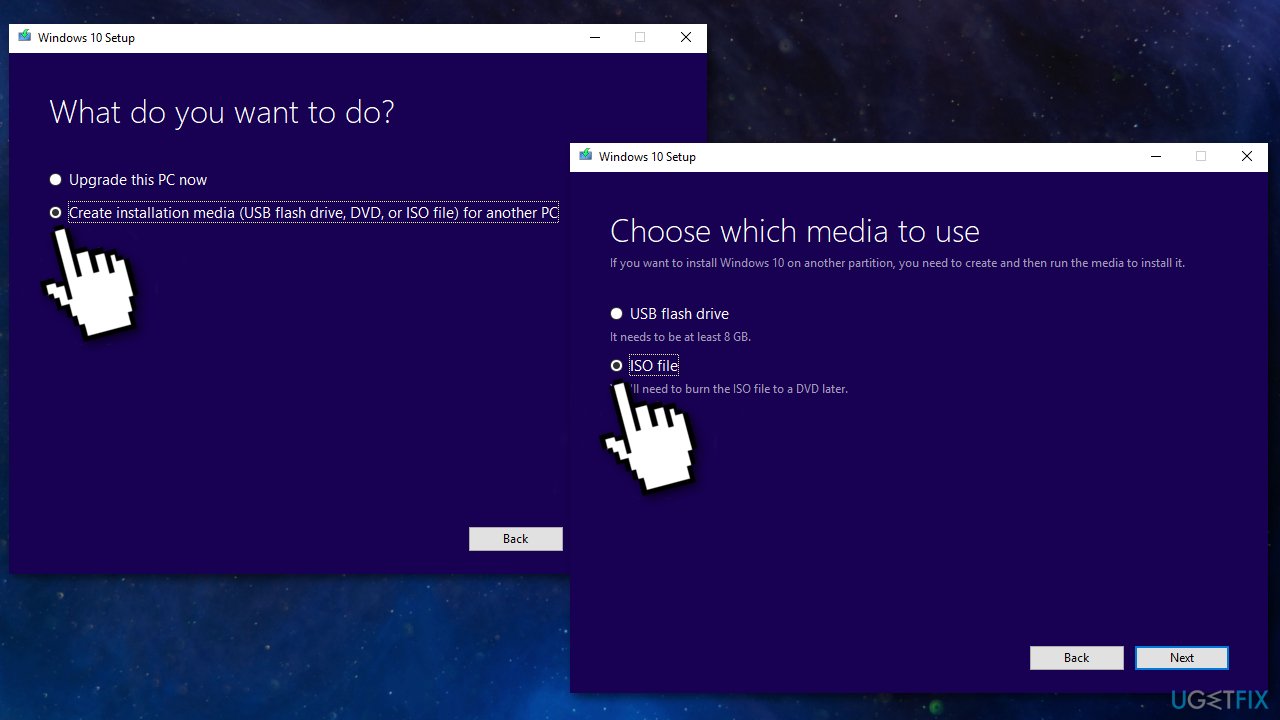
- Select ISO file
- After the ISO file is made, mount it
- Go to the location where you saved the ISO file
- Right-click and select Properties
- Navigate to the General tab
- Click Change
- Select Windows Explorer to open the ISO file and click Apply
- Right-click the ISO file and select Mount
- Double click to view the files
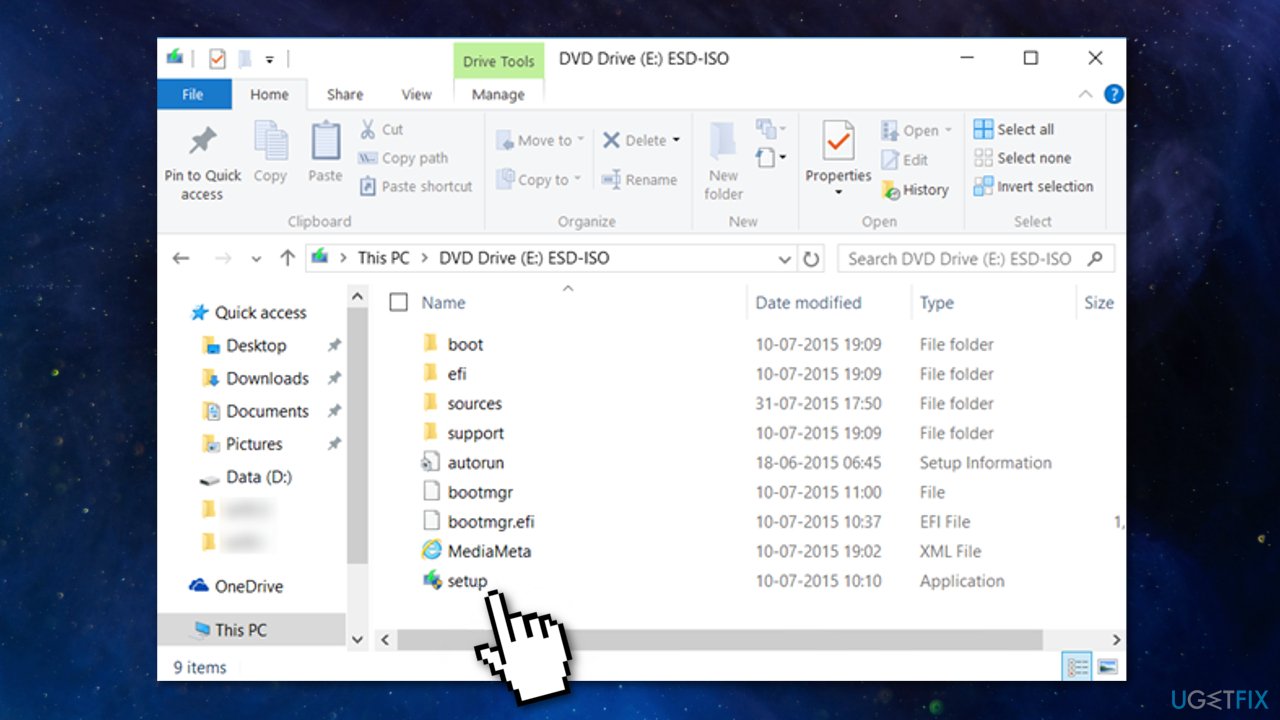
- Double-click setup.exe to start Windows 10 set up
- Restart
You might also be interested in these topics:
Bottom line
To resolve the error, users can utilize a powerful repair tool to identify and fix underlying issues, check the status of the Windows update service, and ensure system files are intact. If these solutions do not work, further troubleshooting may be necessary.
Frequently asked questions
You can resolve this issue by restarting the Windows Update service through the Services app, or by running the Windows Update Troubleshooter in the Settings menu.
Ensure that your system is up to date and check for any pending updates, as installing the latest patches can help stabilize the update service.
Yes, you can reset the Windows Update components by running specific commands in Command Prompt as an administrator, which can resolve issues related to the update service.




Report an issue
What's wrong with this guide? We review every report and update or remove content.
Report received — thank you. We'll review and fix it.
You need a free account to submit a report.
Be the first to comment