How to fix
Windows has stopped showing thumbnails of photos
on Windows
Resolve missing photo thumbnails on Windows 10 or Windows 11 efficiently. Follow our expert-tested solutions and restore your gallery in minutes!

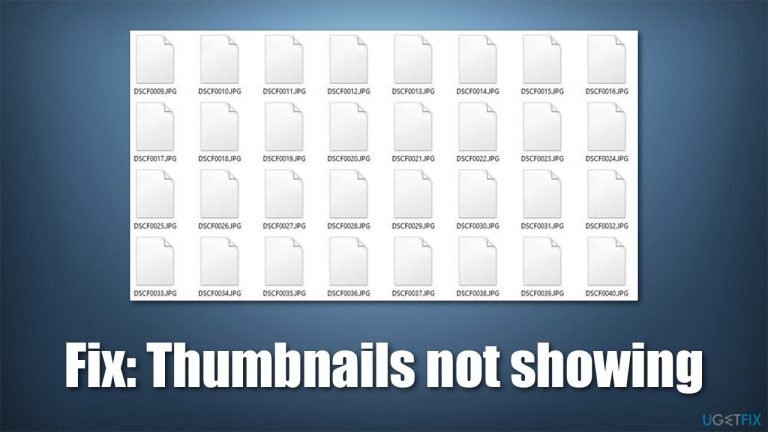
What causes How to fix Windows has stopped showing thumbnails of photos?
- Incorrect file folder settings
- File system corruption
- Triggered by a Windows upgrade
- Triggered by connecting an external storage device
- Complete lack of thumbnail previews across all image formats
Repairs Windows system files, removes malware, and restores a clean OS state — without reinstalling.
Hello. I have had my Windows 10 laptop for years now, and everything was working fine until recently. I connected my phone to it to transfer some photos over, and the thumbnail preview of my photos is not showing anymore in File Explorer. Instead, I get the "picture" icon and no preview. Is there anything that can be done to fix this? Tips would be much appreciated.
File Explorer is a built-in UI feature that allows users to access their files easier and navigate to places they need to. When dealing with JPEG, PNG, GIF, and similar picture files, users have an option to enable a thumbnail preview, which would show a miniature version of the original image.
This feature is very convenient for many people, for example, for those who work with graphical design or even photographers. It allows users to quickly visually see which picture is which without having to open it fully (most photos are labeled by date and include alphanumeric characters, which does not make it a perfect identification method).
Unfortunately, many users reported that Windows has stopped showing thumbnails of photos for one reason or another. Some people claimed that the issue showed up seemingly out of nowhere, while others said that it was triggered by some type of an event, for example, a Windows upgrade or after connecting an external storage device to the PC.
The problem is also a little bit different from person to person. In some cases, the thumbnail preview is not working only for some photos, while others are completely fine. Most people experienced a complete lack of thumbnail previews across all image formats, dates, and other unique features.
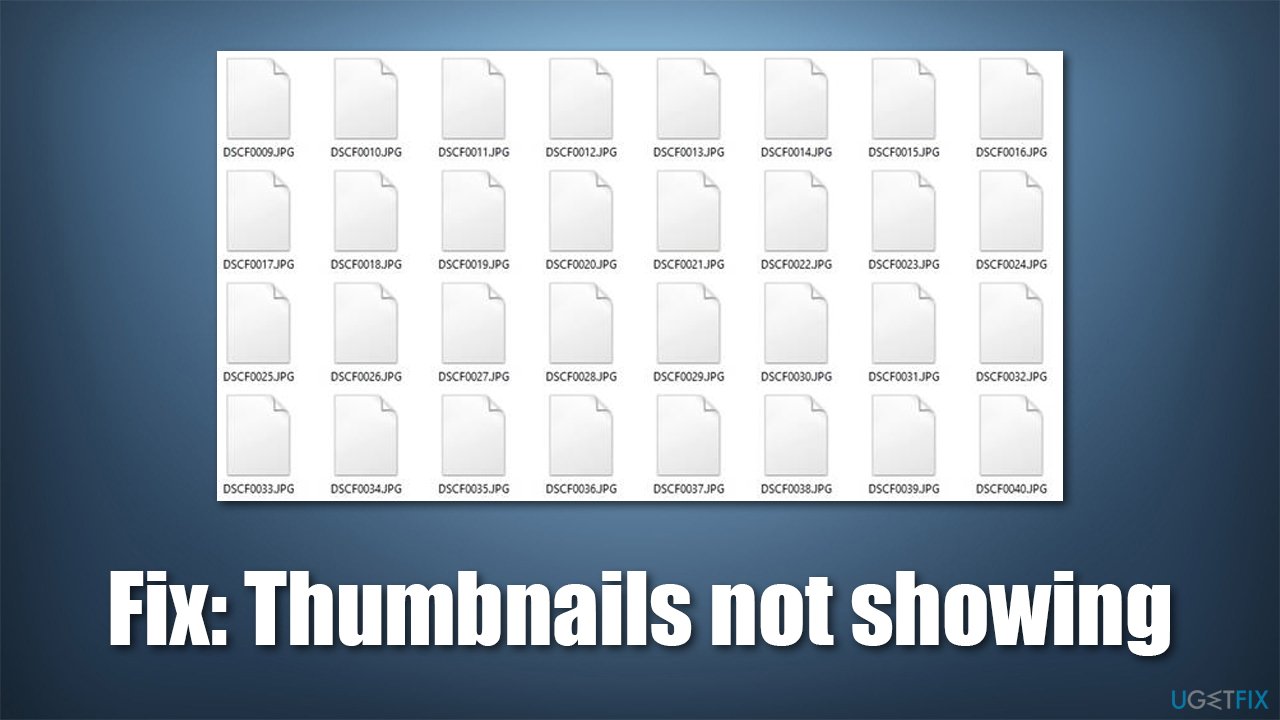
There could be many reasons for this behavior - from incorrect file folder settings to file system corruption. Thus, in order to fix missing Windows photo previews, several troubleshooting steps should be undertaken, until the right solution is found. Below you will find methods that should help you solve the problem but before you proceed, we strongly recommend you try using a reputable PC repair tool [d1].
It can check your Windows system for any underlying issues that could cause the missing picture previews, for example, windows registry errors. Additionally, the app can be used when dealing with problems like Blue Screen of Death[ref en-1] crashes or missing DLL[ref en-2] errors.
1. Check the file options
In some cases, the solution might be very simple - correcting the folder options' settings. Here's what you should try first:
- Press Win + E on your keyboard to open File Explorer
- Go to the View tab
- Select Options > Change folder and search options
- Go to the View tab
- Untick the Always show icons, never thumbnails option
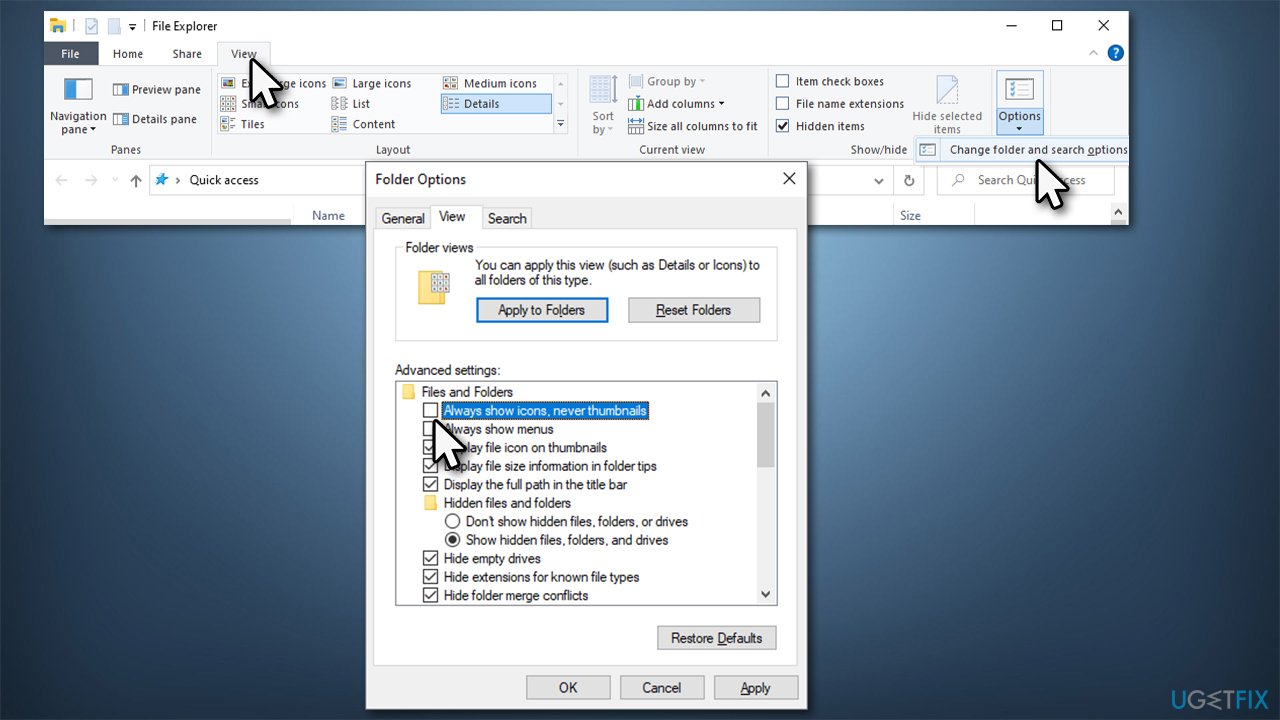
How to fix windows has stopped showing thumbnails of photos change file options - Click Apply and OK.
2. Run SFC and DISM
In case system file corruption is causing the issue, you can fix it by running SFC and DISM scans via elevated Command Prompt. Here's how:
- Type in cmd in Windows search
- Right-click on Command Prompt and select Run as administrator
- If the User Account Control message pops up, click Yes
- In the new window, copy and paste the following command and press Enter:
sfc /scannow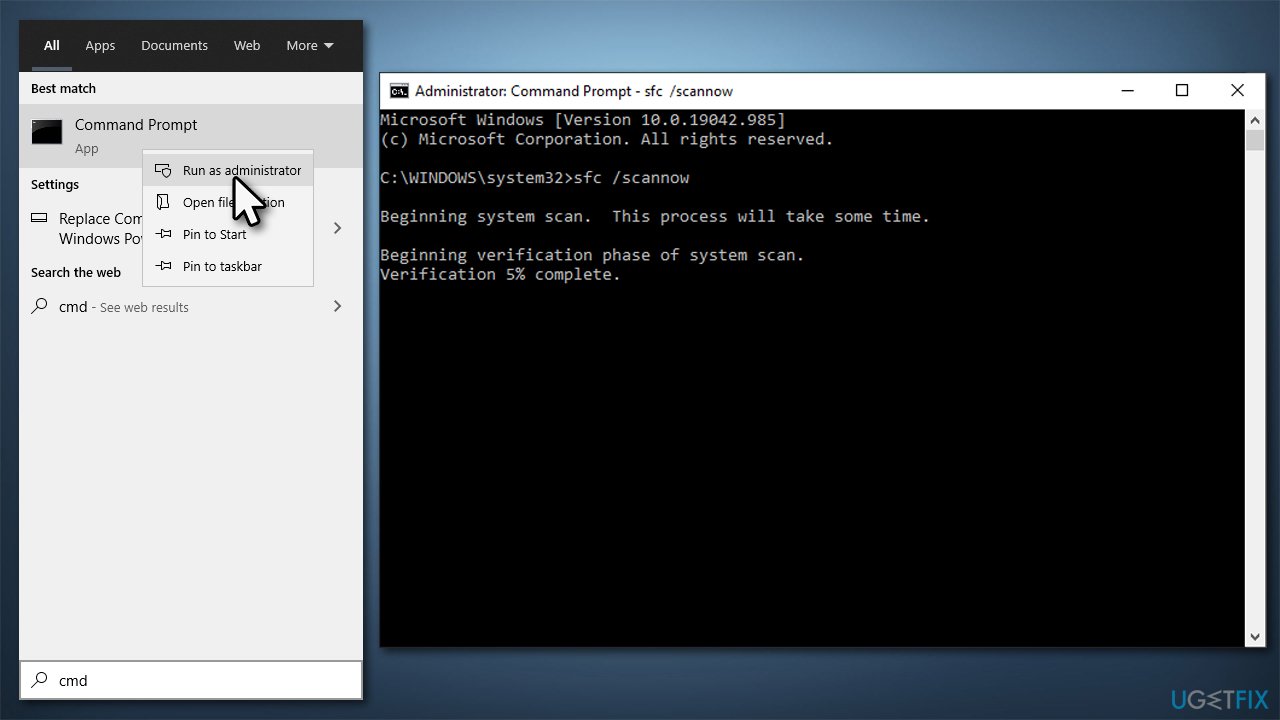
How to fix windows has stopped showing thumbnails of photos run sfc scan - Wait till the scan is finished and then use these commands, pressing Enter after each:
DISM /Online /Cleanup-Image /CheckHealth
DISM /Online /Cleanup-Image /ScanHealth
DISM /Online /Cleanup-Image /RestoreHealth - Once done, restart your computer.
3. Use Disk Cleanup
Cleaning caches[ref en-3] might sometimes help you solve the missing thumbnail previews.
- Type in Disk Cleanup in Windows search and press Enter
- Select the drive where the picture files are located, for example, C:
- From the Files to delete list, tick the Thumbnails and Temporary files options
- Click OK.
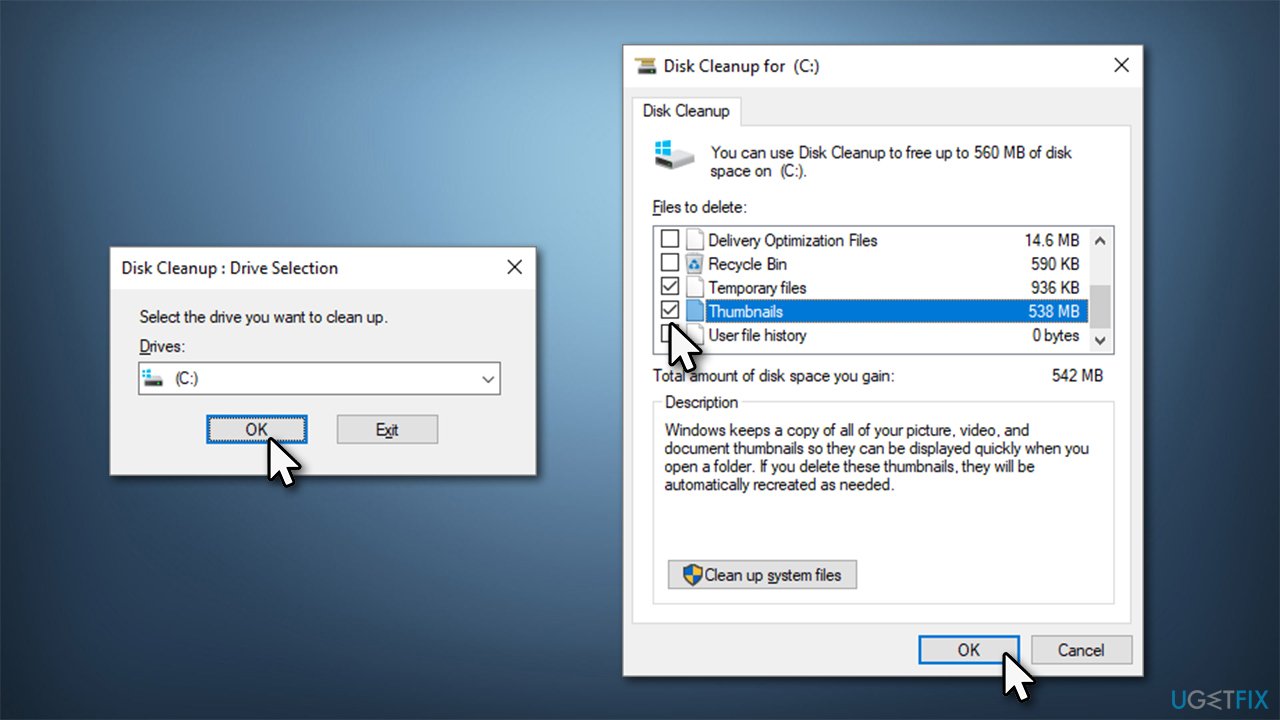
How to fix windows has stopped showing thumbnails of photos use disk cleanup
4. Check Performance options
There is another place on your PC where an incorrect option could be used. Here's how to set it correctly:
- Right-click on Start and pick System
- In the new window, scroll down and click Advanced system settings
- Under Performance, pick Settings
- Make sure that the Show thumbnails instead of icons option is ticked
- Also, tick Save taskbar thumbnail previews
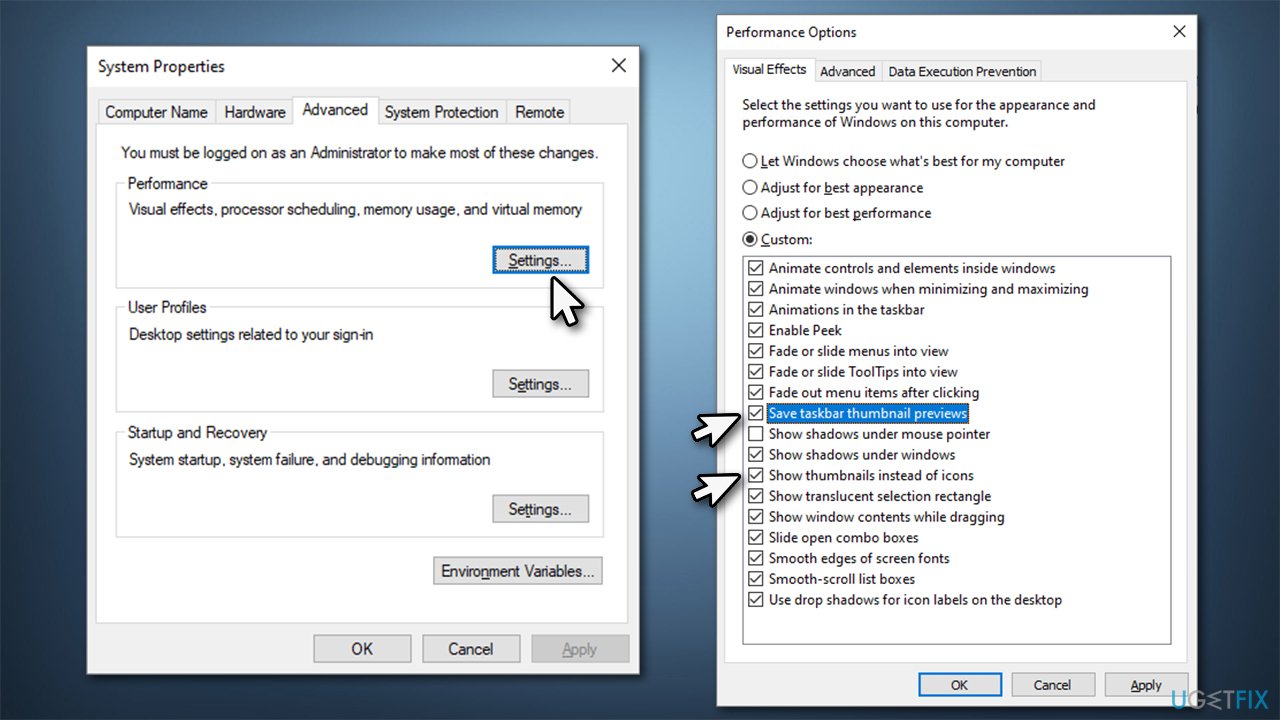
How to fix windows has stopped showing thumbnails of photos check performance options2 - Click Apply and OK.
5. Restore File Explorer options to default
- Press Win + E on your keyboard to open File Explorer
- Go to the View tab
- Select Options > Change folder and search options
- Go to the View tab
- Click Restore Defaults
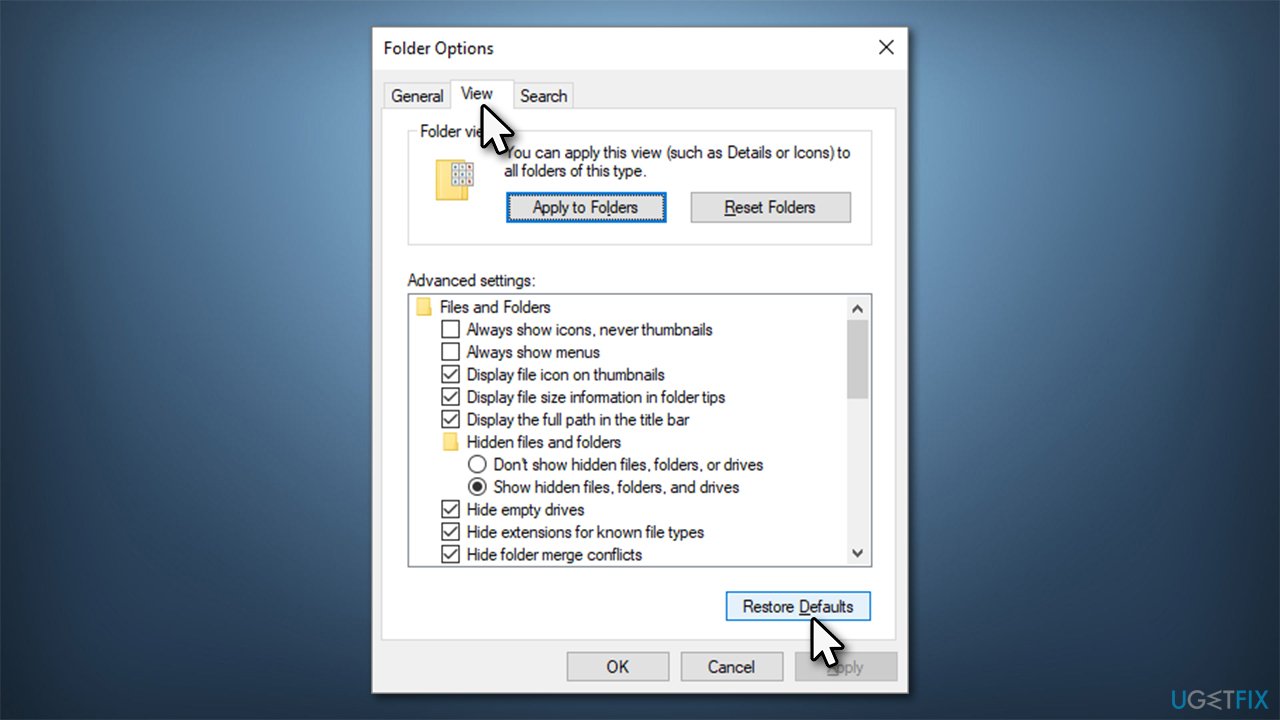
How to fix windows has stopped showing thumbnails of photos restore file explorer options to default - Follow up with Apply and OK.
6. Reinstall OneDrive
In some cases, OneDrive might corrupt thumbnails. Reinstalling the app might help you fix the problem.
- Right-click on Start and pick Apps & Features
- Here, scroll down to Microsoft OneDrive and click it
- Select Uninstall > Uninstall
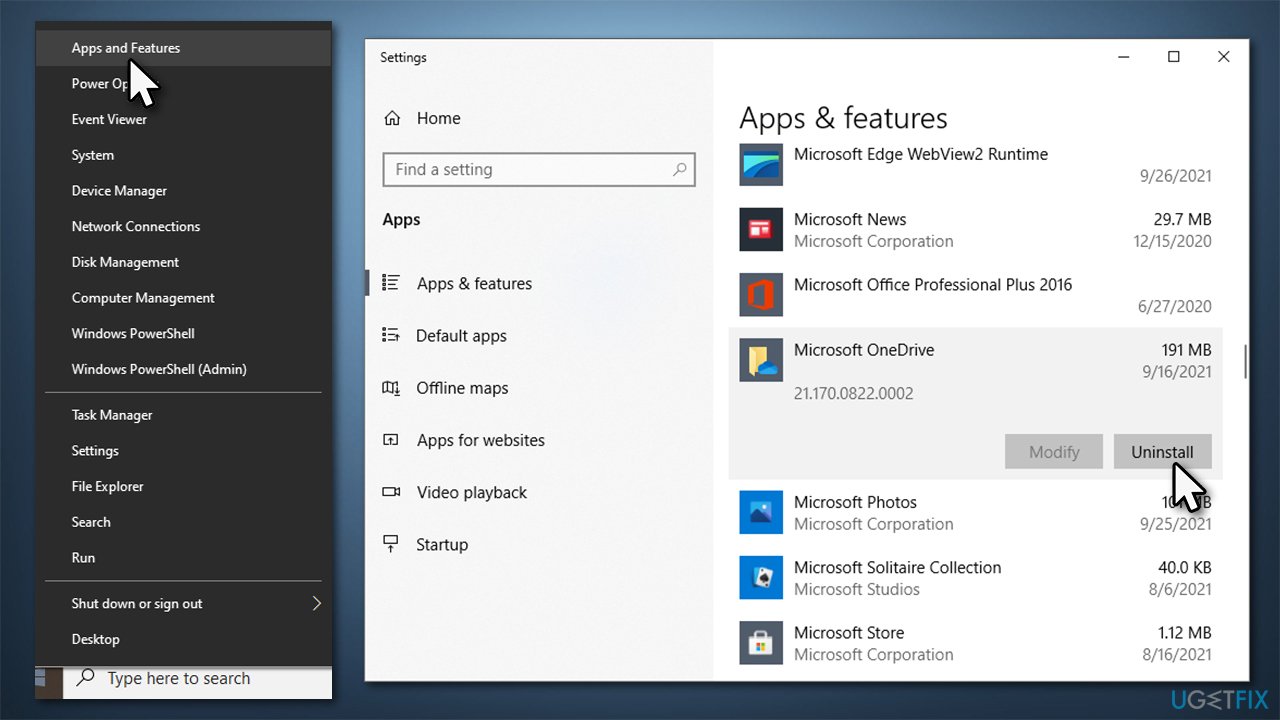
How to fix windows has stopped showing thumbnails of photos reinstall onedrive - When UAC shows up, click Yes
- Proceed with on-screen instructions to finish the process
- Restart your computer
- Go to the official Microsoft website to download OneDrive
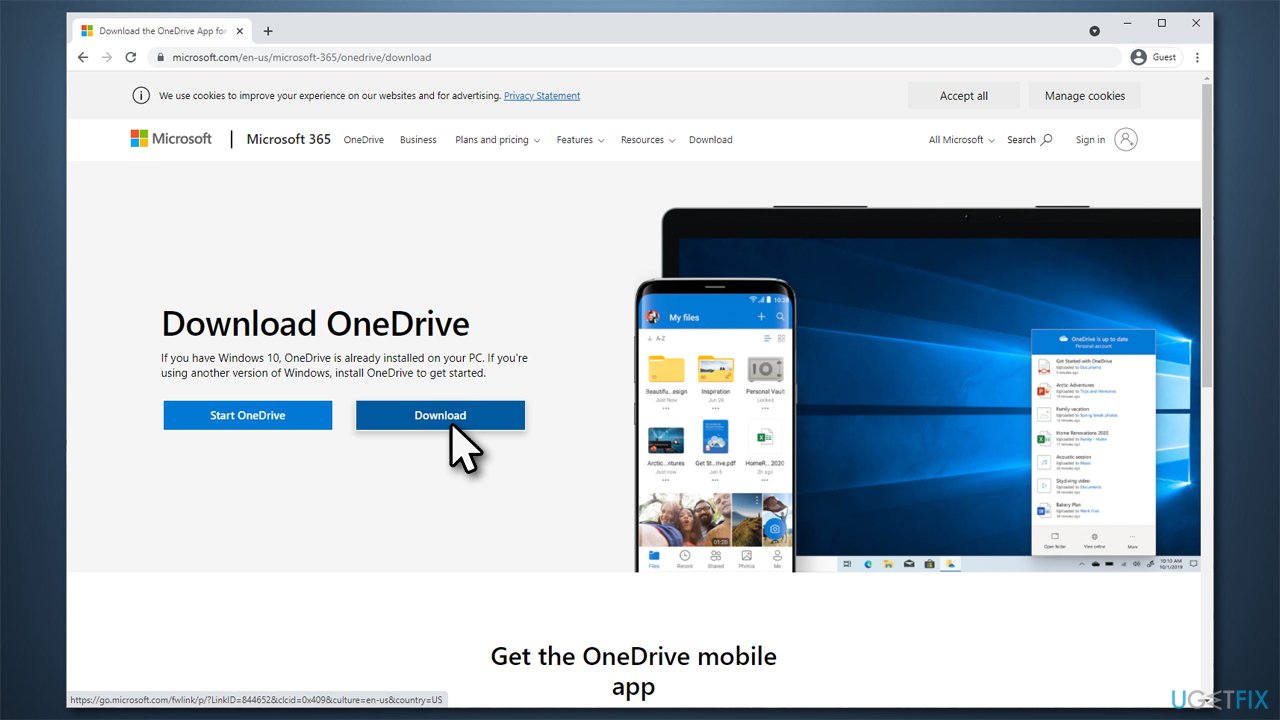
How to fix windows has stopped showing thumbnails of photos download one drive - Install it and see if the issue is resolved.
Other related topics you might be interested in:
Bottom line
To fix the issue of missing thumbnail previews, you can try adjusting file folder settings, checking for file system corruption, or using a reputable PC repair tool. If these methods do not resolve the problem, further troubleshooting may be necessary.
Frequently asked questions
Thumbnails may not show due to corrupted cache files or incorrect folder settings. Try clearing the thumbnail cache and ensuring that the Display file icon instead of thumbnails option is unchecked in Folder Options.
In Windows 11, you can restore photo thumbnails by opening Folder Options, navigating to the View tab, and making sure 'Always show icons, never thumbnails' is unchecked.
If clearing the thumbnail cache doesn't resolve the issue, consider resetting the Windows Photo app or checking for updates that might fix any underlying bugs.




Report an issue
What's wrong with this guide? We review every report and update or remove content.
Report received — thank you. We'll review and fix it.
You need a free account to submit a report.
Be the first to comment