How to fix
Microsoft Edge error “Can’t connect securely to this page”
on Windows
Resolve the "Can’t connect securely to this page" error in Microsoft Edge on Windows 10 and 11. Get expert-tested solutions that work instantly!


What causes How to fix Microsoft Edge error “Can’t connect securely to this page”?
- Outdated or unsafe TLS security settings
- Use of weak MD5 and 3DES encryption algorithms
- Third-party antivirus software blocking access
- Corrupted files or system errors
- Issues with the operating system
Repairs Windows system files, removes malware, and restores a clean OS state — without reinstalling.
Hello. I have been trying to access this one page, but I get a message "Can't connect securely to this page". Does anyone have any ideas about what could be causing the issue?
Microsoft Edge is a cross-platform web browser created and developed by Microsoft. It was first released for Windows 10 in 2015 and replaced Internet Explorer. MS Edge introduced a new user interface alongside a suite of useful features. The browser has undergone radical changes, and the latest version is based entirely on the open-source Chromium source code while being retooled with more business-friendly features.
Unfortunately, some users report having issues while trying to access certain websites after a new policy was implemented to prevent the use of weak MD5 and 3DES encryption algorithms.[ref en-1] The message people see says:
"Can't connect securely to this page"
This might be because the site uses outdated or unsafe TLS security settings. If this keeps happening try contacting the website's owner.
The possible cause of the error is explained in the message, but no solution is provided. Users are left to look for them themselves. Some people cannot even access their college sites, which is a big issue. Encryption is important for information to stay safe and protected. If a page does not use encryption or uses weak algorithms, threat actors could use this to their advantage.
It seems like Microsoft upped their standards, but that is preventing users from opening pages that are not malicious and do not collect personal information. In this article, we will explore a couple of possible solutions to the "Can't connect securely to this page" error which you can easily perform yourself.

Sometimes this issue can be caused not by the browser itself, but by external forces, like the operating system or antivirus software. One of the first things you can do now is trying to disable your third-party antivirus, as it could be preventing you from accessing the page. If that did not work, and you do not know any other troubleshooting steps, you can try using a repair tool [d1], which can clear up space, fix corrupted files, system errors, registry issues, and BSODs.[ref en-2] This powerful software can help fix most errors in your PC.
Meanwhile, you can try some of our manual methods with this step-by-step guide:
Method 1. Change supported TLS versions
- Open the start menu, go to the Internet Options, click on the Advanced tab and scroll down to Security
- Verify if the following are checked:
Use TLS 1.0
Use TLS 1.1
Use TLS 1.2
- Uncheck Use SSL 3.0
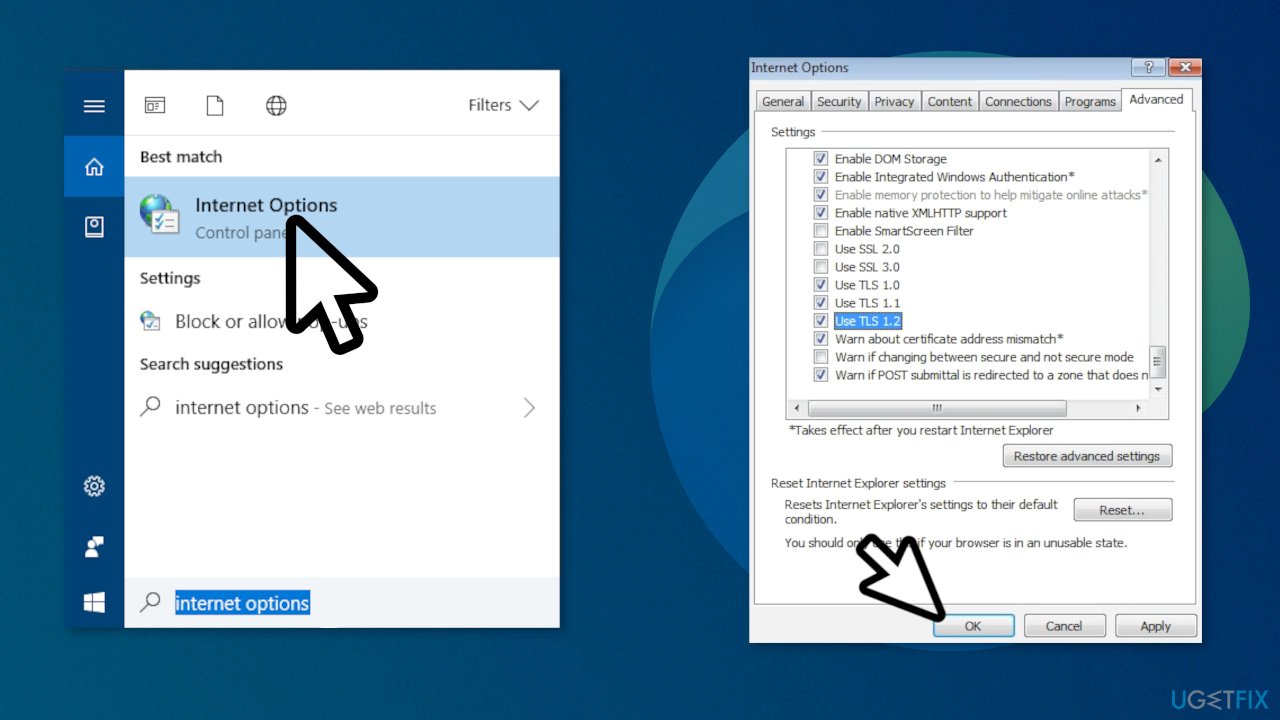
- Close the browser and open it again, then try to open the site
Method 2. Allow the display of mixed content
- Click Start
- Type Internet Options and click on it
- Go to the Security tab
- Make sure the Internet logo is selected and click Custom Level…
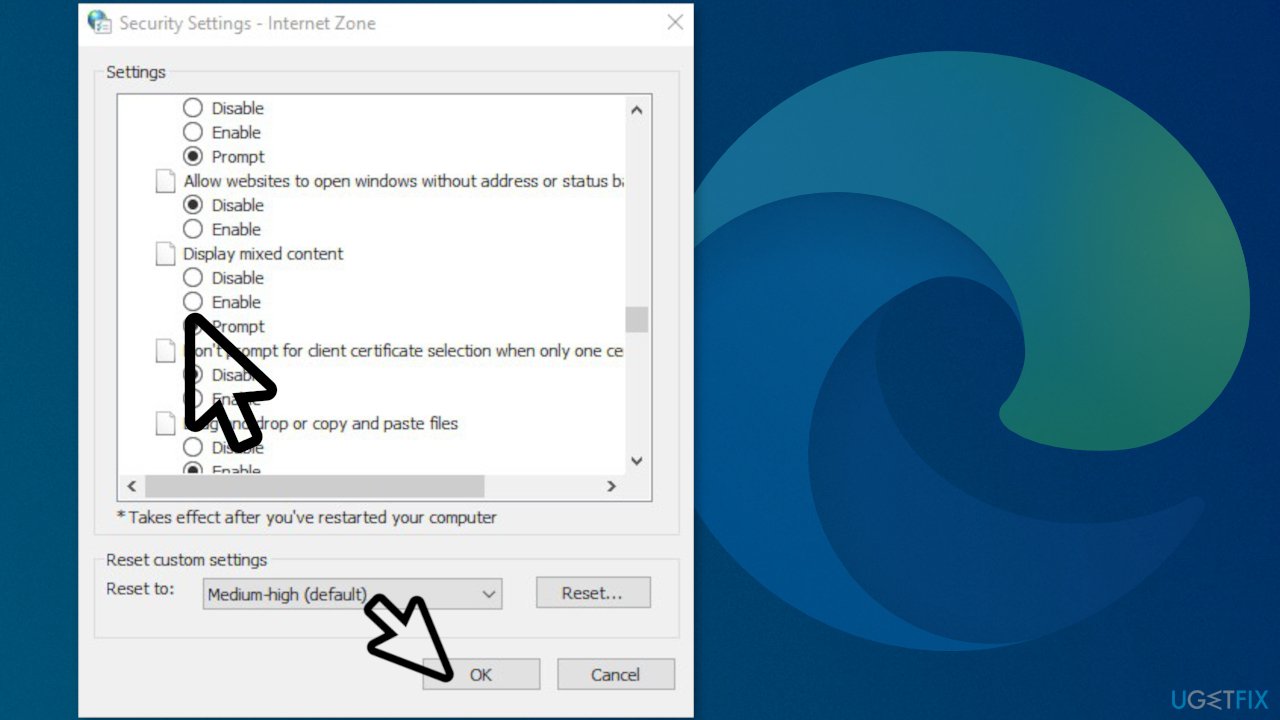
- In Security Settings – Internet Zone, scroll down halfway until you see Display mixed content
- Set it to Enable
- Click OK to apply the changes and close all windows and retry to load the website
Method 3. Update MS Edge
- In the browser, go to Settings and more > Help and feedback > About Microsoft Edge
- If the About page shows Microsoft Edge is up to date, you don't need to do anything
- If the About page shows An update is available, select Download and install to proceed
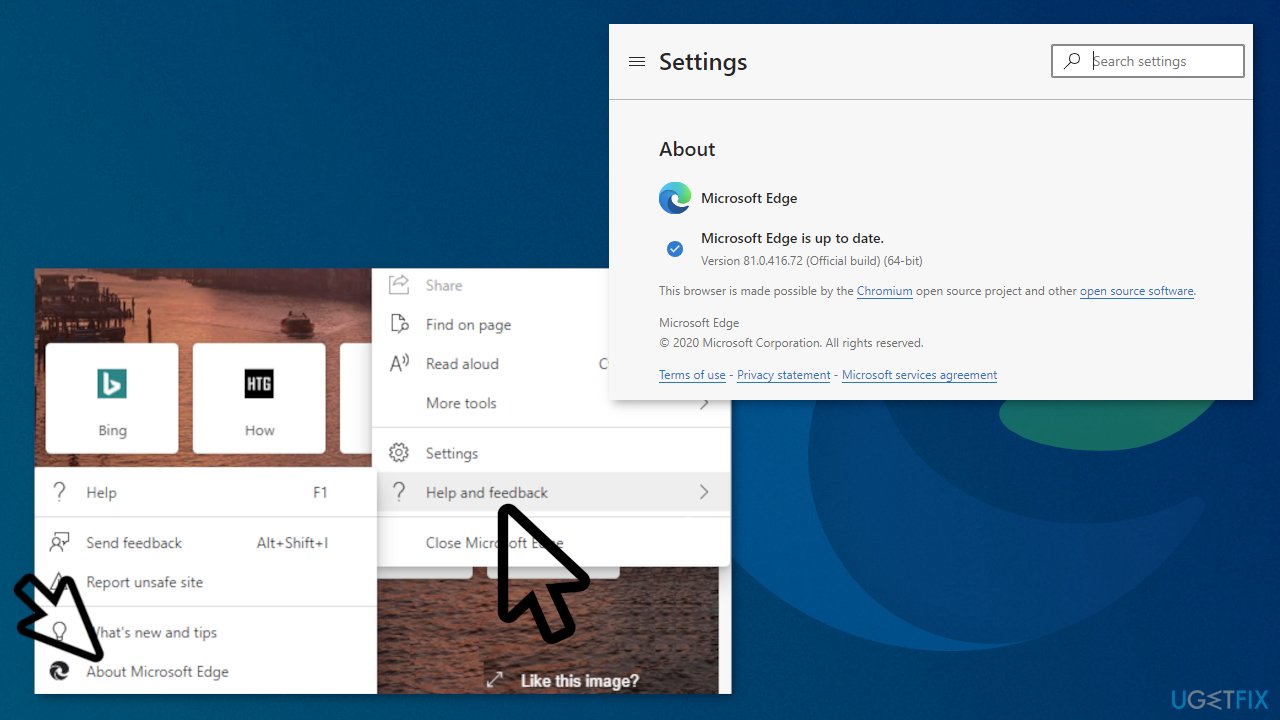
- If the About page shows To finish updating, select Restart to apply the updates
Method 4. Reset Microsoft Edge
- Open Microsoft Edge on your PC and click the three dots in the top-right corner
- In the dropdown menu that opens, click Settings
- In the left sidebar, click the Reset Settings tab
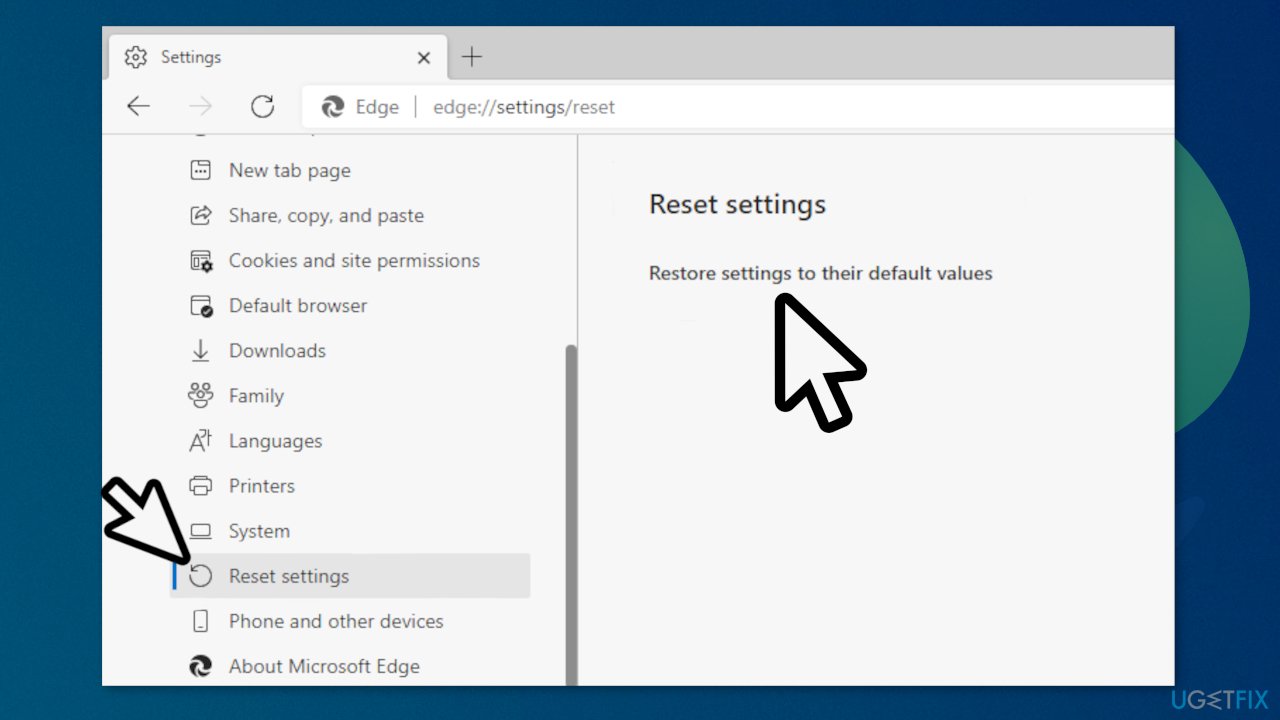
- On the page that opens, click Restore settings to their default values; it should be the only option on the page
- To finish the process click Reset
You might also be interested in these topics:
Bottom line
To fix the "Can't connect securely to this page" error, you can try disabling your third-party antivirus software and using a repair tool to fix corrupted files and system errors. If these solutions do not resolve the issue, consider contacting the website's owner for further assistance.
Frequently asked questions
First, check your internet connection and ensure that the date and time settings on your Windows 10 device are correct. If the problem persists, try clearing your browser cache and cookies.
You can troubleshoot this issue by disabling any VPNs or proxy settings, as they may interfere with your connection. Additionally, resetting Microsoft Edge settings to their default can help resolve the error.
Yes, Windows Defender or third-party antivirus software might block certain connections; try temporarily disabling them to see if it resolves the issue. Ensure that your firewall settings allow Microsoft Edge to access the internet.




Report an issue
What's wrong with this guide? We review every report and update or remove content.
Report received — thank you. We'll review and fix it.
You need a free account to submit a report.
Be the first to comment