How to fix
What is nvbackend.exe? How do I fix it
on Windows
Discover the role of nvbackend.exe in Windows 10 and 11 and how to resolve issues quickly. Expert-tested solutions for seamless performance!

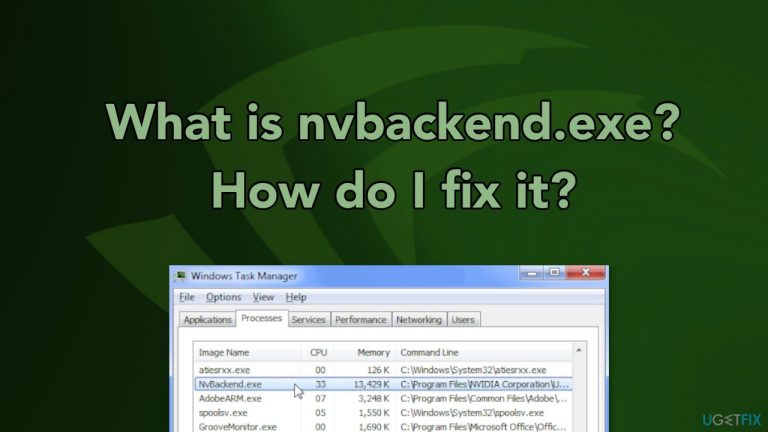
What causes What is nvbackend.exe? How do I fix it?
- High CPU usage due to automatic game scanning
- Malfunctioning drivers
- Issues with GeForce Experience application
- Overlays employed by GeForce Experience
- Potential conflicts with other NVIDIA processes
Repairs Windows system files, removes malware, and restores a clean OS state — without reinstalling.
Hello. I have noticed a process called nvbackend.exe in my Task Manager. It is consuming a high amount of my CPU power and causing my PC to lag. What is it and how do I fix it?
GeForce Experience is an application for GeForce GTX graphics cards. It keeps drivers up to date, automatically optimizes game settings. GeForce Experience provides optimal settings for over 350 games and in-game overlay gives access to GPU-accelerated video recording, screen-shot capture, broadcasting, and cooperative gameplay capabilities.
Nvbackend.exe, also known as NVIDIA Backend is also a part of the NVIDIA GeForce Experience application. As the name suggests, it handles the backend of network communications. Some users experience issues with this particular process, like high CPU usage. This can happen because the application is scanning your system to evaluate your games. You can try disabling the automatic game scanning and settings suggestions and see if that helps.
Another thing you can do is of course to restart your PC. If these steps do not help you, we have provided a list of other solutions that may take care of the problem. We have previously written about other NVIDIA processes that cause high CPU usage on Windows like NVIDIA Container.[ref en-1] High CPU consumption by some applications can be a very frustrating thing because it slows the system down and can cause bugs,[ref en-2] lagging, buffering issues. This is particularly relevant to people who play video games because they rely heavily on their graphics card and drivers[ref en-3] to perform accordingly.
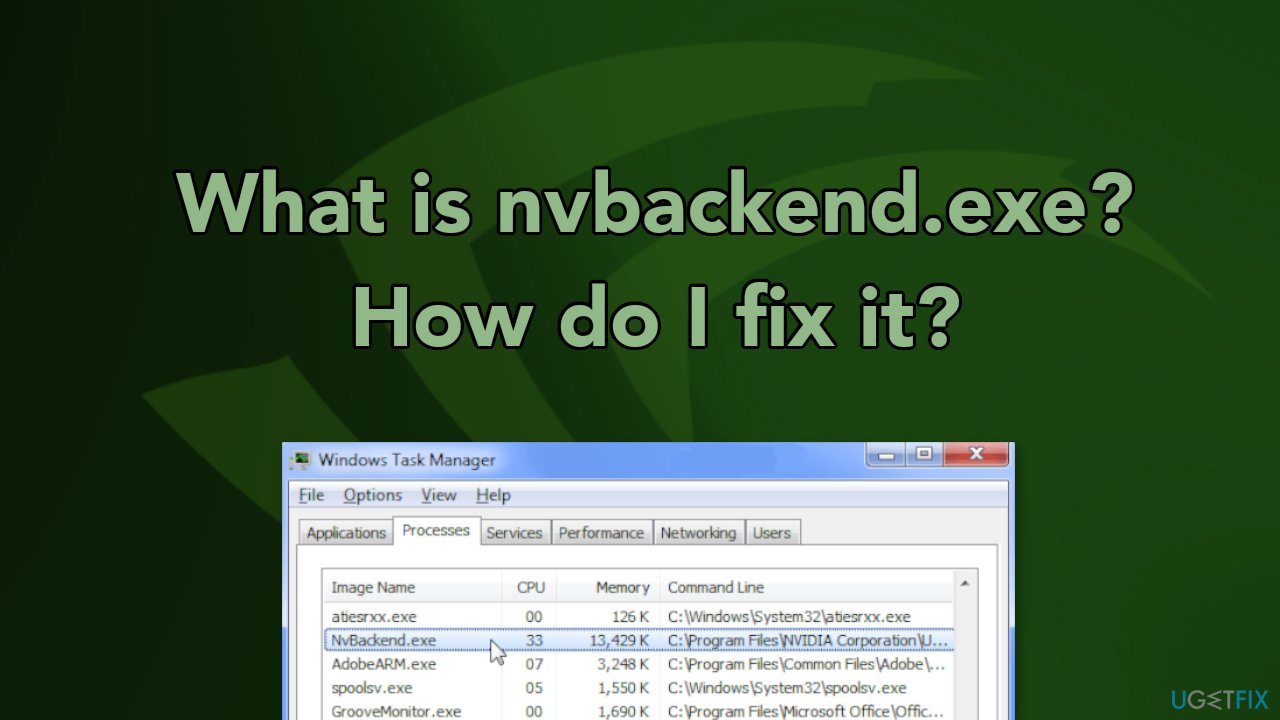
There could be plenty of causes for this problem, as it all depends on a particular computer and its configuration. Likely, NVIDIA Backend's high CPU usage is caused by malfunctioning drivers. Installing an older version or updating them could help you solve the issue.
Also, many people said that GeForce Experience could be the culprit. While uninstalling the program could be one of the issues, disabling overlays the app employs might also help. Below you will find several methods that should help you fix the nvbackend.exe high CPU usage issue, although before you proceed, we strongly recommend you perform a scan with the [d1] repair tool to ensure that no underlying Windows issues are causing the processes to malfunction.
Method 1. Disable Antivirus
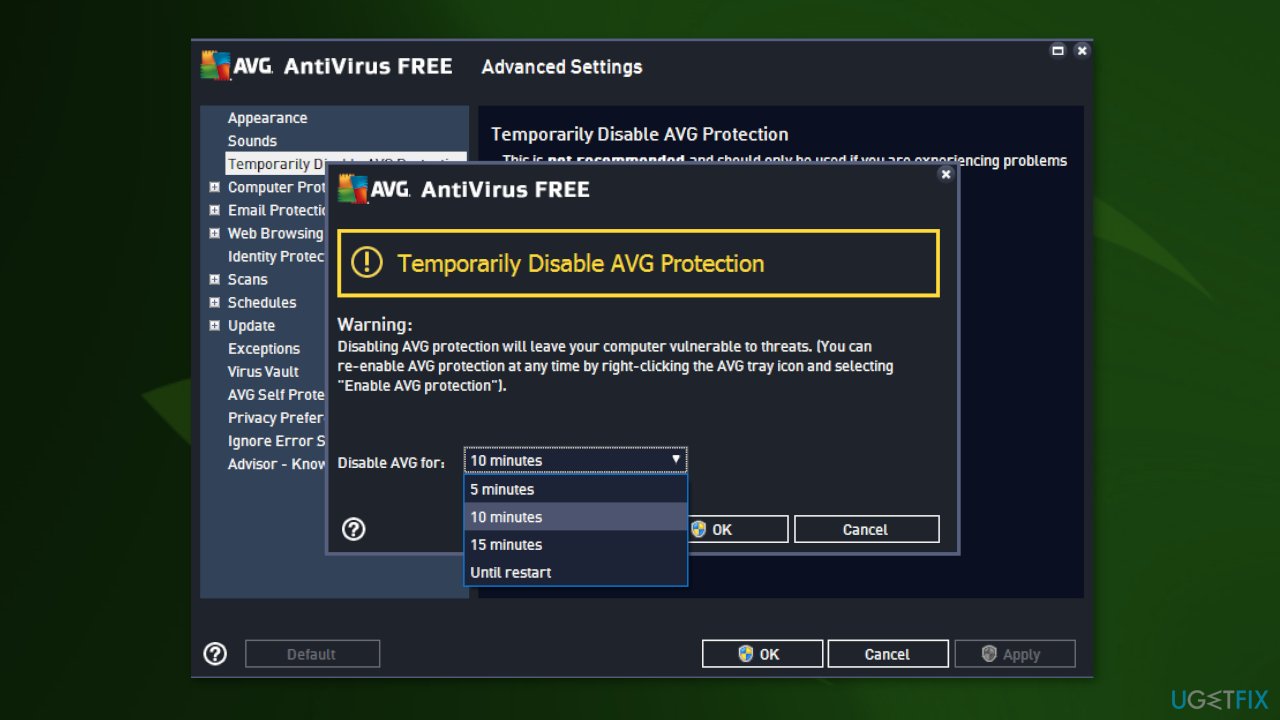
It’s a common issue to see useful applications being interrupted by antivirus applications. You should try turning off the shields and make nvbackend.exe function properly. This is usually done by right-clicking on the antiviruses icon in the tray and then turning off the protection from there.
Method 2. Fix NVIDIA GeForce Experience
- Right-click on the NVIDIA GeForce Experience icon in the system tray and select Fix Problem with NVIDIA GeForce Experience
- Follow the prompts in the wizard till the end and restart your PC
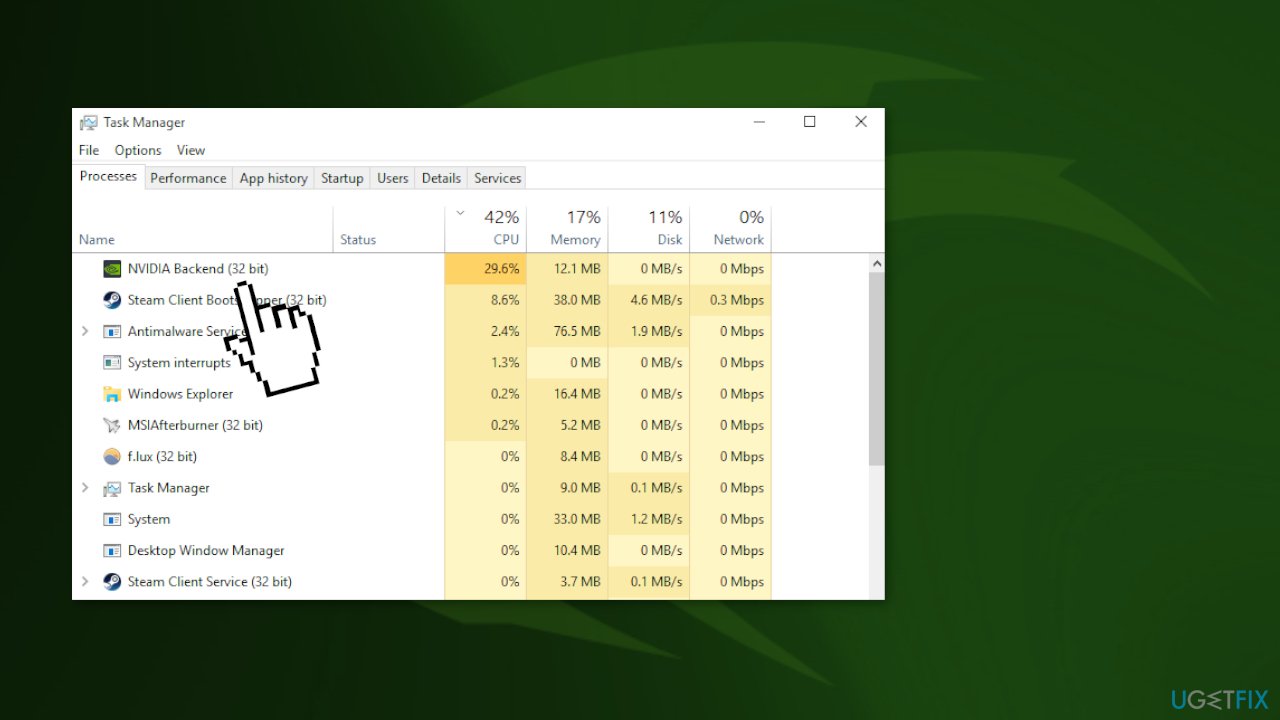
Method 3. Restart Geforce Experience Backend
- Press the Ctrl + Shift + Esc keys on the keyboard to launch the Task Manager
- Click on More to expand the Task Manager and then locate the Nvidia Geforce Experience Backend
- Right-click on the and end the task or process
- Reopen GeForce Experience and check if the issue is still there
Method 4. Reinstall NVIDIA Drivers
For this, you can use an automatic tool like [rev id="DriverFix"] that will take care of drivers for you or you can read an in-depth manual guide we wrote about how to uninstall Nvidia drivers for a more detailed method.
- Remove all existing NVIDIA Graphics drivers using the Device Manager or [rev id="DriverFix"]
- Visit the NVIDIA Driver site and search for your graphics card drivers under the Manually find drivers You can try switching between older versions and newer versions
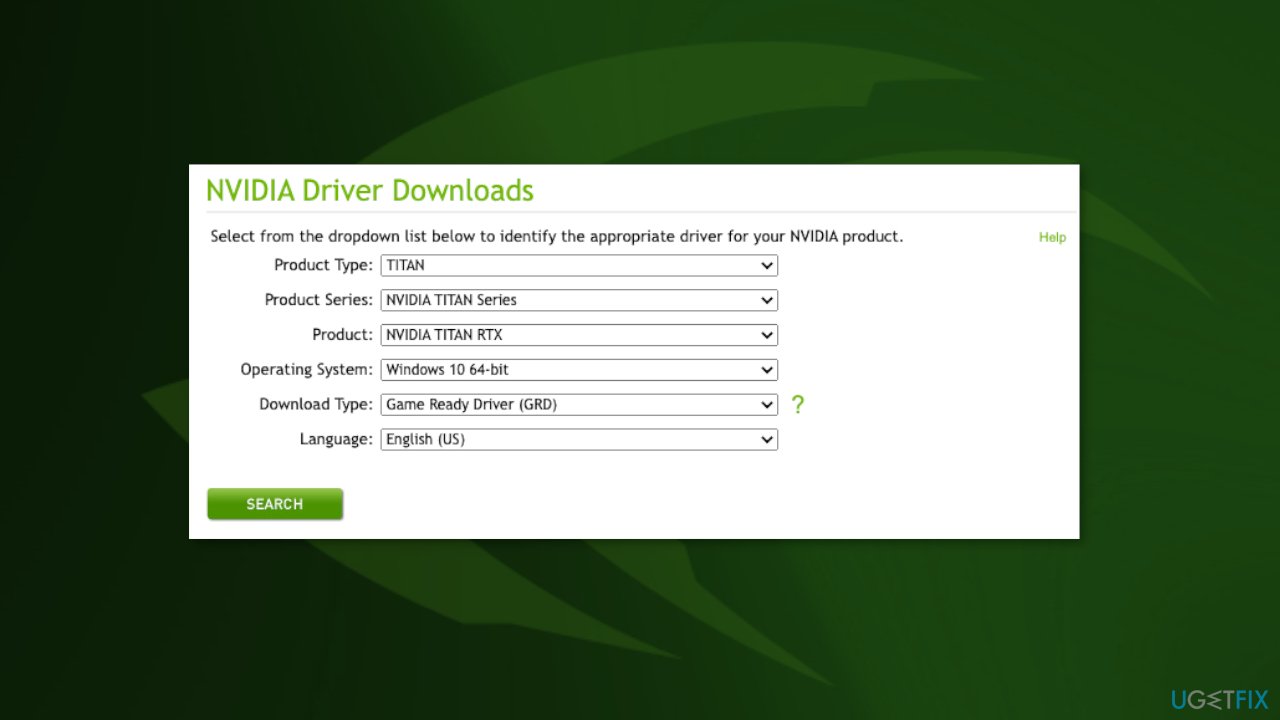
- Go to the download location of the driver and launch the driver software. While installing, select Custom Options, and then Clean Install. This will further wipe previous installations and install the current version
- Monitor nvbackend.exe to verify if it has stopped creating issues
Method 5. Remove Nvidia GeForce Experience
If none of the above methods have worked, you can just uninstall the Nvidia GeForce Experience application from your system.
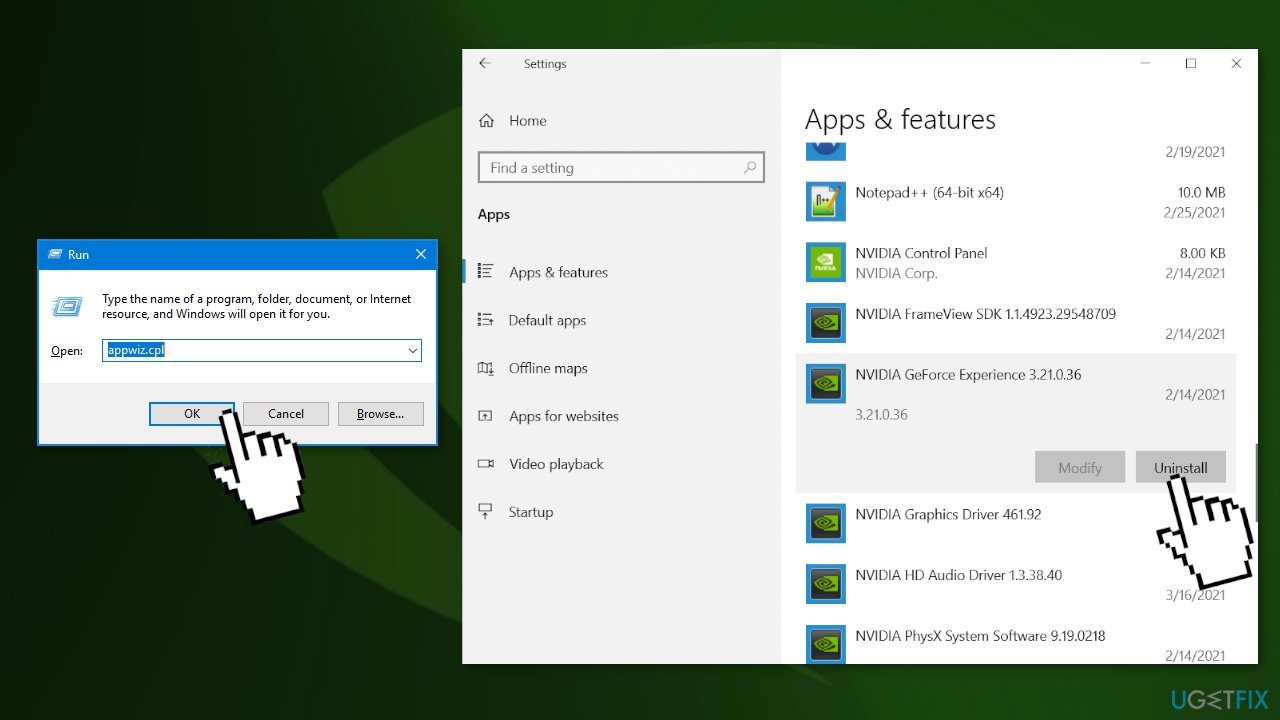
- Press Windows + R to open the command prompt, type appwiz.cpl and click OK
- In the Programs window, look for Nvidia GeForce Experience from the list of installed applications, double-click on it, and then follow the instructions
Bottom line
To address the high CPU usage of nvbackend.exe, you can disable automatic game scanning, restart your PC, or update your drivers. If these steps do not resolve the issue, consider uninstalling GeForce Experience or disabling its overlays. If none of these solutions work, further investigation into your system configuration may be necessary.
Frequently asked questions
nvbackend.exe is a process related to NVIDIA's graphics drivers, specifically managing various background tasks and services for NVIDIA software. It is often associated with the GeForce Experience application.
You can disable nvbackend.exe by opening the Task Manager, locating it under the Processes tab, right-clicking it, and selecting 'End Task.' Additionally, you can prevent it from starting up by disabling it in the NVIDIA settings or using the system's startup settings.
If nvbackend.exe is using excessive CPU resources, consider updating your NVIDIA drivers or reinstalling the GeForce Experience software. You can also check for conflicting applications that might interfere with NVIDIA services.




Report an issue
What's wrong with this guide? We review every report and update or remove content.
Report received — thank you. We'll review and fix it.
You need a free account to submit a report.
Be the first to comment