How to fix
Windows installation and update error 0x80070017
on Windows
Resolve the Windows 10 or Windows 11 installation error 0x80070017 effortlessly with our expert-tested solutions. Fix it in minutes today!


What causes How to fix Windows installation and update error 0x80070017?
- Incompatible driver installation
- Incorrect tampering with the registry
- New apps causing conflicts
- Bad sectors on the disk
- Corrupted files
Repairs Windows system files, removes malware, and restores a clean OS state — without reinstalling.
Hello. I tried to reinstall Windows because I had way too many problems with it. When I tried doing so, I received an error 0x80070017, and the process simply stopped. Is there anything I can do to fix this? Thanks in advance.
Everybody who uses a Windows computer is bound to experience at least some issues at some point - this is to be expected considering how many components the OS consist of. Incompatible driver[ref en-3] installation, incorrect tampering with the registry,[ref en-2] new apps, and many other factors can cause Windows to misbehave. In this case, we are talking about error 0x80070017.
The error occurs under two separate occasions: when trying to upgrade to the newer version of the operating system (or reinstall it) or when trying to apply the latest Windows updates. Regardless of which situation you are dealing with, we will provide fixes for both.
During an upgrade or reinstall of the OS, the error message people receive reads as follows:
Windows cannot install required files. The file may be corrupt or missing. Make sure all files required for installation are available, and restart the installation.
Error code: 0x80070017
As evident, the issue is related to the implementation of new files. Whenever a Windows upgrade is initiated, new files are usually installed on the machine and old ones replaced - this transition does not succeed due to data corruption or other reasons. To get to the root of the problem, one has to perform several troubleshooting steps.
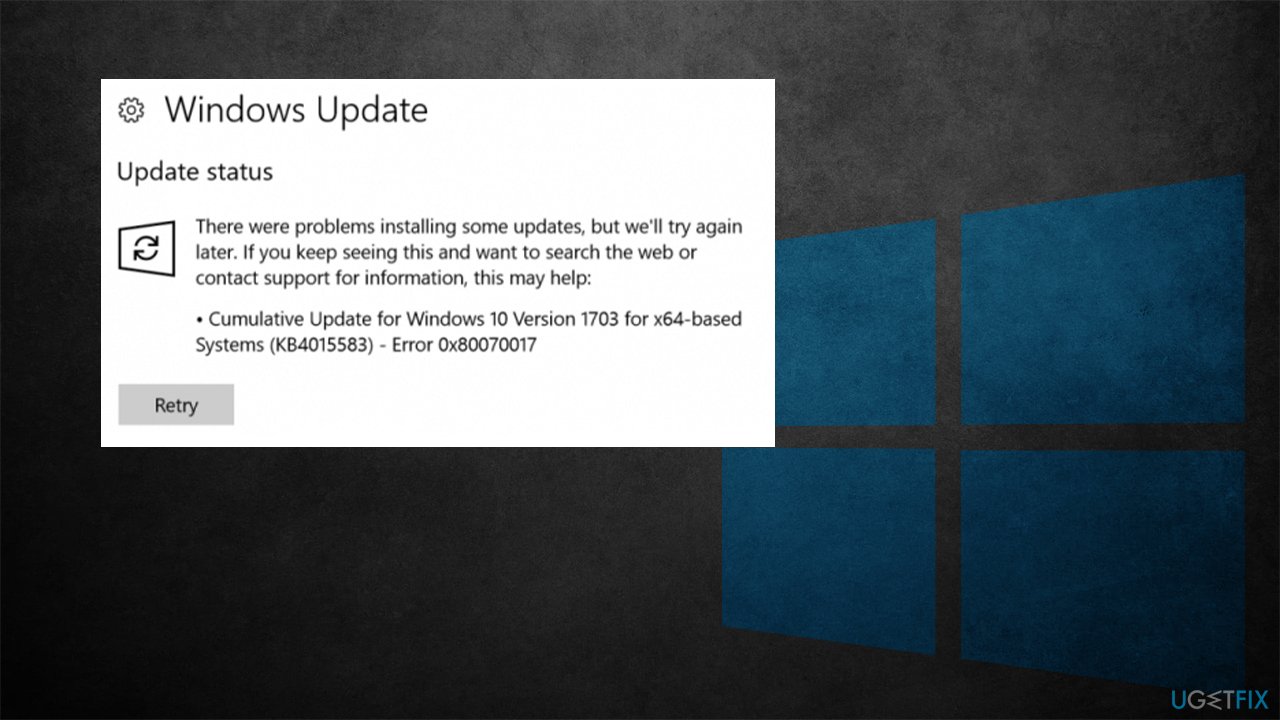
Bad sectors or corrupted files can also apply to the 0x80070017 error during the Windows update, even though the error message is rather standard in this case (it just says that there was a problem with the update installation).
If you would rather avoid serious manual fixes, we recommend you try running a scan with [d1] - a PC repair tool capable of finding the corrupted system files and replacing them with brand new ones. It could also help you deal with BSODs,[ref en-1] DLL errors, malware-caused damage, and much more.
1. Run chkdsk
- Type cmd in Windows search
- Right-click the Command Prompt result and select Run as administrator
- If User Account Control (UAC) shows up, click Yes
- In the new window, paste the following command and hit Enter:
chkdsk c: /f - You might receive an error at this point - type in Y and hit Enter
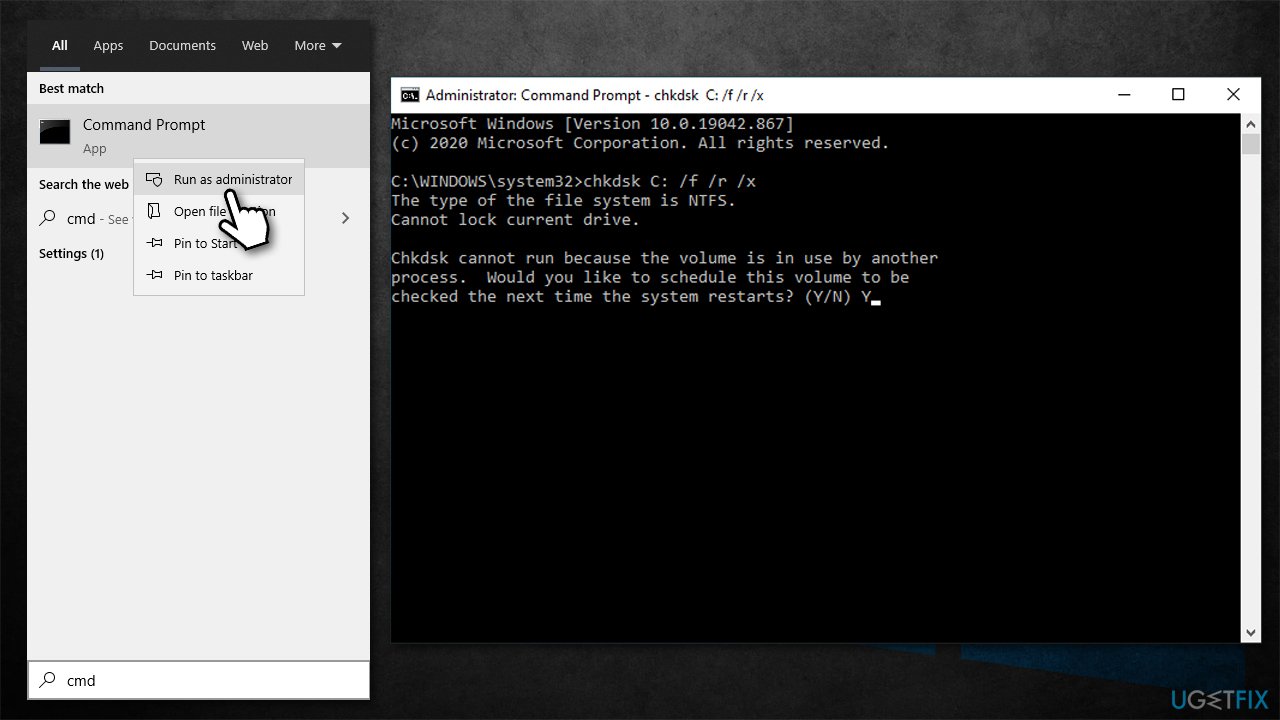
How to fix windows installation and update error 0x80070017 run checkdisk - Restart your PC, and the scan will begin.
Note: If you are using an SSD, use the chkdsk c: /f /r /x command instead
2. Run SFC and DISM
If file corruption is causing the error, running these commands via elevated Command Prompt should solve the issue:
- Open Command Prompt as administrator as explained above
- Use the following command, pressing Enter after:
sfc /scannow - Once the scan is finished, proceed with the following commands, pressing Enter after each:
DISM /Online /Cleanup-Image /CheckHealth
DISM /Online /Cleanup-Image /ScanHealth
DISM /Online /Cleanup-Image /RestoreHealth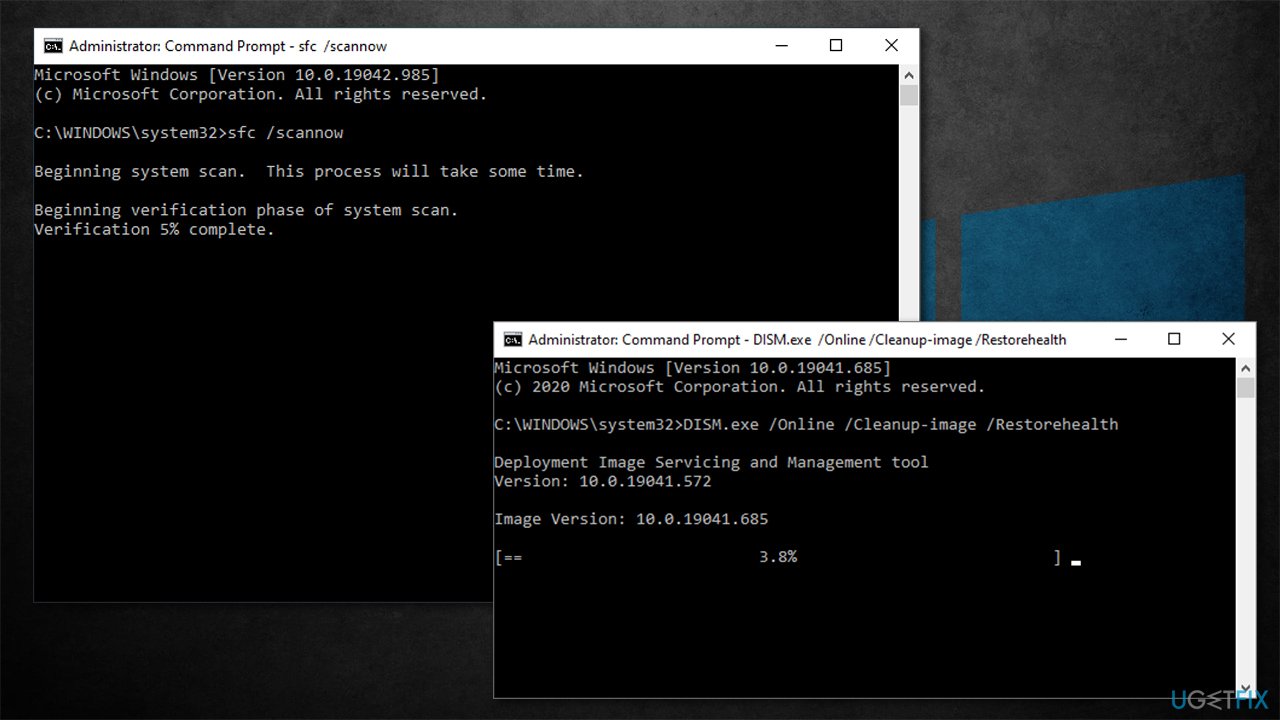
How to fix windows installation and update error 0x80070017 run sfc dism - Once all the scans have been performed, restart your PC and check if the error is gone.
3. Download the corrupted installation files
If you are using a DVD to install the operating system, it might be corrupted and irrecoverable. You can instead download the installed from Microsoft and create a working ISO.
- Visit the official Microsoft website and download Windows 10 installation media (Windows 11 version)
- Double-click the installer and select Yes when UAC shows up
- Agree to terms
- Pick Create installation media (USB flash drive, DVD or ISO file) for another PC option and click Next
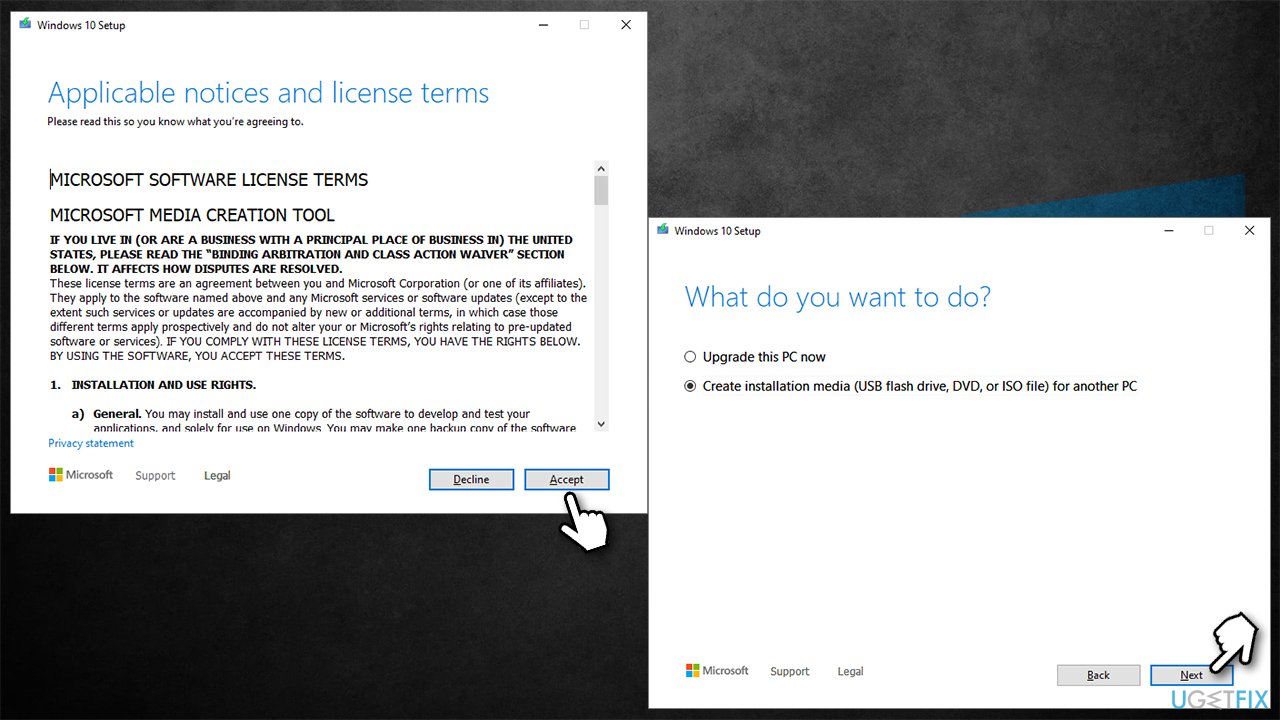
How to fix windows installation and update error 0x80070017 create windows iso - Select the Use Recommended options for this PC checkbox and click Next
- Choose ISO file and click Next
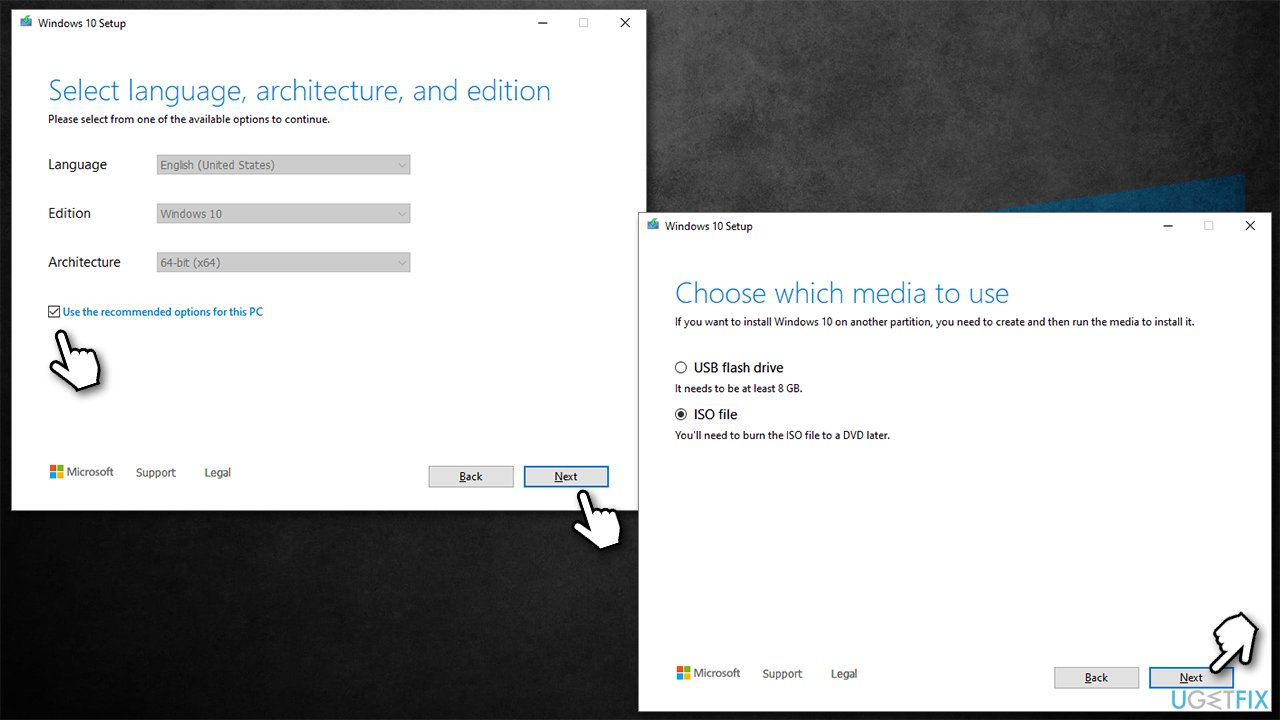
How to fix windows installation and update error 0x80070017 use media creation tool - After downloading the ISO file, right-click it and select Mount, and double-click the Setup.exe
- Accept the license once again
- Select Keep my personal files and click Install.
Fix 0x80070017 when trying to update Windows
The error might also show up when trying to update Windows. The update errors are quite common, and we described them and provided solutions for many of them in the past, e.g., 0x80070437, 0x800705B3, or 0x80240016. Below you will find methods that help most users bypass the error and update the operating system.
1. Run Windows Update Troubleshooter
While troubleshooters might not always be able to automatically solve a problem for you, they can be a great help in pointing at what the problem is. Thus, run a troubleshooter first:
- Type Troubleshoot in Windows search and hit Enter
- On the right side of the window, select Additional troubleshooters
- Pick Windows Update and click Run the troubleshooter
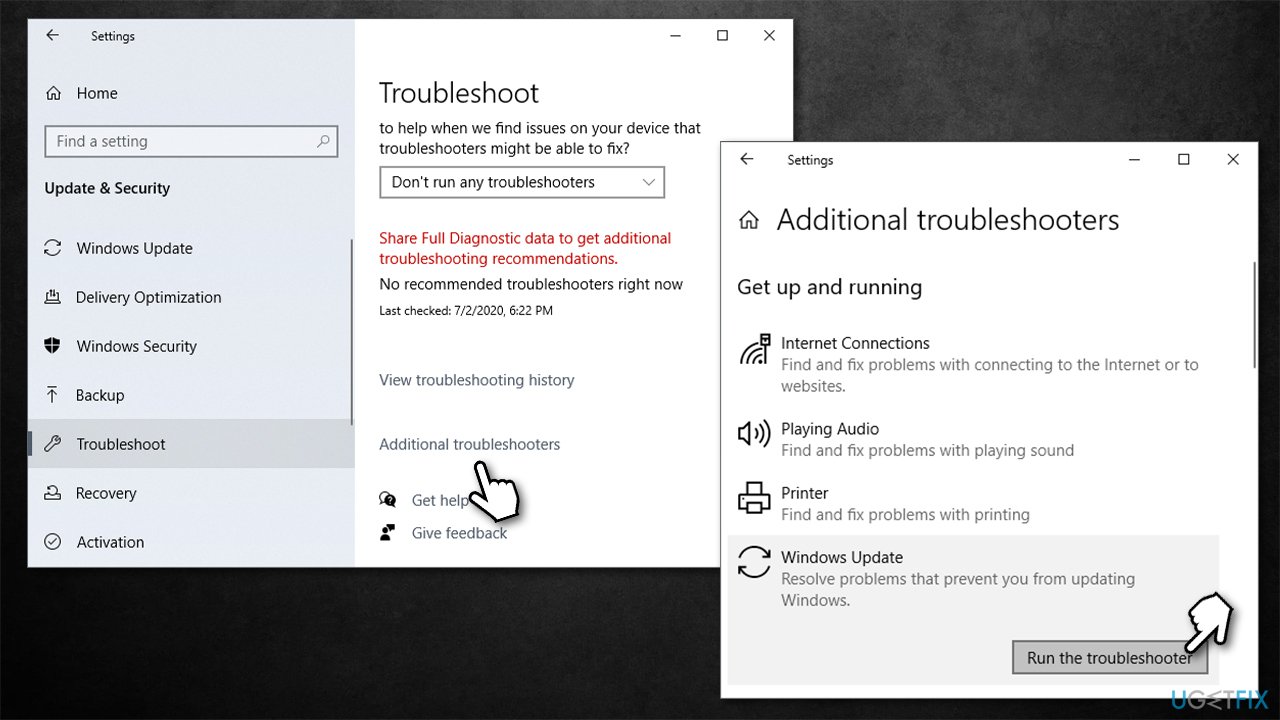
How to fix windows installation and update error 0x80070017 run troubleshooter - Wait for the results to show up and then apply the offered fixes.
2. Install the update manually
- Type in Update in Windows search and press Enter
- Click View Update History on the right side of the window
- From the list of updates, note the KB number of the one that failed to be installed
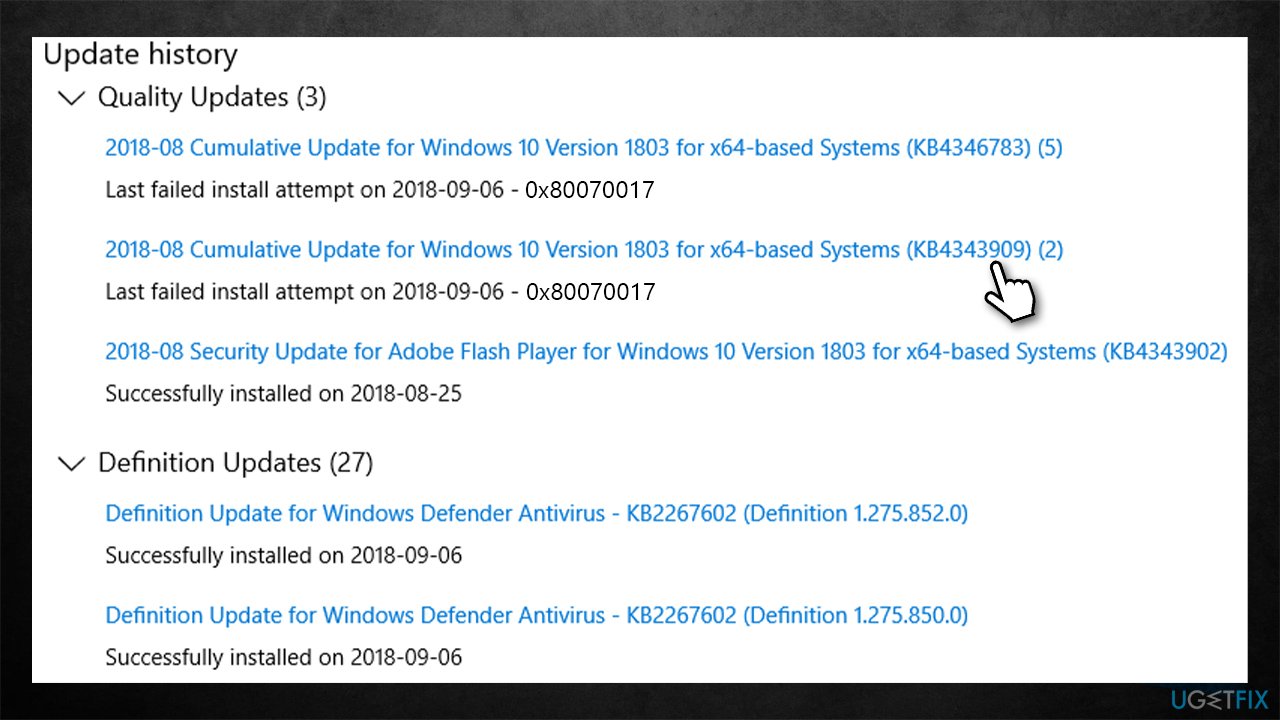
How to fix windows installation and update error 0x80070017 update manually - Go to Microsoft Update Catalog
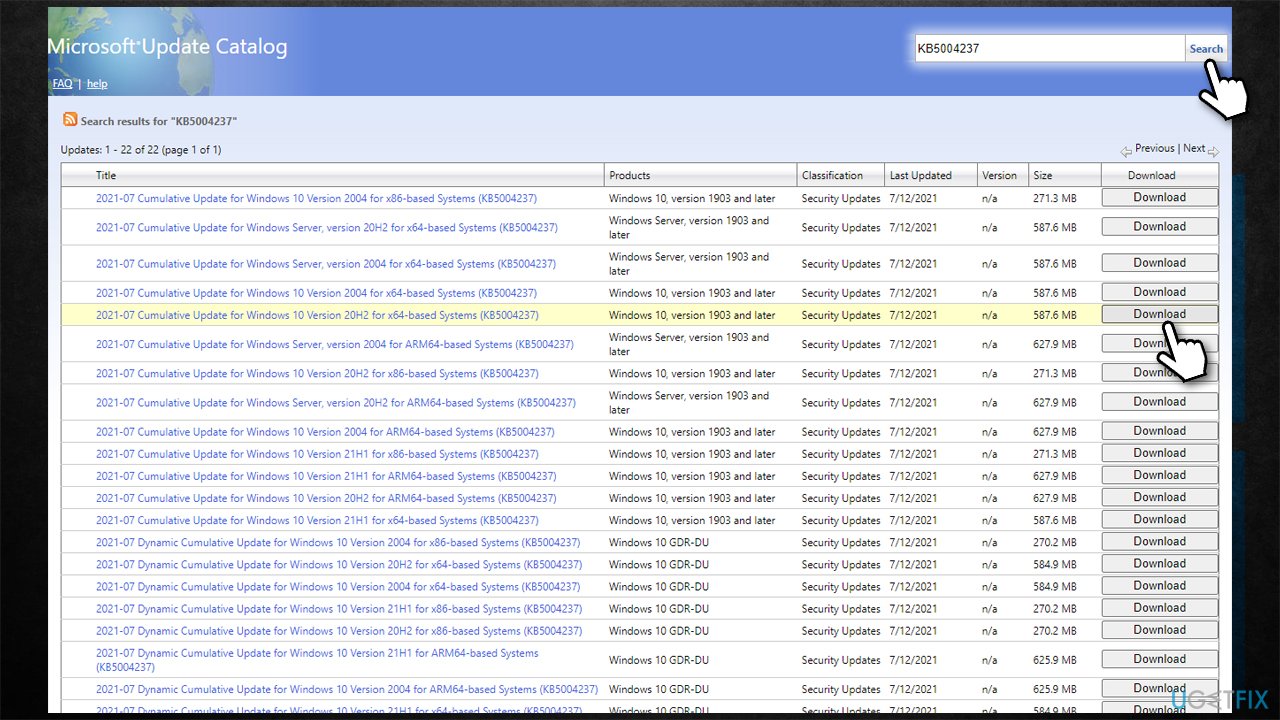
How to fix windows installation and update error 0x80070017 update manually2 - Type in the KB number and click Search
- Pick the version that is compatible with your operating system and select Download
- Install the update and reboot your PC.
3. Use Media Creation Tool
Backup all your data before you proceed with this step. Likewise, disconnect external devices such as USB drives, printers, cameras, etc.
- Download the Media Creation Tool installer from the official Microsoft website
- Launch it, agree to terms and click Next
- From the available options, select Upgrade this PC now > Next
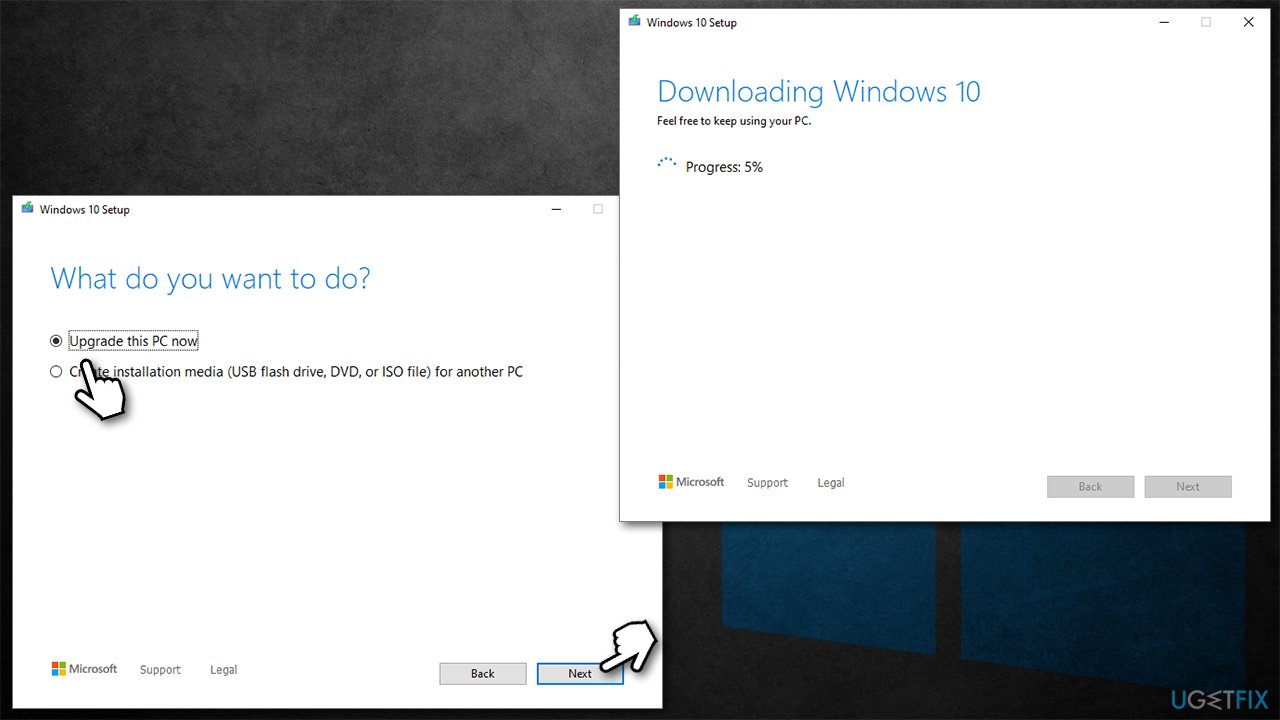
How to fix windows installation and update error 0x80070017 use media creation to update - Wait for the files to download and proceed with on-screen instructions
- Your system will reboot.
Bottom line
To fix error 0x80070017, you can run a scan with a PC repair tool to find and replace corrupted system files, or run the chkdsk command to check for bad sectors. If these solutions do not resolve the issue, consider further troubleshooting steps or seeking professional assistance.
Frequently asked questions
The error code 0x80070017 indicates that there are corrupted files or media issues affecting the installation process on Windows 10 or Windows 11.
To fix the 0x80070017 error during updates, try running the Windows Update Troubleshooter and ensure that your installation media is not damaged or corrupted.
Yes, you can often resolve the 0x80070017 error by using the System File Checker tool or performing a repair install, which retains your files and applications in Windows 10 or Windows 11.




Report an issue
What's wrong with this guide? We review every report and update or remove content.
Report received — thank you. We'll review and fix it.
You need a free account to submit a report.
Be the first to comment