How to fix
Printing error 0x00000771 (Operation could not be completed)
on Windows
Resolve printing error 0x00000771 in Windows 10 and 11 effortlessly. Get expert-tested solutions and start printing again in minutes!


What causes How to fix printing error 0x00000771 (Operation could not be completed) in Windows?
- Insufficient permission within configuration settings
- Issues with printing-related services
- Printer not properly connected to the computer or network
- Driver conflicts or outdated drivers
- Corrupted printer settings
Repairs Windows system files, removes malware, and restores a clean OS state — without reinstalling.
Hello, my printer is detecting an error "Operation could not be completed (error 0x00000771)." Is there anything that can be done about it since I can't use my printer properly because of this? I am using Windows 10.
Printers are standalone computer peripherals that can be useful to people and businesses in many ways. Office environments especially still use a lot of paperwork, and without printers doing so would be impossible. Unfortunately, just like any other components, printers can break, print poorly, or return errors under various circumstances - Operation could not be completed (error 0x00000771) is a case of the latter.
In most cases, users experience the error when attempting to connect a printer to the computer or the network. The issue has been around for several years now and affects all types of printers (USB,[ref en-3] WiFi, shared connections), and it seems like the brand of the device has not affected it in any way.
Users might receive the error when they attempt to print for the first time after purchasing the product, or the error simply can start occurring abruptly. Once this happens, people are faced with the following error message:
Operation could not be completed (error 0x00000771)
The specified printer has been deleted
It goes without saying that many users are rather confused with this message, as it claims that the printer has been deleted. It does not explain why or what is meant to be done in order to fix the 0x00000771 error effectively. This is not new, however, as people already had to deal with errors that do not provide much information either - 0x00000520, 0x0000050, or 0x0000011b are just a few examples of this.
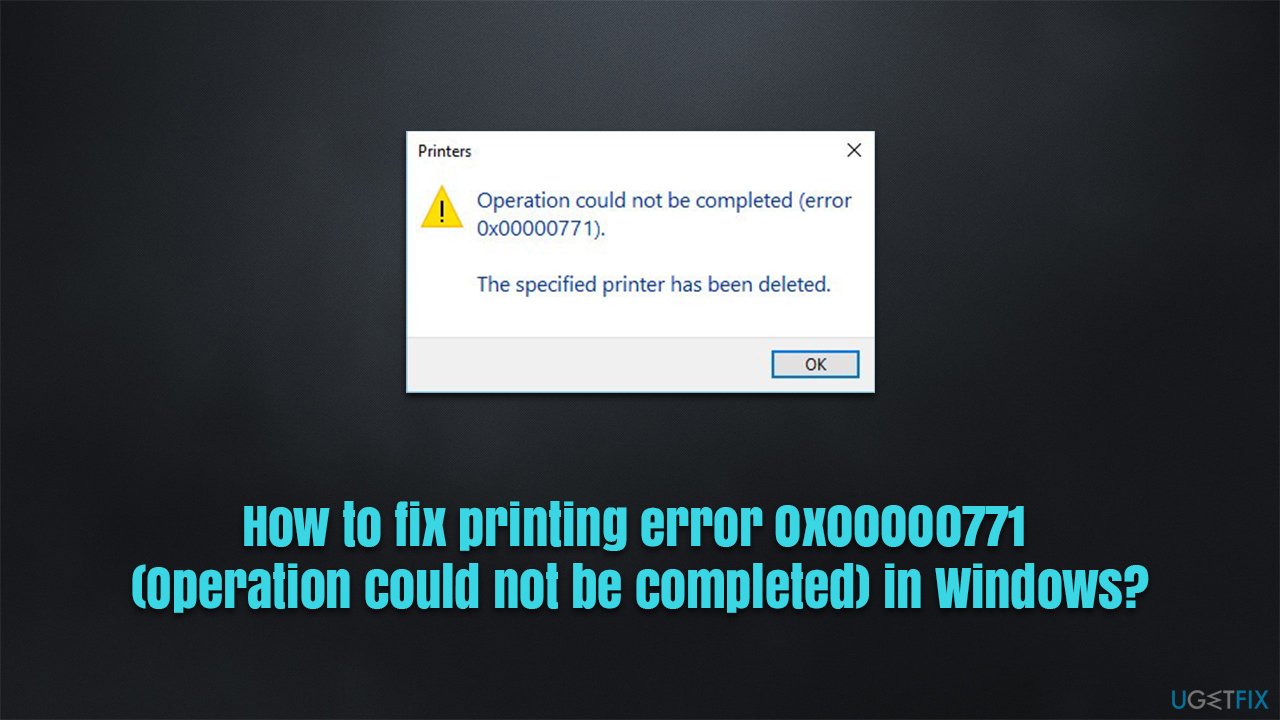
So, what is the reason for this issue, and how to get rid of it? One of the main reasons for the error is insufficient permission within configuration settings. Likewise, some services related to printing might also be causing it.
Before you proceed with the manual solutions below, we strongly recommend you run a scan with the [d1] repair tool that can automatically fix underlying Windows issues such as system file corruption, registry[ref en-1] errors, missing DLLs,[ref en-2] etc.
Fix 1. Run the troubleshooter
The first thing you should try is to run a troubleshooter. These built-in helpers are very easy to use and they can sometimes automatically solve the occurring problems.
- Type in Troubleshoot in Windows search and hit Enter
- Go to Additional Troubleshooters
- Select Printer and click Run the troubleshooter
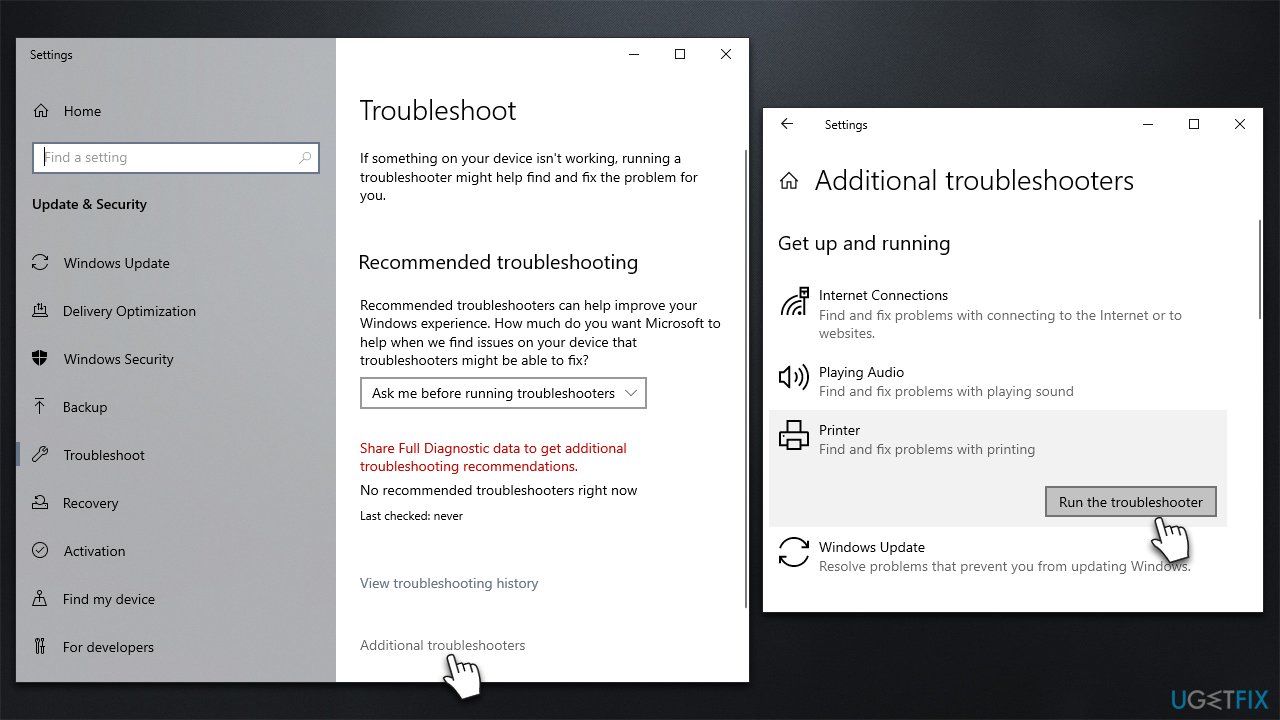
How to fix printing error 0x00000771 operation could not be completed in windows run troubleshooter - Wait till the scan is finished and then apply the suggested fixes
- Restart your PC and see if the problem is gone.
Fix 2. Set Print Pooler service to automatic startup or restart it
You should ensure that the Pint Pooler service is running properly. First, try to restart the service:
- Type in Services in Windows search and press Enter
- Scroll down until your find Print Spooler entry
- Right-click it and select Restart.
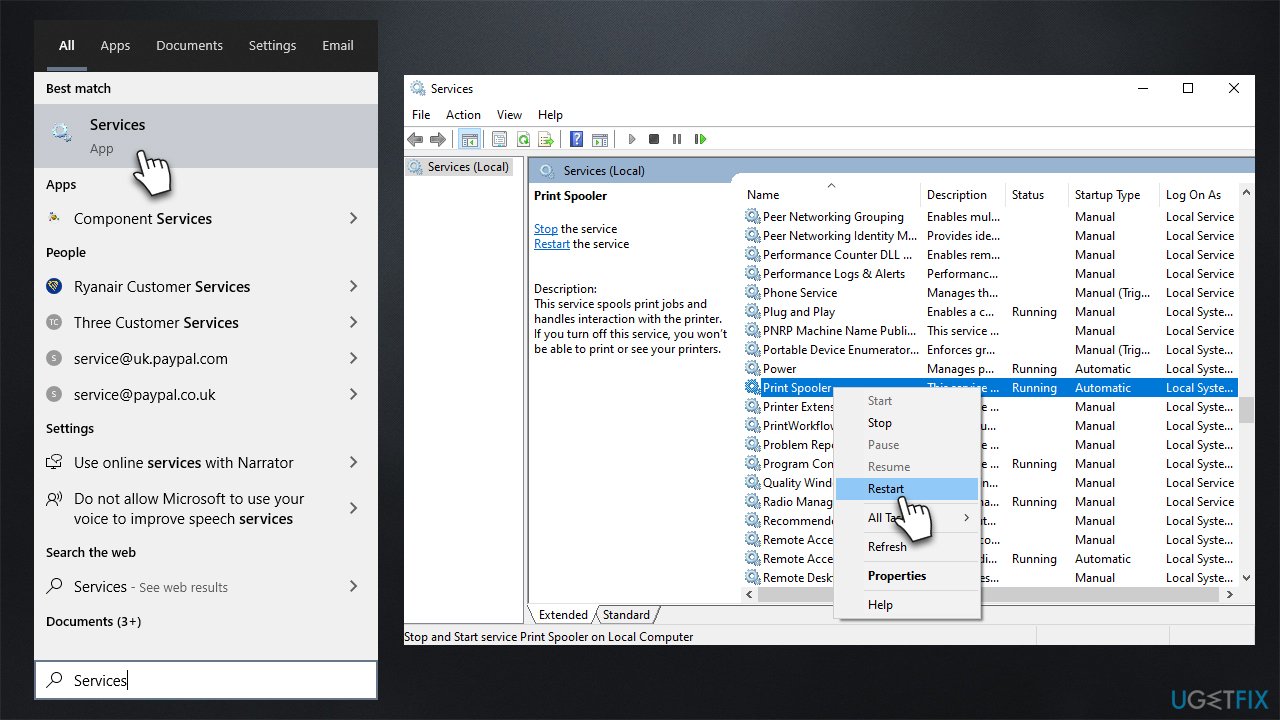
How to fix printing error 0x00000771 operation could not be completed in windows restart print spooler
If the service is not running and/or is set to manual, proceed with the following:
- Fin Print Spooler entry in the service list and double-click it
- Under Startup type, select Automatic in the drop-down menu
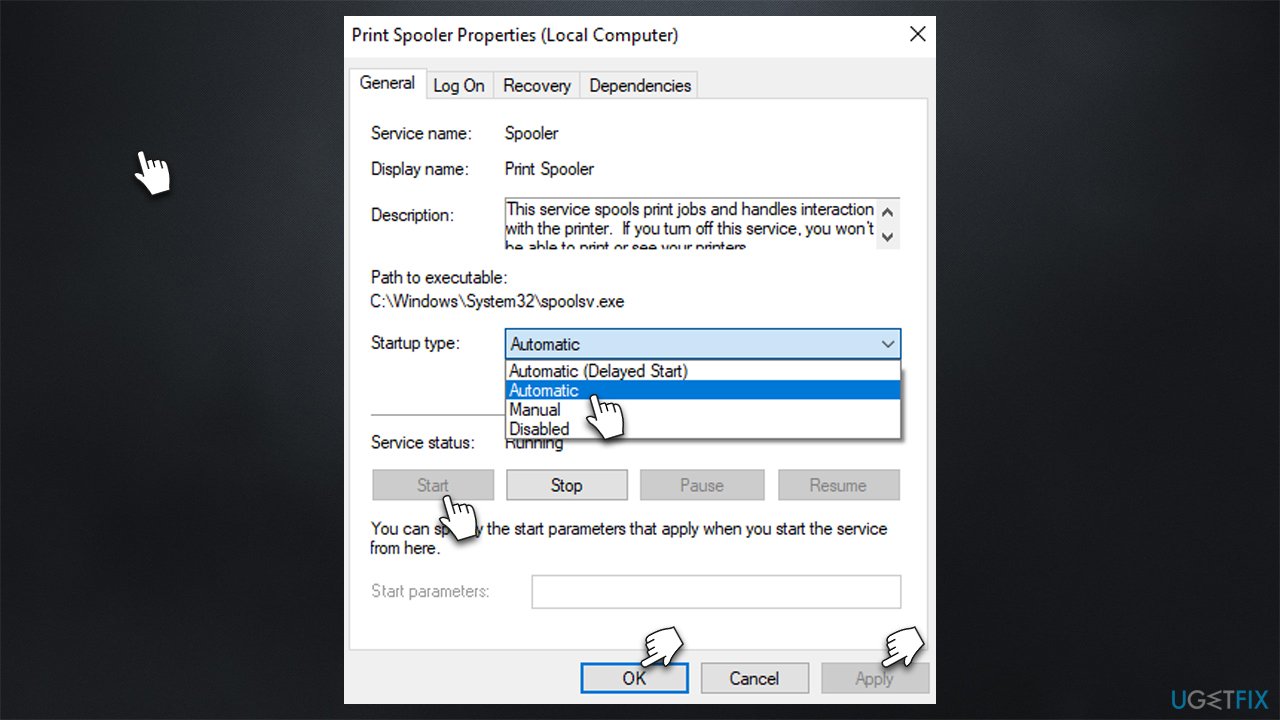
How to fix printing error 0x00000771 operation could not be completed in windows set print spooler to automatic - Click Start, Apply, and OK.
Fix 3. Give full control to the relevant registry key
- Type in regedit in Windows search and hit Enter
- When User Account Control shows up, click Yes
- Navigate to the following location:
HKEY_CURRENT_USER\\Software\\Microsoft\\Windows NT\\CurrentVersion
- Locate Windows entry, right-click and select Permissions...
- Here, select the group that you belong to - it can be Administrators or your username, or a group name
- Under permissions, mark the Full Control option
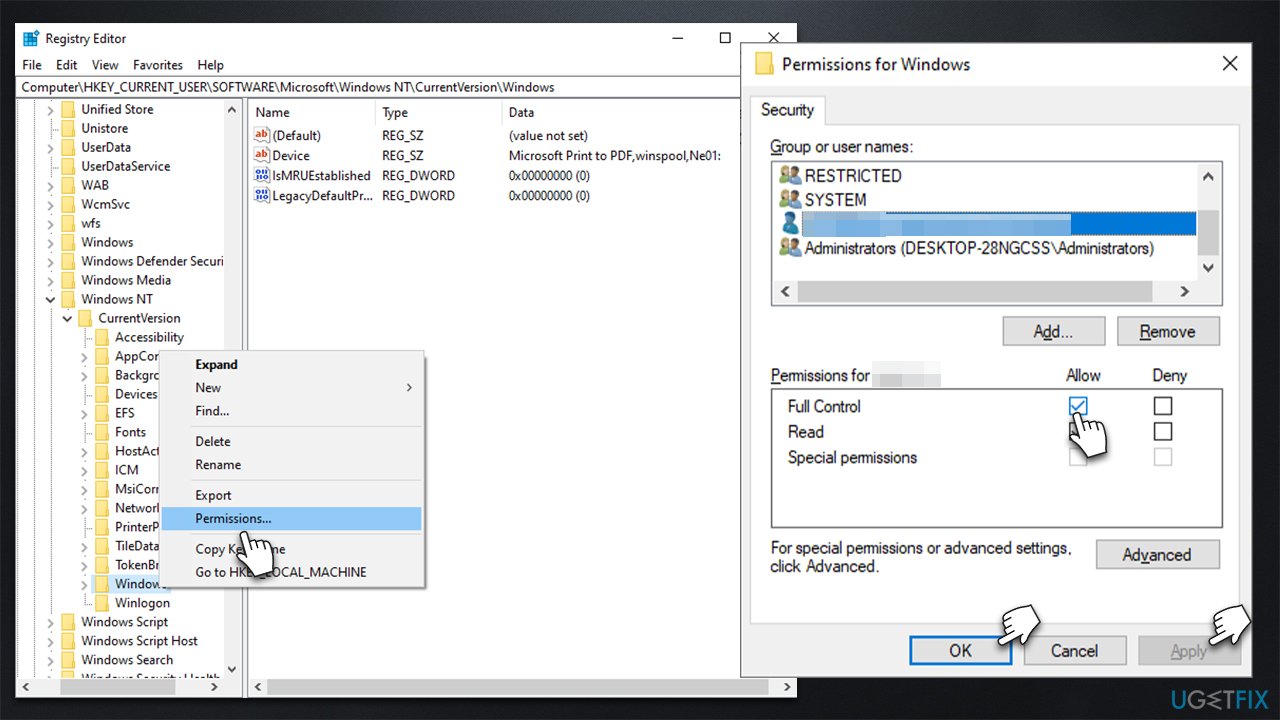
How to fix printing error 0x00000771 operation could not be completed in windows check permissions - Click Apply and OK, then close the Registry Editor.
Fix 4. Uninstall the latest Windows update
Windows updates can sometimes result in printers malfunctioning. Thus, if the 0x00000771 error started showing up after you updated Windows, you should temporarily uninstall the latest update and pause automatic updates:
Note: if you have not updated Windows recently and the problem did not occur after that, you should apply the latest Windows updates instead.
- Type Control Panel in Windows search and press Enter
- Go to Programs > Uninstall a program
- On the left side of the window, select View installed updates
- Make sure the entries are sorted by the Installed On column
- Select the most recent update, right-click and select Uninstall
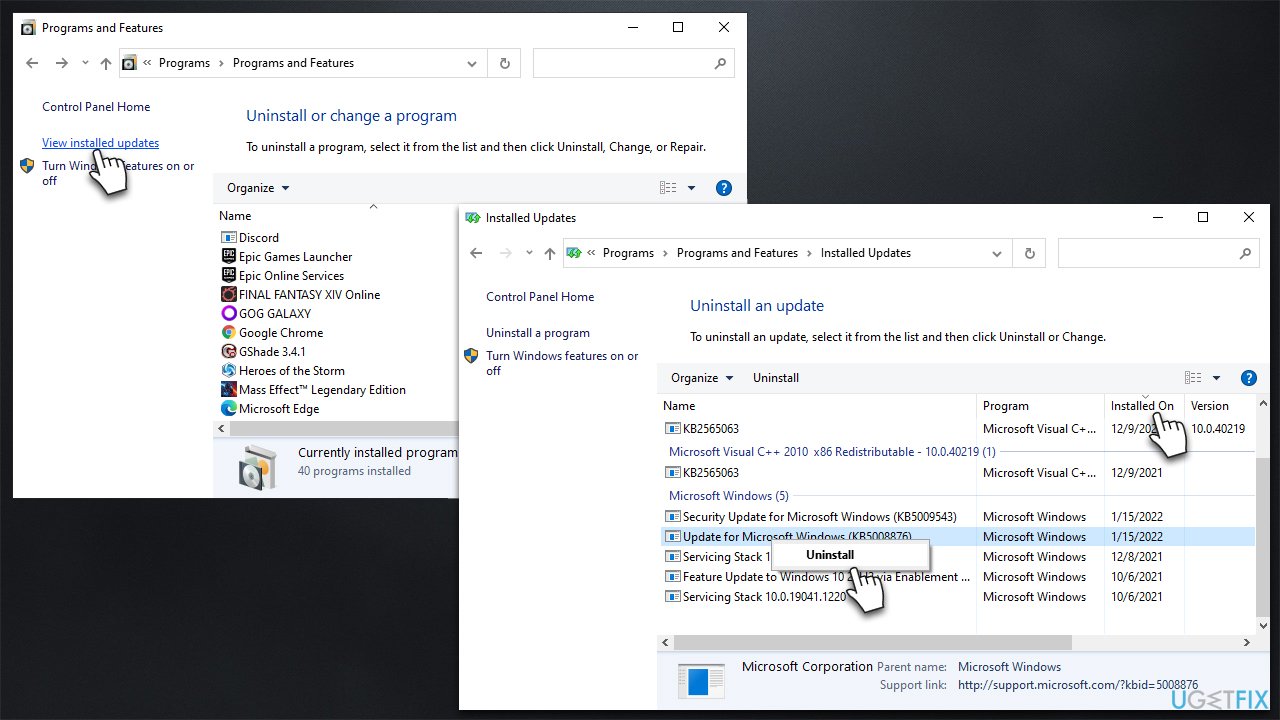
How to fix printing error 0x00000771 operation could not be completed in windows uninstall recent update - Follow on-screen instructions and restart your device
- Once rebooted, type in Updates in Windows search and press Enter
- Select Pause updates for 7 days.
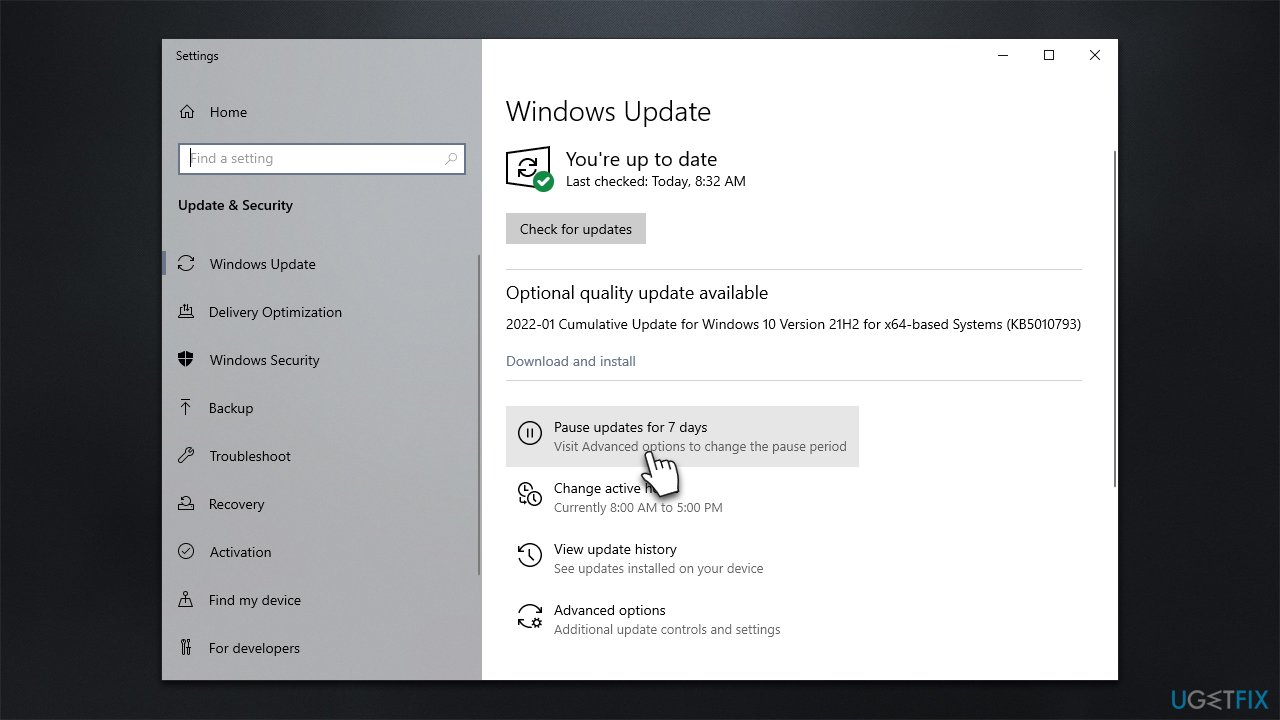
How to fix printing error 0x00000771 operation could not be completed in windows pause updates
Bottom line
To fix the error 0x00000771, users can check their printer connections, adjust permission settings, and update or reinstall printer drivers. If these solutions do not resolve the issue, it is advisable to run a repair tool to address any underlying Windows problems.
Frequently asked questions
The printing error 0x00000771 in Windows 10 is often caused by a corrupted printer driver or an incorrect printer configuration. Other potential reasons include network issues or conflicts with third-party software.
To troubleshoot the 0x00000771 error on Windows 11, try reinstalling the printer driver or running the Printer Troubleshooter from the Settings menu. Additionally, ensure that your printer is properly connected and set as the default printer.
Yes, you can fix the printing error 0x00000771 without reinstalling Windows by updating the printer driver or resetting the print spooler service. This usually resolves the issue without the need for a complete system reinstall.




Report an issue
What's wrong with this guide? We review every report and update or remove content.
Report received — thank you. We'll review and fix it.
You need a free account to submit a report.
Be the first to comment