How to fix
Windows update error 0x8024a203
on Windows
Resolve Windows 10 and Windows 11 update error 0x8024a203 effortlessly with our expert-tested solutions. Fix it fast and get back to work!

What causes How to fix Windows update error 0x8024a203?
- System file corruption
- Inability to retrieve relevant update packets
- Damaged Windows update caches
- Other underlying system issues
Repairs Windows system files, removes malware, and restores a clean OS state — without reinstalling.
Hello, just tried to update Windows 10 and received an error 0x8024a203. Is there anything that can be done about this? I have tried for several days now, and I receive the same "We couldn't install this update, but you can try again" message every time.
Windows is an intricate operating system that has become the most popular operating system for desktop computers. It consists of thousands of various files, processes, and other vital components that make it operate as intended. Unfortunately, errors, crashes, failed updates, and similar issues can't be avoided in some cases.
Windows updates are an important part of the service that Microsoft provides to every user. They are shipped every second or, in some cases, the fourth Tuesday of every month and can include a variety of improvements, bug[ref en-2] fixes, as well as security vulnerability[ref en-3] patches. The latter is extremely important, thus disabling automatic updates is not recommended.
Some people are unable to perform the update due to errors, and 0x8024a203 is one of them. Just like any other Windows update error (e.g., 0x8007012a, 0xc19001e1, or 0x80240023), it does not provide a lot of information upon encountering it:
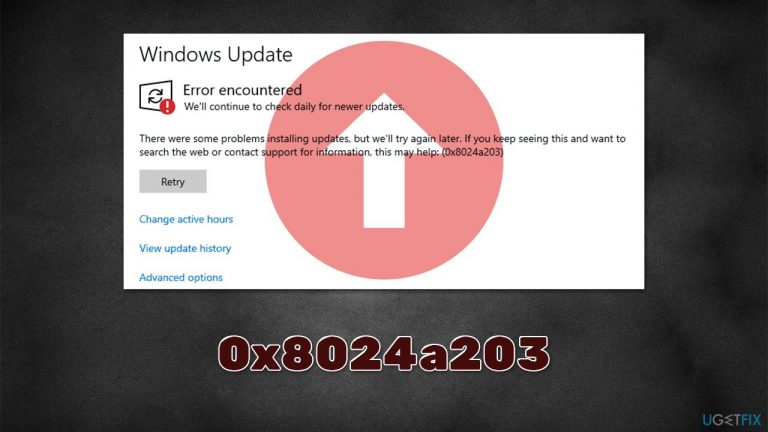
Error encountered
There were some problems installing updates, but we'll try again later. If you keep seeing this and want to search the web or contact support for information, this may help: (0x8024a203)
There could be a variety of reasons for users to encounter this problem, including system file corruption, inability to retrieve relevant update packets, damaged Windows update caches, and more. Due to the nature of the Windows OS, it is impossible to determine the precise reason for an error code without troubleshooting, which can be quite intensive.
Therefore, before you proceed with the manual solutions below, we strongly recommend you check your system for underlying issues with the [d1] PC repair tool. If the issue is related to corruption or other issues with the system files, the 0x8024a203 error fix can be performed automatically. The app can also be useful when dealing with other problems, such as BSODs, DLL[ref en-1] errors, registry issues, and much more.
Fix 1. Run the troubleshooter
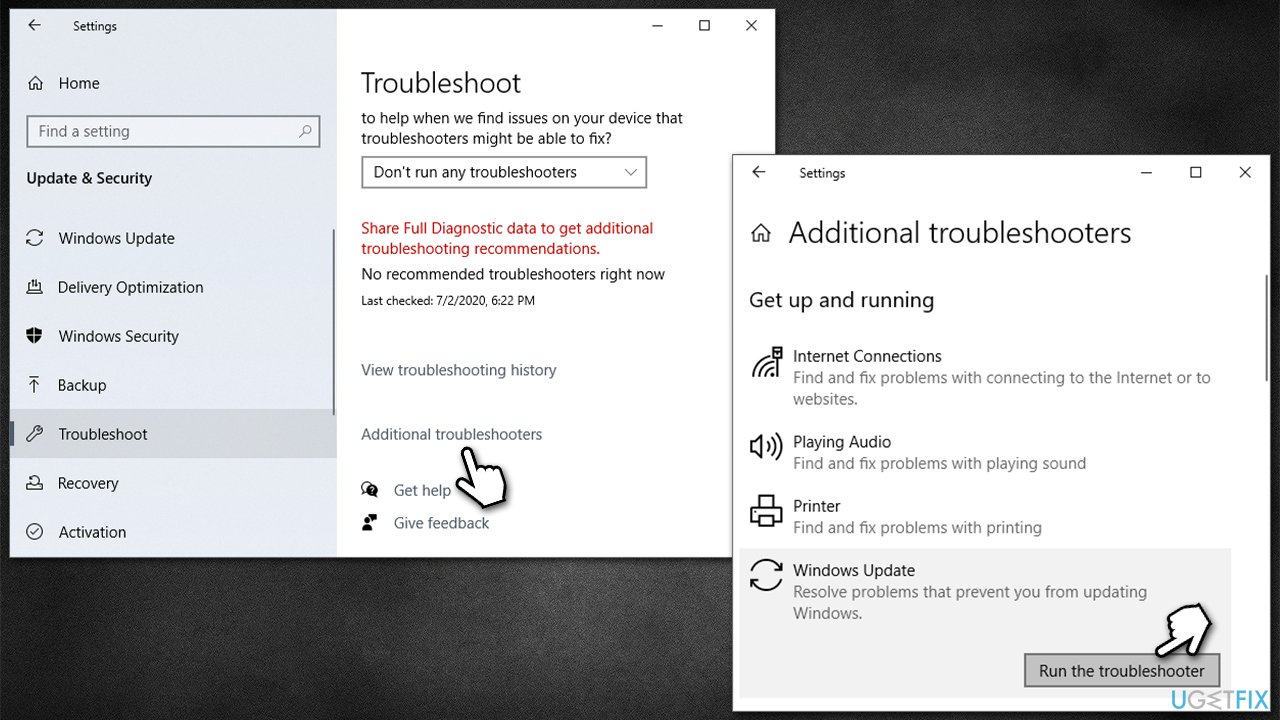
Whenever you encounter a Windows update error, you should always start with the built-in troubleshooter. While it might not always automatically solve issues with the updates, it can pinpoint what needs to be done.
- Try Troubleshoot in Windows search and hit Enter
- Click Additional troubleshooters on the right if you can't see them all
- Here, find Windows Update and click Run the troubleshooter
How to fix windows update error 0x8024a203 run troubleshooter - Wait till the scan is finished and apply the recommended fixes
- Reboot your PC.
Fix 2. Check system for corrupted files
In order to ensure that your system doesn't have a corrupted file problem, you can perform checks via Command Prompt.
- Type cmd in Windows search
- Right-click on Command Prompt and pick Run as administrator
- When User Account Control shows up, click Yes
- Use the following command lines, pressing Enter after each:
sfc /scannow
DISM /Online /Cleanup-Image /CheckHealth
DISM /Online /Cleanup-Image /ScanHealth
DISM /Online /Cleanup-Image /RestoreHealth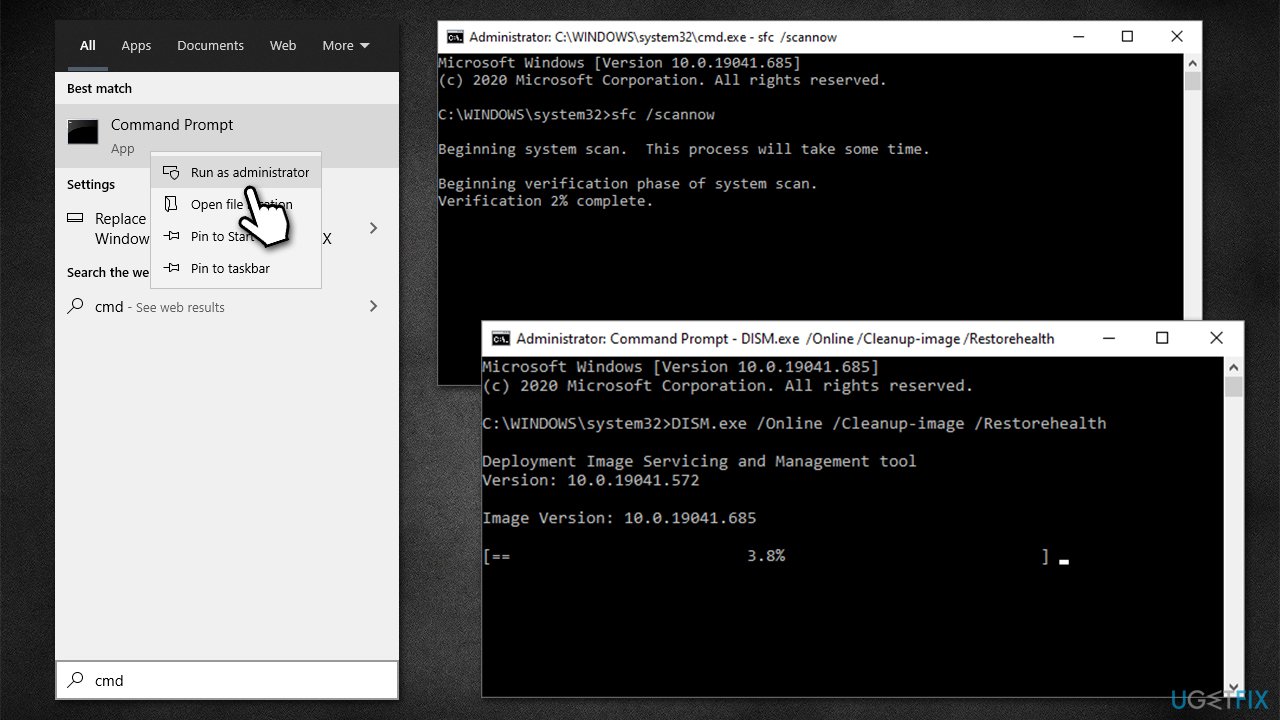
How to fix windows update error 0x8024a203 run sfc dism - Restart your system and try updating again.
Fix 3. Restart relevant services
Updates rely on services that run in the background to be successful. If some of them are not running or bugged, the update might fail. If the services are running, you can try restarting them instead:
- Type in Services in Windows search and press Enter
- Locate Background Intelligent Transfer Service (BITS)
- If it is already running, right-click and select Restart
- if the service is not running, double-click it, select Automatic under the Startup type from the drop-down menu
- Click Start, Apply, and OK
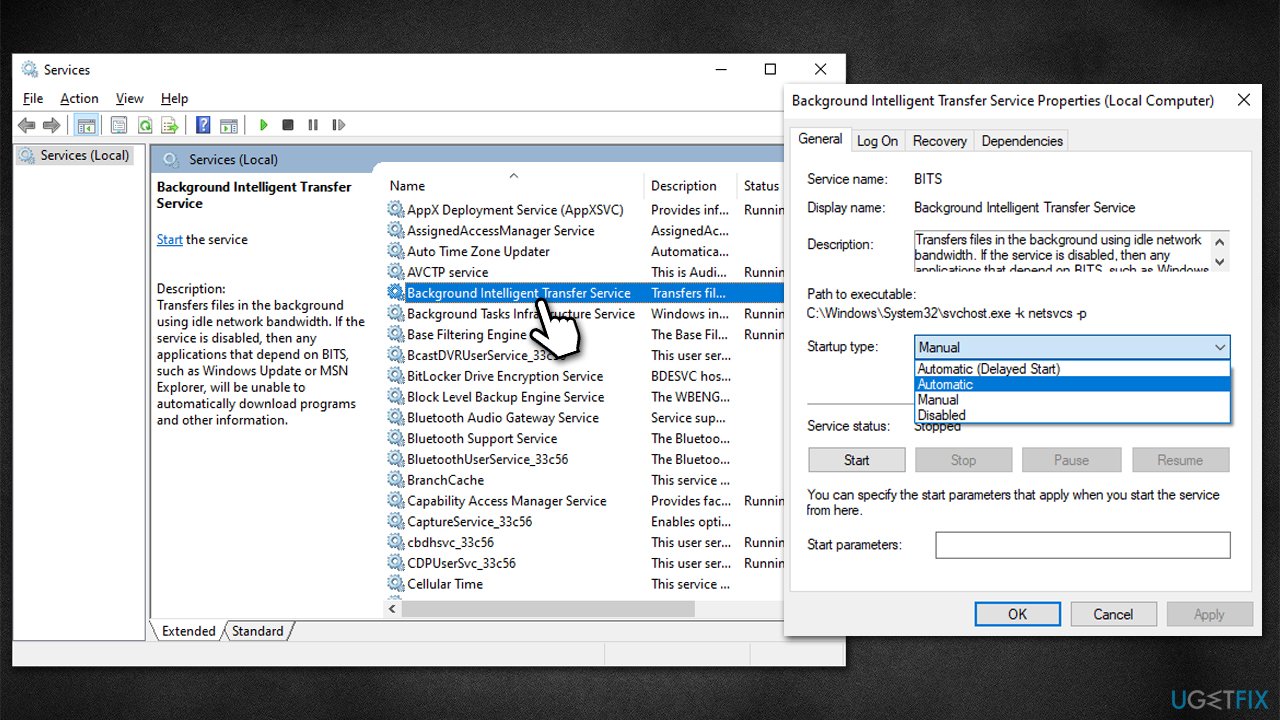
How to fix windows update error 0x8024a203 restart relevant services - Now perform the same actions with the Windows Update service
Fix 4. Reset Windows update components
- Open Command Prompt (Admin)
- Copy and paste the following commands, pressing Enter each time:
net stop wuauserv
net stop cryptSvc
net stop bits
net stop msiserver - Press Win + E to open File Explorer
- Go to the following locations and delete the contents of these folders:
C:\\Windows\\System32\\catroot2
C:\\Windows\\SoftwareDistribution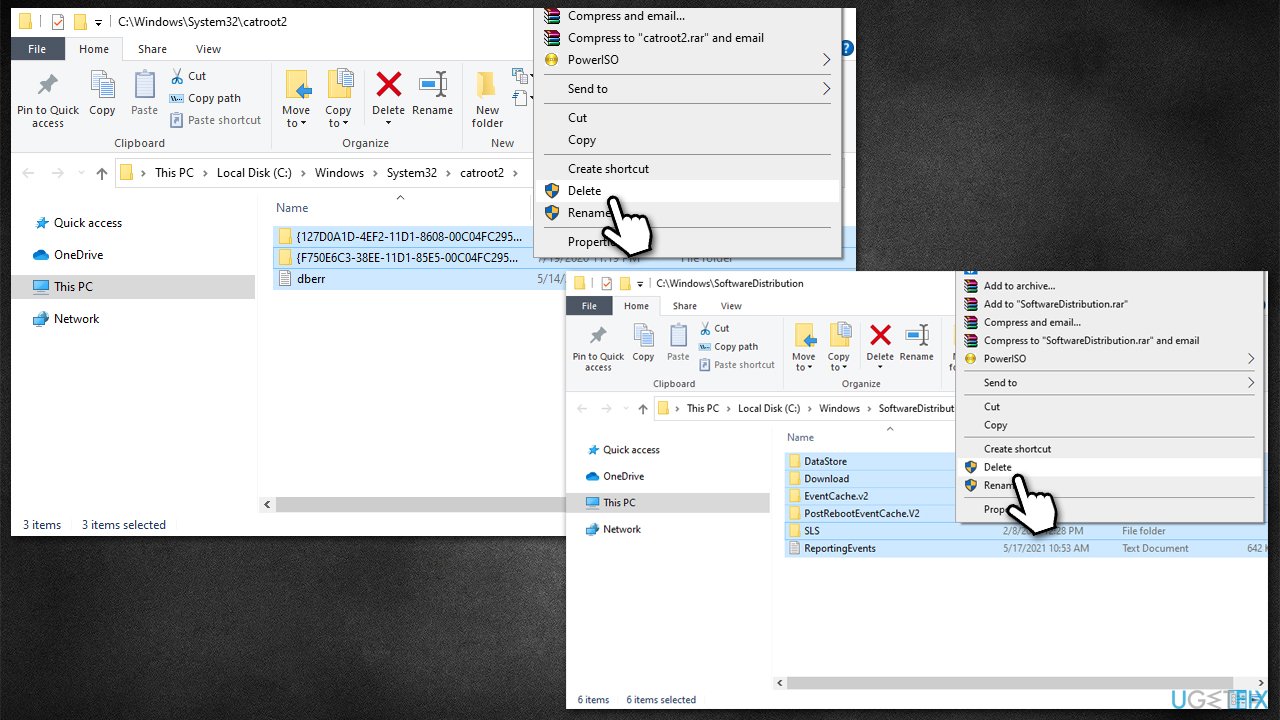
How to fix windows update error 0x8024a203 reset windows update components - In Command Prompt, use the following commands:
net start wuauserv
net start cryptSvc
net start bits
net start msiserver - Reboot your computer.
Fix 5. Install the update manually
If the update is not going through automatically, you might want to try installing it manually.
- Type Updates in Windows search and hit Enter
- Click View update history
- Here, note down the KB number which failed to be installed
- Go to the official Microsoft Update Catalog website
- Type the KB number into the search bar, and press Enter or click Search
- You will find many different versions on the update – you need to find the one that matches your PC specs and Windows version (as a home user, ignore Windows server versions)
- Right-click on Start and pick System
- Under Device specifications, check the System type section: it should either be 64-bit or 32 bit
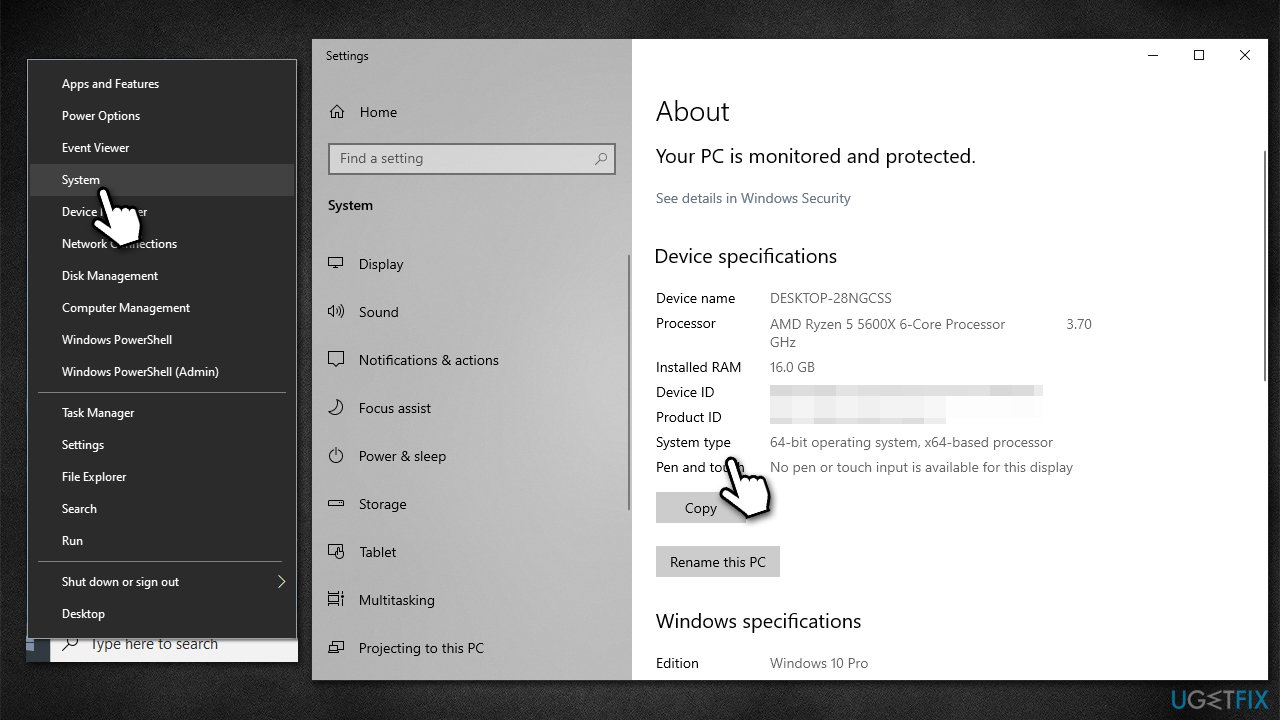
How to fix windows update error 0x8024a203 install update manually - Now, scroll down to Windows specifications and check the Version section
- With all this information, pick the correct version for your device
- Go back to the Microsoft Update catalog, download the appropriate version, and install it
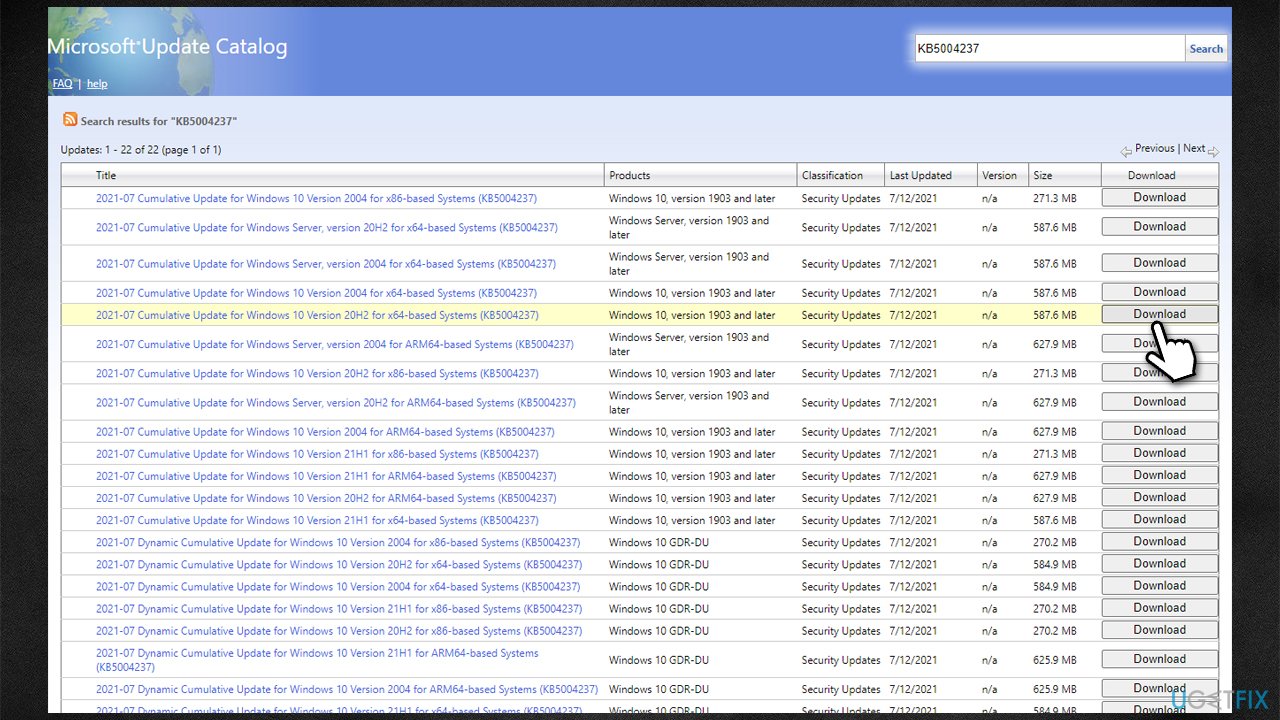
How to fix windows update error 0x8024a203 install update manually2 - Restart your device.
Fix 6. Perform in-place upgrade
You can always try using Media Creation Tool from Microsoft and update your system that way.
- Go to the official Microsoft website and download Media Creation Tool
- Agree to terms and click Next
- Select Upgrade this PC now and select Next
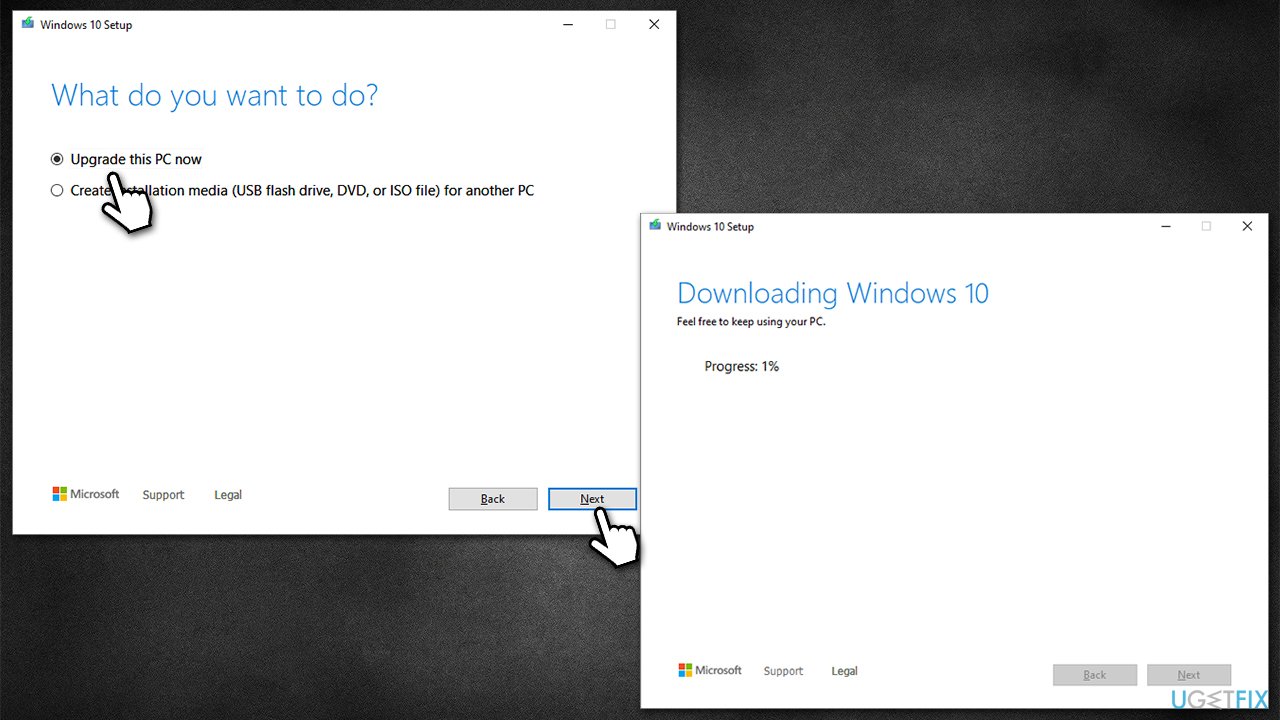
How to fix windows update error 0x8024a203 use media creation tool - Windows will now download all the necessary files – it might take awhile
- Agree to terms once again and click Next
- Before installing, make sure that you are happy with your choices (otherwise, you can click Change what to keep option)
- Finally, click Install to begin the upgrade process.
Bottom line
To fix the Windows update error 0x8024a203, you can use a PC repair tool to automatically address system file corruption and other related issues. Additionally, checking for underlying problems and ensuring your system is up to date may help. If these solutions do not work, consider seeking further assistance or contacting support.
Frequently asked questions
The error 0x8024a203 typically indicates issues with the Windows Update service or problems with the update files themselves on Windows 10 or Windows 11.
You can troubleshoot this error by running the Windows Update Troubleshooter and ensuring that your system files are intact using the System File Checker tool.
Yes, resetting the Windows Update components can often resolve the error 0x8024a203 by refreshing the update settings on Windows 10 or Windows 11.




Report an issue
What's wrong with this guide? We review every report and update or remove content.
Report received — thank you. We'll review and fix it.
You need a free account to submit a report.
Be the first to comment