How to fix
“Undoing changes made to your computer” error
on Windows
Resolve the "Undoing changes made to your computer" error in Windows 11 quickly and easily. Get expert-tested fixes today!

What causes How to fix “Undoing changes made to your computer” error in Windows 11?
- Corrupted system files
- Issues with Windows Update
- Problems with graphics driver
- Conflicts with Windows Defender
- Malware or corrupted files
Repairs Windows system files, removes malware, and restores a clean OS state — without reinstalling.
Hello. I have tried to update my Windows 11 computer, but it is stuck on the "Undoing changes made to your computer" message once the updates were installed. Any suggestions would be appreciated.
Windows 11 is the newest version of Windows released by Microsoft. However, it is not flawless as Microsoft rushes to fix various bugs and glitches. We previously wrote about the Fingerprint reader not working, clock and date missing, File Explorer lagging, and many other issues that emerged after users started testing the operating system. In this guide, we will discuss a new error that has annoyed many people.
The "Undoing changes made to your computer" error in Windows 11 can appear on several occasions. Some users say that they saw the error after updating the system and for others, it appeared after an upgrade from Windows 10. It is unclear what exactly could be causing it. Some users managed to fix it by simply running an update troubleshooter, updating the graphics driver,[ref en-1] or disabling Windows Defender.[ref en-2] However, others were not so lucky and had to reset their PCs completely.
You can also rely on a maintenance tool like [d1] to fix most system errors, BSODs,[ref en-3] corrupted files, and registry issues. It is important to keep the operating system running smoothly, and regularly clear cookies and cache[ref en-4] which are often to blame for various malfunctions. If you are ready to begin the troubleshooting guide that could fix the "Undoing changes made to your computer" error in Windows 11, follow the steps below.
Solution 1. Fix Corrupted System Files
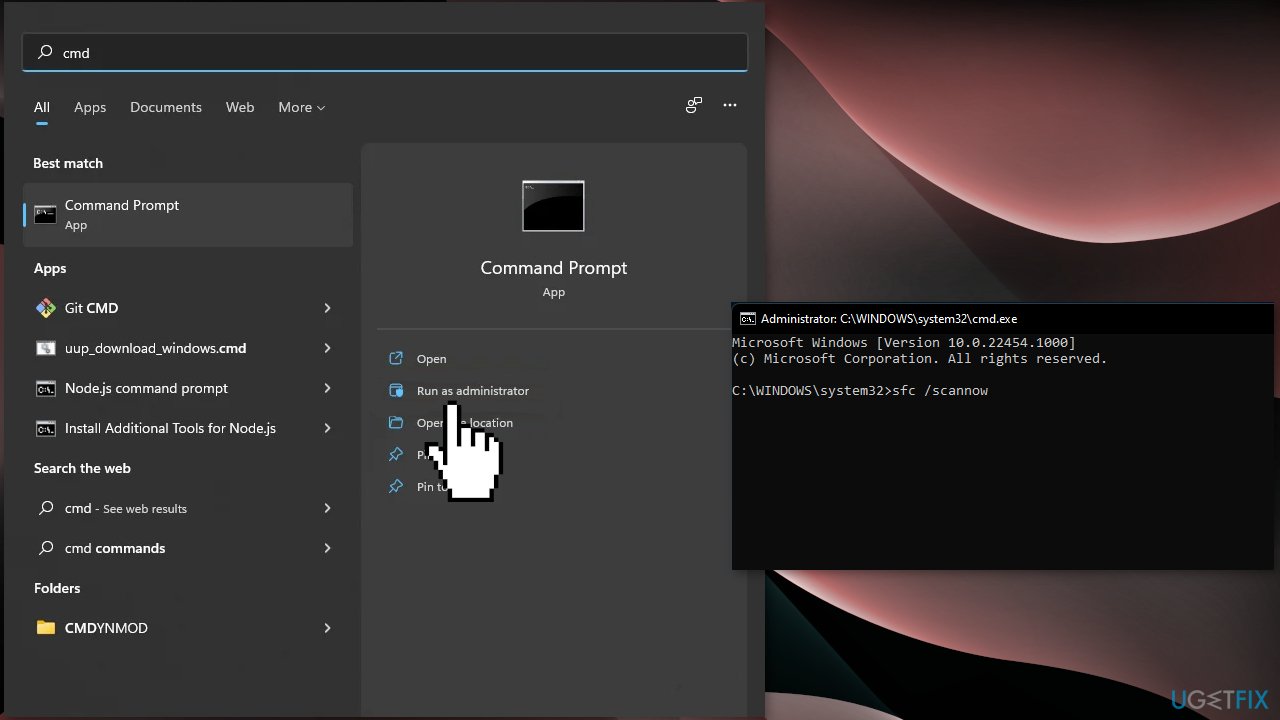
- Click the Search icon on the Taskbar, type cmd, then click on Run as administrator to start Command Prompt
- Type or paste the following command and press Enter:
sfc /scannow
- Run the following command to scan the hard drive for errors:
Dism /Online /Cleanup-Image /RestoreHealth
- Wait for the process to finish, then restart your PC
Solution 2. Run the Windows Update Troubleshooter
- Click the Windows button and select Settings
- Select System from the left pane, then scroll down on the right pane, and click on Troubleshoot
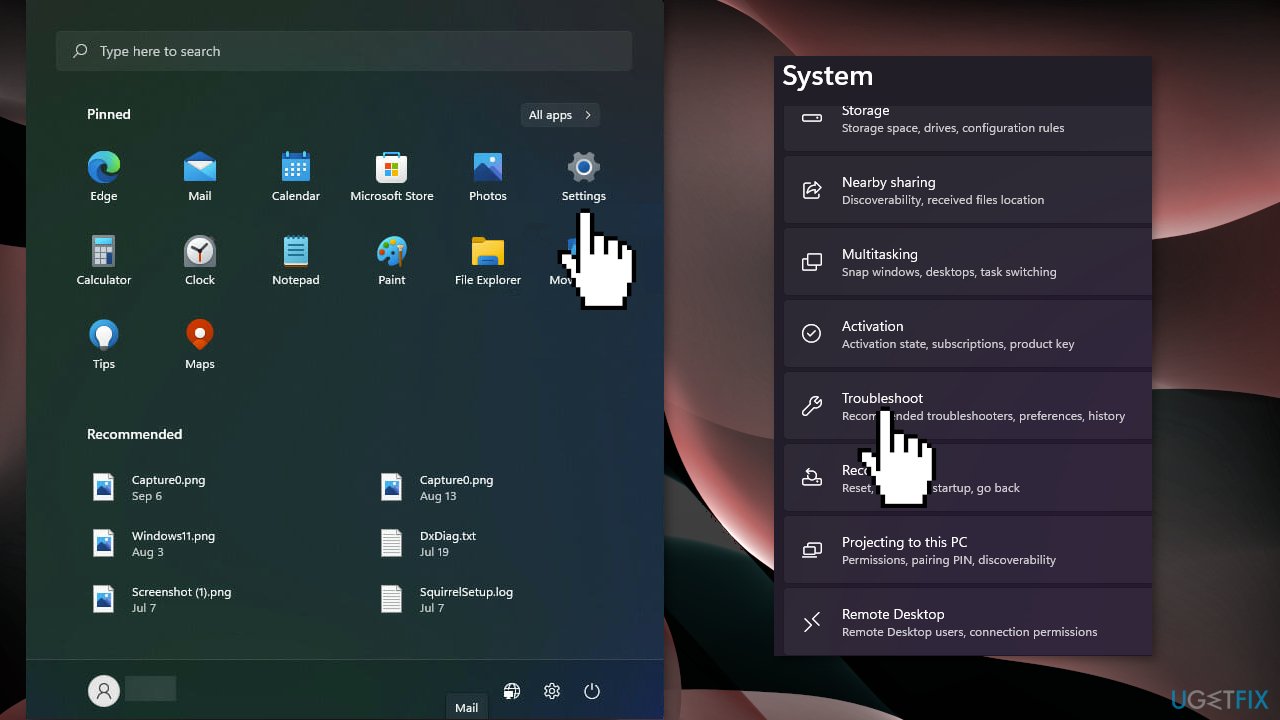
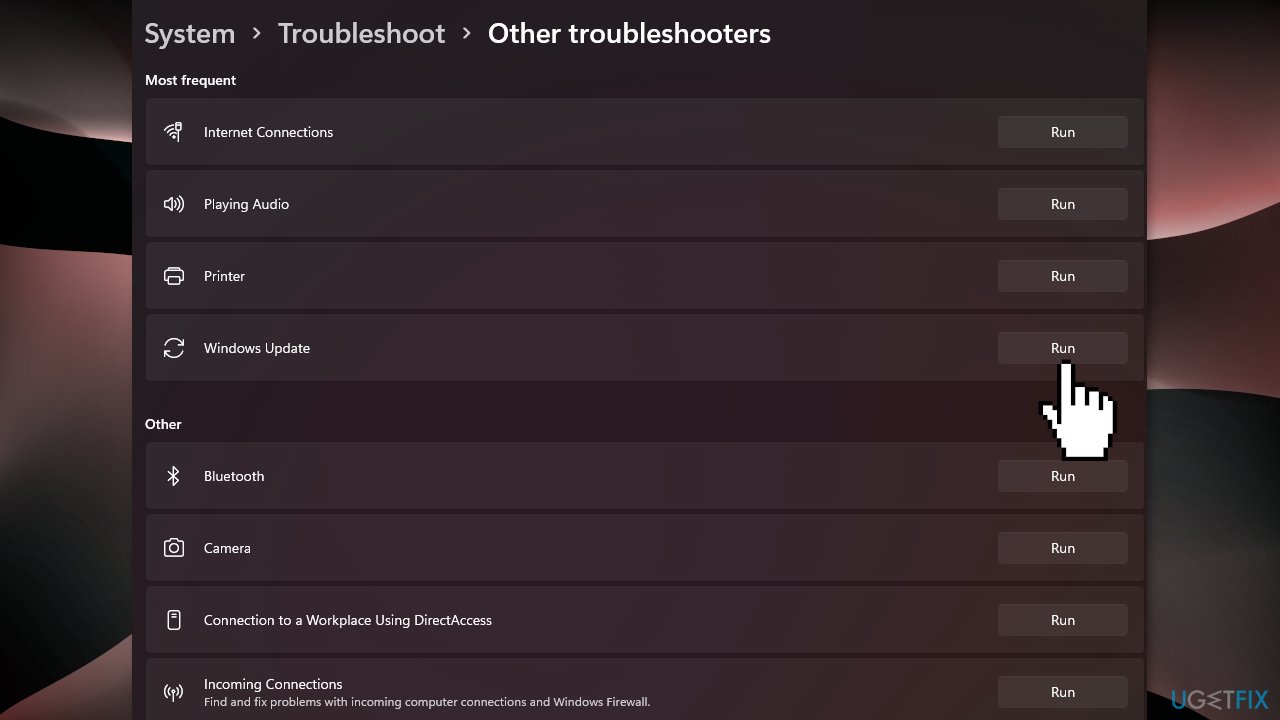
- Click on Other troubleshooters
- Locate the Windows Update troubleshooter and hit the Run button
Solution 3. Check for Windows updates
- Click the Start button and select Settings
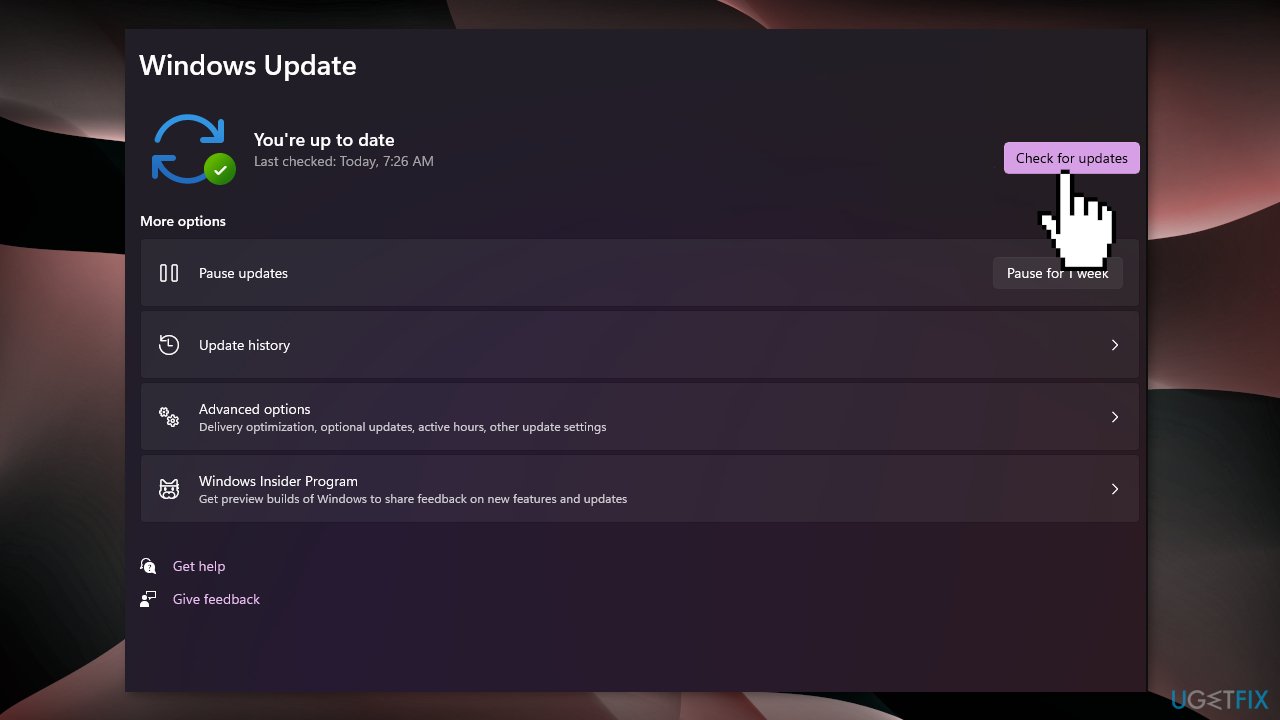
- Click on Windows Update from the left pane and hit the Check for updates button
- The system will start downloading and installing updates if they are available
Solution 4. Update Drivers
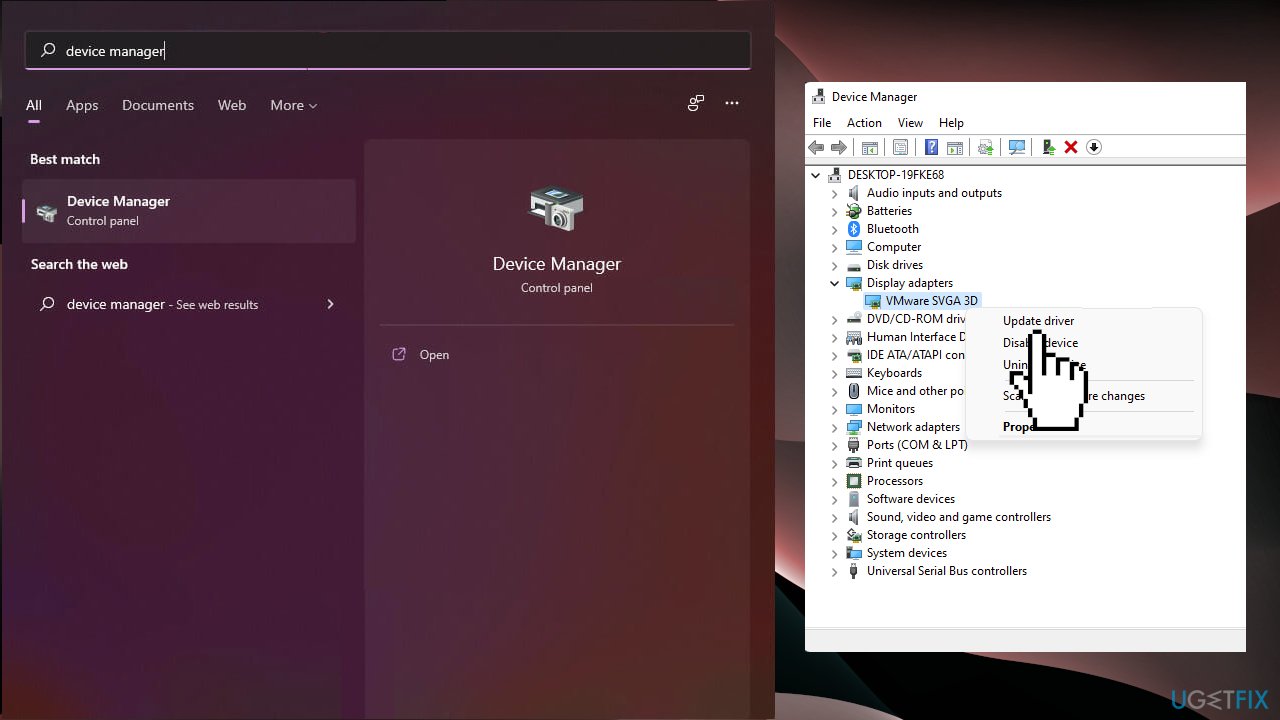
- Click the Search button from the Taskbar, type device manager, and click on the app
- Click the Display adapters section, right-click on the driver, and select Update driver
- Select the Search automatically for drivers option
- If the system finds a new one, it will install it. If not, you can click on Search for updated drivers on Windows Update
- You will be redirected to the Windows Update. Click on Advanced options
- Look at the Optional updates option. If you see that you have any new updates related to drivers there, click it and install them
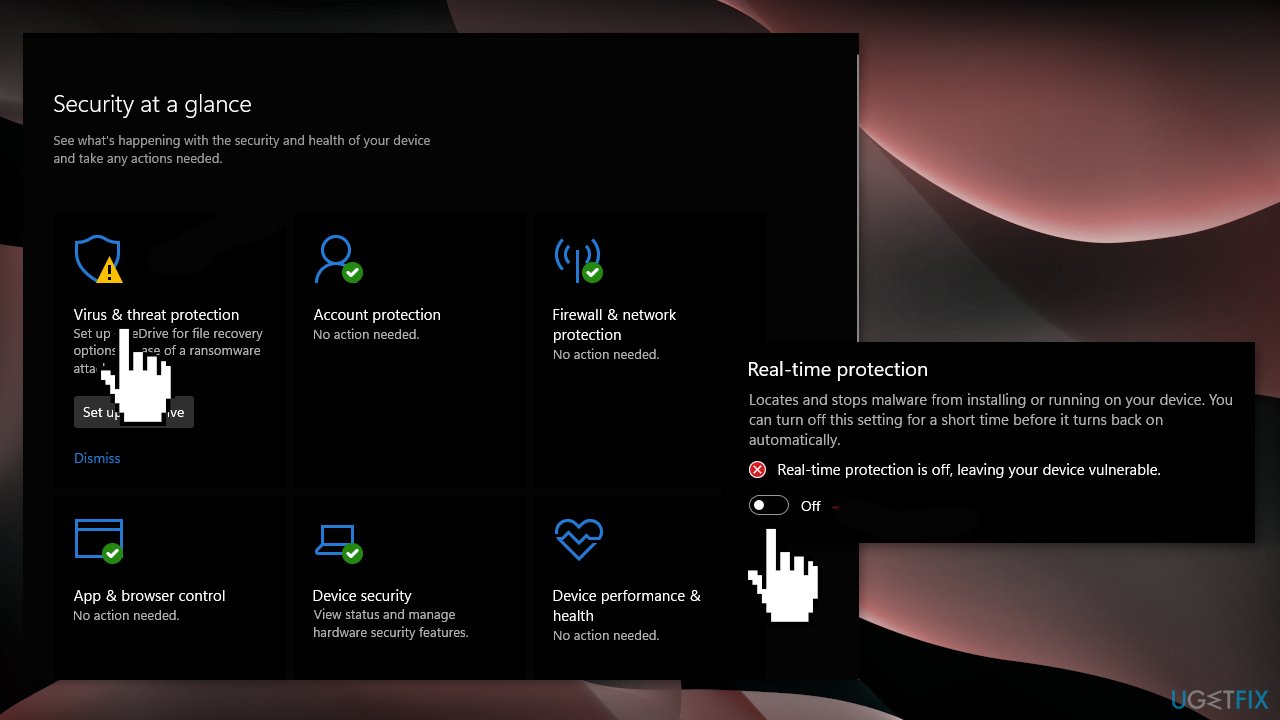
Solution 5. Disable Real-time protection
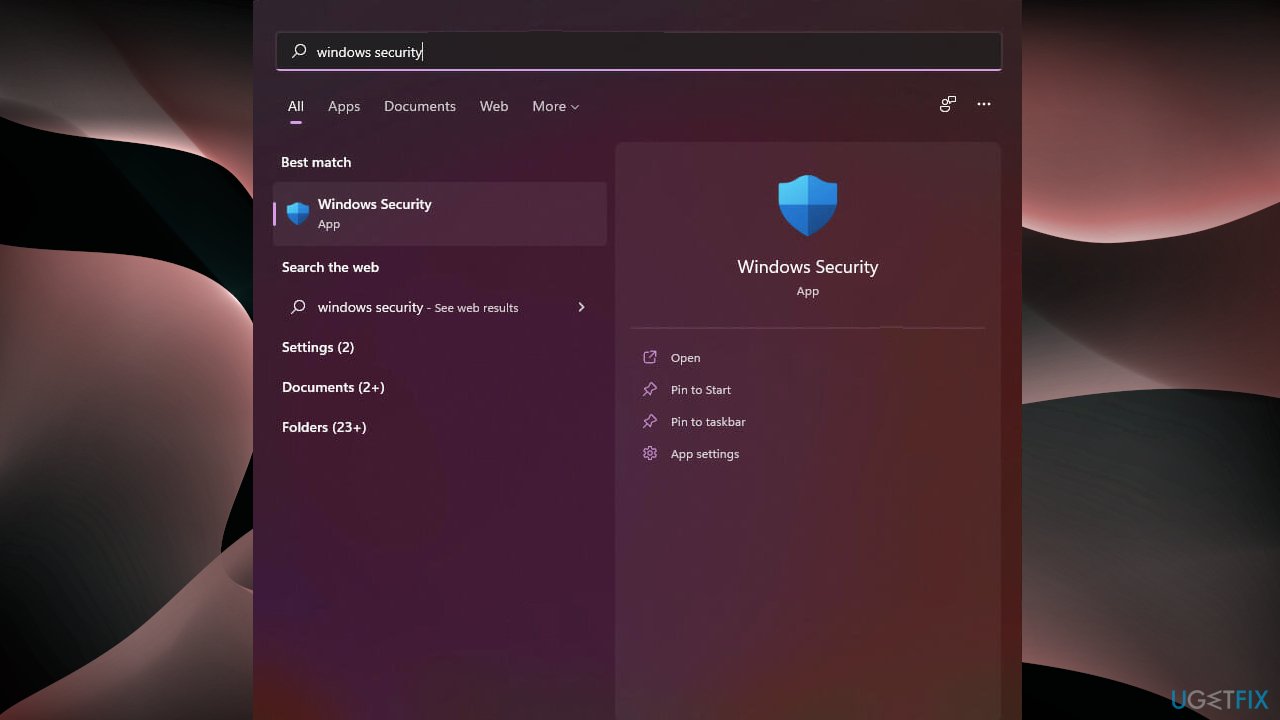
- Click the Search button from the Taskbar, type security, and select Windows Security
- Choose Virus & threat protection and click on Manage settings
- Turn off the Real-time protection
Solution 6. Reset Windows
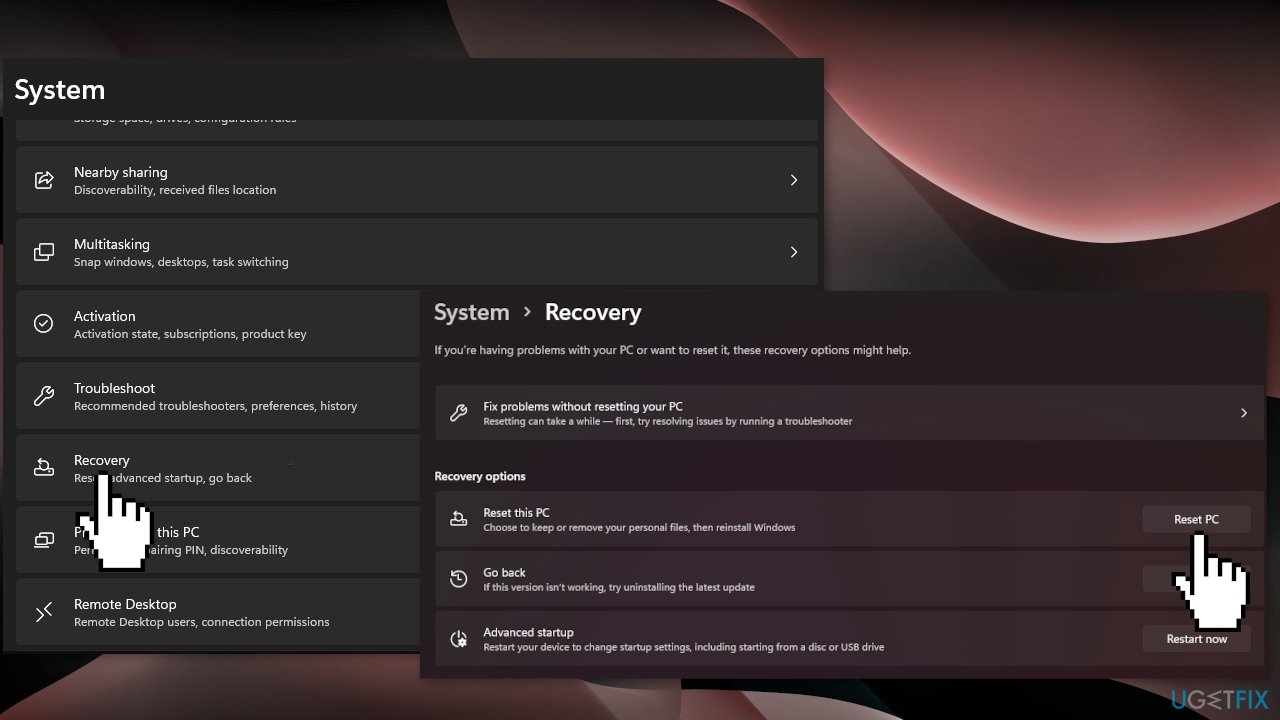
- Choose the Start button located on the Taskbar and click on Settings
- Select System and click on Recovery
- Hit the Reset PC button
- Click on Keep my files if you don’t want to lose them
- Click Next, then Reset, and Windows 11 will start the reinstallation process
If you are unable to access your PC, and the error occurred after an upgrade from Windows 10, follow these steps to reset your computer:
- Start your PC, just as Windows attempts to load, press, and hold the Power Button for 5 - 10 seconds to perform a Hard Shut Down
- Perform it twice
- On the third start Windows will boot into the Recovery Environment
- Go to Troubleshoot, click on Advanced Options and Reset this PC
- Choose if you want to keep your files and start the process
Bottom line
To fix the 'Undoing changes made to your computer' error, you can try running the System File Checker and DISM commands to repair corrupted system files. Additionally, using the Windows Update Troubleshooter may help resolve update-related issues. If these solutions do not work, consider resetting your PC or using a maintenance tool to address deeper system problems.
Frequently asked questions
This error typically occurs when a Windows update or installation fails, leaving the system in an unstable state. It can also be caused by corrupt update files or incompatible software.
To fix this issue, you can try booting into Safe Mode and then performing a system restore to revert your computer to a previous state. Alternatively, running the Windows Update Troubleshooter may help identify and fix the underlying problem.
To minimize the risk of this error, ensure that your system is fully updated and that all drivers are compatible with Windows 11. Regularly check for software conflicts and consider disabling third-party antivirus temporarily during updates.




Report an issue
What's wrong with this guide? We review every report and update or remove content.
Report received — thank you. We'll review and fix it.
You need a free account to submit a report.
Be the first to comment