How to fix
Windows Application error 0xe0434352
on Windows
Resolve the Windows application error 0xe0434352 effortlessly with expert-tested solutions that restore your system’s functionality. Fixed in minutes!


What causes How to fix Windows Application error 0xe0434352?
- Installation of new applications
- Corrupted system files
- Driver issues
- Software conflicts
Repairs Windows system files, removes malware, and restores a clean OS state — without reinstalling.
Hello. Almost every time I launch my Windows computer, I receive an "Unknown software exception (0xe0434352) in application location 0x00007FFD112E3B29" error. Whenever it does show up, it prevents me from logging in, and I have to restart once again until I get a login without the error. This is very annoying, and I'd like it to be fixed ASAP.
Windows is an intricate operating system that is well-known for its ability to provide users with a lot of freedom while becoming more user-friendly at the same time. This means that there are plenty of ways to customize your OS so it would suit your needs - installing new applications is one of the main parts of this process.
Unfortunately, issues might arise with the implementation of new applications, and exception error code 0xe0434352 is one of them. The issue has been around for almost a decade and affects all Windows versions, including Windows 7, 8, 10, and 11. It's not surprising that people want to find solutions to problems that affect their PCs, and we're here to help.
The circumstances in which users experience the 0xe0434352 Unknown software exception error vary. Some users claim that the problem shows up when attempting to shut down or launch the PC, while others said they encountered it when trying to open applications.
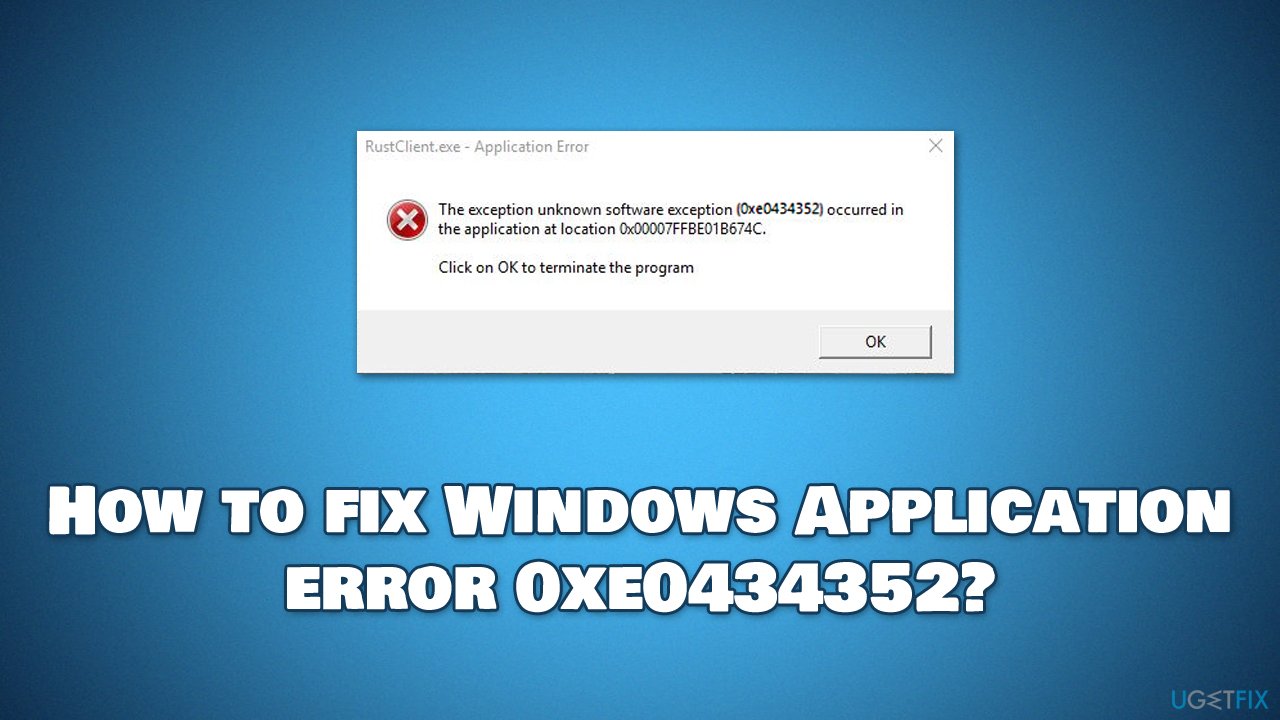
We have discussed exception errors such as 0xc0000409 or 0x40000015, and none of them had a universal solution to them. For example, some people might fix the 0xe0434352 error by reinstalling the problematic application, while others would need to repair corrupted system files or eliminate driver[ref en-1] issues.
Before you proceed with the below steps that should help you fix the error manually, we recommend you try the automatic solution with [d1]. This PC repair and maintenance tool can quickly and easily get rid of the most common Windows issues, fixing DLL[ref en-2] errors, BSODs, registry issues, and more. Likewise, the app can also be useful when removing already installed malware or fixing the damage it has caused to the system.
1. Check for software conflicts with Clean Boot
0xe0434352 application error could be caused by software conflict. Using Windows' Clean Boot function can help you find them easier:
- Type msconfig in Windows search and hit Enter
- Go to the Services tab
- Check the Hide all Microsoft services checkbox and select Disable all
- Go to the Startup tab and pick Open Task Manager
- Here, right-click on every entry and select Disable and close the Task Manager
- Go to the Boot tab, tick Safe Boot and select Apply and OK.
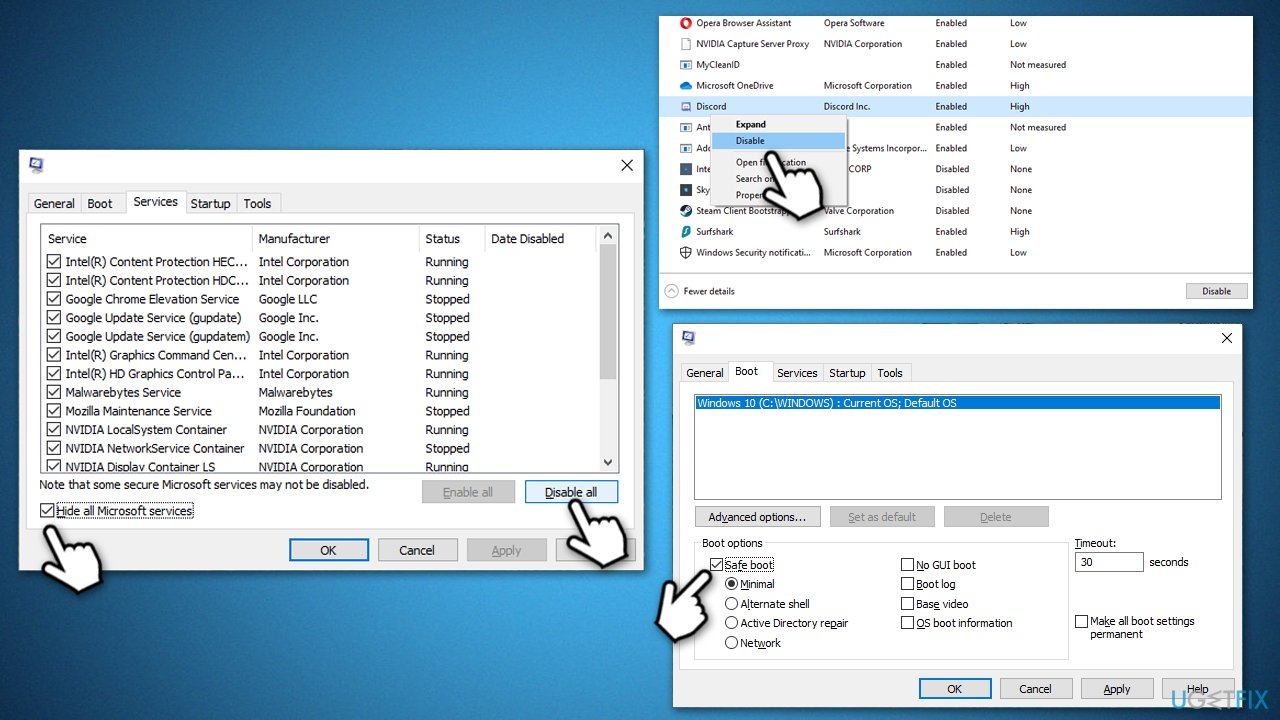
How to fix windows application error 0xe0434352 perform clean boot
If the issue is not present in the Clean Boot environment, it means that software conflict was causing the issue. To resolve this, you need to uninstall the app causing the issue (users reported that FPS counter apps with overlay cause this error).
2. Update GPU drivers and Windows
- Type Update in Windows search and press Enter
- Click Check for updates and wait till Windows downloads and installs all the necessary files
- If available, click View optional updates
- Expand the Drivers section and select everything available, then click Download and install
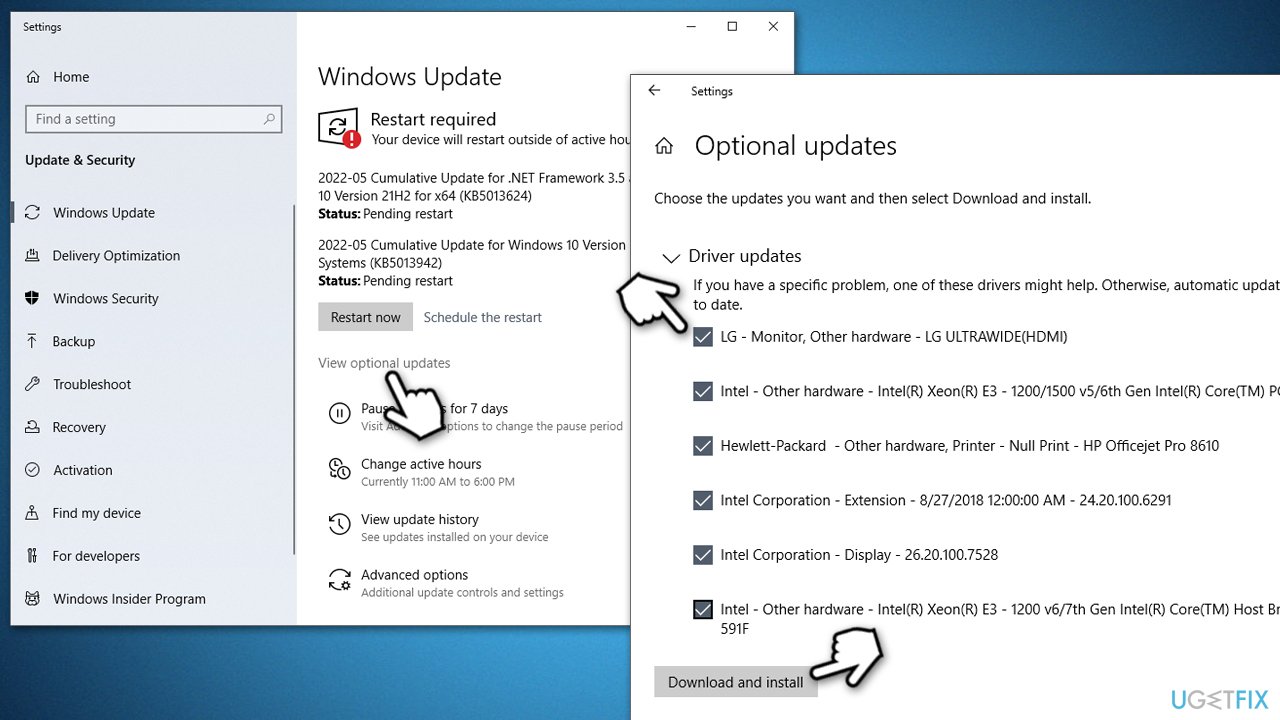
How to fix windows application error 0xe0434352 install windows and driver updates - Once done, restart your computer.
It is important to note that Windows might not always find the most recent driver updates. Therefore, we recommend downloading specific drivers from the manufacturer's website or employing automatic tools such as [rev id="DriverFix"].
3. Check your Disk
Running this scan can help you find issues with your disk. Proceed with the following:
- Type in cmd in Windows search
- Right-click on Command Prompt and pick Run as administrator
- When the User Account Control window shows up, click Yes
- Copy and paste the following command, pressing Enter after:
chkdsk c: /f
(Note: use chkdsk c: /f /r /x command if you are using SSD as your primary partition) - If you receive an error, type in Y, close down Command Prompt, and restart your computer
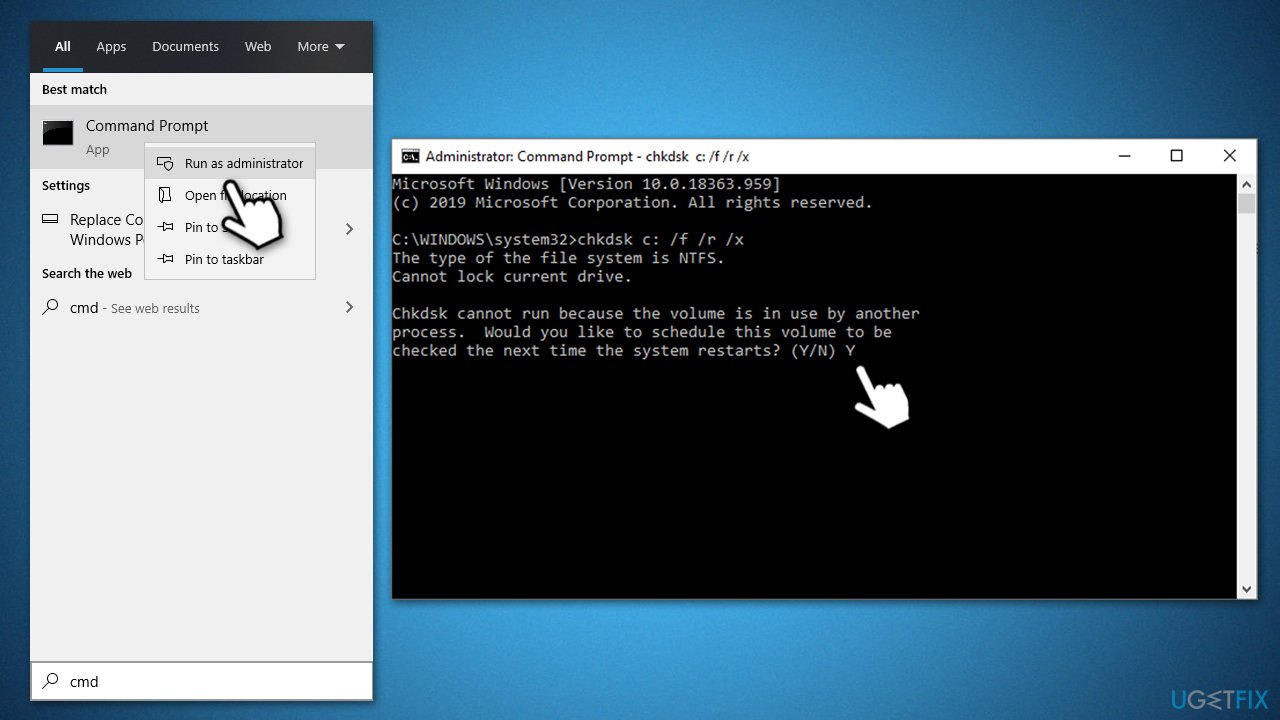
How to fix windows application error 0xe0434352 run checkdisk - The scan will take a while, and the results will be displayed when the computer starts up.
4. Repair damaged system files
- Open Command Prompt as administrator again
- In the new window, type in sfc /scannow and press Enter
- Wait till the scan is finished and follow up with these commands, pressing Enter after each:
Dism /Online /Cleanup-Image /CheckHealth
Dism /Online /Cleanup-Image /ScanHealth
Dism /Online /Cleanup-Image /RestoreHealth - Restart your PC.
5. Repair NET Framework installation
NET Framework is a platform for developing and running various Windows applications. It consists of various tools, programming languages,[ref en-3] libraries, and more. Most users have it installed on their systems, although you wouldn't find it in the installed application list. In case the installation is broken, you can use a special tool from Microsoft to repair it.
- Download Microsoft .NET Framework Repair Tool from the official Microsoft website
- Start the launcher and select NetFxRepairTool.exe, pressing Next after
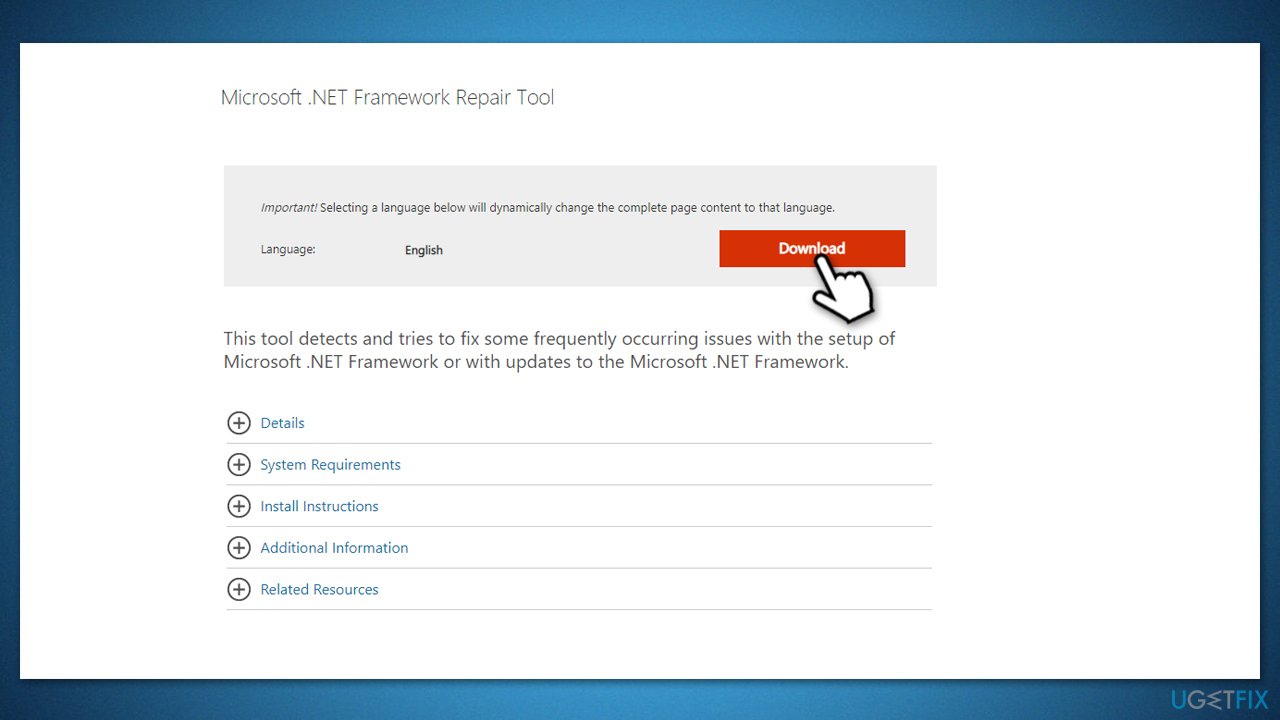
How to fix windows application error 0xe0434352 repair net framework - Once downloaded, double-click the file to begin the repair process
- When prompted, mark the I have read and accept the license terms and click Next
- Windows will diagnose all the issues and repair them automatically for you
- Once complete, restart your PC if the utility doesn't do it for you.
6. Reset Windows
If none of the methods above helped, you can opt to reset your PC. Before you do, make personal file backups as a precautionary measure and disconnect all the unnecessary external devices, such as printers or cameras.
- Right-click on Start and pick Settings
- Go to Update & Security and select Recovery
- Under Reset this PC, pick Get started
- Next, pick Keep my files (if you want to keep them) and then Cloud download
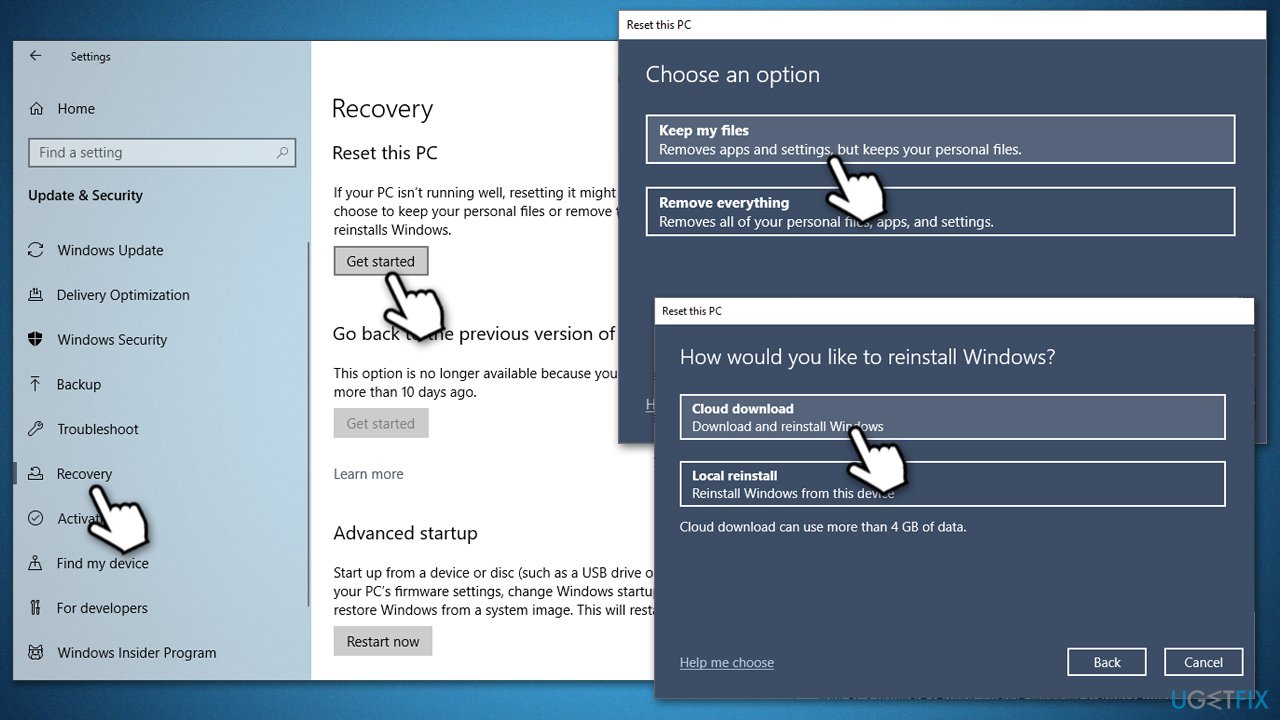
How to fix windows application error 0xe0434352 reset windows - Wait till necessary files are downloaded and installed – your system should reboot.
You can also check our more detailed guides on how to reinstall or reset Windows.
Bottom line
To fix the 0xe0434352 error, you can try reinstalling the problematic application, repairing corrupted system files, or eliminating driver issues. Additionally, performing a Clean Boot may help identify software conflicts. If none of these solutions work, consider using an automatic repair tool to address common Windows issues.
Frequently asked questions
The error code 0xe0434352 typically indicates a .NET Framework issue or an unhandled exception in an application on Windows 10 or Windows 11.
To fix the 0xe0434352 error in Windows 11, you can try repairing the .NET Framework or reinstalling the affected application.
Yes, you can use the Windows Troubleshooter for apps in Windows 10 to automatically detect and fix issues related to error 0xe0434352.




Report an issue
What's wrong with this guide? We review every report and update or remove content.
Report received — thank you. We'll review and fix it.
You need a free account to submit a report.
Be the first to comment