How to fix
Windows update error 0x80070308
on Windows
Resolve Windows update error 0x80070308 quickly with our expert tips. Enjoy seamless updates and a smoother experience. Fixed in minutes!

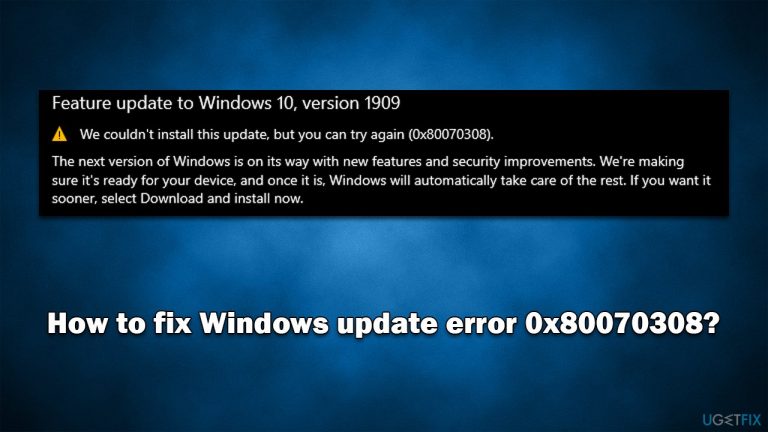
What causes How to fix Windows update error 0x80070308?
- Compatibility issues with installed applications
- Corrupted system files
- Bugged Windows services
- Interference from third-party security software
Repairs Windows system files, removes malware, and restores a clean OS state — without reinstalling.
I was trying to install the newest update for Windows 10 - 22H2, and the process was broken off by an error 0x80070308. Could you please offer some solutions for this - I've been trying to update for several days now without success.
Windows has been operated as a service since the release of Windows 10 in 2015, and it's still the case today. All legitimate software users with a valid license are entitled to regular updates, including feature gain, overall quality increases, cumulative security enhancements, and out-of-band updates. These include not just security patching but also new user interface iterations and features intended to enhance the Windows user experience.
Microsoft releases all updates on "Patch Tuesday,"[ref en-1] which occurs on the second Tuesday of every month, even though out-of-band updates can be distributed at any time. Unfortunately, not all updates always reach users, as Windows update errors such as 0x80070308 may prevent this process from happening.
While this error code was encountered for many years when dealing with various updates, many people have recently reported when trying to install the 22H2 update on Windows 10 machines. This major upgrade was released in the summer of 2022 and promised multiple improvements to various system features.
When dealing with this update, users also reported receiving 0x800f0922 error too, or a combination of the two. That being said, the 0x80070308 error can occur under any other circumstances when downloading regular updates such as KB5017308 or KB5017380.
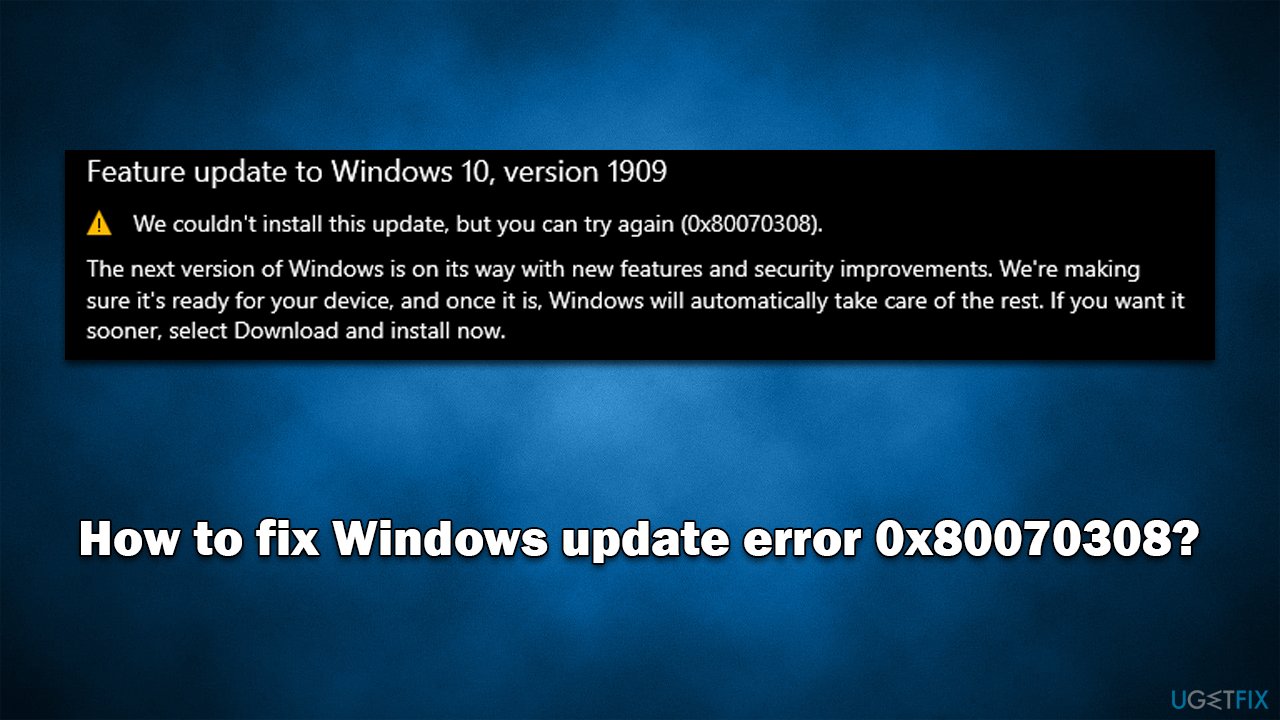
There could be numerous reasons for the error to show up, including compatibility issues with installed applications (in particular, third-party security software), corrupted system files, bugged Windows services,[ref en-2] and so on.
Before proceeding with manual steps to fix the 0x80070308 error, we recommend you attempt to resolve the issue automatically with [d1]. It can check the system for corruption and repair the damage, remove installed malware, clear web caches and other junk files, and fix various other common issues that lead to BSODs,[ref en-3] errors, crashes, etc.
Solution 1. Disable third-party antivirus
When it comes to resolving Windows update installation issues, there are several factors that apply to most cases. This is why, if you have any third-party security software installed on your device, we recommend uninstalling or disabling it and then trying to run an update process once more.
The kernel level changes made by such an app may cause Windows to behave differently, affecting how it responds to various operations and software/update installations. You can turn off real-time protection or remove the program for a short period of time.
Solution 2. Use the troubleshooter
A troubleshooter is a built-in tool that could help you resolve Windows update issues.
- Type Troubleshoot in Windows search and hit Enter
- Click Additional troubleshooters on the right
- Scroll down to find Windows update and click it
- Click Run the troubleshooter
- Apply the suggested fixes and restart your device.
Solution 3. Run SFC and DISM
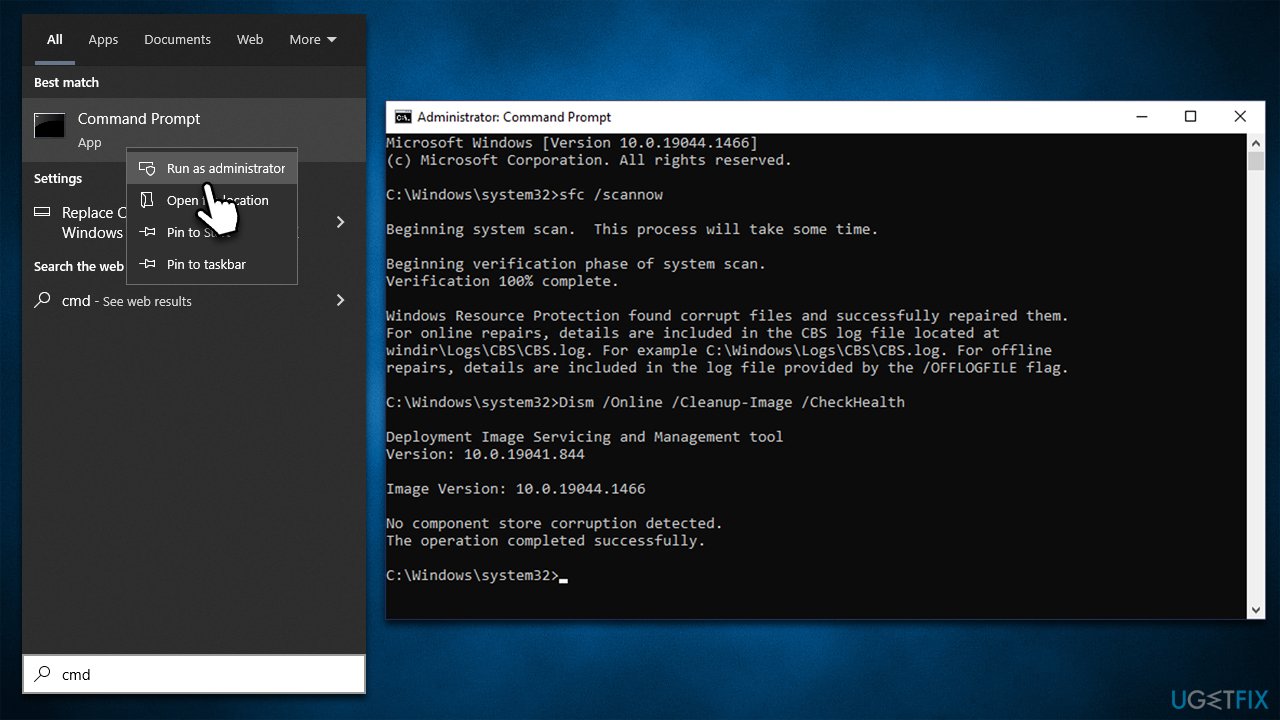
System file corruption can be the main reason why update files can't be implemented on the device. To repair damaged system files, you can run several commands via the elevated Command Prompt:
- Open Command Promot as administrator as explained above
- Paste the following command into the new window:
sfc /scannow - Press Enter and wait till the scan is finished
- Once done, run this set of commands, pressing Enter after each:
DISM /Online /Cleanup-Image /CheckHealth
DISM /Online /Cleanup-Image /ScanHealth
DISM /Online /Cleanup-Image /RestoreHealth - Restart your PC.
Solution 4. Try Media Creation Tool
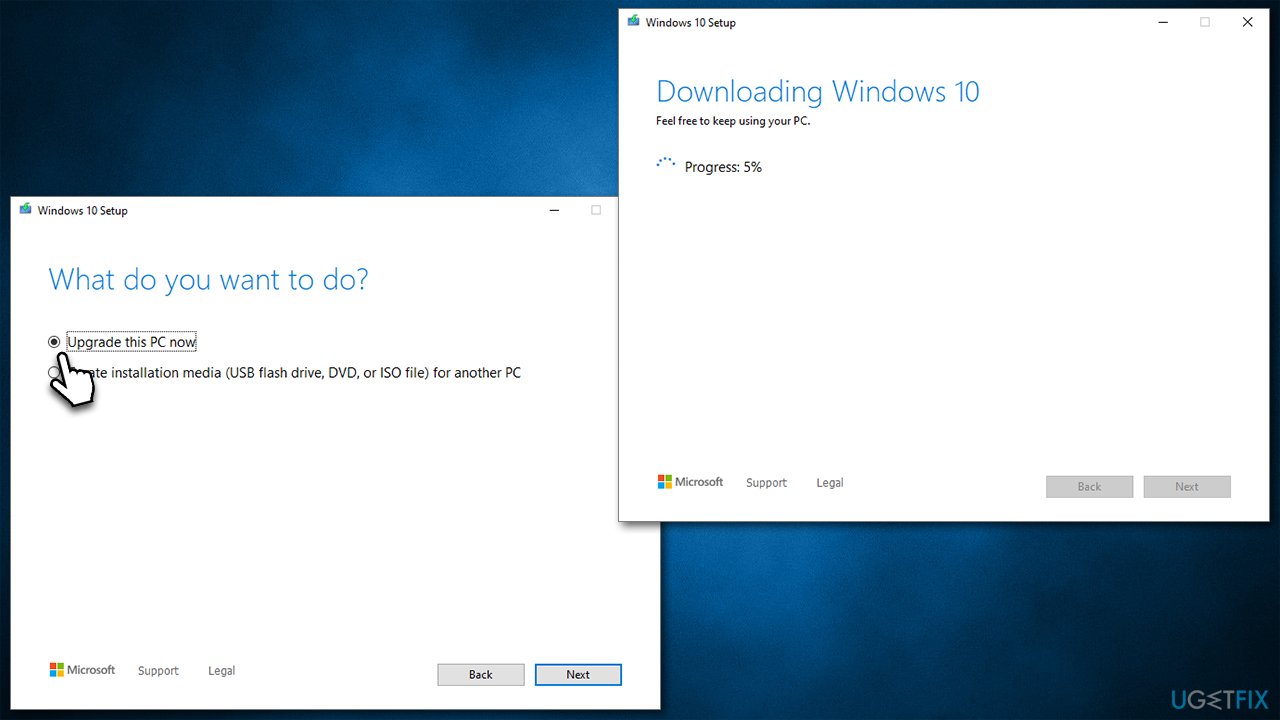
You could use a special tool designed by Microsoft for the update process, which helped many users to fix the 0x80070308 error.
- Visit the official Microsoft website and download Windows 10 installation media (Windows 11 version)
- Double-click the installer, select Yes when UAC shows up, and agree to the terms
- Select Upgrade this PC now and click Next
- Windows will start downloading the needed files
- Agree to terms once again and click Next
- Before installing, make sure that you are happy with your choices ( you can click Change what to keep option if not)
- Click Install to begin the upgrade process.
Solution 5. Reset Windows Update components
- Type cmd in Windows search
- Right-click on Command Prompt result and select Run as administrator
- Type each of these command lines, pressing Enter every time (wait till the command is fully executed):
net stop bits
net stop wuauserv
net stop appidsvc
net stop cryptsvc
Del "%ALLUSERSPROFILE%\Application Data\Microsoft\Network\Downloader\*.*"
rmdir %systemroot%\SoftwareDistribution /S /Q
rmdir %systemroot%\system32\catroot2 /S /Q
regsvr32.exe /s atl.dll
regsvr32.exe /s urlmon.dll
regsvr32.exe /s mshtml.dll
netsh winsock reset
netsh winsock reset proxy
net start bits
net start wuauserv
net start appidsvc
net start cryptsvc - Restart your device and attempt to download the update once more.
Solution 6. Install the update manually
- Type in Update in Windows search box and hit Enter
- Click View Update History on the right side of the window
- From the list of updates, note the KB number of the one that failed to be installed due to the error
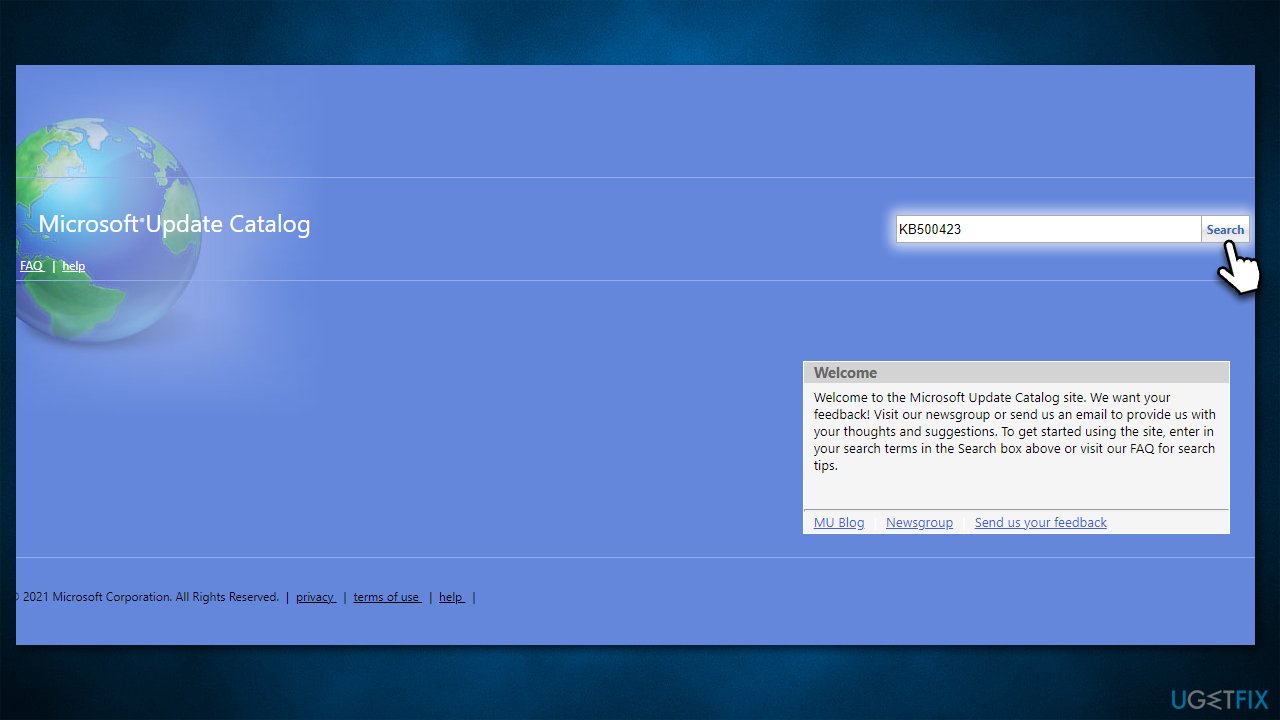
- Go to Microsoft Update Catalog
- Type in the KB number and click Search
- Pick the version that is compatible with your operating system and select Download
- Proceed with on-screen guidelines and restart your computer once done.
Bottom line
To fix the Windows update error 0x80070308, you can disable third-party antivirus software and attempt to resolve the issue automatically using a repair tool. If these solutions do not work, consider checking for other underlying issues or seeking additional support.
Frequently asked questions
The error 0x80070308 typically indicates that there is an issue with the update files or system files on your Windows 10 or Windows 11 system that prevents updates from being installed.
To fix error 0x80070308 on Windows 10, you can run the Windows Update Troubleshooter and ensure your system files are not corrupted by using the DISM and SFC tools.
Yes, resetting the Windows Update components can help resolve error 0x80070308 by clearing any corrupt data and allowing the update process to start fresh on Windows 11.




Report an issue
What's wrong with this guide? We review every report and update or remove content.
Report received — thank you. We'll review and fix it.
You need a free account to submit a report.
Be the first to comment