How to fix
“Application has been blocked from accessing graphics hardware” error
on Windows
Resolve the "Application has been blocked from accessing graphics hardware" error on Windows 10 effortlessly. Expert-tested solutions await you!

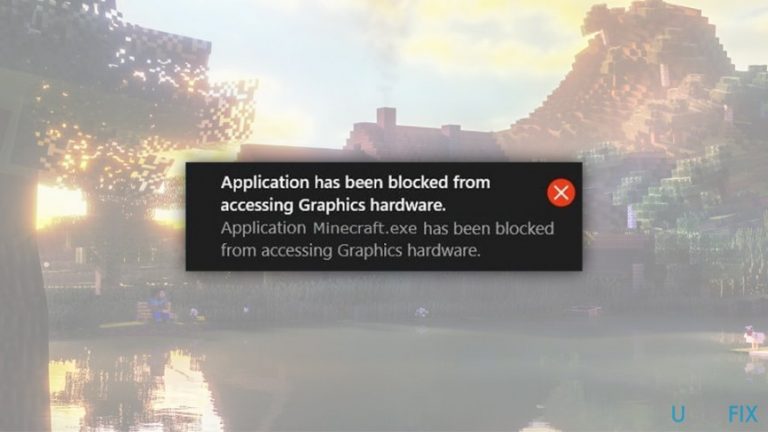
What causes How to fix “Application has been blocked from accessing graphics hardware” error on Windows 10?
- Outdated video card drivers
- Corrupted video card drivers
- Incompatible video card drivers
- Broken hardware components
- Low response time of the GPU
- Too many programs running in the background
Repairs Windows system files, removes malware, and restores a clean OS state — without reinstalling.
I’ve been playing online games for ages and had no errors while using Windows 8. However, I’ve upgraded to Windows 10 several months ago pushed by my older brother and now I regret it a lot. I’ve already encountered various Store errors that were not as irritating as the one I’m facing not. Now when I open Edge and try to play any game I was used to playing, I get the message saying "Application has been blocked from accessing graphics hardware." How can I fix it?
"Application has been blocked from accessing graphics hardware" is not a very common error, although some users started reporting it on the official Windows forums, as well as other message boards.[ref en-3] The pop-up message shows up when users are about to launch their favorite game - this applies to both browser-based as well as installable video games. Examples include Battlefield 4, Minecraft, Solitare,
Graphics card is one of the core computer hardware elements when it comes to video gaming and HR video rendering. Therefore, users who often do one or the other, usually have powerful GPUs (Graphics processing unit or a graphics card) and other relevant components. More casual players choose integrated GPUs instead of dedicated[ref en-2] ones because simple games do not require powerful hardware.
"Application has been blocked from accessing graphics hardware" has been encountered by both parties, so the issue is not related to the type of hardware installed. However, the problem still lies in the graphics cards and their components. There are four most common reasons for the issue to arise, including:
- Outdated/corrupted/incompatible installed video card drivers;
- Broken hardware components;
- Low response time of the GPU when it comes to displaying graphics to the monitor;
- Too many programs running in the background.
Video card drivers[ref en-4] are very important for the normal performance of the GPU, as they ensure that the device would operate properly. Thus, it is not surprising that most users managed to fix "Application has been blocked from accessing graphics hardware" error after tweaking their drivers.
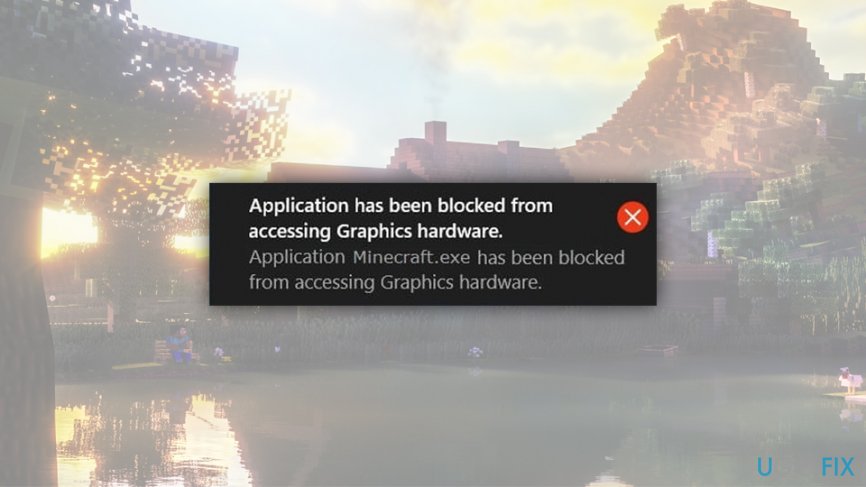
The error message says:
Application has been blocked from accessing graphics hardware.
Some users also reported that "Application has been blocked from accessing graphics hardware" is accompanied by a Blue Screen of Death and computer shutdown. Others said that they were unable to use the second GPU after the issue occurred. Indeed, this situation is extremely unpleasant to many users, and they are trying to look for solutions and ways how to fix "Application has been blocked from accessing graphics hardware" error.
If you are suffering from other errors in conjunction with "Application has been blocked from accessing graphics hardware," or you are not so computer-savvy, we advise you download and install [d1] - this application is capable of fixing various Windows-related issues automatically. If you do not want to try it, you can proceed with the below solutions, and hopefully, they will help you find the correct "Application has been blocked from accessing graphics hardware" fix for your computer.
Fix 1. Run System File Checker and DISM
Generally, when you encounter any error on Windows 10 or another Windows version, it’s advisable to run System File Checker,[ref en-1] and DISM commands. Microsoft has developed these tools to help people solve problems related to file corruption and other minor malfunctions automatically. Therefore, if you are struggling with "Application has been blocked from accessing graphics hardware" error, please start to fix it by doing the following:
- Type cmd into Cortana's search box.
- Right-click on Command Prompt result and select Run as Administrator.
- Type sfc /scannow command and press Enter.
- Wait till the scan finishes - Windows will report the found errors and will attempt to fix them.
- After that, type the following commands and hit Enter after each of them:
DISM /Online /Cleanup-Image /ScanHealth
DISM /Online /Cleanup-Image /RestoreHealth - Close Command Prompt and reboot the system.
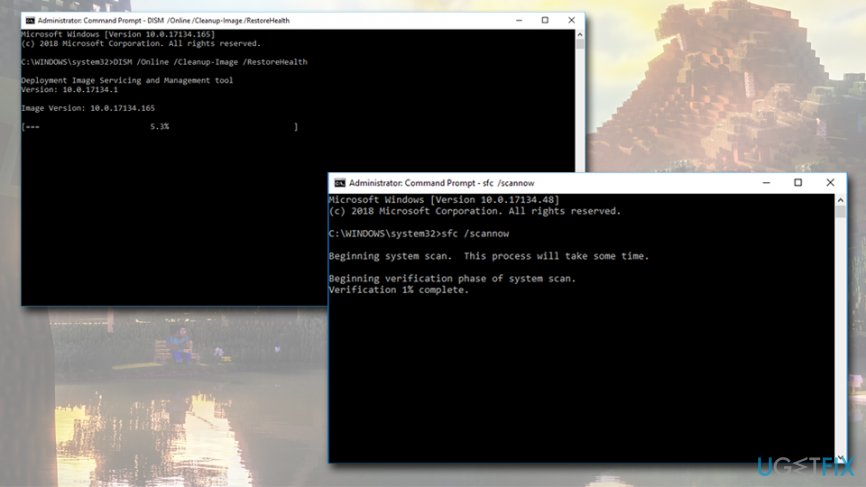
Application has been blocked from accessing graphics hardware error fix run dism and sfc
If these commands did not reveal anything specific, then please move on to next method.
Fix 2. Run a built-in System Maintenance troubleshooter
Troubleshooter utility is an excellent method to determine and fix various Windows errors, including "Application has been blocked from accessing graphics hardware" error. Here's how to use the System Maintenance troubleshooter:
- Press Win + R on your keyboard.
- Type in msdt.exe -id MaintenanceDiagnostic and hit Enter.
- Once the troubleshooter opens, click Next.
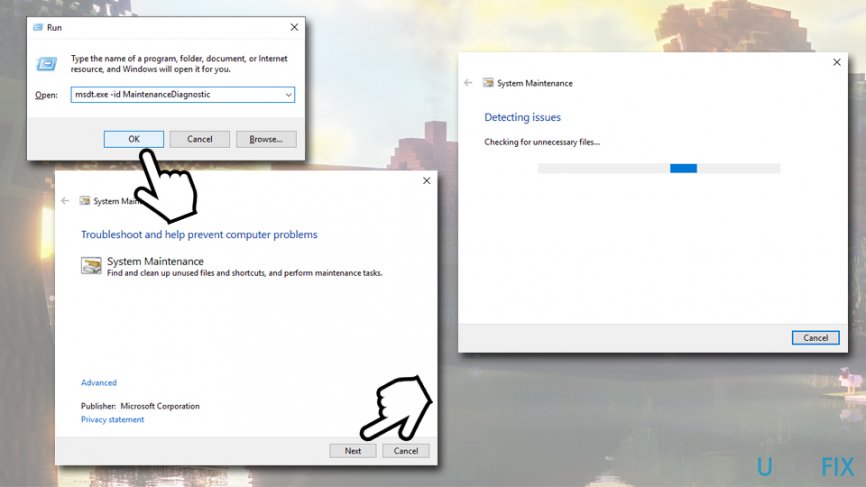
Application has been blocked from accessing graphics hardware error fix run troubleshooter - Wait till windows finishes the scan and presents the findings.
Fix 3. Reinstall Display drivers
Outdated, corrupted or incompatible graphics drivers can be a reason for multiple Windows errors, and "Application has been blocked from accessing graphics hardware" error is one of them. By reinstalling GPU drivers, you will ensure that correct/newest drivers are running on your system:
- Right-click on the Start button and select Device Manager.
- Expand the Display adapters section.
- Right-click on your GPU and pick Uninstall device.
- In the next prompt, make sure you select the Delete the driver software for this device box.
- Click Uninstall and reboot your PC.
- After that, launch Device Manager once again.
- Once it opens, click on Scan for hardware changes button located at the top
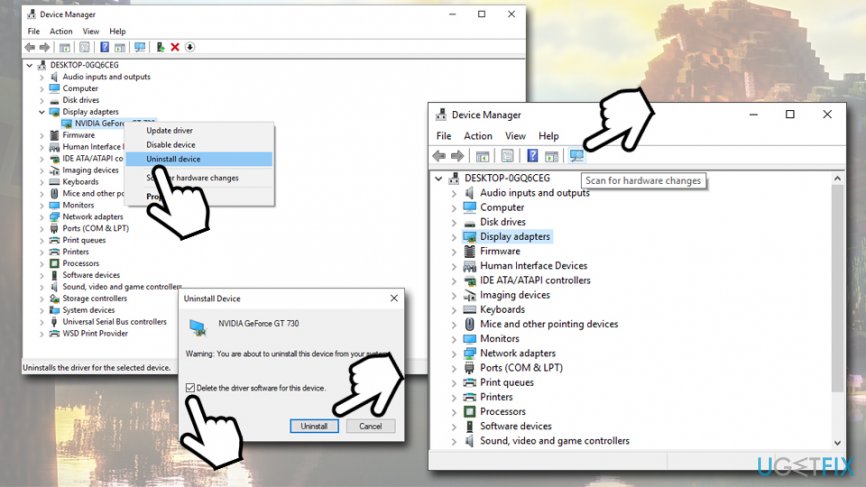
Application has been blocked from accessing graphics hardware error fix reinstall graphics driver - Now the system should automatically detect and reinstall the missing driver.
If for some reason this process fails, go to the manufacturer’s website and download the driver manually:
- https://www.nvidia.com/Download/index.aspx - Nvidia
- https://www.amd.com/en/support - AMD
- https://downloadcenter.intel.com/product/80939/Graphics-Drivers - Intel
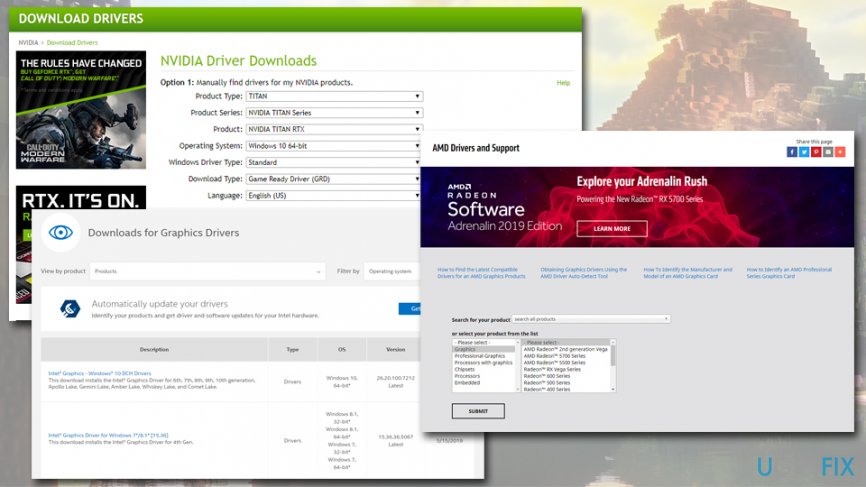
Application has been blocked from accessing graphics hardware error fix download drivers manually
Method 4. Use a System Restore Point
Have you created a System Restore Point some time ago? If you did, then you should try to enable it and check if the Graphics Blocked issue reappears on Edge. If you have started experiencing this issue only recently, System Restore should fix it:
- Type Create a Restore Point into Cortana's search box and hit Enter.
- Select System Protection tab.
- Click on System Restore and then press Next.
- Select Show more restore points.
- Select the last Restore Point that you have created and click Next.
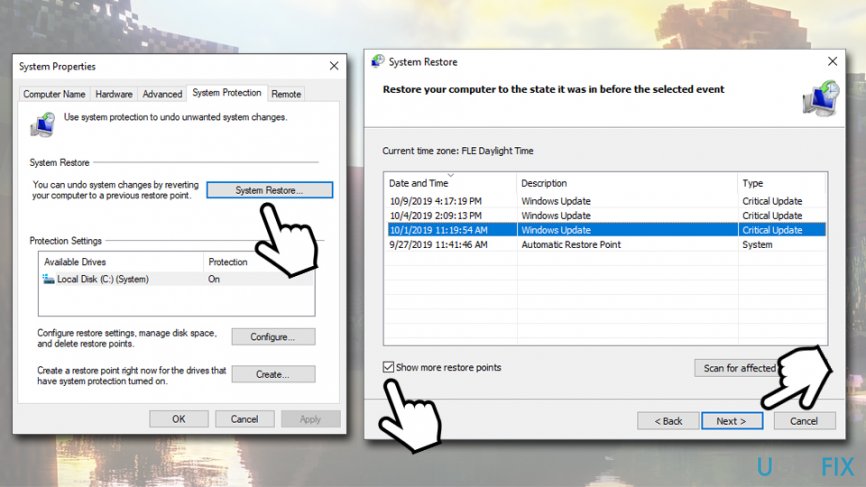
Application has been blocked from accessing graphics hardware error fix use system restore - Click Finish and wait for the system to restore. After that, restart the system.
Note: System Restore will uninstall all the applications and Windows updates that were installed past the select date. However, all the personal files or files created with the program that will be removed will remain intact.
Bottom line
To fix the 'Application has been blocked from accessing graphics hardware' error, users should consider updating or reinstalling their video card drivers, checking for hardware issues, and closing unnecessary background programs. If these solutions do not resolve the issue, further investigation into the graphics hardware may be necessary.
Frequently asked questions
Start by updating your graphics drivers through the Device Manager, as outdated drivers are often the primary cause of this issue.
Yes, lowering the graphics settings for the application or game can sometimes alleviate the problem and allow it to run smoothly.
You can visit the manufacturer's website to ensure your graphics card drivers are compatible with Windows 10 and up to date.




Report an issue
What's wrong with this guide? We review every report and update or remove content.
Report received — thank you. We'll review and fix it.
You need a free account to submit a report.
Be the first to comment