How to fix
Windows update error 0xc1900201
on Windows
Resolve Windows update error 0xc1900201 quickly and efficiently with expert-tested solutions designed for Windows 10 and 11. Fixed in minutes!


What causes How to fix Windows update error 0xc1900201?
- Reserved partition could not be updated
- Couldn't update the system reserved partition
- General bugs within the Windows update components
- Corrupted system data
- Issues related to OS migration from HDD to SSD
Repairs Windows system files, removes malware, and restores a clean OS state — without reinstalling.
Hello, I have been trying to install the latest Windows updates, but I keep receiving the error code 0xc1900201. I otherwise have little to no problems, so I am not sure what's causing it. Please advise.
Users should always update Windows when new patches become available - these updates fix bugs, patch software vulnerabilities, improve stability and performance, and implement new features. Since Microsoft operates Windows as a service, users can expect new updates on every Patch Tuesday (the second or fourth Tuesday of the month), although out-of-band updates can sometimes also occur.
Unfortunately, not all updates manage to reach users because of Windows update errors such as 0xc1900201. The error code is relatively old and seems to only affect those who run Windows 10 on their devices. The issue can occur with monthly updates, such as KB5020030, or major version upgrades, such as 22H2.
Most users who reported the issue claimed that they started receiving Windows update error 0xc1900201 in relation to reserved partition. This happens when people upgrade from the previous version of Windows, which also shows the message "Reserved partition could not be updated" or "Couldn't update the system reserved partition." This can also occur when users migrate their OS from an HDD to an SSD drive.
In other cases, 0xc1900201 can be caused by general bugs within the Windows update components, including caches or services that are not properly configured. Corrupted system data is also one of the leading causes, so running commands via an elevated Command Prompt or resorting to an automatic system fixer [d1] could resolve this error.
Before we provide all the solutions that could help you fix the 0xc1900201 update error. Make sure you follow the instructions carefully and do not rush the process, as incorrectly performed steps may be damaging instead.
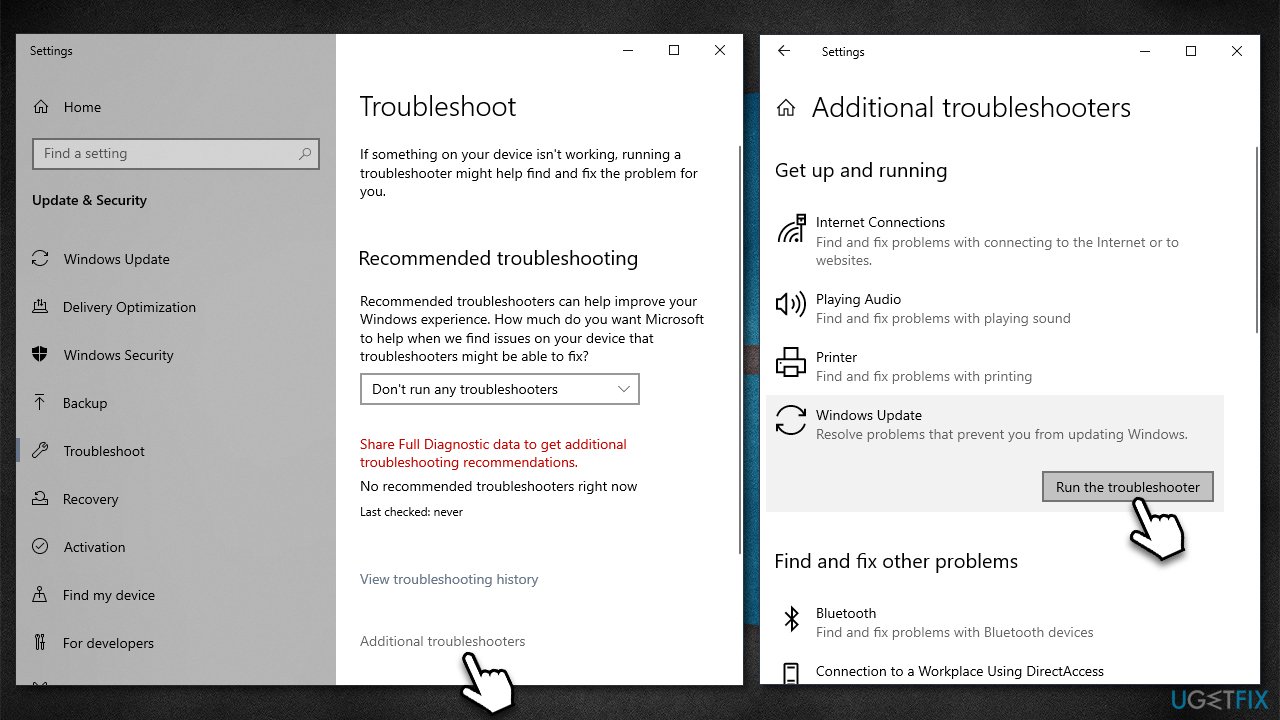
Fix 1. Run the troubleshooter
We recommend starting with the simplest solution - running the Windows update troubleshooter.
- Type Troubleshoot in Windows search and press Enter
- Select Additional troubleshooters
- Find Windows Update from the list
- Click it and select Run the troubleshooter
- Apply the suggested fixes and restart your device.
Fix 2. (Re)start relevant services
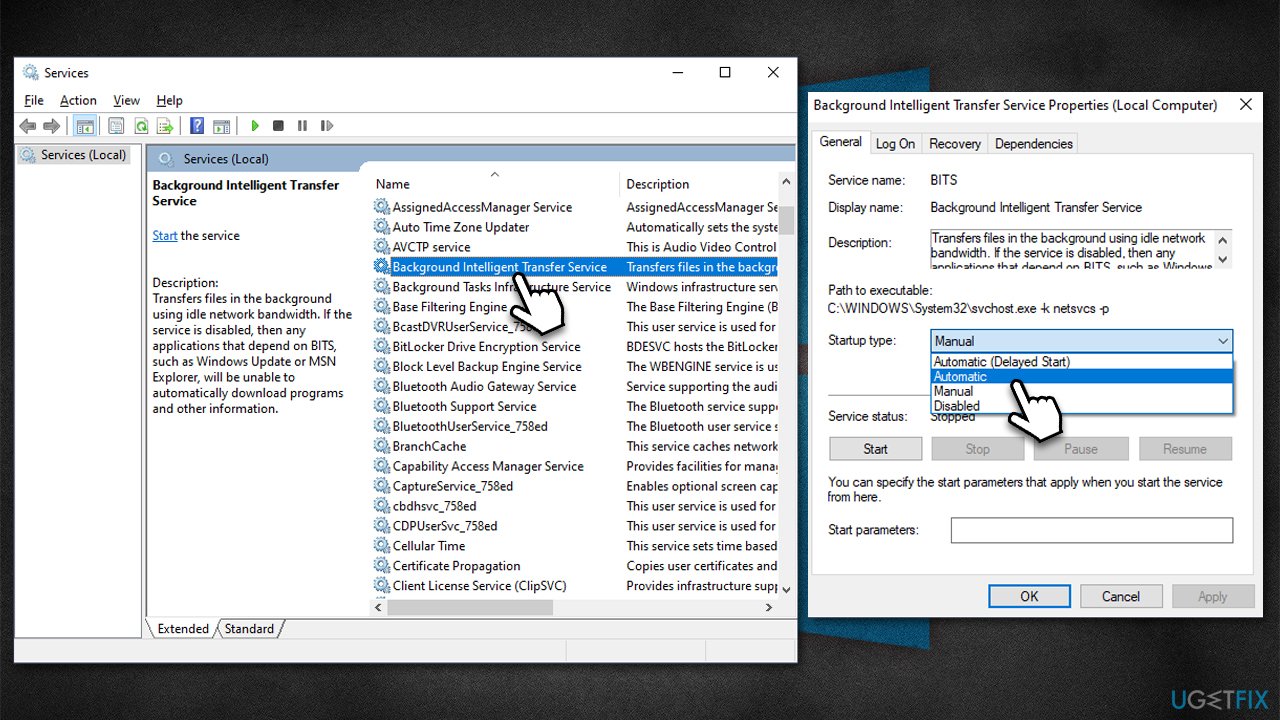
For Windows updates to be smooth, certain services need to be running. Thus, starting or restarting BITS and Windows Update services could help you resolve the situation.
- Type in Services in Windows search and press Enter
- Locate Background Intelligent Transfer Service (BITS)
- If it is already running, right-click and select Restart
- if the service is not running, double-click it, select Automatic under the Startup type from the drop-down menu
- Click Start, Apply, and OK
- Repeat the process with the Windows Update service.
Fix 3. Reset Windows update components
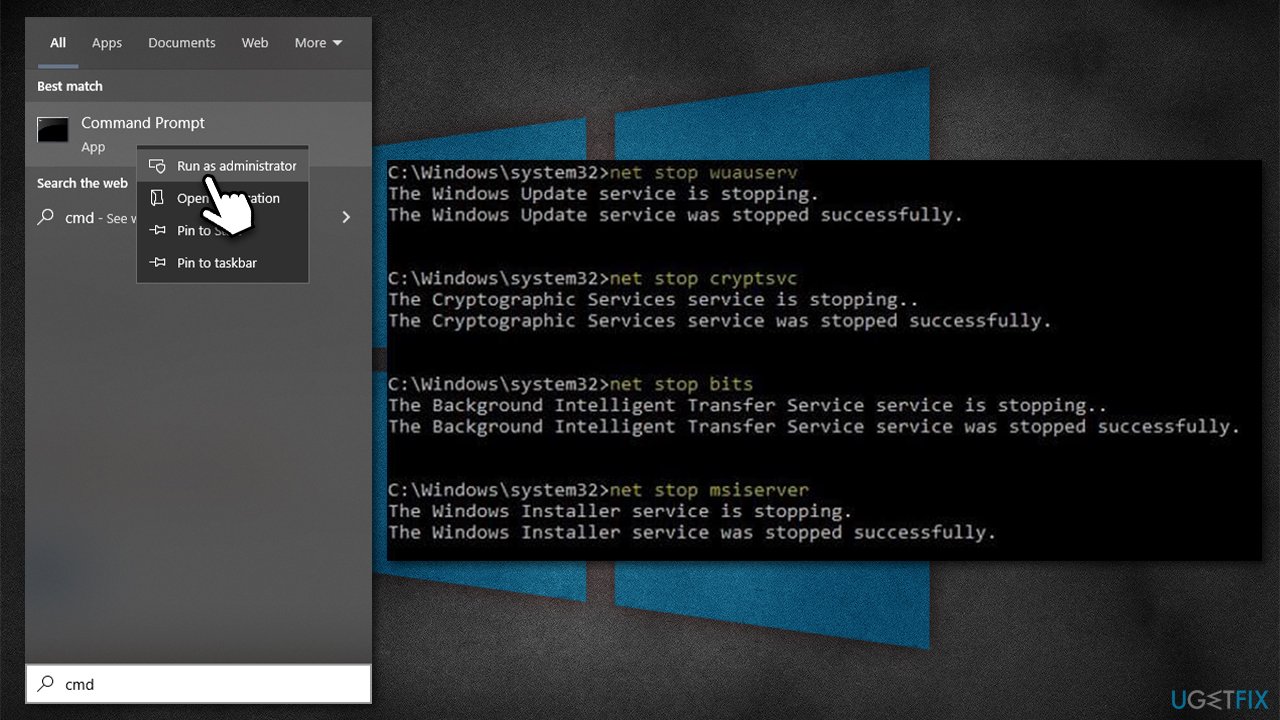
Inconsistencies within Windows update files could cause a 0xc1900201 error. You can reset these components by following these steps:
- Type cmd in Windows search
- Right-click and select Run as administrator
- User Account Control will ask you whether you want to let this program make changes to your system - click yes
- In the new window, paste in each of these commands, pressing Enter every time:
net stop bits
net stop wuauserv
net stop appidsvc
net stop cryptsvc
Del “%ALLUSERSPROFILE%\Application Data\Microsoft\Network\Downloader\*.*”
rmdir %systemroot%\SoftwareDistribution /S /Q
rmdir %systemroot%\system32\catroot2 /S /Q
regsvr32.exe /s atl.dll
regsvr32.exe /s urlmon.dll
regsvr32.exe /s mshtml.dll
netsh winsock reset
netsh winsock reset proxy
net start bits
net start wuauserv
net start appidsvc
net start cryptsvc - Restart your computer.
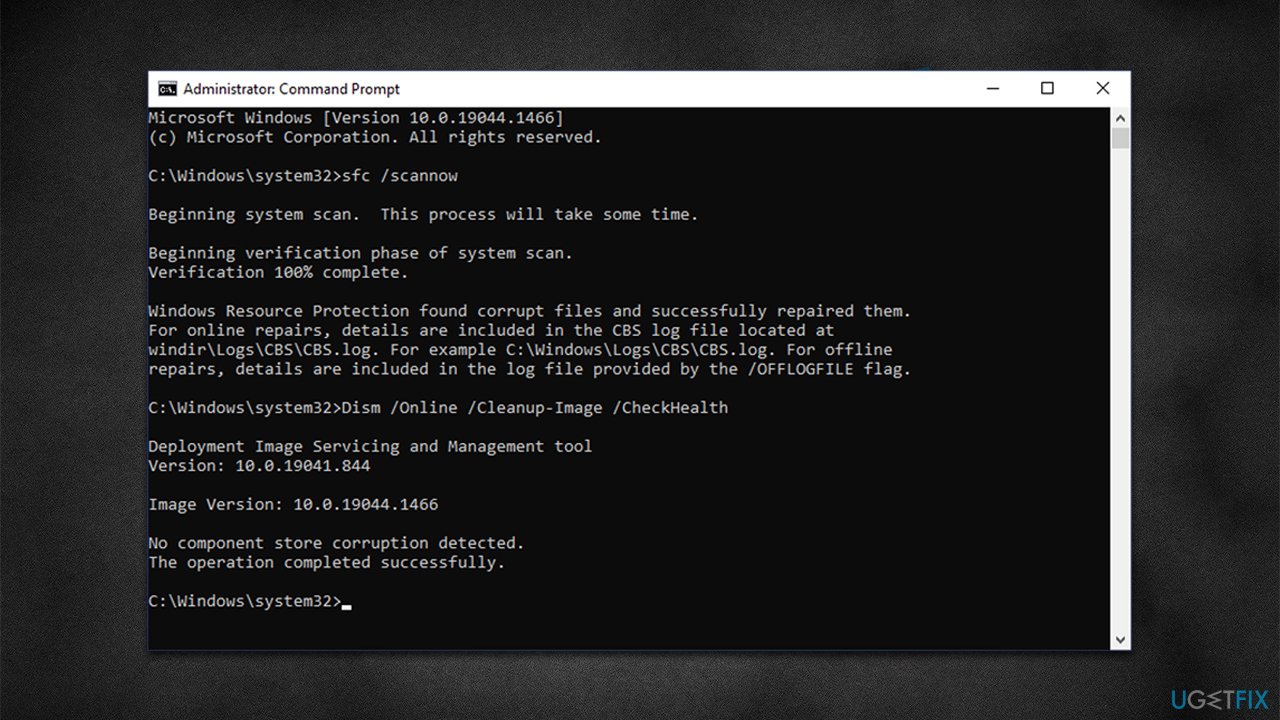
Fix 4. Run SFC and DISM
This method should address issues with corrupted system files - see if that helps you.
- Open Command Prompt (administrator)
- Click Yes when User Account Control shows up
- Use the following command lines, pressing Enter each time:
sfc /scannow
DISM /Online /Cleanup-Image /CheckHealth
DISM /Online /Cleanup-Image /ScanHealth
DISM /Online /Cleanup-Image /RestoreHealth - Reboot your system.
Fix 5. Fix the 0xc1900201 error when dealing with partition issues
If you have recently upgraded to Windows 10, you may receive an error that claims that the system reserved partition couldn't be updated. Follow these steps if that's the case:
- Type Disk Management in Windows search and hit Enter
- Find the System Reserved partition, right-click and pick Change Drive Letter and Paths
- Click Add
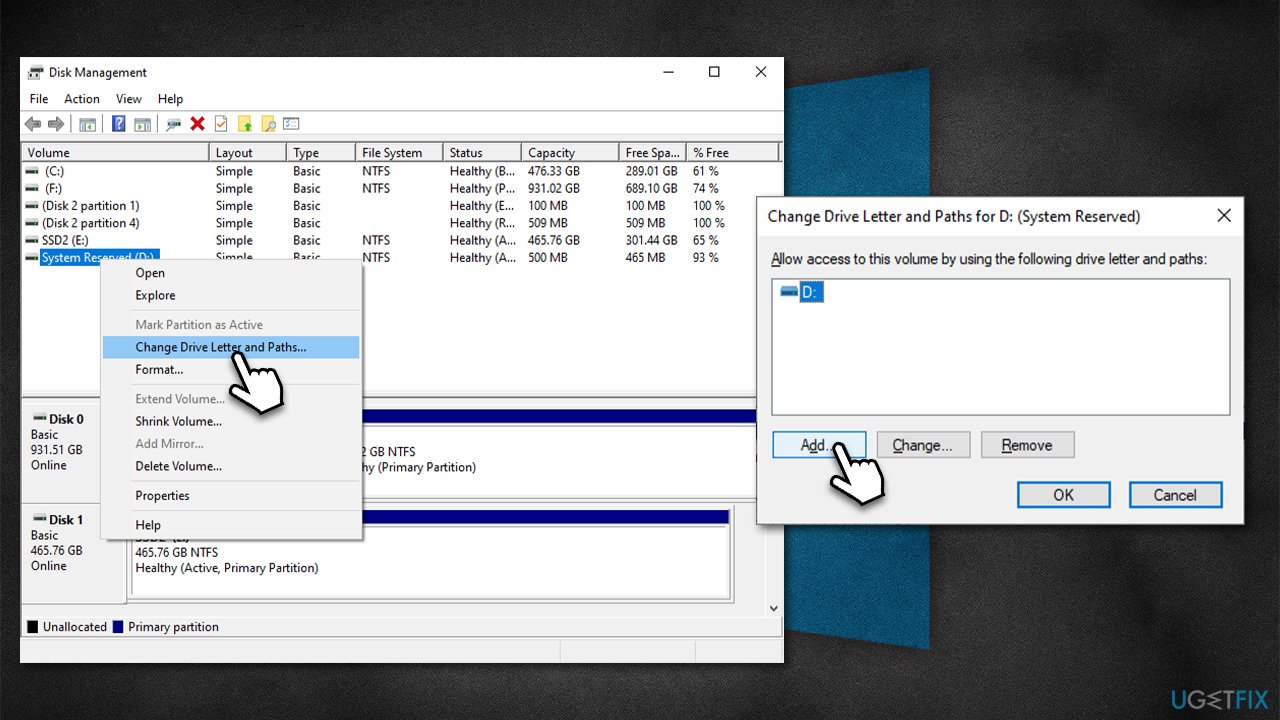
- Select Assign the following drive letter and pick Y from the drop-down menu, then click OK
- Open Command Prompt as administrator, and paste in the following command, pressing Enter after:
takeown /f . /r /d y
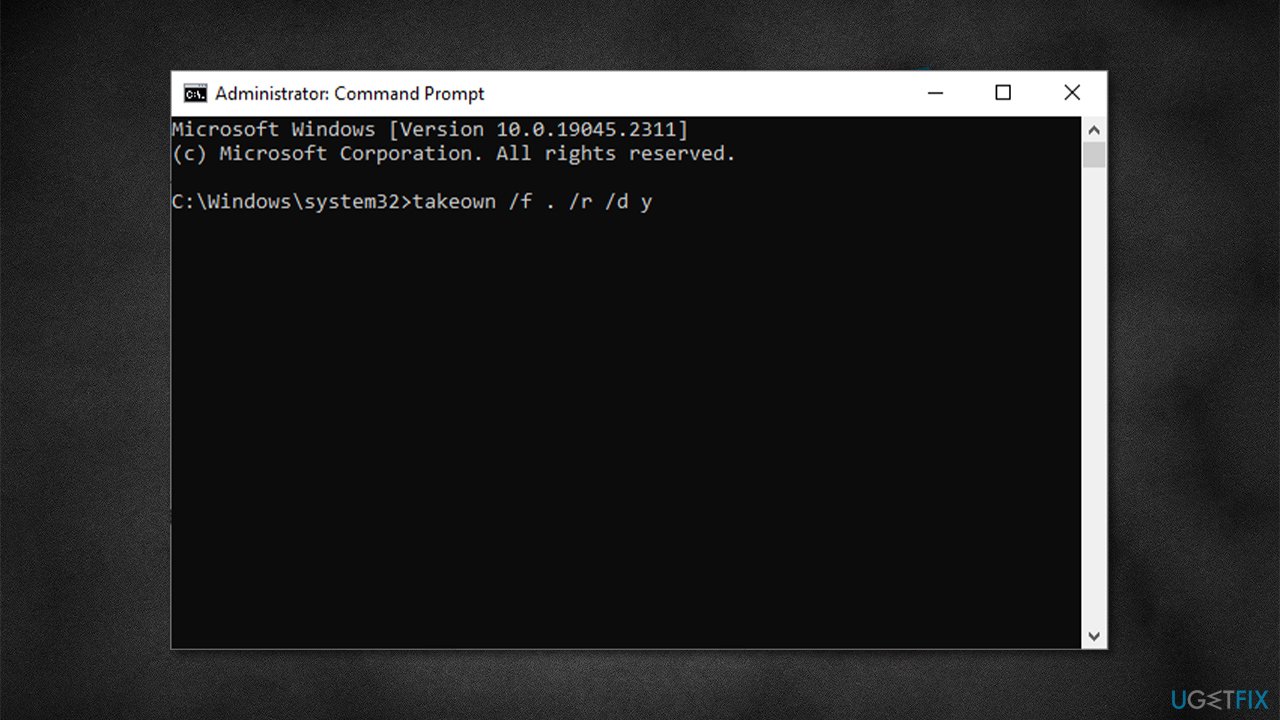
- Wait till the command is executed, then proceed with the next ones, pressing Enter after each:
icacls . /grant administrators:F /t
attrib -h -s -r bootmgr
chkdsk Y: /F /X /sdcleanup /L:5000 - Close down Command Prompt once all the commands have been executed
- Next, Press Win + E to open File Explorer
- Go to This PC and enter the Y: drive > Boot folder
- Here, you should see several language packs - you should delete them all (using the Shift + Delete keyboard combination) except for the en-US folder
- Try upgrading to Windows 10 again
- Once successful, open Disk Management once again
- Right-click on the Y: drive, pick Change Drive Letter and Paths once again
- Mark Y: drive from the list and click Remove.
Fix 6. Change the value of the PortableOperatingSystem registry key
If you have migrated your operating system from an HDD to SSD, you can apply the following fix:
- Type regedit in Windows search and press Enter
- Paste the following path into the navigation bar at the top:
Computer\HKEY_LOCAL_MACHINE\SYSTEM\CurrentControlSet\Control - On the right side of the Window, double-click the PortableOperatingSystem key
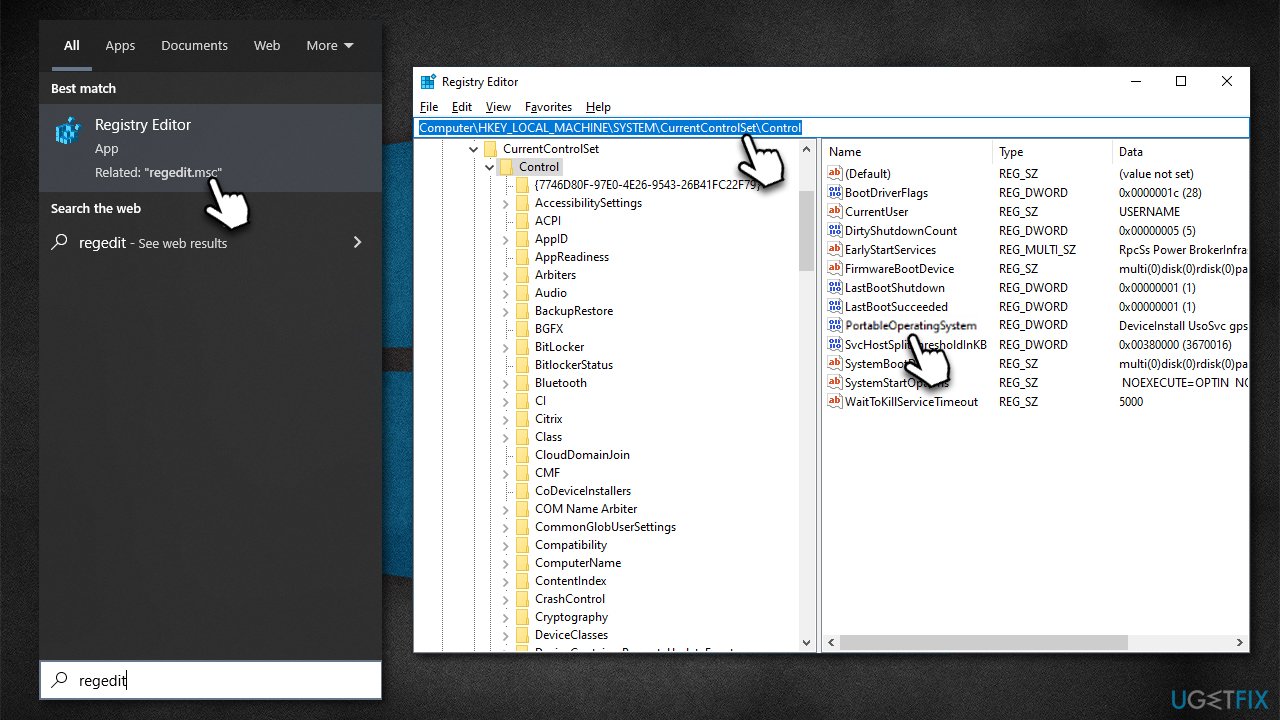
- In the Value data field, change 1 to 0 and click OK
- Close down Registry Editor and restart your system.
Bottom line
To fix the Windows update error 0xc1900201, you can start by running the Windows update troubleshooter, which may help identify and resolve the issue. If the problem persists, consider running commands via an elevated Command Prompt or using an automatic system fixer. If none of these solutions work, further investigation may be necessary.
Frequently asked questions
The error code 0xc1900201 indicates that there is a problem with the Windows Update process, often related to missing or corrupted system files that prevent the upgrade from completing.
To troubleshoot the 0xc1900201 error, you can try running the Windows Update Troubleshooter, checking for disk space, or performing a System File Checker scan to repair any corrupted files.
Yes, resetting Windows Update components is a safe method to resolve the 0xc1900201 error, as it will restore the update service to its default state and can often fix underlying issues.




Report an issue
What's wrong with this guide? We review every report and update or remove content.
Report received — thank you. We'll review and fix it.
You need a free account to submit a report.
Be the first to comment