How to fix
Disable Windows 11 Defender Credential Guard
on Windows
Easily disable Windows 11 Defender Credential Guard with our expert-tested guide. Optimize your security settings and enjoy a smoother experience!


Why does How to disable Windows 11 Defender Credential Guard occur?
- Security feature designed to protect credentials
- Encapsulates login information in a secure container
- Prevents unauthorized access to credentials
- May interfere with certain applications
- Can block access to authentication for some programs
Repairs Windows system files, removes malware, and restores a clean OS state — without reinstalling.
Hello. I was wondering if it was possible to disable Windows 11 Defender Credential Guard. If so, what are the steps I should take?
A security feature in Windows 11 called Windows Defender Credential Guard helps defend against attempts to steal your passwords and other credentials. It accomplishes this by encapsulating your login information in a secure container, making it far more difficult for hackers to access it.
Your credentials are stored securely in a container created by Credential Guard using virtualization-based security (VBS).[ref en-1] Only trustworthy processes are permitted access to this container, which is segregated from the rest of the operating system.
Pass-the-hash,[ref en-2] pass-the-ticket,[ref en-3] and brute-force[ref en-4] attacks are some frequent sorts of methods used to target credentials that Credential Guard is made to help defend against. Additionally, it can aid in preventing the lateral movement of users within a network using stolen credentials.
It's important to note that some applications might not work with Windows Defender Credential Guard since it can prevent them from accessing authentication. The Active Directory database, Domain Controllers, certain security programs, and other programs that support encryption are also not supported by this functionality.
Credential Guard is helpful in preventing theft of the private information on your PC by isolating it. Depending on their requirements and the applications they use, users can decide whether to enable or disable Credential Guard on their Windows 11 computer.
Before attempting to disable Windows Defender Credential Guard, you should take the following precautions:
- Disconnect any remote connections to your PC
- Temporarily disable any third-party antivirus software running on your computer
- Close any unnecessary background apps
Method 1. Disable using the Registry Editor
Users should be especially careful when modifying the registry as it contains a wide variety of settings and configurations for the Windows operating system and the programs that run on it. If users absolutely need to perform changes in the Registry Editor it is best to create a backup and restore it if something goes wrong. You can follow the steps in the How to back up and restore the Windows registry? article.
- Open the Start menu search, type Regedit in the search box, and select Registry Editor
- Navigate to the following keys and set their values to 0 to disable the virtualization-based security:
HKEY_LOCAL_MACHINE\SYSTEM\CurrentControlSet\Control\Lsa\LsaCfgFlags
HKEY_LOCAL_MACHINE\SOFTWARE\Policies\Microsoft\Windows\DeviceGuard\LsaCfgFlags
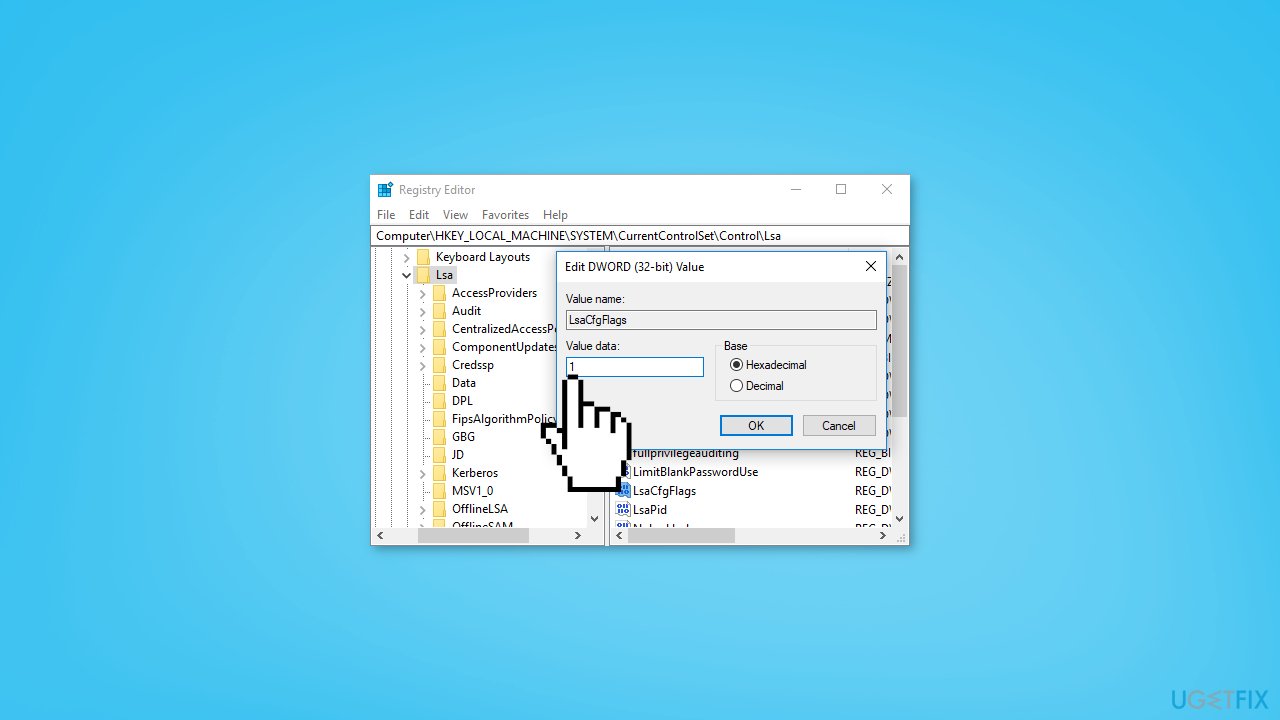
- Restart your computer
Method 2. Disable using the Group Policy
- Press the Windows key + R to open the Run dialog box
- Type gpedit.msc, and click OK to open the Group Policy Editor
- Navigate to the following location:
Computer Configuration\Administrative Templates\System\Device Guard
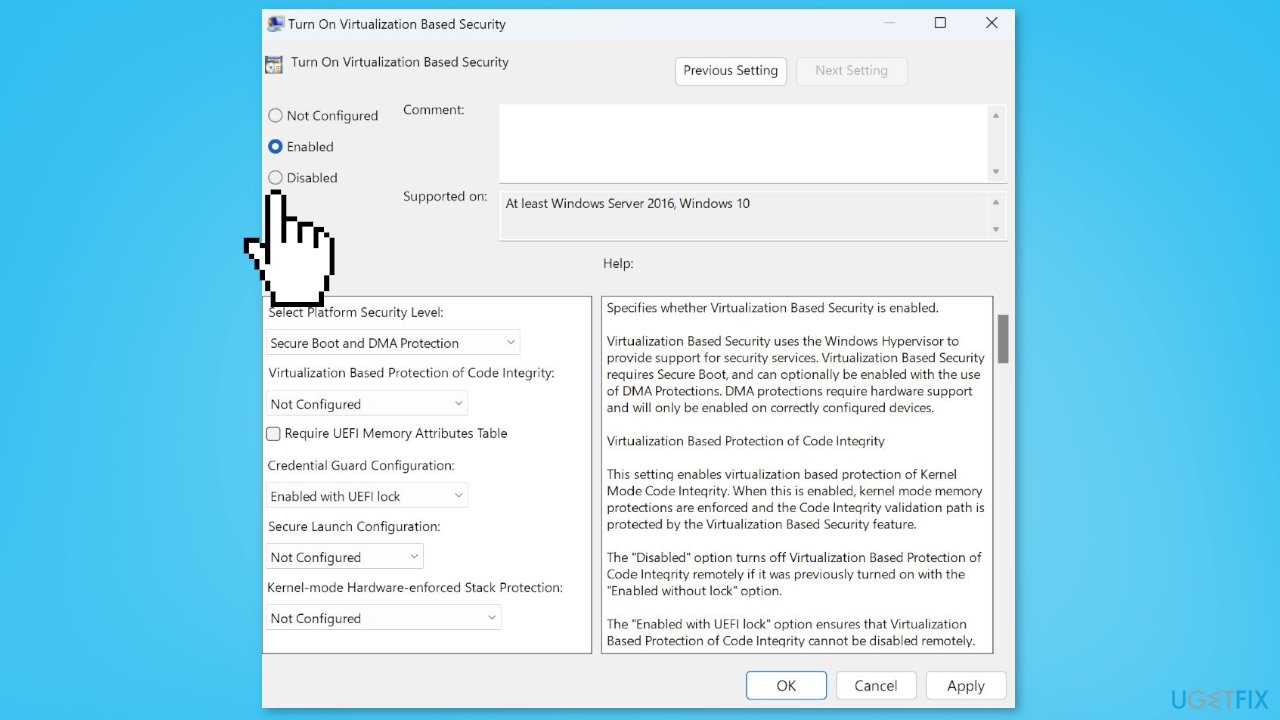
- Click on Device Guard and double-click the Turn on Virtualization Based Security policy option
- Choose the Disabled or the Not Configured option and the OK button to save the changes
- Exit and restart your PC
Method 3. Disable using the UEFI Lock
- Open the Start menu search, type Command Prompt in the search space, and select Run as Administrator
- Click Yes when the User Account Control window appears
- Run the following command and click Enter:
bcdedit
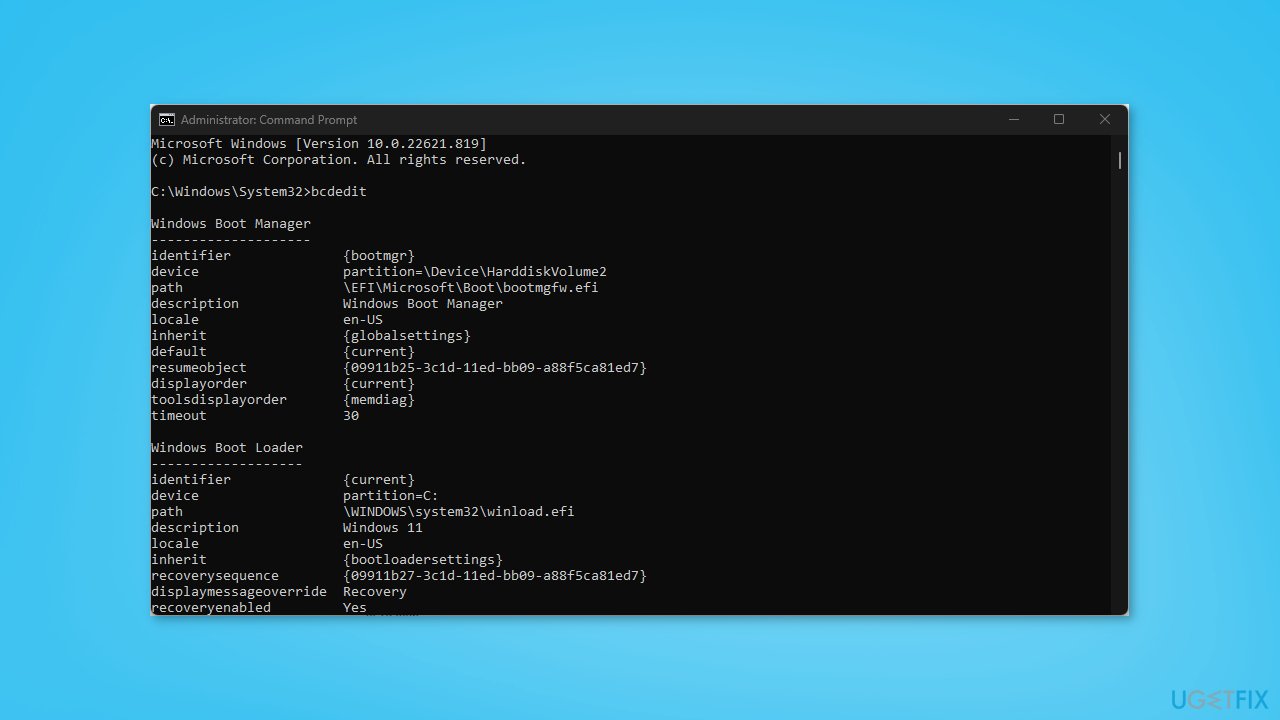
- Then copy and paste the following commands in the Command Prompt:
mountvol X: /s
copy %WINDIR%\System32\SecConfig.efi X:\EFI\Microsoft\Boot\SecConfig.efi /Y
bcdedit /create {0cb3b571-2f2e-4343-a879-d86a476d7215} /d "DebugTool" /application osloader
bcdedit /set {0cb3b571-2f2e-4343-a879-d86a476d7215} path "\EFI\Microsoft\Boot\SecConfig.efi"
bcdedit /set {bootmgr} bootsequence {0cb3b571-2f2e-4343-a879-d86a476d7215}
bcdedit /set {0cb3b571-2f2e-4343-a879-d86a476d7215} loadoptions DISABLE-LSA-ISO
bcdedit /set {0cb3b571-2f2e-4343-a879-d86a476d7215} device partition=X:
mountvol X: /d
Method 4. Disable Virtualization-Based Security
- Open the Start menu search, type Command Prompt in the search space, and select Run as Administrator
- Click Yes when the User Account Control window appears
- Run the following command and click Enter:
bcdedit
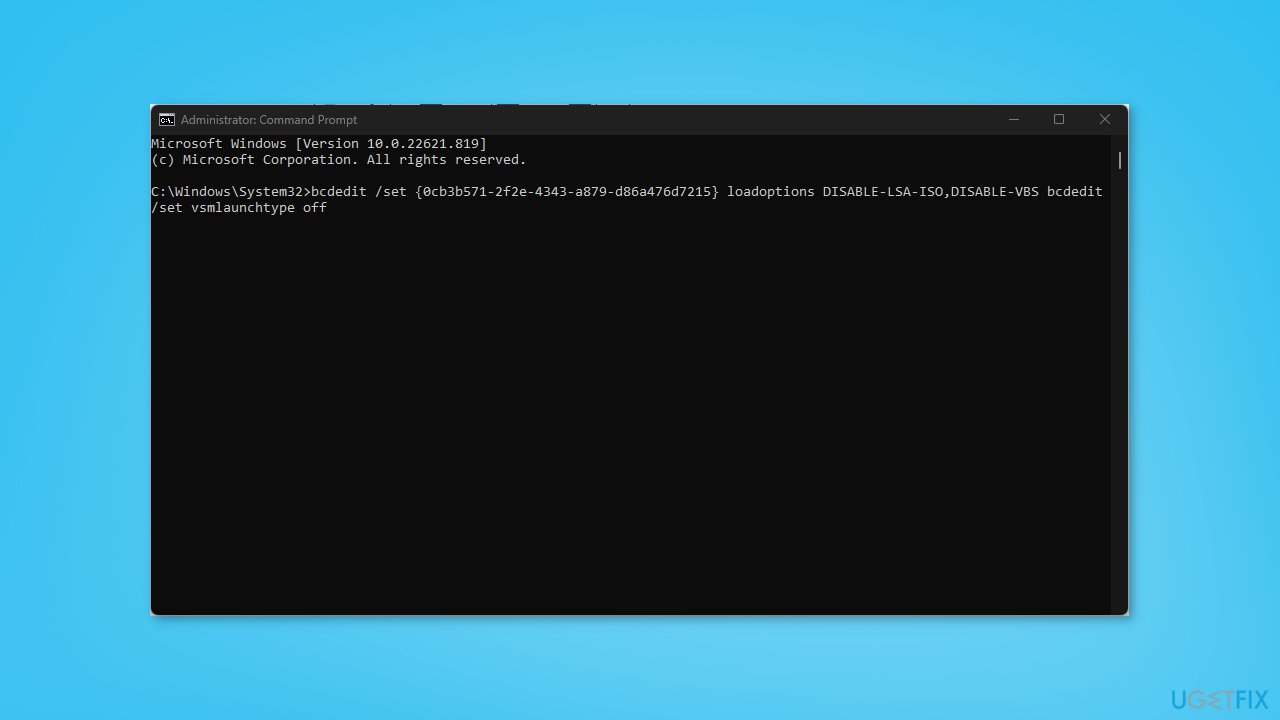
- Then copy and paste the following commands and press Enter:
bcdedit /set {0cb3b571-2f2e-4343-a879-d86a476d7215} loadoptions DISABLE-LSA-ISO,DISABLE-VBS
bcdedit /set vsmlaunchtype off
- Restart your PC to implement the changes
Bottom line
To disable Windows 11 Defender Credential Guard, users should first disconnect remote connections, disable third-party antivirus software, and close unnecessary background apps. Then, they can modify settings using the Registry Editor. If these steps do not resolve the issue, further troubleshooting may be necessary.




Report an issue
What's wrong with this guide? We review every report and update or remove content.
Report received — thank you. We'll review and fix it.
You need a free account to submit a report.
Be the first to comment