How to fix
Windows update error 0xc1190011f
on Windows
Resolve Windows Update error 0xc1190011f quickly and efficiently with expert-tested solutions, ensuring your system runs smoothly and updated, fixed in …

What causes How to fix Windows update error 0xc1190011f?
- Corrupted system files
- Responsible services not running
- Issues with Windows Update components
- Insufficient disk space
- Conflicting software
Repairs Windows system files, removes malware, and restores a clean OS state — without reinstalling.
Hi, I can't update my Windows to the latest 22H2 patch because I keep getting the error 0xc1190011f whenever I try. Could you please offer some solutions?
Windows updates are software updates that are released by Microsoft for its Windows operating system. These updates can include security patches, new features, and bug fixes. It is important to regularly install these updates to ensure that your computer is running the most recent version of Windows and is protected against any known security vulnerabilities.
While Microsoft ships monthly updates in the process known as Patch Tuesday, more significant version releases are more sparse. Windows will typically prompt you to install updates when they are available, but you can also check for updates manually by going to the Windows Update section of the Settings app.
Regardless of which way you update the OS, it might sometimes not be successful and result in an error such as 0xc1190011f. Update errors aren't rare, and users encounter them all the time, although others are lucky enough to never have to deal with them.
In the case of the 0xc1190011f error, most people encounter it whenever they try to apply the more major update, more recently the - 22H2 one. The major release was set to be distributed to users in October 2022 for Windows 10 and Windows 11 and included a myriad of quality and security improvements.
Unfortunately, many users have encountered issues with it, including error codes like 0xc1190011f, 0x8007000d, or 0x80070001. While the precise reason can't be pinpointed, it is usually related to some responsible services not running, corrupted system files, or similar issues.
Before proceeding with the manual fixes for the 0xc1190011f error, we recommend you scan your system with reputable PC repair software [d1], which can quickly and easily determine corrupted system files and fix them automatically. It can also help you deal with other most common Windows issues, including unexpected crashes, BSODs, DLL errors, and more.
1. Fix corrupted system files
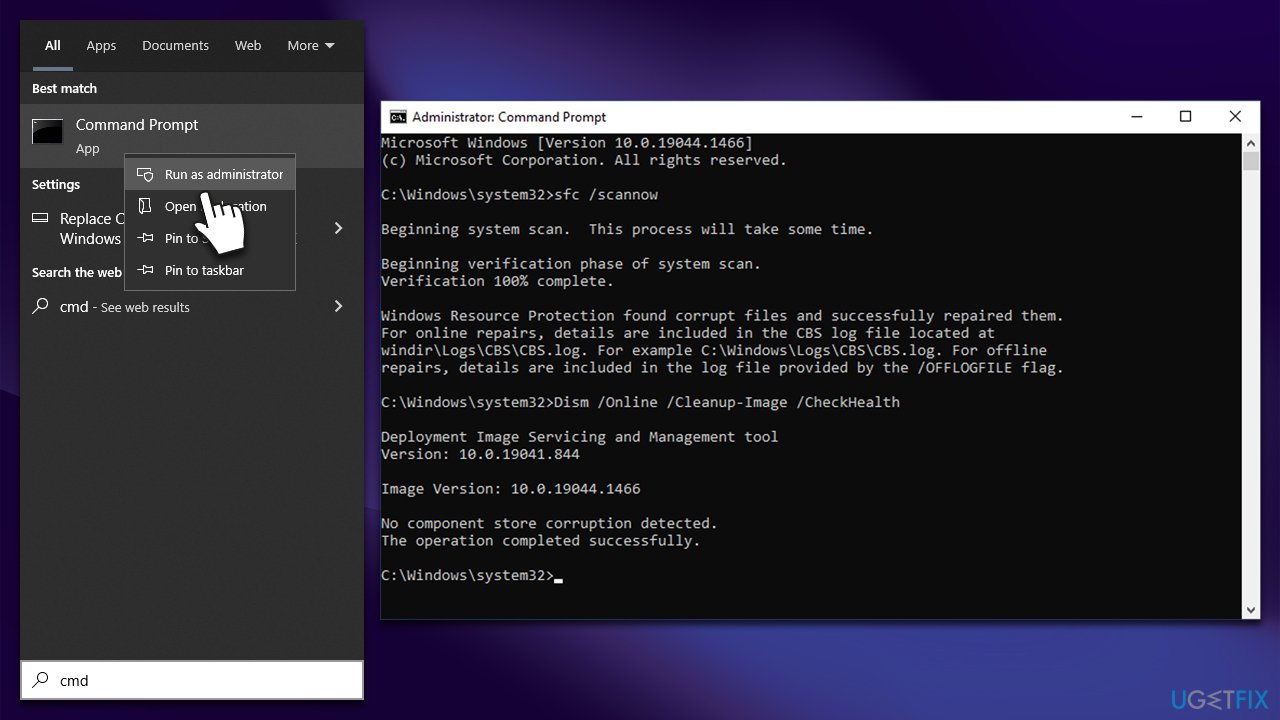
- Type cmd in Windows search.
- Right-click on Command Prompt and select Run as administrator.
- When User Account Control shows up, click Yes.
- Copy and paste the following command and press Enter:
sfc /scannow - Wait till the scan is finished and run the following commands, pressing Enter each time:
dism /online /cleanup-image /checkhealth
dism /online /cleanup-image /scanhealth
dism /online /cleanup-image /restorehealth - Restart your system.
2. Run the troubleshooter
Windows update troubleshooter might point you in the right direction or fix the issue altogether.
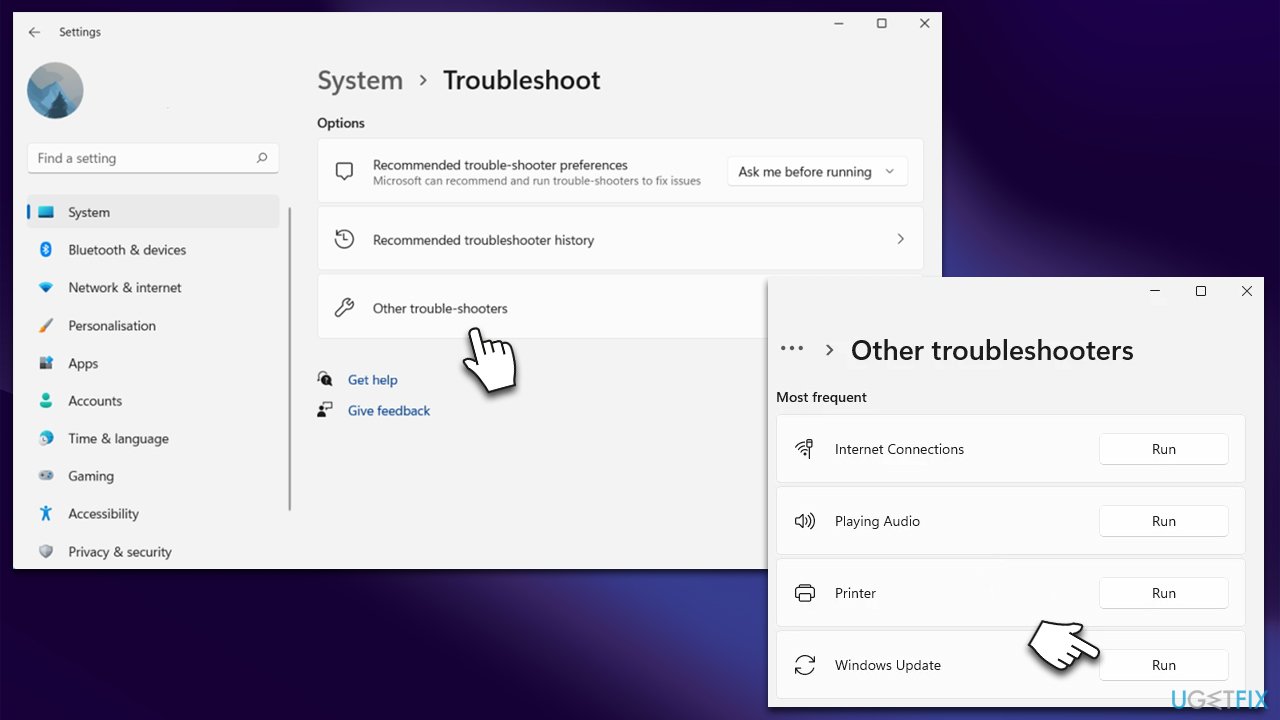
- Type Troubleshoot in Windows search and press Enter.
- Go to Additional troubleshooters/Other troubleshooters.
- Find Windows Update from the list and click Run the troubleshooter/Run.
- The troubleshooter will automatically scan your system for potential problems and display any issues it finds.
- If the troubleshooter finds any issues, it will provide recommended solutions.
- Follow the on-screen instructions to apply these suggested fixes.
3. Ensure relevant services are running
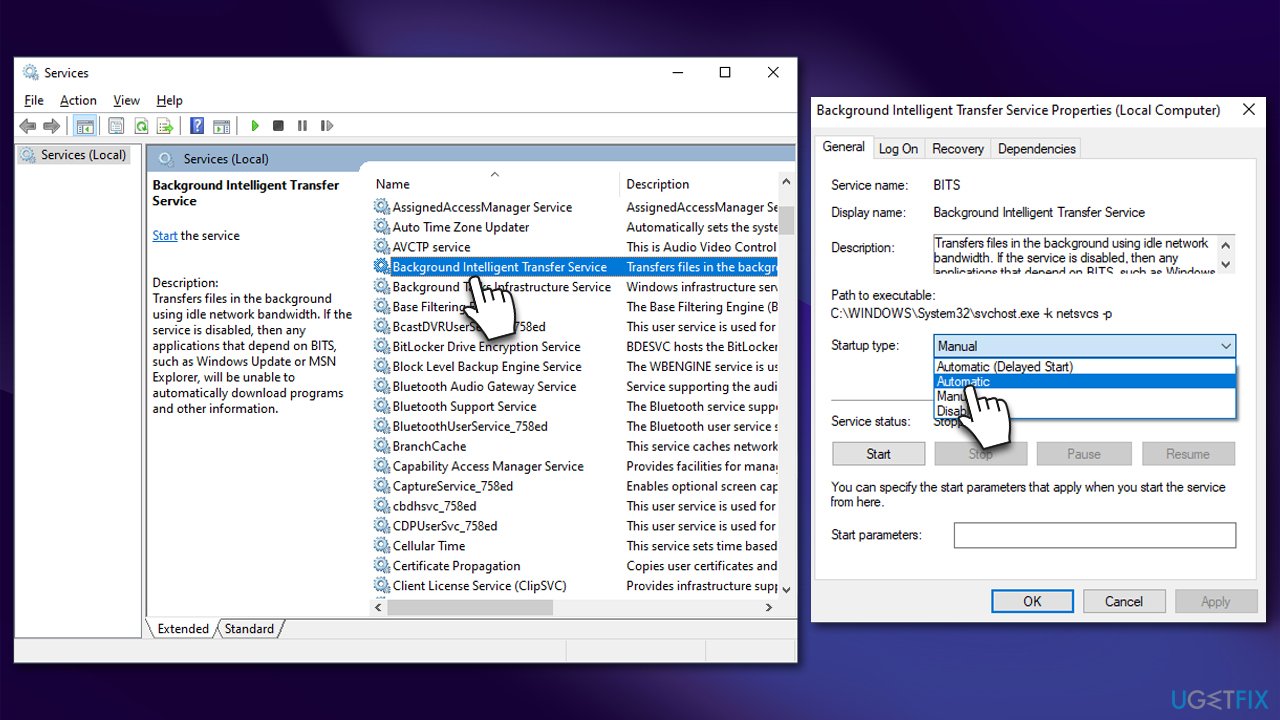
Windows Update and BITS services should be running for the update process to be smooth. If they are already running, restarting them might be helpful.
- Type in Services in Windows search and press Enter.
- Locate Background Intelligent Transfer Service (BITS).
- If it is already running, right-click and select Restart.
- if the service is not running, double-click it, and select Automatic under the Startup type from the drop-down menu.
- Click Start, Apply, and OK.
- Do the same with the Windows Update service.
4. Change the registry settings
Before proceeding with Registry Editor modifications, back up the registry first.
- Type regedit in the Windows search and press Enter.
- Go to the following location:
HKEY_LOCAL_MACHINE\SOFTWARE\Policies\Microsoft\Windows\WindowsUpdate - Locate WUServer and WIStatusServer.
- Right-click on both of them and select Delete.
- Close down the Registry Editor and try updating again.
5. Use Media Creation Tool
Most users had success when upgrading Windows with Media Creation Tool. Before proceeding, remove all unnecessary peripherals apart from the mouse and keyboard and disable or uninstall your security software.
- Visit the official Microsoft website and download Windows 10 installation media (Windows 11 version)
- Double-click the installer and select Yes when UAC shows up
- Agree to terms
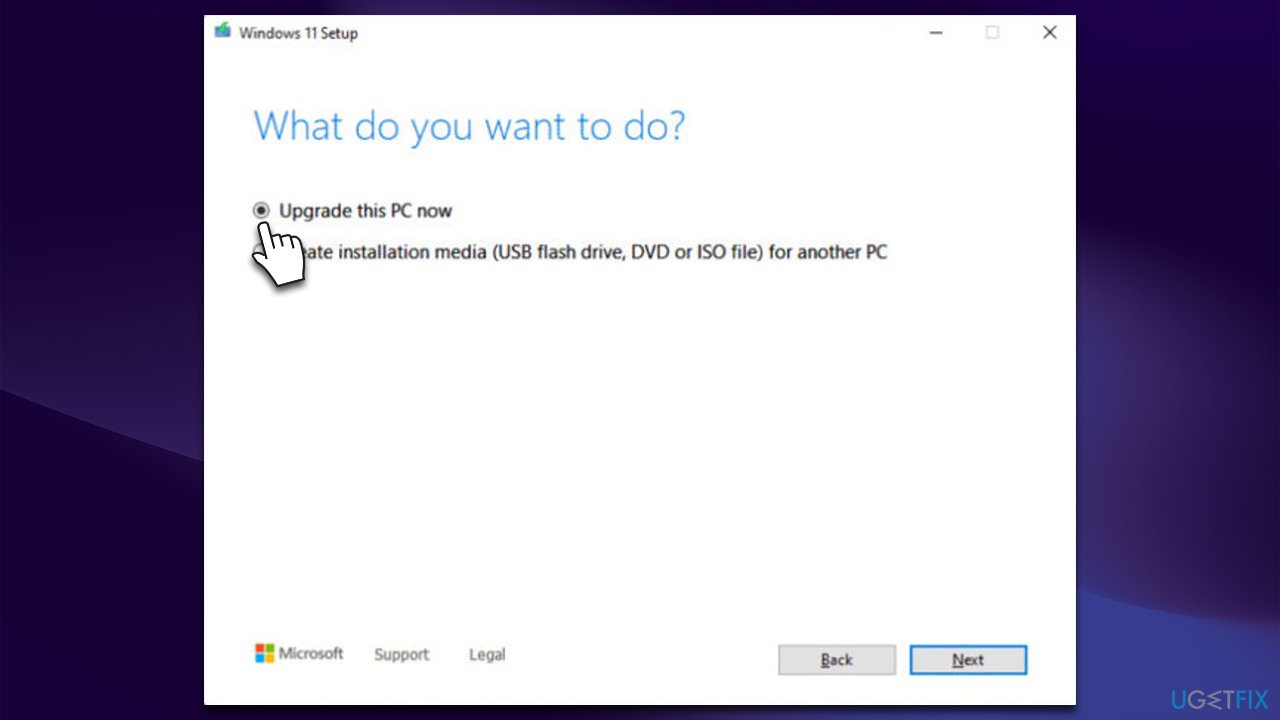
- Select Upgrade this PC now and select Next
- Windows will now download all the necessary files – it might take awhile
- Agree to terms once again and click Next
- Before installing, make sure that you are happy with your choices (otherwise, you can click Change what to keep option)
- Click Install to begin the upgrade process.
6. Reset Windows
Some users said that, besides the 0xc1190011f update error, they were also unable to perform other tasks (such as downloading or updating apps via Microsoft Store) and received further errors when using Media Creation Tool for the upgrade. If you are dealing with similar issues, we recommend resetting Windows altogether.
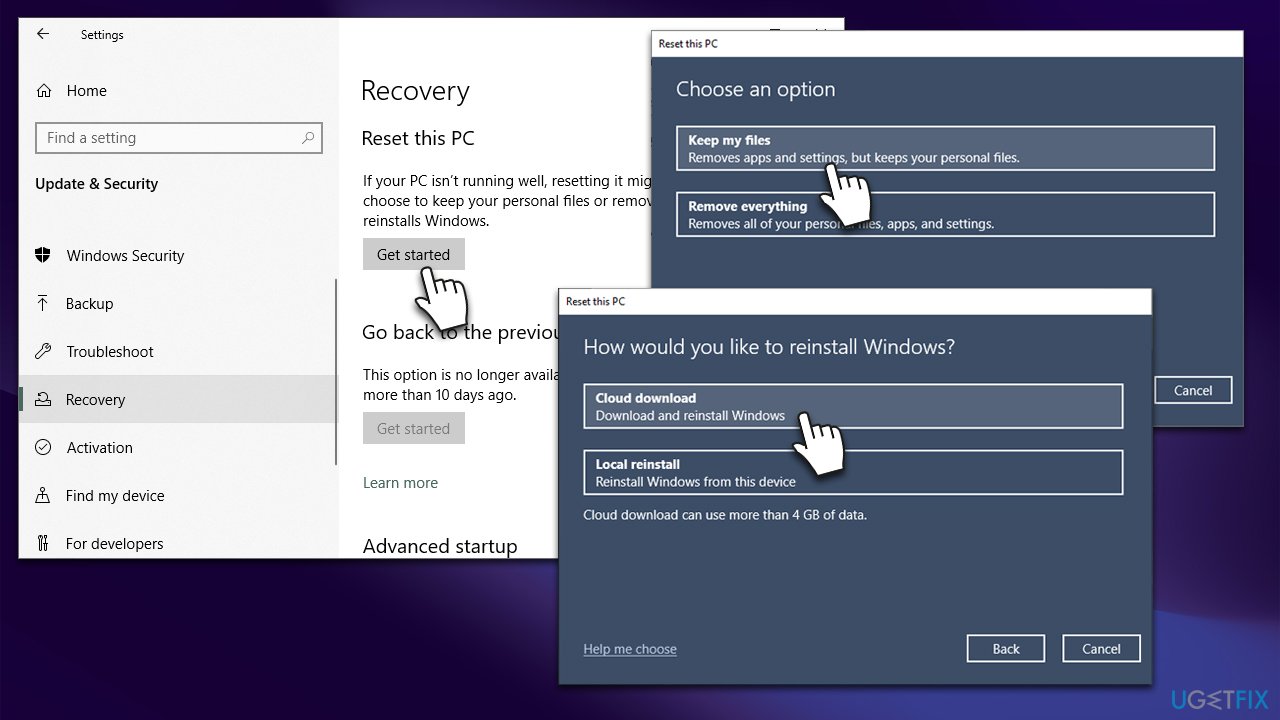
- Right-click on Start and click Settings
- Go to the Updates & Security section
- Select Recovery on the left
- Under Reset this PC, click Get started
- Select Keep my files and Cloud download
- Wait till Windows finishes to download the necessary files
- Your computer will restart to finalize the process.
Bottom line
To fix the Windows update error 0xc1190011f, you can start by scanning your system for corrupted files, ensuring that all necessary services are running, and checking for disk space issues. If these steps do not resolve the problem, consider using reputable PC repair software or seeking further assistance.
Frequently asked questions
The error 0xc1190011f typically indicates a problem with downloading or installing updates on Windows 10 or Windows 11 due to corrupted system files or network issues.
To resolve the error, try running the Windows Update Troubleshooter and resetting your network settings, which can often fix underlying connectivity issues.
Yes, you can manually download and install updates from the Microsoft Update Catalog website, which can bypass the issues causing the error.




Report an issue
What's wrong with this guide? We review every report and update or remove content.
Report received — thank you. We'll review and fix it.
You need a free account to submit a report.
Be the first to comment