How to fix
Stop and cancel Windows 11 upgrade
on Windows
Easily stop and cancel the Windows 11 upgrade with our expert tips. Optimize your settings and regain control of your system. Updated 2025.

Why does How to stop and cancel Windows 11 upgrade occur?
- Windows 11 files were downloaded without user consent
- Upgrade prompts appear without prior notification
- Users prefer stability of current operating system
- Past negative experiences with Windows upgrades
- Microsoft's push for users to adopt the latest version
Repairs Windows system files, removes malware, and restores a clean OS state — without reinstalling.
Hi, I am not planning to upgrade o Windows 11 because my current system (Windows 10)) is stable and works just fine. However, without asking, Windows 11 was downloaded, and now it asks me to proceed with the upgrade. How do I cancel Windows 11 completely?
Windows 11 is the next version of Microsoft's operating system, Windows 10. It promises to offer new and improved features to make the OS more user-friendly and secure. It features a revamped graphical user interface, making navigation on a desktop or laptop easier. The start menu is redesigned for easier access to programs and apps, and new taskbar options enable quick switching between open windows or apps.
Windows 11 also brings significant security upgrades, making it more challenging for malware and viruses to infect your computer. A built-in firewall protects your personal information from cyber threats, and the new "smart scan" feature detects and removes any malicious software.
Finally, Windows 11 aims to enhance computer performance through new features such as improved power management, faster boot-up time, and efficient memory usage. This leads to a faster and smoother computer experience, allowing you to do more with it. Unfortunately, not everyone is keen on experiencing these new features.
Windows OS is notorious for its bad launches of various versions. For example, Windows Vista or Windows 2000 is considered one of the worst operating systems out there, plagued by crashes, errors, compatibility issues, and much more. Looking at these past examples, it is no wonder that some people don't want to upgrade to Windows 11.
As time progresses, Microsoft wants to get users on the latest versions of Windows, partially because it makes it much easier for everyone. That's why everyone was offered to upgrade via the Windows update Settings interface - and not all people liked that.
Users reported that Windows 11 files were downloaded without their consent, and now the upgrade is "hanging" in the background all the time. So, how can one stop and cancel Windows 11 upgrade? We answer this question below, as there are several ways you can do that - pick the one that suits you best.
Before you proceed, we recommend trying an excellent PC repair tool [d1], which can fix various system issues if you happen to come across them, regardless of which operating system version you are using.
Solution 1. Stop Windows Update Service
One of the most straightforward solutions is to stop services that would automatically upgrade your system. Note that you won't be getting any updates for Windows 10 unless you initiate them manually yourself.
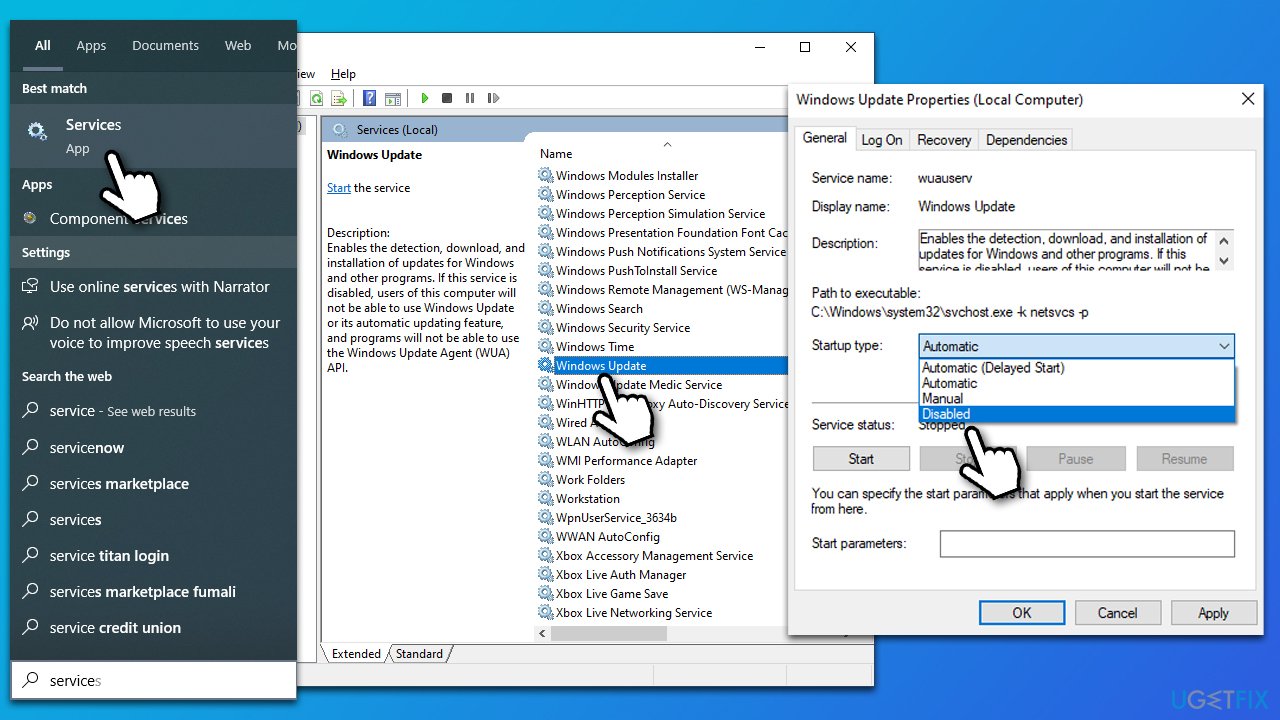
- Type Services in Windows Search and hit Enter.
- Scroll down to find the Windows Update service and double-click it.
- Under Startup type, select Disabled from the drop-down menu.
- Click Stop, Apply, and OK.
- Restart your device.
Solution 2. Remain on the same Windows version by using commands in PowerShell/Command Prompt
Windows version 1803 uses the TargetReleaseVersion as the current version of Windows, so the system will remain on it if set so. You can
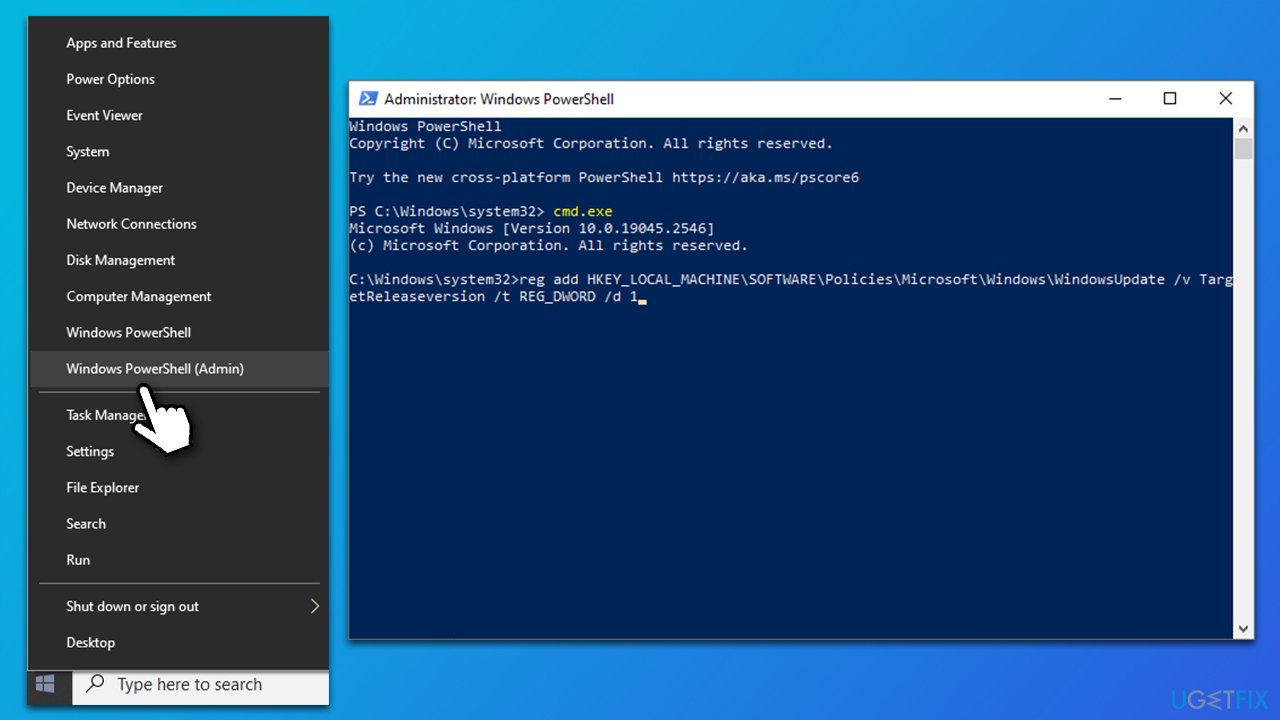
- Right-click on Start and select PowerShell (Admin).
- When User Account Control shows up, click Yes.
- In the new window, type in cmd.exe and press Enter.
- Copy and paste the following command, pressing Enter after:
reg add HKEY_LOCAL_MACHINE\SOFTWARE\Policies\Microsoft\Windows\WindowsUpdate /v TargetReleaseversion /t REG_DWORD /d 1
- Next, if you use Windows 10 version 21H1, use this command:
reg add HKEY_LOCAL_MACHINE\SOFTWARE\Policies\Microsoft\Windows\WindowsUpdate /v TargetReleaseversionInfo /t REG_SZ /d 21H1 - If you are using Windows 10 version 21H2, use this command:
reg add HKEY_LOCAL_MACHINE\SOFTWARE\Policies\Microsoft\Windows\WindowsUpdate /v TargetReleaseversionInfo /t REG_SZ /d 21H2 - If you are using Windows 10 version 22H1, use this command:
reg add HKEY_LOCAL_MACHINE\SOFTWARE\Policies\Microsoft\Windows\WindowsUpdate /v TargetReleaseversionInfo /t REG_SZ /d 22H1 - (You can use this pattern to apply to whichever version you are currently using).
- Finally, finish up with the following command:
gpupdate /force - Close down PowerShell.
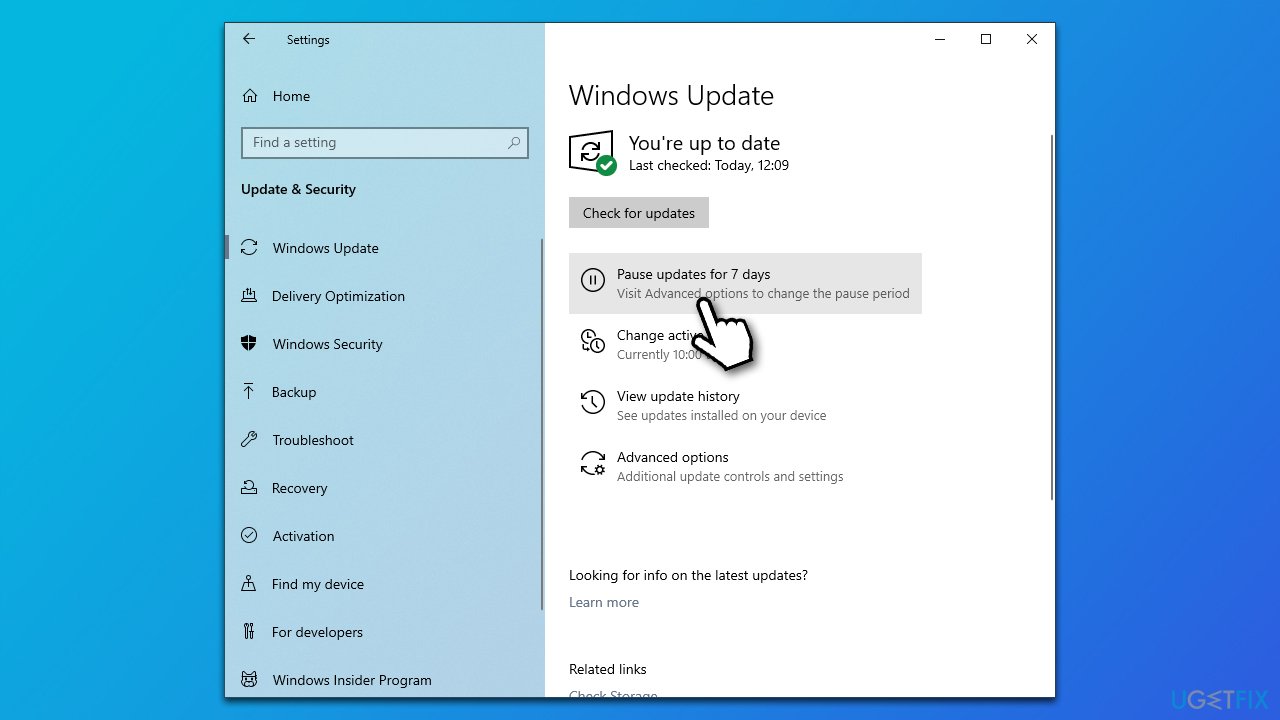
Solution 3. Pause the updates every week
This solution, while quite tedious, can still prevent Windows 11 upgrade.
- Right-click on Start and pick Settings.
- Go to Update & Security section.
- Here, click Pause updates for 7 days.
- Once the term is close to completion, you'll have to repeat this process every week.
If you have accidentally upgraded to Windows 11, you can still downgrade to Windows 10 - check out our instructions for that.
Bottom line
To stop and cancel the Windows 11 upgrade, users can check their Windows Update settings and remove the downloaded files. Additionally, disabling automatic updates may help prevent future unwanted downloads. If these solutions do not work, consider seeking further assistance from Microsoft support.
Frequently asked questions
To stop a Windows 11 upgrade that is downloading, go to Settings > Update & Security > Windows Update, and then click on 'Pause updates' to halt the installation process temporarily.
To cancel a scheduled Windows 11 upgrade, navigate to Settings > Update & Security > Windows Update, and click on 'View update history' followed by 'Uninstall updates' to remove the Windows 11 upgrade from your system.
Yes, you can disable Windows 11 upgrade notifications by going to Settings > Update & Security > Windows Update, then clicking on 'Advanced options' and turning off 'Get me up to date' notifications.




Report an issue
What's wrong with this guide? We review every report and update or remove content.
Report received — thank you. We'll review and fix it.
You need a free account to submit a report.
Be the first to comment