How to fix
Set up a custom screen lock time
on Windows
Easily customize your screen lock time in Windows 10 and 11 for enhanced security and convenience. Expert-tested tips await you!


Why does How to set up a custom screen lock time in Windows occur?
- User forgets to manually lock the computer
- Inactivity leads to unauthorized access
- Shared spaces increase risk of mischief
- Default lock time may not be suitable
- Need for enhanced security during absence
Repairs Windows system files, removes malware, and restores a clean OS state — without reinstalling.
Hello. Can I change when my Windows computer locks after a certain period of time? If so, how do I do this? I keep forgetting to lock my PC after I step out for a while so this would be very useful.
Setting a custom inactivity lock time on Windows is like having your own computer bouncer! It protects and secures your digital life while you are away. There's no need to be concerned about eavesdropping or unauthorized access because your computer will automatically lock itself after a set period of inactivity.
Consider this: you could be sipping a latte at your favorite cafe or taking a much-needed power nap while your computer is safe and sound. And, let's be honest, who doesn't enjoy a good nap? This feature is a lifesaver for those of us who share our space with others. No need to be concerned about your young cousin changing your desktop background to SpongeBob or a coworker accidentally pressing the wrong button.
Your computer is safe from all kinds of mischief thanks to the custom inactivity lock time. This feature is simple to configure and can be accessed via the Local Security Policy[ref en-1] or the Registry[ref en-2] Editor. It's as simple as fastening your seatbelt to ensure the safety of your computer.
Method 1. Use the Local Security Policy
Think of the Local Security Policy as the gatekeeper to your digital world. With it, you have the ability to control who can access your computer, what actions they can take, and how long your computer will remain unlocked when you're away.
- Type Local Security Policy in Windows Search
- Click Local Security Policy under Best match to open it
- Alternatively, press the Windows key + R to open the Run box, type secpol.msc and click OK
- Expand Local Policies in the left pane by clicking the down arrow
- Open Security Options in the right pane
- Scroll down to Interactive logon: Machine inactivity limit and double-click to open its properties
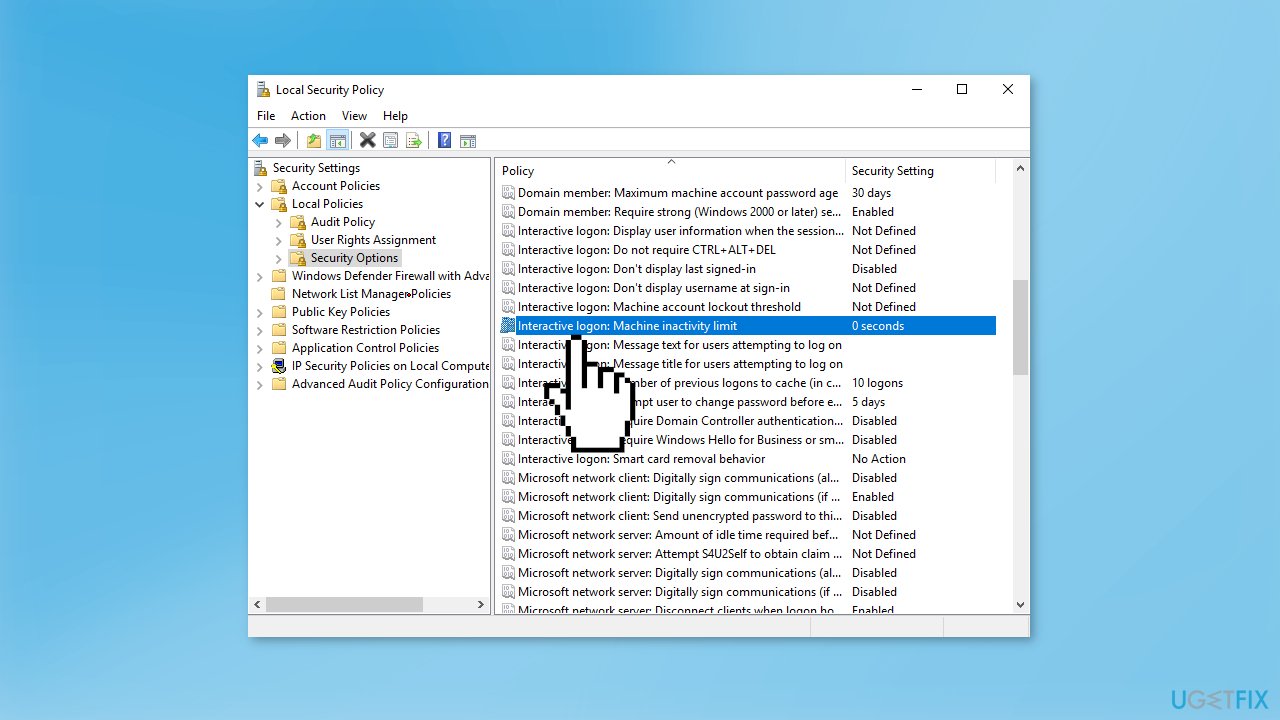
- Under Machine will be locked after, enter the time in seconds after which you want your PC to get locked (0-599940 seconds)
- Click Apply and OK
- Close Local Security Policy and restart the computer for changes to take effect
- To reverse the action, change the time to 0 in the Interactive logon: Machine inactivity limit policy
Note: 0 is the default setting and will not lock your PC automatically
Method 2. Use the Registry Editor
While setting a custom inactivity lock time on your Windows computer is a fantastic way to protect your digital life, there are some potential risks involved with modifying the Windows Registry. The Registry is a powerful tool and making incorrect changes to it can cause serious issues with your computer's performance.
But don't worry, we've got you covered! Before making any changes to the Registry, it's always best to back it up. This way, if anything goes wrong, you can quickly restore it to its previous state. Our guide on How to back up and restore the Windows registry? is easy to follow and will ensure that you're able to make these changes with confidence.
- Type Registry Editor in Windows Search and select Registry Editor under Best match
- Click Yes on the UAC prompt
- In the left pane, navigate to HKEY_LOCAL_MACHINE\SOFTWARE\Microsoft\Windows\CurrentVersion\Policies\System
- Scroll down to find InactivityTimeoutSecs DWORD in the right pane
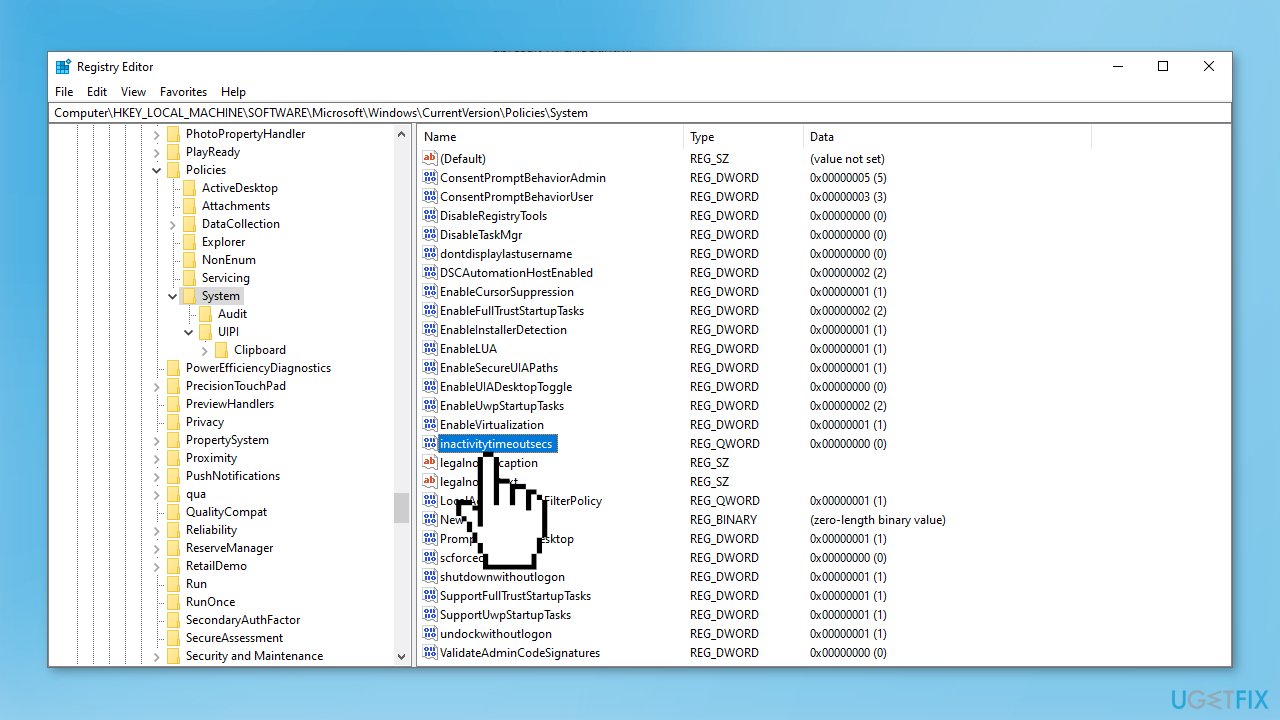
- Double-click InactivityTimeoutSecs DWORD to modify its value
- Select Decimal under Base and enter a number between 0 to 599940 under Value data (time in seconds)
- Tap OK
- If InactivityTimeoutSecs DWORD does not exist, create it by right-clicking on the System key folder or right-clicking on the right pane of the System key
- Select New then DWORD (32-bit) Value
- Name it InactivityTimeoutSecs
- Double-click InactivityTimeoutSecs DWORD and enter the desired time
- Close Registry Editor and restart the PC for changes to take effect
Note: To stop the PC from getting locked automatically, modify the InactivityTimeoutSecs DWORD value by changing the time to 0 seconds
Bottom line
To set up a custom screen lock time in Windows, you can use the Local Security Policy or the Registry Editor. These methods allow you to specify how long your computer remains unlocked during inactivity. If these solutions do not work, consider checking for system updates or consulting additional resources.
Frequently asked questions
To access screen timeout settings, go to Settings > System > Power & sleep, and adjust the 'Screen' timeout options for both battery and plugged in modes.
Yes, you can set different screen lock times by adjusting the Power & sleep settings individually on each device in Windows 10 or Windows 11.
If your custom screen lock time isn't applied, ensure that your power settings aren't being overridden by a group policy or a third-party application.




Report an issue
What's wrong with this guide? We review every report and update or remove content.
Report received — thank you. We'll review and fix it.
You need a free account to submit a report.
Be the first to comment