How to fix
Can’t change monitor refresh rate
on Windows
Resolve the issue of changing the monitor refresh rate in Windows 10 or 11 easily. Expert-tested solutions ensure a smooth display experience!

![[Fix] Can’t change monitor refresh rate in Windows](https://ugetfix.com/wp-content/uploads/articles/askit/how-to-fix-cant-change-monitor-refresh-rate-in-windows_en-768x432.jpg)
What causes [Fix] Can’t change monitor refresh rate in Windows?
- Outdated or incompatible graphics card drivers
- Wrong or faulty USB port that doesn't support the desired refresh rate
- Incompatible display cable that can't handle the required refresh rate
- Monitor that doesn't meet the minimum requirements to support the desired refresh rate
- Incorrect display configurations on your PC
Repairs Windows system files, removes malware, and restores a clean OS state — without reinstalling.
Hi, Windows 10 won't let me change the refresh rate of my monitor. I have a 144Hz Monitor, but it won't let me change it and is kind of such at 60Hz instead. Please advise.
The monitor refresh rate refers to the number of times per second that the monitor refreshes the displayed image. This is measured in Hertz (Hz), with higher values indicating that the image is being updated more frequently.
On Windows computers, the monitor refresh rate can be adjusted through the display settings. Depending on the graphics card and monitor capabilities, the available refresh rates may vary. Typically, the refresh rate options range from 60Hz to 240Hz or higher, with most monitors having a default refresh rate of 60Hz.
The refresh rate is an important factor in determining the quality of the displayed image. A higher refresh rate can result in smoother motion, reduced motion blur, and less eye strain. It is particularly important for gamers and those working with fast-paced content, such as video editing or animation.
Many users nowadays choose to employ higher Hz-rate monitors, especially when it comes to gaming, as the performance improves drastically, a higher refresh rate is used. Unfortunately, some users reported that they were unable to change the monitor refresh rate because Windows would simply not let them.
Some users said that they also received an error message when trying to access the display adapter properties, which claimed that "Windows cannot access the specific device, path, or file. You may not have the appropriate permission to access them."
Difficulty in changing the monitor refresh rate on your PC can be caused by several factors, such as outdated or incompatible graphics card drivers, a wrong or faulty USB port that doesn't support the desired refresh rate, an incompatible display cable that can't handle the required refresh rate, a monitor that doesn't meet the minimum requirements to support the desired refresh rate or incorrect display configurations on your PC.
Below we provide several steps that address all of the mentioned issues. If you notice that you have problems with Windows often, we recommend employing an automatic PC repair tool [d1], which can find and replace damaged system files automatically.
Fix 1. General checks
First of all, you should make sure that some general bug is not causing Windows to prevent changing the monitor refresh rate. Here are a few tips:
- If you haven't done so, restart your PC and see if the problem persists.
- Check for any physical damage to the monitor cable.
- Use a different USB port if applicable. Some monitors are connected via the USB slot, so try connecting it via USB 3.0 and vice versa.
- Certain monitors may need specific cables like DisplayPort or HDMI to achieve maximum refresh rates, with higher-spec cables like HDMI 2.1 potentially supporting even higher refresh rates, depending on both your PC and monitor specs.
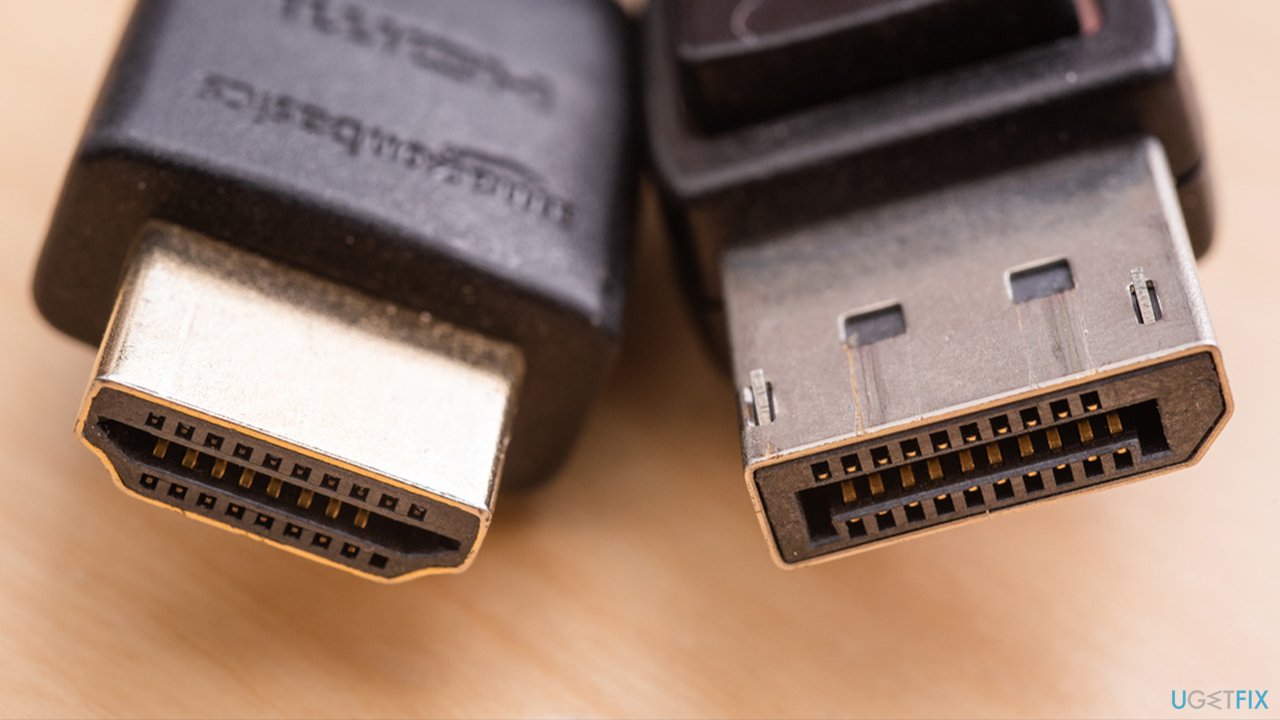
Fix 2. Check the refresh rate of your monitor
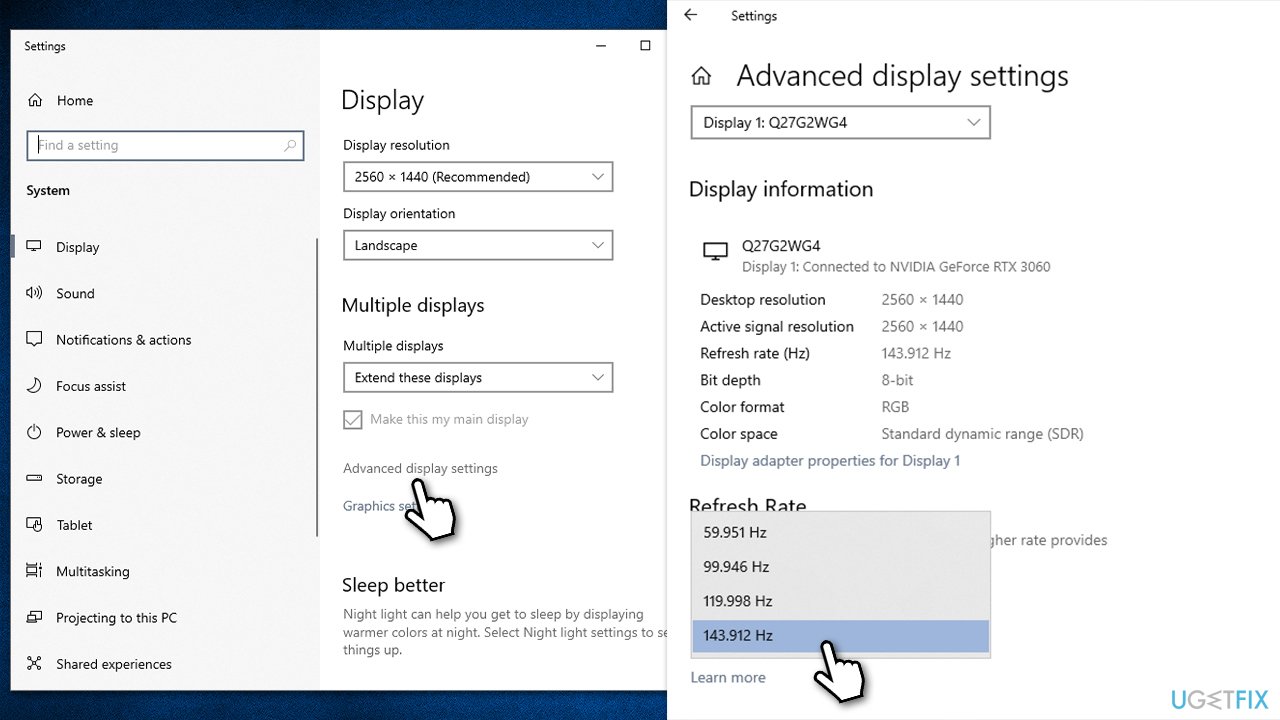
Some users might be unable to change their refresh rate because their monitors simply don't support it. To check what's your monitor's refresh rate, please follow these steps:
- Right-click anywhere on your desktop and select Display settings.
- Scroll down to locate Advanced display settings and click it.
- Under Refresh rate, click on the drop-down menu.
- Here, you should see the maximum Hz your monitor can push.
Fix 3. Try changing your adapter settings
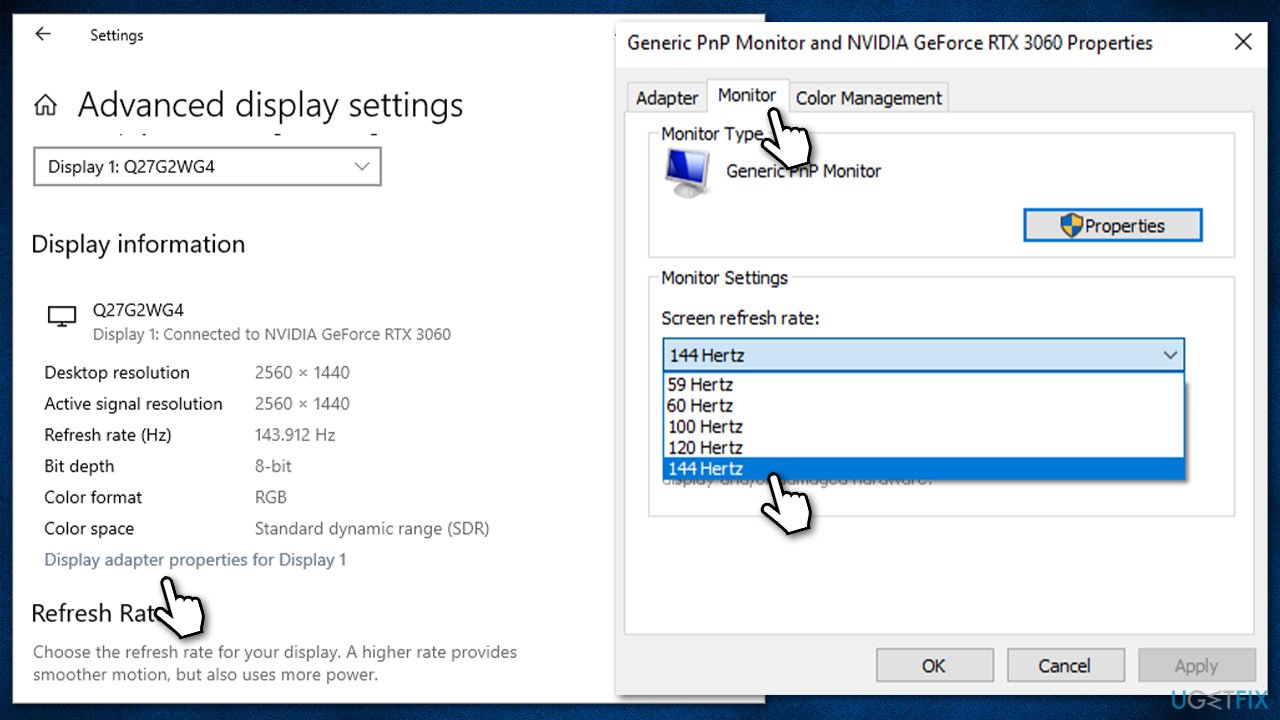
- Right-click anywhere on your desktop and select Display settings.
- Scroll down to locate Advanced display settings and click it.
- Under the Display information section, find and click Display adapter properties for Display 1.
- Go to the Monitor tab.
- Select the desired refresh rate from the drop-down menu.
- Click Apply and OK.
As previously mentioned, some users might receive the "Windows cannot access the specific device, path, or file. You may not have the appropriate permission to access them" error. If that's the case, skip this step.
Fix 4. Update display drivers
Unoptimized drivers might cause all sorts of display issues, including the problem where you can't change the refresh rate of your monitor. We recommend starting with driver updates, which can be done in several ways. Windows update feature might sometimes suffice:
- Type Updates in Windows search and press Enter.
- Click Check for updates and wait.
- It is crucial you install all the optional updates as well.
- Restart your computer.
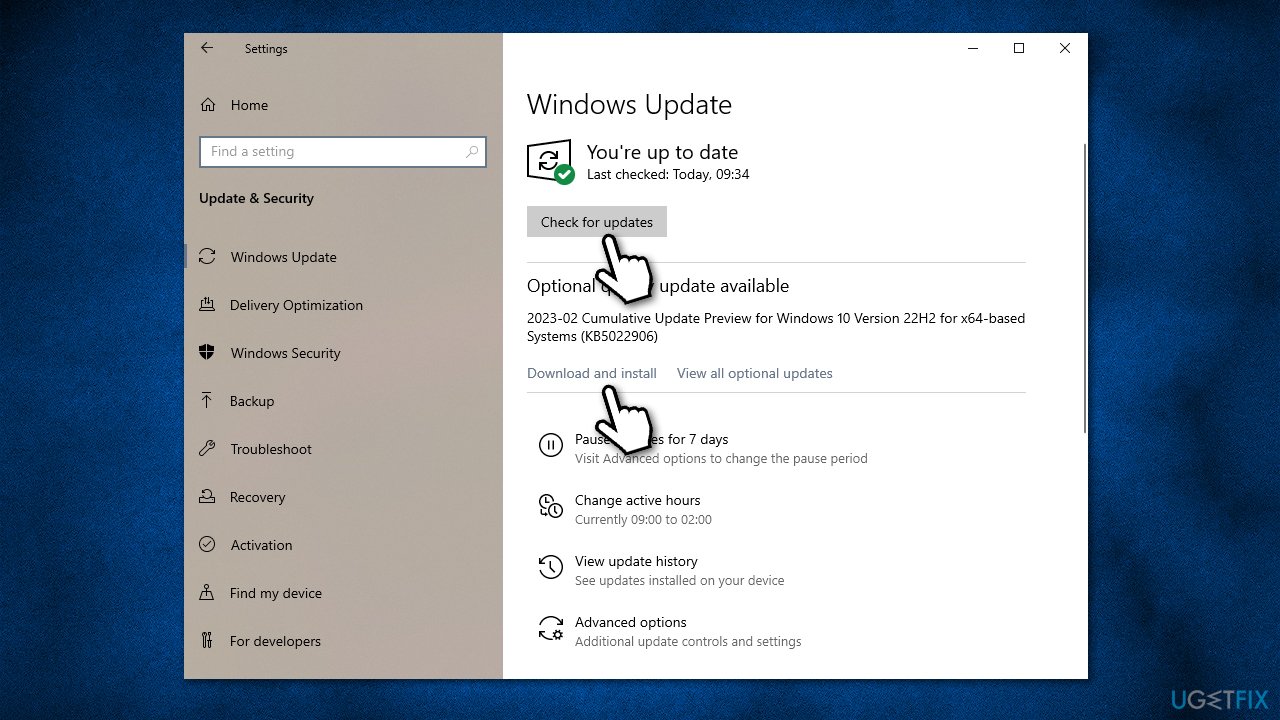
While the Windows update feature is convenient, it may often fail to install the latest GPU driver. Thus, either visit your hardware manufacturer's official website and download drivers manually or employ an automatic updater such as [rev id="DriverFix"].
Fix 5. Reinstall display drivers
If updating drivers does not work, you can reinstall display drivers instead. Follow these steps:
- Right-click on Start and pick Device Manager.
- Expand Display adapters.
- Right-click on your GPU and select Uninstall device.
- Mark the Delete the driver software for this device tickbox.
- Click Uninstall and follow the instructions to finish the process.
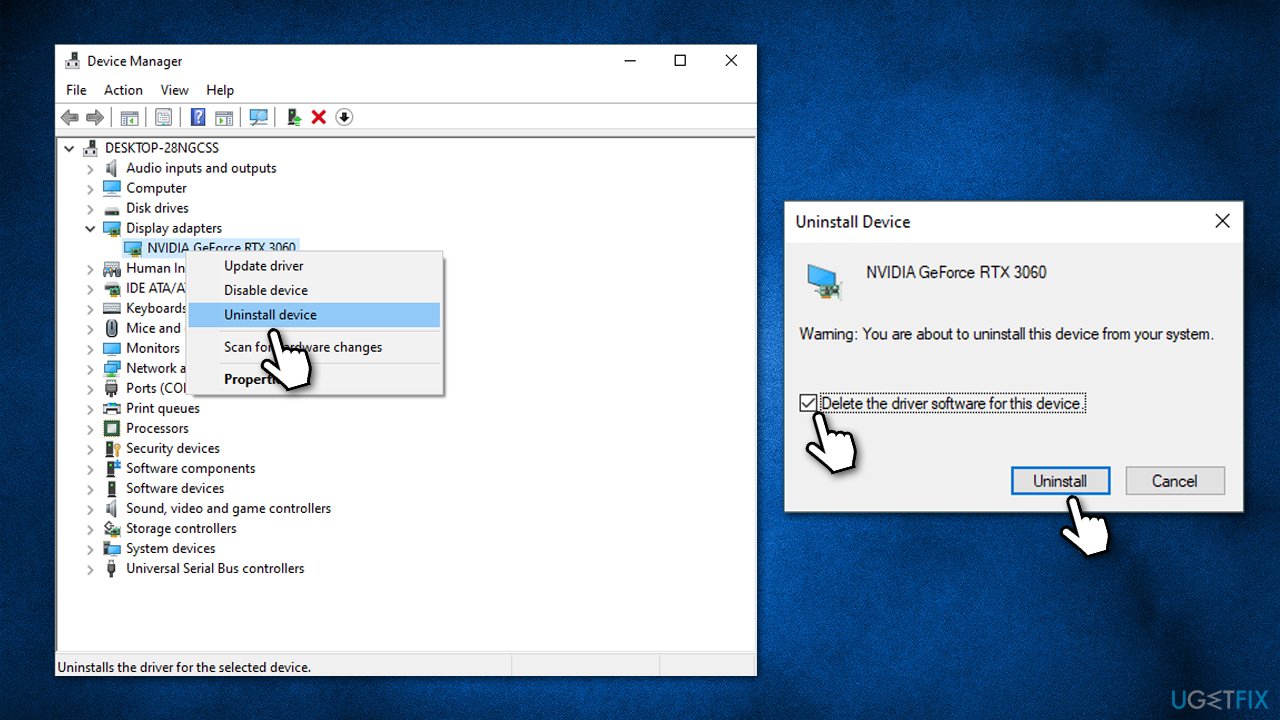
After this is done, follow the steps described above to install the latest drivers. A few other useful links:
Bottom line
To resolve the issue of not being able to change the monitor refresh rate, you can update your graphics card drivers, check your USB ports, ensure your display cable is compatible, verify your monitor's specifications, and adjust your display configurations. If none of these solutions work, further troubleshooting may be necessary.
Frequently asked questions
This issue may arise due to outdated graphics drivers or incorrect display settings. Ensure your graphics drivers are updated and that you have selected the correct display resolution that supports the desired refresh rate.
In Windows 11, navigate to Settings > System > Display, then scroll down to Advanced display settings to check and adjust the refresh rate. If the option is grayed out, consider reinstalling your display drivers.
If the refresh rate settings are missing, it could be due to incompatible hardware or drivers; try connecting your monitor with a different cable or port, and update your graphics drivers.




Report an issue
What's wrong with this guide? We review every report and update or remove content.
Report received — thank you. We'll review and fix it.
You need a free account to submit a report.
Be the first to comment