How to fix
Riot Client not launching
on Windows
Resolve the Riot Client launch issue in Windows 10 and 11 effortlessly with our expert-tested solutions. Get back to gaming in minutes!

What causes How to fix Riot Client not launching in Windows?
- Compatibility issues with the operating system
- Bugs within the operating system
- Outdated or incompatible GPU drivers
- Antivirus software blocking the Riot Client
Repairs Windows system files, removes malware, and restores a clean OS state — without reinstalling.
Hello, my Riot client is not opening. When I attempt to launch it, I receive a prompt for the administrator's permission, which I provide. But after that, nothing really happens - I get no error messages or anything. I need help with this, please.
Riot Games is a popular game development company known for creating the popular online multiplayer games League of Legends and Valorant. The Riot Client is the launcher and platform Riot Games uses to manage and update their games, including LoL. It provides players access to the latest game updates, patches, and other game-related content.
However, some Windows users have reported encountering issues with the Riot client not launching, leaving them unable to access their games. When they attempt to launch the Riot client, nothing happens, and the client fails to start, causing frustration and inconvenience for players.
There can be several reasons why the Riot client may not launch on Windows. One common reason is compatibility issues. It may not be compatible with the user's operating system or other software installed on their computer, leading to issues with the client's launch.
Bugs within the operating system can cause the software to fail to launch on Windows. Thus, installing all available Windows updates might help to resolve it.
Outdated or incompatible GPU drivers can also cause issues with the Riot Client not launching. Graphics drivers are essential for running games and game-related software, and outdated or incompatible drivers can result in conflicts and prevent the app from starting.
Antivirus software can sometimes block the Riot Client from launching due to false positives or compatibility issues - antivirus programs may flag the Riot Client as a potential threat and block its execution. Before proceeding with the instructions below, we recommend ensuring that Windows is not malfunctioning with the help of a powerful PC repair tool [d1].
Fix 1. Run the Compatibility troubleshooter
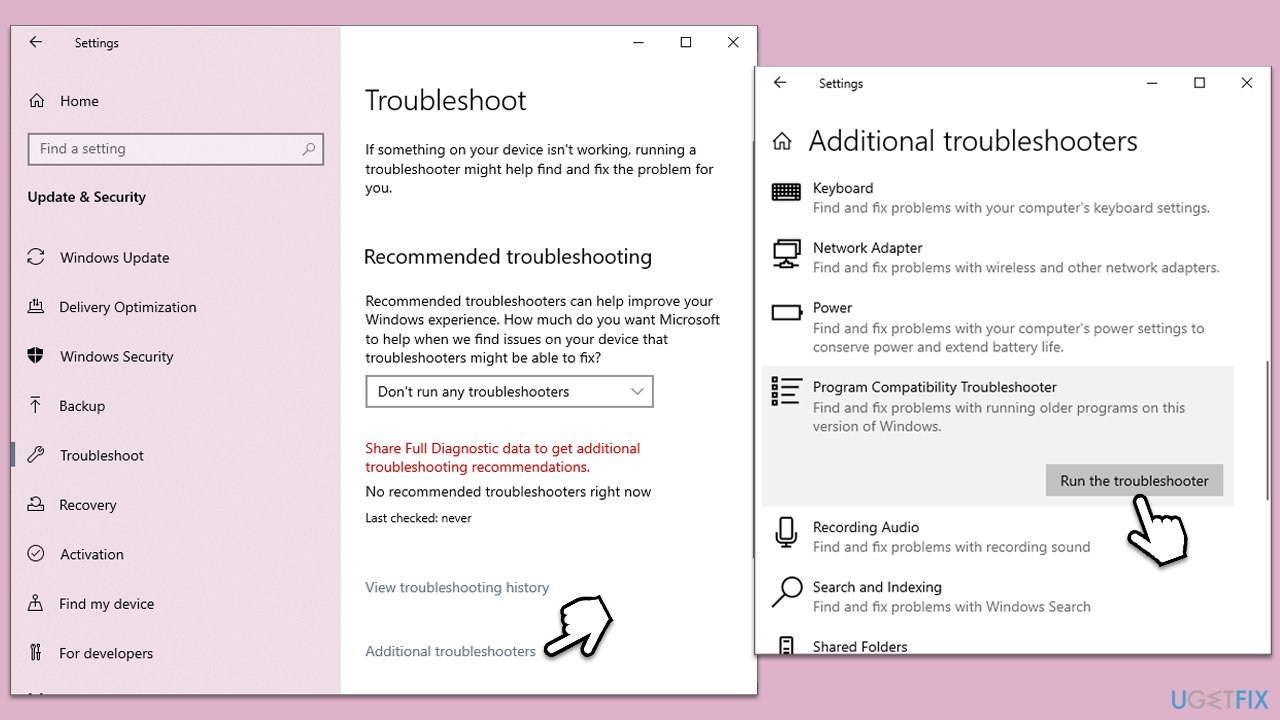
Many users managed to fix the issue where the Riot Client is not launching by running the compatibility troubleshooter.
- Type Troubleshoot in Windows search and press Enter.
- Select Additional troubleshooters/Other troubleshooters.
- Here, look for a Program Compatibility troubleshooter.
- Select it and click Run the troubleshooter/Run.
- From the list, find Riot Client and click Next.
- Apply all the recommended fixes.
Fix 2. Run as administrator and use compatibility mode
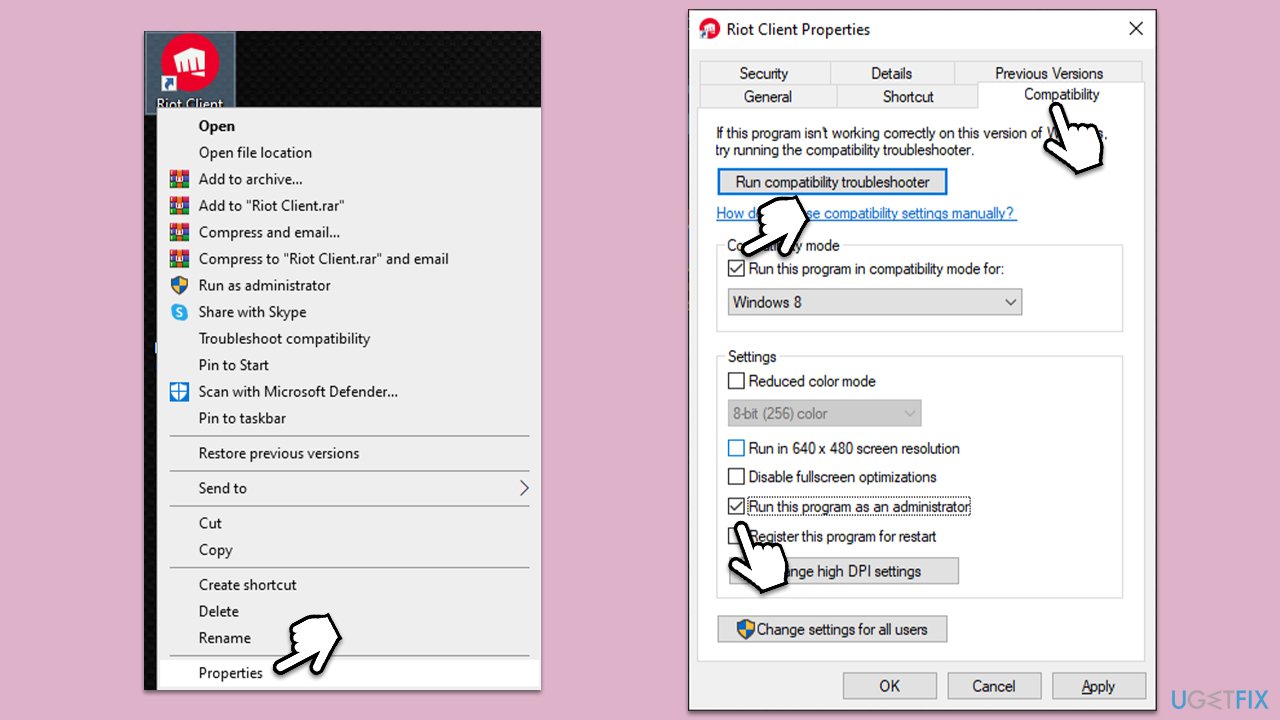
Insufficient permissions might prevent Riot Client from starting. To counter that, you can set it to run as administrator. If that doesn't help, you can also try running it in compatibility mode:
- Right-click on the Riot Client icon and select Properties.
- Go to the Compatibility tab.
- Under Settings, mark the Run this program as administrator checkbox.
- Under Compatibility mode, mark the Run this program in compatibility mode for checkbox and select one of the options from the drop-down menu.
- Click Apply and OK.
Fix 3. Update Windows and GPU drivers
Updating GPU drivers can be useful when dealing with this situation. Windows update feature can find and install new drivers and also fix bugs within the system.
- Type Update in Windows search and press Enter or go to Start > Settings > Update & Security.
- Click Check for updates and wait.
- If optional updates are available, install them too.
- Once done, restart your system.
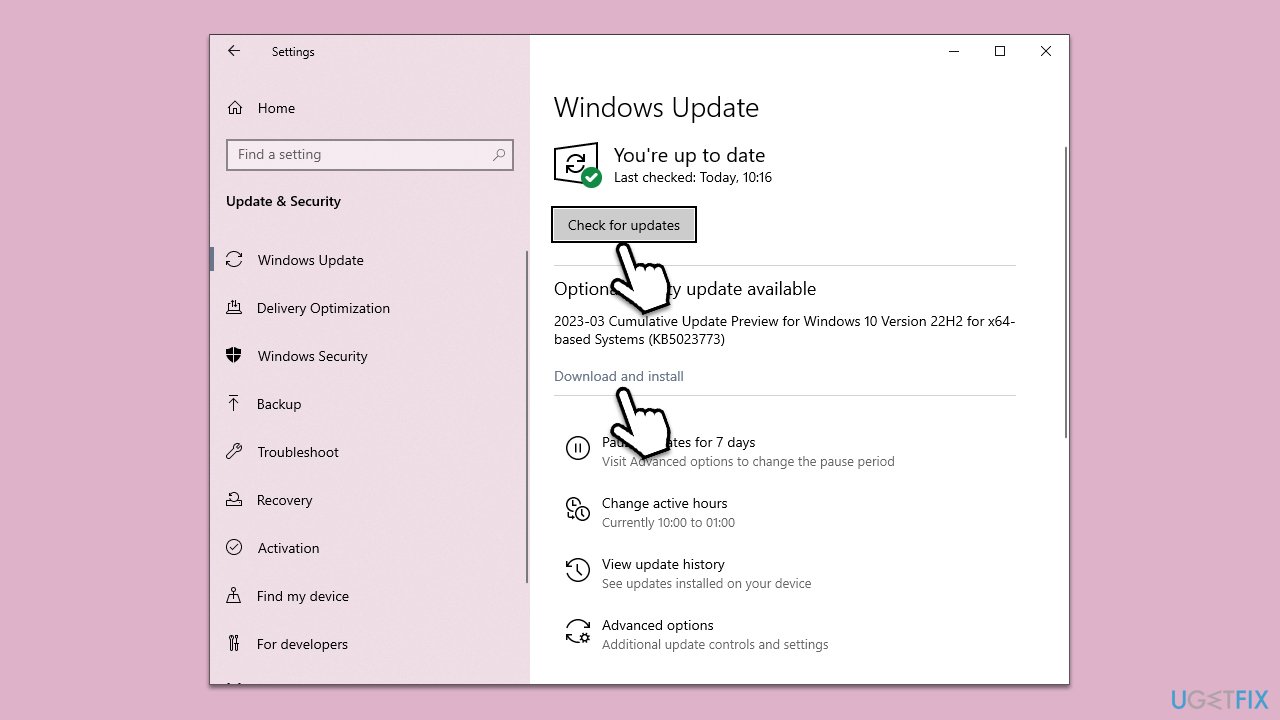
It is noteworthy that the Windows update feature is not the best when it comes to finding the latest drivers for your graphics card. Thus, we recommend visiting your device's manufacturer's website and downloading drivers from there or employing an automatic driver updater such as [rev id="DriverFix"].
Fix 4. Turn off the antivirus and allow Riot through Firewall
Your antivirus software could be blocking Riot Client, mistakenly taking it for a malicious application. To bypass this, temporarily disable your third-party anti-malware and see if that helps. You can leave Windows Defender running for the time being, as it is sufficient protection from malware attacks.
Another thing you should do is let Riot-related apps through the firewall.
- Type in Windows Defender Firewall in Windows Search and press Enter.
- Select Allow an app or feature through Windows Defender Firewall.
- Click Change settings.
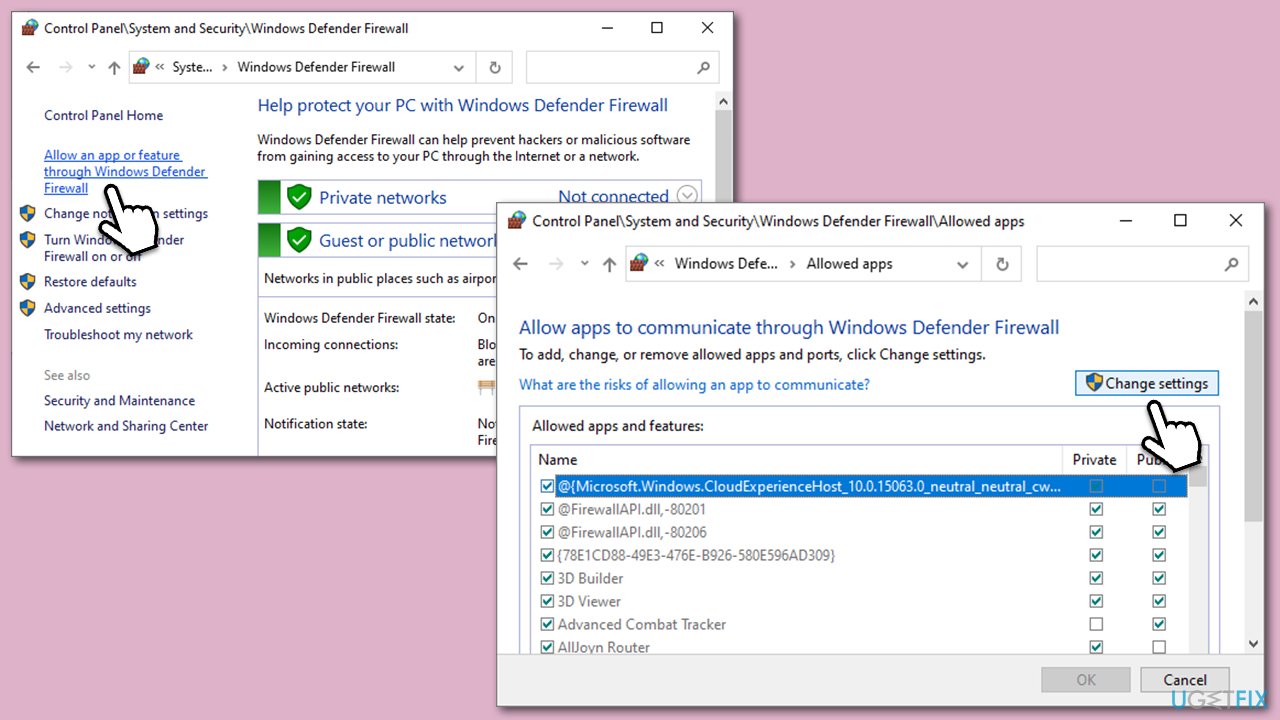
- Scroll down to find Riot Client and make sure that both Private and Public ticks are marked.
- Do the same with the following:
RiotClientServices.exe
Riot Vanguard
Valorant.exe, etc. - You likely won't find these entries on the list, so you should click Allow another app... button at the bottom and find the related components, and then allow them through Firewall.
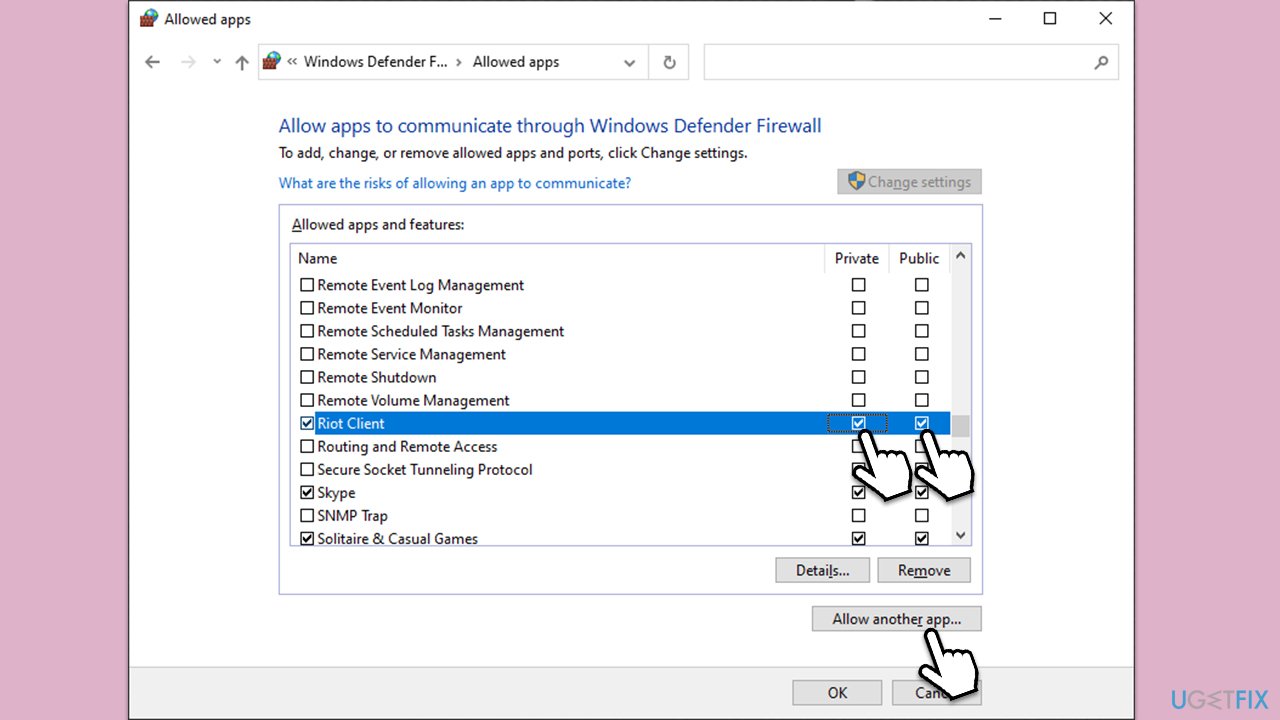
- Finally, click Apply and Ok.
Other related topics you might find useful:
Bottom line
To fix the Riot Client not launching, users can run the Compatibility troubleshooter, ensure all Windows updates are installed, update GPU drivers, and check antivirus settings. If these solutions do not resolve the issue, consider using a powerful PC repair tool to diagnose potential system malfunctions.
Frequently asked questions
Try restarting your computer and then relaunching the Riot Client; if the issue persists, consider reinstalling the client to resolve any corrupted files.
Go to Windows Security, navigate to Firewall & network protection, and ensure that the Riot Client is allowed through the firewall settings.
Open the Riot Client and check for updates in the settings menu, or uninstall and reinstall the client to ensure you have the latest version.




Report an issue
What's wrong with this guide? We review every report and update or remove content.
Report received — thank you. We'll review and fix it.
You need a free account to submit a report.
Be the first to comment