How to fix
Can’t install Printer
on Windows
Resolve printer installation issues on Windows 10 or 11 quickly and effortlessly. Expert-tested solutions to get your printer up and running in minutes.

![[Fix] Can’t install Printer in Windows](https://ugetfix.com/wp-content/uploads/articles/askit/fix-cant-install-printer-in-windows_en-768x432.jpg)
What causes [Fix] Can’t install Printer in Windows?
- Lack of compatible drivers
- Conflicts with existing software or hardware
- Incorrect installation procedures
- Missing software or driver updates
- Issues with USB connection
Repairs Windows system files, removes malware, and restores a clean OS state — without reinstalling.
Hi, my printer was not working properly, so I decided to reinstall it. Unfortunately, I now can't install my printer - the app finds it, but it doesn't let me configure it. I am using an HP printer and a Windows 10 computer.
Printers are an essential tool for many individuals and businesses, allowing us to convert digital documents into physical copies. Connecting a printer to a computer allows for convenient and efficient printing, but sometimes, users may encounter issues when installing a printer in Windows.
When it comes to connecting a printer to a computer, there are several methods available. The most common way is through a USB cable, where the printer is directly connected to the computer. Other options include wireless or network printers, which connect to a Wi-Fi network or a router, allowing multiple devices to access the printer wirelessly.
However, despite the convenience of modern printer technology, users may encounter obstacles when attempting to install a printer in Windows. There are various circumstances where this may happen.
For instance, when upgrading to a new operating system, users may face compatibility issues with their printer drivers, and software programs that facilitate communication between the printer and the computer. Additionally, issues may arise due to incorrect installation procedures, missing software or driver updates, or conflicts with other installed software.
There are several reasons why users may encounter difficulties when installing a printer in Windows. One common reason is the lack of compatible drivers. Printer manufacturers often release updated drivers to ensure compatibility with the latest operating systems. If users are using an older printer model or have not updated their printer drivers, they may face difficulties during the installation.
Another reason could be conflicts with existing software or hardware on the computer. Conflicting printer software or drivers can interfere with the installation process, resulting in installation failures. Additionally, issues with the USB connection, network settings, or firewall settings can also prevent successful printer installation. Below we provide several ways that should help you to connect the printer to Windows.
1. General checks
We recommend you first try common solutions that might just work:
- Restart your computer if you haven't done so.
- Turn off your printer for a few minutes, and then turn it back on again.
- Disable your third-party anti-malware, VPN, and firewall software.
- Try connecting the printer using a different USB port.
- If using a wireless printer, make sure that both devices are using the same network. Also, check the printer for the physical button to enable a wireless connection and make sure it is turned on.
- Try checking your system with [d1] PC repair app, which is capable of diagnosing your PC issues and fixing them automatically within just a few minutes.
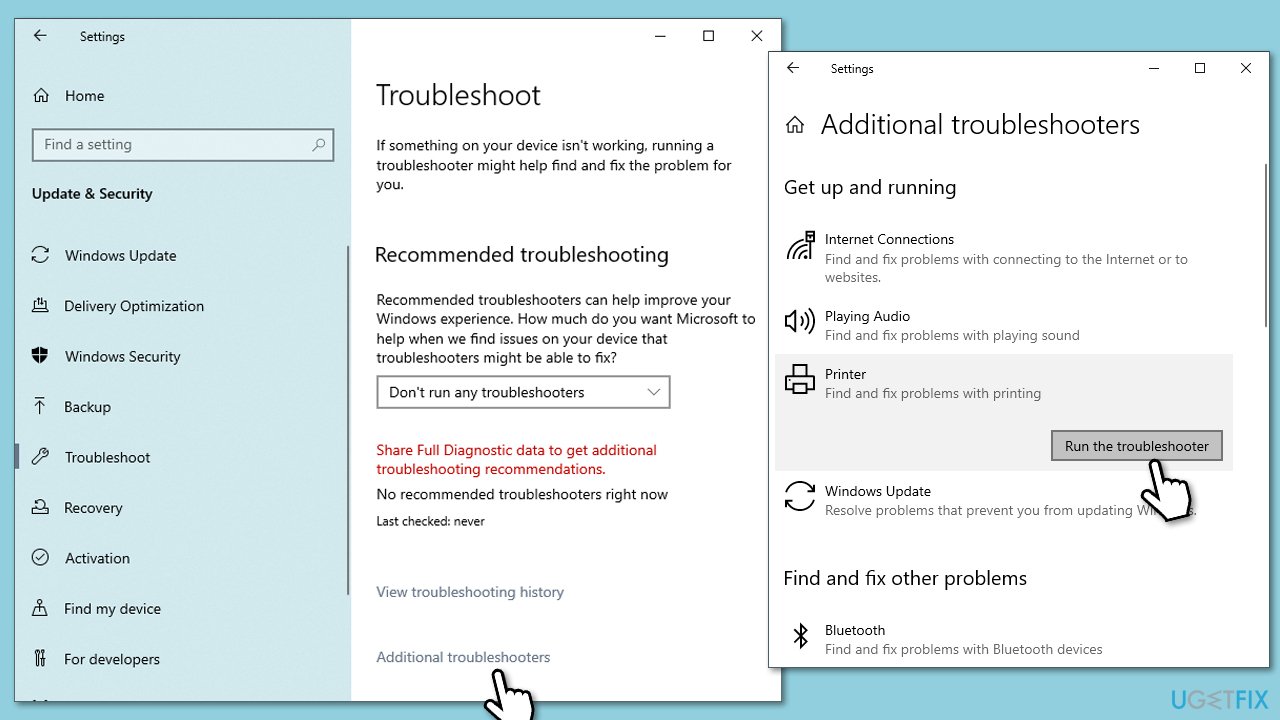
2. Run the troubleshooter
You should start by running the built-in printer troubleshooter:
- Type in Troubleshoot in Windows search and hit Enter.
- Go to Additional Troubleshooters/Other troubleshooters.
- Pick a Printer option and click Run the troubleshooter/Run.
- Wait till the scan is finished, and then apply the suggested fixes.
- Restart your system.
3. Re-add your printer
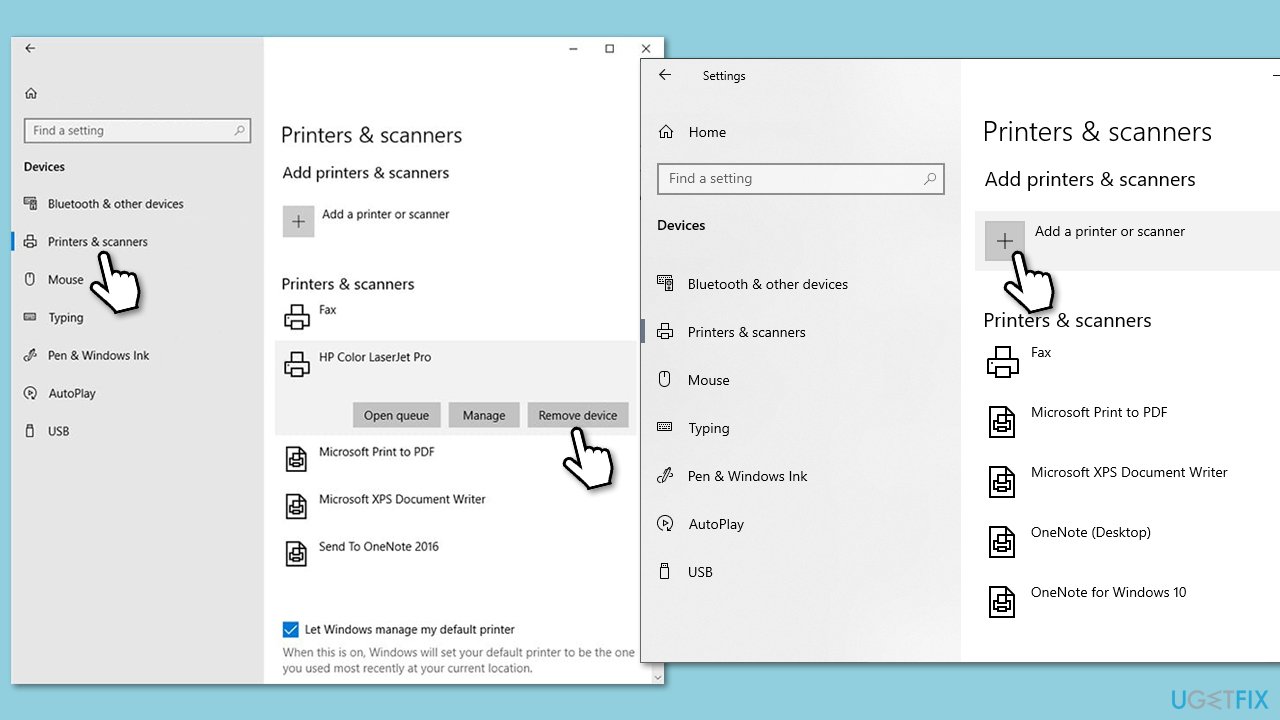
You can try re-adding your printer as follows:
- Click on Start and select Settings.
- Go to the Devices section.
- Select Printers & scanners.
- You should see the connected printers here - click Remove device.
- When done, you should then click Add device and follow the prompts to finish the installation process.
4. Update Windows
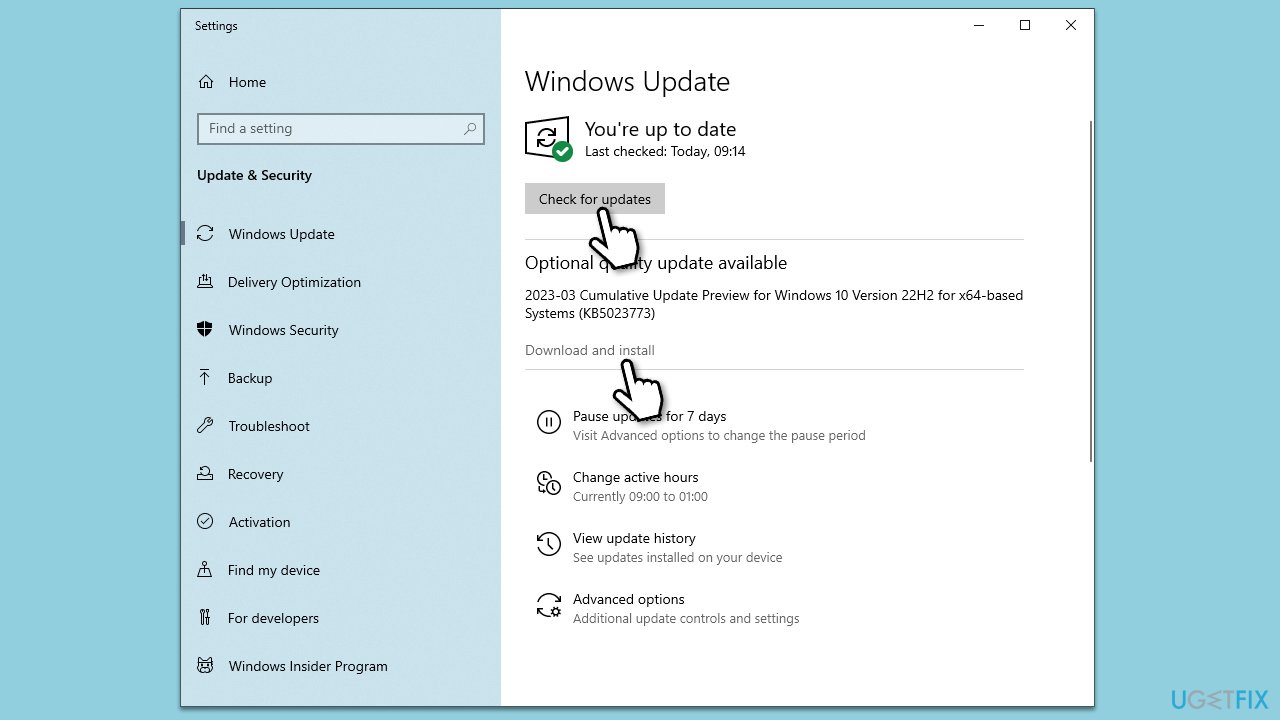
Make sure your operating system is up to date:
- Type Updates in Windows search and hit Enter.
- Click Check for updates.
- Windows will look for the newest updates and install them.
- Don't forget to install the optional updates as well.
- Reboot your system.
5. Install the latest printer drivers
While Windows updates can install device drivers, it is not always a reliable method. You can install the driver from your device manufacturer's website:
- Identify your printer and visit the manufacturer's website.
- Download the latest printer drivers for your printer model and Windows version.
- Install the printer drivers by running the executable file (.exe) and following the on-screen instructions.
- Restart your computer (if prompted) and connect your printer.
- Test your printer to ensure it's working properly.
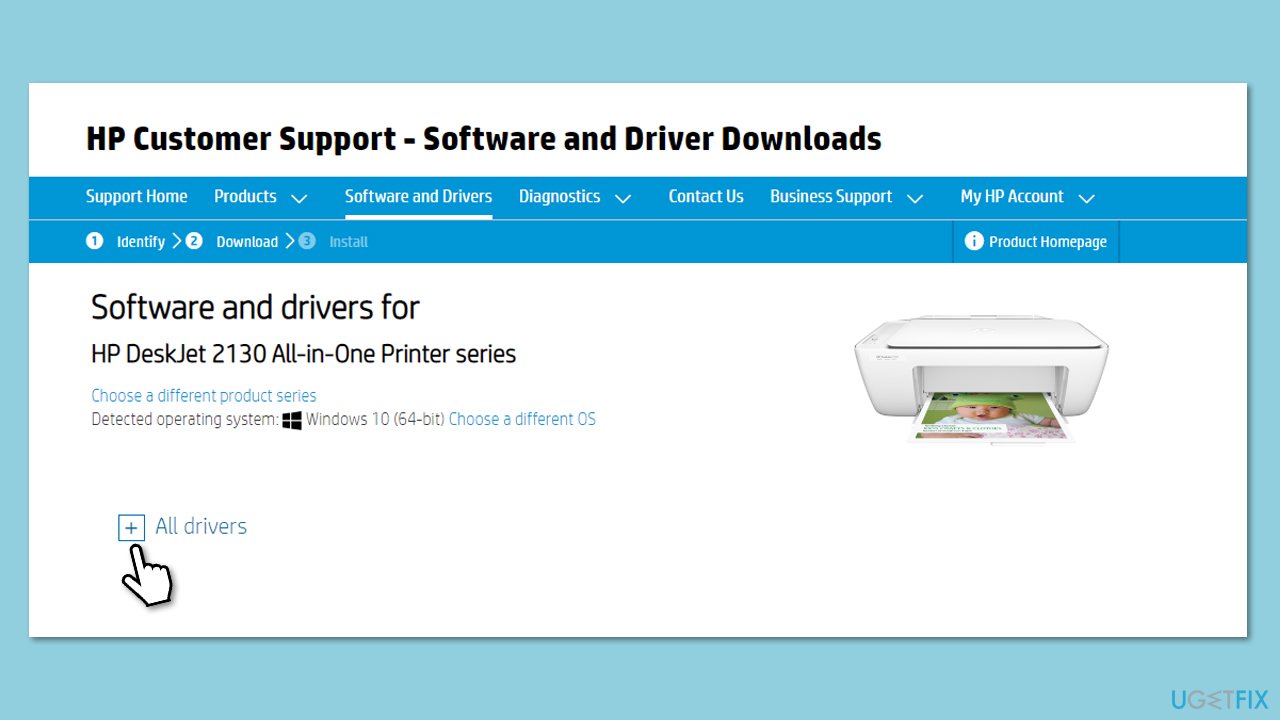
If you are not quite sure about this step, you can always employ an automatic driver updater such as [rev id="DriverFix"], which can take care of all your printer issues.
6. Restart the Print Spooler
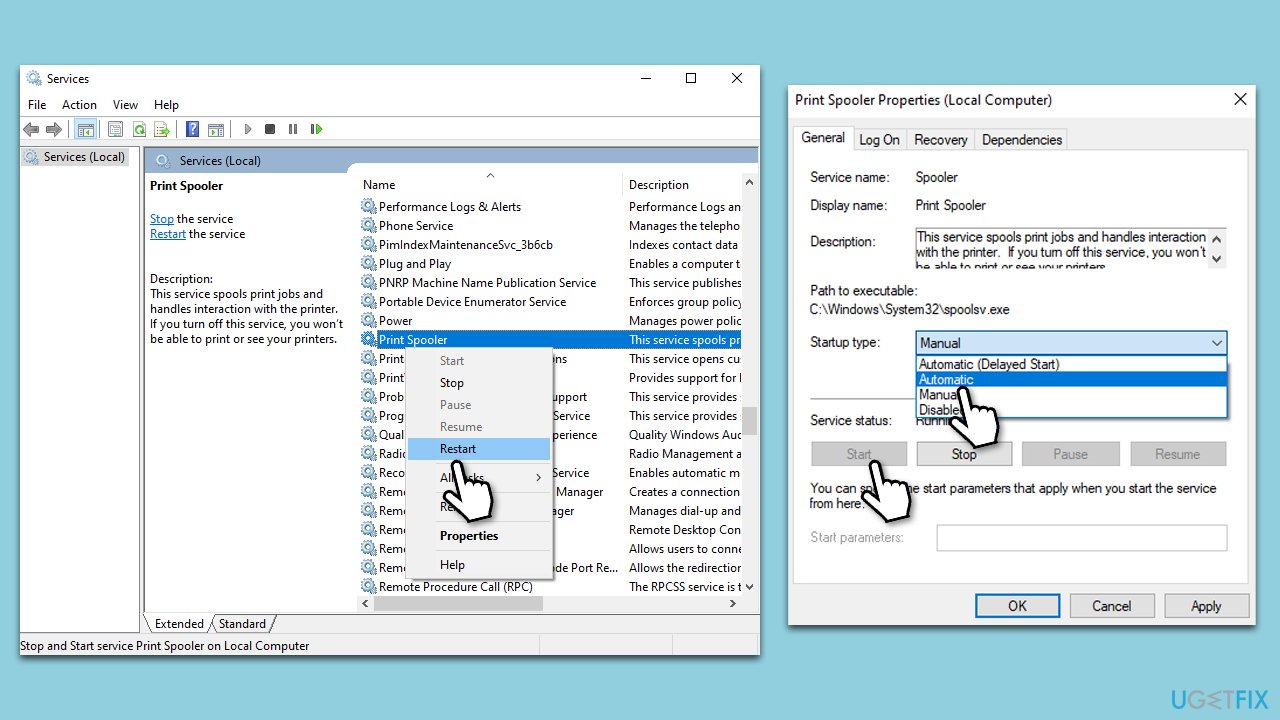
- Type Services in Windows search and hit Enter.
- Scroll down to locate the Print Spooler service.
- Right-click and select Restart.
- In case the service is not running, you should enable it.
- Double-click Print Spooler to open Properties.
- Under Startup type, select Automatic from the drop-down menu.
- Click Start, Apply, and OK.
Other articles that could be useful:
Bottom line
To resolve the printer installation issue, ensure that you have the latest drivers installed, check for conflicts with other software, and verify your USB or network settings. If these steps do not resolve the problem, consider reaching out to the printer manufacturer for further assistance.
Frequently asked questions
This issue may arise due to outdated printer drivers or incorrect network settings. Ensure your printer is turned on, connected to the same network as your PC, and that you have the latest drivers installed.
Error codes during printer installation can often be resolved by checking for Windows updates and reinstalling the printer drivers. Additionally, running the built-in Printer Troubleshooter can help identify and fix the problem.
You can manually add a printer by going to Settings > Devices > Printers & Scanners, then clicking 'Add a printer or scanner' and selecting 'The printer that I want isn't listed' to enter the printer's IP address or name.




Report an issue
What's wrong with this guide? We review every report and update or remove content.
Report received — thank you. We'll review and fix it.
You need a free account to submit a report.
Be the first to comment