How to fix
PIN error 0x80090030
on Windows
Resolve the PIN error 0x80090030 in Windows 10 or 11 quickly. Follow our expert-tested solutions to regain access in minutes, with screenshots!

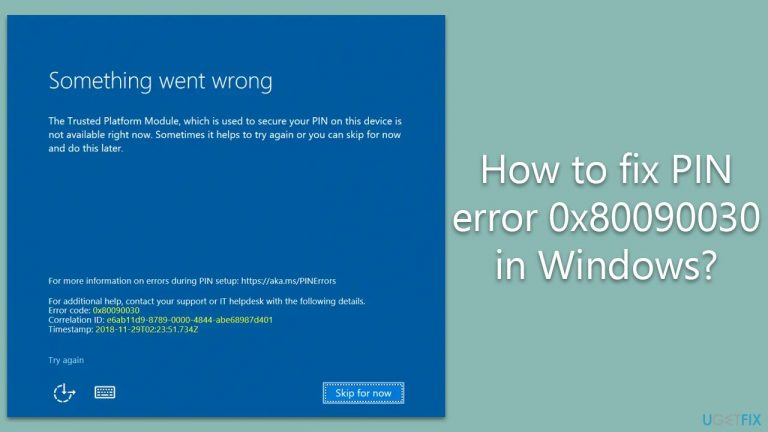
What causes How to fix PIN error 0x80090030 in Windows?
- Corruption of PIN-related settings or data
- Misconfiguration of Windows Hello service
- Conflicts with other security software
- Issues after a Windows update
- Changes to device hardware or software
Repairs Windows system files, removes malware, and restores a clean OS state — without reinstalling.
Hi. I am trying to set up my PIN on Windows, but I keep getting the error 0x80090030. Please advise if possible.
Windows PIN, short for Personal Identification Number, is a security feature in Windows operating systems that allows users to set up a unique numeric code to sign in to their devices quickly and securely. It provides an additional layer of protection to user accounts, as it is tied to a specific device and cannot be easily replicated or used on other devices without proper authorization.
Using a PIN in Windows has several benefits. Firstly, it is a convenient and faster way to unlock a device than typing a lengthy password. Secondly, it offers an added layer of security as the PIN is not stored on the device or transmitted over the network, making it less vulnerable to hacking or interception.
However, some Windows users may encounter an error when setting up a PIN, specifically the error code 0x80090030. This error can occur after updating Windows, and it may cause the fingerprint login (Windows Hello) and PIN to stop working. Users may encounter this issue when deleting their fingerprints and setting up a new PIN. When attempting to change the PIN and verify the password, the dialog box may disappear, and no changes are applied.
This error is often related to corruption or misconfiguration of the PIN-related settings or data in Windows. It may be caused by issues with the Windows Hello service, which manages biometric authentication, or conflicts with other security software or settings on the device. Additionally, changes or updates to the device's hardware or software, such as a Windows update, may also trigger this error.
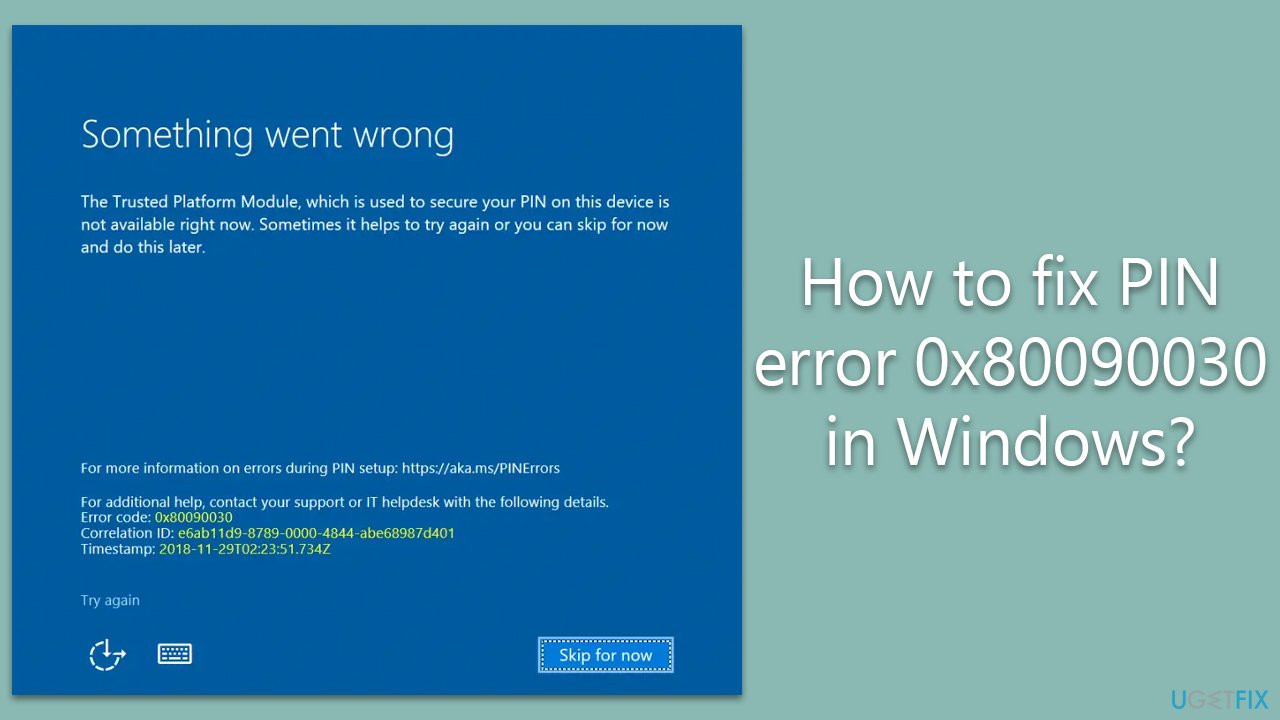
To fix error 0x80090030, users can try several troubleshooting steps. This may include resetting the Windows Hello service, updating or reinstalling drivers related to biometric devices, disabling or uninstalling third-party security software temporarily, and checking for any pending Windows updates.
Fix 1. Re-add the PIN
You should start by removing your current PIN and then creating a new one:
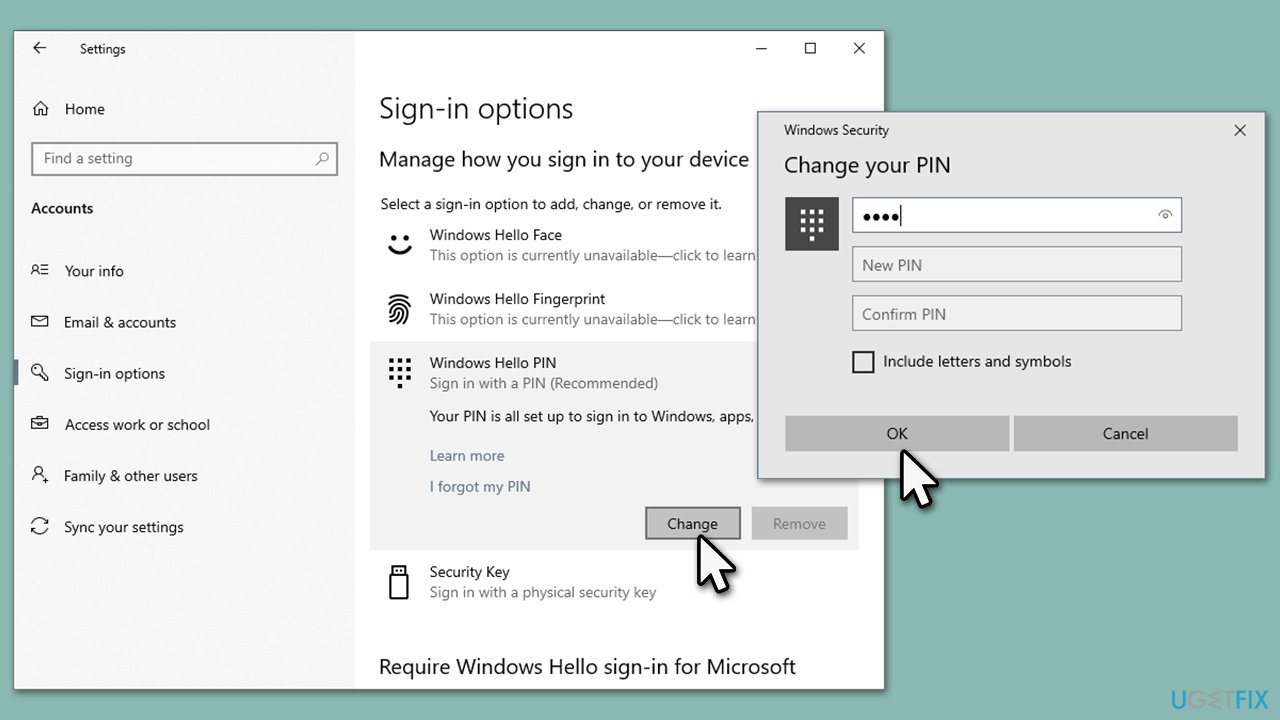
- Right-click on Start and pick Settings.
- Select the Accounts option.
- Go to the Sign-in options on the left of the window.
- On the right side of the window, select PIN.
- If you have a password set up, you can simply use Remove here.
- Alternatively, you can proceed with the following:
- Click Change.
- Enter your PIN at the top and leave the remaining sections blank:
New Password/PIN
Confirm Password/PIN - Click OK/Next.
- Once the PIN is removed, set up a new one and see if that resolves the issue.
Fix 2. Install all Windows updates
To ensure your system is not buggy, install all the available Windows updates:
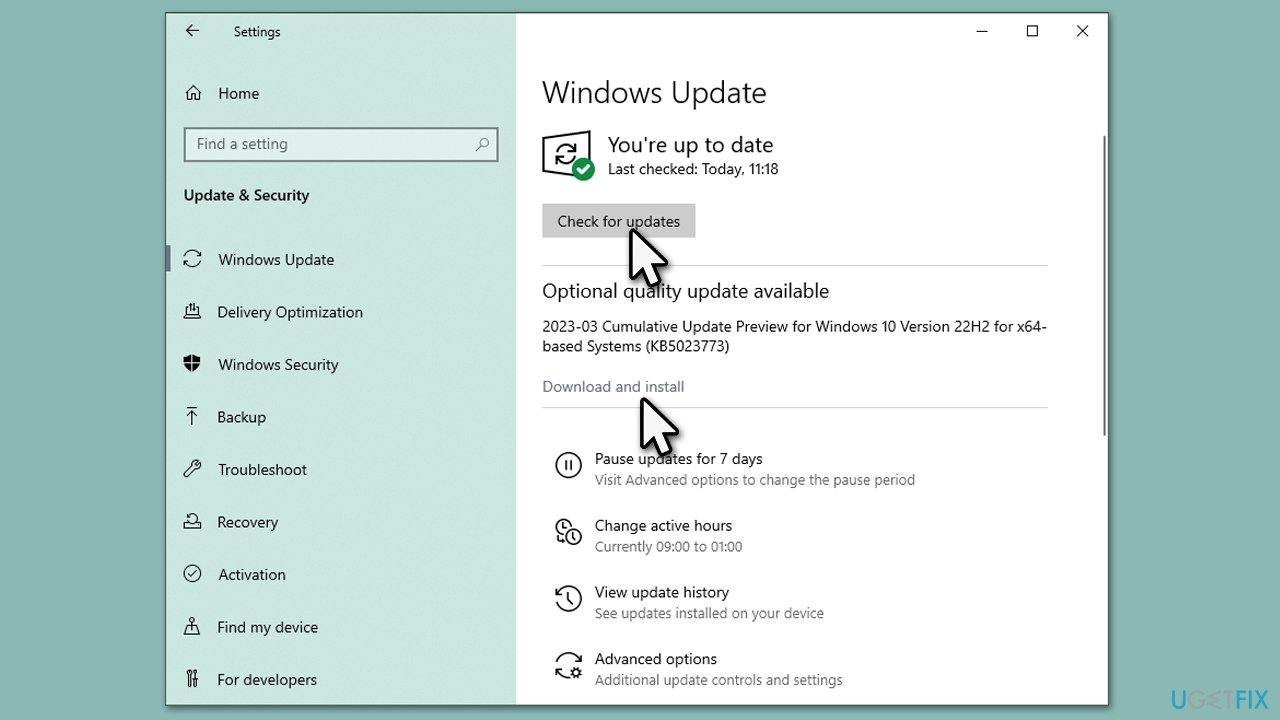
- Type Updates in the Windows search box and hit Enter.
- Click Check for Updates and wait till all the needed files are downloaded.
- If optional updates come up, install them too.
- When all is done, restart your system to implement the changes.
Fix 3. Delete the folder where PIN information is stored
The Ngc folder is a folder where all your PIN information is stored on Windows. 0x80090030 error could come up because the data inside of it is corrupted. Follow these steps to address this:
- Press Win + E to open File Explorer.
- Click the View tab at the top of the window and then mark the Hidden items checkbox.
- Go to the following location:
C:\Windows\ServiceProfiles\LocalService\AppData\Local\Microsoft\ - Here, you should see the Ngc folder. If you can't access it, follow these steps:
- Right-click on the Ngc folder and select Properties.
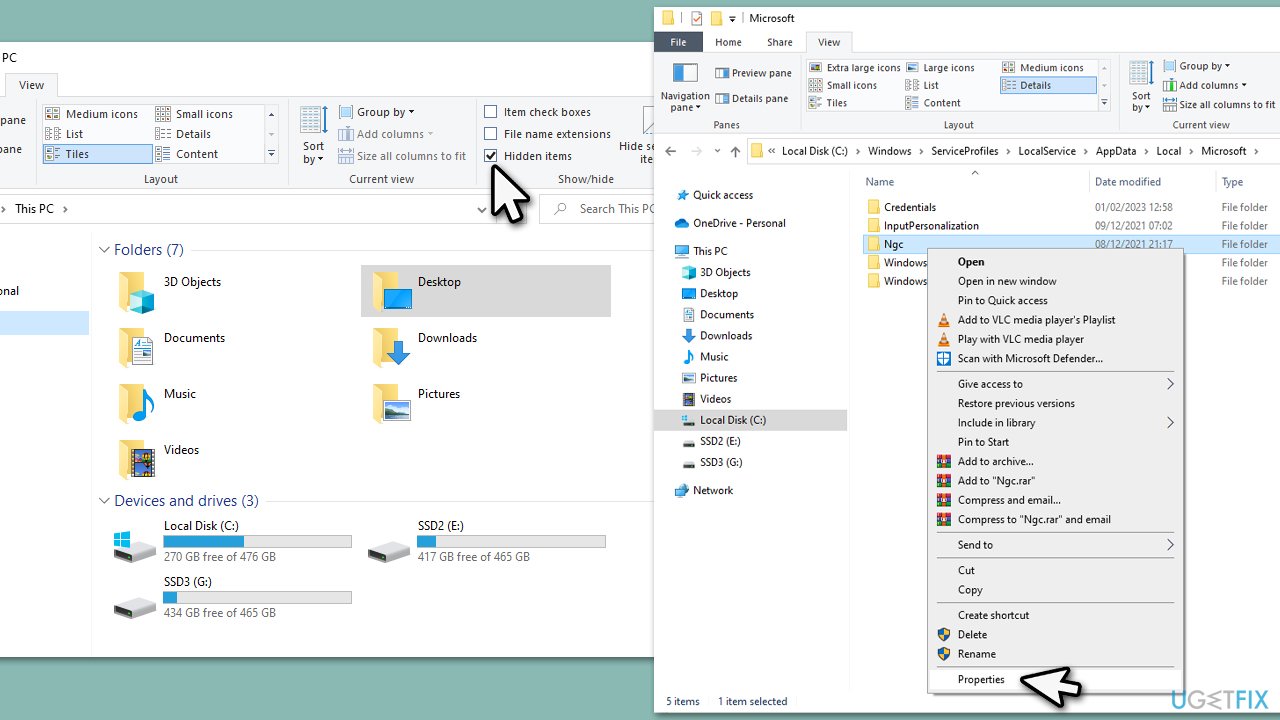
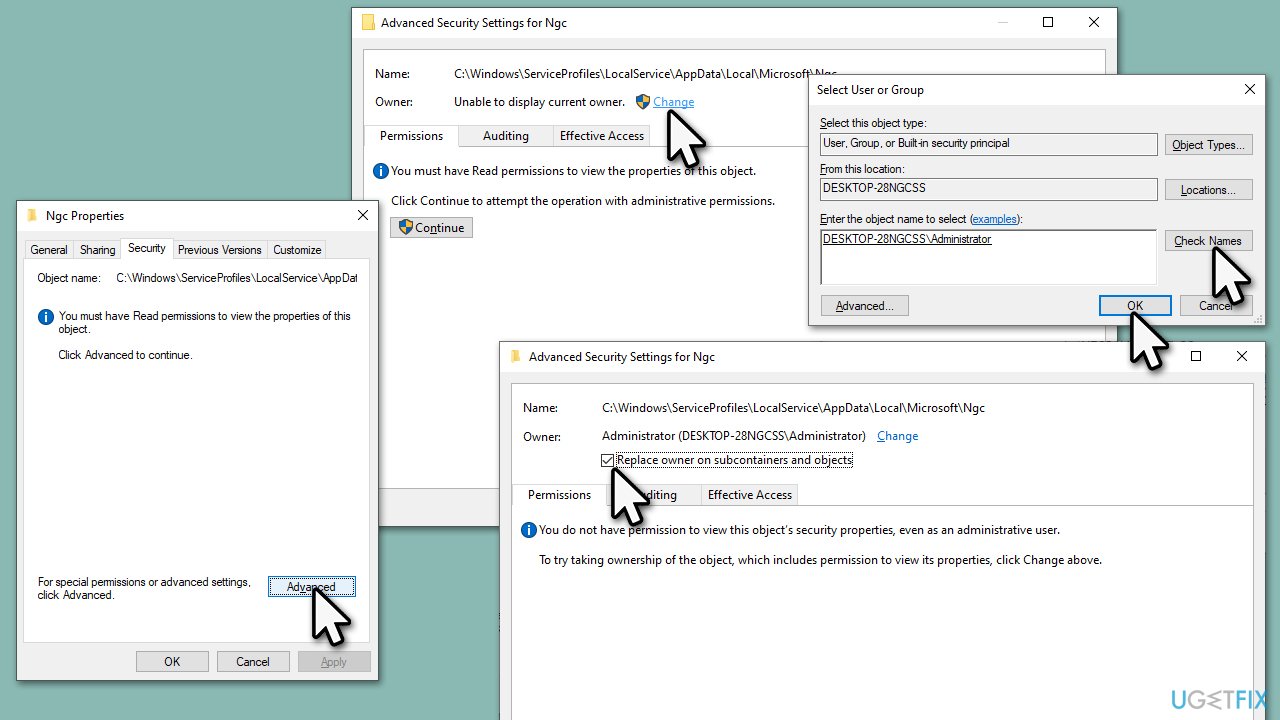
- Go to the Security tab and click Advanced.
- Under Owner, click Change.
- Type the username of the account (or use the administrator account) you are using, click Check names, select your account, and click OK.
- Check the Replace owner on subcontainers and objects checkbox, then click Apply and OK.
- Open the Ngc folder and delete everything located there.
- See if the problem is resolved.
Fix 4. Perform SFC and DISM scans to fix corrupted system files
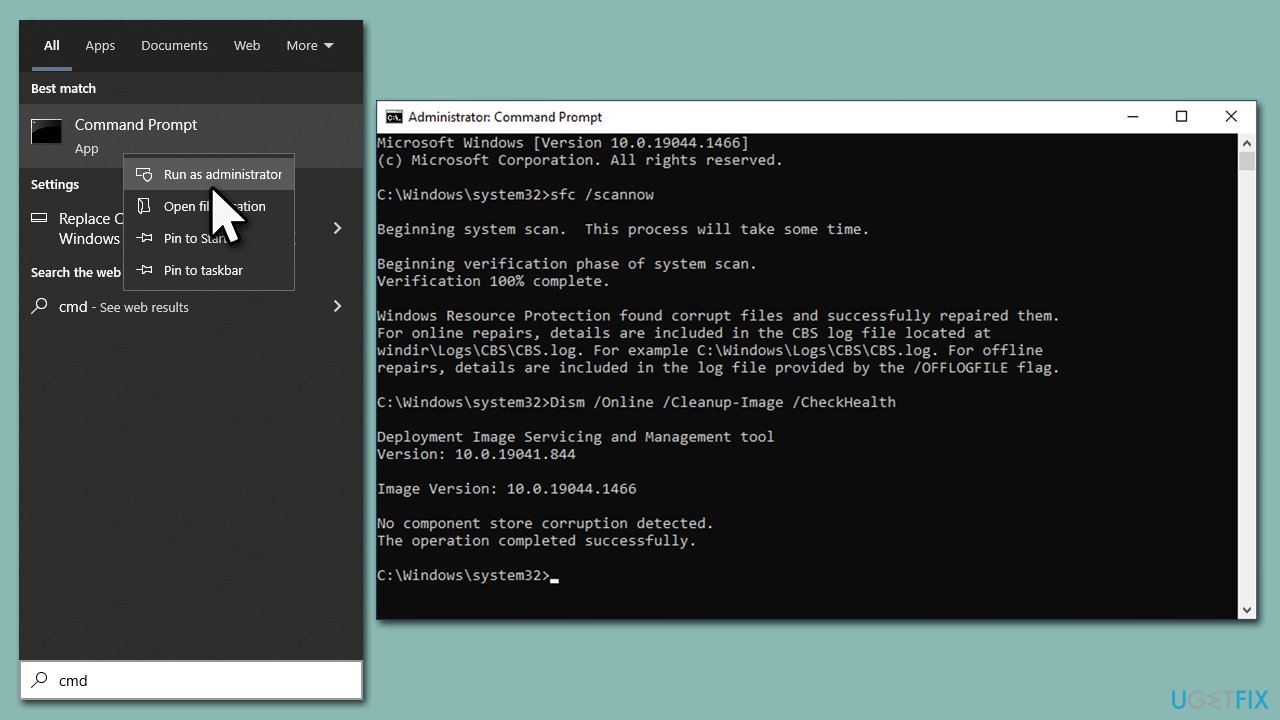
- Type cmd in Windows search
- Right-click on Command Prompt search result and select Run as administrator
- When the User Account Control window shows up, click Yes
- Copy and paste the following command, and press Enter:
sfc /scannow - Next, copy and paste these commands, waiting until each of them is finished and then proceeding with the next one:
dism /online /cleanup-image /scanhealth
dism /online /cleanup-image /checkhealth
dism /online /cleanup-image /restorehealth - Restart your computer when done.
Related topics that might be useful:
Bottom line
To fix the PIN error 0x80090030, users can try re-adding the PIN, resetting the Windows Hello service, updating or reinstalling biometric drivers, and disabling third-party security software temporarily. If these steps do not resolve the issue, checking for pending Windows updates may help.
Frequently asked questions
The PIN error 0x80090030 typically indicates a problem with the Windows Credential Manager, which can prevent users from signing in with their PIN. This error can arise due to corrupted security settings or issues with the system's key storage.
To reset your PIN, go to Settings > Accounts > Sign-in options, then select 'I forgot my PIN' and follow the prompts to create a new one. Ensure that your Windows 10 or Windows 11 system is updated to avoid further issues.
Yes, you can try resetting the Windows Credential Manager by navigating to Control Panel > User Accounts > Credential Manager and removing any stored credentials related to your account. Additionally, running the System File Checker (sfc /scannow) may help fix underlying system issues.




Report an issue
What's wrong with this guide? We review every report and update or remove content.
Report received — thank you. We'll review and fix it.
You need a free account to submit a report.
Be the first to comment