How to fix
“This sign-in option is disabled because of failed sign-in attempts” error
on Windows
Resolve the "This sign-in option is disabled" error on Windows 10 and 11 effortlessly. Get expert-tested solutions and regain access in minutes!

![[Fix] “This sign-in option is disabled because of failed sign-in attempts” error in Windows](https://ugetfix.com/wp-content/uploads/articles/askit/fix-this-sign-in-option-is-disabled-because-of-failed-sign-in-attempts-error-in-windows_en-768x432.jpg)
What causes [Fix] “This sign-in option is disabled because of failed sign-in attempts” error in Windows?
- Temporary glitch with the Windows authentication system
- Multiple failed sign-in attempts using the same PIN or password
- Unauthorized access attempts by someone else
- System changes triggered by updates
Repairs Windows system files, removes malware, and restores a clean OS state — without reinstalling.
Hi. Today in the morning, I attempted to log in to my Windows machine as I usually do, but after entering my correct PIN just once, I received a message "This sign-in option is disabled because of failed sign-in attempts," which is baffling. I did not restart my PC and neither have I entered my PIN several times. Please advise on what to do.
Sign-in is a fundamental feature of Windows that allows users to access their devices by entering their credentials, such as a PIN or password. It acts as a security measure to protect the user's data and privacy. However, some Windows 10 or 11 users may encounter an error message that says, "This sign-in option is disabled because of failed sign-in attempts" when trying to log into their devices.
This error can occur even if the user has only attempted to log in once with their PIN or password, which is unusual as they would typically be able to sign in without any issues. This error may occur after certain events on Windows, such as applying updates, which can disrupt the normal sign-in process.
There are several reasons why this error could happen. One possible cause is a temporary glitch or issue with the Windows authentication system. This can be triggered by updates or other system changes, causing the system to temporarily disable the sign-in option as a security measure.
Another possible reason is that multiple failed sign-in attempts have been using the same PIN or password, which triggers a security feature to temporarily disable the sign-in option to prevent further unauthorized access. This can happen if someone else has been trying to log in to the device with incorrect credentials or if the user has entered the wrong PIN or password multiple times.
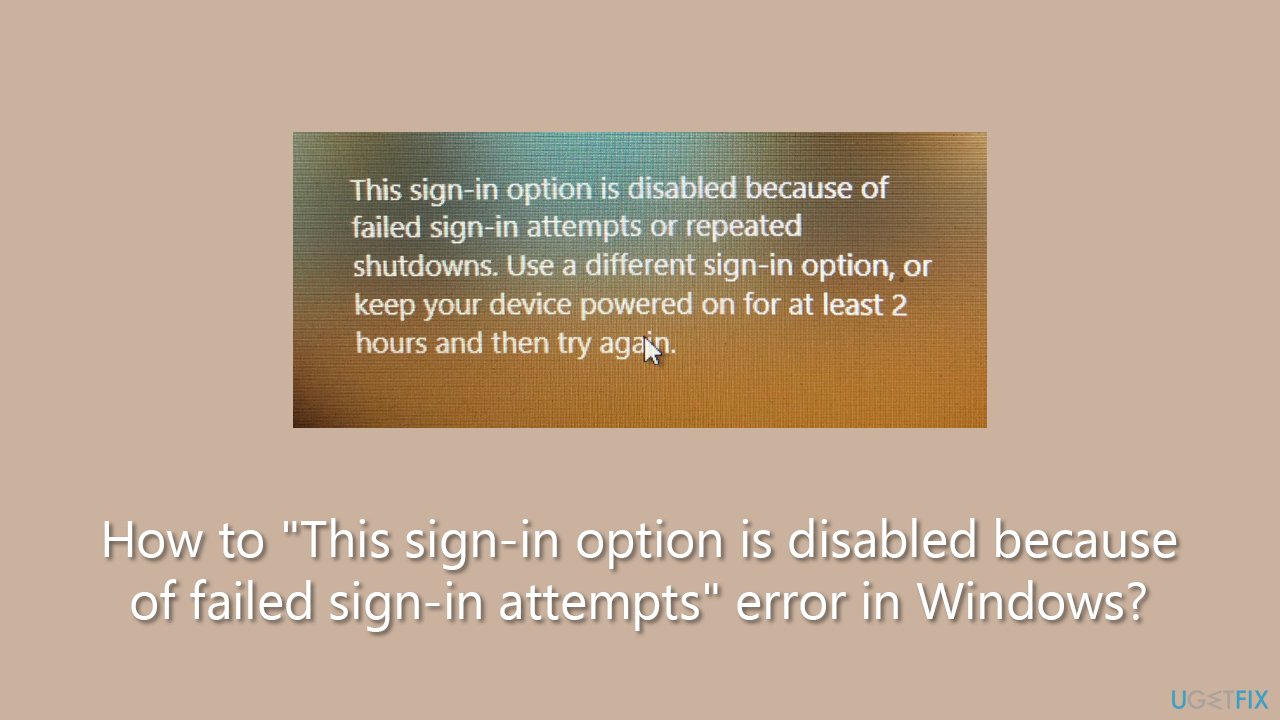
To fix the "This sign-in option is disabled because of failed sign-in attempts" error, users can try manually resetting their Windows account password, disabling and re-enabling sign-in options, or using other troubleshooting steps recommended.
For users who experience frequent issues with their Windows devices, utilizing a PC repair tool such as [d1] can be a viable option. These tools are designed to diagnose and fix common Windows errors and optimize system performance.
Solution 1. Wait two hours
You might have entered an incorrect PIN several times. If that's the case, all you have to do is leave your PC on for two hours. After that, you will be able to retry the login process. Make sure you enter the correct PIN/password this time.
If the "This sign-in option is disabled because of failed sign-in attempts" error showed up not because you have entered the incorrect PIN/password several times, you should proceed with the solutions below instead.
Solution 2. Use an alternative sign-in option
If you have set up multiple sign-in options, such as a PIN, password, or biometric authentication, you can try using an alternative sign-in method. For example, if you normally use a PIN to sign in, you can try using your password or biometric authentication (if available) to access your account.
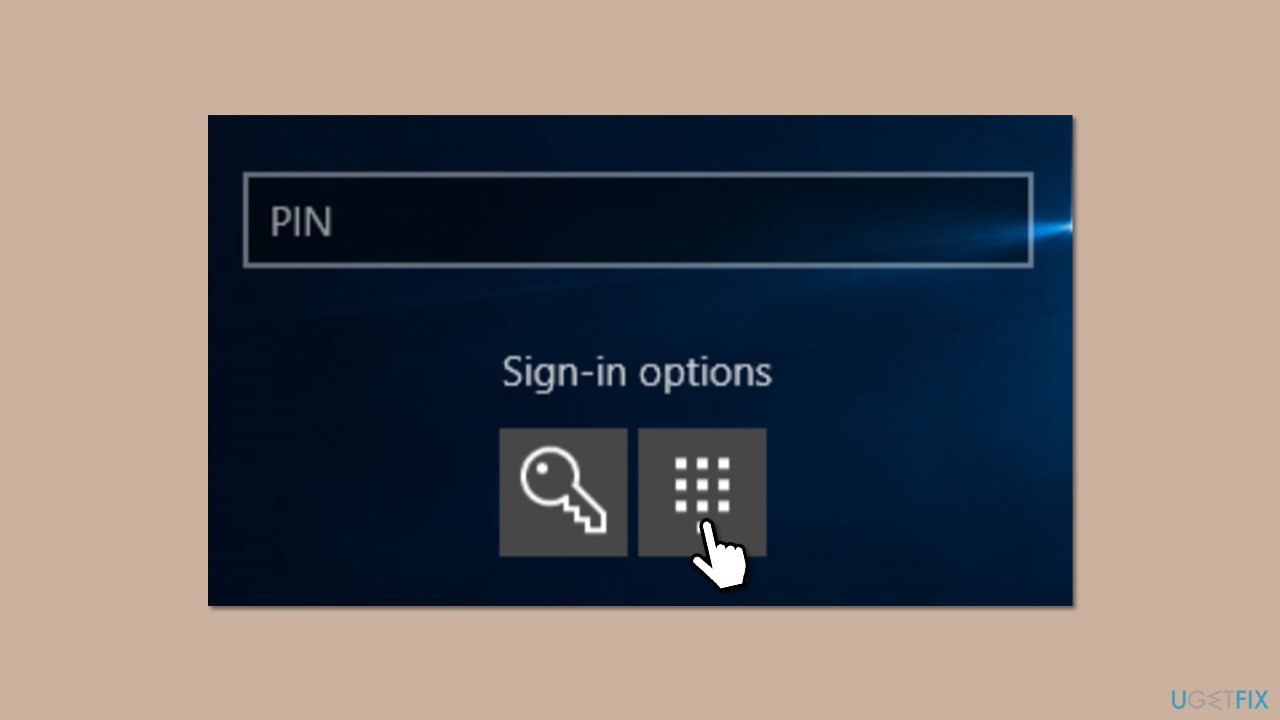
Solution 3. Reset your PIN or password
You can try resetting your password if you can't log in. Here's how:
- From the login screen, click on I forgot my password/PIN.
- In a few moments, Windows will show you the login screen.
- Here, enter the password for your Microsoft account and click Sign in.
- If you can't remember your Microsoft password, you should click Forgot password?
- In the verification method screen, pick your email and click Next.
- Enter the verification code sent to your email and click Next.
- Create a new password and log back in.
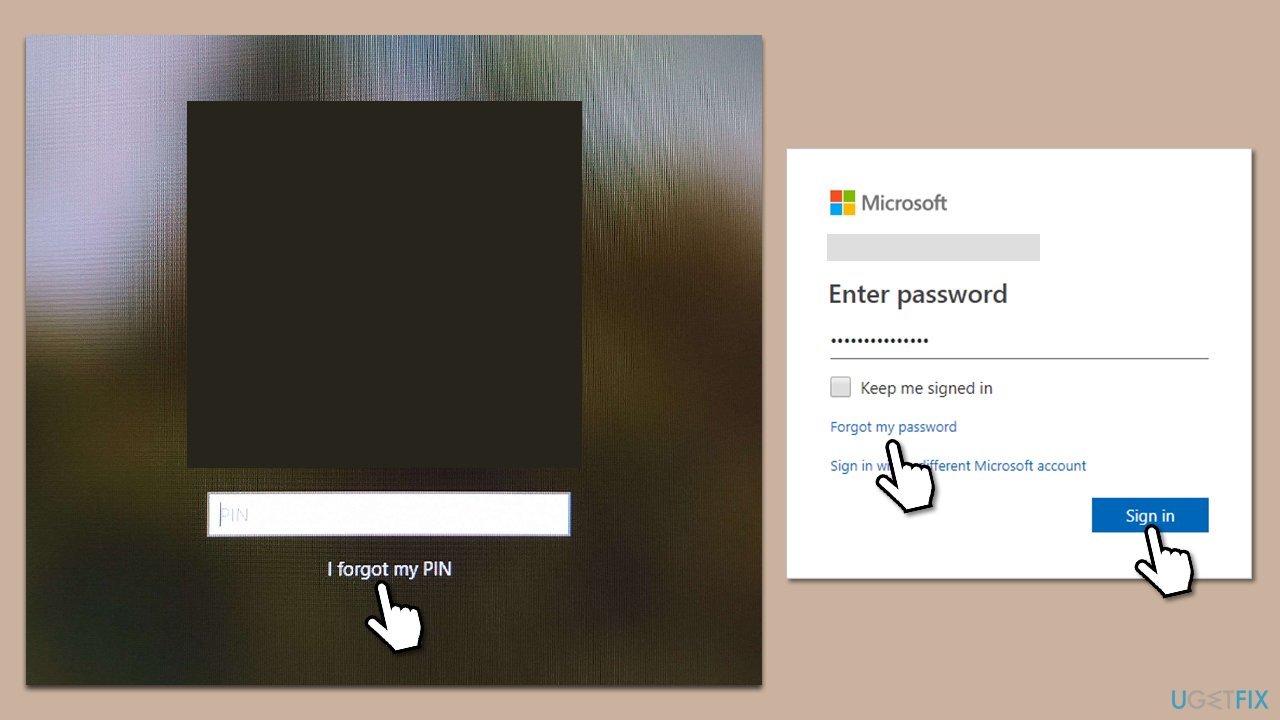
Solution 4. Use Command Prompt to create a new user account
If you still can't get in because you forgot all your passwords or due to other reasons, you can always create a new user account from the Safe Mode menu using Command Prompt.
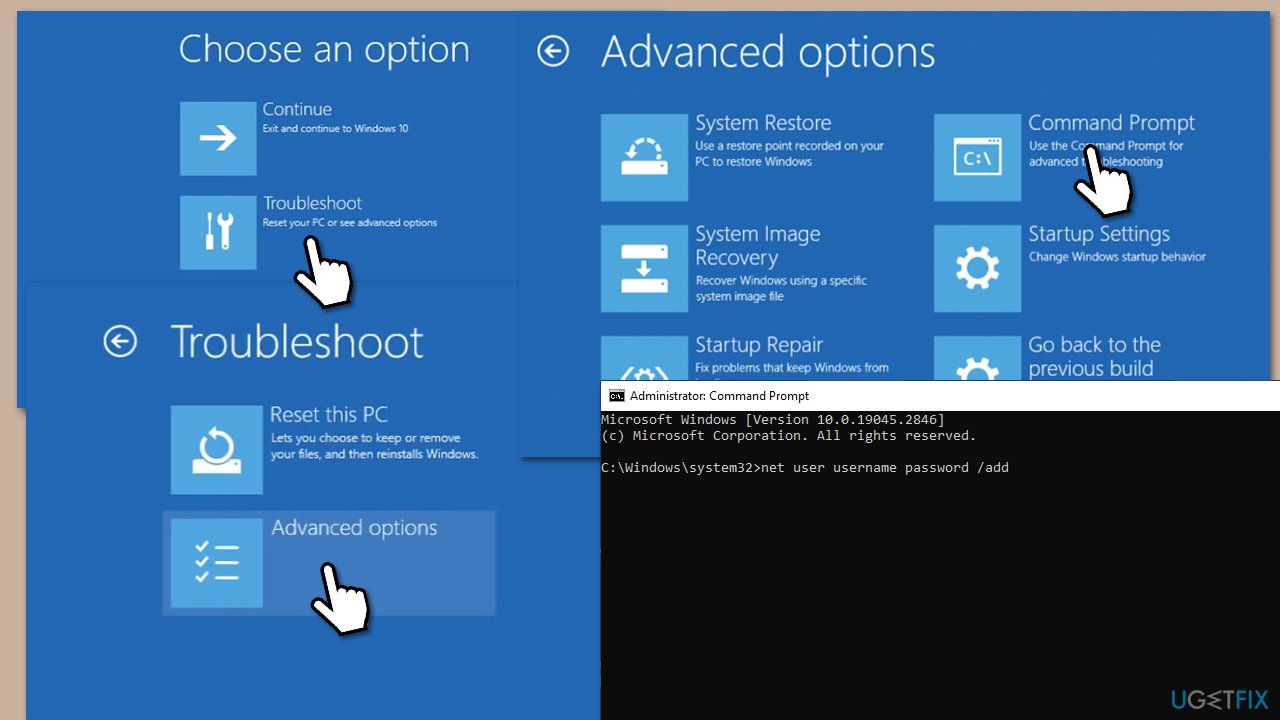
- From the login screen, hold the Shift key on your keyboard and click Power > Restart.
- Once you enter the recovery environment, click Troubleshoot.
- Select Advanced options and then pick Command Prompt.
- When the Command Prompt window pops up, type in the following command and press Enter (replace USERNAME and PASSWORD with your choices):
net user username password /add - If you get the message, "The command completed successfully," you can now use it to log in.
- Restart your PC and use the new account to log in.
To resolve the underlying issue, follow the fixes below.
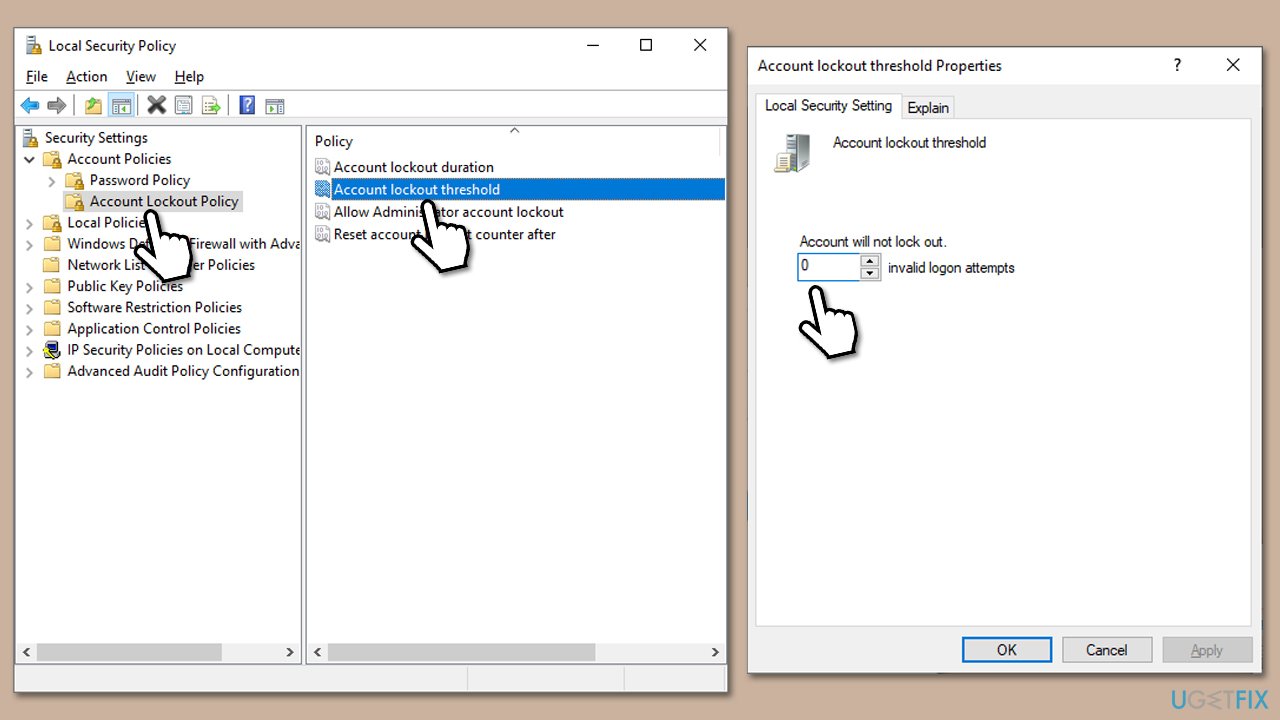
Solution 5. Edit Local Security Policy
Make sure you are logged in as an administrator.
- In Windows search, type secpol.msc and press Enter.
- Go to the following location:
Security Settings > Account Policies > Account Lockout Policy - Double-click on the Account lockout threshold to open the Settings configuration window.
- To disable account lockout, replace the existing value with 0 and click Apply to save the changes.
- Click OK and close the window.
Solution 6. Change account properties in lusrmgr
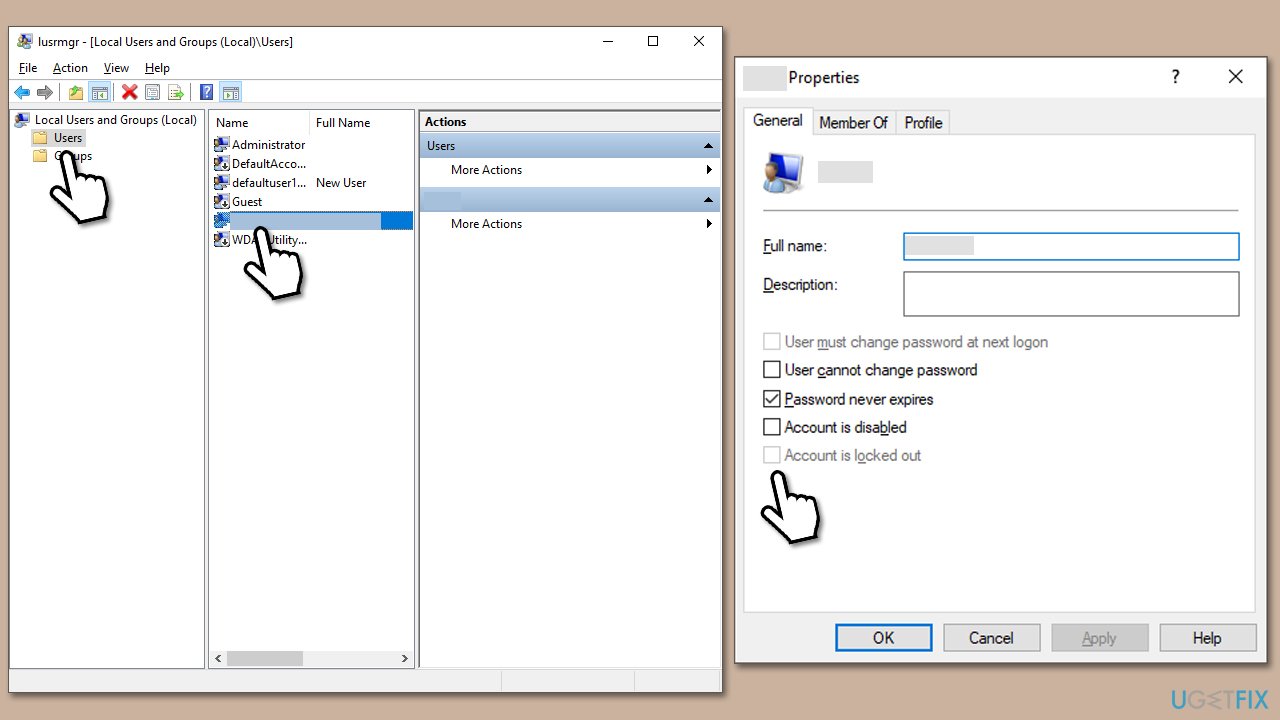
- Type lusrmgr.msc in Windows search and press Enter.
- On the left side of the window, select the Users section.
- In the right pane, double-click the account you are having trouble with.
- In the General tab, Make sure that the following options are NOT marked:
Account is disabled
Account is locked out - Click Apply and OK.
Solution 7. Reset Windows
If you still didn't manage to log in, you can always opt to reset Windows.
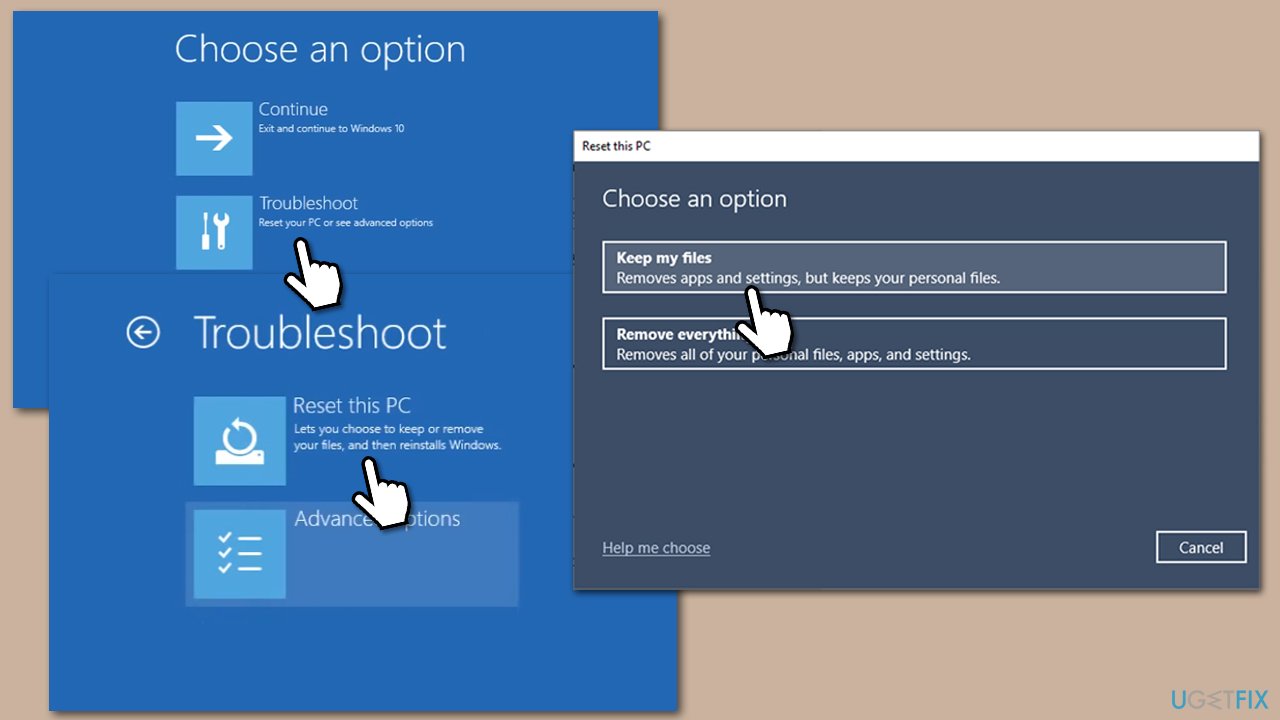
- From the login screen, hold the Shift key on your keyboard and click Power > Restart.
- Once you enter the recovery environment, click Troubleshoot.
- Click Reset this PC.
- Select Keep your files if you want to keep them.
- Follow the prompts to confirm your selection and start the reset process.
- Once the reset is complete, you will need to go through the initial setup process, including setting up a new user account and configuring Windows settings.
Other relevant topics:
Bottom line
To fix the error, users can try manually resetting their Windows account password, disabling and re-enabling sign-in options, or following other recommended troubleshooting steps. If none of these solutions work, further investigation may be needed.
Frequently asked questions
This error typically occurs after multiple unsuccessful login attempts, triggering security measures that disable the sign-in option. It can also be related to account settings or policies set by your organization if you're using a work account.
To fix this error in Windows 11, wait for a specified time before trying to sign in again, or reset your password through the account recovery options. Additionally, you can access the local user account settings to enable the sign-in option if necessary.
To prevent this error, ensure you use a strong password and enable two-factor authentication for added security. Regularly monitor your sign-in attempts and avoid entering incorrect credentials multiple times.




Report an issue
What's wrong with this guide? We review every report and update or remove content.
Report received — thank you. We'll review and fix it.
You need a free account to submit a report.
Be the first to comment