How to fix
ERR_BLOCKED_BY_ADMINISTRATOR error in Google Chrome
on Windows
Resolve the ERR_BLOCKED_BY_ADMINISTRATOR error in Google Chrome on Windows 10 or 11 quickly and easily. Expert-tested solutions ensure zero traces left.


What causes How to fix ERR_BLOCKED_BY_ADMINISTRATOR error in Google Chrome?
- Improper configuration of Chrome's settings
- Problematic browser extensions
- Unintentional alteration of system settings by third-party software
- Network restrictions in corporate environments
- Misinterpretation of settings as administrator-enforced restrictions
Repairs Windows system files, removes malware, and restores a clean OS state — without reinstalling.
Whenever I attempt to use Chrome, I get an ERR_BLOCKED_BY_ADMINISTRATOR error, which results in me not being able to use the internet at all. This is my personal computer, and I do not have an administrator. I'd appreciate the help.
Google Chrome is one of the world's most popular web browsers, developed by Google. It boasts speed, simplicity, and security to provide a seamless browsing experience for users across the globe. Chrome's versatile features and a vast library of extensions have made it a favorite among individuals and businesses alike. But like any software, it's not free from the occasional error or glitch - one such issue is the ERR_BLOCKED_BY_ADMINISTRATOR error.
This particular error, ERR_BLOCKED_BY_ADMINISTRATOR, can be an annoyance for Chrome users. It presents itself whenever users attempt to access certain or all websites via the browser, effectively obstructing their browsing experience. Although the error message implies that access has been blocked by an administrator, it may not always be the case.
In corporate environments, network administrators often establish certain browsing restrictions for various reasons, ranging from maintaining data security to preventing the misuse of corporate resources. These restrictions might trigger the ERR_BLOCKED_BY_ADMINISTRATOR error when employees attempt to access blocked websites.
However, an intriguing aspect of this error is its occurrence on personal computers where the users are the sole administrators. This is commonly due to underlying issues within the browser or the system itself. For instance, it can be caused by the improper configuration of Chrome's settings or problematic browser extensions. It might also result from the unintentional alteration of system settings by third-party software, which Chrome interprets as an administrator-enforced restriction.
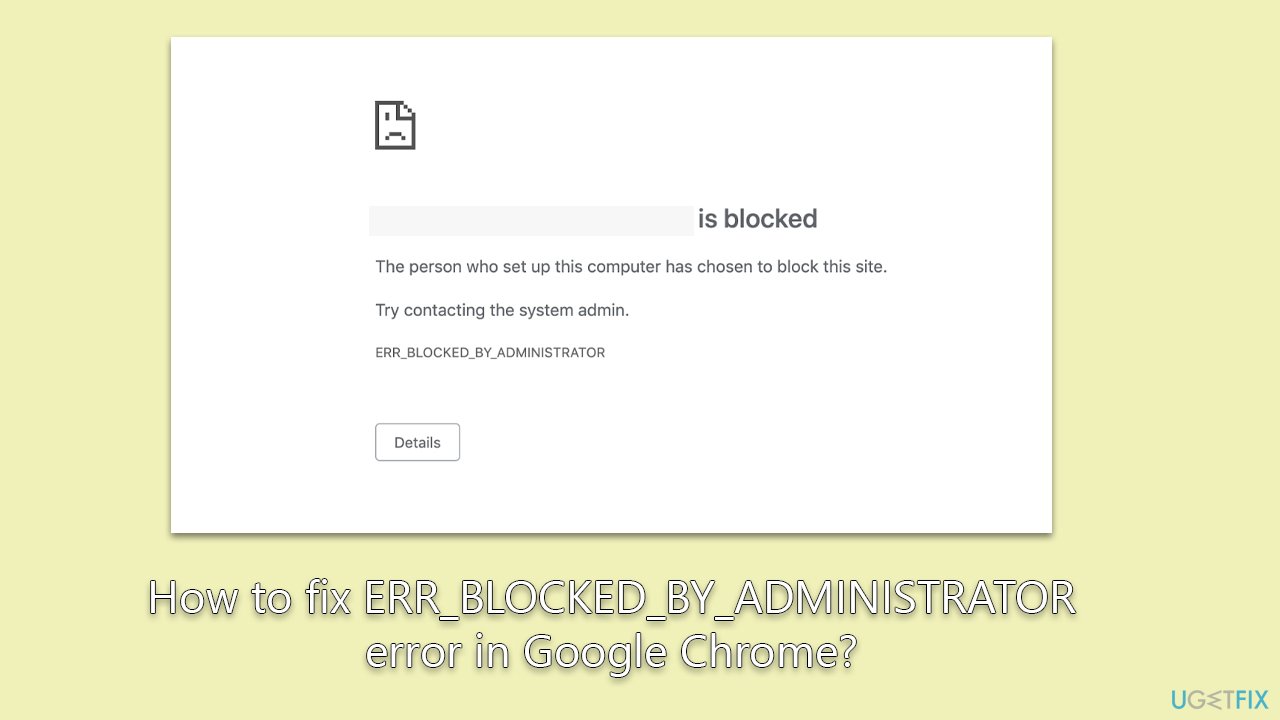
Fixing the ERR_BLOCKED_BY_ADMINISTRATOR error involves a series of troubleshooting steps. These may include checking Chrome's settings, managing browser extensions, and reviewing system settings among other measures. Although the error can be frustrating, a systematic approach to resolving it can lead to success.
Detailed instructions to diagnose and resolve the ERR_BLOCKED_BY_ADMINISTRATOR error in Google Chrome can be found below. Before proceeding, we recommend running a scan with a powerful PC repair tool [d1] to determine inconsistencies in Windows and resolve errors automatically.
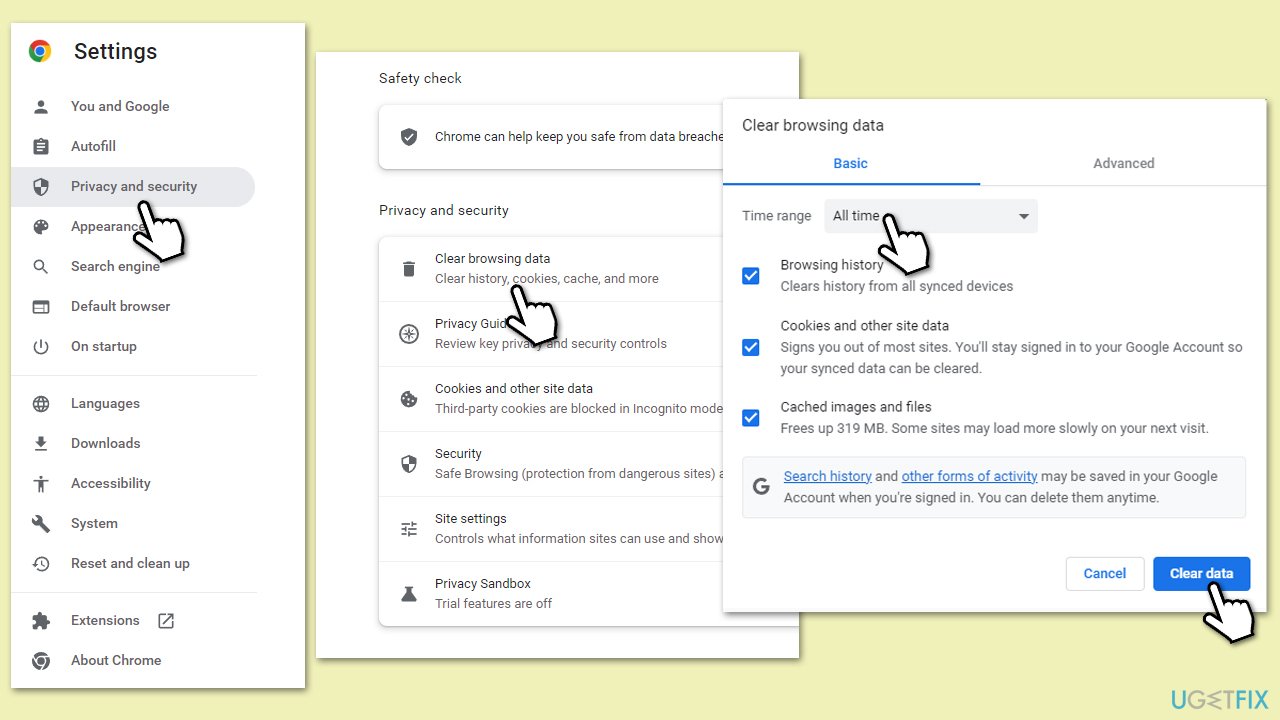
1. Clear cache files
Accumulated cache and cookies can sometimes lead to such issues.
- On your Google Chrome browser, click the three-dot (⋮) menu button at the top-right corner of the screen.
- Select Settings.
- Under Privacy and security, select Clear browsing data.
- Under time range, pick All time.
- Select Browsing history, Cookies and other site data, and Cached images and files.
- Click Clear data.
2. Remove unwanted browser extensions
Potentially unwanted applications are one of the most common reasons for the error to occur, so we recommend removing malicious ones. If you aren't sure, simply remove them all and then reinstate them one by one later.
- Click the three-dot menu button at the top-right corner of the screen.
- Go to Settings and go to More tools.
- Select Extensions.
- Here, you will find the list of the installed extensions.
- You can either delete them by pressing Remove or toggling the switch to disable them.

3. Check your antivirus settings
In some instances, the ERR_BLOCKED_BY_ADMINISTRATOR error in Google Chrome might be triggered by the settings of third-party software like firewalls or antivirus programs. These security tools, while crucial for protecting your system, can sometimes inadvertently block access to certain websites in an effort to maintain system integrity. It is therefore recommended to review the settings of your firewall and antivirus programs.
Make sure they are configured correctly and not impeding your browsing experience. Keep in mind that each program has its unique interface and settings, so you might need to refer to the specific guide or manual for proper instructions. By ensuring these tools aren't the cause of the issue, you move one step closer to restoring your seamless browsing experience.
4. Update your browser
Checking for updates is a process where you verify if the version of the software you are using, in this case Google Chrome, is the most recent one released by the developers. Google Chrome typically updates in the background when you close and reopen your computer's browser. However, if you haven't closed your browser in a while, an update might be pending.
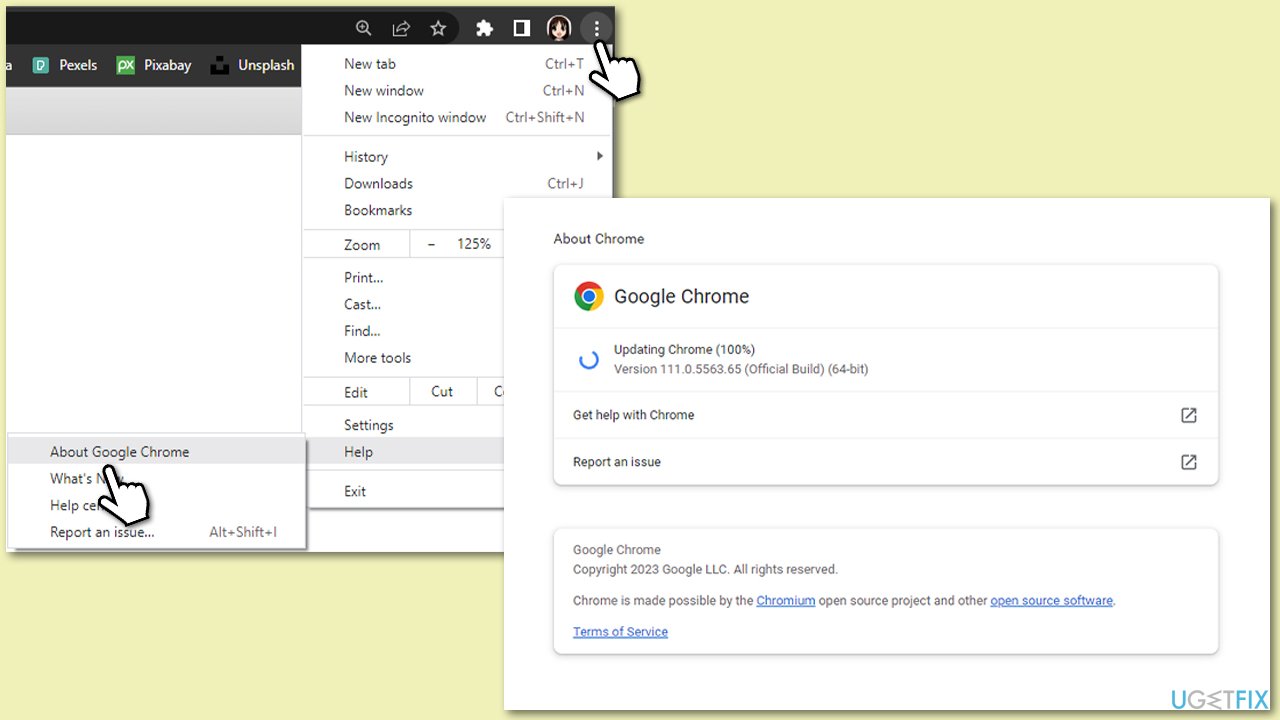
- Click the three-dot menu button at the top-right corner of the screen.
- From the drop-down menu, hover your cursor over Help, then click About Google Chrome.
- You will be directed to a new page that automatically checks for updates. If an update is available, it will automatically start to download.
- If an update is found and downloaded, you must relaunch the browser for the update to take effect. You'll see a Relaunch button; click it to restart Chrome and apply the update.
5. Modify the registry
This fix is needed when you are unable to remove the restrictions despite trying previous solutions.
- Type regedit in Windows search and press Enter.
- When UAC comes up, click Yes.
- In the new window, navigate to the following location:
HKEY_LOCAL_MACHINE\Software\Policies\Google\Chrome - On the right side of the window, you should see the URLBlocklist entry - right-click and select Delete.
- Next, navigate to the following location:
HKEY_CURRENT_USER\Software\Policies\Google\Chrome - Delete the URLBlocklist entry as well.
6. Reset your browser
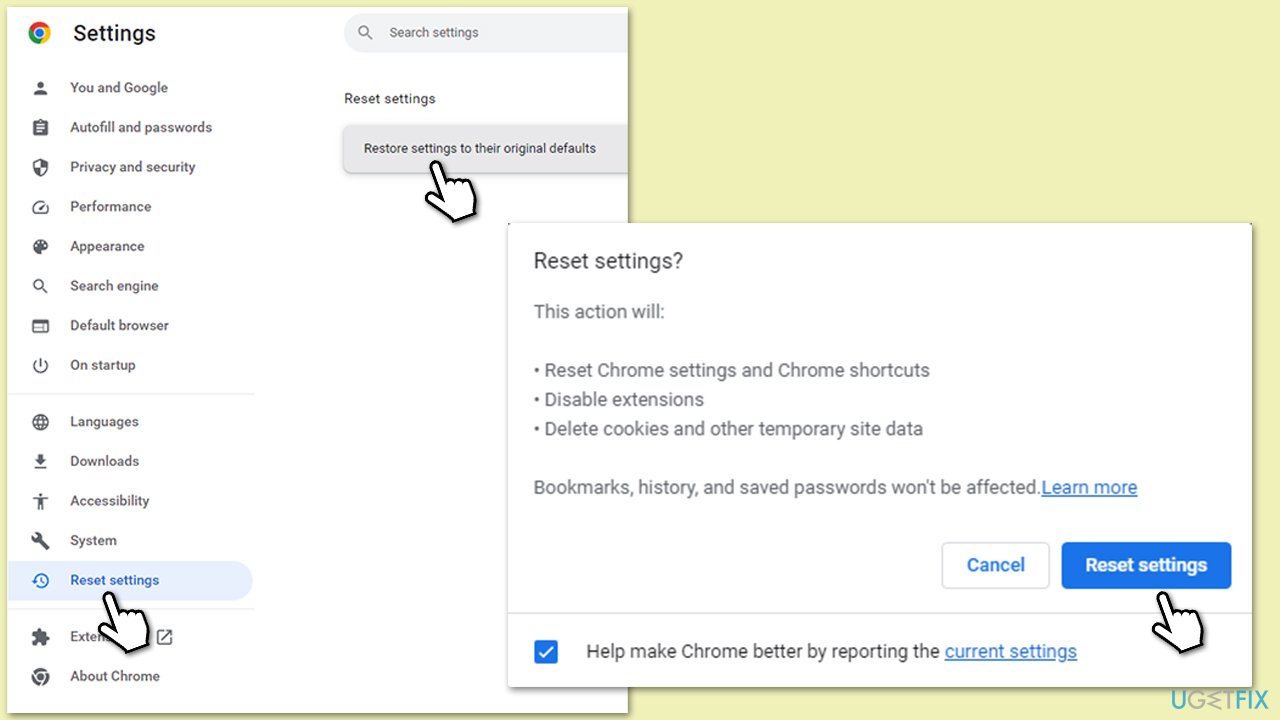
Finally, you can try resetting your browser as follows:
- Open the menu and go to Settings.
- On the left menu, click Reset settings.
- Click Restore settings to their original defaults.
- When the confirmation prompt shows up, click Reset settings.
Related topics that might be useful:
Bottom line
To fix the ERR_BLOCKED_BY_ADMINISTRATOR error, users should check Chrome's settings, manage browser extensions, and review system settings. If these steps do not resolve the issue, further troubleshooting may be necessary.
Frequently asked questions
This error typically occurs when a group policy or an antivirus program is blocking access to certain websites or features in Chrome on Windows 10.
You can open the Group Policy Editor by typing 'gpedit.msc' in the Run dialog, then navigate to User Configuration > Administrative Templates > Google > Google Chrome to modify or disable any relevant policies.
Yes, you can try clearing your browser cache or resetting Chrome to its default settings, which may help resolve the issue without altering Windows settings.




Report an issue
What's wrong with this guide? We review every report and update or remove content.
Report received — thank you. We'll review and fix it.
You need a free account to submit a report.
Be the first to comment