How to fix
0x80070021 error in Outlook
on Windows
Resolve the 0x80070021 error in Outlook on Windows 10 or 11 effortlessly. Get expert-tested solutions and fix issues in minutes!

What causes How to fix 0x80070021 error in Outlook?
- Conflicts with antivirus software
- Abrupt or improper system shutdowns
- Background updates interfering with file access
- Malfunctioning Outlook add-ins
- Corrupted Outlook data files
Repairs Windows system files, removes malware, and restores a clean OS state — without reinstalling.
I am facing an issue where I can't get Outlook to work due to error code 0x80070021. How do I fix this?
Microsoft Outlook is a widely used email management system, relied upon daily by countless computer users for both personal and professional communications. Its user-friendly interface, diverse functionalities, and seamless integration with other Microsoft applications make it a popular choice amongst beginners and tech-savvy users alike. However, in spite of its robust design, there are occasions when unexpected errors can interrupt its operation, affecting the user's ability to communicate and organize their digital activities.
One such troublesome error is the 0x80070021 error, an issue that prevents Outlook from starting up correctly (although it could occur under different circumstances as well, such as when trying to backup .pst files). This error can be particularly frustrating as it forms a blockade to your communication stream, barring access to potentially crucial emails, meeting schedules, or task lists.
This error often manifests due to conflicts between Outlook and other processes or applications on your computer. For instance, your antivirus software, which performs the vital task of keeping your system safe, might inadvertently interfere with Outlook's access to certain necessary files or folders.
Similarly, abrupt or improper shutdowns of the system can leave certain files locked or inaccessible, creating conflicts with Outlook's operation. Background updates can also occasionally interfere with Outlook's file access. Another source of the 0x80070021 error can be a malfunctioning Outlook add-in or corrupted Outlook data files, which are pivotal for the smooth operation of the application.
Despite the various potential causes, the 0x80070021 error is not insurmountable. Indeed, through guided troubleshooting and by taking a systematic approach, this problem can be resolved. Detailed instructions on how to navigate through this issue, such as disabling interfering services and repairing corrupt files, are provided below to help restore your Outlook to optimal performance.
Finally, for an effortless approach to resolving this and other common computer issues, you might consider the [d1] PC repair tool. This app is capable of repairing corrupted system files and rectifying registry issues, as well as fixing damage done by malware or potentially unwanted software.
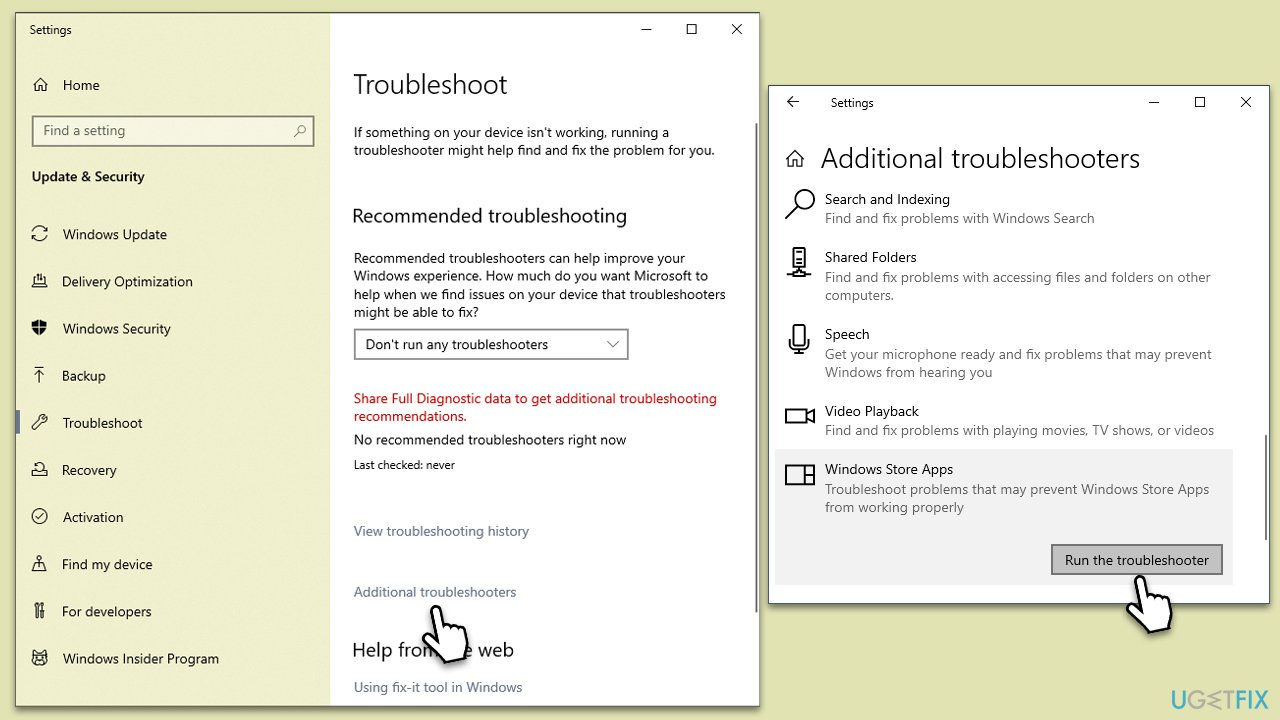
Fix 1. Run Windows Store Apps troubleshooter
- Type troubleshoot into the Windows search bar, then press Enter.
- In the options that appear, select Additional troubleshooters or Other troubleshooters (depending on your Windows version).
- Scroll through the list until you locate Windows Store Apps, then click on Run the troubleshooter/Run.
- Wait as the process runs to completion, then apply any recommended changes to resolve the issue.
Fix 2. Repair the PST file
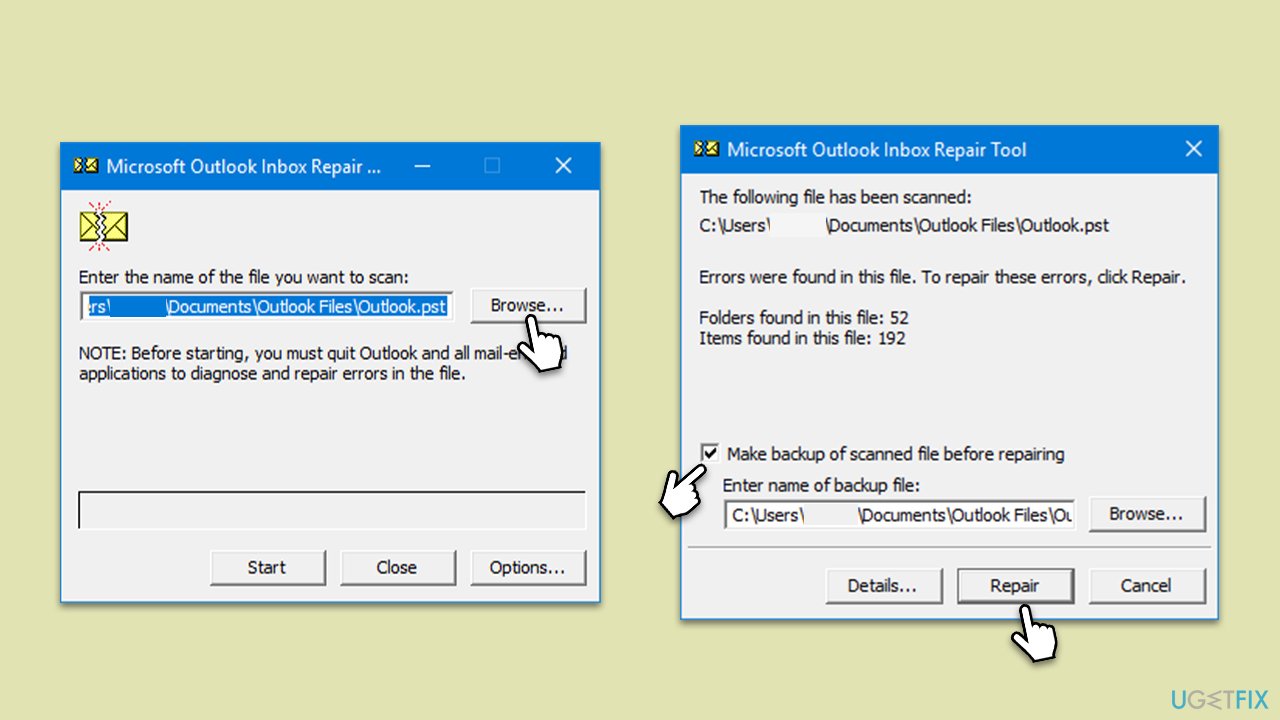
Corrupted Outlook data files can be a source of the 0x80070021 error. Utilizing the built-in Microsoft Outlook Inbox Repair Tool (ScanPST.exe) can help repair these files.
- The Office suite, including Outlook, is usually installed in the Program Files folder on your computer's system drive, such as C:\Program Files (x86)\Microsoft Office\Office version or C:\Program Files\Microsoft Office\Office version- go to this location.
- Double-click on SCANPST.EXE to launch it.
- Click on the "Browse" button to navigate to the location of your PST file. By default, this should be in Documents\Outlook Files. If not, you may need to search your system for ".pst" files.
- Once you've selected the PST file, click "Start" to begin the scanning process. This may take some time, depending on the size of your PST file.
- If the tool finds errors in your PST file, you will be prompted to start the repair process. Click on "Repair."
Fix 3. Try Clean Boot
Performing a clean boot starts your computer with a minimal set of drivers and startup programs. This can help identify any software conflicts that may be causing the error.
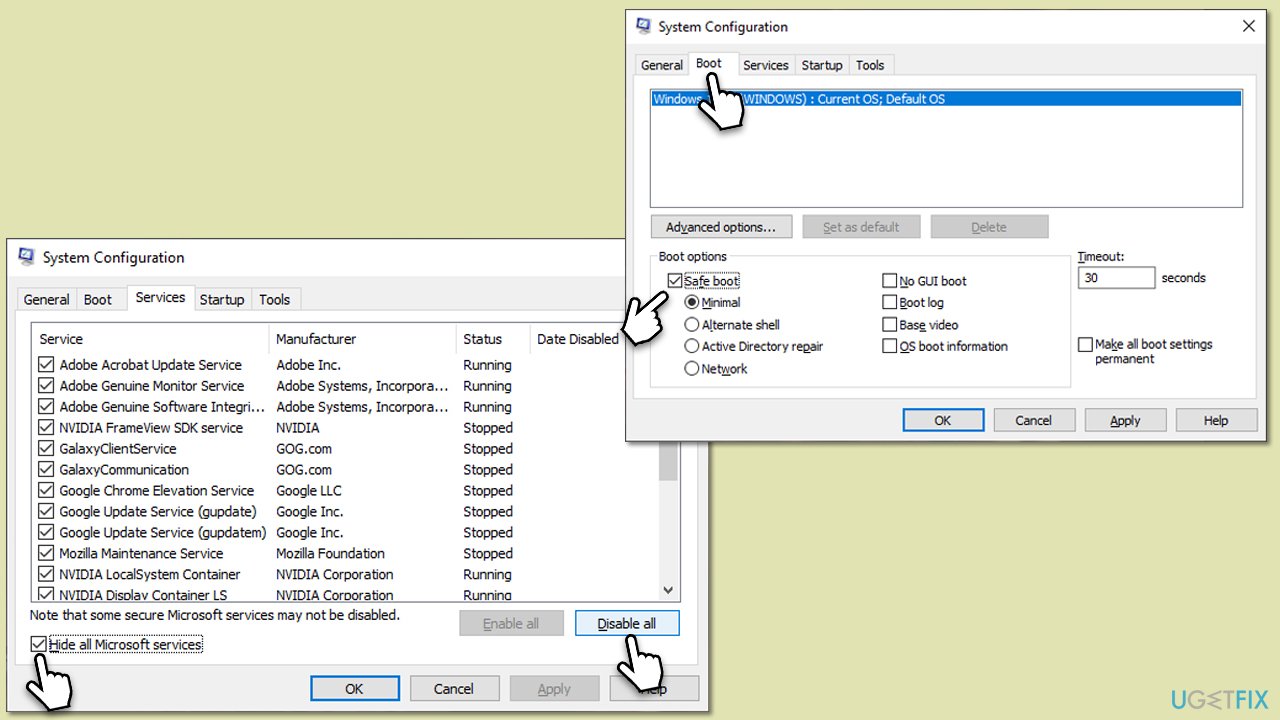
- Press Win + R, type msconfig, then press Enter.
- Select the Services tab and tick the Hide all Microsoft services checkbox.
- Pick Disable all.
- Go to the Startup tab and click Open Task Manager.
- Here, right-click on each of the non-Windows entries and select Disable.
- Close down the Task Manager.
- Go to the Boot tab and tick the Safe boot option
- Reboot your system.
Fix 4. Disable faulty add-ins
- Press Win + R to open the Run dialog.
- Type in outlook /safe and press Enter.
- If the problem does not exist in this environment, the problem is related to the add-in.
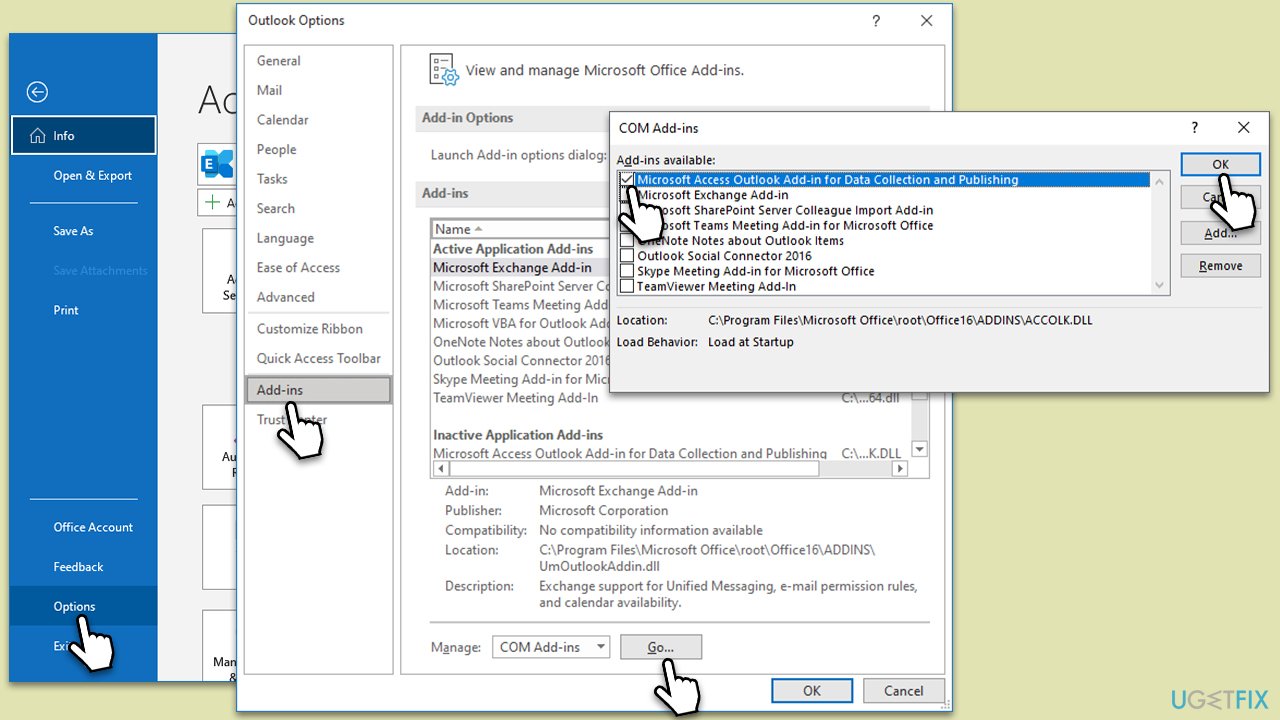
- Next, go to File > Options.
- Go to the Add-ins section.
- At the bottom, on the right side, select COM Add-ins from the drop-down menu and pick Go.
- Here, untick all the add-ins but one, and click OK.
- Check if the error went away. If not, try it with the next add-in until you find the culprit.
Fix 5. Reinstall Office
If none of the solutions above helped, please reinstall the MS Office suite as follows:
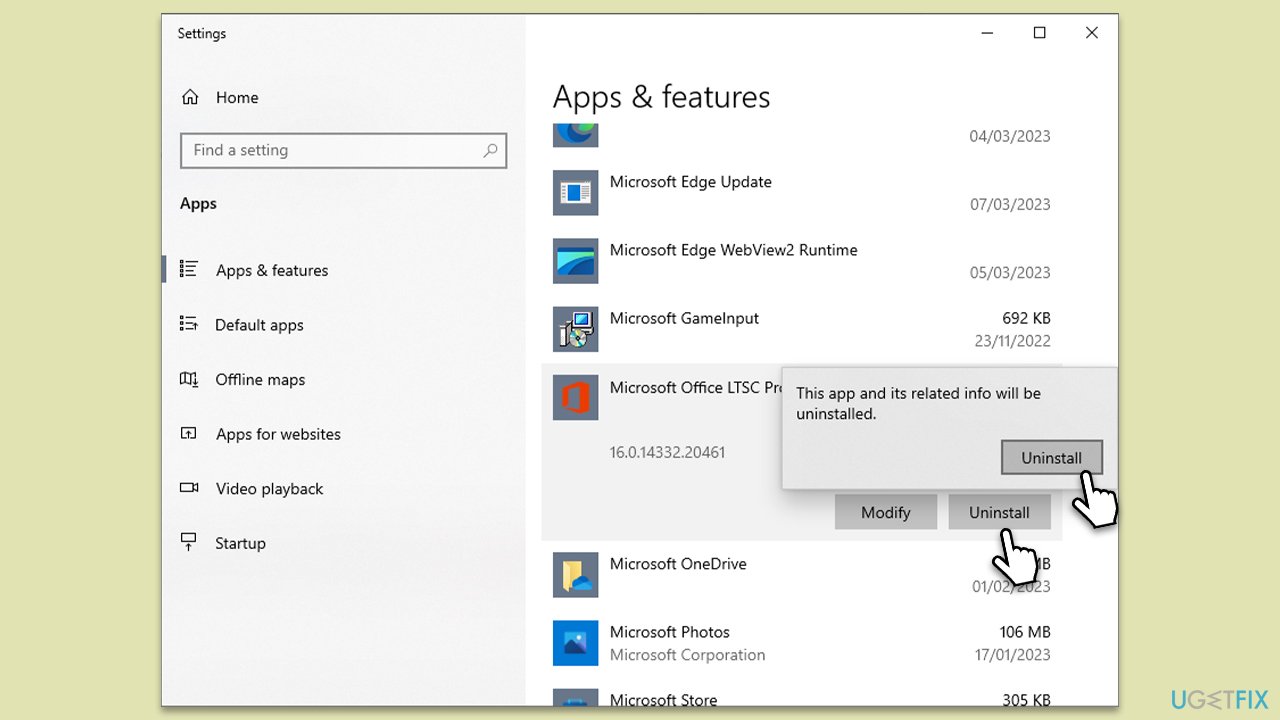
- Right-click on Start and pick Apps and Features.
- Scroll down to find the MS Office installation.
- Click Uninstall and confirm with Uninstall.
- Follow on-screen instructions to remove the app completely.
- Press Win + E to open File Explorer.
- Navigate to the following location and delete its contents:
C:\Program Files\Microsoft Office - Next, type regedit in Windows search and press Enter.
- Go to the following locations in the Registry Editor and delete these items:
Computer\HKEY_LOCAL_MACHINE\SOFTWARE\Microsoft\AppVISV
Computer\HKEY_LOCAL_MACHINE\SOFTWARE\Microsoft\Office\ClickToRun
Computer\HKEY_CURRENT_USER\Software\Microsoft\Office - Reboot your system and then reinstall Microsoft Office.
Other related articles:
Bottom line
The 0x80070021 error can be resolved by disabling interfering services and repairing corrupt files. If these steps do not resolve the issue, consider using a PC repair tool to fix corrupted system files.
Frequently asked questions
The 0x80070021 error typically indicates that there is a problem with the file path or a conflict with system files, which prevents Outlook from accessing certain resources.
To fix the 0x80070021 error, try running the Repair Tool for Office from the Control Panel or resetting the Outlook profile to eliminate any corrupted settings.
To prevent this error, ensure that your Windows and Office applications are up to date, and regularly run system maintenance tools to fix any potential file system issues.




Report an issue
What's wrong with this guide? We review every report and update or remove content.
Report received — thank you. We'll review and fix it.
You need a free account to submit a report.
Be the first to comment