How to fix
Game Pass error 0x803F800E on Xbox
on Windows
Resolve Game Pass error 0x803F800E effortlessly on Windows 10 or 11. Get back to gaming quickly with expert-tested solutions and clear screenshots.

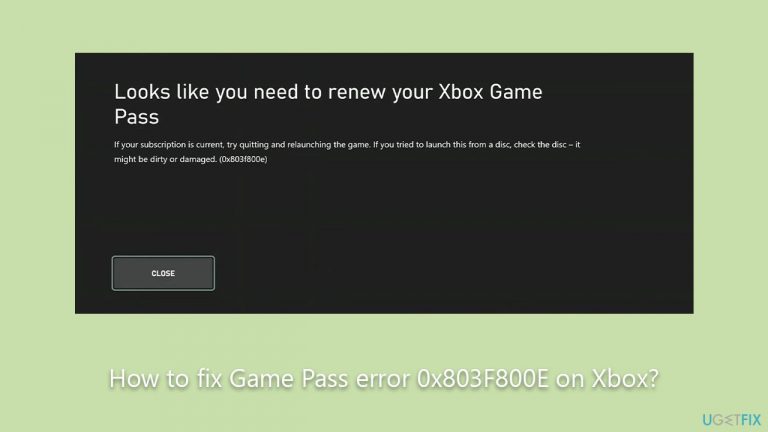
What causes How to fix Game Pass error 0x803F800E on Xbox?
- Account authentication issues
- Outdated console software
- Temporary glitches within Xbox's server infrastructure
- Billing issues with payment method
Repairs Windows system files, removes malware, and restores a clean OS state — without reinstalling.
I have paid for GamePass and can't play any games because of the 0x803F800E error. Any idea what's going on?
Xbox Game Pass is a subscription service that provides access to a vast library of video games for Xbox console, PC, and cloud gaming. With a monthly or annual fee, subscribers can enjoy dozens of games across various genres, offering an extensive selection for players to explore without needing to purchase each title individually.
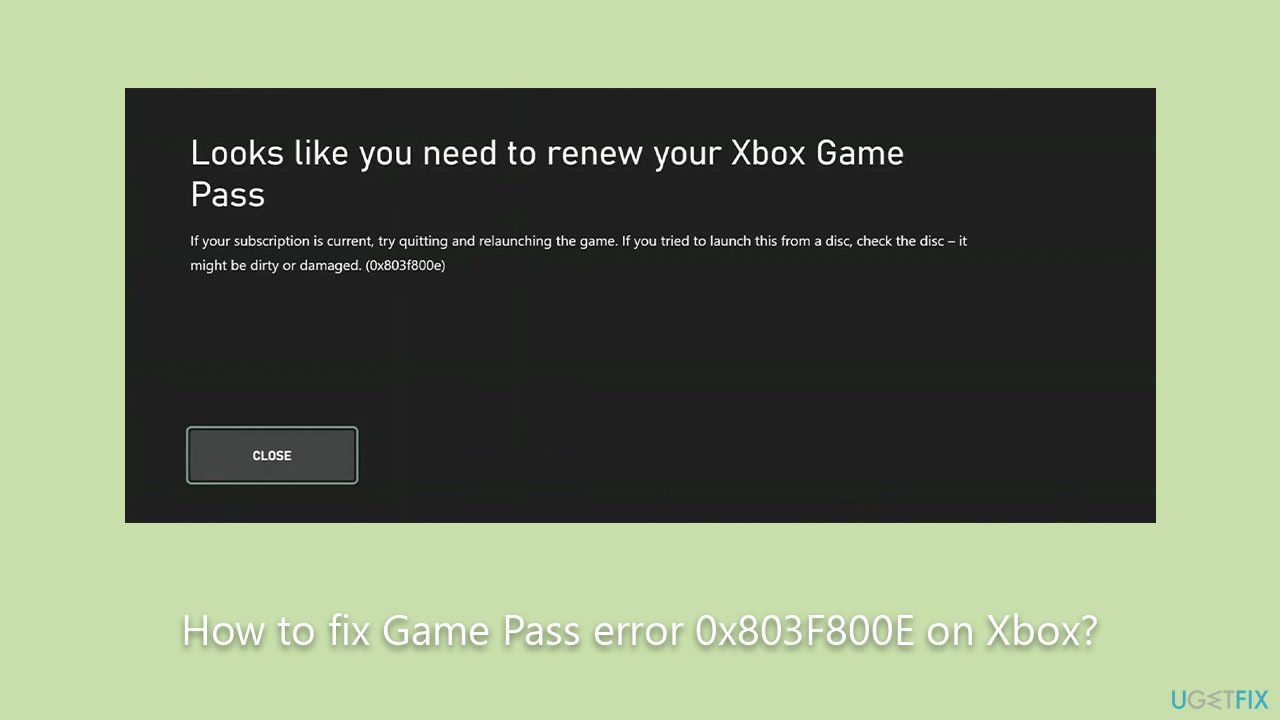
It is a service that has been met with acclaim for its convenience and value, allowing gamers to try out new releases and classics alike. However, even such a well-regarded service is not without its issues. One prevalent error that disrupts the gaming experience for some users is the 0x803F800E error, accompanied by the message, "Looks like you need to renew your Xbox Game Pass."
The error essentially locks players out of games they were able to access via Game Pass, even if their subscription is still active. When the error occurs, it becomes impossible to launch any Game Pass titles, putting a halt to the gaming experience. The message implies that the subscription needs renewal, which is often not the case.
Various factors can lead to this error. These may include, but are not limited to, account authentication issues, outdated console software, or even temporary glitches within Xbox's server infrastructure. In some instances, the problem could also be a billing issue where the payment method linked to the Xbox account fails to process the subscription fee properly.
While the error is troublesome, there are solutions. In many cases, the issue is resolved by troubleshooting steps such as restarting the console, updating to the latest software, or re-authenticating the user account. For billing issues, updating the payment information often solves the problem. If all else fails, contacting Xbox Support provides a more personalized guide to resolving this error.
In conclusion, while Xbox Game Pass provides a valuable service to gamers, the 0x803F800E error can be a significant impediment. Understanding the possible causes and available solutions can help affected users regain access to their Game Pass library, allowing them to continue enjoying the variety of games offered by the service.
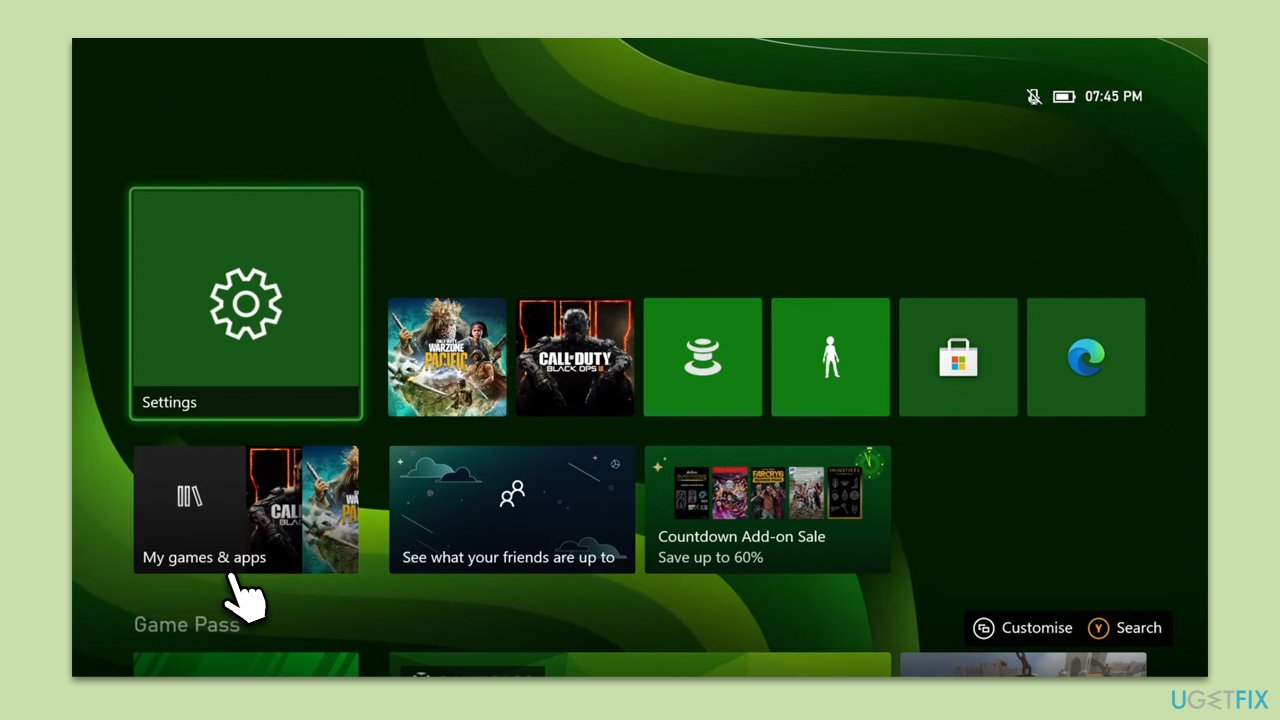
Fix 1. Launch the game from Storage instead of home screen [workaround]
Sometimes, the home screen doesn't link properly to your Game Pass subscription status. Launching the game directly from the storage can bypass this issue.
- Navigate to My games & apps from the Xbox home screen.
- Go to Manage.
- Select the game you wish to play.
- Choose Play from this menu.
Fix 2. Power cycle your console
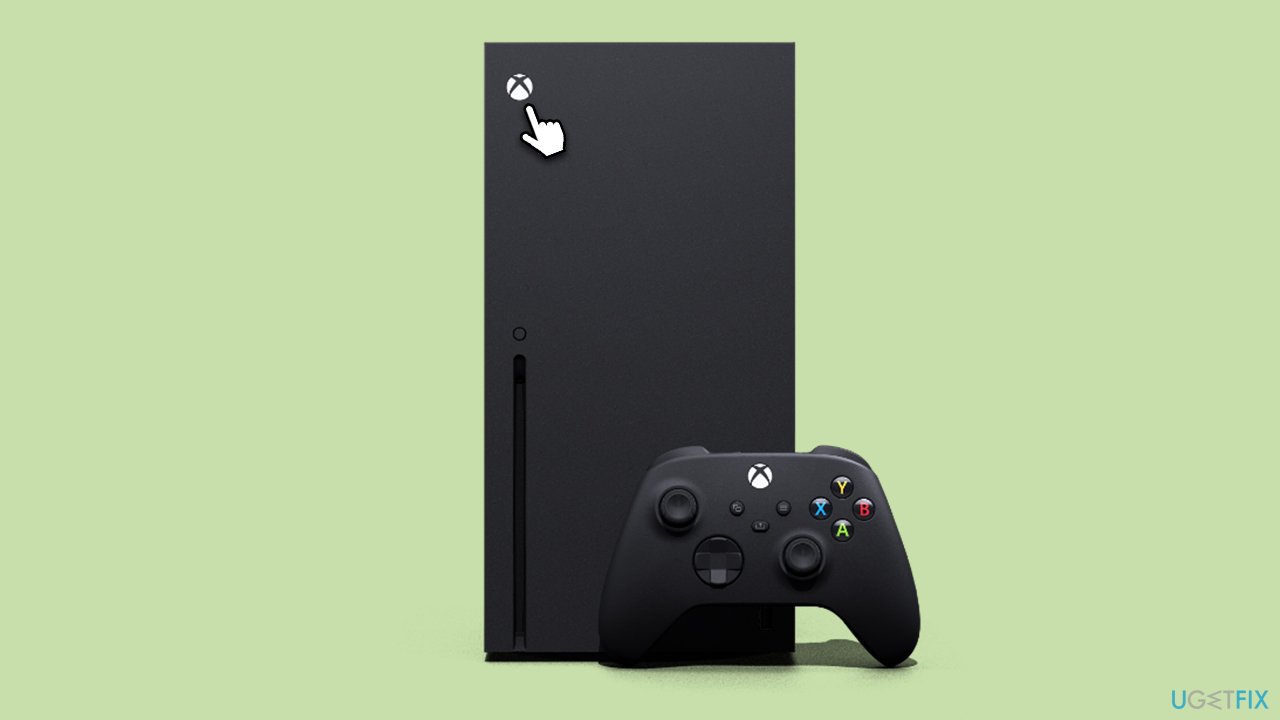
Power cycling fully shuts down the console and clears its cache, which can fix various software issues, including the 0x803F800E error.
- Hold the Xbox button on your console for 10 seconds until it turns off.
- Unplug the power cord from the back of the console.
- Wait for 10 seconds.
- Plug the power cord back in and turn on the console.
Fix 3. Remove your profile from console and redownload it
Profile corruption can interfere with Game Pass. Removing and redownloading your profile can resolve this.
- Press the Xbox button on the controller.
- Go to the System tab and pick Settings.
- Pick Account on the left.
- Select Remove accounts.
- Pick your profile and remove it.
- Restart your console.
- Add your account again through Settings > Account > Add account.

Fix 4. Update console software
Outdated console software may conflict with the Game Pass service.
- Press the Xbox button on your controller.
- Go to Profile & system and select Settings.
- Next, go to System and select Updates.
- Follow the on-screen instructions to update your console.
Fix 5. Check and update payment information
Expired or invalid payment information can disrupt your Game Pass subscription.
- Go to account.microsoft.com/services.
- Sign in with your Xbox account.
- Navigate to Payment & billing.
- Update your payment information as necessary.
Fix 6. Re-authenticate your Xbox account
Sometimes, account authentication errors can cause this issue.
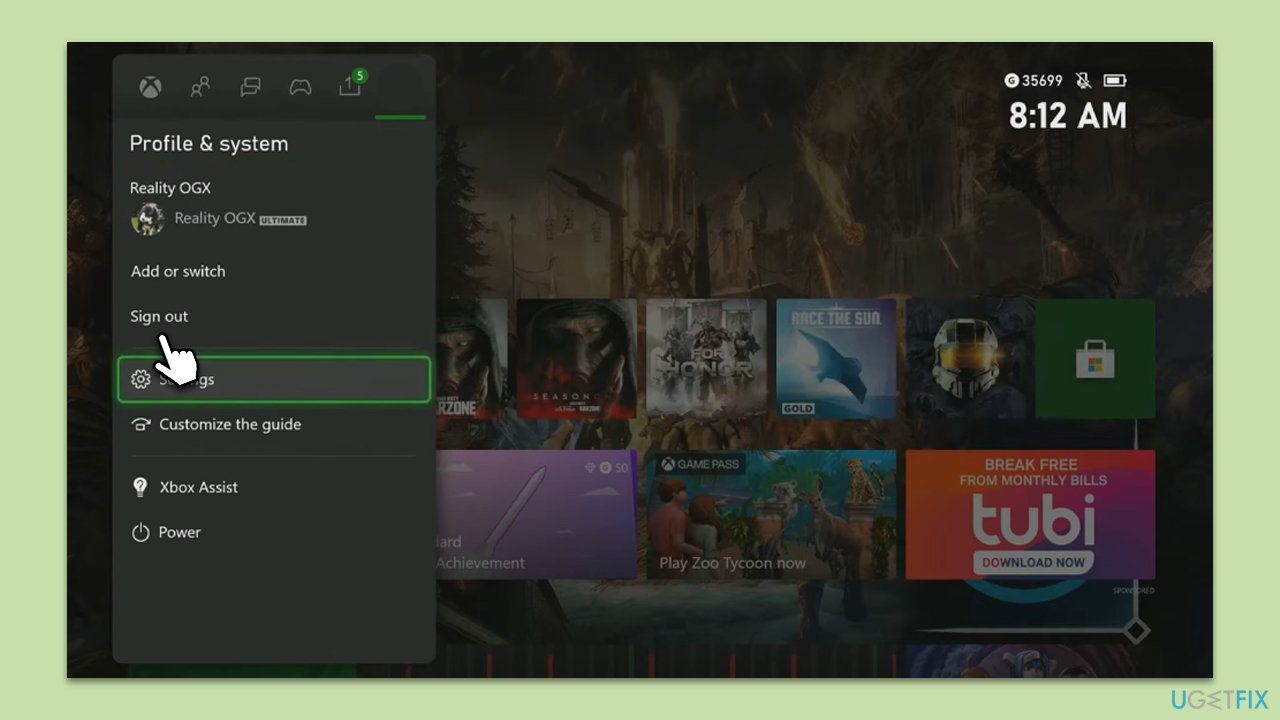
- Press the Xbox button to open the menu.
- Go to the Profile & System.
- Select Sign Out.
- Sign back into your Xbox account.
Fix 7. Contact Xbox Support
If you've tried all other fixes and the problem persists, professional assistance may be required.
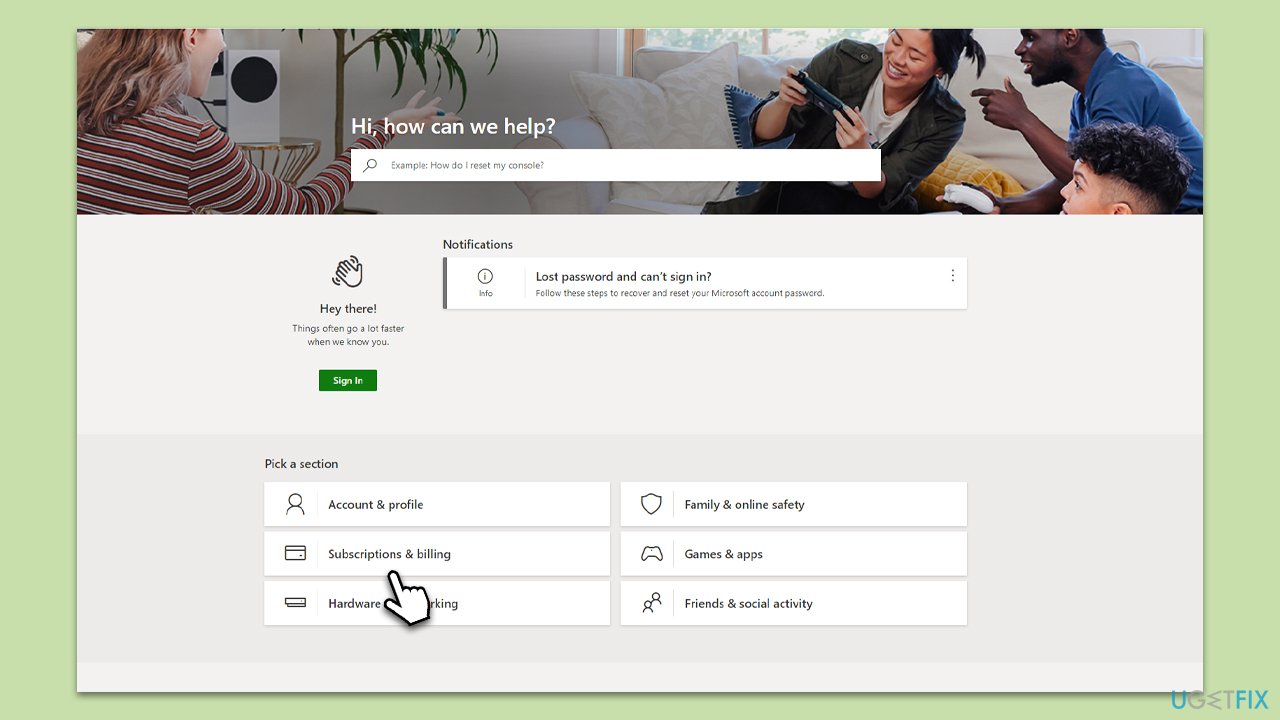
- Go to the Xbox Support website or access it directly from your console.
- Choose the issue you are facing.
- Follow the on-screen steps to either troubleshoot further or get in contact with a support agent.
Other related topics:
Bottom line
The 0x803F800E error can often be resolved by troubleshooting steps such as restarting the console, updating to the latest software, or re-authenticating the user account. For billing issues, updating the payment information usually helps. If none of these solutions work, contacting Xbox Support is recommended for personalized assistance.
Frequently asked questions
The error 0x803F800E typically indicates that the Xbox app cannot verify your game license, often due to issues with your account or connectivity.
To fix this error, try signing out and back into your Xbox account, then restart the Xbox app and check if the issue persists.
Yes, ensure that your Windows 10 is updated to the latest version, and check your network settings to confirm that you have a stable internet connection.




Report an issue
What's wrong with this guide? We review every report and update or remove content.
Report received — thank you. We'll review and fix it.
You need a free account to submit a report.
Be the first to comment