How to fix
Disable Visual Effects
on Windows
Boost your Windows 10 performance by disabling visual effects. Follow our expert-tested guide for a smoother experience and faster speeds. Fixed in minu…


Why does How to Disable Visual Effects in Windows 10 occur?
- Neglecting PC health leads to sluggish performance
- Visual Effects consume system resources
- Insufficient RAM affects performance
- Background apps slow down the system
- Lack of regular updates can cause inefficiencies
Repairs Windows system files, removes malware, and restores a clean OS state — without reinstalling.
Hello, all. I need a piece of advice. I’m trying to speed my PC as it got too slow. I already freed up space on my hard drive, turned off some background apps, installed updates, removed useless browser add-ons, scanned PC with an optimization tool, which has had remove temporary and duplicate files, etc. It seems that I did much, but I wonder is there anything else I could do to speed up my PC?
Each new device with a freshly installed operating system (OS) can be compared to a solid sheet, the content and further appearance of which depends mostly on its owner’s actions. In other words, if the PC’s user is taking precautionary measures to prevent virus infections, regularly install OS updates, and optimize it properly, the device is expected to run fast and smooth for a longer time. Unfortunately, the minority of people is concerned about their PC’s health every day or at least every month and the consequences of neglecting PC’s health are sluggish system’s performance, unresponsiveness, errors or even total crashes.
We are speaking here about the extremes when a relatively new device running fresh OS run slowly due to the user’s negligence. In this case, people can always rely on utilities like [d1], which ensure thorough optimization of the OS. Additionally, a PC’s owner should follow the recommendations provided on this page to optimize and speed up a slow PC manually.
But what if the PC runs in a sluggish manner even if it has been optimized recently, there is more than enough free space on it, it contains no virus or malware, and other specifications seem to be good? In this case, some of the features and effects available on the OS can be disabled to improve system’s performance.
Disable Visual Effects to Speed Windows 10 Up
In this post, we will address Windows 10 because Visual Effects on this OS are mostly refined and causing negative effect for the performance of the system. The performance of the PCs having 4GB or less amount of RAM are the most vulnerable by Visual Effects and other elaborate Windows 10 features.
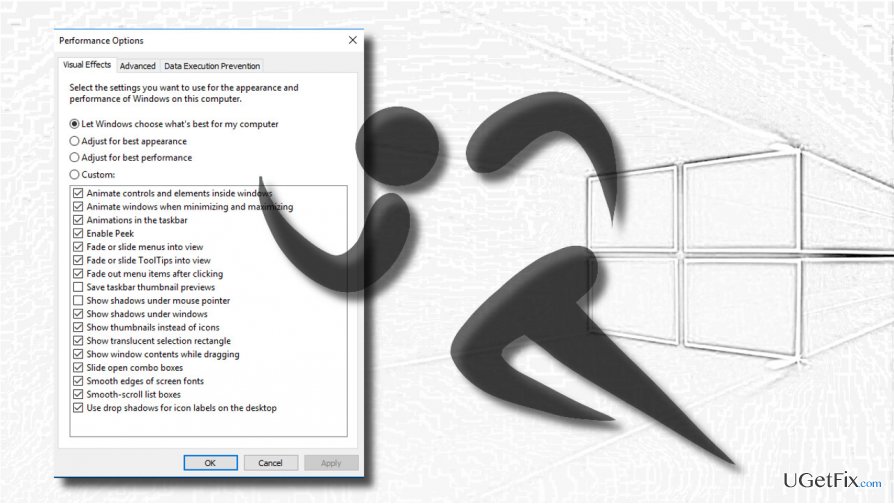
If your PC is running fast, we would not recommend disabling the visual effects as they put Windows 10 into shape. If, however, you have noticed significant Windows 10 OS slowdowns even if it is fully up-to-date and optimized, try to give up Windows animations, aero peek, drop shadows for mouse pointer, icon labels, taskbar animations, and other visual effects. In total, there are 17 Visual effects on Windows OS and all of them can be disabled. You can turn off each of them separately or let Windows to choose, which effects should be disabled.
- Press Windows key + R, type SystemPropertiesPerformance.exe, and press OK.
- When the Performance Options window shows up, select the visual effects settings you like.
- Click Apply to save the changes.
- When finished, click OK and close System Properties.
- The Let Windows choose what's best for my computer option means that Windows will automatically turn visual effects on or off according to the OS specs.
- The Adjust for best appearance option will turn all visual effects off.
- The Custom option will enable you to select which visual effects should be kept on and which off.
IMPORTANT: any changes initiated in the Ease of Access Center will reset Visual Effects to default.
Bottom line
To improve system performance, consider disabling Visual Effects, optimizing background apps, and ensuring regular OS updates. If these steps do not resolve the issue, further investigation into hardware upgrades or professional assistance may be necessary.
Frequently asked questions
To disable visual effects in Windows 10, right-click on 'This PC', select 'Properties', click on 'Advanced system settings', then under 'Performance', click 'Settings' and choose 'Adjust for best performance'.
Yes, disabling visual effects can help improve the performance of Windows 10, especially on older machines or those with limited hardware resources.
Yes, you can customize which visual effects to disable by selecting 'Custom' in the Performance Options window and then checking or unchecking the specific effects you want to adjust.




Report an issue
What's wrong with this guide? We review every report and update or remove content.
Report received — thank you. We'll review and fix it.
You need a free account to submit a report.
Be the first to comment