How to fix
Discord high CPU usage
on Windows
Resolve Discord's high CPU usage on Windows 10 and 11 effortlessly. Boost your system's performance with our expert-tested solutions.


What causes How to fix Discord high CPU usage in Windows?
- High CPU usage from Nitro advertisement animation
- Corrupted cache files
- Malfunctioning hardware acceleration
- Resource-heavy applications running simultaneously
- Increased user count leading to server strain
Repairs Windows system files, removes malware, and restores a clean OS state — without reinstalling.
I don't know why, but my Discord uses way too high a CPU for some reason. As a result, if I launch other apps or games using more CPU, my PC almost begins to overheat. Are any solutions available for this?
While Discord may not be the most widely used VoIP application, it boasts a monthly active user count exceeding 175 million, relying on it for daily text or voice communication. Particularly popular among members of the gaming community, the app's user count continues to increase annually, thanks to its numerous free benefits.
Despite its substantial growth, Discord has not been immune to technical challenges faced by users on a regular basis. Previously, users reported issues such as constant freezing, malfunctioning search features, and difficulties in hearing others when using a microphone for communication.
Discord high CPU usage is yet another problem that some users come across, and it is something that negatively affects their experience. The CPU usage can go up as much as 50%, even when the application is not actively used. Under normal circumstances, it should not increase resource usage by more than a few percent.
Having Discord using high CPU can result in apps starting to crash, especially when used in conjunction with other resource-heavy loaders, such as video games or video editing software. Likewise, computer slowdowns and lag can occur.
To address this issue, you can try several troubleshooting steps that we provide below. For example, clearing Discord's cache files, repairing corrupted files, disabling/enabling hardware acceleration, or reinstalling the app can help most. If you prefer to address Windows issues automatically, we recommend trying [d1] repair software.
Fix 1. Close down the Nitro advert playing an animation
This solution involves stopping the Nitro advertisement animation that runs in Discord. This animation can consume significant CPU resources, especially on systems with limited processing power.
- Open Discord.
- Locate the Nitro section, usually found in the sidebar of the main window.
- Click on Nitro to remove the "New" animation.
- The CPU usage should now go back to normal.

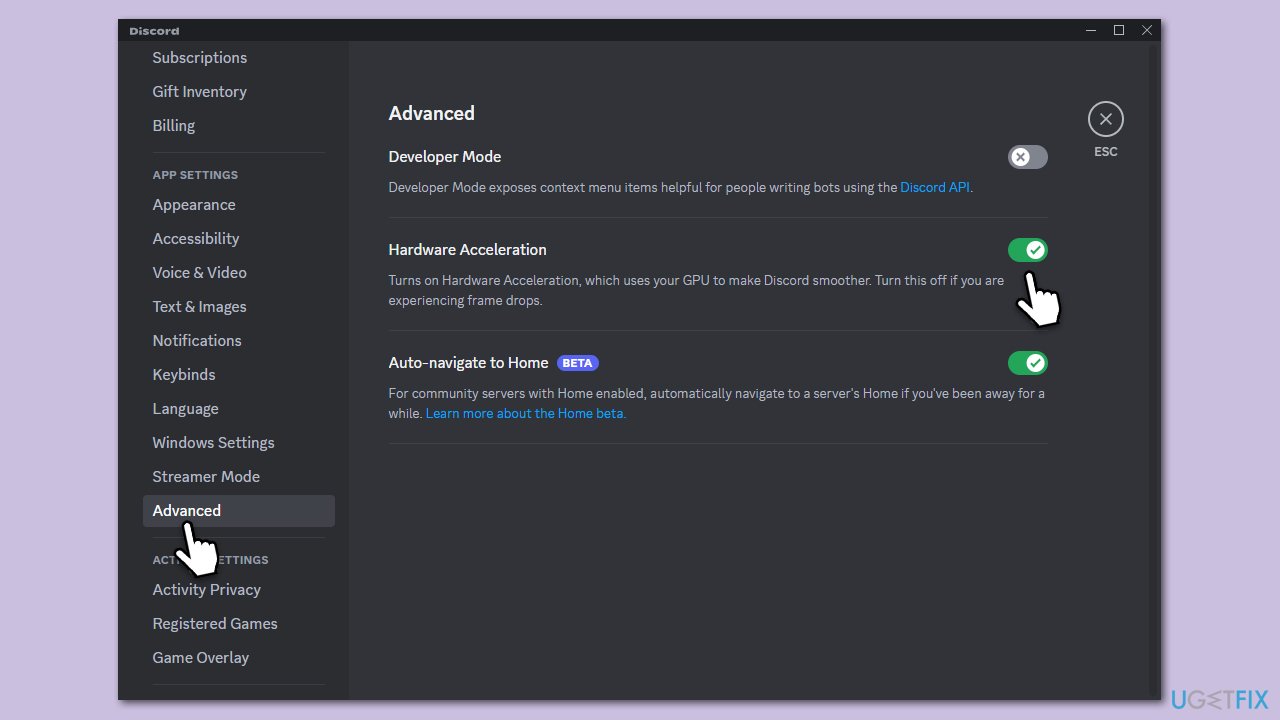
Fix 2. Disable or enable hardware acceleration
Hardware acceleration in Discord uses your computer's GPU to manage tasks that would typically be processed by the CPU. Disabling it can help lower CPU usage on systems with powerful CPUs but weak GPUs while enabling it can help systems with stronger GPUs.
- Open Discord.
- Go to User Settings (the gear icon near your profile picture).
- Under App settings, scroll down and select Advanced.
- Find the Hardware Acceleration option.
- Toggle it off or on, depending on your circumstances.
Fix 3. Clear app cache files
Discord stores temporary data in cache files to speed up performance. Over time, these files can become corrupted or bloated, leading to increased CPU usage. Clearing the cache can resolve these issues.
- Press Ctrl + Shift + Esc on your keyboard.
- Click More details if necessary.
- Locate Discord under Apps section.
- Right-click the app and select End Task.
- Scroll down and do the same with any other Discord background processes still running.
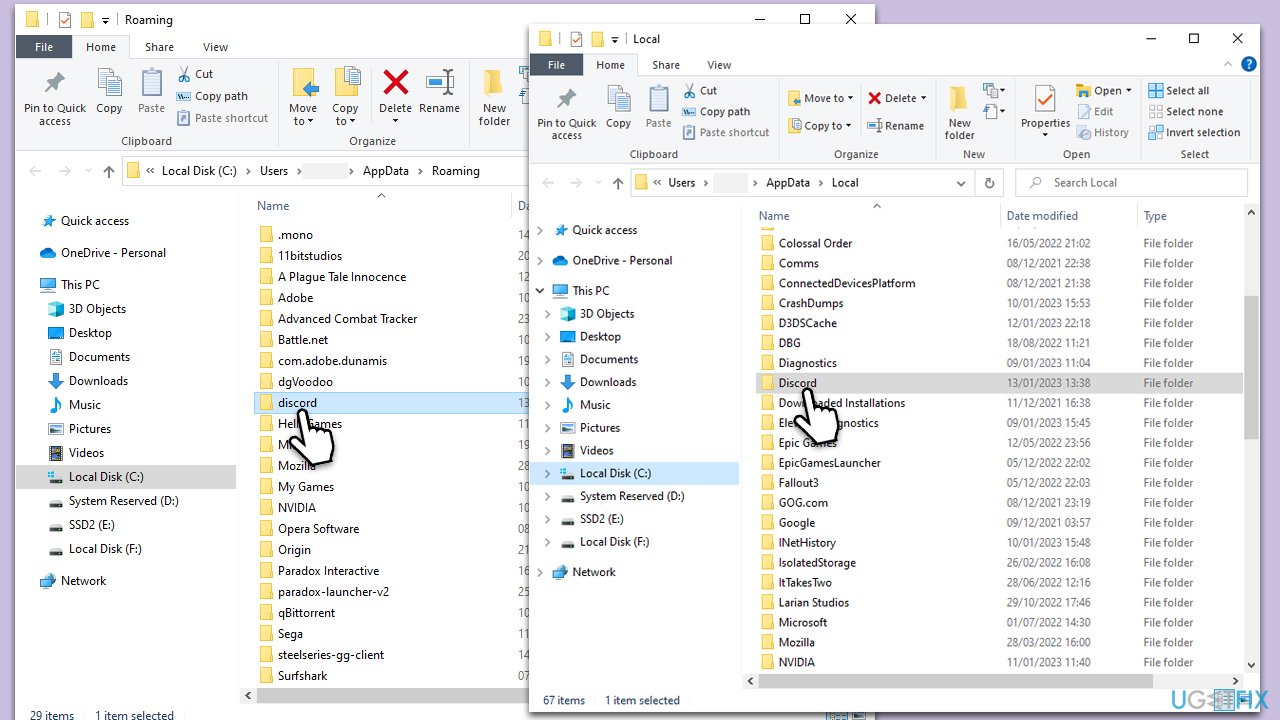
- Type %AppData% in Windows search and press Enter.
- Find the Discord folder, mark it, and press Shift + Del on your keyboard to delete it.
- Next, type in %LocalAppData% in Windows search and press Enter.
- Delete the Discord folder the same way
- Start the app and see if that helped.
Fix 4. Repair corrupted files
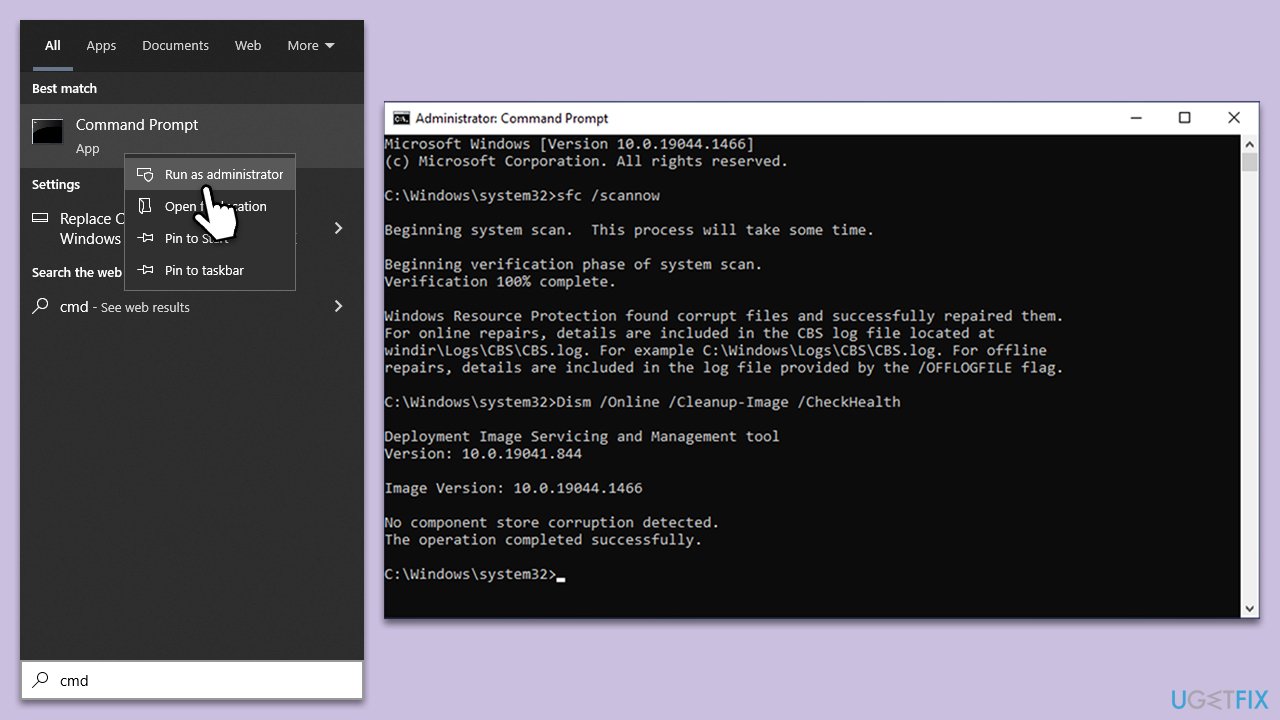
SFC DISM are Windows utilities that can repair corrupted system files.
- Type cmd in Windows search.
- Right-click on Command Prompt and pick Run as administrator.
- When User Account Control asks you whether you want to allow changes, click Yes
- Paste the following command and press Enter:
sfc /scannow - Wait till the scan is finished
- Once that is done, use the following commands, pressing Enter each time:
dism /online /cleanup-image /scanhealth
dism /online /cleanup-image /checkhealth
dism /online /cleanup-image /restorehealth - Reboot your device.
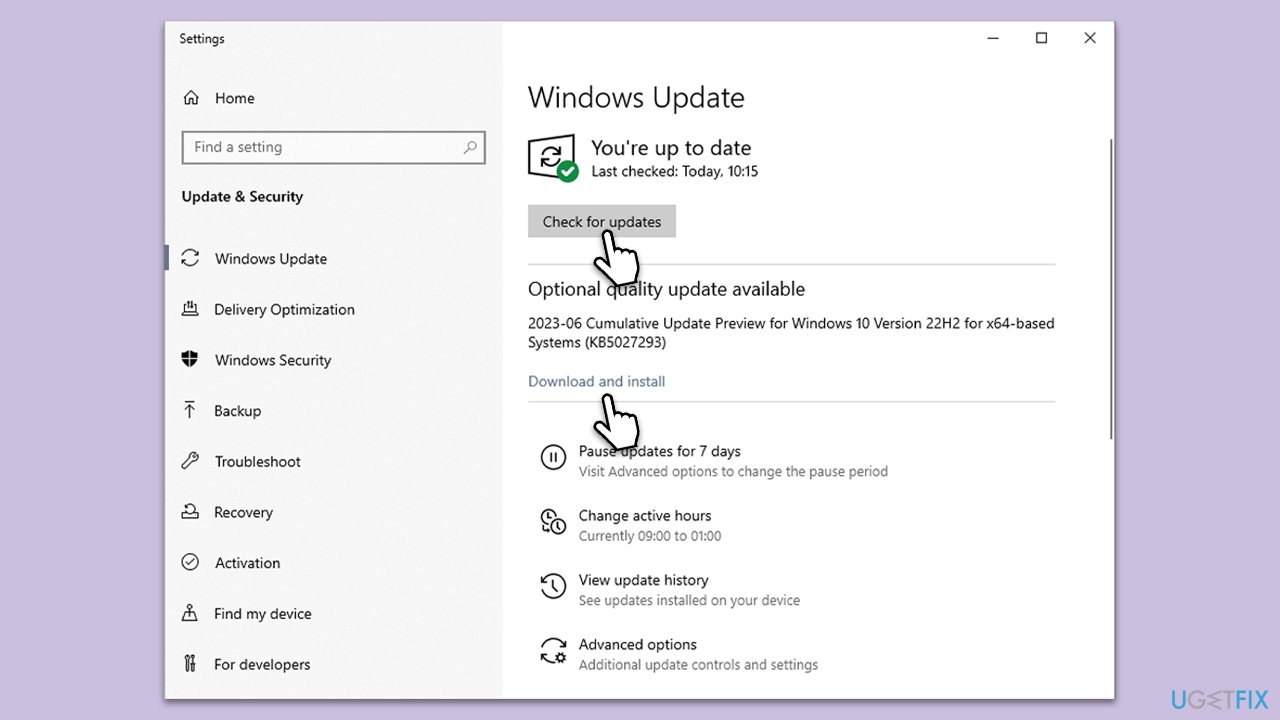
Fix 5. Update Windows
Keeping Windows up-to-date ensures that you have the latest performance improvements and bug fixes, which can help reduce high CPU usage.
- Type in Updates in Windows search and press Enter.
- Click Check for updates on the right.
- Wait till Windows downloads and installs updates.
- Don't forget to install optional updates as well.
- Once done, reboot your system to implement these changes.
Fix 6. Update GPU drivers
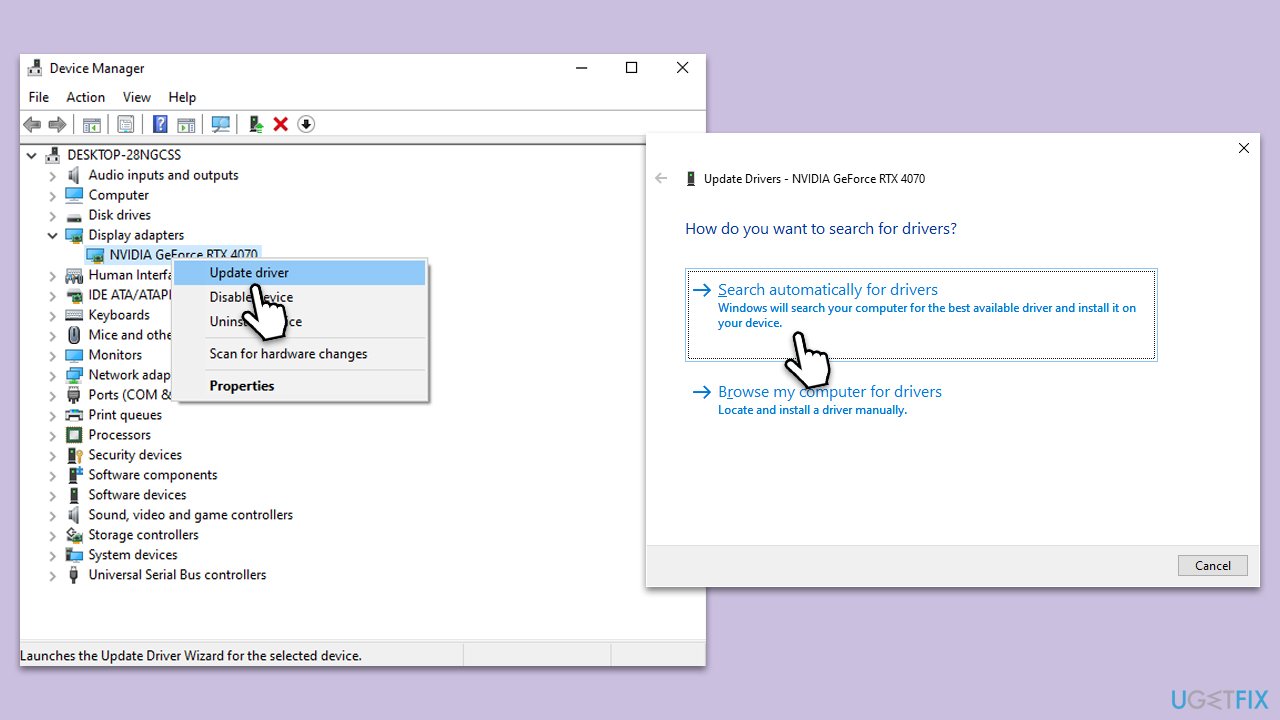
Updating drivers can help optimize your system's performance. You can either try using the Windows update feature as explained below or employ an automatic solution [rev id="DriverFix"].
- Right-click on Start and pick Device Manager.
- Expand Display Adapters section.
- Right-click on your GPU and select Update driver.
- Select Search automatically for drivers.
- After the installation is complete, restart your system.
Fix 7. Reinstall Discord
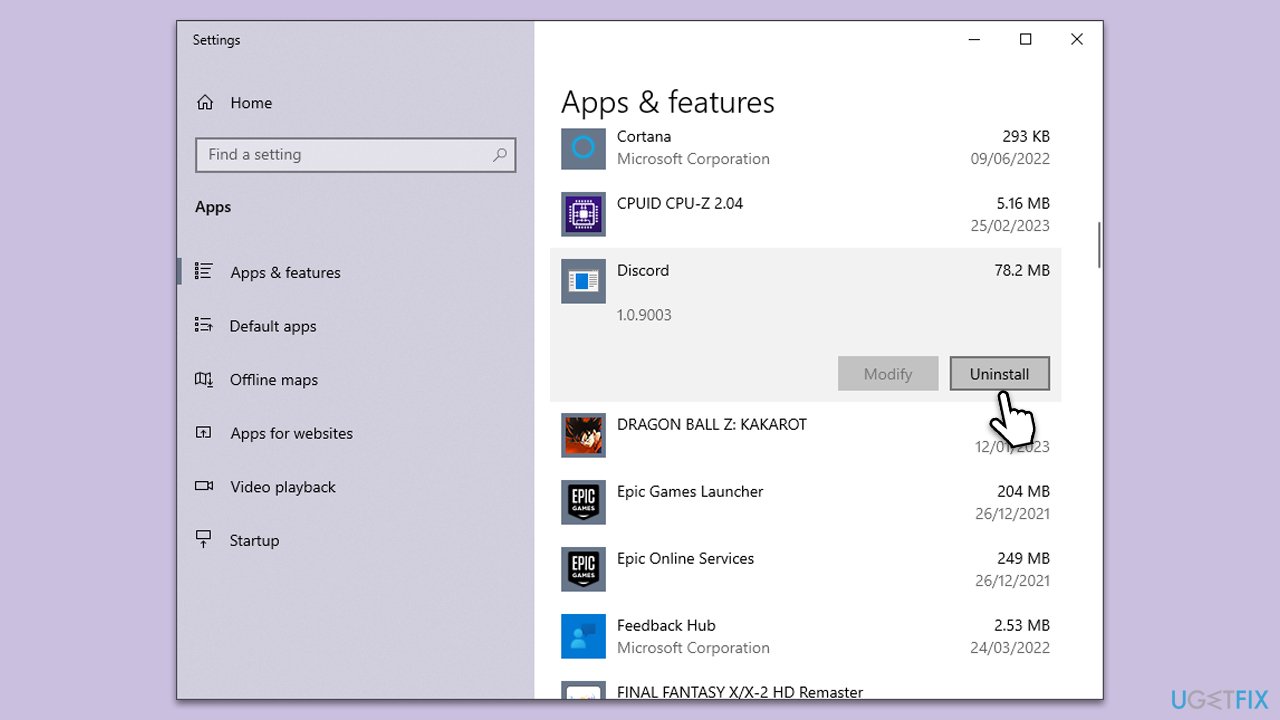
Sometimes, a fresh install of Discord can resolve persistent issues, including high CPU usage.
- Right-click on Start and pick Apps and Features.
- Scroll down to find Discord.
- Click Uninstall and follow up with Uninstall again.
- Follow on-screen instructions to remove the app.
- Download it from the official website and install it anew.
- Install Discord and log in to your account.
Bottom line
To fix Discord's high CPU usage, you can try closing the Nitro advertisement animation, clearing cache files, repairing corrupted files, disabling/enabling hardware acceleration, or reinstalling the app. If these solutions do not resolve the issue, consider using repair software to address potential Windows problems.
Frequently asked questions
Common causes include hardware acceleration being enabled, multiple Discord instances running, or resource-heavy bots and games in use.
To disable hardware acceleration, open Discord, go to User Settings > Appearance, and toggle off the Hardware Acceleration option.
Yes, keeping Discord updated can resolve performance issues, as updates often include optimizations and bug fixes that improve CPU usage.




Report an issue
What's wrong with this guide? We review every report and update or remove content.
Report received — thank you. We'll review and fix it.
You need a free account to submit a report.
Be the first to comment