How to fix
HttpSendRequest failed Windows Player error in Roblox
on Windows
Resolve the HttpSendRequest error in Roblox on Windows 10 and 11 effortlessly. Get expert-tested solutions to fix your game in minutes!


What causes How to fix HttpSendRequest failed Windows Player error in Roblox?
- Internet connection issues
- DNS settings problems
- Firewall or antivirus blocking Roblox
- Corrupt Roblox launcher files
- Outdated Windows version
Repairs Windows system files, removes malware, and restores a clean OS state — without reinstalling.
I can't open the Roblox launcher in Windows at all. Every time I try, I receive an error stating: "Failed to reach "https://clientsettingscdn.roblox.com/v2/client-version/WindowsPlayer", please check your internet connection." My internet seems to be woking fine so what is going on?
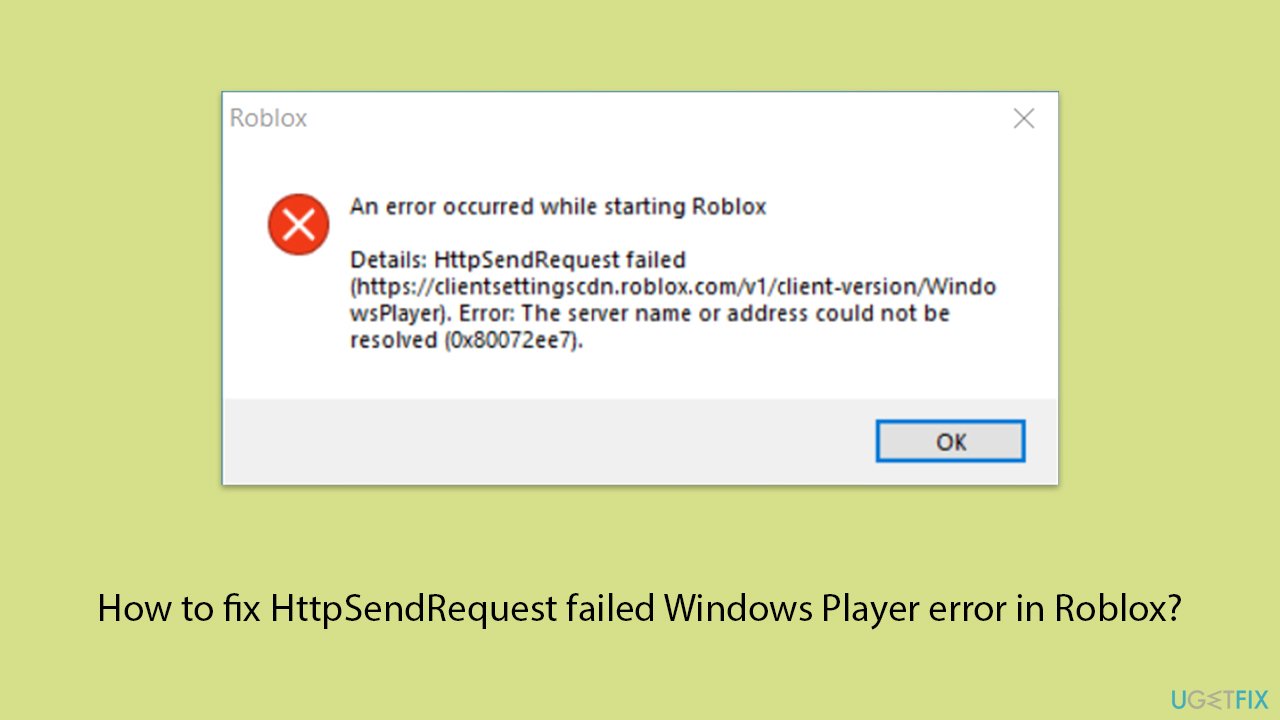
If you're encountering an issue while trying to launch Roblox on your Windows system, you're not alone. Many users experience a specific error that prevents the Roblox launcher from starting properly. The full error message you might see reads as follows:
An error has occurred while starting Roblox.
Details: HttpSendRequest failed
(https://cilentsettingscdn.roblox.com/v2/client-version/WindowsPlayer). Error: The server name could not be resolved address code (0x80072ee7).
This error usually means that there is a problem with the connection between your computer and the Roblox servers, and might be caused by a number of network or system-related issues.
The HttpSendRequest failure indicates that something went wrong, maybe because your system was unable to resolve the server's name into an IP address, preventing it from connecting to Roblox's server.
This could stem from issues with your DNS settings, internet connection, or even specific Windows configurations that block the app.
Possible solutions:
- Ensure that your internet connection is stable and robust enough to support online gaming. Temporary network issues could cause this error, so you might want to try restarting your router or connecting to a different network to see if the problem persists.
- Sometimes, flushing your DNS cache or changing your DNS server can resolve connectivity issues. This refreshes your system's understanding of domain names and IP addresses.
- Check if your firewall or antivirus settings are blocking Roblox. You may need to configure these programs to allow Roblox through.
- If the problem continues, reinstalling the Roblox launcher could help ensure that any corrupt files are replaced with fresh, error-free copies.
- Ensure your Windows is up to date, as patches and updates can fix bugs that may be causing connectivity issues.
For detailed step-by-step instructions on how to execute these solutions, please refer to the specific sections below the article. Also, before jumping to manual steps, make sure the problem does not lie within Roblox server issues.
Finally, think about employing a [d1] PC repair program if you're still experiencing issues or just want a simpler solution. If your Roblox experience is being negatively impacted by underlying Windows problems, this app may automatically identify and fix them.
Fix 1. Install all Windows updates
Keeping your Windows system up to date ensures that any network-related bugs and issues are resolved, which can help improve connectivity.
- Updates in Windows search and hit Enter.
- In the new window, click Check for updates and wait till everything is installed.
- Make sure you also install any available optional updates.
- When done, restart your device to implement the changes.

Fix 2. Run network troubleshooter
The network troubleshooter can identify and solve issues with your internet connection or network settings.
Windows 11
- Type Troubleshoot in Windows search and press Enter.
- Select Other troubleshooters.
- Find Network & Internet troubleshooter from the list and select Run.
- Wait till the process is finished and apply the offered fixes.
- Restart your computer.

Windows 10
- Right-click on Start and pick Settings.
- Go to Network & Internet section.
- On the right side, find the Advanced network settings section.
- Click Network troubleshooter, specify the problem, and wait till the scan is finished.
- When done, apply all the recommendations.
Fix 3. Disable or enable VPN software
Using a reliable VPN, like Private Internet Access, can sometimes resolve connectivity issues by providing a stable route to the internet.
- Disable any VPN if you're experiencing issues, and see if it resolves the problem.
- Alternatively, enable a trusted VPN, such as [rev id="Private Internet Access"], to establish a more stable connection.
Fix 4. Temporarily disable anti-virus
Sometimes, antivirus software may block certain online interactions. Disabling it temporarily can determine if it's the cause of the issue.
- Open your antivirus program.
- Find the option to disable real-time protection.
- Try running Roblox again.
Fix 5. Install the latest versions of Microsoft Visual C++ Redistributables
Roblox and many other applications require up-to-date Microsoft Visual C++ installations to run properly.
- Open the Control Panel and go to Programs > Uninstall a program.
- Here, scroll down and check the list of the installed Visual C++ versions.
- Open your browser and navigate to the official Microsoft Visual C++ download page.
- Download and install all the missing versions of Visual Studio (note: if you are using a 64-bit system, install both x86.exe and x64.exe files)
- Restart your system and check whether the problem is resolved.
- If not, try reinstalling each of the following components:
Microsoft Visual C++ 2010 Redistributable Package (x86)
Visual C++ Redistributable for Visual Studio 2012
Visual C++ Redistributable Packages for Visual Studio 2013
Visual C++ Redistributable Packages for Visual Studio 2015, 2017, 2019, and 2022. - Restart your PC when done.

Fix 6. Reset your internet connection via Settings
Resetting your internet settings to default can resolve conflicts that may be impacting your connectivity.
- Right-click on Start and pick Settings.
- Go to Network & Internet.
- Under Advanced network settings, click Network reset.
- Click Reset Now.
- Confirm the action and then restart your computer.

Fix 7. Reset your internet via Command Prompt
Resetting your internet settings through Command Prompt can offer a deeper level of refresh and solve connectivity problems.
- Type cmd in Windows search.
- Right-click on the Command Prompt result and select Run as administrator.
- Copy and paste each of the following commands, pressing Enter every time:
ipconfig /flushdns
ipconfig /registerdns
ipconfig /release
ipconfig /renew
netsh winsock reset - Restart your computer.

Fix 8. Try using Google's DNS
Switching to Google's DNS can provide faster and more reliable DNS resolution, improving connectivity.
Windows 11
- Right-click on Start and select Network connections.
- Under your connection, click Properties.
- Find the DNS server assignment section and click Edit.
- Set your DNS to Google's:
Preferred DNS: 8.8.8.8
Alternate DNS: 8.8.4.4 - Click Save.

Windows 10
- Right-click on Start and select Settings.
- Go to Network and Internet section.
- Click on Change adapter options.
- Right-click on your internet connection and pick Properties.
- Select Internet Protocol Version 4 (TCP/IPv4) once and go to Properties or select Edit next to the DNS settings.
- Select Use the following DNS server addresses option and set your DNS to Google's:
Preferred DNS server: 8.8.8.8
Alternate DNS server: 8.8.4.4 - Click OK.
Related:
Bottom line
To resolve the HttpSendRequest failed error in Roblox, ensure your internet connection is stable, check your DNS settings, and verify that your firewall or antivirus is not blocking Roblox. If the issue persists, consider reinstalling the Roblox launcher and updating your Windows. If none of these solutions work, check for Roblox server issues.
Frequently asked questions
This error typically occurs due to network connectivity issues, corrupted game files, or incorrect system settings that interfere with Roblox's ability to connect to its servers.
You can start by checking your internet connection, resetting your network settings, and ensuring that Roblox is allowed through your firewall settings on Windows 10 or Windows 11.
On Windows 11, you can try running the Roblox app in compatibility mode or reinstalling the app to resolve the HttpSendRequest failed error.




Report an issue
What's wrong with this guide? We review every report and update or remove content.
Report received — thank you. We'll review and fix it.
You need a free account to submit a report.
Be the first to comment