How to fix
KB5041585 fails to install
on Windows
Resolve KB5041585 installation issues on Windows 11 quickly and easily. Follow our expert-tested solutions to ensure a smooth update process.

What causes How to fix KB5041585 fails to install in Windows 11?
- Update failures due to offline Windows update servers
- Overloading Windows update servers
- Temporary issues with third-party security software
- Corrupted system files
- Responsible services not running
Repairs Windows system files, removes malware, and restores a clean OS state — without reinstalling.
Hey there. I was trying to install the latest Windows 11 update KB5041585 but it failed several times now. I rebooted Windows in the hopes it would resolve the problem but it didn't. Do you have any tips for me?
When trying to install the latest Windows updates, you might notice that the action was unsuccessful; and you are not alone - many people can face this issue. KB5041585 failing to install is one of the issues you might run into when trying to install this month's Patch Tuesday updates. To get the latest bug fixes, security improvements, and the newest features for a smoother experience, you should ensure that all the updates are implemented successfully.
You might receive an error code when installing KB5041585 (for example, 0x8024402c or 0x80070020), or you might be faced with a generic message where Windows is telling you that updates failed and you should try again later. Note that this might also occur during the download or installation stages of the process, and these are only a few of the aspects that might be preventing KB5041585 from being installed.
There could be numerous reasons for the issue you are facing, and the most common ones are rather simple. For most people, update failures are automatically resolved within a few hours or days due to issues like offline or overloading Windows update servers. Other simple fixes involve restarting the computer or temporarily disabling third-party security software.
However, for some, this might not be the case, and they might require more troubleshooting to fix the KB5041585 not installing issue. Luckily, you can do several more things, such as run a Windows update troubleshooter, reset Windows update components, check if responsible services are running, repair corrupted files, and more.
While we provide manual steps to fix the problem below, you can always try [d1] PC repair utility first, as it can automatically do a lot of work for you, so you safe time.
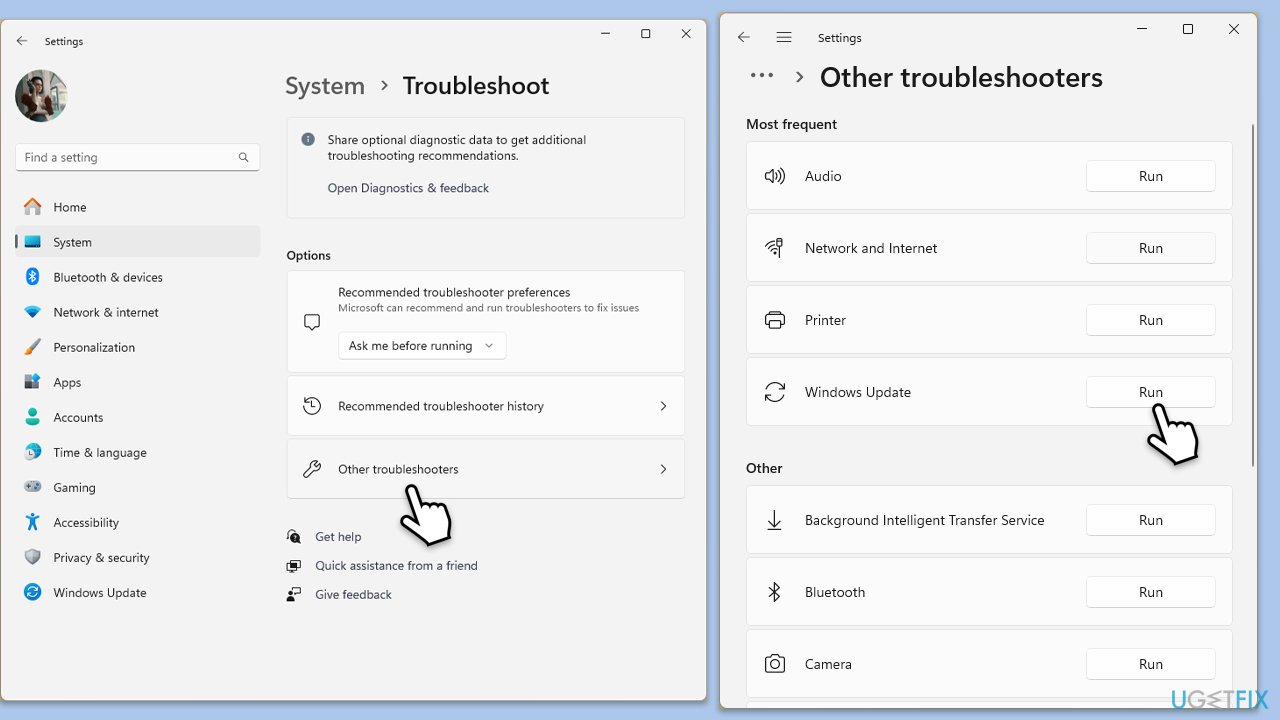
Fix 1. Start with the troubleshooter
- Type Troubleshoot in Windows search and press Enter.
- Go to Other troubleshooters.
- Find Windows Update from the list and click Run.
- The troubleshooter will automatically scan your system for potential problems and display any issues it finds.
- If the troubleshooter finds any issues, it will provide recommended solutions.
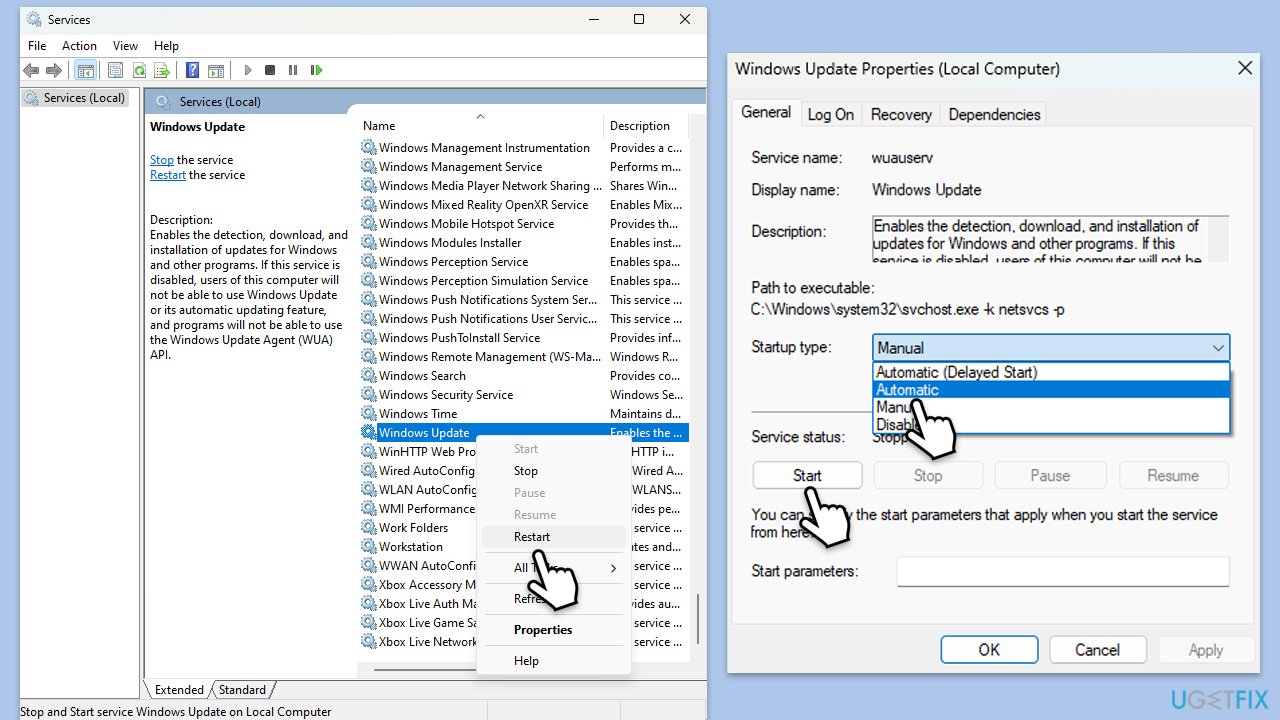
Fix 2. Ensure relevant services are running
- Type Services in Windows search and press Enter.
- Next, locate the Background Intelligent Transfer Service, Cryptographic Service, and Windows Update Service by scrolling through the list of services.
- Right-click on each service, and from the context menu, select Restart.
- In case a service is not running, double-click on it and select Automatic under the Startup type. Afterward, click on Start and then click OK.
Fix 3. Try Disk Cleanup
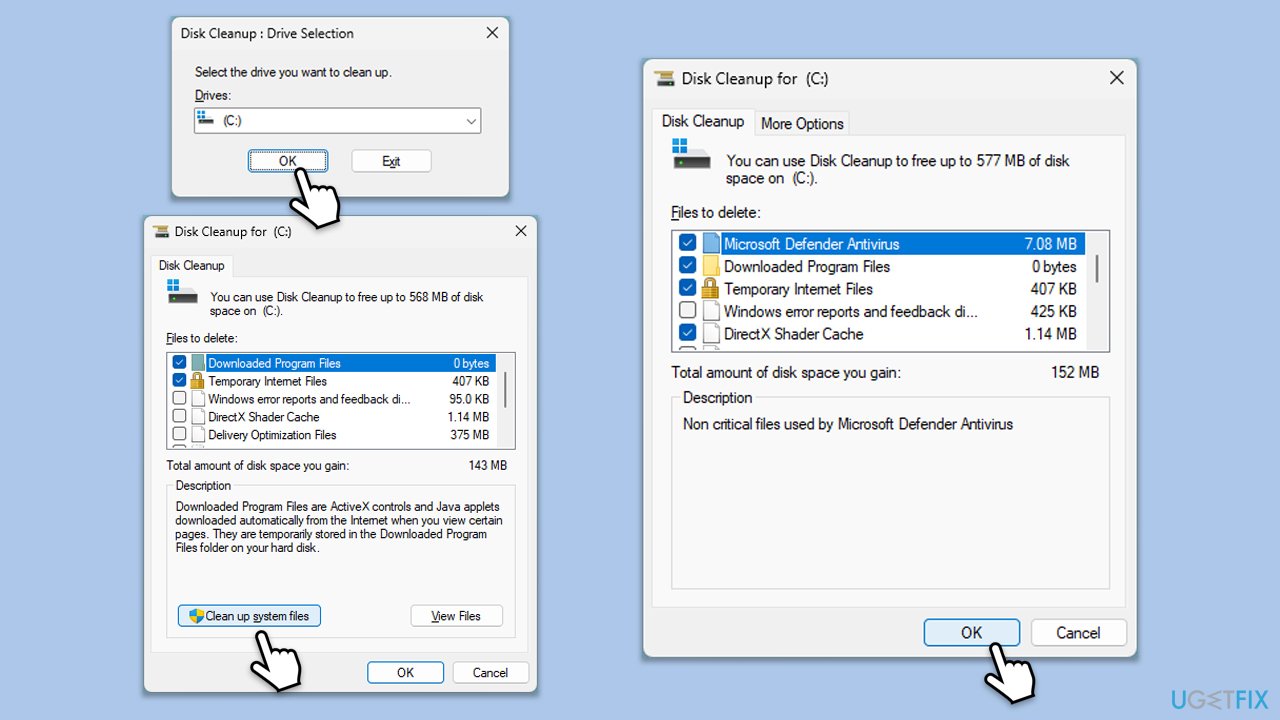
- Type Disk Cleanup in Windows search and press Enter.
- If your Windows is installed on drive C, pick it from the list (it should be by default) and press OK.
- Click Clean up system files.
- Select your main disk again and click OK.
- Here, select the largest portions of the data used - these typically include Temporary Internet Files, Windows Update, Temporary Files, Recycle Bin, Delivery Optimization Files, and others.
- Click OK - the process should be finished shortly.
Fix 4. Repair system file corruption
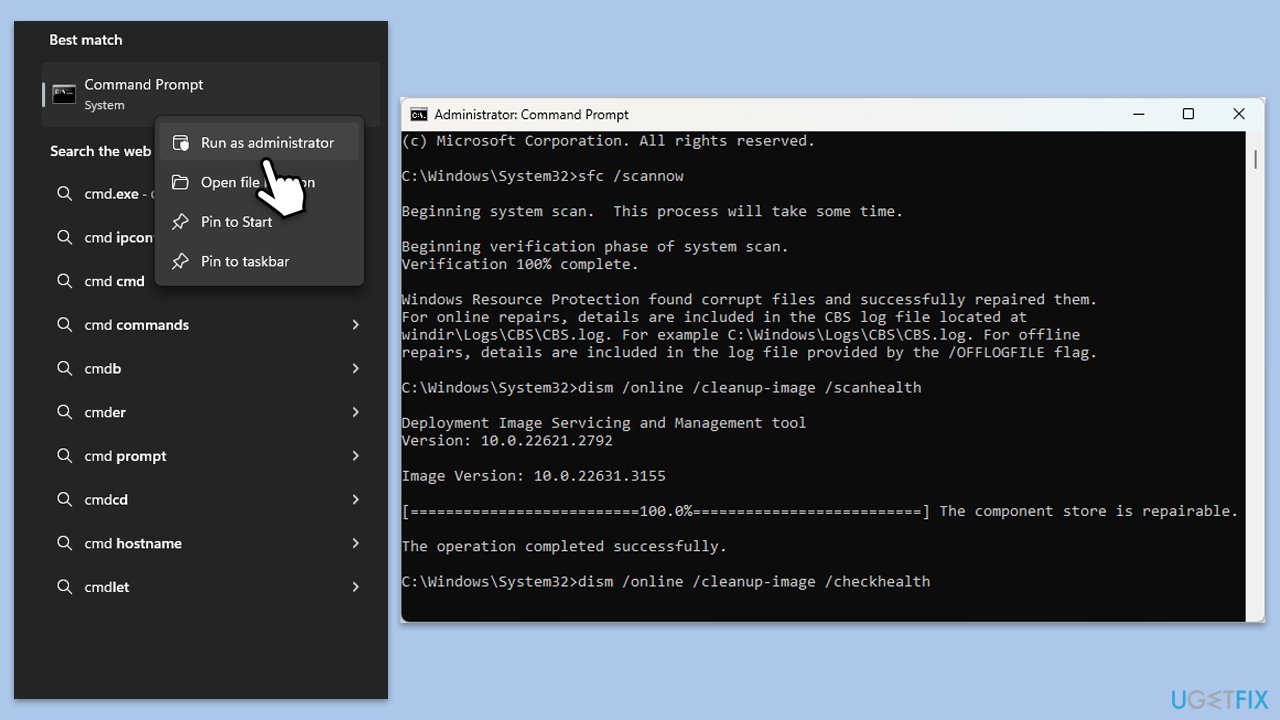
- Type in cmd in Windows search.
- Right-click on Command Prompt and select Run as administrator.
- User Account Control window will show up - click Yes when prompted.
- Use the following command lines, pressing Enter after each:
sfc /scannow - After the scan is done, copy the following commands and press Enter each time:
DISM /Online /Cleanup-Image /CheckHealth
DISM /Online /Cleanup-Image /ScanHealth
DISM /Online /Cleanup-Image /RestoreHealth
(Note: if you get an error executing this last command, add /Source:C:\RepairSource\Windows /LimitAccess to it and try again). - Restart your PC.
Fix 5. Reset Windows update components
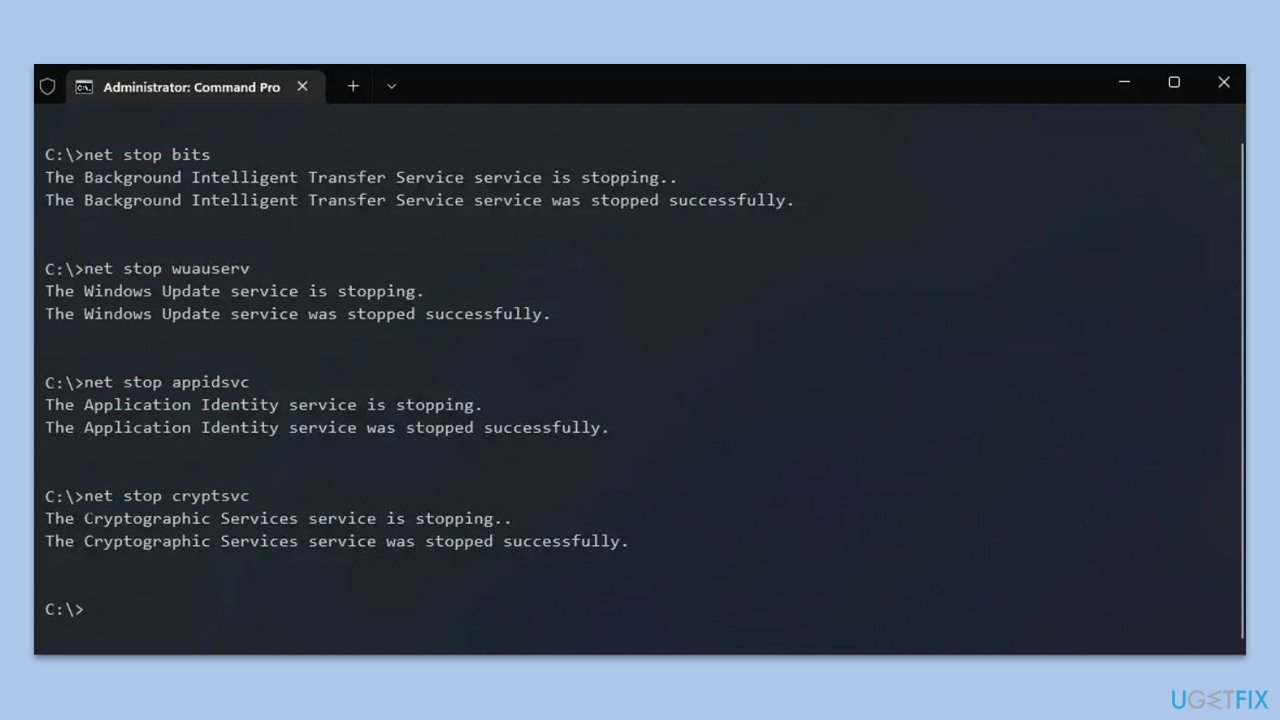
- Open Command Prompt as administrator.
- Stop the Windows Update Services by entering the following commands, one at a time, and pressing Enter after each:
net stop wuauserv
net stop cryptSvc
net stop msiserver
net stop bits - Rename the SoftwareDistribution and Catroot2 folders with the following commands:
ren C:\Windows\SoftwareDistribution SoftwareDistribution.old
ren C:\Windows\System32\catroot2 catroot2.old - Restart the services you stopped earlier with these commands:
net start wuauserv
net start cryptSvc
net start msiserver
net start bits - Close the Command Prompt window and try running the Windows Update again.
Fix 6. Use Media Creation Tool
- Visit the official Microsoft website and download Windows 11 installation media.
- Double-click the installer, select Yes when UAC shows up, and agree to the terms.
- Select the ISO file and click Next, then follow the instructions to finish the process.
- Open the location of the ISO, right-click on it, and select Mount.
- Launch the installer.
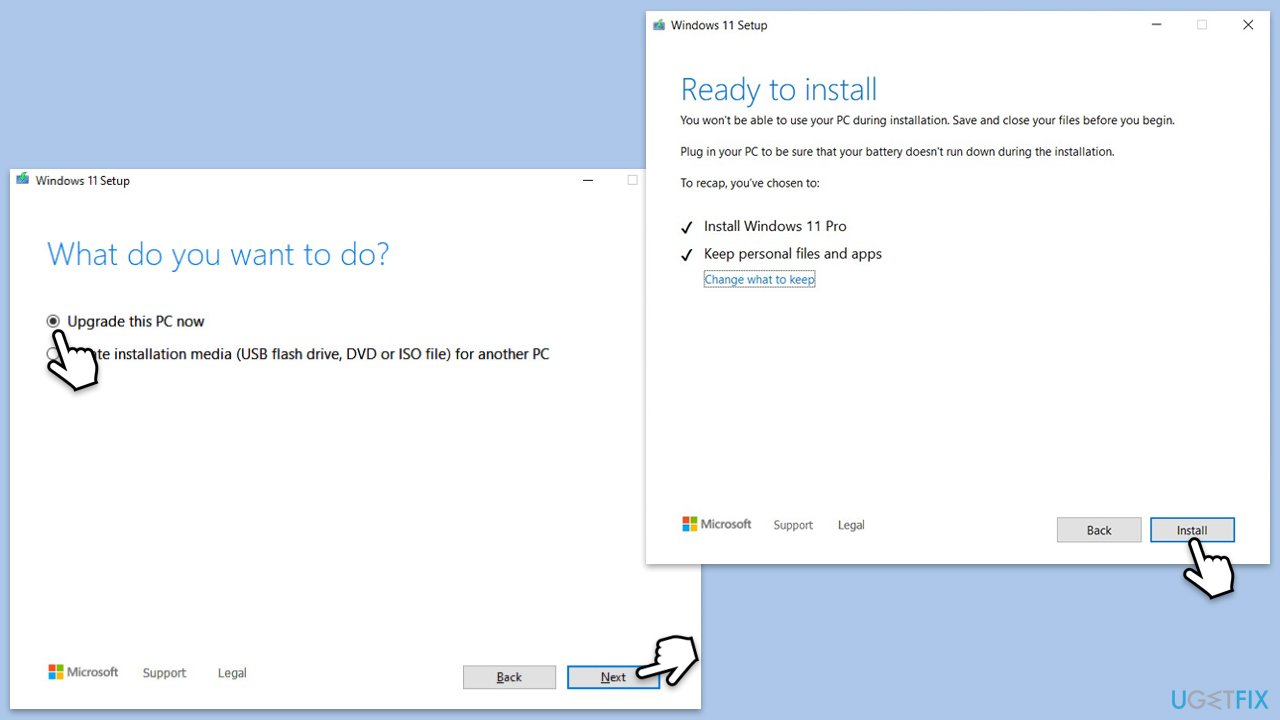
- Select Upgrade this PC now and click Next.
- Windows will start downloading the needed files.
- Agree to the terms once again and click Next.
- Before installing, ensure you are happy with your choices (otherwise, you can click the Change what to keep option).
- Finally, click Install to begin the upgrade process.
Bottom line
To fix the KB5041585 installation failure, you can run the Windows update troubleshooter, reset Windows update components, check if responsible services are running, and repair corrupted files. If these steps do not resolve the issue, consider using a PC repair utility for further assistance.
Frequently asked questions
First, ensure that your Windows 11 is up to date by checking for any pending updates. If the issue persists, try resetting the Windows Update components using the Command Prompt.
Yes, third-party antivirus programs can sometimes block updates; temporarily disabling them may allow the installation to proceed without issues.
You can find the error code by navigating to Settings > Update & Security > Windows Update, then clicking on 'View update history' to see the failed updates and their corresponding error codes.




Report an issue
What's wrong with this guide? We review every report and update or remove content.
Report received — thank you. We'll review and fix it.
You need a free account to submit a report.
Be the first to comment