How to fix
KB5049981 fails to install
on Windows
Resolve the KB5049981 installation issue on Windows 10 effortlessly with expert-tested solutions to get your system running smoothly again. Fixed in min…

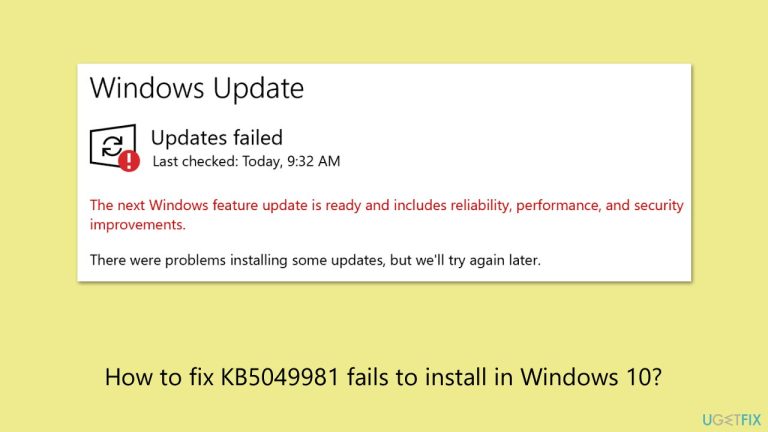
What causes How to fix KB5049981 fails to install in Windows 10?
- Corrupt system files
- Damaged or incomplete update files in the Windows Update cache
- Interference by third-party software such as antivirus or system optimizers
- Insufficient storage space
- Problems with internet connection
Repairs Windows system files, removes malware, and restores a clean OS state — without reinstalling.
I just can't install KB5049981 - I tied numerous times today. Would you be able to help me with this? The installation halts and then the message says that the updates couldn't be installed.
Every Windows update is assigned a KB number, wherein the fixes and changes made to that update are enclosed. KB5049981 is an update for Windows 10 versions 21H2 and 22H2, which was released on January 14, 2025. This update corresponds to OS builds 19044.5371 and 19045.5371.
Despite its significance, some have encountered issues where KB5049981 fails to install. Such failures can leave your system vulnerable or missing out on essential enhancements.
Several factors can cause issues when attempting to install KB5049981. For instance, corrupt system files may prevent the update from being applied successfully. Similarly, damaged or incomplete update files in the Windows Update cache could lead to repeated installation failures.
Other causes may include interference by third-party software such as antivirus or system optimizers, which may block the installation of certain updates or not allow them to install properly. Sometimes, insufficient storage space and problems with your internet connection may interfere with the installation process.
Examples include seeing errors like "Update failed to install" or being stuck at a specific percentage during the installation. These errors may occur repeatedly, frustrating attempts to resolve the problem manually.
Fixing KB5049981 failing to install depends on identifying and addressing the root cause. Solutions can range from clearing the update cache and repairing system files to isolating problematic software through a clean boot. Step-by-step instructions for resolving these issues will follow below.
For an easy process, you can use the [d1] PC repair tool, which automatically diagnoses and fixes Windows-related issues that would help in installing updates with no complications.

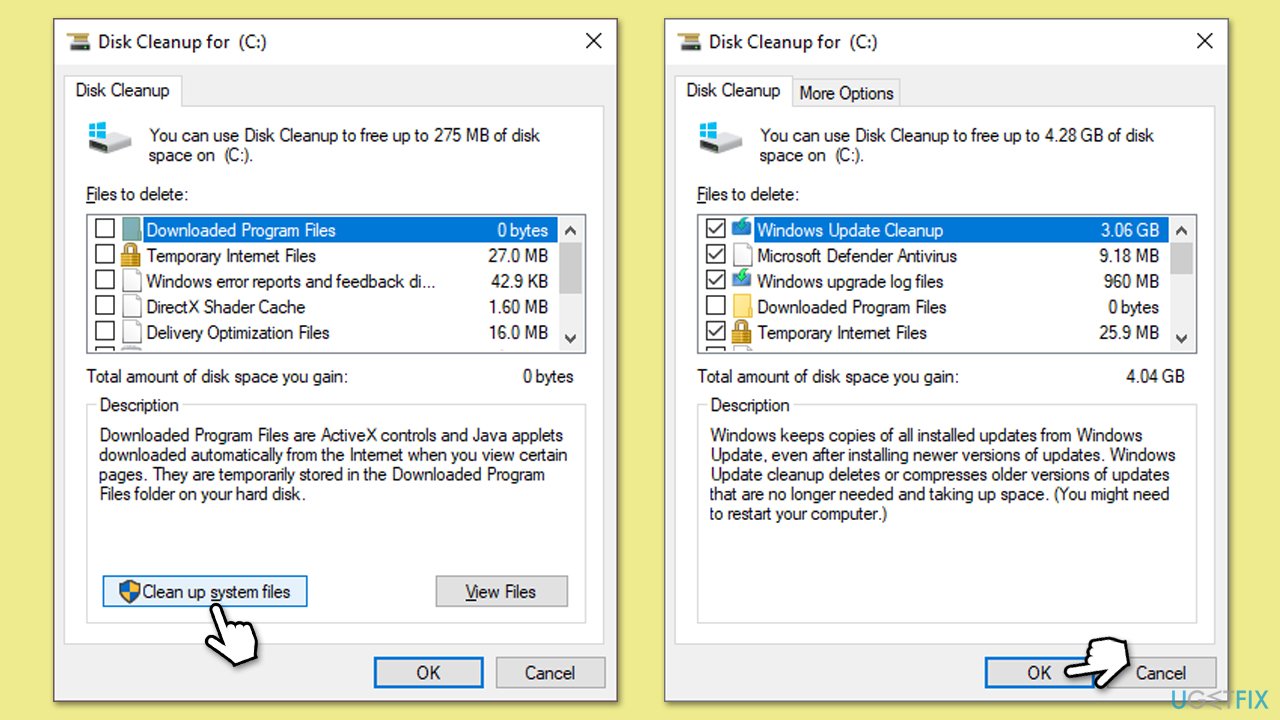
Fix 1. Perform Disk Cleanup
With Disk Cleanup, you can not only ensure that your system has enough space for the update to be installed, but also delete potentially bugged cache items that might be contributing to the issue.
- Type Disk Cleanup in Windows search and hit Enter.
- If your Windows is installed on drive C, pick it from the list (it should be by default) and press OK.
- Click Clean up system files.
- Select your main disk again and click OK.
- Here, select the largest portions of the data used - these typically include Temporary Internet Files, Windows Update, Temporary Files, Recycle Bin, Delivery Optimization Files, and others.
- Click OK - the process should be finished shortly.
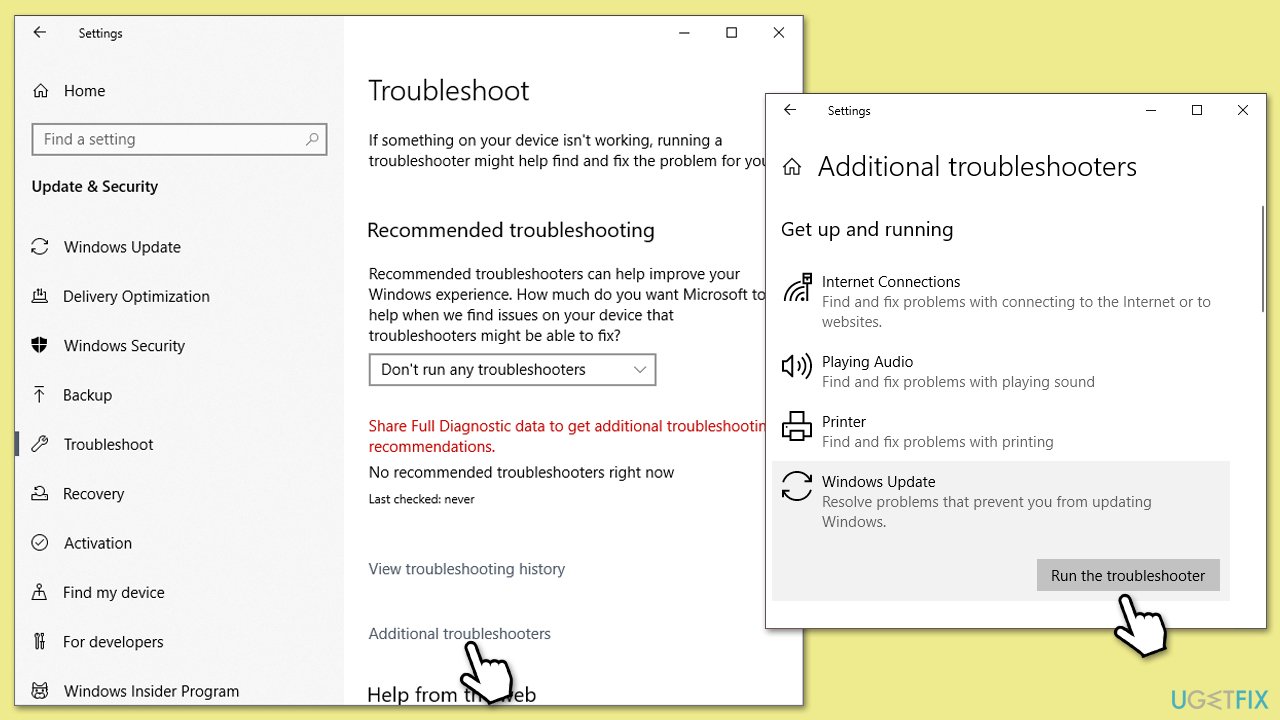
Fix 2. Run Windows update troubleshooter
Troubleshooters are built-in tools that are handy when dealing with some Windows issues, such as update installation problems.
- Type Troubleshoot into the Windows search bar and press Enter.
- Next, on the right side of the window, select Additional troubleshooters.
- Scroll down to locate the Windows update option and click on it.
- Click on Run the troubleshooter and allow the process to complete.
- Once it is finished, implement any recommended fixes and restart your computer.
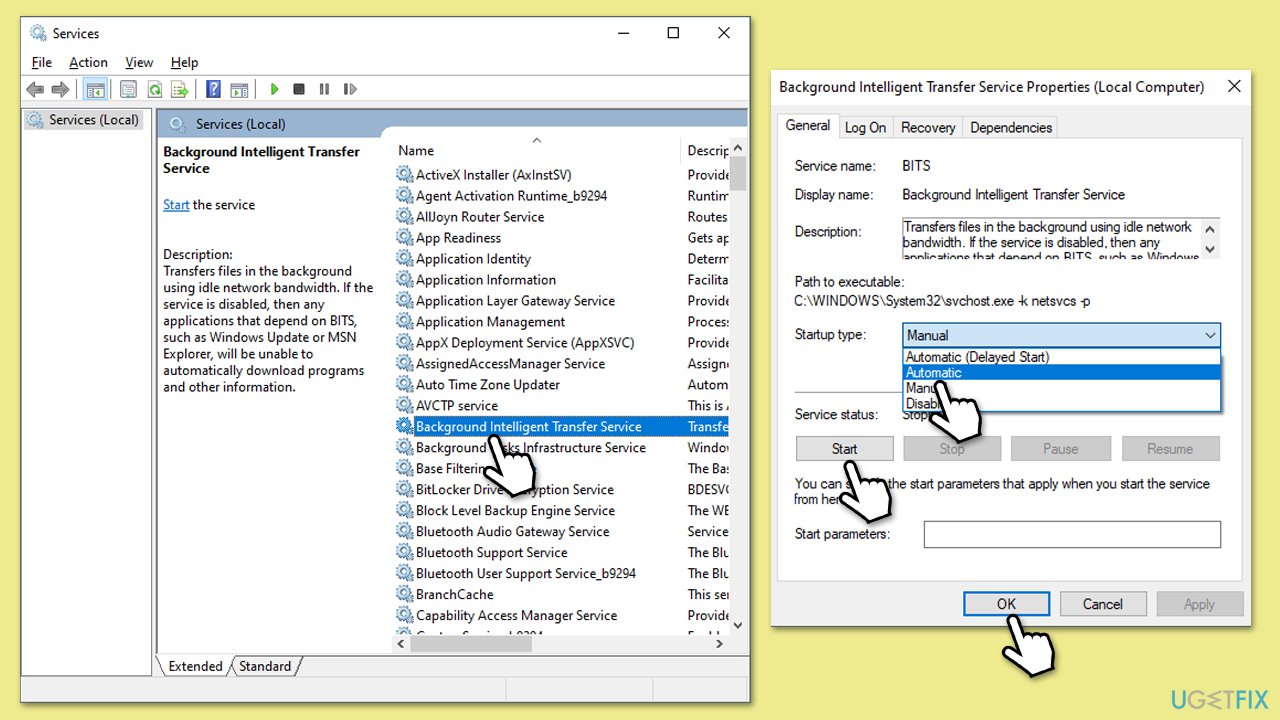
Fix 3. Ensure relevant services are running
For a Windows update to proceed successfully, you need to make sure that certain services are running. If they are already running, you should restart them.
- Press the Win + R, type services.msc, and press Enter.
- Locate the following services:
- Background Intelligent Transfer Service
- Windows Update
- Cryptographic Services
- Right-click each service and select Restart.
- If any service is not running, double-click it to open Properties.
- Under the Startup type, select Automatic from the drop-down menu.
- Click Start, Apply, and OK.
Fix 4. Run SFC and DISM
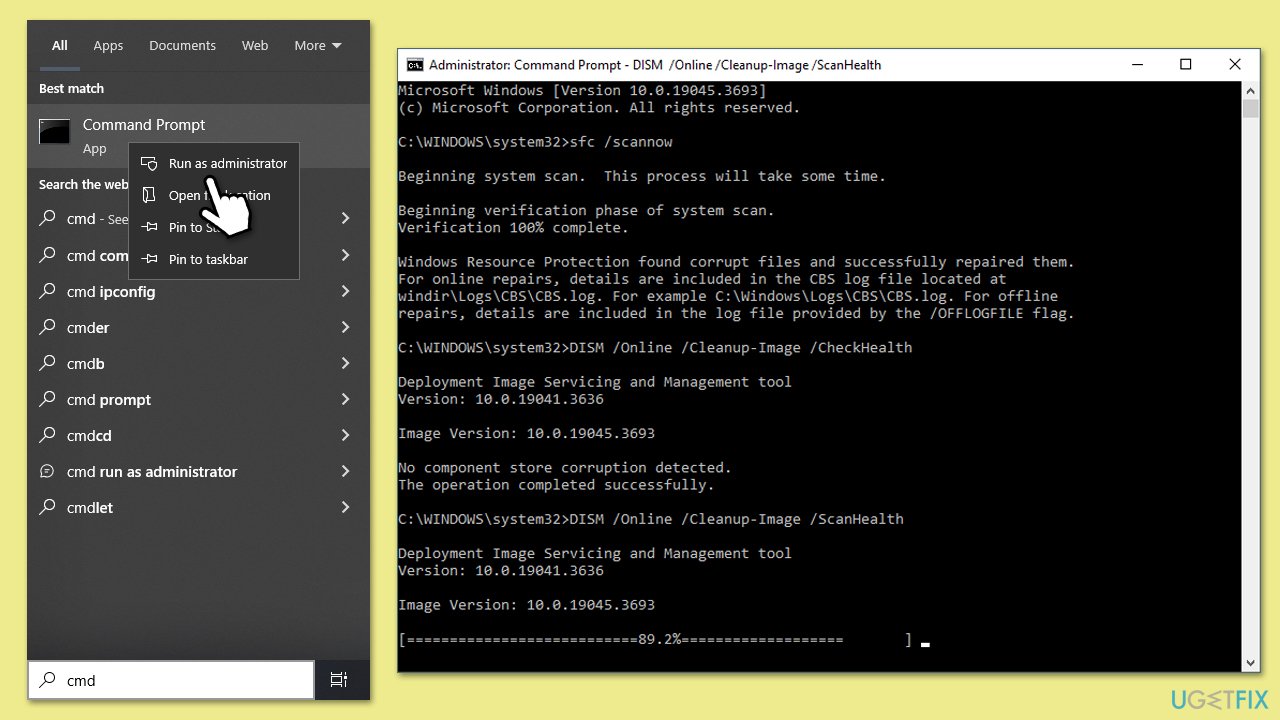
System file corruption is one of the main reasons for things to go wrong on Windows. To remediate this problem, run special commands in Command Prompt.
- Type cmd in Windows search.
- Right-click on Command Prompt and selecy the Run as administrator option.
- When User Account Control shows up - click Yes.
- Then, copy and paste the following command, pressing Enter after:
sfc /scannow - Wait till the scan is finished. If Windows finds system file integrity violations, it will attempt to fix them. After this, use the set of the following commands, pressing Enter each time:
DISM /Online /Cleanup-Image /CheckHealth
DISM /Online /Cleanup-Image /ScanHealth
DISM /Online /Cleanup-Image /RestoreHealth
Note: if you get an error executing this last command, add /Source:C:\RepairSource\Windows /LimitAccess to it and try again. - Close down the Command Prompt and restart your system.
Fix 5. Reset Windows update components
Resetting update components manually can resolve issues caused by corrupted or misconfigured services.
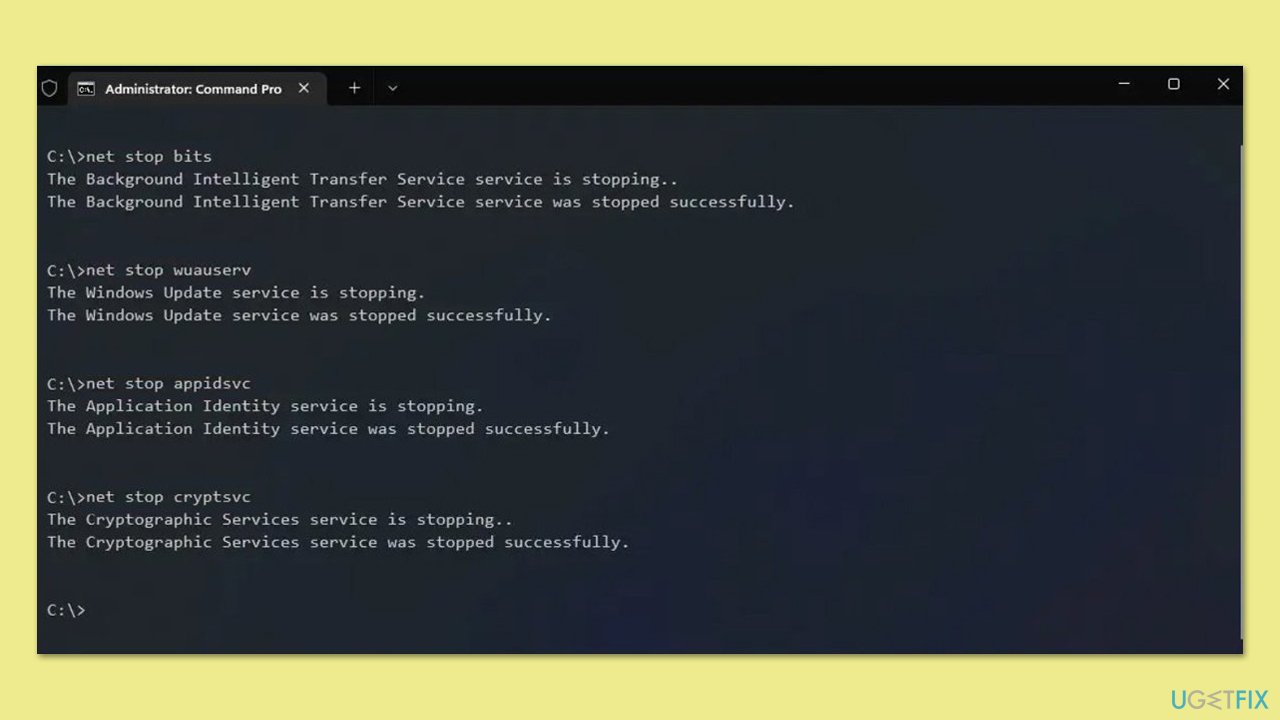
- Open Command Prompt as administrator.
- Stop the BITS, Windows Update, and Cryptographic services by typing the following commands, and pressing Enter after each:
- net stop bits
- net stop wuauserv
- net stop appidsvc
- net stop cryptsvc
- To rename the SoftwareDistribution and Catroot2 folders (where Windows stores update files) and reset your connection components, type the following commands:
- ren %systemroot%\SoftwareDistribution SoftwareDistribution.old
- ren %systemroot%\system32\catroot2 catroot2.old
- regsvr32.exe /s atl.dll
- regsvr32.exe /s urlmon.dll
- regsvr32.exe /s mshtml.dll
- netsh winsock reset
- netsh winsock reset proxy
- Restart the services stopped earlier by typing the following commands:
- net start bits
- net start wuauserv
- net start appidsvc
- net start cryptsvc
- Close the Command Prompt and restart your computer, then try updating Windows again.
Fix 6. Use Media Creation Tool
Media Creation Tool allows you to install updates manually, bypassing issues with the automatic update process.
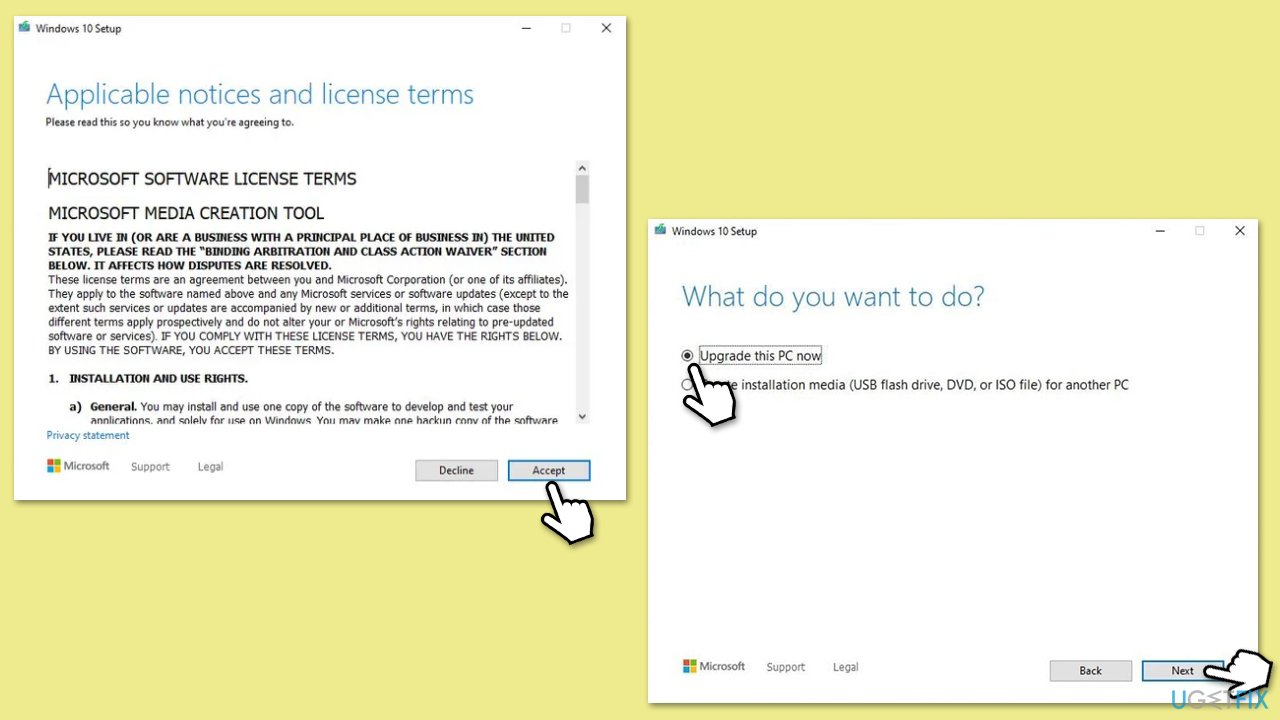
- Visit the official Microsoft website and download Windows 10 installation media.
- Double-click the installer and select Yes when UAC shows up.
- Agree to terms.
- Select Upgrade this PC now and select Next.
- Windows will now download all the necessary files – it might take a while.
- Agree to the terms once again and click Next.
- Before installing, ensure you are happy with your choices (otherwise, you can click the Change what to keep option).
- Click Install to begin the upgrade process.
Related:
Bottom line
To fix the KB5049981 installation failure, you can perform a Disk Cleanup to free up space and remove potentially problematic cache items, repair system files, or isolate problematic software through a clean boot. If these solutions do not resolve the issue, consider using a PC repair tool to automatically diagnose and fix Windows-related issues.
Frequently asked questions
Try running the Windows Update Troubleshooter, which can help identify and fix issues preventing the installation of updates like KB5049981.
Yes, you can manually download the update from the Microsoft Update Catalog and install it, which may bypass the errors encountered during the automatic update process.
You can review the Windows Update log files or check the Event Viewer for specific error codes that provide more details on why KB5049981 failed to install.




Report an issue
What's wrong with this guide? We review every report and update or remove content.
Report received — thank you. We'll review and fix it.
You need a free account to submit a report.
Be the first to comment