How to fix
Ci.dll BSOD error
on Windows
Resolve the ci.dll BSOD error in Windows 10 or 11 effortlessly. Follow our expert-tested solutions and get your system running smoothly again. Fixed in …


What causes How to fix ci.dll BSOD error in Windows?
- Corrupted system files
- Faulty drivers
- Hardware issues
- Corrupted ci.dll or related files
- Outdated or incompatible drivers
Repairs Windows system files, removes malware, and restores a clean OS state — without reinstalling.
For some reason, I've been experiencing ci.dll BSOD crashes for several weeks now. I don't know what caused it or how to prevent it from happening.
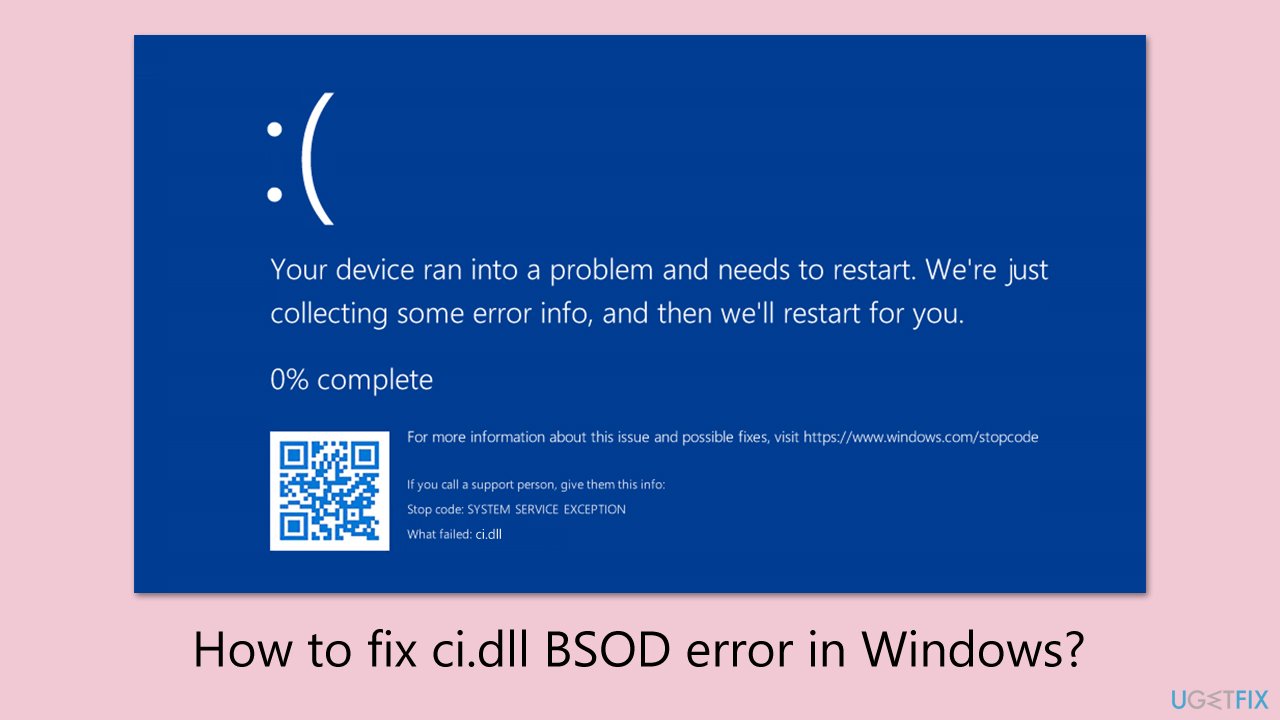
Blue Screen of Death (BSOD) errors are severe system crashes in Windows that trigger a shutdown to prevent damage, typically displaying stop codes like PAGE FAULT IN NONPAGED AREA, CRITICAL_PROCESS_DIED, or WHEA_UNCORRECTABLE_ERROR. BSODs are occasioned by corrupt system files, driver failure, or hardware malfunction, shutting down normal use and requiring immediate attention. Ci.dll BSOD specifically points to problems within the Code Integrity module.
Ci.dll is part of Microsoft Code Integrity which verifies whether drivers and critical system files are tamper-proof or corruption-free. Ci.dll executes at boot time as well as system processes, but a failure may result in BSODs, especially under memory-intensive usage like gaming or web browsing. This occurs when ci.dll encounters corrupted files, driver issues, or hardware failures, whose outcome could range from instability to data loss if not corrected.
Several factors can cause a ci.dll BSOD, each with a solution:
- Corrupted system files. Damage to ci.dll or related files can fail integrity checks, triggering a BSOD. Running SFC and DISM scans repairs these files.
- Faulty drivers. Outdated or incompatible drivers can conflict with ci.dll’s verification, causing crashes. Updating drivers resolves this.
- Hardware issues. Faulty RAM or storage can corrupt data ci.dll relies on, leading to errors. Testing and replacing defective components helps.
The instructions below provide eight fixes to fix the ci.dll BSOD error. For a faster solution, we recommend using [d1], a PC repair tool that can automatically fix system file issues, driver conflicts, and hardware-related problems causing the ci.dll BSOD.
Fix 1. Check for recent driver updates
For a quicker way to install the newest drivers, you can rely on automatic tools such as [rev id="DriverFix"].
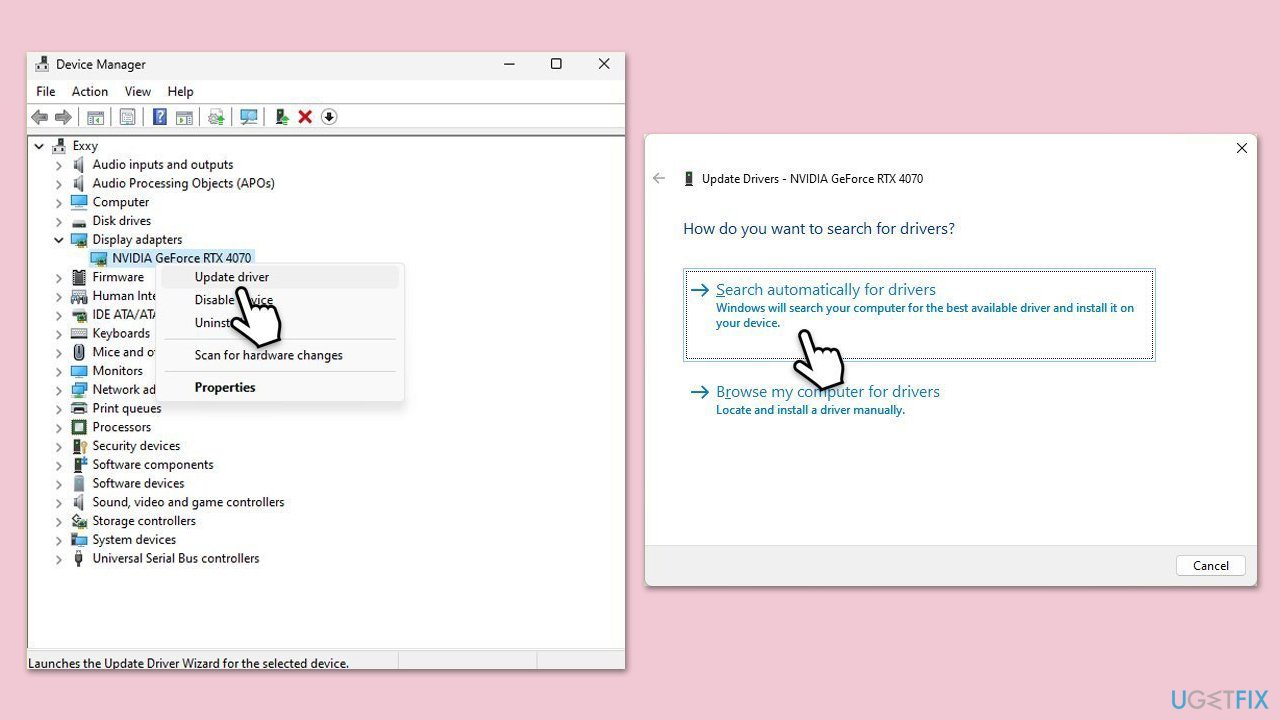
- Press Win + X and select Device Manager.
- Look for devices with a yellow triangle icon indicating issues.
- Right-click each device and select Update driver.
- Choose Search automatically for drivers and follow the prompts.
- Restart your computer after updating all drivers.
Fix 2. Run SFC and DISM scans
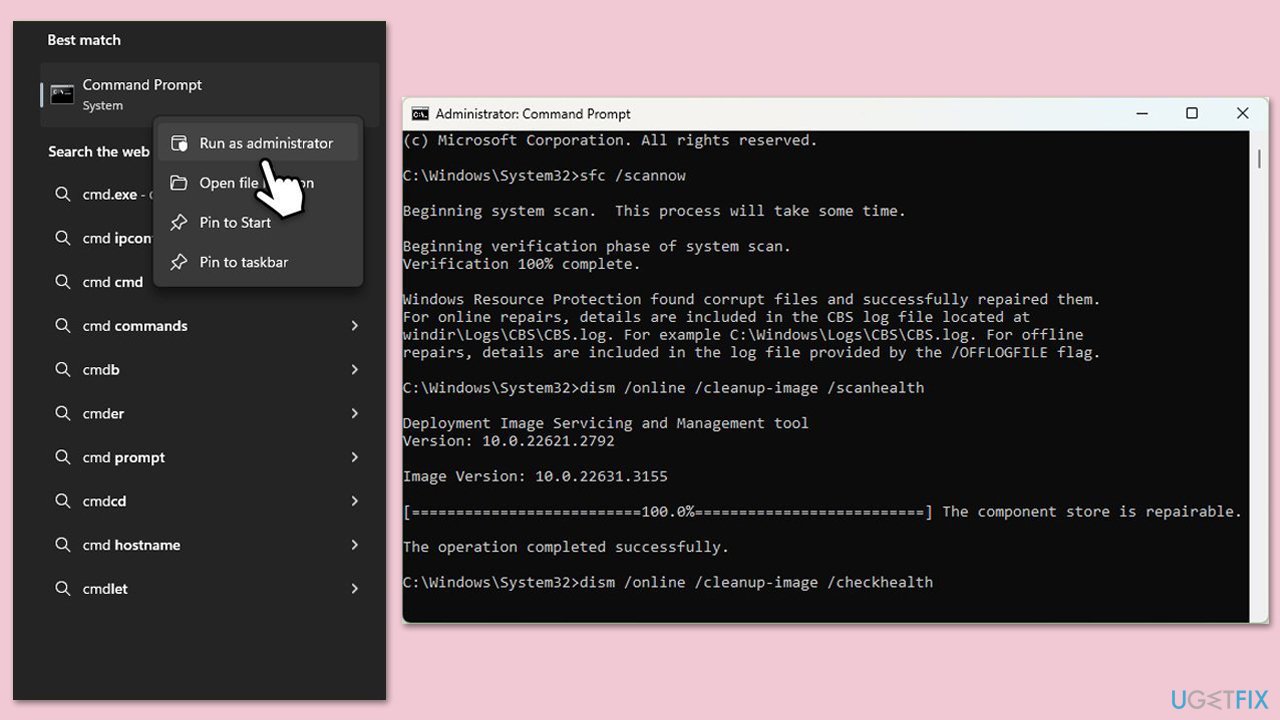
- Type cmd in Windows search.
- Right-click on Command Prompt and pick Run as administrator.
- User Account Control window will show up - click Yes when prompted.
- Then, copy and paste the following command, pressing Enter after:
sfc /scannow - Wait till the scan is finished. If Windows finds system file integrity violations, it will attempt to fix them. After this, use the set of the following commands, pressing Enter each time:
DISM /Online /Cleanup-Image /CheckHealth
DISM /Online /Cleanup-Image /ScanHealth
DISM /Online /Cleanup-Image /RestoreHealth
(Note: if you get an error executing this last command, add /Source:C:\RepairSource\Windows /LimitAccess to it and try again). - Close down the Command Prompt and restart your computer.
Fix 3. Re-register the DLL file
- Open Command Prompt as administrator.
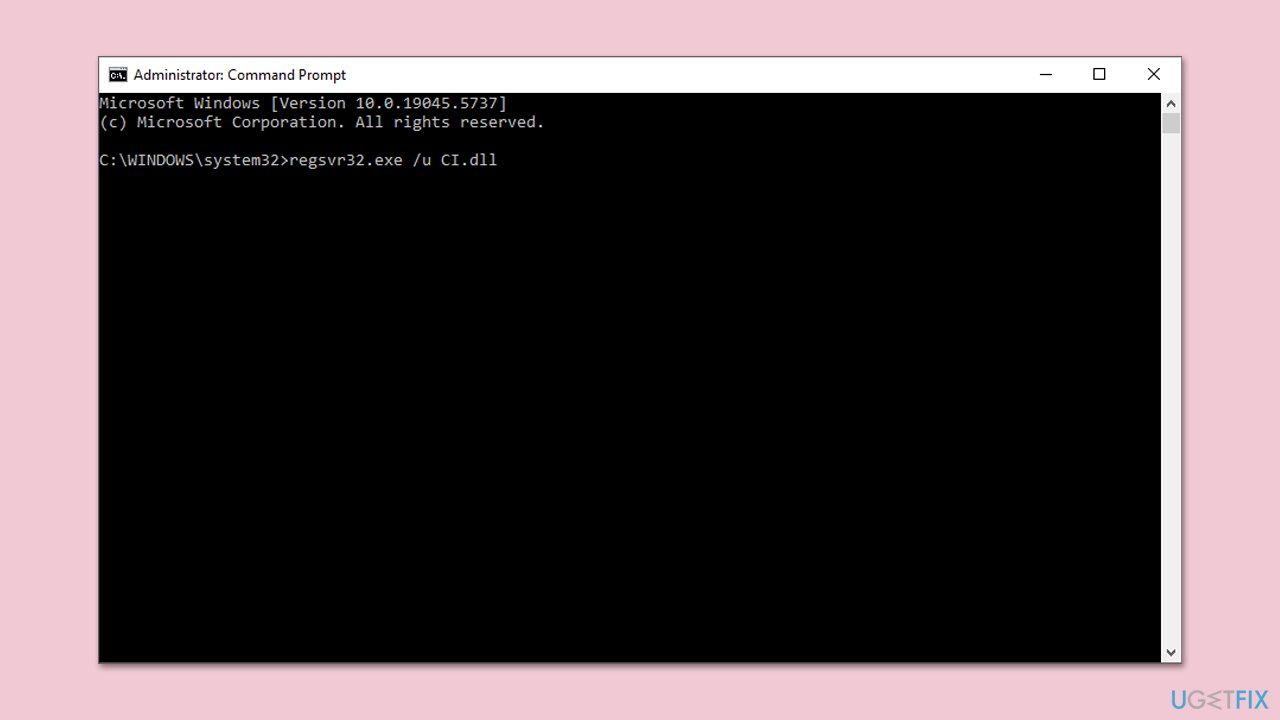
- In the prompt, type in the following command and press Enter:
Type regsvr32.exe /u CI.dll
Type regsvr32.exe CI.dll - Restart your system to apply the changes.
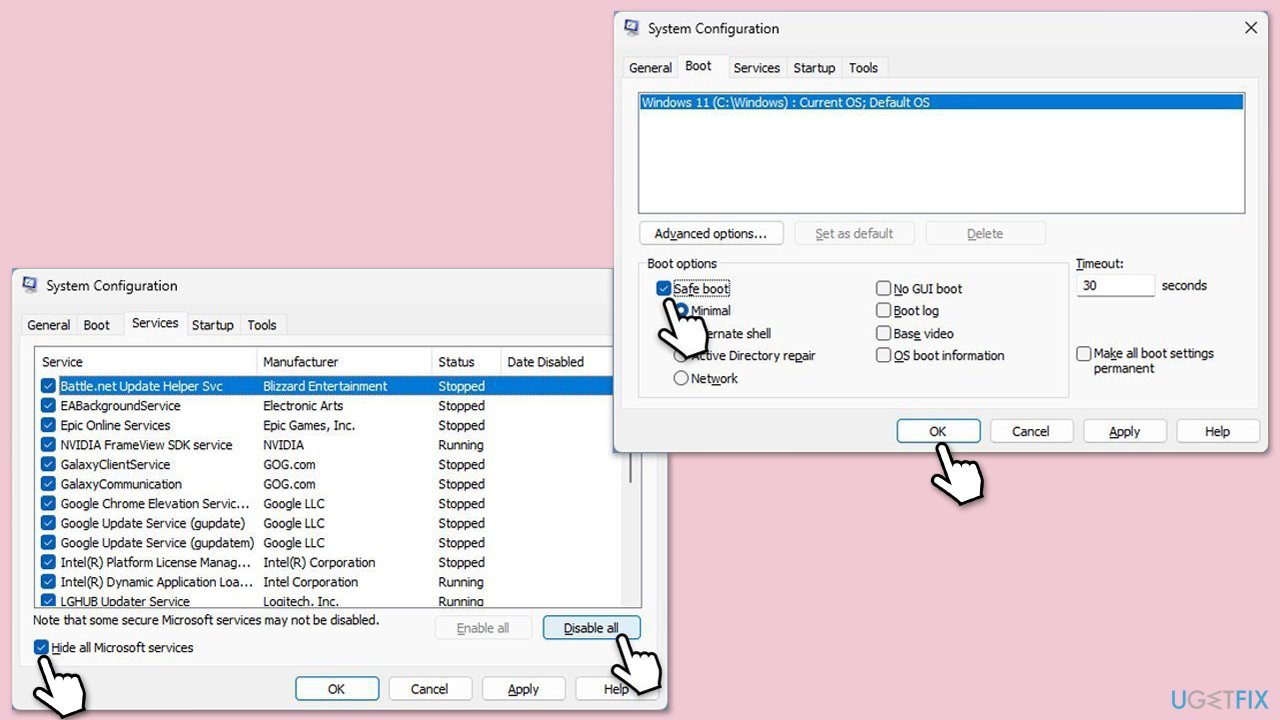
Fix 4. Perform a Clean Boot
- Type msconfig in Windows search and press Enter.
- Go to the Services tab.
- Mark Hide all Microsoft services and select Disable all.
- Go to the Startup tab and click Open Task Manager.
- In the Task Manager, right-click on each of the items and select Disable, then close the Task Manager.
- Go to the Boot tab, tick Safe Boot, then click Apply and OK.
- If the problem is gone, re-enable services and startup items one by one (or in groups) to identify the problematic software.
- You can then update or uninstall software causing the game fail to start.
Fix 5. Test RAM for issues
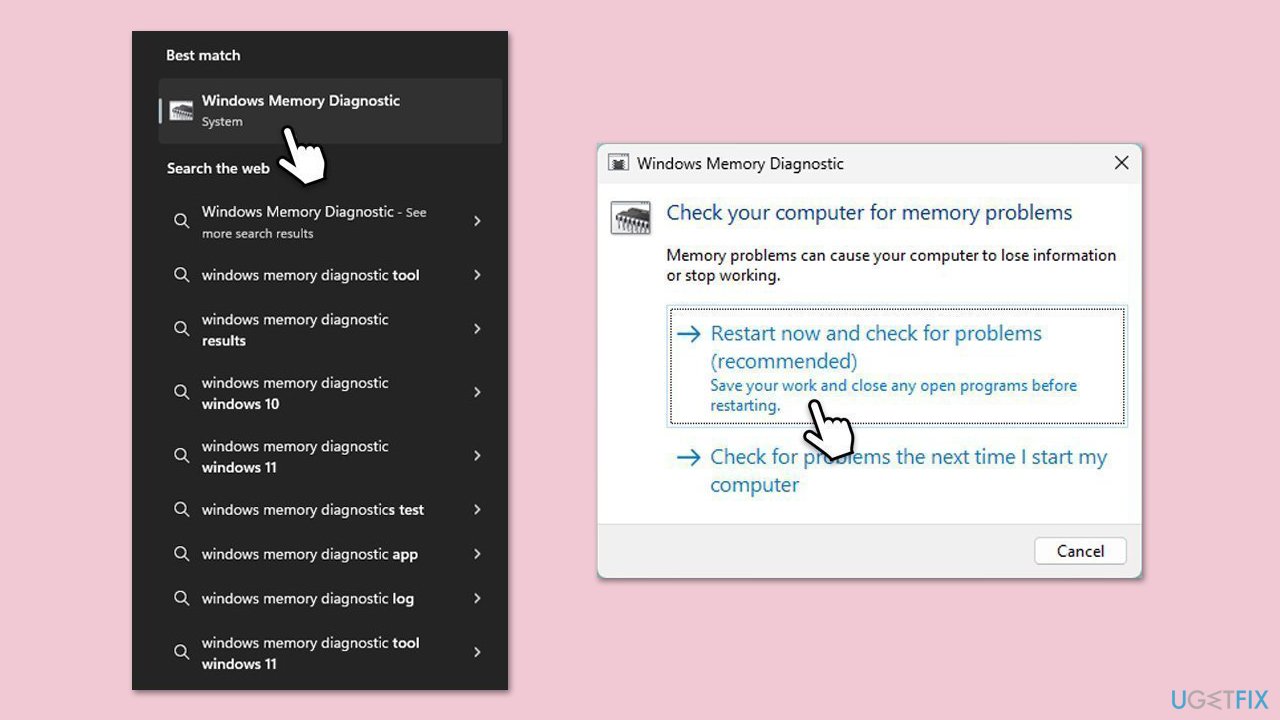
- Press Win + S and type Windows Memory Diagnostic.
- Click the first result and select Restart now and check for problems.
- Let the system reboot and run the diagnostic test.
- After rebooting, check results in Event Viewer under Windows Logs > System.
- Replace any faulty RAM modules if errors are detected.
Fix 6. Check disk for errors
- Open Command Prompt as administrator.
- When User Account Control shows up, click Yes.
- In the new window, type in the following command and press Enter after:
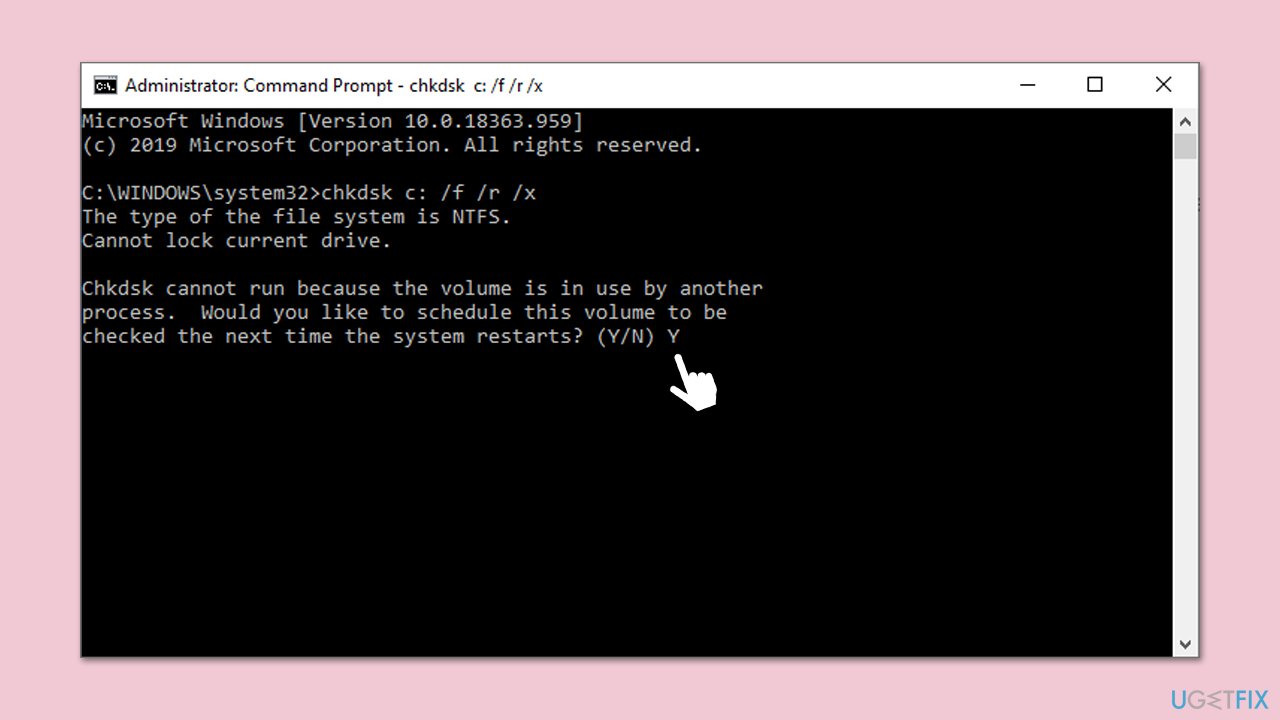
chkdsk c: /f
(Note: use chkdsk c: /f /r /x command if you are using SSD as your primary partition) - If you receive an error, type in Y, close down Command Prompt and restart your device.
- Wait until the scan is finished - you can find the results in the Event Viewer.
Fix 7. Use Driver Verifier
Driver Verifier can detect drivers conflicting with ci.dll, helping identify the cause of BSODs like PAGE FAULT IN NONPAGED AREA.
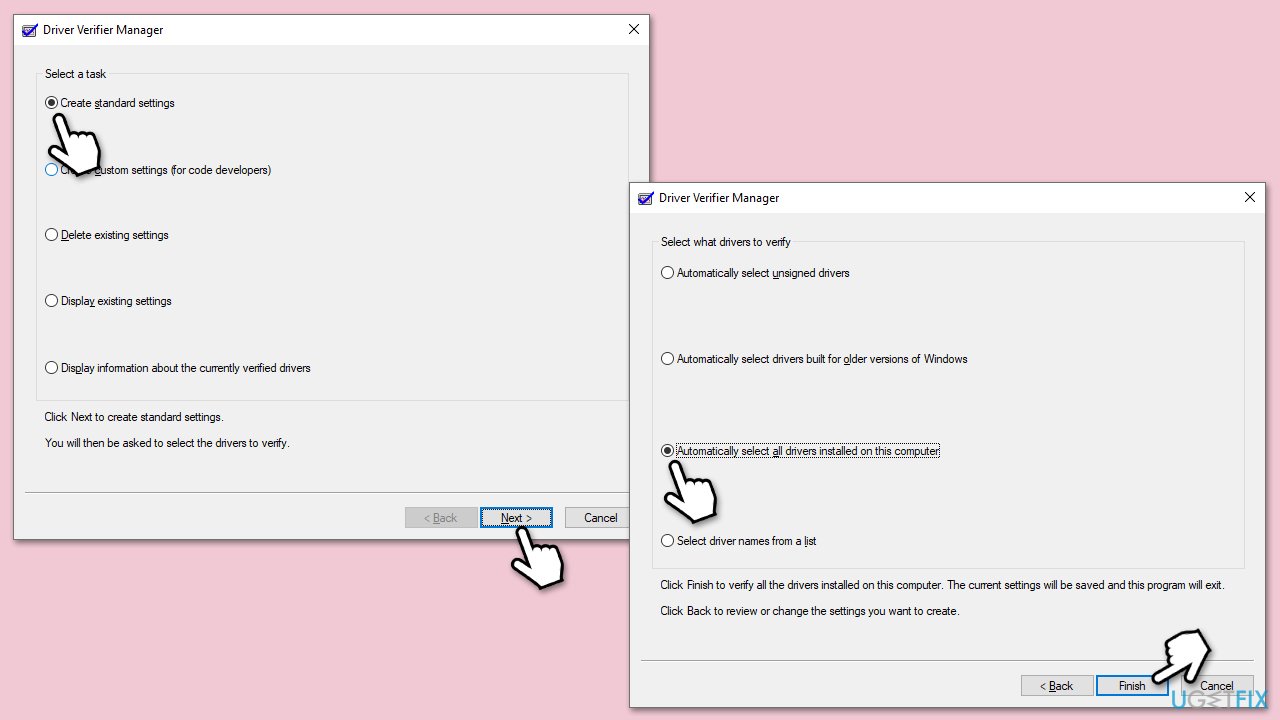
- Press Win + S and type verifier.
- Click Create standard settings and click Next.
- Select Automatically select all drivers installed on this computer and click Finish.
- Restart your computer to let Driver Verifier run (BSODs may occur if a driver is faulty).
- After reboot, press Win + X, select Event Viewer, and check Windows Logs > System for driver issues, then update or remove the problematic driver.
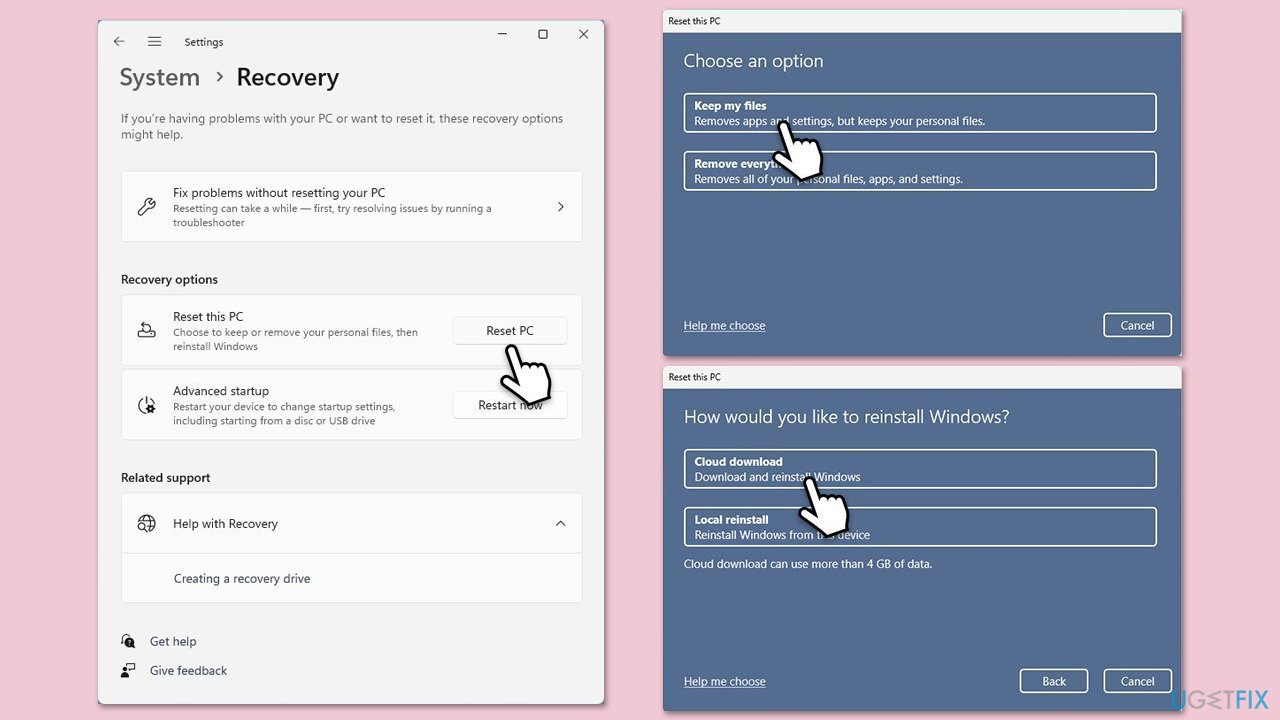
Fix 8. Reset Windows
Persistent ci.dll BSODs may require a system reset to restore stability.
- Right-click on Start and pick Settings.
- Go to Accounts then Family/Family & other users.
- Under Other users, click Add account/Add someone else to this PC.
- Follow the prompts to create a new user account. If you don't have Microsoft account details, you can choose I don't have this person's sign-in information followed by Add a user without a Microsoft account.
- Assign a username and password for the new account and complete the setup.
- Then go back to the Accounts section. Under Family/Family & other users, select the newly created account and click Change account type.
- Under Account type, pick Administrator and click OK.
Bottom line
To fix the ci.dll BSOD error, you can run SFC and DISM scans to repair corrupted system files, update outdated drivers, and test or replace faulty hardware components. If these solutions do not resolve the issue, consider using a PC repair tool to automatically fix system file issues, driver conflicts, and hardware-related problems.
Frequently asked questions
The ci.dll BSOD error is typically caused by corrupted system files, outdated drivers, or issues with installed software. It can also occur due to hardware malfunctions or conflicts during the boot process.
To repair ci.dll issues on Windows 11, you can run the System File Checker (SFC) tool by opening Command Prompt as an administrator and typing 'sfc /scannow'. Additionally, performing a DISM scan can help restore system health.
Yes, updating drivers is a safe and effective method to resolve the ci.dll BSOD error on Windows 10, as it can fix compatibility issues and enhance system stability.




Report an issue
What's wrong with this guide? We review every report and update or remove content.
Report received — thank you. We'll review and fix it.
You need a free account to submit a report.
Be the first to comment