How to fix
Windows Store Error Code 0x80072EFF
on Windows
Resolve Windows Store Error Code 0x80072EFF effortlessly with our expert solutions. Get back to seamless downloads in minutes, zero traces left.


What causes How to Fix Windows Store Error Code 0x80072EFF?
- Windows Store cache corruption
- Local cache issues
- Problems with Windows Store registration
- Installation issues from Windows 10 Fall Creators Update
- Network connectivity problems
Repairs Windows system files, removes malware, and restores a clean OS state — without reinstalling.
Hi. I’ve installed the latest build of Windows 10. Everything went fine except that I cannot use Store since then. Right after the update I decide to try Facebook Beta App and tried to open Store to get it. However, when I try to open it, I get an error code 0x80072EFF. Please help!
Error code 0x80072EFF is not the most common Windows Store error currently circulating on the Internet, but it has already stroked a couple of thousands of Windows 10 users. According to people’s reports, the problem starts soon after the installation of Windows 10 Fall Creators Update.[ref en-1]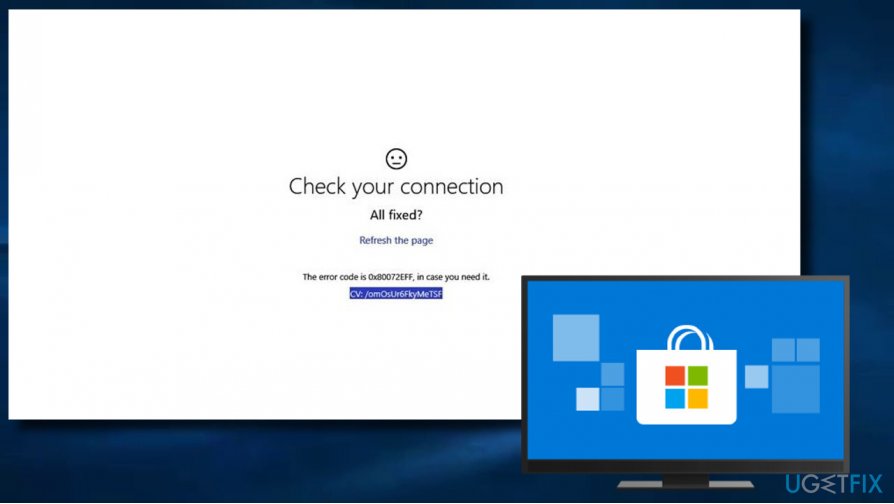
This error prevents Windows Store users from downloading/updating apps[ref en-2] and updates. Although the error 0x80072EFF does not influence PC’s performance in general, it’s actually an irritating problem as people may face difficulties in getting needed apps.
The error message itself is non-informative. It simply states that “Something went wrong” and recommends trying to perform the task later. At the end, the message provides an error code 0x80072EFF, which should supposedly help people to get more information . Unfortunately, but searching for the error code does not return much results.[ref en-3]
If you are stuck with the Error Code 0x80072EFF on Windows Store, we have prepared a couple of methods that should help to resolve the problem:
Method 1. Reset Windows Store Cache
1. Press Windows key + S and type wsreset.exe into the search bar.
2. Right-click on the wsreset.exe search result and select Run as administrator.
3. Once the command is executed, the black Command Prompt window followed by Windows Store window should occur.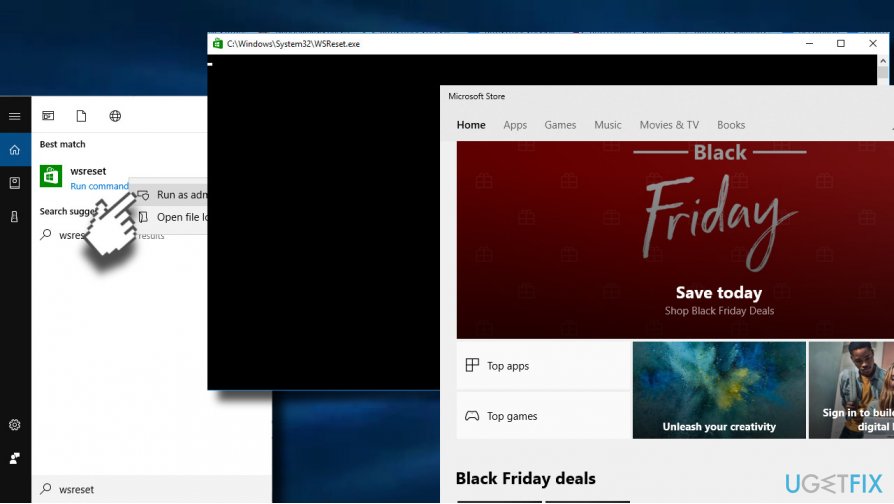
Method 2. Remove Local Cache
1. Press Windows key + R to open run.
2. Copy %localappdata%\\\\Packages\\\\Microsoft.WindowsStore_8wekyb3d8bbwe\\\\LocalState command and paste it in the run.
3. Click OK to open the directory.
4. Find the Cache folder and right-click on it and delete all the files and folders inside it.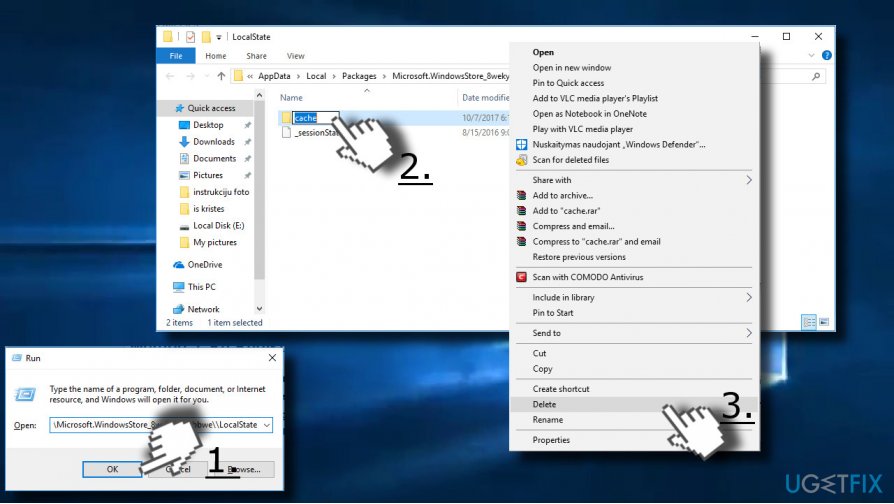
Method 3. Re-Register Windows Store
1. Open Search and type PowerShell.
2. Right-click on the PowerShell entry and select Run as administrator.
3. Copy and paste the following command:
Get-AppXPackage -AllUsers | Foreach {Add-AppxPackage -DisableDevelopmentMode -Register “$($_.InstallLocation)AppXManifest.xml”}
4. Press Enter to execute it and wait for the process to be finished.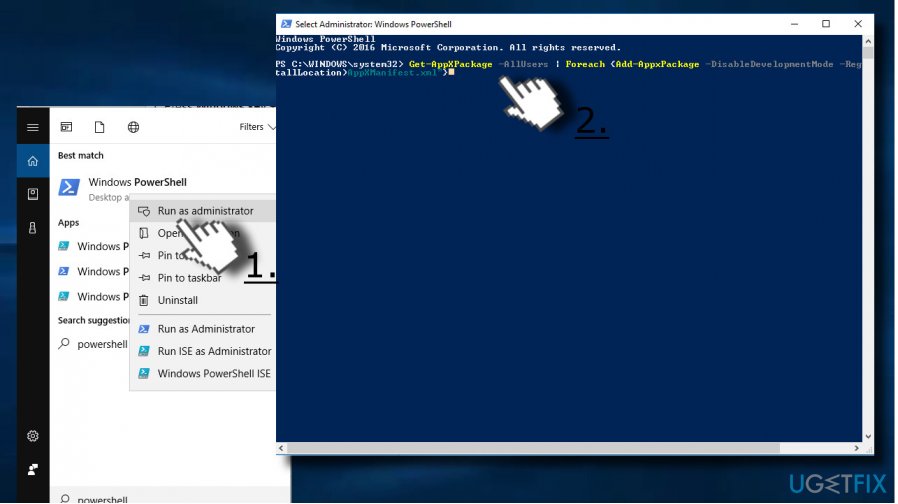
Method 4. Change Internet Options
1. Press Windows key + S and type Control Panel.
2. Click on the Control Panel option and open Internet Options.
3. Open Advanced tab and scroll down until you see the following options:
Use SSL 2.0
Use SSL 3.0
Use TSL 1.0
Use TSL 1.1
Use TSL 1.2
4. Check these options and click OK button.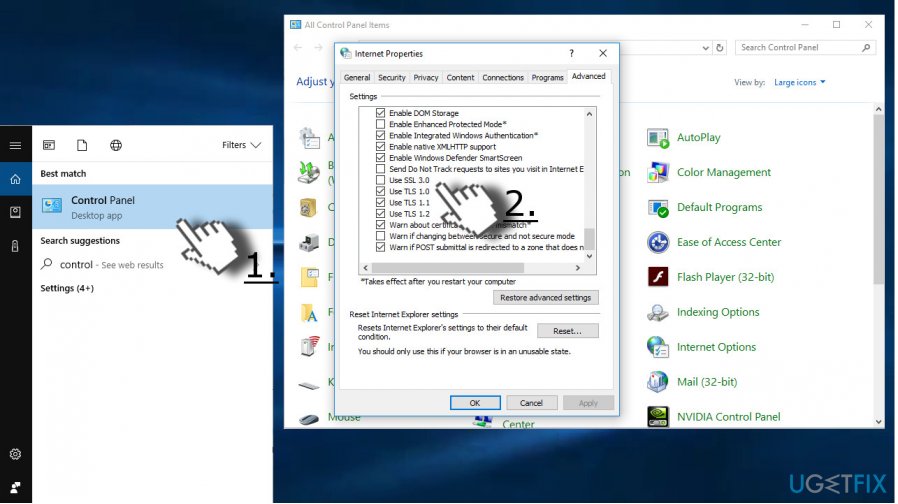
If neither of the above given methods helped to fix Windows Store error code 0x80072EFF, you may try to use a System Restore Point or reinstall Windows Store app.
PRO TIP: Windows Store may also fail to function due to malware infection or corrupted system files. Therefore, we would highly recommend scanning the system with a professional anti-malware and PC optimization tool. Our recommendation is [d1]. Originally it's an optimization utility, but it has an in-built Avira-Antivir engine.
Bottom line
To resolve the Error Code 0x80072EFF, you can try resetting the Windows Store cache, removing the local cache, or re-registering the Windows Store. If these methods do not work, consider seeking further assistance or checking for additional updates.
Frequently asked questions
The error code 0x80072EFF typically occurs due to network connectivity issues, corrupted Windows Store cache, or incorrect system date and time settings.
You can reset the Microsoft Store by pressing Win + R, typing 'wsreset.exe', and hitting Enter, which clears the cache and may resolve the error.
Yes, you can check your internet connection by opening the Settings app, navigating to 'Network & Internet', and verifying that you are connected to a network.




Report an issue
What's wrong with this guide? We review every report and update or remove content.
Report received — thank you. We'll review and fix it.
You need a free account to submit a report.
Be the first to comment