
[Fix] An error occurred while loading the troubleshooter when using "Diagnose This Connection" or "Validate"

Prefer to fix it yourself? The manual steps follow.
3 methods in this guide
Hello. When I try to use the troubleshooter for network connections and press "Diagnose This Connection" or "Validate" it does not work and I get an error. What can I do to fix this?
Recently, some users ran into issues when trying to run a troubleshooter in the Network and Sharing Center. On the "Network Connections" page users report clicking on "Diagnose This Connection" or "Validate" and receiving an 0x80004005 error. The full message reads as follows.
An error occurred while loading the troubleshooter:
An unexpected error has occurred. The troubleshooting wizard can't continue.
The issue occurs on Windows 10 and Windows 11. It turns out that the culprits of the issue are Windows updates. On Windows 10, users say they received the error after installing the KB5014699 and KB5014697 updates, and on Windows 11 - KB5014668 and KB5014697 are suspected to cause the troubleshooter problem. This is not the first time that Windows updates cause issues. Back in 2021, we wrote about the network printing error 0x0000011b.
In this guide, you will find 3 methods that could help you fix the error that occurs while loading the troubleshooter when using "Diagnose This Connection" or "Validate". It can fix various system errors, BSODs, corrupted files, and registry issues. Otherwise, follow the instructions below.
Solution 1. Uninstall Windows Updates
Windows 10:
- Open Settings and click on Update & security
- Choose Windows Update and press on the Update History link
- Click the Uninstall updates button
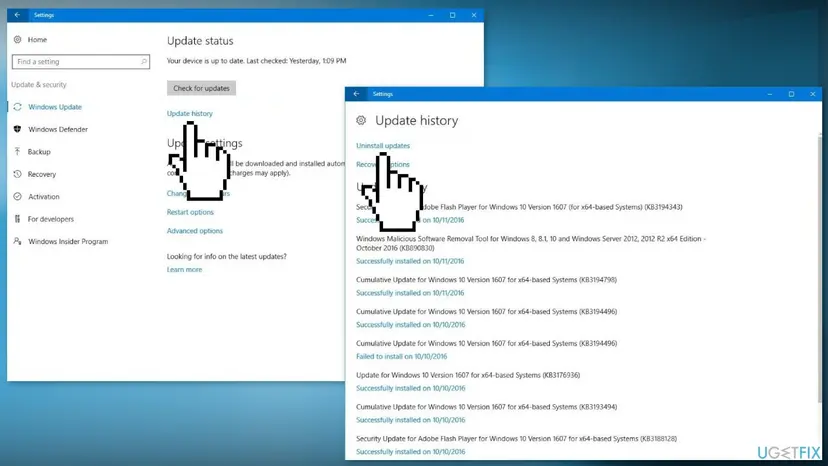
- Select the KB5014699 and/or KB5014697 update and click the Uninstall button
- Click Yes to confirm
- Click Restart Now to reboot your computer
Windows 11:
- In Settings, from the left sidebar, select Windows Update
- On the Windows Update page, click Update History
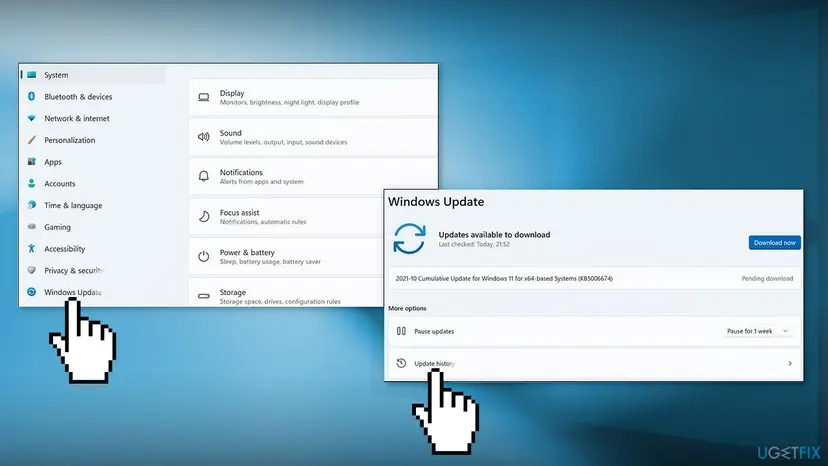
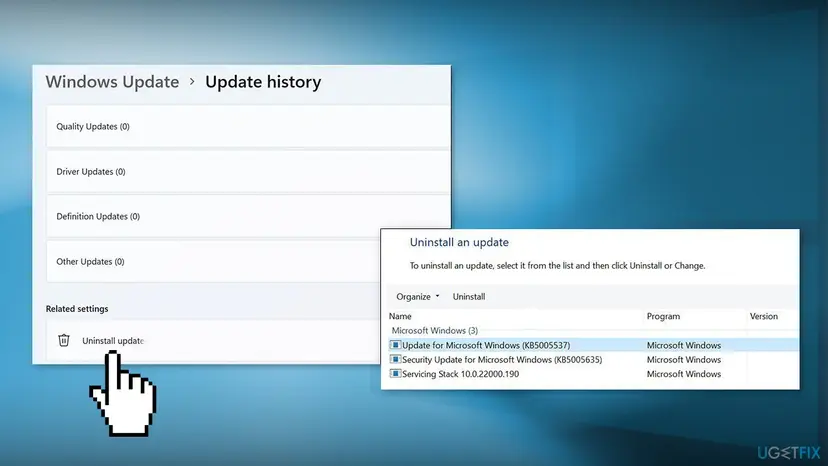
- From the Related Settings section, choose Uninstall Updates
- Select KB5014668 and/or KB5014697 in the list and then click Uninstall
- Click Yes in the prompt to continue
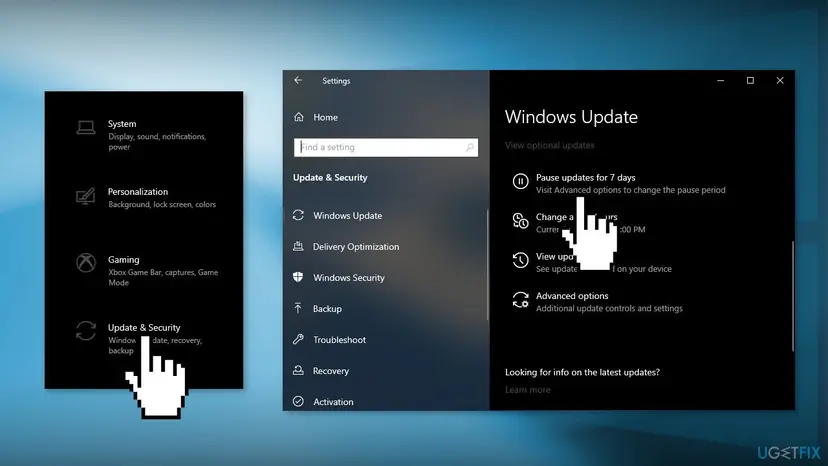
You can also pause the updates to prevent them from installing automatically Microsoft fixes the issue:
- Go to Settings and choose Update and Security
- Make sure you are in Windows Update section
- Next to Pause updates, select the pause length you prefer
Solution 2. Use the Restore Point
The process of this step is the same in Windows 11 and Windows 10. Keep in mind that restoring the system to a previous point may result in a loss of applications if you installed any in that time period.
- Go to the Start menu, type
restore, and click on Create a restore point - Click System Restore, then follow the prompts until you can select a restore point
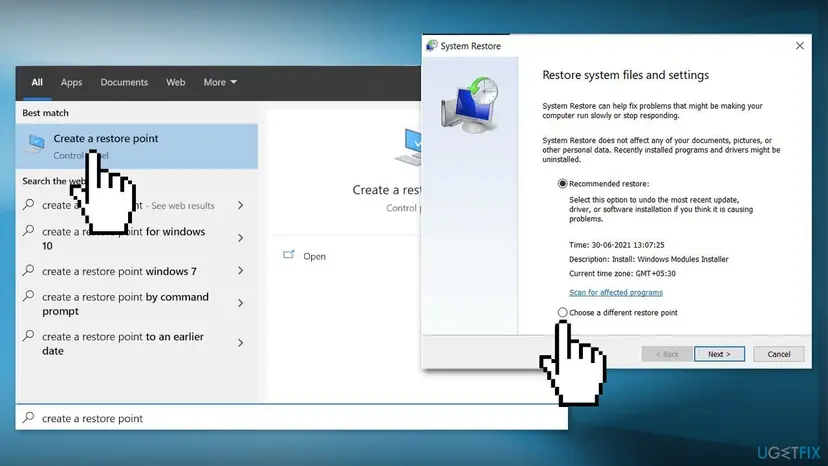
- Select the one you want (ideally before the troubleshooter error occured) and go ahead with the process
Solution 3. Reset Windows
- Launch Windows Settings and choose Update & Security from the list of options available
- Select Recovery from the left pane and hit the Get Started under Reset this PC
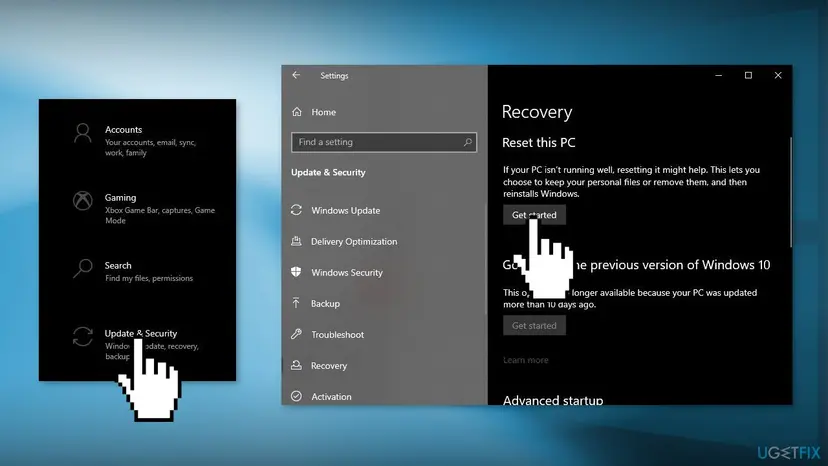
- Select Keep my files
- Follow the on-screen instructions to proceed and wait for your PC to reset
- Once the process is completed, check if the TPM Provisioning service is working
Did this fix work?
One click, no account. It tells the next reader which guides are worth their time.
Questions and experiences: [Fix] An error occurred while loading the troubleshooter when using "Diagnose This Connection" or "Validate"
Still broken, or found a fix we did not cover? Ask here: members and our editors answer. Reading is open; writing needs a free account.
…